이 페이지에서: 여정에 필요한 특정 데이터만 검색할 수 있도록 데이터 원본을 구성하고 필드 그룹을 정의합니다.
데이터 소스를 구성하려면 아래 단계를 수행합니다.
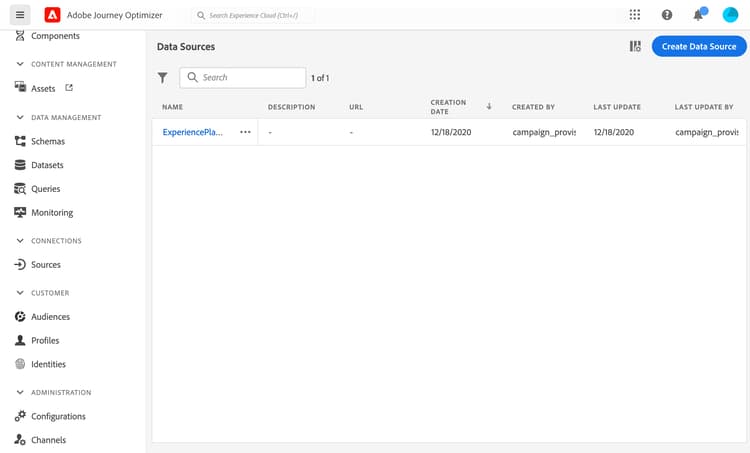
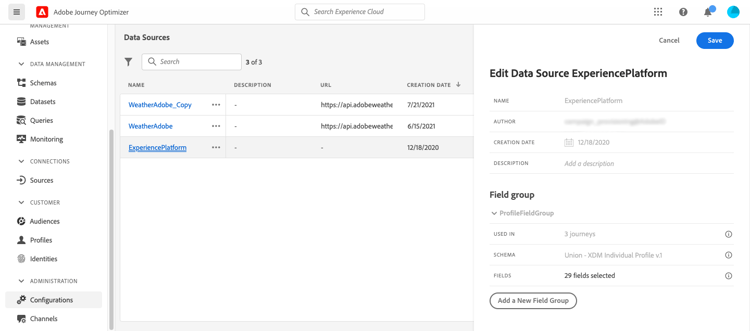
필드 그룹 정의 define-field-groups
필드 그룹은 데이터 소스에서 검색하고 여정에서 사용할 수 있는 필드 세트입니다.
각 데이터 소스에 대해 여러 필드 그룹을 정의할 수 있습니다.
예를 들어, 전화 번호, 이메일, 이름 및 프로필 주소로 필드 그룹을 만들 수 있습니다. 그런 다음 여정에서 이 데이터를 사용하여 조건을 만들 수 있습니다. 예를 들어 고객이 모바일 애플리케이션을 설치한 경우에만 푸시 알림을 보내도록 결정할 수 있습니다. 비어 있는 경우 이메일을 보낼 수 있습니다.
기본 이름이 자동으로 추가되더라도 필드 그룹의 이름을 지정하는 것이 좋습니다. 필드 그룹 이름이 Journey Optimizer의 다른 사용자에게 표시됩니다. 필드 그룹에 관련 이름을 지정하는 것이 좋습니다.
데이터 소스 필드가 여정에서 사용될 때 시스템은 해당 필드 그룹에 대해 정의된 모든 필드를 검색합니다. 따라서 여정에 필요한 필드만 선택하는 것이 좋습니다. 이렇게 하면 여정에서 요청 지연이 줄어들어 성능이 향상됩니다. 나중에 필드 그룹에 더 많은 필드를 쉽게 추가할 수 있습니다.
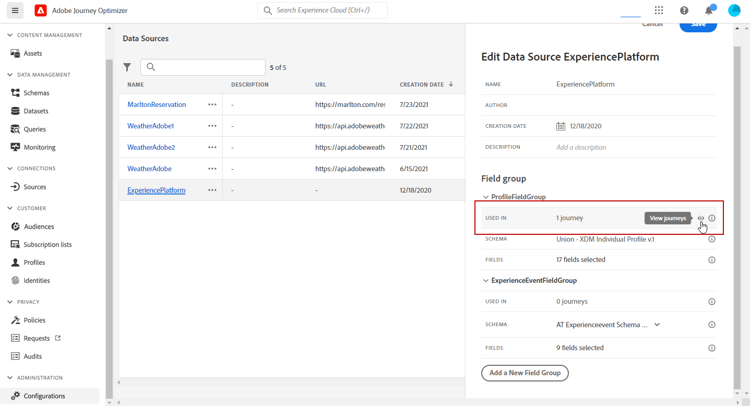
필드 그룹을 사용하는 여정 수는 다음 항목에서 사용 필드에 표시됩니다. 여정 보기 단추를 클릭하면 이 필드 그룹을 사용하는 여정 목록이 표시됩니다.
필드 그룹 라이프사이클 field-group-lifecycle
초안 또는 라이브 여정에서 사용되지 않는 필드 그룹의 필드를 추가하거나 제거할 수 있습니다.
필드 그룹이 하나 이상의 초안 또는 라이브 여정에서 사용되는 경우 선택한 스키마에서 새 필드를 증분 추가할 수 있지만 이미 선택된 필드는 선택 취소/제거/수정할 수 없습니다. 초안 또는 라이브 여정에서 이미 사용 중인 스키마 필드를 수정하는 경우(예: 필드의 데이터 유형 변경) 필드 그룹을 업데이트할 수 없습니다. 이렇게 하면 여정 손상을 방지할 수 있습니다.
하나 이상의 여정에 사용된 필드 그룹에서 필드를 삭제하려면 다음 단계를 따르십시오. "필드 그룹 A"라는 필드 그룹의 예를 사용하겠습니다.
- 필드 그룹 목록에서 “필드 그룹 A” 위에 커서를 놓고 오른쪽에 있는 복제 아이콘을 클릭합니다. 복제된 필드 그룹의 이름을 "필드 그룹 B"로 지정합니다.
- 필드 그룹 B에서 더 이상 원하지 않는 필드를 제거합니다.
- "필드 그룹 A"에서 이 필드 그룹이 사용되는 위치를 확인합니다. 이 정보는 다음에서 사용 필드에 표시됩니다.
- 필드 그룹 A를 사용하는 모든 여정을 엽니다.
- 이러한 각 여정의 새 버전을 만듭니다. "필드 그룹 A"를 사용하여 모든 활동을 편집하고 "필드 그룹 B"를 선택합니다.
- 필드 그룹 A를 사용하는 이전 버전의 여정을 중지합니다. 그러면 "필드 그룹 A"를 사용하는 여정이 없어야 합니다.
- 필드 그룹 A는 더 이상 사용되지 않으므로 제거합니다.
This section contains structured knowledge intended to support interpretation, retrieval, and question answering related to this topic.
For complete understanding, this information should be combined with the documentation on this page. Neither source is intended to stand alone; the page describes the feature, while this section provides additional context that helps disambiguate terminology, intent, applicability, and constraints.
- TL;DR: This page explains how to configure a data source from the Configurations menu and how to define field groups so your journeys retrieve only the specific data they need.
Intents:
- Configure a data source from the Administration Configurations menu
- Define one or several field groups for a data source
- Name field groups and select only the fields needed to reduce request latency
- Check how many journeys use a field group with the Used in field and View journeys button
- Add fields to, or remove fields from, a field group according to its lifecycle rules
Glossary:
- Field group: A set of fields that you can retrieve from a data source and use in a journey (product-specific)
- Used in: The field that displays the number of journeys using a field group, with a View journeys button to list them (product-specific)
Guardrails:
- The data source configuration is always performed by a technical user.
- When a data source field is used in a journey, the system retrieves all fields defined for that field group; selecting only the fields you need reduces request latency and increases performance.
- If a field group has no field, it is not displayed in the expression editor.
- You can add or remove fields from a field group only if it is not used in any draft or live journey.
- If a field group is used in one or more draft or live journeys, you can incrementally add new fields from the selected schema, but cannot deselect, remove, or modify fields that have already been selected.
- Updates to a field group are not permitted if existing fields of a schema already in use by draft or live journeys are modified, for example changing the data type of a field.
Terminology:
- Canonical name: field group — Acronym: n/a — variants: field groups
- Do not confuse: “add field groups to the built-in data source” ≠ “create a new external data source”
FAQ:
- Q: Where do I configure a data source? — In the Administration menu section, select Configurations, then in the Data Sources section click Manage to display the list of data sources.
- Q: Why should I select only the fields I need in a field group? — When a field is used in a journey, the system retrieves all fields defined for that field group, so selecting only the fields you need reduces request latency and increases performance.
- Q: Why is my field group not showing in the expression editor? — If a field group has no field, it is not displayed in the expression editor.
- Q: Can I modify fields already used by a draft or live journey? — No, if a field group is used in one or more draft or live journeys you can incrementally add new fields but cannot deselect, remove, or modify fields already selected.
- Q: How do I remove a field from a field group used in journeys? — Duplicate the field group, remove the unwanted fields in the duplicate, create new versions of each journey that uses the original and select the duplicate in the activities using it, stop the old versions of those journeys, and then remove the original field group once it is no longer used.