[限定提供]{class="badge informative"}
Collaboration Starter オンボーディングの権限コントロールの設定
Adobe Experience Platform製品への管理者およびユーザーアクセス権を設定したら、Real-Time CDP Collaborationの適切な権限を自分に割り当てる必要があります。 このガイドでは、Experience Cloud権限インターフェイスを使用して適切な役割をアカウントに追加し、Collaboration機能へのユーザーアクセスにアクセスして管理する方法について説明します。
Collaboration リソースに含まれる標準ロールと使用可能な権限について詳しくは、役割の管理方法ガイド を参照してください。
前提条件 prerequisites
Adobe Experience Platform製品への 管理者権限 と ユーザーアクセス の両方があることを確認してください。 これらのアクセス レベルをまだ設定していない場合は、手順を説明する手順については、管理者アクセス ガイド を参照してください。
権限の設定 setup-permissions
Collaborationに必要な権限を設定するには、次の手順に従います。 まず、資格情報を使用してAdobe Experience Cloudにログインします。
アクセス権限 access-permissions
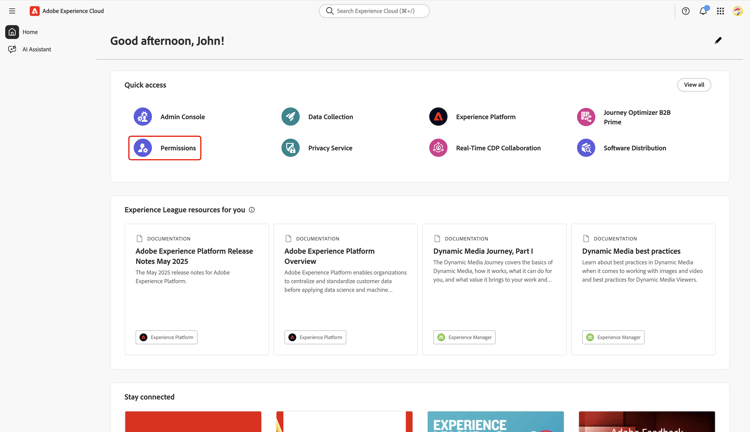
ログインしたら、クイックアクセス セクションに移動し、権限を選択します。 権限ダッシュボードが開き、必要な役割を自分に割り当てることができます。
クイックアクセス セクション内の権限が強調表示された
ユーザーの選択 select-user
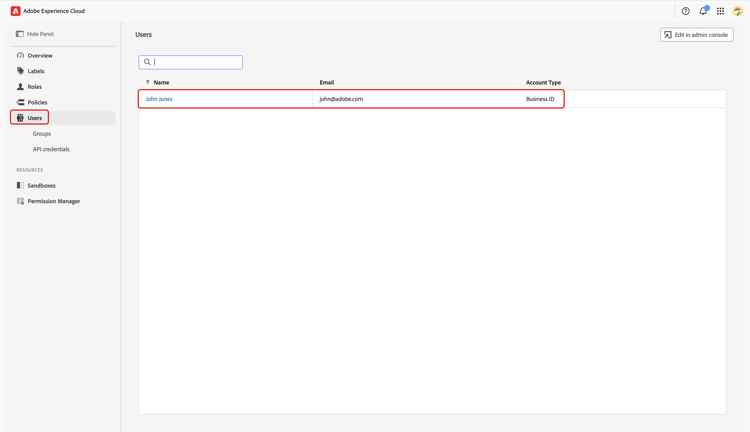
権限 ダッシュボードで、左側のパネルから ユーザー を選択します。 次に、「ユーザー」テーブルからアカウントを選択します。
役割の割り当て assign-roles
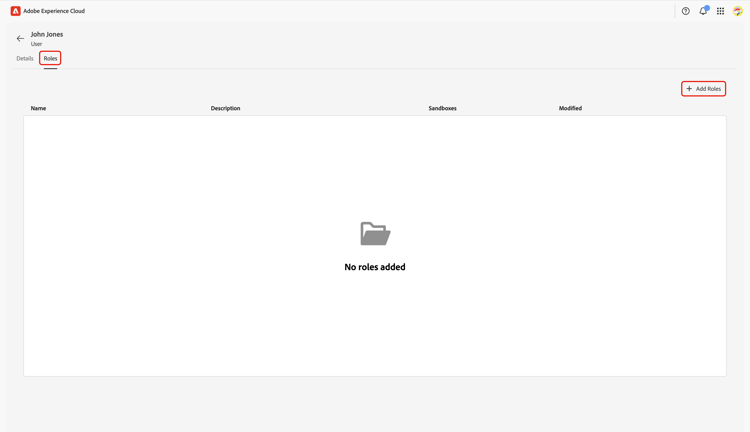
対応するユーザー ワークスペースで、「役割」タブに移動します。 次に、役割を追加を選択します。
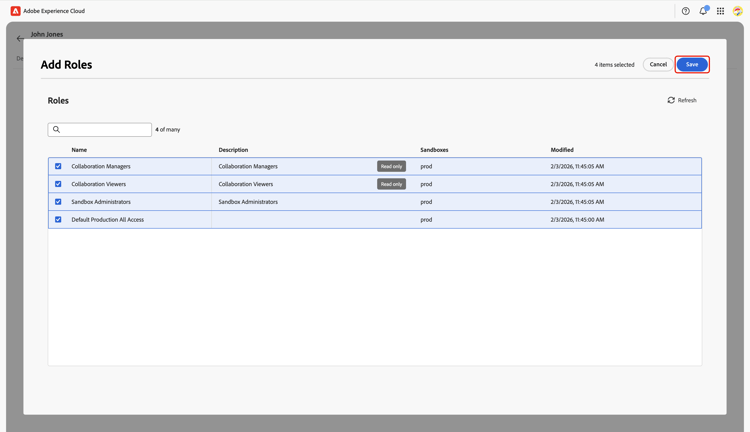
役割を追加 ダイアログが表示され、使用可能な役割のテーブルが表示されます。 テーブルの各行は、次の情報を持つ役割を表します。
Prod)を指定します。特定の役割とその権限について詳しくは、役割の権限の管理 ガイドを参照してください。
情報を確認し、アカウントに割り当てる役割を選択します。 完了したら、保存を選択します。
確認ダイアログは、新しい役割が正常に追加されたことを確認します。
権限が正しく設定されていることを確認するには、Experience Cloud ホームページに戻ります。 クイックアクセス内の Real-Time CDP Collaboration を選択します。 Collaboration Workspaceにアクセスし、Starter アカウントで利用可能な機能の使用を開始できる必要があります。
次の手順 next-steps
権限を設定したら、Collaborationにアクセスする準備が整います。 次に、次のことができます。
Real-Time CDP Collaborationとその主な機能について詳しくは、概要ガイド を参照してください。