このページ:では、マーケターがオーサリングエクスペリエンス内で外部APIからアイテムを直接検索、参照、選択できるようにするブラウジング統合を管理者が設定する方法と、それらをStandard統合にリンクする方法について説明します。
標準の統合に加えて、参照の統合を作成できます。 ブラウジング統合を使用すると、マーケターは外部APIによって返された項目を検索、参照、ページ化し、パラメーター値を手動で入力する代わりに、オーサリングエクスペリエンスで特定の項目を直接選択できます。
ブラウジング統合を作成 create-browsing
管理者は、標準統合と同じ ステップバイステップの手順を使用して、統合設定の参照 タブから参照の統合を作成します。
統合情報が提供されたら、次の 参照 固有の設定を行います。
-
項目の設定 メニューから、項目のリストが配置されている 項目のパス を選択します。

-
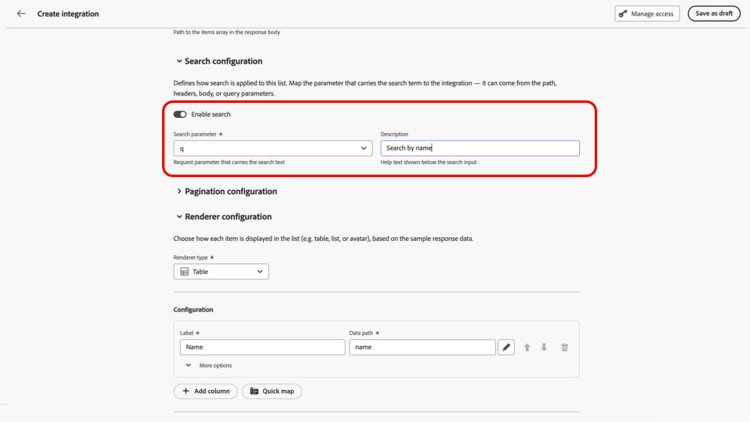
検索設定 ドロップダウンで、検索を有効にし、検索クエリを含むパラメーターを選択し、マーケターに説明を提供します。
-
Pagination configuration メニューで、Paginationを有効にし、ページネーションの種類を選択します。
accordion オフセット 次のフィールドを設定して、Offset ページネーションを設定します。
-
合計パス:応答本文の合計結果数のパスを指定します。
-
オフセットパラメーター:スキップするアイテム数を示すリクエストパラメーターを指定します。
-
パラメーターの制限:返されるアイテムの数を示すリクエストパラメーターを指定します。
-
ページサイズ: ページごとにリクエストするアイテム数を設定します。

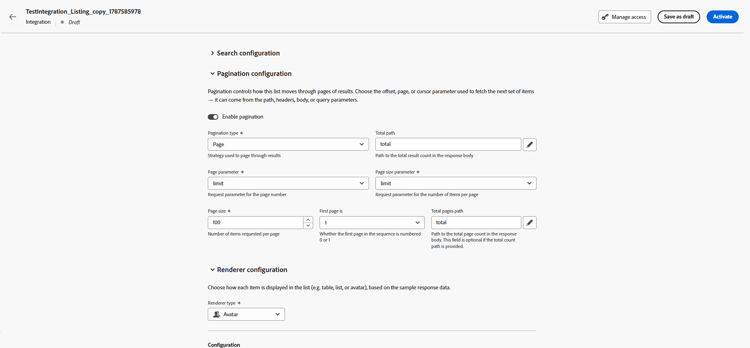
accordion ページ 次のフィールドを設定して、ページ ページネーションを設定します。
-
合計パス:応答本文の合計結果数のパスを指定します。
-
ページパラメーター: ページ番号を示すリクエストパラメーターを指定します。
-
ページサイズパラメーター: ページあたりの項目数を示すリクエストパラメーターを指定します。
-
ページサイズ: ページごとにリクエストするアイテム数を設定します。
-
最初のページは: シーケンスの最初のページに0または1の番号を付けるかどうかを選択します。
-
合計ページパス:応答本文の合計ページ数のパスを指定します。 合計数パスを指定した場合は、オプションです。
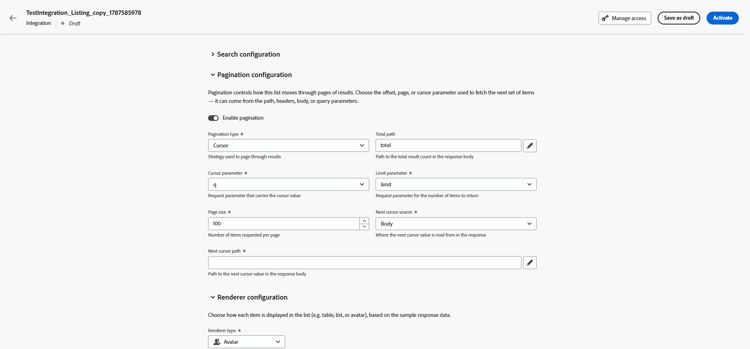
accordion カーソル 次のフィールドを設定して、カーソル ページネーションを設定します。
-
合計パス:応答本文の合計結果数のパスを指定します。
-
カーソル パラメーター: カーソル値を含むリクエスト パラメーターを指定します。
-
パラメーターの制限:返されるアイテムの数を示すリクエストパラメーターを指定します。
-
ページサイズ: ページごとにリクエストするアイテム数を設定します。
-
次のカーソル ソース:応答の次のカーソル値の読み取り先を選択します。
-
次のカーソル パス:応答ボディの次のカーソル値へのパスを指定します。
-
-
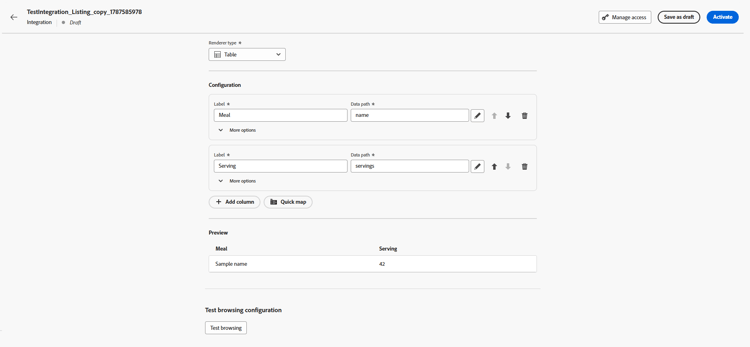
レンダリング メニューから、マーケターに対するアイテムの表示方法を選択します。
accordion テーブル 各列について、ラベルと データパス を選択します。 オプションで、クイックマップを選択して、複数のフィールドを一度に列として追加します。
必要に応じて列を並べ替えるか、

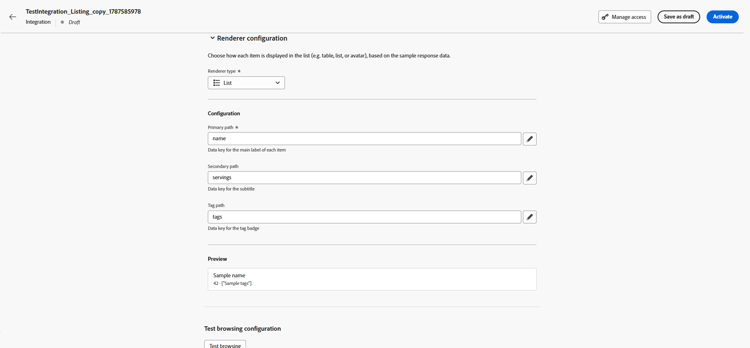
accordion リスト 次の詳細を入力します。
- プライマリパス:各項目のメインラベルのデータキーを指定します。
- セカンダリパス:字幕のデータキーを指定します。
- タグパス: タグバッジのデータキーを指定します。
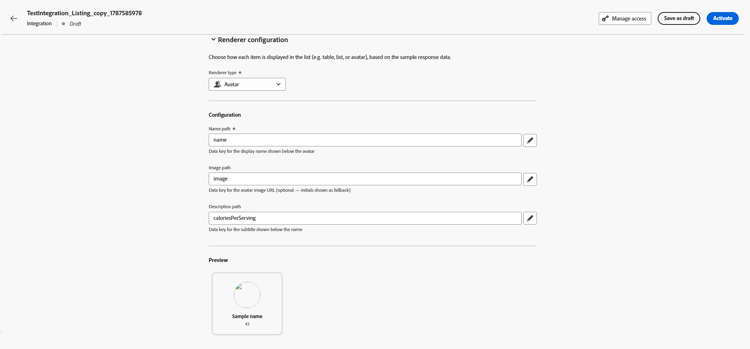
accordion アバター 次の詳細を入力します。
- 名前パス: アバターの下に表示される表示名のデータキーを指定します。
- 画像パス: アバター画像URLのデータキーを指定します。
- 説明パス:名前の下に表示されるサブタイトルのデータキーを指定します。
-
「参照をテスト」をクリックして、設定された設定で検索とページネーションの動作をプレビューします。
-
Browsing統合を保存し、Publishと Activate をクリックします。
ブラウジング統合をStandard統合にリンクする use-Browsing
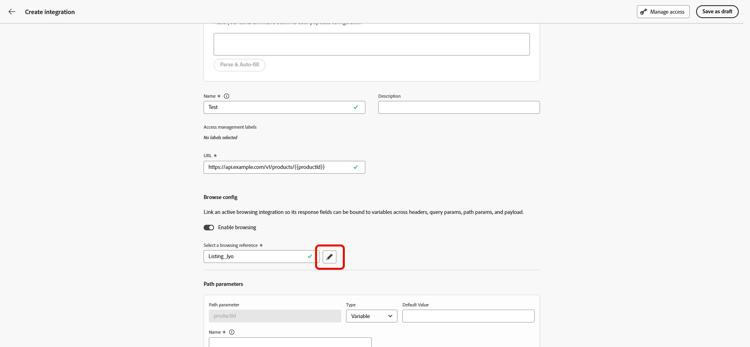
ブラウジング統合を作成したら、それをStandard統合上のパラメーターにリンクして、マーケターが手動で入力する代わりにブラウズセレクターを使用して値を選択できるようにします。
-
Standard統合上でパラメーターを設定する際に、参照を有効にします。
-
リンクするブラウジング統合を選択します。
-
Standard統合を保存して公開します。
オーサリング時に項目を選択 select-Browsing-items
パラメーターが Browsing 統合にリンクされている場合、マーケターは手動で入力するのではなく、メッセージまたはジャーニーエディターのセレクターからその値を選択できます。
-
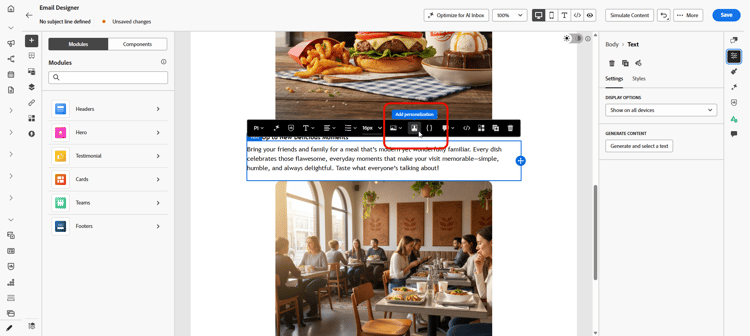
キャンペーンコンテンツにアクセスし、テキストまたは HTML コンポーネントから「パーソナライゼーションを追加」をクリックします。
-
「統合」セクションに移動し、「統合を開く」をクリックして、アクティブな統合をすべて表示します。
コンテンツエディターの「統合を開く」オプションを使用した

-
統合を選択します。
-
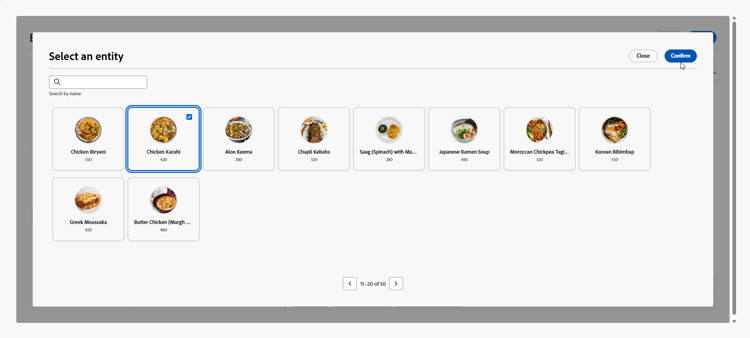
ブラウジング統合によって返されたアイテムのページ分割リストを検索して参照し、エンティティを選択して選択を確認します。
対応する 参照パス 値が、統合パラメーターに自動的に挿入されます。
-
「保存」をクリックします。
関連項目
チュートリアルビデオ how-to
外部APIのブラウジング統合を設定し、標準の統合にリンクすることで、マーケターが値を手動で入力することなくAdobe Journey Optimizer エディターで項目を検索、参照、選択できるようにする方法について、次のビデオをご覧ください。
This section contains structured knowledge intended to support interpretation, retrieval, and question answering related to this topic.
For complete understanding, this information should be combined with the documentation on this page. Neither source is intended to stand alone; the page describes the feature, while this section provides additional context that helps disambiguate terminology, intent, applicability, and constraints.
- TL;DR: Configure a Browsing integration and link it to a Standard integration parameter so marketers can search, browse, and select items returned by an external API during authoring.
Intents:
- Configure the items path, search query parameter, and pagination for a Browsing integration.
- Choose how items are displayed to marketers.
- Preview search and pagination behavior with Test browsing.
- Link a Browsing integration to a Standard integration parameter.
- Select an item during authoring and insert its Reference path value into the integration parameter.
Glossary:
- Browsing integration: An integration that lets marketers search, browse, and paginate through items returned by an external API, then select a specific item directly in the authoring experience. (product-specific)
- Items path: The path where the list of items is located. (product-specific)
- Offset parameter: The request parameter that indicates the number of items to skip. (product-specific)
- Page parameter: The request parameter that indicates the page number. (product-specific)
- Cursor parameter: The request parameter that carries the cursor value. (product-specific)
- Reference path: The value corresponding to the selected entity that is automatically inserted into the integration parameter. (product-specific)
- Test browsing: A preview of search and pagination behavior with the configured settings. (product-specific)
Guardrails:
- Browsing integrations are created by an administrator from the Browsing tab of the Integrations configuration.
- When a parameter is linked to a Browsing integration, marketers can pick its value from a selector in the message or journey editor, rather than typing it manually.
- In Page pagination, First page is selects whether the first page is numbered 0 or 1; Total pages path is optional if the total count path is provided.
Terminology:
- Canonical name: Browsing integration.
- Do not confuse: Offset parameter indicates the number of items to skip; Page parameter indicates the page number; Cursor parameter carries the cursor value.
- Do not confuse: Page size sets the number of items to request per page; Page size parameter specifies the request parameter that indicates the number of items per page in Page pagination.
FAQ:
- Q: Which pagination types can I choose? Offset, Page, or Cursor.
- Q: How can items be displayed to marketers? The Render menu provides Table, List, and Avatar.
- Q: What does Test browsing preview? Test browsing previews the search and pagination behavior with the configured settings.
- Q: How does a Browsing integration let marketers select a Standard integration parameter value? Link the Browsing integration to the parameter on the Standard integration so marketers can select values through the Browsing selector instead of entering them manually.
- Q: What value is inserted after an entity is selected and the selection is confirmed? The corresponding Reference path value is automatically inserted into the integration parameter.