このページ:プロファイルが受信するメッセージ数を制限し、同様の通信で顧客に負担をかけないようにするために、チャネルと通信タイプによるフリークエンシーキャップを設定します。
チャネルルールセットは、通信チャネルにキャップルールを適用します。 例えば、1日に1つ以上の電子メールまたはモバイルコミュニケーションを送信しないでください。
チャネルルールセットを活用すると、通信タイプ別のフリークエンシーキャップを設定し、類似したメッセージで顧客に過剰な負荷がかかるのを防ぐことができます。 例えば、顧客に送信する プロモーション情報 の数を制限するルールセットを作成したり、顧客に送信する ニュースレター の数を制限する別のルールセットを作成したりできます。 作成するキャンペーンの種類に応じて、プロモーション情報またはニュースレターのルールセットのいずれかを適用することを選択できます。
チャネルのキャップルールの作成
チャネルルールセットを作成するには、次の手順に従います。
-
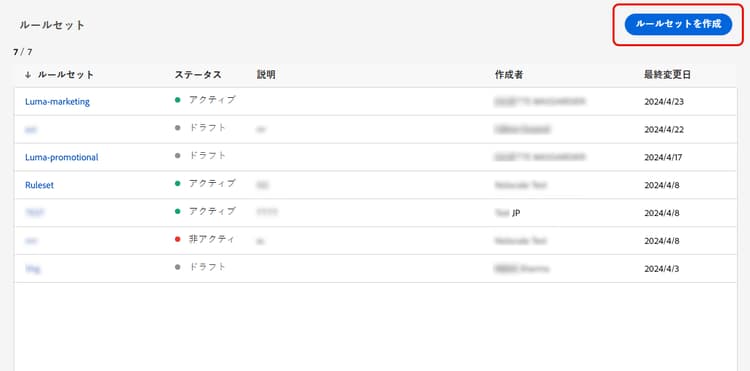
ルールセットのリストにアクセスし、「ルールセットを作成」をクリックします。
-
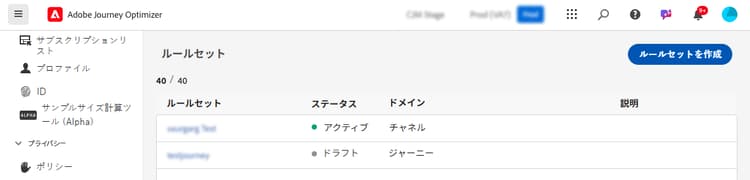
キャップルールを追加するルールセットを選択するか、新しいルールセットを作成します。
-
既存のルールセットを使用するには、リストから選択します。 チャネルのキャップルールは、「チャネル」ドメインを持つルールセットにのみ追加できます。 この情報は、ルールセットリストの ドメイン 列で確認できます。
-
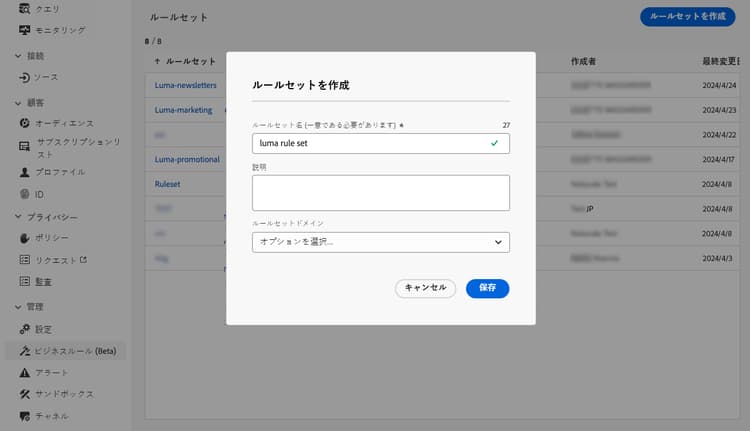
新しいルールセット内にキャップルールを作成するには、「ルールセットを作成」をクリックし、ルールセットの一意の名前を指定して、ルールセットドメインドロップダウンから「チャネル」を選択し、「保存」をクリックします。
-
-
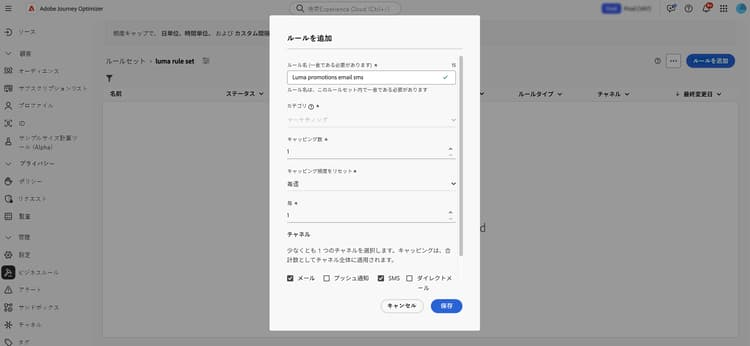
ルールセット画面で、「ルールを追加」ボタンをクリックし、ルールの一意の名前を定義します。
-
カテゴリフィールドでは、ルールが適用されるメッセージのカテゴリを指定します。 現時点では、マーケティングカテゴリのみ使用できるので、このフィールドは読み取り専用です。
-
「キャップカウント」フィールドで、ルールのキャッピングを設定します。これは、次のフィールドでの選択に応じて、毎月、毎週、毎日または毎時、個人ユーザープロファイルに送信できるメッセージの最大数を意味します。
-
頻度キャップをリセットするドロップダウンリストから、キャッピングを毎時、毎日、毎週、毎月のいずれの頻度で適用するかを選択します。 フリークエンシーキャップは、選択したカレンダーの期間に基づきます。 対応する時間枠の開始時にリセットされます。
各期間のカウンターの有効期限は次のとおりです。
- 毎時 - フリークエンシーキャップは、選択した時間数に対して有効です。 カウンターは、各時間枠の開始時に自動的にリセットされます。 1 時間のフリークエンシーキャップの場合、UTC 時間の終了に合わせて 1 時間ごとにリセットされます。
- 毎日 - 毎日のフリークエンシーキャップは、その日の 23:59:59 UTC まで有効で、翌日の開始時に 0 にリセットされます。
- 毎週 - フリークエンシーキャップは、その週の土曜日 23:59:59 UTC まで有効です。 有効期限は、ルールが作成された日時に関係なく適用されます。 例えば、木曜日にルールが作成された場合、このルールは土曜日の 23:59:59 まで有効です。
- 毎月:頻度キャップは、その月の最終日の 23:59:59 UTC まで有効です。 例えば、1月の月次有効期限は 1月31日、23:59:59 UTC です。
note important IMPORTANT -
正確性を確保するには、キャンペーンまたはジャーニーを作成する際に、最も優先度の高い名前空間を選択します。 名前空間の優先度について詳しくは、Platform ID サービスガイド
を参照してください -
通信が配信されると、プロファイルカウンターの値が更新されます。 大量の通信を送信する場合は、スループットに応じて、通信の開始から数分または数時間後に受信者にメールが届く可能性があるので(同時に数百万の通信を送信する場合)、この点に注意してください。 これは、受信者が 2 つの通信を同時期に次々に受信する場合に重要です。 受信者が通信を受信し、それに応じてカウンター値を更新できるように、通信の間隔を可能な限り 2 時間以上空けることをお勧めします。
-
「すべて」フィールドを使用すると、指定した期間に応じて、複数の時間、日、週、月にわたってフリークエンシーキャップルールを繰り返すことができます。 例:フリークエンシーキャップルールを 2 週間適用します。
選択した期間タイプに一致する値を入力します。「時間単位」に 1~23、「日単位」に 1~30、「週単位」に 1~4、「月単位」に 1~3 の値を入力します。
新しい時間枠が開始されると、カウンターは自動的に 0 にリセットされます。 2 日間の頻度キャップの場合、このリセットは 2 日ごとに午前 0 時(UTC)に行われます。
-
このルールに使用するチャネルを選択します:電子メール、モバイルメッセージ、プッシュ通知、ダイレクトメールまたはWhatsApp。

選択したすべてのチャネルに対して合計数としてキャップを適用する場合は、複数のチャネルを選択します。
例えば、キャッピングを5に設定し、電子メールとモバイルの両方のメッセージチャネルを選択します。 プロファイルが選択した期間に3つのマーケティングメールと2つのマーケティングモバイルメッセージを既に受信している場合、このプロファイルは、マーケティングメールまたはモバイルメッセージの次回の配信から除外されます。
-
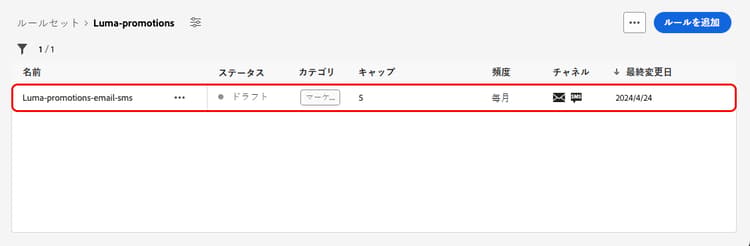
「保存」をクリックして、ルールの作成を確定します。 メッセージが、ドラフトステータスでルールリストに追加されます。
-
上記の手順を繰り返して、必要な数のルールをルールセットに追加します。
-
キャップルールをメッセージに適用する準備が整ったら、ルールセットと、追加したルールをアクティブ化します。 ルールセットのアクティブ化方法の詳細情報
メッセージにルールセットを適用する apply-frequency-rule
メッセージにルールセットを適用するには、次の手順に従います。
-
ジャーニーまたはキャンペーンメッセージの作成時、ルールセットに定義したチャネルの 1 つを選択し、メッセージのコンテンツを編集します
-
コンテンツ編集画面で、「ビジネスルールを追加」ボタンをクリックします。
-
作成したルールセットを選択します。
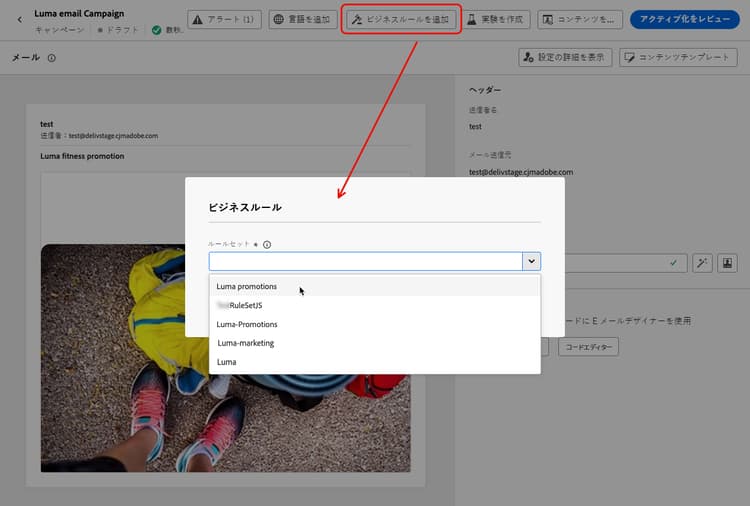
note NOTE アクティブ化したルールセットのみがリストに表示されます。 -
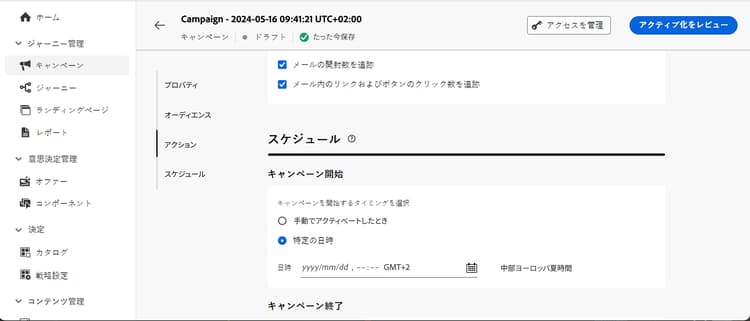
ジャーニーまたはキャンペーンをアクティブ化する前に、実行は少なくとも 10 分後にスケジュールしてください。
これにより、選択したビジネスルールのプロファイルのカウンター値を入力する十分な時間を確保できます。 キャンペーンをすぐにアクティブ化すると、ルールセットカウンターの値が受信者のプロファイルに入力されず、メッセージがカスタムルールセットのフリークエンシーキャップルールにカウントされません。 また、すぐにアクティブ化されたジャーニーやキャンペーンと API トリガーキャンペーンでは、キャップが正しく機能しない場合があります。
-
Customer Journey Analytics レポートおよびライブレポートでは、配信から除外されたプロファイルの数を確認でき、配信から除外されたユーザーの理由として考えられる頻度ルールが一覧表示されます。
プロファイルのフリークエンシーキャップに達すると、次の期間までカウンターをリセットする方法はないので、頻度ルールをテストする場合は、新しく作成したテストプロファイルを使用することをお勧めします。 ルールを非アクティブ化すると、キャップを設定したプロファイルがメッセージを受け取ることはできますが、カウンターの増分は削除されません。
チュートリアルビデオ video
➡️ 実際に参照:このコミュニティのユースケースでは、毎日のフリークエンシーキャップを Adobe Journey Optimizer に実装する方法について説明します。
This section contains structured knowledge intended to support interpretation, retrieval, and question answering related to this topic.
For complete understanding, this information should be combined with the documentation on this page. Neither source is intended to stand alone; the page describes the feature, while this section provides additional context that helps disambiguate terminology, intent, applicability, and constraints.
- TL;DR: This page explains how to create channel rule sets that apply frequency capping rules by channel and communication type, limiting how many messages a profile receives per hour, day, week, or month, and how to apply them to journey and campaign messages.
Intents:
- Create a channel capping rule inside a channel-domain rule set
- Set a Capping count and a Reset capping frequency (hourly, daily, weekly, or monthly)
- Apply capping across several channels as a single total count
- Apply an activated rule set to a journey or campaign message with Add Business Rule
- Understand how and when frequency counters reset and update
- Test frequency rules and view profiles excluded from delivery in reporting
Glossary:
- Channel rule set: A rule set whose Domain is “channel”; it applies capping rules to communication channels (product-specific)
- Capping rule: A rule defining the maximum number of messages sent to a profile for the selected period (product-specific)
- Capping count: Field setting the maximum number of messages that can be sent to an individual user profile each month, week, day, or hour (product-specific)
- Reset capping frequency: Drop-down that selects whether the capping is applied hourly, daily, weekly, or monthly, reset at the beginning of the corresponding time frame (product-specific)
- Every: Field that repeats the frequency capping rule over multiple hours, days, weeks, or months (product-specific)
- Communication type: A category of message (for example promotional communications, newsletters) that a rule set can be built to limit (product-specific)
- Category: Field specifying the message category the rule applies to; read-only, with only Marketing available (product-specific)
Guardrails:
- You can create up to 10 active local rule sets for each channel domain and for the journey domain.
- The Every field value must match the selected duration type: 1-23 for Hourly, 1-30 for Daily, 1-4 for Weekly, and 1-3 for Monthly.
- The Category field is read-only, as only the Marketing category is available.
- Selecting several channels applies capping across all selected channels as a total count.
- Frequency caps reset on calendar periods in UTC: hourly caps are valid for the selected number of hours and reset at the beginning of each time window (for a 1-hour cap, at the end of a UTC hour), daily until 23:59:59 UTC, weekly until Saturday 23:59:59 UTC, and monthly until the last day of the month 23:59:59 UTC.
- Before activating, schedule the journey or campaign execution at least 10 minutes into the future so counter values populate; activating immediately means the capping may not work correctly for journeys, campaigns, and API-triggered campaigns.
- The profile counter value updates once the communication is delivered; spacing communications at least two hours apart is recommended so the counter can update.
- Frequency capping rules also apply when sending proofs; if a test profile has reached the cap, proofs show as finished but no email is delivered.
- Once a profile’s frequency cap is reached, there is no way to reset the counter until the next period; deactivating a rule lets capped profiles receive messages but does not remove or delete counter increments.
- To ensure channel-level capping works correctly, choose the highest priority namespace while authoring a campaign or journey.
Terminology:
- Canonical name: channel capping — variants: frequency capping by channel and communication type, channel rule set, frequency capping rules
- Do not confuse: “rule set” (a group of rules) ≠ “capping rule” (a single rule inside a rule set)
- Do not confuse: “Reset capping frequency” (the period unit: hourly, daily, weekly, or monthly) ≠ “Every” (how many of those periods the rule spans)
FAQ:
- Q: How many channel messages can a profile receive? — Whatever you set in the Capping count for the selected Reset capping frequency; if several channels are selected, the count is shared as a total across those channels.
- Q: When do frequency counters reset? — At the start of the next calendar period in UTC (hourly, at the beginning of each time window; daily until 23:59:59 UTC, weekly until Saturday 23:59:59 UTC, or monthly until the last day of the month 23:59:59 UTC).
- Q: Can I reset a profile’s counter once its cap is reached? — No, there is no way to reset the counter until the next period; deactivating a rule lets capped profiles receive messages but does not remove counter increments.
- Q: Why might capping not work for an immediately activated campaign? — Counter values do not populate on the profiles of the recipients if you activate immediately, so capping may not work correctly; schedule execution at least 10 minutes into the future.
- Q: Do frequency caps apply to proofs? — Yes; if a test profile has reached the cap, the proof shows as finished but no email is delivered.
- Q: Where can I see profiles excluded by frequency rules? — In the Customer Journey Analytics report and the Live report, where frequency rules are listed as a reason for exclusion.