このページ:このユースケースに従って、製品が再び使用可能になった際にウィッシュリストに保存された各項目に対して個別のパーソナライズされたメールを配信するマルチレベル送信を使用した再入荷オーケストレーションキャンペーンを作成します。
このユースケースでは、受信者レコードではなく、個々の項目に保存されているメールアドレスを使用して、ウィッシュリスト項目ごとに個別のメールを生成する、マルチレベル送信について説明します。 これにより、顧客は、様々な項目に異なるメールアドレスを使用している場合でも、ウィッシュリストにある製品ごとに個別の通知を受信できます。

ウィッシュリストの項目が再び使用可能になった際に顧客に通知する再入荷通知をデザインします。 このメッセージは、興味のある顧客に再び関与し、在庫が補充される間に購入を完了するように促すのに役立ちます。
-
まず、ウィッシュリストの再エンゲージメントを目的とした新しいキャンペーンを設定します。 これにより、製品をウィッシュリストに保存して、既に購入意図を示している顧客に焦点を当てたメッセージが届きます。

-
キャンペーン名、説明、開始日と終了日、関連するタグなど、キャンペーン設定を入力します。
-
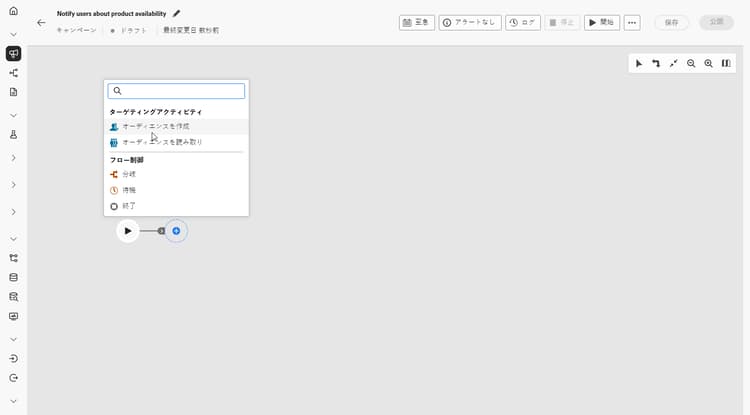
ターゲティングディメンションとしてウィッシュリストを使用して、オーディエンスを作成アクティビティを追加します。
-
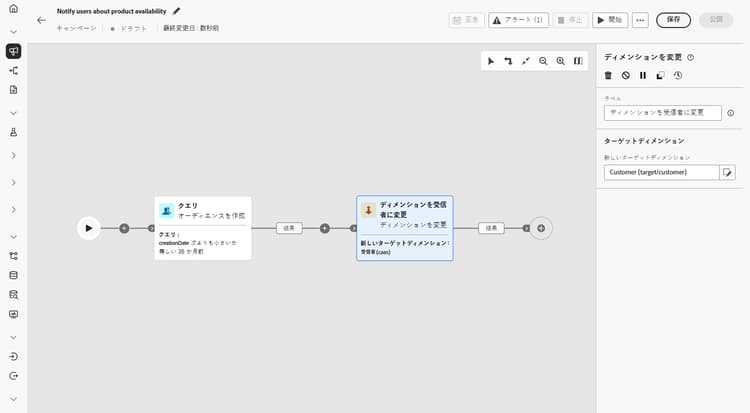
過去 36 か月間に作成されたウィッシュリストのみを含む条件を追加します。

-
ディメンションを変更アクティビティを追加して、ウィッシュリストからターゲティング用のそれぞれの顧客セットに戻します。
-
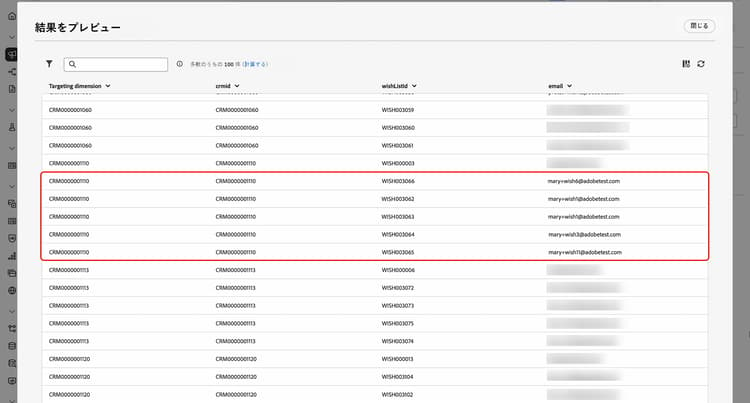
ドラフトモードを開始したら、ウィッシュリストの詳細を含むオーディエンスをプレビューします。 より深いインサイトを得るには、出力結果をクリックし、「結果をプレビュー」を選択します。
ここでは、データには受信者とそのウィッシュリスト項目の両方が表示されます。 一部の顧客は、複数のウィッシュリスト項目を持ち、マルチレベル送信を通じて、項目ごとに個別のメールを受信します。 場合によっては、顧客は個別の再入荷リクエストに異なるメールアドレスを使用します。
-
項目ごとに個別のメールを送信できるようにするには、プロファイルターゲットディメンションとして
Recipients - email、セカンダリディメンションとしてWishlistitemsを使用して、メール設定が指定されていることを確認します。次に、実行アドレスメニューから、セカンダリディメンションとして
wishlist.emailを選択します。 各ウィッシュリスト項目は、ウィッシュリストデータに保存されているメールアドレスをセカンダリディメンションとして使用して、個別のメールをトリガーします。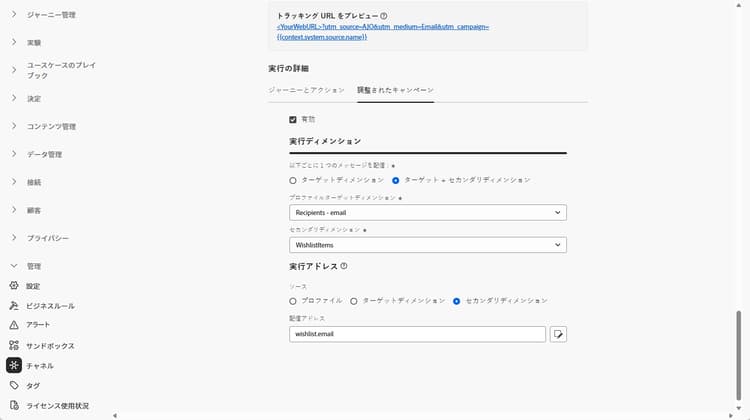
-
メールアクティビティを追加して、製品の可用性メッセージを作成します。 「コンテンツを編集」をクリックして、コンテンツのデザインを開始します。
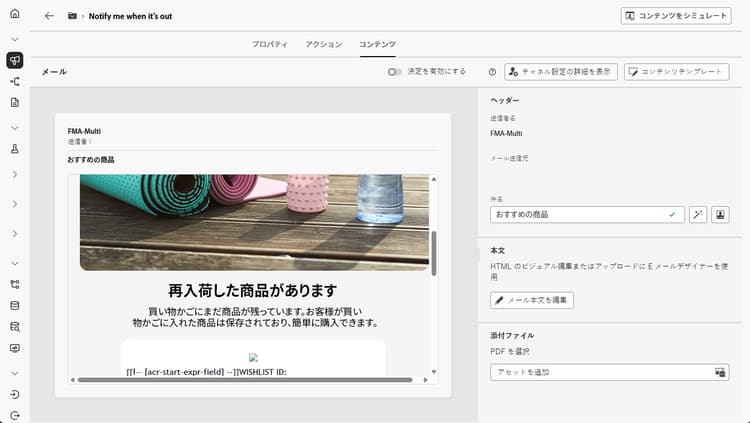
-
キャンペーンのテストが完了し、準備が整ったら、「公開」をクリックしてキャンペーンを公開します。
このオーケストレーションキャンペーンにより、顧客はウィッシュリスト項目ごとに個別のメールを受信します。 各メッセージは、そのウィッシュリストに関連付けられた特定のメールアドレスに送信され、その特定のウィッシュリスト項目の詳細から抽出されたパーソナライズされたコンテンツが含まれます。
This section contains structured knowledge intended to support interpretation, retrieval, and question answering related to this topic.
For complete understanding, this information should be combined with the documentation on this page. Neither source is intended to stand alone; the page describes the feature, while this section provides additional context that helps disambiguate terminology, intent, applicability, and constraints.
- TL;DR: This page walks through building a back-in-stock Orchestrated campaign that uses multi-level sending to deliver a separate, personalized email for each saved Wishlist item when products become available again.
Intents:
- Set up a campaign dedicated to Wishlist re-engagement.
- Build an audience from Wishlist data using a Build audience activity with Wishlist as Targeting dimension.
- Shift targeting from wishlists back to the respective customer set using a Change dimension activity.
- Preview the audience to see recipients and their Wishlist items.
- Configure the email so that each Wishlist item triggers a separate email using the email address stored with that item.
- Add an Email activity to design and personalize the product availability message, then publish the campaign.
Glossary:
- Multi-level sending: generating a distinct email for each Wishlist item by using the email address stored with the individual item rather than the recipient record, so customers can receive separate notifications for every product on their wishlist even if they use different email addresses for different items (product-specific)
- Build audience activity: the activity used to build an audience, configured with a Targeting dimension (product-specific)
- Targeting dimension: the setting on a Build audience activity that determines which data (for example, Wishlist) the audience is built from (product-specific)
- Change dimension activity: the activity used to shift from one dimension (for example, wishlists) back to the respective customer set for targeting (product-specific)
- Profile Target Dimension: the email configuration field set to
Recipients - emailin this use case (product-specific) - Secondary dimension: two separate settings in this use case — in the email configuration, Secondary dimension is set to
Wishlistitems(paired withRecipients - emailas Profile Target Dimension); in the Execution Address menu, Secondary dimension is set towishlist.email. Together these settings mean each Wishlist item triggers a separate email using the email address stored in the Wishlist data (product-specific) - Execution Address: the menu where the Secondary dimension is set to
wishlist.emailso that each Wishlist item triggers a separate email (product-specific) - Preview results: the option, selected from an output result, used to see deeper insights into the audience, including recipients and their Wishlist items (product-specific)
Guardrails:
- None stated on the page.
Terminology:
- Canonical name: Multi-level sending — variants: none
FAQ:
- Q: What does multi-level sending do in this use case? — It generates a distinct email for each Wishlist item by using the email address stored with the individual item rather than the recipient record, so customers can receive separate notifications for every product on their wishlist even if they use different email addresses for different items.
- Q: How is the audience built for this campaign? — With a Build audience activity using Wishlist as Targeting dimension, then a Change dimension activity to shift back to the respective customer set for targeting.
- Q: How do I make sure a separate email is sent for each Wishlist item? — Set the email configuration with
Recipients - emailas Profile Target Dimension andWishlistitemsas Secondary dimension, then selectwishlist.emailas Secondary dimension from the Execution Address menu. - Q: Where can I preview the audience and its Wishlist items? — After starting draft mode, click an output result and select Preview results.
- Q: How do I add the actual message content? — Add an Email activity to create the product availability message, then click Edit content to design it.
- Q: How do I make the campaign live? — Once the campaign is tested and ready, click Publish.
Examples:
- In this use case, the Build audience activity’s condition includes only wishlists created over the last 36 months.
- In this use case, when previewing results, some customers have multiple Wishlist items and, through multi-level sending, receive a separate email for each item; in some cases, customers use different email addresses for separate back-in-stock requests.
Related pages:
- To set the email configuration with Profile Target Dimension and Secondary dimension for this use case: your email configuration (orchestrated/target-dimension.md)
- To design the product availability email content: Learn more on email personalization (email/content-from-scratch.md)
Personas:
- marketer: Can build an audience with a Build audience activity using Wishlist as Targeting dimension, then shift to the customer set with a Change dimension activity. Can set the email to Recipients - email as Profile Target Dimension and Wishlistitems as Secondary dimension, then select wishlist.email in Execution Address. The page states that the Build audience condition includes only wishlists created over the last 36 months. Where: “Intents”.
Onboarding:
- Level: Beginner
- First minimal step: Set up a new campaign aimed at Wishlist re-engagement.
- Success check: Each wishlist item triggers a separate email sent to its own stored email address, with personalized content from that item.
- Previous: Configure your email Target Dimension for multi-level sending: Create your Targeting dimension (orchestrated/target-dimension.md)
- Next: Design and personalize the email content for the product availability message: Design content from scratch in Journey Optimizer (email/content-from-scratch.md)