データ収集、データ転送、レポートの設定
Advertising DSPおよびAdvertising Search, Social, & Commerceの広告主
Analytics for Advertisingのみ を持たない 広告主
Adobe Experience Platform Web SDKを使用してAdobe AdvertisingとCustomer Journey Analytics間でデータをネイティブに交換するには、次のタスクが必要です。 データの転送とアトリビューションはローンチ後に開始されます。履歴データは含まれません。
これらのタスクは、Analytics for Advertisingを持つ広告主には必要ありません。
-
(組織のAdobe Experience Platform サイト管理者) Experience Platformでデータ収集を設定し、コンバージョン トラッキング タグを実装する。
-
(組織のCustomer Journey Analytics サイト管理者) Customer Journey AnalyticsでExperience Platform データセットへの接続を作成。
-
(組織のweb アナリスト) Customer Journey Analyticsでデータビューを設定する。
-
(組織のweb アナリスト) Customer Journey Analytics Workspaceでレポートとビジュアライゼーションを設定します。
以下の節では、詳細な手順を示します。これには、統合に必要なタスクと設定が含まれますが、ワークフロー内で使用可能なすべての機能を説明するものではありません。 詳しくは、リンクされたリソースを参照してください。
Adobe Experience Platformとweb サイトでのデータ収集の設定 data-collection
Experience Platformでデータ収集を設定し、コンバージョントラッキングタグを実装するには、次のタスクが必要です。 組織のExperience Platform サイト管理者は、これらのタスクを実行できますが、組織のIT部門がトラッキングタグのデプロイを支援する必要がある場合があります。
Adobe Adobe AdvertisingからExperience Platform Edge Networkに、データセットとしてデータを収集して送信します dataset-datastream
この手順には、スキーマの作成が含まれます。 オプションで、代わりに既存のスキーマを編集できます。その場合、データセットやデータストリームを作成する必要はありません。
-
データ収集インターフェイスで、Experience Data Model (XDM)を使用して収集するweb サイト データのスキーマ を定義します。
web サイトデータのスキーマが既にある場合は、代わりに次の設定を使用できます。
-
Schema Detailsで、サイトイベントをキャプチャするスキーマのベースクラスとして Experience Event を選択します。 スキーマに名前を付けて、Finishをクリックします。
-
左側のパネルで、フィールドグループ Adobe Advertising Cloud ExperienceEvent Full Extensionを追加して、Adobe Advertisingに固有のフィールドを追加します。 最低でも、AMO IDとEF IDを含む
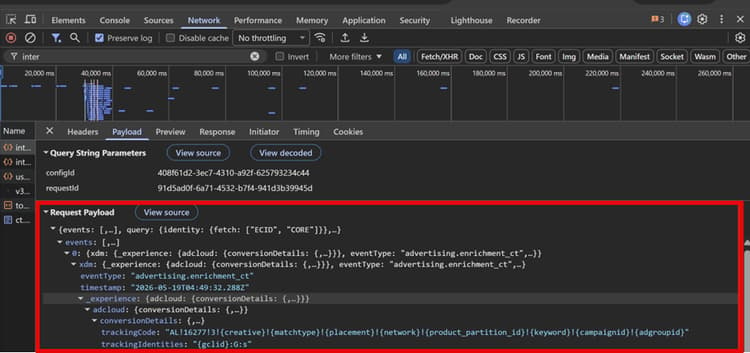
trackingCodeおよびtrackingIdentitiesプロパティを持つconversionDetails オブジェクトを含めてください。 その他のフィールドはオプションです。 他の設定は必要ありません。 -
(オプション)必要に応じてフィールドグループを追加し、データフィールドをAdobe Advertising データに接続します。
注意:複数のスキーマを作成できますが、次の手順で作成するスキーマは、データセットごと、およびデータストリームごとに1つしか使用できません。
-
-
スキーマに基づいてデータセット を作成し、イベントデータの収集を保存および管理します。 これは イベントデータセット になります。 データセットを使用して既存のスキーマを編集する場合は、この手順をスキップできます。
-
Create dataset from schemaのオプションを選択し、スキーマを選択します。
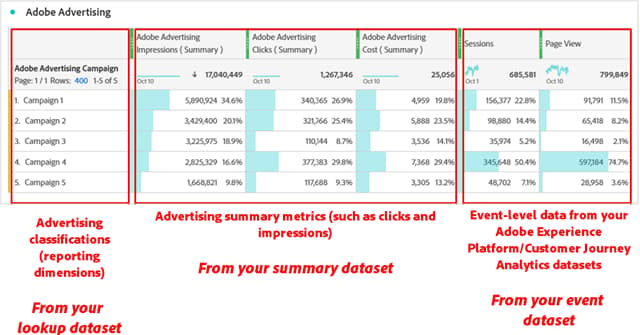
イベントデータセットに基づいて、Adobe Advertisingは、関連する概要データ(クリック数の集約やインプレッション数の集約など)を含む 概要データセット と、参照データセット (ディメンション/分類メタデータを含むAdobe Advertising キャンペーン名など)の2つの追加データセットを作成します。 データセットのデータは、毎日Experience Platformに入力されます。
note tip TIP 実稼動データセットを使用する前に、まずダミーイベントデータセットを作成してデータフローを検証します。 -
-
データストリーム を作成して、web サイトまたはアプリからデータを送信する場所と、受信データの処理方法を指定します。
-
Mapping schema設定で、手順1で作成したスキーマを選択します。
-
サービス
Adobe AdvertisingおよびAdobe Experience Platformをデータストリームに追加して有効にします。Adobe Advertising サービスは、広告露出をペイロードに関連付けることを有効にし、Adobe Experience Platformは、Edge Networkがデータセットを保存し、それをAdobe Advertisingにルーティングすることを可能にします。
-
Event dataset設定で、イベントデータセットを選択します。
各データストリームは、1つのデータセットにのみデータを挿入できます。
-
組織のweb サイト データをExperience Platform データストリーム に送信する tags-websdk
Adobe TagsでAdobe Experience Platform Web SDK拡張機能を使用して、組織のweb サイトデータをExperience Platform データストリームに送信します。
alloy.js)またはサードパーティのタグマネージャーはサポートを利用できません。-
Experience Platform tags (旧称Launch)を使用して、JavaScript タグを生成し、組織のweb サイトデータをデータストリームに送信します。
-
タグ設定のコンテナであるタグプロパティを作成します。
-
プロパティの場合は、拡張機能カタログから拡張機能「Adobe Experience Platform Web SDK」 🔗を インストールします。
この拡張機能は、web プロパティからExperience Platform Edge Networkを介してAdobe CX Enterpriseにデータを送信します。
Adobe Advertising拡張機能は使用しないでください。
-
カスタム Web SDK ビルド を作成します。
-
Custom build components セクションで、Advertising コンポーネントを有効にします。
このコンポーネントには、Adobe Advertisingに必要なすべてのJavaScript コードがタグに含まれており、Advertising DSPとAdvertisingの検索、ソーシャル、Commerceのお客様の両方に必要です。 このコンポーネントは、アトリビューション測定に広告データを使用する方法を定義するために、タグルール(オプション)に「Advertising」設定も追加します。
必要に応じて、追加のコンポーネントを有効にすることもできます。
-
SDK Instances セクション:
-
Datastreams設定で、各web環境(実稼動、ステージング、開発)で使用するデータストリームを選択します。
-
(Adobe Advertising DSPを持つ組織のみ) Adobe Advertising設定で、Adobe Advertising DSPを有効にしてビュースルートラッキングを許可し、ビュースルートラッキングを有効にする広告主を指定します。 オプションとして、組織のID5 パートナーIDおよび/またはRampIDsのLiveRamp LaunchPad JavaScript コード (ats.js)へのパスを追加することで、(組織の ファーストパーティオーディエンスソース から変換された)ユニバーサル IDからIDを収集できます。
広告主がリストにない場合は、各広告主の広告主IDを入力します。 必要に応じて、AdobeのアカウントチームにIDを確認します。
誤ったIDを入力すると、アドビアカウントチームに通知されます。
RampID JavaScript パスの例:
https://launchpad-wrapper.privacymanager.io/<customer-specific-id>/launchpad-liveramp.js -
ビルドを保存します。
-
-
-
(オプション) Web SDKがEdge Networkにデータを送信するタイミングを決定するために、必要に応じて ルール を作成します。
[sendEvent](https://experienceleague.adobe.com/ja/docs/experience-platform/tags/extensions/client/web-sdk/actions/send-event)アクションの場合、Advertising設定を使用して、広告データをアトリビューション測定に使用する方法を定義します。 この設定は、ルールに複数のアクションのシーケンスが含まれており、カスタムビルドコンポーネントの「Advertising」コンポーネントを選択した場合にのみ使用できます。
-
Web サイト上の変数を以前に作成したXDM スキーマの構造にマッピングするために、必要に応じて データ要素を作成します。
-
-
Adobe Experience Platform管理者に対し、 タグをテスト環境に公開するよう依頼します。この環境では、タグの作成を繰り返し行うことができます。
データ配信の検証
-
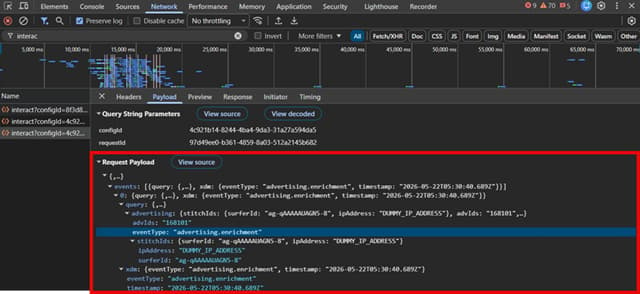
Adobeのアカウントチームに、web サイトでのトラッキングを検証するように依頼します。
-
3つのデータセット 🔗 (web サイトのイベントデータセット、Adobe Advertisingの分類データセット、Adobe Advertisingの概要メトリックデータセット)ごとにアクティビティを確認して、 データ配信を検証します。
毎日のバッチ取り込みのデータセットアクティビティが表示されます。 24時間後にイベントデータセットにレコードがゼロになる場合は、 データストリーム とWeb SDK拡張機能の設定をAdobe Tagsで再確認します。
-
Adobe Experience Platform管理者にライブ実稼動環境へのタグの公開を依頼します。
組織のIT部門またはその他のグループは、タグのデプロイメントをスケジュールする必要があるか、情報を得る必要がある場合があります。
Customer Journey AnalyticsでExperience Platform データセットへの接続を作成する dataset-connection
Experience Platform データセットからAdobe Advertising データをCustomer Journey Analyticsに取り込むには、次の手順に従います。 組織のCustomer Journey Analytics サイト管理者は、これらのタスクを実行できます。
オプションで、同じ情報を持つ既存の接続を編集することもできます。
-
Customer Journey Analyticsで、Experience Platform データセットとスキーマを含む接続を作成または編集します。
-
正しいサンドボックス(組織で設定)が選択されていることを確認します。
-
1日の平均イベント数(ほとんどの組織で100万件未満)を計算します。
-
Experience Platform イベント指標データセット(タイプ:
Event)、 イベント概要メトリックデータセット(タイプ:Event)、および ディメンション(分類/メタデータ)データセット(タイプ:Lookup)を追加します。チームがイベントデータセットを作成し、Adobe Advertisingがイベントデータセットに基づいて概要とディメンションのデータセットを作成しました。
必要に応じて、追加のデータセットを含めることもできます。
-
データセット設定を設定します。
-
Event Dataset設定の場合:
-
Person ID:
Identity Map -
Use primary identity namespace: Customer Journey AnalyticsとAdobe Real-Time CDPの両方に1つのデータセットとスキーマを使用する場合は、この設定を有効にして、
IdentityMapフィールドグループでプライマリ IDを定義します。Required Fieldもサポートされています。 -
Data Source Type:
Web Data > Others -
Import all new data:設定を有効にする
-
-
分類(Lookup Dataset)設定の場合、ディメンション データセットをイベント データセットにマッピングします。
-
Key (ディメンション データセットのキーとして使用するフィールド):
Tracking Code(スキーマのtrackingCodeフィールドと同じ)。 -
Matching key (イベントデータセットの一致キーとして使用するフィールド):
Tracking Code (Event datasets)。 -
Import all new data:設定を有効にする
-
Backfill all existing data:設定を有効にする
-
-
Metrics Dataset設定の場合:
-
Person ID:
Identity Map -
Timestamp:値を確認してください
-
Import all new data:設定を有効にする
-
-
-
-
3時間以内に、Customer Journey Analyticsでデータが利用可能であることを確認します。
-
Customer Journey Analyticsで、Connectionsに移動し、接続を選択します。
-
表示されるデータセットのリストで、「Number of Records」レポートにデータが追加されたことを確認します。
-
Customer Journey Analyticsでのデータビューの設定 cja-data-views
Customer Journey Analyticsで、1つ以上のデータビューを作成して、レポートの指標とディメンションを定義します。 web アナリストはこれらのタスクを実行できます。
-
Customer Journey Analyticsで、 データビューを作成。
-
次の情報を含めるようにビューを設定します。
-
Adobe Analytics アカウントをお持ちの場合は、「Configure」タブの「Calendar」セクションにある「Analytics」アカウントの「Time Zone」を使用してください。
-
「Components」タブ:
-
ルックアップデータセット(ディメンション/分類データ)、イベントデータセット(イベントレベルのデータ)、概要データセット(クリックなどの他の指標)を追加できます。
-
イベントデータセットとルックアップデータセットから指標を選択し、データビューに含めます。
-
「Tracking Code」(スキーマパス
_experience.adcloud.conversionDetails.trackingCodeを持つイベントデータセットの一部)を検索します。 Persistenceを Most Recent に設定します。
-
-
Customer Journey Analytics Workspaceでのレポートとビジュアライゼーションの設定 cja-reports
Customer Journey Analytics Workspaceでレポートとビジュアライゼーションを設定するには、次の手順に従います。 web アナリストはこれらのタスクを実行できます。
-
Workspaceで プロジェクト を作成し、データビュー内で設定されたディメンションと指標に基づいてレポートとビジュアライゼーションを作成します。
例えば、ディメンション Tracking Code (2) (キャンペーンメタデータへのイベントのリンク)、Adobe Advertising Campaign (キャンペーンレベルのデータの場合)、Adobe Advertising PlacementまたはAdobe Advertising Ad Group (プレースメントレベルまたは広告グループレベルのデータの場合)、Events、Impressions、およびClicksを含めます。
1つのフリーフォームテーブルで同じディメンションを使用して、概要指標とイベントデータの両方を分類できます。
-
(データがGoogle AdsまたはMicrosoft Advertisingの場合)広告ネットワーク固有の指標のフィールドを使用して、発行者が追跡したコンバージョンのレポートを作成します。このフィールドは
googleConversionsおよびmicrosoftConversionsとしてグループ化されます。 -
データが表示されることを確認します。
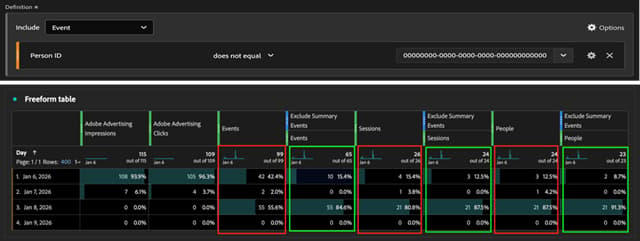
00000000-0000-0000-0000-000000000000のデータを除外することで、この追加の概要イベントデータを除外できます。