In questa pagina: scopri come monitorare le tue esperienze Web live in Adobe Journey Optimizer controllando i report web e configurando il tracciamento dei clic su elementi di pagina specifici.
Controlla i report web check-web-reports
Una volta che la tua esperienza Web è attiva, puoi controllare la scheda Web del rapporto Percorso e del rapporto campagna per confrontare elementi quali il numero di impression, il tasso di clic e il numero di impegni con la pagina Web.
Per migliorare ulteriormente il monitoraggio dell’esperienza web, puoi anche tenere traccia dei clic su qualsiasi elemento specifico del sito web. Questo consente di visualizzare il numero di clic su tale elemento nei rapporti web. Scopri come
Tracciamento dei clic use-click-tracking
Il web designer consente di selezionare qualsiasi elemento del sito web e di tenere traccia dei clic su di esso.
Queste informazioni possono essere utili per migliorare l’esperienza degli utenti del sito web. Ad esempio, se i report Web mostrano che molti utenti fanno clic su un elemento che non è effettivamente cliccabile, è possibile aggiungere un collegamento a tale elemento.
-
Seleziona un elemento nella pagina e scegli Seleziona l’elemento di tracciamento dal menu contestuale.
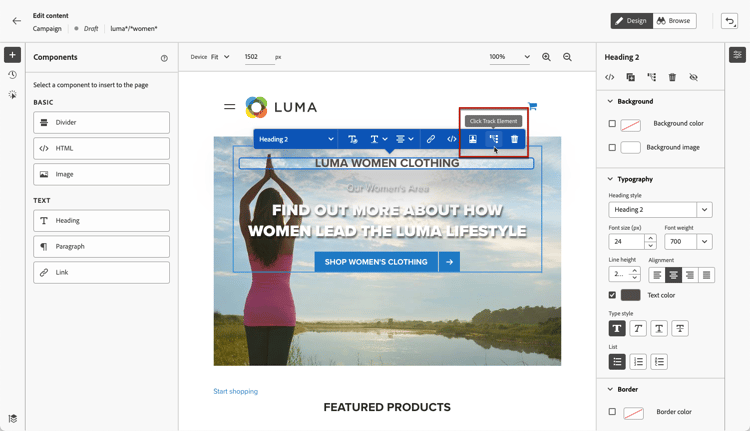
note NOTE È possibile selezionare qualsiasi elemento, cliccabile o meno. -
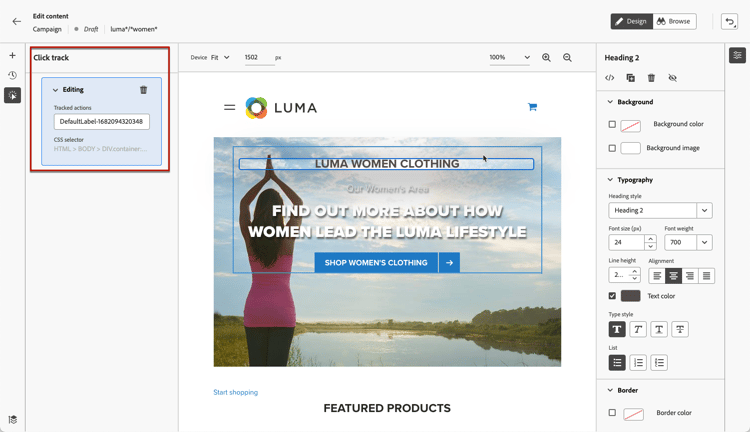
L’azione tracciata corrispondente viene visualizzata automaticamente nel riquadro Traccia clic a sinistra.
-
Aggiungi un’etichetta significativa per gestire tutti gli elementi tracciati e trovarli facilmente nei rapporti. Il campo Selettore CSS mostra le informazioni per individuare l’elemento selezionato.
-
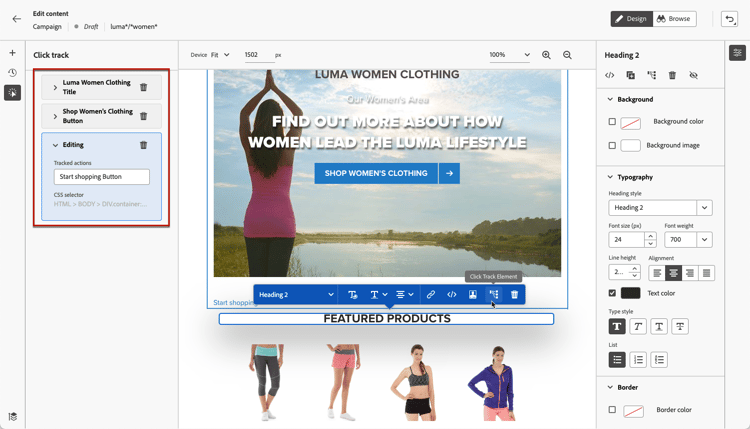
Ripeti i passaggi precedenti per selezionare tutti gli altri elementi necessari per il tracciamento dei clic. Tutte le azioni corrispondenti sono elencate nel riquadro a sinistra.
-
Per rimuovere il tracciamento dei clic su un elemento, seleziona l’icona di eliminazione corrispondente.
Una volta che la campagna è attiva, puoi controllare il numero di clic per ogni elemento nel web della campagna report live e report Customer Journey Analytics.
This section contains structured knowledge intended to support interpretation, retrieval, and question answering related to this topic.
For complete understanding, this information should be combined with the documentation on this page. Neither source is intended to stand alone; the page describes the feature, while this section provides additional context that helps disambiguate terminology, intent, applicability, and constraints.
- TL;DR: This page explains how to monitor live web experiences in Journey Optimizer by checking the web reports and setting up click tracking on specific page elements.
Intents:
- Check the Web tab of the Journey report and Campaign report for a live web experience
- Compare metrics such as impressions, click rate, and engagements
- Set up click tracking on any element of a web page from the web designer
- Add labels to tracked elements to find them in the reports
- Remove click tracking from an element
- Review the number of clicks per element once the campaign is live
Glossary:
- Click tracking: A web designer capability that tracks clicks on any selected element of a website so the number of clicks appears in the web reports (product-specific)
- Click track element: The contextual menu option used to start tracking clicks on a selected element (product-specific)
- Click track pane: The left pane where tracked actions automatically display and are managed (product-specific)
- Web reports: The Web tab of the Journey report and Campaign report showing metrics such as impressions, click rate, and engagements (product-specific)
Guardrails:
- Web reports are available once the web experience is live.
- Any item on the page, clickable or not, can be selected for click tracking.
- Add a meaningful label to each tracked element to manage them and find them easily in the reports.
- The number of clicks per element is available in the reports once the campaign is live.
Terminology:
- Canonical name: click tracking — Acronym: n/a — variants: click track element, Click track pane
- Synonyms: “web reports” = “Web tab of the Journey report and Campaign report”
- Do not confuse: “Click track element” (contextual menu option to track clicks) ≠ “click rate” (a metric shown in the web reports)
- Do not confuse: campaign web “live report” ≠ “Customer Journey Analytics report” (both used to check clicks per element once the campaign is live)
FAQ:
- Q: Where do I check web experience performance? — In the Web tab of the Journey report and Campaign report, once the web experience is live.
- Q: What metrics can I compare in the web reports? — Elements such as the number of impressions, click rate, and number of engagements with your web page.
- Q: How do I set up click tracking? — Select an element in the page, choose Click track element from the contextual menu, and add a meaningful label; the tracked action displays in the Click track pane.
- Q: Can I track a non-clickable element? — Yes, any item, clickable or not, can be selected for click tracking.
- Q: How do I remove click tracking from an element? — Select the corresponding delete icon.
Personas:
- marketer: Can check the Web tab of the Journey report and Campaign report to compare impressions, click rate and engagements once live. Can select any element, choose Click track element, and add a label to track clicks in the web reports. The page states that any item, clickable or not, can be selected for click tracking. Where: “Use click tracking”.
Onboarding:
- Level: Beginner, Intermediate
- First minimal step: Select an element in your page and choose Click track element from the contextual menu.
- Success check: The corresponding tracked action automatically displays in the Click track pane on the left.
- Next: Your web experience is live and you want to check the Web tab of the Journey report: Journey report (reports/journey-global-report-cja-web.md); Your campaign is live and you want to check the number of clicks for each element: Campaign live report (reports/campaign-live-report.md)