In questa pagina: configura una configurazione del canale LINE, dall’interfaccia o dall’API, in modo che Adobe Journey Optimizer possa autenticarsi con l’API di messaggistica LINE e inviare messaggi ai clienti.
-
Accedi al menu Canali > Impostazioni generali > Configurazioni canale, quindi fai clic su Crea configurazione canale.
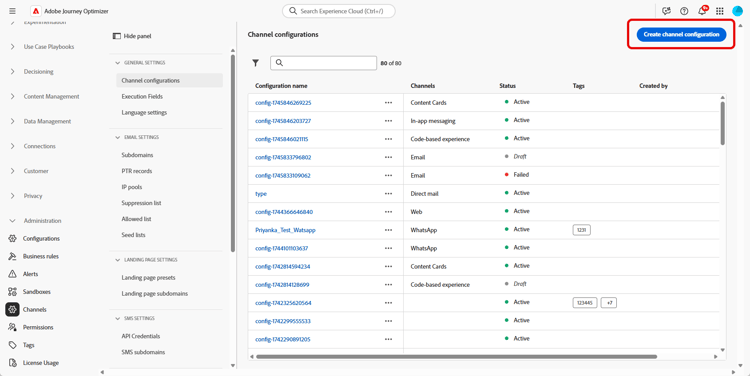
-
Immetti un nome e una descrizione (facoltativa) per la configurazione, quindi seleziona il canale da configurare.
note NOTE I nomi devono iniziare con una lettera (A-Z). Può contenere solo caratteri alfanumerici. È inoltre possibile utilizzare i caratteri trattino basso _, punto.e trattino-. -
Per assegnare etichette di utilizzo dei dati personalizzate o di base alla configurazione, è possibile selezionare Gestisci accesso. Ulteriori informazioni sul controllo degli accessi a livello di oggetto.
-
Seleziona il canale LINE.
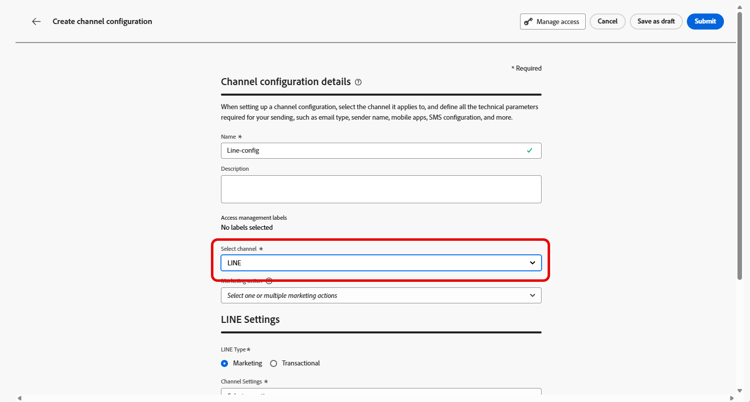
-
Seleziona Azione di marketing per associare i criteri di consenso ai messaggi utilizzando questa configurazione. Tutti i criteri di consenso associati all’azione di marketing vengono utilizzati per rispettare le preferenze dei clienti. Ulteriori informazioni
-
Seleziona il tipo di messaggio per la configurazione:
- Marketing: per messaggi promozionali, ad esempio promozioni settimanali per un negozio al dettaglio. Questi messaggi richiedono il consenso dell’utente e devono essere conformi alla politica di LINE relativa alle opzioni di consenso dell’utente.
- Transazionale: per messaggi non commerciali, ad esempio conferme di ordini, notifiche di reimpostazione della password o aggiornamenti di consegna. Questi messaggi possono essere inviati anche agli utenti che hanno annullato l’abbonamento alle comunicazioni di marketing, ma sono strettamente limitati a contesti transazionali specifici.
-
Seleziona le impostazioni canale.
Rivolgiti al tuo rappresentante Adobe per configurare le impostazioni del canale.
-
Seleziona il tuo ID utente LINE da mappare. Questo è l’identificatore utilizzato per collegare i messaggi a singoli utenti all’interno del tuo canale LINE.
note NOTE L'ID utente LINE qui mappato deve esistere già in Real-Time Customer Profile dei tuoi clienti. Acquisisci l'ID utente LINE (ad esempio, tramite LINE Login o il SDK LIFF), inseriscilo in Adobe Experience Platform e uniscilo a un identificatore noto con Identity Service in modo che Journey Optimizer possa raggiungere il profilo unificato. Ulteriori informazioni sull'identità in Journey Optimizer. Per un esempio end-to-end di unificazione degli ID utente LINE con i profili cliente tramite Identity Service, consulta l’articolo della community Unificazione degli ID utente LINE con i profili cliente tramite AEP Identity Stitching. -
Digita il Nome mittente, ad esempio il nome del tuo marchio.
-
Invia le modifiche.
Ora puoi selezionare la configurazione durante la creazione del messaggio LINE.
Configurare l’API delle impostazioni del canale LINE line-api
Questa API configura le impostazioni del canale che memorizzano i dettagli di autorizzazione e configurazione necessari per la connessione all’API di messaggistica LINE. Queste impostazioni consentono a Adobe Journey Optimizer di autenticare e inviare messaggi tramite LINE utilizzando le credenziali fornite.
Endpoint
POST https://platform.adobe.io/journey/imp/config/channel-settings
Corpo richiesta
{
    "name": "your_defined_name",
    "channelRegistryId": "line",
    "channel": "line",
    "channelSettings": {
        "channelId": "your_line_channel_id",
        "channelSecret": "your_line_channel_secret"
    }
}
Risposta impostazioni canale
{
"id": "3603ed66-ae86-42b8-8a90-d4b4e54e7c3b",
"name": "your_defined_name",
"channelRegistryId": "line",
"channel": "line",
"channelSettings": {
    "channelId": "your_line_channel_id",
    "channelSecret": "your_line_channel_secret"
    },
    "channelPublicationId": "v1_line",
    "createdAt": "2025-07-30T12:00:00.000Z",
    "modifiedAt": "2025-07-30T12:00:00.000Z",
    "isFromLatestVersion": true,
    "_etag": "\"eab98d24-18af-48ae-90f9-e59d4f8cfb2b\""
}
This section contains structured knowledge intended to support interpretation, retrieval, and question answering related to this topic.
For complete understanding, this information should be combined with the documentation on this page. Neither source is intended to stand alone; the page describes the feature, while this section provides additional context that helps disambiguate terminology, intent, applicability, and constraints.
- TL;DR: This page explains how to create a LINE channel configuration, from the interface or the API, so that Journey Optimizer can authenticate with the LINE Messaging API and send messages to your customers.
Intents:
- Create a LINE channel configuration from the Channel configurations menu
- Associate consent policies to the configuration through marketing actions
- Choose the message type (Marketing or Transactional) for the configuration
- Map the LINE user ID and define the Sender Name
- Configure the LINE Channel settings through the API
Glossary:
- Channel configuration: The configuration created from Channels > General settings > Channel configurations for which you enter a name, a description (optional), and the channel to configure (product-specific)
- Marketing action: The setting used to associate consent policies to the messages using this configuration, so that customer preferences are respected (product-specific)
- Channel settings: The connection settings that store the authorization and configuration details for connecting to the LINE Messaging API (product-specific)
- LINE user ID: The identifier used to link messages to individual users within your LINE channel (product-specific)
- Sender Name: The name, such as your brand’s name, entered for the configuration (product-specific)
Guardrails:
- Configuration names must begin with a letter (A-Z) and can only contain alphanumeric characters, underscore, dot, and hyphen.
- Marketing messages require user consent and should comply with LINE’s policy regarding user opt-ins.
- Transactional messages can be sent even to users who have unsubscribed from marketing communications but are strictly limited to specific transactional contexts.
- The LINE user ID mapped here must already exist on your customers’ Real-Time Customer Profile.
- For the Channel settings field, reach out to your Adobe representative to set up your Channel settings.
- The API uses headers including a user token from your technical account, the client ID from Adobe Developer Console, the IMS Organization ID, the sandbox name, and Content-Type application/json.
Terminology:
- Canonical name: LINE channel configuration — Acronym: n/a — variants: channel configuration
- Do not confuse: “Marketing” (promotional messages requiring user consent) ≠ “Transactional” (non-commercial messages limited to specific transactional contexts)
- Do not confuse: “Channel settings” (authorization and connection details for the LINE Messaging API) ≠ “Marketing action” (associates consent policies to the configuration)
FAQ:
- Q: What characters are allowed in a configuration name? — The name must begin with a letter (A-Z) and can only contain alphanumeric characters, underscore, dot, and hyphen.
- Q: What is the difference between a Marketing and a Transactional configuration? — Marketing is for promotional messages that require user consent, while Transactional is for non-commercial messages that can reach unsubscribed users but are strictly limited to specific transactional contexts.
- Q: Does the LINE user ID need to exist beforehand? — Yes, the LINE user ID mapped in the configuration must already exist on your customers’ Real-Time Customer Profile.
- Q: How are the Channel settings set up? — Reach out to your Adobe representative to set up your Channel settings.
- Q: Can the Channel settings be configured through the API? — Yes, the page describes an API (POST to the channel-settings endpoint) that sets up Channel settings storing the authorization and configuration details needed to connect to the LINE Messaging API.