In questa pagina: Segui questo caso d’uso per creare una campagna orchestrata di back-in-stock che utilizza l’invio a più livelli per inviare un messaggio e-mail separato e personalizzato per ogni elemento della lista dei desideri salvato quando i prodotti diventano nuovamente disponibili.
Questo caso d’uso mostra l’invio a più livelli: genera un’e-mail distinta per ogni voce della lista dei desideri utilizzando l’indirizzo e-mail memorizzato con il singolo elemento anziché con il record del destinatario. Questo consente ai clienti di ricevere notifiche separate per ogni prodotto nella lista dei desideri anche se utilizzano indirizzi e-mail diversi per elementi diversi.

Progettare una notifica di back-in-stock per informare i clienti quando gli articoli dalla loro lista dei desideri diventano nuovamente disponibili. Questo messaggio consente di coinvolgere nuovamente i clienti interessati e li incoraggia a completare l’acquisto mentre l’inventario è rifornito.
-
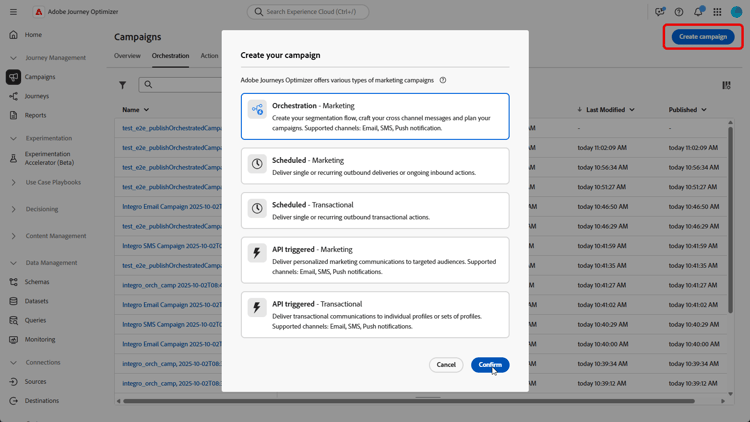
Per iniziare, crea una nuova campagna mirata specificamente al coinvolgimento nella lista dei desideri. In questo modo, il messaggio sarà incentrato sui clienti che hanno già dimostrato di avere intenzione di acquisto, salvando i prodotti nella propria lista dei desideri.
-
Compila le Impostazioni campagna, ad esempio il nome della campagna, la descrizione, le date di inizio e fine e i tag pertinenti.
-
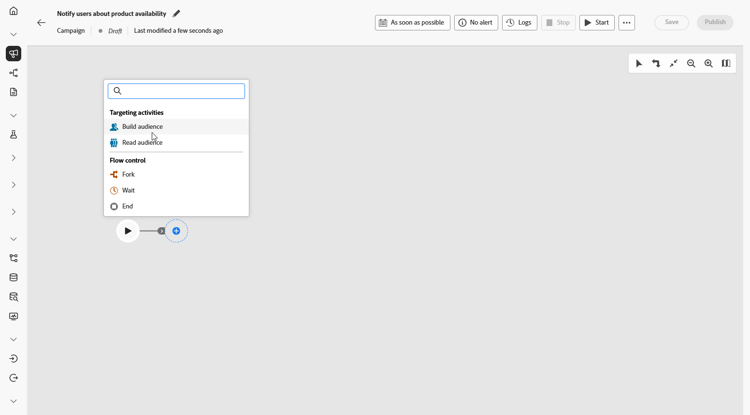
Aggiungi un’attività Genera pubblico con Elenco desideri come Dimensione targeting.
-
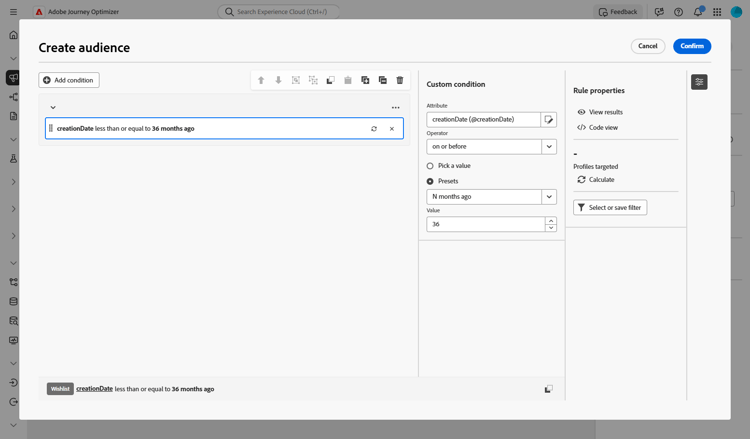
Aggiungi la condizione per includere solo le liste dei desideri create negli ultimi 36 mesi.
-
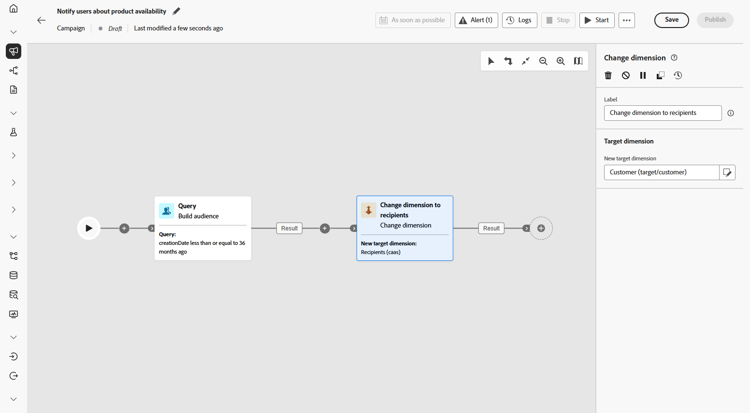
Aggiungi un’attività Modifica dimensione per tornare dalla lista dei desideri al rispettivo set di clienti per il targeting.
-
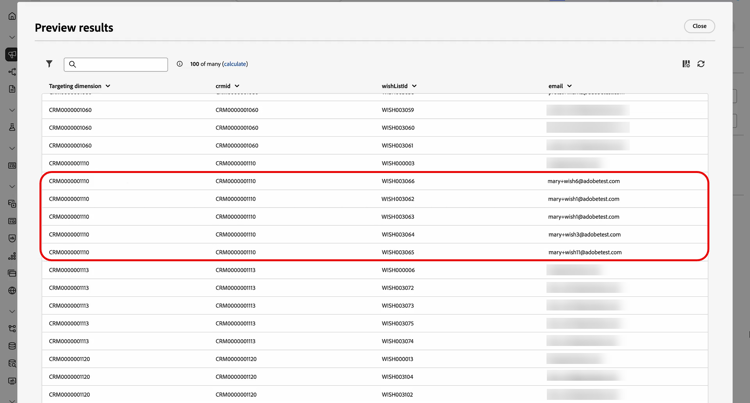
Dopo aver avviato la modalità bozza, visualizza l’anteprima del pubblico con i dettagli della lista dei desideri. Per approfondimenti, fai clic su un risultato e seleziona Anteprima risultati.
In questo caso, i dati mostrano sia i destinatari che le voci della lista dei desideri. Alcuni clienti hanno più elementi della lista dei desideri e, tramite un invio multilivello, ricevono un’e-mail separata per ogni elemento. In alcuni casi, i clienti utilizzano indirizzi e-mail diversi per richieste back-in-stock separate.
-
Per poter inviare un’e-mail separata per ogni elemento, assicurati che la tua configurazione e-mail sia impostata con
Recipients - emailcome Dimension di destinazione profilo eWishlistitemscome dimensione secondaria.Dal menu Indirizzo di esecuzione, selezionare
wishlist.emailcome Dimensione secondaria. Ogni voce della lista dei desideri attiva un’e-mail separata, utilizzando l’indirizzo e-mail memorizzato nei dati della lista dei desideri come dimensione secondaria.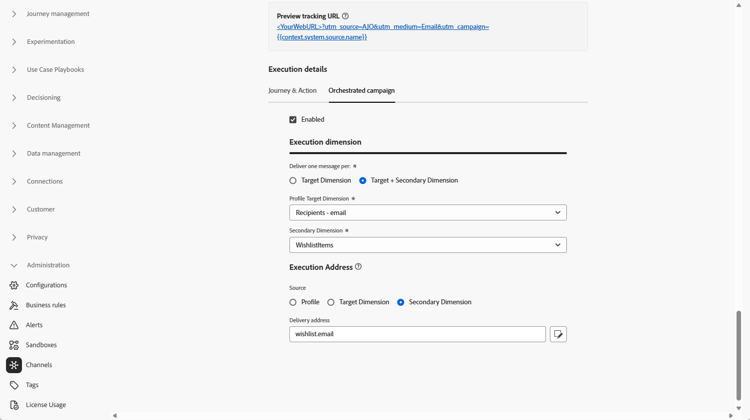
-
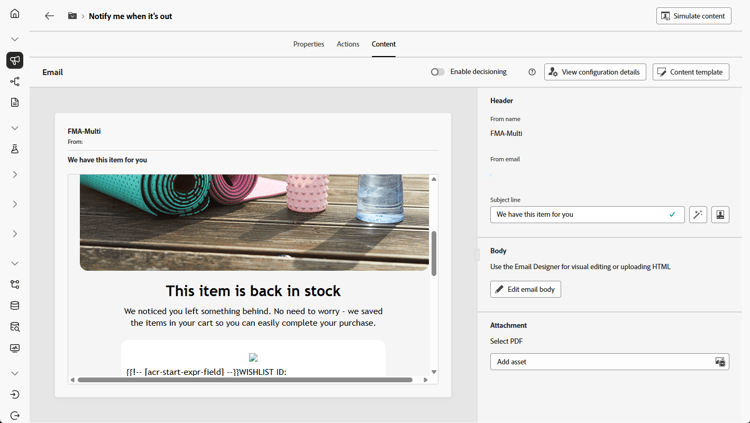
Aggiungi un’attività Email per creare un messaggio di disponibilità del prodotto. Fai clic su Modifica contenuto per iniziare a progettare il contenuto.
➡️ Ulteriori informazioni sulla personalizzazione delle e-mail
-
Una volta che la campagna è testata e pronta, fai clic su Pubblica per renderla disponibile.
Con questa campagna orchestrata, il cliente riceve un’e-mail separata per ogni elemento della propria lista dei desideri. Ogni messaggio viene inviato all’indirizzo e-mail specifico associato a quella lista dei desideri, con contenuto personalizzato tratto dai dettagli di quella particolare voce della lista dei desideri.
This section contains structured knowledge intended to support interpretation, retrieval, and question answering related to this topic.
For complete understanding, this information should be combined with the documentation on this page. Neither source is intended to stand alone; the page describes the feature, while this section provides additional context that helps disambiguate terminology, intent, applicability, and constraints.
- TL;DR: This page walks through building a back-in-stock Orchestrated campaign that uses multi-level sending to deliver a separate, personalized email for each saved Wishlist item when products become available again.
Intents:
- Set up a campaign dedicated to Wishlist re-engagement.
- Build an audience from Wishlist data using a Build audience activity with Wishlist as Targeting dimension.
- Shift targeting from wishlists back to the respective customer set using a Change dimension activity.
- Preview the audience to see recipients and their Wishlist items.
- Configure the email so that each Wishlist item triggers a separate email using the email address stored with that item.
- Add an Email activity to design and personalize the product availability message, then publish the campaign.
Glossary:
- Multi-level sending: generating a distinct email for each Wishlist item by using the email address stored with the individual item rather than the recipient record, so customers can receive separate notifications for every product on their wishlist even if they use different email addresses for different items (product-specific)
- Build audience activity: the activity used to build an audience, configured with a Targeting dimension (product-specific)
- Targeting dimension: the setting on a Build audience activity that determines which data (for example, Wishlist) the audience is built from (product-specific)
- Change dimension activity: the activity used to shift from one dimension (for example, wishlists) back to the respective customer set for targeting (product-specific)
- Profile Target Dimension: the email configuration field set to
Recipients - emailin this use case (product-specific) - Secondary dimension: two separate settings in this use case — in the email configuration, Secondary dimension is set to
Wishlistitems(paired withRecipients - emailas Profile Target Dimension); in the Execution Address menu, Secondary dimension is set towishlist.email. Together these settings mean each Wishlist item triggers a separate email using the email address stored in the Wishlist data (product-specific) - Execution Address: the menu where the Secondary dimension is set to
wishlist.emailso that each Wishlist item triggers a separate email (product-specific) - Preview results: the option, selected from an output result, used to see deeper insights into the audience, including recipients and their Wishlist items (product-specific)
Guardrails:
- None stated on the page.
Terminology:
- Canonical name: Multi-level sending — variants: none
FAQ:
- Q: What does multi-level sending do in this use case? — It generates a distinct email for each Wishlist item by using the email address stored with the individual item rather than the recipient record, so customers can receive separate notifications for every product on their wishlist even if they use different email addresses for different items.
- Q: How is the audience built for this campaign? — With a Build audience activity using Wishlist as Targeting dimension, then a Change dimension activity to shift back to the respective customer set for targeting.
- Q: How do I make sure a separate email is sent for each Wishlist item? — Set the email configuration with
Recipients - emailas Profile Target Dimension andWishlistitemsas Secondary dimension, then selectwishlist.emailas Secondary dimension from the Execution Address menu. - Q: Where can I preview the audience and its Wishlist items? — After starting draft mode, click an output result and select Preview results.
- Q: How do I add the actual message content? — Add an Email activity to create the product availability message, then click Edit content to design it.
- Q: How do I make the campaign live? — Once the campaign is tested and ready, click Publish.
Examples:
- In this use case, the Build audience activity’s condition includes only wishlists created over the last 36 months.
- In this use case, when previewing results, some customers have multiple Wishlist items and, through multi-level sending, receive a separate email for each item; in some cases, customers use different email addresses for separate back-in-stock requests.
Related pages:
- To set the email configuration with Profile Target Dimension and Secondary dimension for this use case: your email configuration (orchestrated/target-dimension.md)
- To design the product availability email content: Learn more on email personalization (email/content-from-scratch.md)
Personas:
- marketer: Can build an audience with a Build audience activity using Wishlist as Targeting dimension, then shift to the customer set with a Change dimension activity. Can set the email to Recipients - email as Profile Target Dimension and Wishlistitems as Secondary dimension, then select wishlist.email in Execution Address. The page states that the Build audience condition includes only wishlists created over the last 36 months. Where: “Intents”.
Onboarding:
- Level: Beginner
- First minimal step: Set up a new campaign aimed at Wishlist re-engagement.
- Success check: Each wishlist item triggers a separate email sent to its own stored email address, with personalized content from that item.
- Previous: Configure your email Target Dimension for multi-level sending: Create your Targeting dimension (orchestrated/target-dimension.md)
- Next: Design and personalize the email content for the product availability message: Design content from scratch in Journey Optimizer (email/content-from-scratch.md)