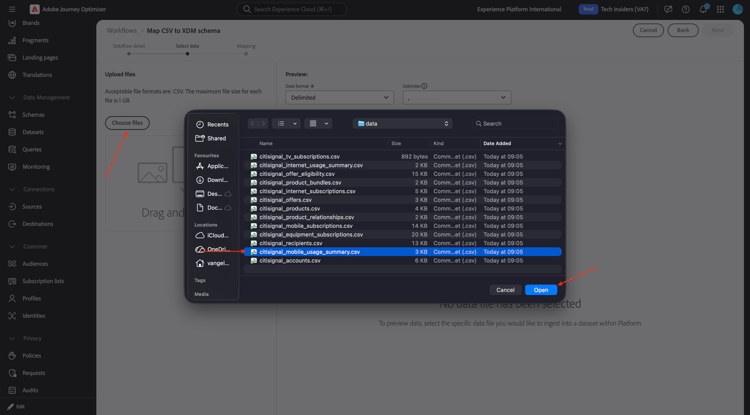
Click Next
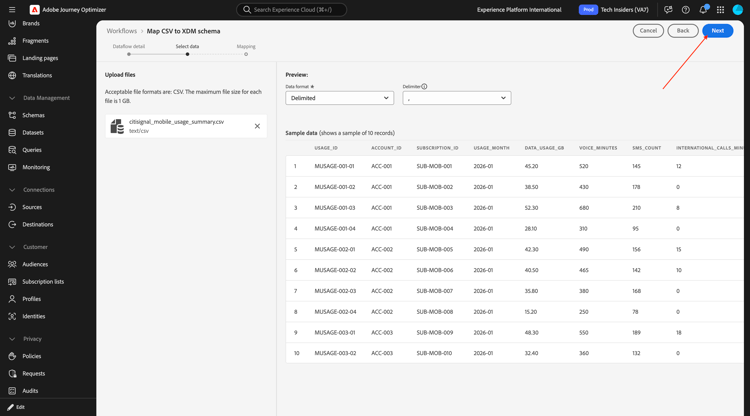
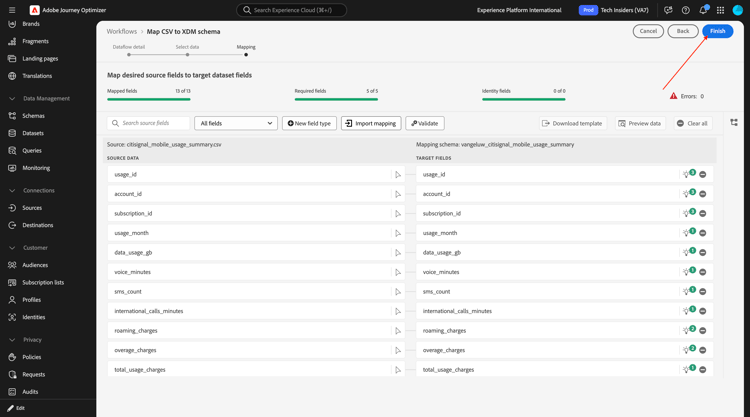
Click Finish.
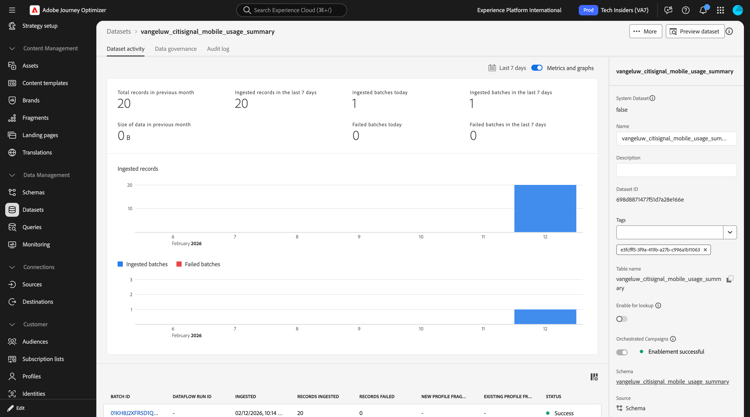
After a couple of minutes, you can see the data being ingested in your dataset.
vangeluw_citisignal_internet_usage_summary
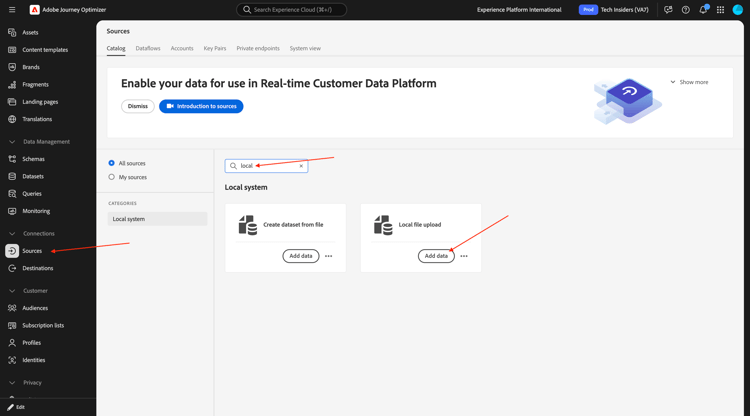
Go to Sources, search for local and then click Add data under Local File Upload.
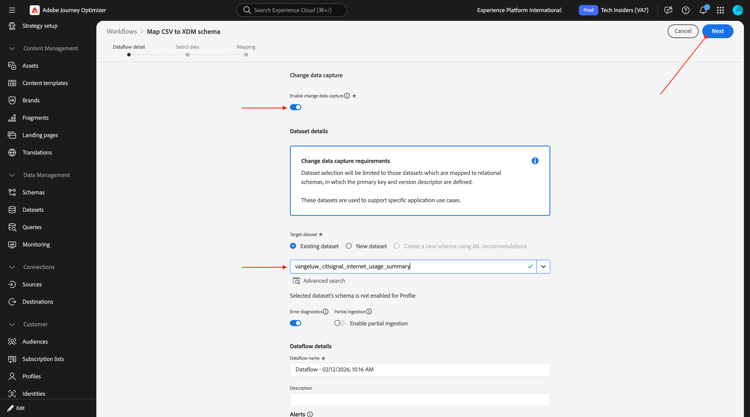
Enable the toggle for Enable change data capture.
Select the dataset vangeluw_citisignal_internet_usage_summary.
Click Next.
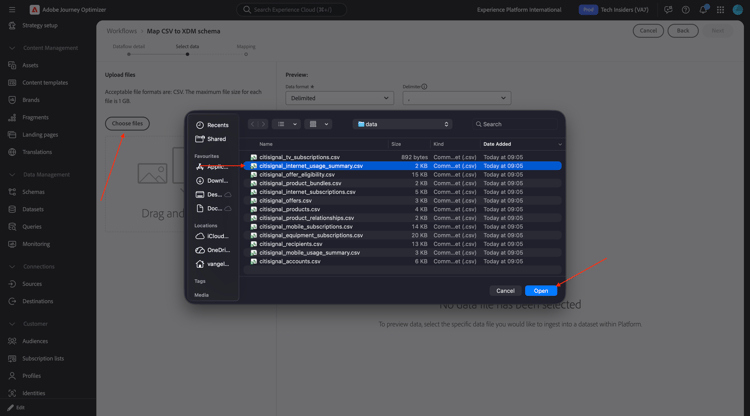
Click Choose files. Select the file citisignal_internet_usage_summary.csv and click open.
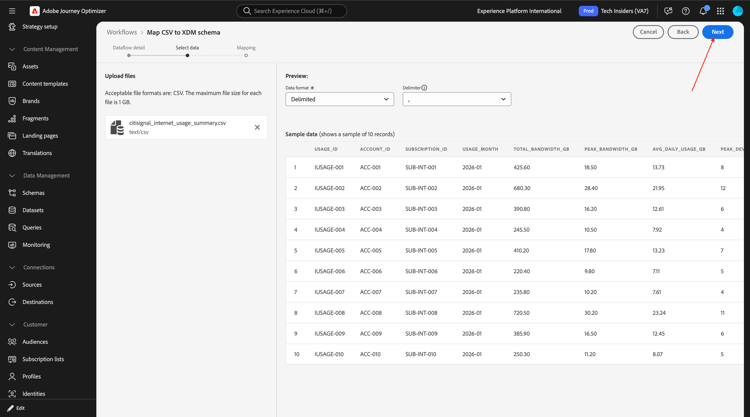
Click Next
Click Finish.
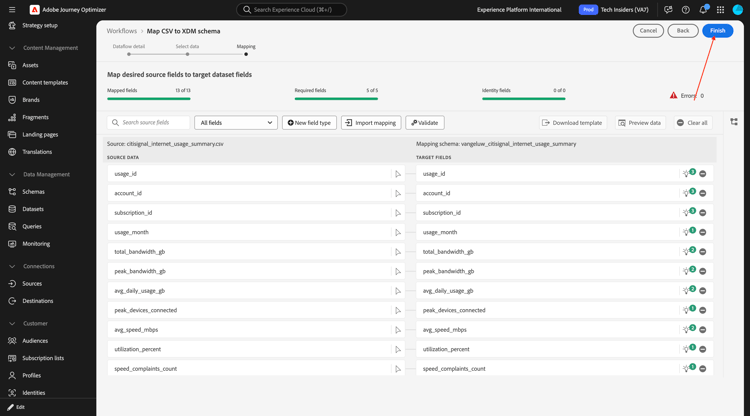
After a couple of minutes, you can see the data being ingested in your dataset.
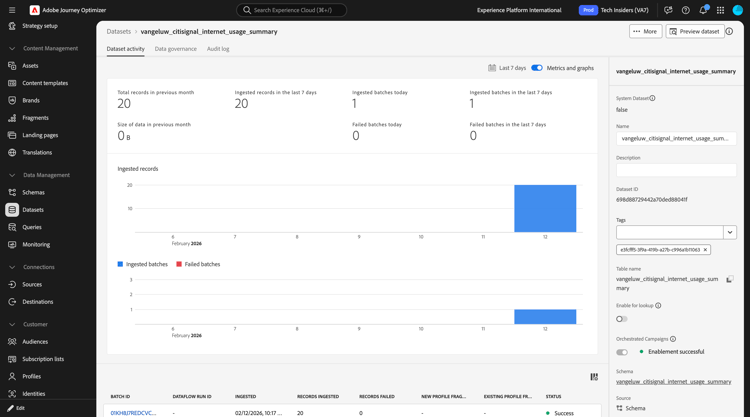
vangeluw_citisignal_offers
Go to Sources, search for local and then click Add data under Local File Upload.
Enable the toggle for Enable change data capture.
Select the dataset vangeluw_citisignal_offers.
Click Next.
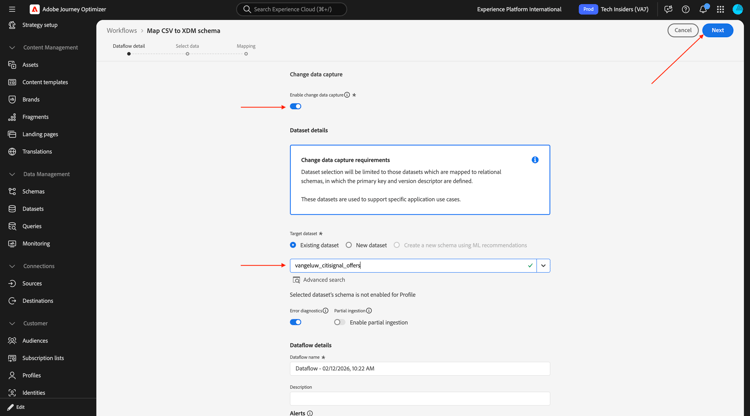
Click Choose files. Select the file citisignal_offers.csv and click open.
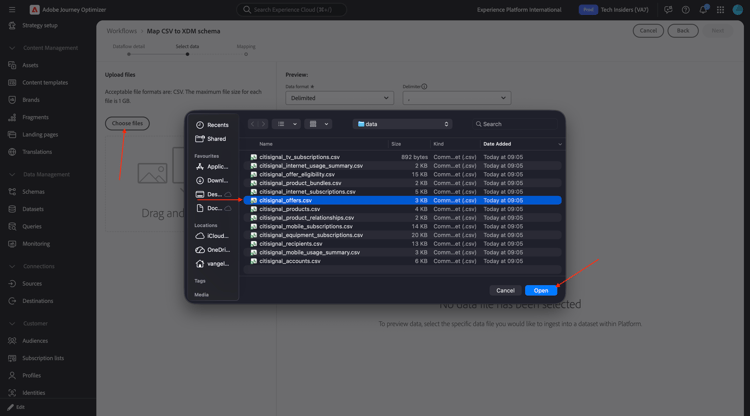
Click Next
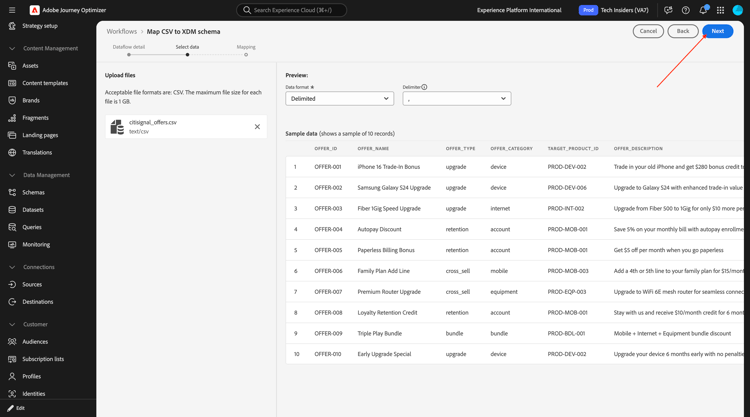
Click Finish.
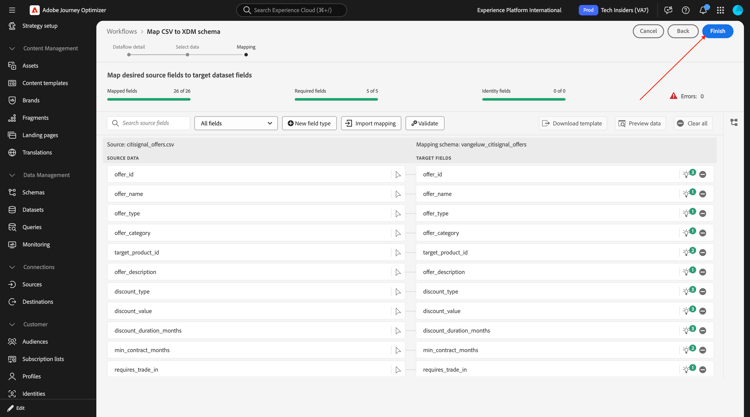
After a couple of minutes, you can see the data being ingested in your dataset.
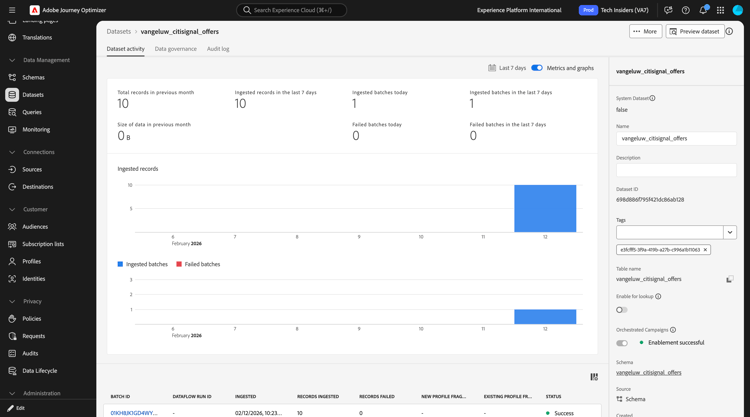
vangeluw_citisignal_offer_eligibility
Go to Sources, search for local and then click Add data under Local File Upload.
Enable the toggle for Enable change data capture.
Select the dataset vangeluw_citisignal_offer_eligibility.
Click Next.
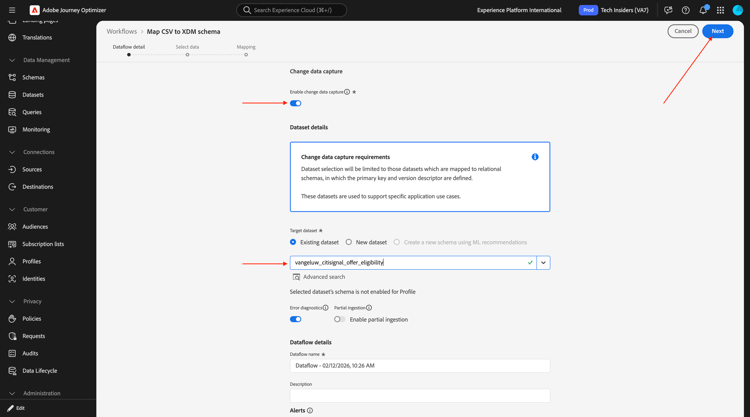
Click Choose files. Select the file citisignal_offer_eligibility.csv and click open.
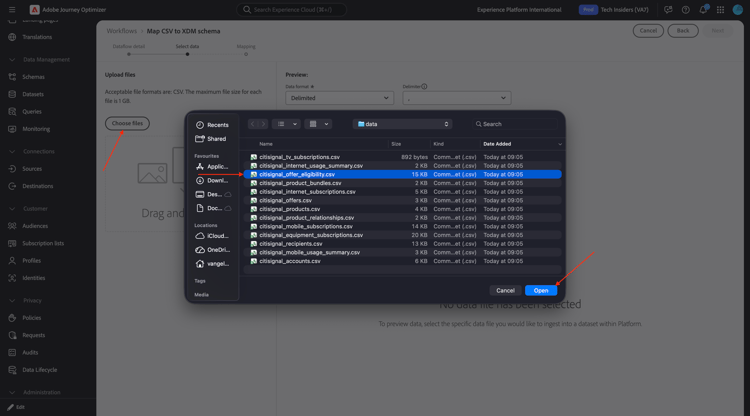
Click Next
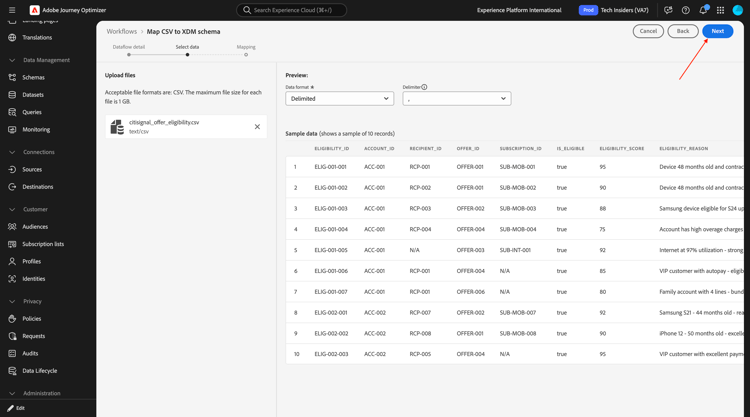
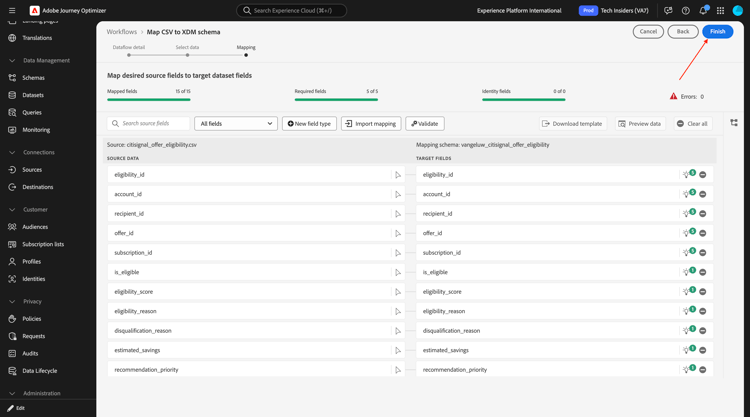
Click Finish.
After a couple of minutes, you can see the data being ingested in your dataset.
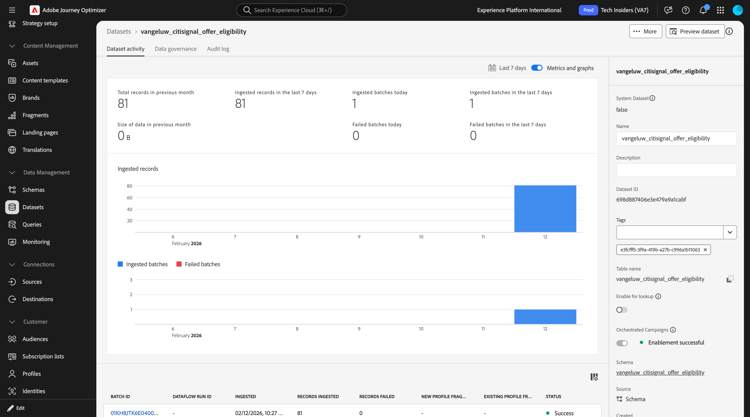
All data is now ingested.
3.8.1.3 Profile Target Dimension
With Orchestrated Campaigns, you can design and deliver targeted communications at the entity level, leveraging Adobe Experience Platform’s relational schema capabilities. Experience Platform uses schemas to describe the structure of data in a consistent and reusable way. When data is ingested into Experience Platform, it is structured according to an XDM schema.
Although segmentation for Orchestrated Campaigns operates primarily on relational schemas, the actual message delivery always occurs at the Profile level.
When configuring targeting, you define two key aspects:
-
Targetable Schemas: You specify which relational schemas are eligible for targeting. By default, the schema named Recipient is used, but you can configure alternatives such as Visitors, Customers, etc.
-
Profile Linkage: The system must understand how the target schema maps to the Profile schema. This is achieved through a shared identity field — one that exists both in the target schema and the Profile schema and is configured as an identity namespace.
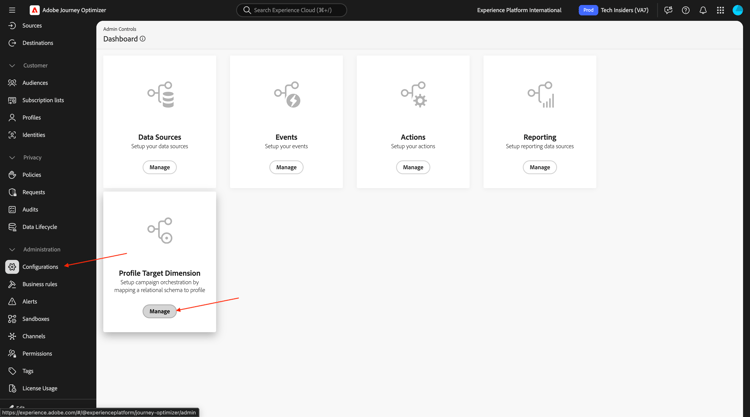
You now need to configure your Profile Target Dimensions. Go to Administration > Configuration and then click Manage under Profile Target Dimension.
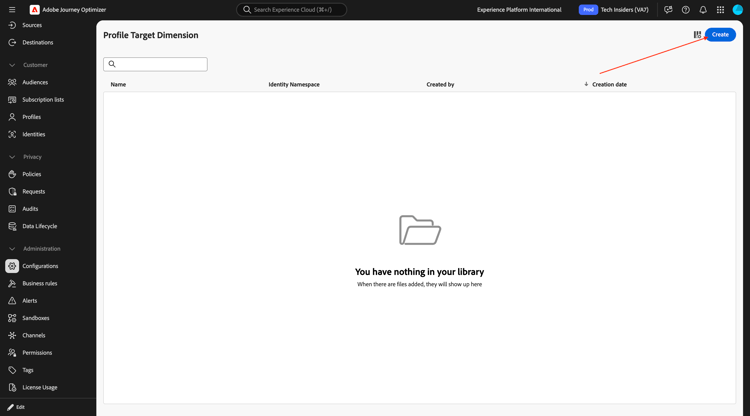
You should then see this. Click Create.
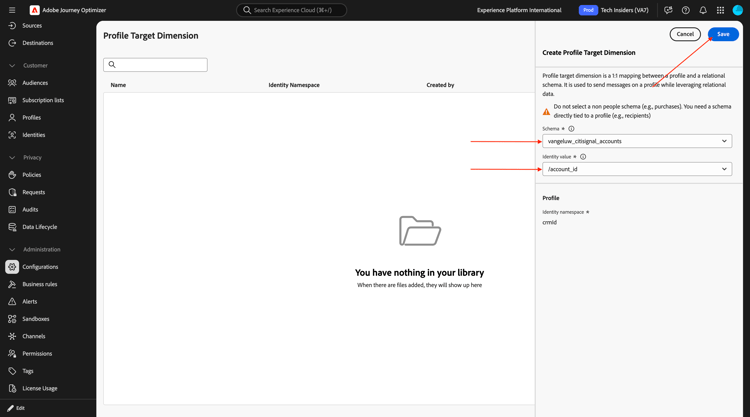
For the Schema, select --aepUserLdap--_citisignal_accounts. For the Identity value, select account_id.
Click Save.
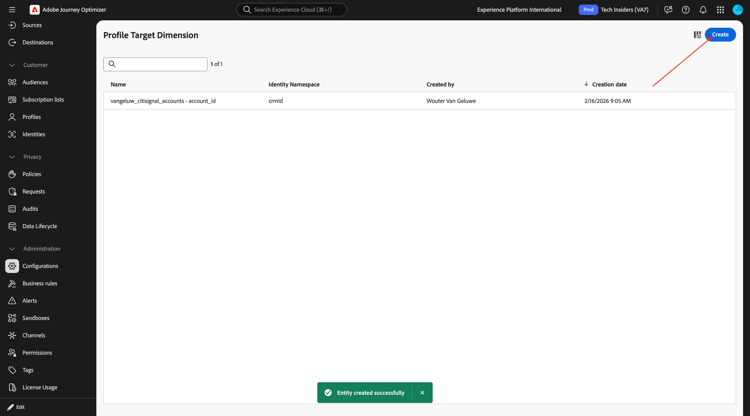
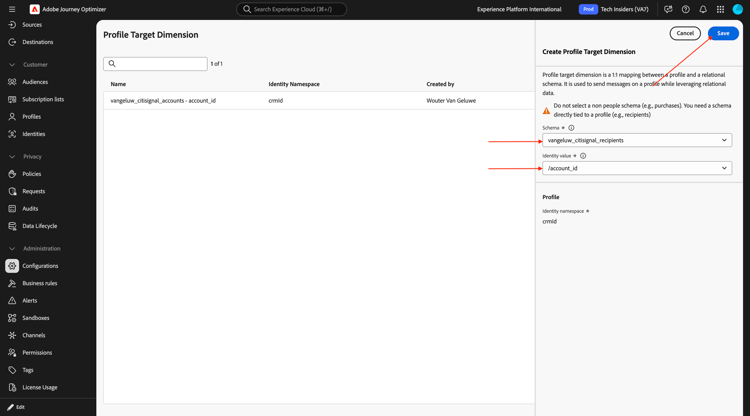
Click Create again.
For the Schema, select --aepUserLdap--_citisignal_recipients. For the Identity value, select account_id.
Click Save.
Click Create again.
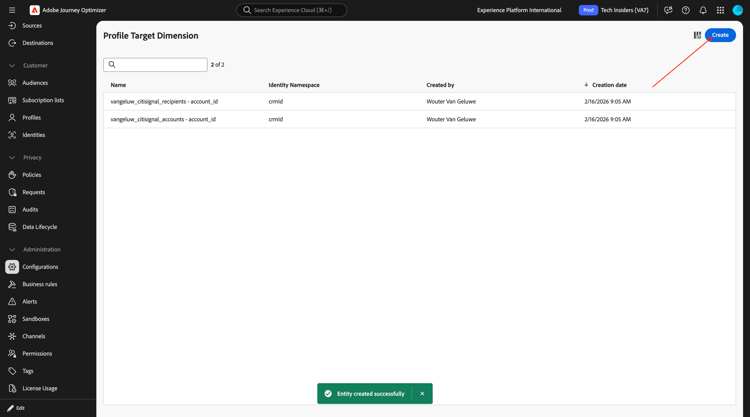
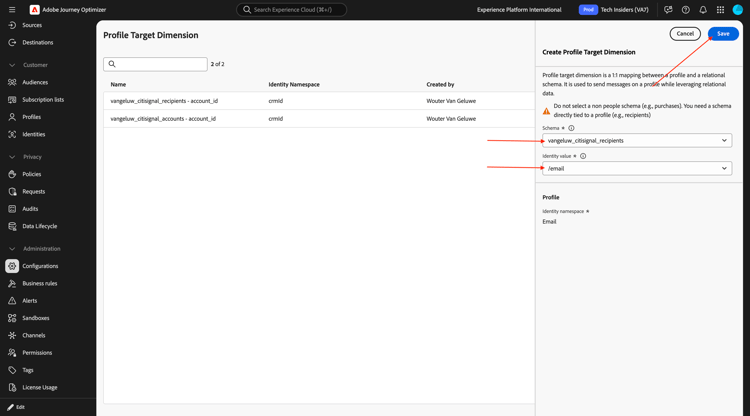
For the Schema, select --aepUserLdap--_citisignal_recipients. For the Identity value, select email.
Click Save.
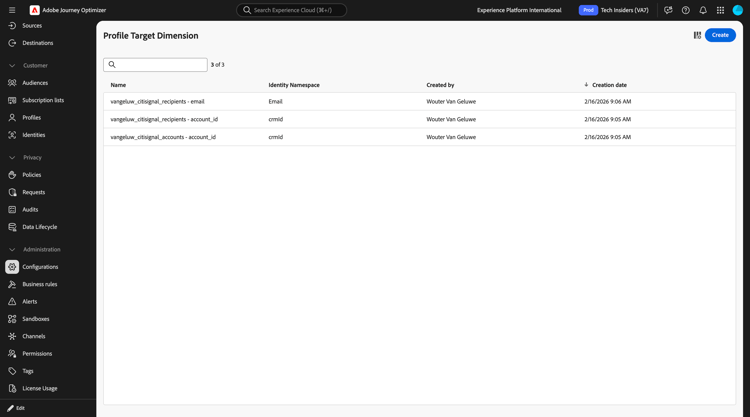
You should then have this.
3.8.1.4 Email channel
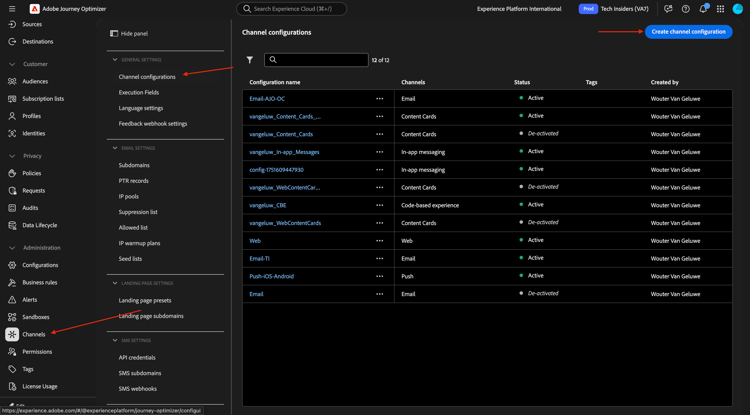
In the left menu, go to Channels. Click Create channel configuration.
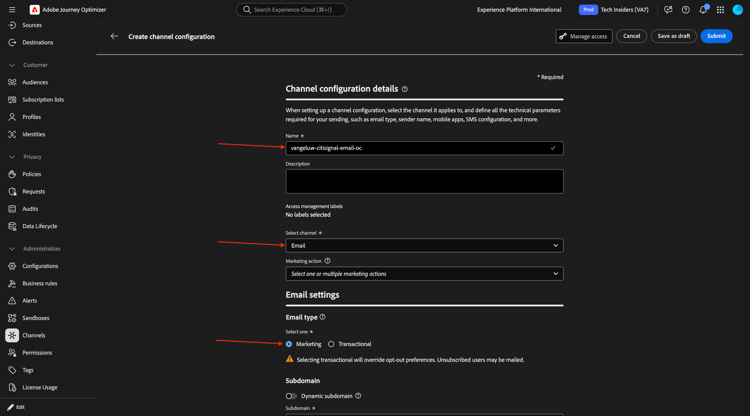
Use the name: --aepUserLdap---citisignal-email-oc. Select the channel Email
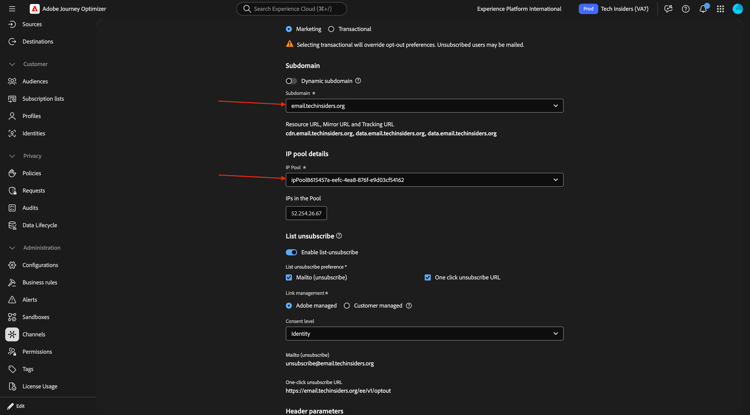
Select an available subdomain and IP pool.
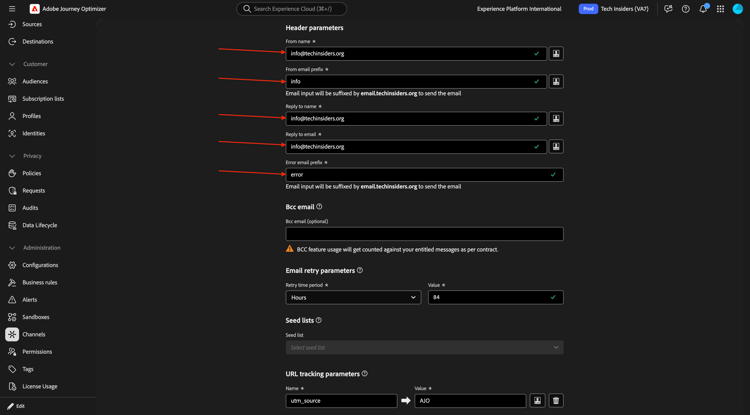
Scroll down and fill out the Header parameters.
- From name:
info@techinsiders.org - From email prefix:
info - Reply to name:
info@techinsiders.org - Reply to email:
info@techinsiders.org - Error email prefix:
error
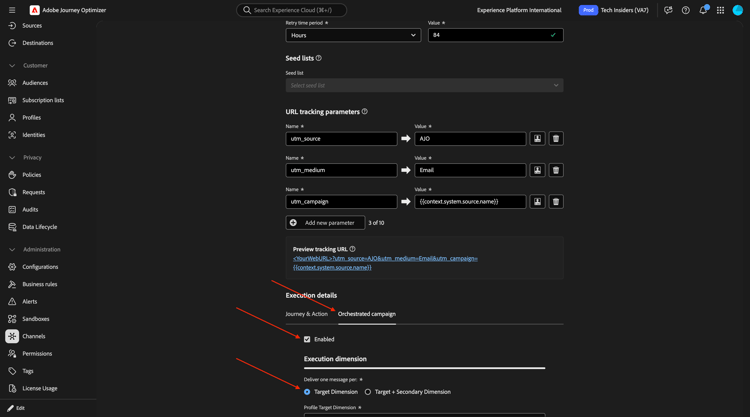
Scroll down. Go to Orchestrated campaign. Check the checkbox for Enabled. Select Targetng dimension.
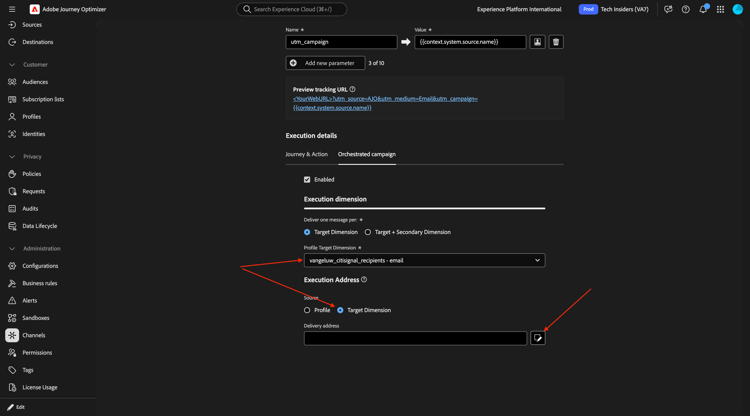
For Profile Target Dimension, select --aepUserLdap--_citisignal_recipients - email.
Select Target Dimension and click the open folder icon.
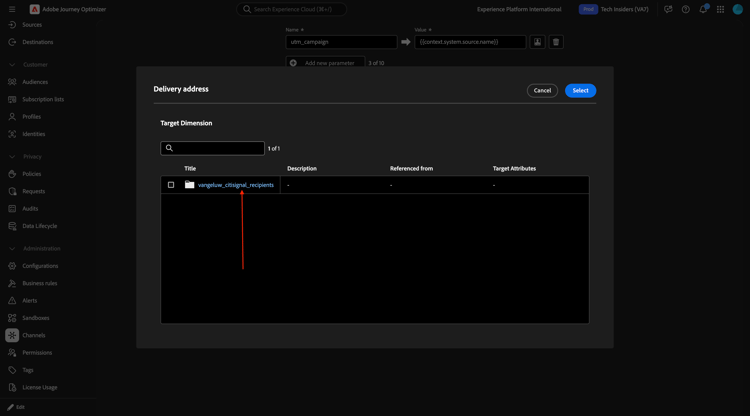
Click --aepUserLdap--_citisignal_recipients.
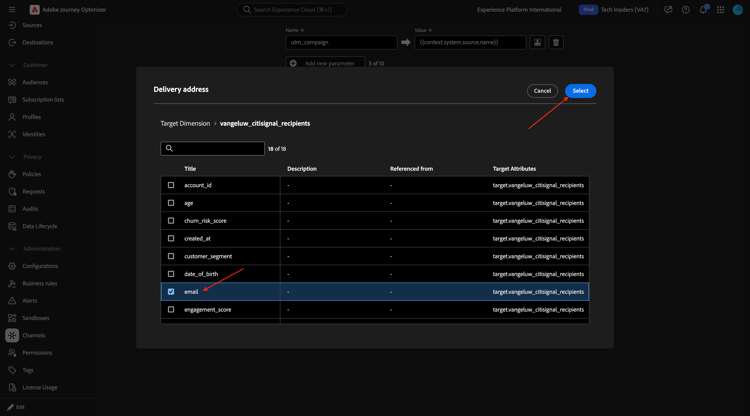
Select the field email and click Select.
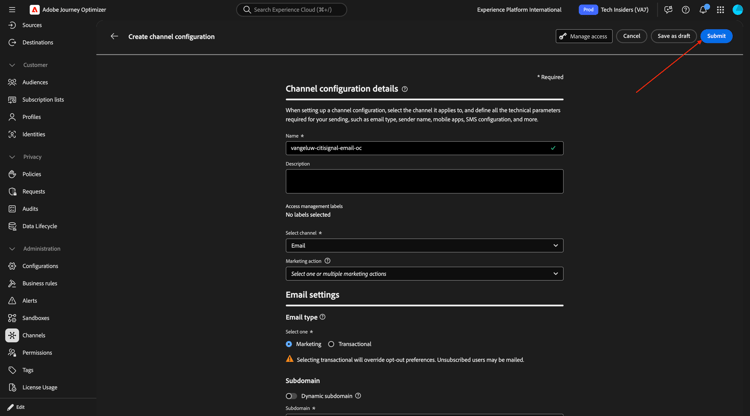
Scroll up and click Submit.
In the next exercise you’ll start to use that data as part of an orchestrated campaign.
Next Steps
Go to Create your orchestrated campaign
Go back to Adobe Journey Optimizer: Orchestrated Campaigns
Go back to All modules