Sur cette page : préparez la publication de votre parcours ou campagne en toute confiance en l’envoyant aux réviseurs et réviseuses appropriés et gardez le contrôle pendant la révision. Annulez, modifiez et soumettez à nouveau le contenu si nécessaire, pour que seul le contenu approuvé et conforme à la marque soit diffusé à vos clientes et clients.
L’accès au workflow d’approbation est déterminé par votre cas pratique spécifique :
-
Il n’existe aucune politique d’approbation active
-
Campagnes : si aucune politique d’approbation n’est active pour l’objet de campagne dans un sandbox, les campagnes affichent le bouton Activer, ce qui vous permet de les activer sans avoir à les approuver.
-
Parcours : si aucune politique d’approbation n’est active pour l’objet de parcours, les parcours affichent le bouton Publier, ce qui vous permet de publier directement.
-
-
Il existe des politiques d’approbation actives
-
Campagnes : s’il existe une ou plusieurs politiques d’approbation actives pour l’objet de campagne dans un sandbox, toutes les campagnes de ce sandbox afficheront le bouton Demander l’approbation.
Si aucune politique d’approbation ne s’applique à l’objet sélectionné lorsque vous cliquez sur le bouton Demander l’approbation, le processus d’approbation automatique est déclenché. -
Parcours : s’il existe une ou plusieurs politiques d’approbation actives pour l’objet de parcours dans un sandbox, tous les parcours afficheront le bouton Demander l’approbation.
Si aucune politique d’approbation ne s’applique à l’objet sélectionné lorsque vous cliquez sur le bouton Demander l’approbation, le processus d’approbation automatique est déclenché.
-
Envoyer une demande d’approbation
Pour les parcours, cliquez d’abord sur Valider dans l’en-tête du parcours. Résolvez les erreurs dans le panneau Alertes et validez à nouveau avant de demander l’approbation. En savoir plus sur la validation des parcours .
Après avoir créé votre campagne ou votre parcours, cliquez sur le bouton Demander l’approbation. Vous pouvez ainsi vérifier si votre sandbox contient une politique d’approbation active qui s’applique à la campagne ou au parcours.
-
S’il existe une politique d’approbation applicable, votre campagne ou votre parcours sera envoyé(e) pour révision.
-
Si aucune politique d’approbation n’est applicable à la campagne ou au parcours après avoir cliqué sur le bouton Demander l’approbation, la campagne ou le parcours sera automatiquement approuvé(e) et activé(e) ou publié(e).
Le volet Demander l’approbation s’ouvre. Si nécessaire, envoyez un message aux approbateurs et approbatrices, puis cliquez sur Envoyer pour envoyer votre demande.

Bien que l’état de la campagne ou du parcours soit En révision, vous avez la possibilité d’annuler la demande d’approbation. En cliquant sur le bouton Annuler la demande, la campagne ou le parcours revient à l’étape de brouillon et une notification est envoyée aux réviseurs et réviseuses les informant que la demande a été annulée. Vous pouvez ensuite apporter les modifications nécessaires et demander à nouveau une approbation pour la campagne ou le parcours.

Gérer les demandes d’approbation
Une fois que la demande d’approbation a été envoyée aux personnes approbatrices, elles peuvent la vérifier et activer le parcours ou la campagne pour sa mise en ligne, ou demander des modifications si nécessaire. Découvrir comment réviser et approuver une demande
Si les approbateurs et approbatrices demandent des modifications, vous recevez un e-mail et une alerte Journey Optimizer, accessible lorsque vous cliquez sur l’icône représentant une cloche en haut à droite de l’écran, dans l’onglet Demandes.
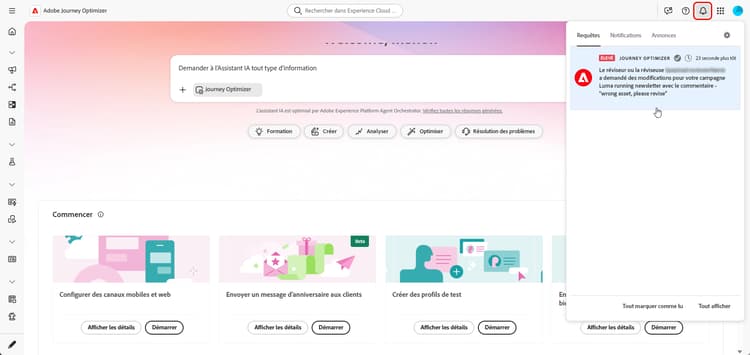
Pour consulter la demande de modification, ouvrez-la à partir de l’e-mail ou de l’alerte pour accéder au parcours ou à la campagne et apporter les modifications demandées. Lorsque votre parcours ou votre campagne peut de nouveau faire l’objet d’une révision, envoyez une nouvelle demande d’approbation à l’aide du bouton Demander l’approbation.
Pour les parcours, exécutez à nouveau Valider après avoir apporté des modifications et résolu les erreurs avant de soumettre à nouveau la demande d’approbation.
This section contains structured knowledge intended to support interpretation, retrieval, and question answering related to this topic.
For complete understanding, this information should be combined with the documentation on this page. Neither source is intended to stand alone; the page describes the feature, while this section provides additional context that helps disambiguate terminology, intent, applicability, and constraints.
- TL;DR: This page explains how creators submit a journey or campaign for approval, how the available action button depends on whether active approval policies exist for the object type in the sandbox, and how to cancel, edit, and resubmit a request while it is in review.
Intents:
- Determine which action button appears (Activate, Publish, or Request Approval) based on active approval policies
- Submit a campaign or journey for review with the Request Approval button and an optional message to the approvers
- Understand the auto-approval workflow when no policy applies to the selected object
- Cancel an approval request to return the object to the draft stage, then edit and resubmit it
- Respond to requested changes received through an email and a Journey Optimizer alert
Glossary:
- Request Approval: The button displayed when one or more active approval policies exist for that object type in the sandbox; clicking it checks whether a policy applies to the campaign or journey. (product-specific)
- Auto-approval workflow: The flow triggered when no approval policy applies to the selected object after clicking Request Approval; the object is automatically approved and either activated or published. (product-specific)
- In review: The state of a campaign or journey after a request is sent, during which the request can be canceled. (product-specific)
- Cancel request: The action that returns the campaign or journey to the draft stage and notifies the reviewers. (product-specific)
Guardrails:
-
Journeys must be validated and errors in the Alerts panel resolved before requesting approval. Journey changes require Validate again and resolution of errors before resubmission.
-
If no approval policy is active for the object type in a sandbox, campaigns show the Activate button and journeys show the Publish button, allowing activation or publishing without approval.
-
If one or more active approval policies exist for the object type in a sandbox, all objects of that type display the Request Approval button.
-
If no policy applies to the selected object when Request Approval is clicked, the auto-approval workflow is triggered and the object is automatically approved and either activated or published.
-
While an object is In review, you can cancel the request to return it to the draft stage, then make edits and resubmit it for approval.
Terminology:
- Canonical name: Request Approval (button) — variants: Request approval (pane)
- Do not confuse: “Activate” (campaigns, no active policy) ≠ “Publish” (journeys, no active policy) ≠ “Request Approval” (submit for review when a policy is active)
- Do not confuse: “Cancel request” (returns the object to draft and notifies reviewers) ≠ an approver requesting changes
- Do not confuse: an applicable approval policy found (object sent for review) ≠ no applicable policy after clicking Request Approval (auto-approval workflow: automatically approved and activated or published)
FAQ:
- Q: Why do I see Request Approval instead of Activate or Publish? — Because one or more active approval policies exist for that object type in your sandbox.
- Q: What if I click Request Approval but no policy actually applies? — The auto-approval workflow triggers and the object is automatically approved and either activated or published.
- Q: Can I change an object after submitting it? — Cancel the request with Cancel request to return it to the draft stage, make the edits, then resubmit with the Request approval button.
- Q: How am I notified when an approver requests changes? — Through an email and a Journey Optimizer alert accessible when clicking the bell icon, in the Requests tab.