Sur cette page : configurez vos informations d’identification push et définissez la configuration du canal d’activité en direct afin de permettre à Adobe Journey Optimizer de diffuser des mises à jour en temps réel sur votre application iOS.
Avant d’envoyer des activités en direct, vous devez configurer votre environnement Adobe Journey Optimizer. Pour ce faire, procédez comme suit :
Étape 1 : ajouter les informations d’identification push de votre application dans Journey Optimizer (facultatif) push-credentials-launch
L’enregistrement des informations d’identification push de l’application mobile est nécessaire pour autoriser Adobe à envoyer des notifications push en votre nom.
L’étape 1 est facultative si vos informations d’identification push ont déjà été configurées, car elles peuvent être réutilisées pour la configuration du canal d’activité en direct. Si aucune information d’identification push n’est définie pour votre application, vous devez les créer. Reportez-vous aux étapes détaillées ci-dessous :
-
Accédez au menu Canaux > Paramètres push > Informations d’identification push.
-
Cliquez sur Créer des informations d’identification push.

-
Dans la liste déroulante Platform, sélectionnez iOS.
-
Saisissez l’ID d’application de l’application mobile.

-
Activez l’option Appliquer à tous les sandbox pour mettre ces informations d’identification push à disposition dans tous les sandbox. Si un sandbox spécifique possède ses propres informations d’identification pour la même paire d’identifiants de plateforme et d’application, ces informations d’identification spécifiques au sandbox sont prioritaires.
-
Activez le bouton Saisir manuellement les informations d’identification push pour ajouter vos informations d’identification.
-
Effectuez un glisser-déposer de votre fichier de clé d’authentification de notification push Apple .p8. Cette clé peut être obtenue à partir de la page Certificats, Identifiants et Profils.
-
Indiquez l’identifiant de clé. Il s’agit d’une chaîne de 10 caractères attribuée lors de la création de la clé d’authentification p8. Elle se trouve sous l’onglet Clés de la page Certificats, Identifiants et Profils.
-
Indiquez l’identifiant d’équipe. Il s’agit d’une valeur de chaîne qui se trouve sous l’onglet Abonnement.
-
Cliquez sur Envoyer pour créer votre configuration d’application.
-
Accédez au menu Canaux > Paramètres push > Informations d’identification push.
-
Cliquez sur Créer des informations d’identification push.
-
Dans la liste déroulante Platform, sélectionnez Android.
-
Saisissez l’ID d’application de l’application mobile.

-
Activez l’option Appliquer à tous les sandbox pour mettre ces informations d’identification push à disposition dans tous les sandbox. Si un sandbox spécifique possède ses propres informations d’identification pour la même paire d’identifiants de plateforme et d’application, ces informations d’identification spécifiques au sandbox sont prioritaires.
-
Activez le bouton Saisir manuellement les informations d’identification push pour ajouter vos informations d’identification.

-
Effectuez le glisser-déposer de votre fichier de clé privée .json.
-
Cliquez sur Envoyer pour créer votre configuration d’application.
Étape 2 : créer votre configuration d’activité dynamique config-live-activity
-
Dans le rail de gauche, accédez à Administration > Canaux et sélectionnez Paramètres généraux > Configurations de canal. Cliquez sur le bouton Créer une configuration de canal.
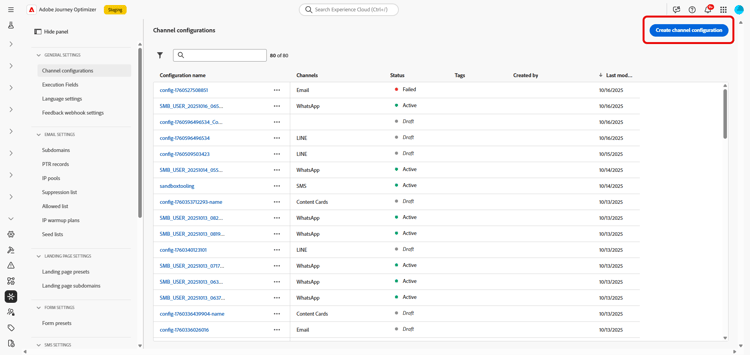
-
Saisissez un nom et une description (facultatif) pour la configuration, puis sélectionnez le canal d’activité en direct.
note NOTE Les noms doivent commencer par une lettre (A-Z). Ils ne peuvent contenir que des caractères alphanumériques. Vous pouvez également utiliser le trait de soulignement _, le point.et le trait d'union-. -
Sélectionnez Live activity en tant que canal.

-
Sélectionnez une ou plusieurs actions marketing pour associer des politiques de consentement aux messages qui utilisent cette configuration. Toutes les politiques de consentement associées à cette action marketing sont utilisées afin de respecter les préférences de vos clientes et clients. En savoir plus
-
Choisissez votre Platform.
-
Dans la liste déroulante, sélectionnez le même ID d’application que pour vos informations d’identification push configurées ci-dessus ou choisissez-en un existant.

-
Une fois tous les paramètres configurés, cliquez sur Envoyer pour confirmer. Vous pouvez également enregistrer la configuration de canal en tant que brouillon et reprendre son paramétrage ultérieurement.
-
Une fois la configuration de canal créée, elle s’affiche dans la liste avec le statut En cours de traitement.
note NOTE Si les vérifications ne réussissent pas, découvrez les raisons possibles de l’échec dans cette section. -
Une fois les contrôles réussis, la configuration de canal obtient le statut Actif. Elle est prête à être utilisée pour diffuser des messages.
Vous pouvez maintenant commencer l’intégration avec le SDK mobile d’Adobe Experience Platform pour activer les mises à jour dynamiques en temps réel sur l’écran de verrouillage et la Dynamic Island.
➡️ En savoir plus sur l’intégration du SDK mobile d’Adobe Experience Platform
This section contains structured knowledge intended to support interpretation, retrieval, and question answering related to this topic.
For complete understanding, this information should be combined with the documentation on this page. Neither source is intended to stand alone; the page describes the feature, while this section provides additional context that helps disambiguate terminology, intent, applicability, and constraints.
- TL;DR: This page explains how to set up your app push credentials and create a Live activity channel configuration so Adobe Journey Optimizer is authorized to deliver real-time updates to your iOS app.
Intents:
- Add app push credentials (optional if already configured) for iOS (a .p8 Apple Push Notification Authentication Key, Key ID, and Team ID) or for Android (a .json private key file)
- Reuse existing push credentials or make them available across sandboxes
- Create a Live activity channel configuration under Administration, Channels, General settings, Channel configurations
- Associate consent policies by selecting marketing action(s)
- Choose the Platform and select the matching App ID, then submit or save as draft
Glossary:
- Push credential: A registration required to authorize Adobe to send push notifications on your behalf (product-specific)
- .p8 Apple Push Notification Authentication Key: The key file dragged and dropped when manually entering iOS push credentials; for Android, a .json private key file is dragged and dropped instead
- Key ID: A 10 character string assigned during creation of the .p8 auth key
- Team ID: A string value found under the Membership tab
- Apply to all sandboxes: An option that makes push credentials available across all sandboxes; sandbox-specific credentials for the same Platform and App ID pair take precedence (product-specific)
- Channel configuration: A configuration created under General settings to deliver messages through the Live activity channel (product-specific)
- Marketing action(s): A selection that associates consent policies to messages using the configuration (product-specific)
- Processing / Active: The statuses a channel configuration passes through; Active means it is ready to deliver messages (product-specific)
Guardrails:
- Step 1 (adding push credentials) is optional if push credentials are already configured, as they can be reused for the Live activity channel configuration.
- Configuration names must begin with a letter (A-Z) and can only contain alpha-numeric characters plus underscore, dot, and hyphen characters.
- If a specific sandbox has its own credentials for the same Platform and App ID pair, those sandbox-specific credentials take precedence over credentials applied to all sandboxes.
- All consent policies associated with the selected marketing action are leveraged in order to respect the preferences of your customers.
- The channel configuration is ready to deliver messages only once the checks are successful and it reaches the Active status; if the checks are not successful, review the possible failure reasons in the channel surfaces documentation.
Terminology:
- Canonical name: Live activity channel configuration — Acronym: n/a — variants: channel configuration, Live activity configuration
- Do not confuse: “Processing” (status while the checks run) ≠ “Active” (status once the checks are successful, ready to deliver)
- Do not confuse: “Key ID” (10 character string for the .p8 auth key) ≠ “Team ID” (string found under the Membership tab)
FAQ:
- Q: Do I always need to create new push credentials? — No; Step 1 is optional if push credentials are already configured, as they can be reused for the Live activity channel configuration.
- Q: What are the naming rules for a configuration? — Names must begin with a letter (A-Z) and can only contain alpha-numeric characters plus underscore, dot, and hyphen.
- Q: Which platform do I select for a Live activity configuration? — Choose your Platform and select the same App ID as the push credential configured for the app, or choose an existing one.
- Q: How do I associate consent to messages using this configuration? — Select marketing action(s); all consent policies associated with the marketing action are leveraged to respect customer preferences.
- Q: When is the configuration usable? — Once the checks are successful and the channel configuration reaches the Active status.
- Q: What does Apply to all sandboxes do? — It makes the push credentials available across all sandboxes; sandbox-specific credentials for the same Platform and App ID pair take precedence.