En esta página: Aprenda a establecer la zona horaria de un recorrido, ya sea una zona horaria fija o una tomada de cada perfil, para controlar cuándo se ejecutan las actividades basadas en la hora, como condiciones horarias, condiciones de fecha y esperas personalizadas.
Puede definir una zona horaria en las propiedades de su recorrido.
Para acceder a las propiedades del recorrido, seleccione el icono de lápiz en la parte superior derecha de la pantalla.
Esta zona horaria se utilizará para cada actividad del recorrido que contenga un elemento de hora como:
Puede seleccionar una zona horaria fija o elegir usar la zona horaria definida en el perfil de usuario.
Definir una zona horaria fija fixed-timezone
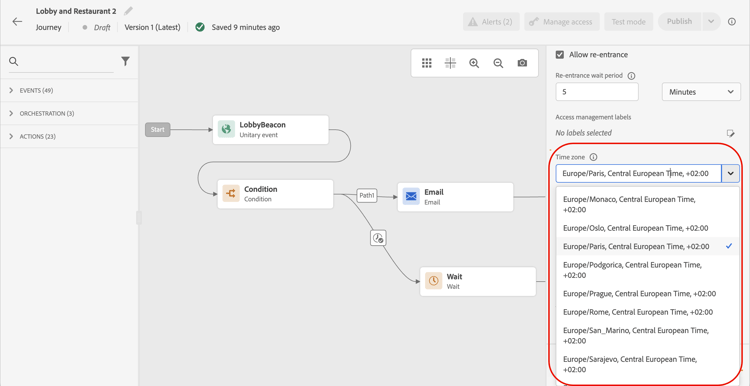
La zona horaria puede ser fija. Borre la zona horaria predefinida y elija una en la lista desplegable. Si utiliza una zona horaria fija, será la misma para todas las personas que entren en el recorrido.
Para ello, en el panel Propiedades del Recorrido, seleccione una zona horaria.
Usar zona horaria del perfil timezone-from-profiles
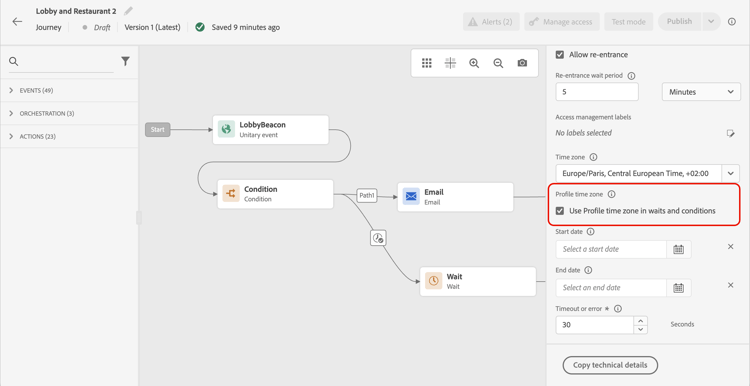
Si el evento de entrada del recorrido tiene un área de nombres, lo que significa que el recorrido puede llegar al servicio Perfil del cliente en tiempo real de Adobe Experience Platform, puede que desee utilizar la zona horaria definida en el nivel de perfil. Para ello, en Properties, marque Usar zona horaria del perfil en esperas y condiciones. Esta opción no está activada de forma predeterminada.
Si se ha definido una zona horaria para un perfil, el recorrido la recupera y la utiliza. Si no es así, la zona horaria utilizada es la definida en el campo de zona horaria.
Uso de zonas horarias en expresiones timezone-in-expressions
Las fechas de inicio y finalización de un recorrido no se pueden vincular a una zona horaria específica. Se asocian automáticamente al huso horario de la instancia.
This section contains structured knowledge intended to support interpretation, retrieval, and question answering related to this topic.
For complete understanding, this information should be combined with the documentation on this page. Neither source is intended to stand alone; the page describes the feature, while this section provides additional context that helps disambiguate terminology, intent, applicability, and constraints.
- TL;DR: This page explains how to configure time zone settings in Adobe Journey Optimizer journey properties, choosing between a fixed time zone applied to all profiles or a per-profile time zone sourced from the Real-time Customer Profile.
Intents:
- Set a fixed time zone on a journey so that all profiles follow the same time reference for conditions and waits
- Enable per-profile time zone so that Wait and Condition activities use each individual’s stored time zone preference
- Understand which journey activities are affected by the journey time zone setting
- Identify the profile field group that stores the individual time zone value
Glossary:
- Fixed time zone: A single time zone selected in Journey Properties that applies uniformly to every profile entering the journey (product-specific)
- Profile time zone: The per-individual time zone stored in the
timeZonefield of the Preference Details field group, used when the “Use Profile time zone in waits and conditions” option is enabled (product-specific) - Preference Details field group: The XDM field group that contains the
timeZoneattribute used for profile-level time zone resolution
Guardrails:
- The “Use Profile time zone in waits and conditions” option is only available when the journey’s entry event has a namespace (i.e., the journey can reach the Real-time Customer Profile service)
- The option is not checked by default; the fixed time zone is used unless explicitly enabled
- If the option is enabled but no time zone is defined on the profile, the journey falls back to the fixed time zone defined in journey properties
- Journey start and end dates cannot be linked to a specific time zone; they are automatically associated with the instance’s time zone
Terminology:
- Canonical name: Time zone management — Acronym: none — variants: timezone configuration, journey time zone
- Synonyms: “fixed time zone” = “same for all individuals”; “profile time zone” = “Use Profile time zone in waits and conditions”
- Do not confuse: “journey time zone” (applies to activities) ≠ “instance time zone” (applies to journey start/end dates, set automatically)
FAQ:
- Q: Where do I set the time zone for a journey? — In the Journey Properties pane, accessible via the pencil icon in the top-right of the journey canvas.
- Q: Which activities use the journey time zone? — Time conditions, date conditions, and custom wait activities.
- Q: How do I make each profile follow their own local time zone? — In Journey Properties, enable the “Use Profile time zone in waits and conditions” option. This requires the journey to have a namespace so it can reach the Real-time Customer Profile service.
- Q: What happens if a profile has no time zone defined and the profile time zone option is enabled? — The journey falls back to the fixed time zone defined in the time zone field in Journey Properties.
- Q: Which profile field stores the individual’s time zone? — The
timeZonefield within the Preference Details field group in the profile schema. - Q: Can I set the journey’s start and end dates to a specific time zone? — No. Journey start and end dates are automatically associated with the instance’s time zone and cannot be linked to a custom time zone.