En esta página: Aprenda a usar el generador de reglas para filtrar datos y crear consultas dirigidas a audiencias en sus campañas orquestadas.
Las campañas organizadas incluyen un generador de reglas que simplifica el proceso de filtrado de la base de datos en función de varios criterios. El generador de reglas administra consultas muy complejas y largas de forma eficaz, lo que ofrece una mayor flexibilidad y precisión.
También admite filtros predefinidos dentro de las condiciones, lo que le permite detallar las consultas con facilidad mientras utiliza expresiones avanzadas y operadores para estrategias completas de segmentación de público y segmentación.
Acceso al generador de reglas access
El generador de reglas está disponible en todos los contextos en los que necesita definir reglas para filtrar los datos.
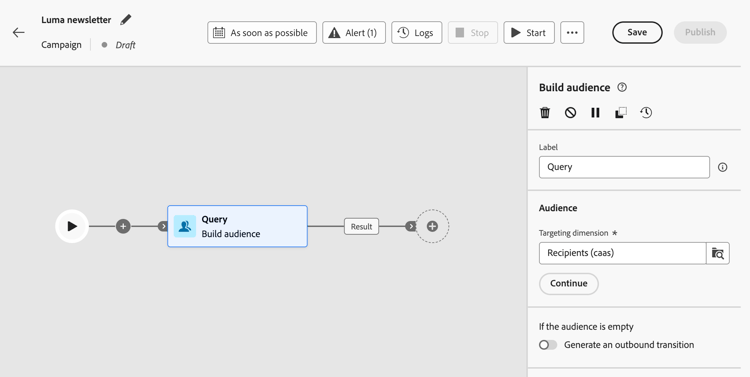

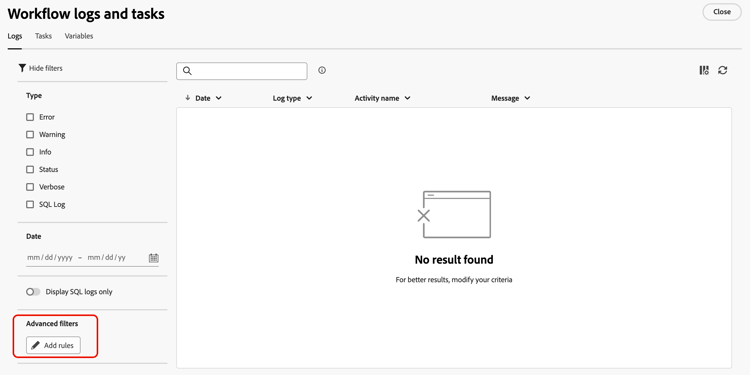
Interfaz del generador de reglas interface
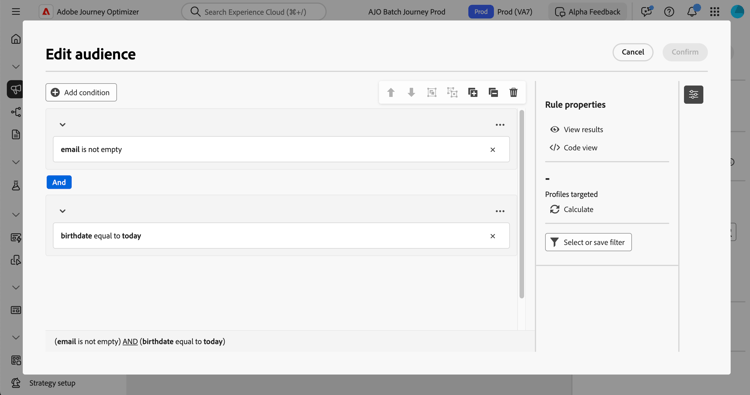
El generador de reglas proporciona un lienzo central en el que se genera la consulta y un panel de propiedades que proporciona información sobre la regla.
-
En el lienzo central es donde se añaden y combinan los diferentes componentes para generar la regla. Descubra cómo generar una regla
-
El panel Propiedades de regla proporciona información sobre la regla. Le permite realizar varias operaciones para comprobar la regla y asegurarse de que se adapta a sus necesidades.
Este panel se muestra al armar una consulta para crear un público. Aprenda a comprobar y validar su consulta
Trabajo con filtros predefinidos
Los filtros predefinidos permiten reutilizar consultas guardadas en el generador de reglas, incluidas las versiones con parámetros. Para ver una introducción completa sobre cómo guardar, aplicar y administrar filtros predefinidos, vea Trabajar con filtros predefinidos.
This section contains structured knowledge intended to support interpretation, retrieval, and question answering related to this topic.
For complete understanding, this information should be combined with the documentation on this page. Neither source is intended to stand alone; the page describes the feature, while this section provides additional context that helps disambiguate terminology, intent, applicability, and constraints.
- TL;DR: This page explains how to access and use the rule builder to filter data and build the queries that target audiences in Orchestrated campaigns.
Intents:
- Identify the contexts where the rule builder is available.
- Specify a target population using a Build audience activity.
- Apply a condition in the campaign canvas using a Split activity.
- Build advanced filters for lists such as campaign logs or targeting dimensions.
- Understand the central canvas and the Rule properties pane in the rule builder interface.
- Reuse saved queries through predefined filters.
Glossary:
- Rule builder: a tool that simplifies filtering the database based on various criteria, manages complex and long queries, and supports predefined filters within conditions (product-specific)
- Central canvas: the part of the rule builder interface where components are added and combined to build a rule (product-specific)
- Rule properties pane: the pane that provides information on the rule and allows operations to check the rule and ensure it suits the user’s needs; it displays when building a query to create an audience (product-specific)
- Build audience activity: used to specify the population to target in an Orchestrated campaign by creating new audiences (product-specific)
- Split activity: used to apply rules within the campaign canvas (product-specific)
- Predefined filters: saved queries, including versions with parameters, that can be reused in the rule builder (product-specific)
Guardrails:
- None stated on the page.
Terminology:
- Canonical name: rule builder — variants: none stated
FAQ:
- Q: Where is the rule builder available? — In every context where rules are needed to filter data, including building audiences with a Build audience activity, applying conditions in the campaign canvas with a Split activity, and building advanced filters for lists such as campaign logs or targeting dimensions.
- Q: What does the rule builder interface consist of? — A central canvas where components are added and combined to build the rule, and a Rule properties pane that provides information on the rule and lets the user check it.
- Q: When does the Rule properties pane display? — When building a query to create an audience.
- Q: Can saved queries be reused in the rule builder? — Yes, through predefined filters, including versions with parameters.
Related pages:
- To build audiences in Orchestrated campaigns: Learn how to build audiences (orchestrated/activities/build-audience.md)
- To apply a condition in the campaign canvas: Learn how to use a Split activity (orchestrated/activities/split.md)
- To build a rule in the central canvas: Learn how to build a rule (orchestrated/build-query.md)
- To check and validate a query: Learn how to check and validate your query (orchestrated/build-query.md)
- To save, apply, and manage predefined filters: Work with predefined filters (orchestrated/predefined-filters.md)
Personas:
- marketer: Can specify a target population in an Orchestrated campaign using a Build audience activity. Can apply a condition in the campaign canvas using a Split activity, or build advanced filters for lists such as campaign logs. Where: “Access the rule builder”.
Onboarding:
- Level: Intermediate
- First minimal step: Specify the population you want to target in your Orchestrated campaigns using a Build audience activity.
- Success check: The Rule properties pane lets you check the rule to ensure it suits your needs.
- Previous: Specify a target population using a Build audience activity: Use the Build audience activity (orchestrated/activities/build-audience.md); Apply a condition in the campaign canvas using a Split activity: Use the Split activity (orchestrated/activities/split.md)
- Next: Build a rule in the central canvas: Build your first rule (orchestrated/build-query.md); Reuse saved queries through predefined filters: Work with predefined filters (orchestrated/predefined-filters.md)