Collections in Adobe Experience Manager (AEM) Assets improve digital asset management by separating how files are stored from how they’re used - helping marketers find, share, and manage assets without duplication. They enable flexible groupings, secure sharing, and easy cleanup, improving collaboration and governance across marketing workflows.
Have you ever spent 30 minutes creating a file of images just for sharing them with a team member or another team? There’s a better way! Collections make it easy to get the right files into the right hands - always current, always accessible.
Moving from asset storage to usage
Folders can often slow us down when it comes to managing assets in the AEM DAM (Digital Asset Management system). Markers and other teams can often confuse where an asset lives with how it is used.
DAM Librarians spend a ton of time building strict folder structures, organizing them by year, department, industry or campaign, possibly by language and approval status too. This is great for keeping the system organized, but it’s too rigid for marketers when they are trying to search for and find assets.
When a Marketer needs assets quickly, if files are scattered across different folders, this causes delays, slows campaigns, and leads to duplicate assets. Marketers can end up reuploading assets into a new folder for a project or campaign so everything they need is in one place. This not only causes duplicate assets but also weakens the folder structure that DAM Librarians work so hard to govern. Letting general users create new folders can break your asset governance by creating governance issues such as missing metadata, a lack of access restrictions, and going around asset processing automations and workflows, creating a real mess in the DAM.
The solution to creating a group of assets for a particular use case isn’t another folder structure - it’s a different way of thinking about asset organization. Collections can help solve the problem.
Why Collections
Collections decouple storage from strategy, allowing teams to prioritize asset usage over organization to drive faster, more effective workflows.
Folders should be thought of as the way to house and organize assets, while using Collections should be thought of as a way of grouping similar, related or relevant assets in an easy-to-find location without having to worry about which folder the asset resides in.
Collections help Marketing teams:
-
Eliminate duplication - Collections decouple storage from use, shifting the focus to how assets are used. By pointing directly to original files rather than copying them prevents users from creating duplicates and ensures updates to master file automatically reflect in the Collection. Also consider configuring the Asset Duplication Detector.
-
Control access - Marketers can control what and how outside agencies, sales teams, or others access a Collection including role-based permissions, controlled expiry and download settings, asset approvals via tasks, and allowing for flexible asset rendition downloads.
-
Accelerate findability - When users search within a collection, search is restricted to only those assets that are direct members of the collection, a better experience than searching many folders in the DAM.
-
Support campaigns - Collections provide a risk-free way to organize assets temporarily during campaigns. As campaigns and projects begin and end, the DAM keeps growing and needs to be governed. When a campaign wraps up, the collection can be deleted and deleting the Collection only removes the Collection. The original files stay safe in their DAM folders.
-
Manage evergreen assets - Teams can use Collections to maintain up-to-date, approved assets for regular, ongoing use, enabling quick access and reduced search time for things like brand guidelines, brand templates, approved images, etc..
-
Maintain governance - Collections support role-based permissions (owner, editor, viewer), controlled expiry and download settings, obtaining asset approvals, and allowing for flexible asset rendition downloads - streamlining collaboration, governance and asset consumption velocity.
-
Create a private collection for quick-access - Each Collections user has access to a private Lightbox collection to organize their most-used assets, creating the fastest path to the assets each user uses most.
Think of your DAM as a house. Folders are the rooms where assets live. Collections are curated packages you leave at the door - giving teams exactly what they need without opening access to the entire house.
Collections use cases
Collections are the key to making AEM Assets work for us across teams and campaigns. By encouraging teams to use Collections, we stop forcing people to dig through complicated folder structures and start providing them with the exact assets they need, when they need them.
Collections can be used for various use cases - for evergreen needs, to streamline campaigns, to facilitate projects, and for supporting governance efforts.
Evergreen collections
When teams need to manage and use a set of assets regularly on an ongoing basis, we put files into evergreen Collections. Whether it’s a collection of approved, branded images or a set of assets specific to their team, everyone knows they will have the most recent approved assets ready for them in their collection.
As an example, our Research team publishes content daily, sometimes multiple times a day, and they need images fast. Rather than searching the whole DAM from scratch each time, they’ve built a curated Collection of pre-approved images that’s ready to go whenever they are.
Evergreen Collections also support ongoing governance. We heavily “version” assets, and this cascades to our Collections. When a logo, image, or PDF is updated, the new version will be updated in the Collections in which it exists, too. This enables our users to rely on the system to surface the most updated assets.
Campaign collections
Collections are especially valuable when you are working on a campaign, especially when working with multiple teams.
When a campaign begins, there is usually a flurry of activity, and sometimes that includes onboarding an agency for collaboration. To get started, the agency will need your Brand Guidelines, logos, and other assets... usually in a hurry.
During the campaign preparation and execution, there will be a lot of assets moving back and forth, which might entail:
-
Supplying your base assets to the agency
-
The agency providing their work back to you
-
A photo shoot
-
A creative team who will need the new assets to execute on the new vision
-
A digital team who will need the assets from both the agency and the creative team
This is the perfect use case for a collection - all the assets in one place, ready to share with appropriate teams. Collections allow marketers and teams who are collaborating on a campaign to centralize, organize, and share specific campaign-related assets, creating a single source of truth for all brand-approved, campaign-specific assets.
Project collections
Collections are also handy for projects, such as an asset metadata clean up effort. By grouping assets which need updates, owners can apply updates to a set of assets and get them approved through the Collection.
Governance
Collections support the governance of assets therein, enabling asset owners to more easily manage their owned assets - supporting quick review, updates, approvals and adherence to governance standards - while also centralizing related assets into a single source of truth that reduces duplication, saves time, increases reuse and ensures teams always have access to the latest, approved content.
Because Collections always reference the source asset, updates automatically cascade - ensuring teams are consistently working with the latest approved content while reducing duplication. When a digital asset is updated with revised metadata or a new version, the new version is seen in the related Collections.
Collections and Content Hub
Collections are great for sharing assets with teams who have access to AEM within your company. However, if you have broader or external sharing needs, or more complex use cases, you might need something beyond Collections.
AEM Assets offers a more robust asset distribution option called Content Hub.
Content Hub was built for distributing assets for activation at scale and creation of on-brand content variants for improved marketing agility. Content Hub lets teams find and share brand-approved assets in an intuitive portal, supporting easy creation of asset variations by non-creatives.
Content Hub houses files in a flat hierarchy to improve the search experience. Content Hub can be configured with search filters, fields to be made available when adding or importing assets, and banner content for branding your Content Hub portal.
How do Collections and Content Hub differ?
AEM Collections are an organizational tool used by creative teams to group and manage assets from core DAM for a specific campaign, project or goal, allowing Collections users to access to assets without access to the full DAM and capabilities. AEM users with Collections access can view them in the Assets View UI and Experience Hub.
AEM Content Hub is a broader solution - a dedicated, public-facing portal designed for non-creatives (agencies, partners, and even non-AEM users) to discover, distribute, and edit brand-approved assets at scale.
Core differences
How they work together
Instead of competing, Content Hub and Collections can work in tandem.
Content Hub essentially utilizes AEM Collections to provide a simplified, curated experience for broader distribution. With Content Hub enabled, Collections can be set up for either Public or Private viewing in Content Hub. Those with access to Content Hub can view the Collections shared with them and favorite Collections to keep them “close at hand” on their Content Hub homepage.
How to create a Collection
Ready to get organized? Here’s how to set up your first collection in just a few clicks. There are a few ways to create a collection.
Static Collections
A Static Collection is a manually curated group of assets, folders, and other Collections. Unlike traditional directory folders, static Collections allow users to group files from various, disparate locations across the repository into a single, centralized view without moving or duplicating the original files
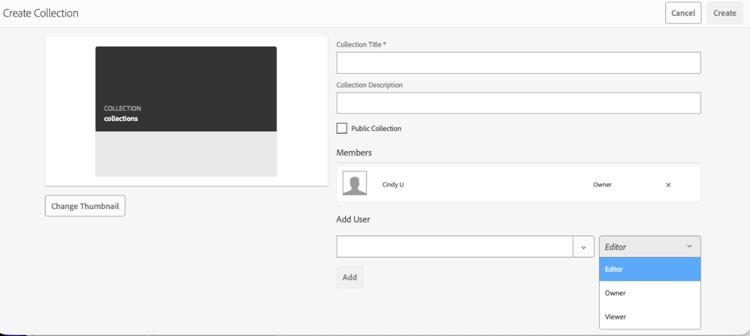
Creating a static collection is straightforward.
In AEM Assets, open the Collections panel, select Create, and you’ll see the following options:
-
Title - Give your collection a clear, recognizable name
-
Description - Add context so others know what the collection contains
-
Thumbnail - An option to choose a representative image instead of the default
-
Public or Private - Select Public if you want others to see and access the collection from the main Collections panel. Leave it unchecked if you want to keep it private to you only.
You can also select assets in the DAM and within the top menu select “To Collection” then you can either add to a collection or create a new one.
Smart Collections
A Smart Collection is one of the first forms of AI. Smart Collections automatically populate based on saved search criteria, dynamically updating as new assets meet those conditions.
By saving search queries, Smart Collections automatically include new assets meeting criteria, reducing manual effort and supporting governance by flagging assets missing metadata. Smart Collections enable marketers to group assets quickly and set parameters, so any new assets that meet the Collection’s criteria are automatically added to the Collection. Smart Collections offer:
-
Set it and forget it - Instead of building a collection by hand, users save a search query.
-
Zero maintenance - As soon as a new asset is uploaded and tagged, it automatically drops into the applicable Smart Collection if it meets the search query.
-
Easy Auditing - Smart Collections can be used for governance purposes too. E.g., Users can create a Smart Collection that auto-flags assets missing required metadata fields like language or usage rights.
-
Flexibility - Teams can group and regroup assets for campaigns instantly.
Because Smart Collections are created within the Search function, it is important to be clear about the criteria used to add assets and to use a refined set of search criteria as you create the collection. Prepare for the fact that the collection will automatically grow, and new files will be added according to the information that meets the defined criteria.
-
With too broad a topic (search terms), you will have to wade through assets you don’t need or want.
-
With too little information stored with your assets, and you won’t find the assets that you need.
To create a Smart Collection:
-
Open Search (Filter or search icon)
-
Apply search criteria
-
Click Save Smart Collection
-
Name and set visibility (public or private)
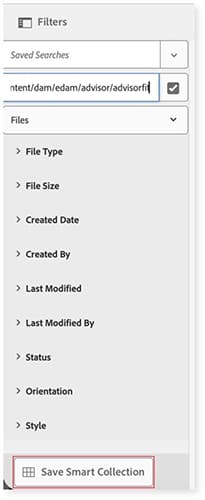
A confirmation message of "Smart Collection Created" will appear after the collection has been saved and created. Any other asset that meets the criteria will be added to the collection dynamically going forward.
Lightbox Collections
A Lightbox is like a personal desk drawer - a quick-access spot for holding assets you use often. It is a private collection available only to the user. A Lightbox collection is automatically given to each user, and it is where they can store their files.
To find your Lightbox, enter Collections through the main navigation panel and you will find your folder called ”Lightbox”.
Adding to a collection
Assets can be added to Collections by selecting the asset(s) you need and selecting “To Collection” in the top rail.
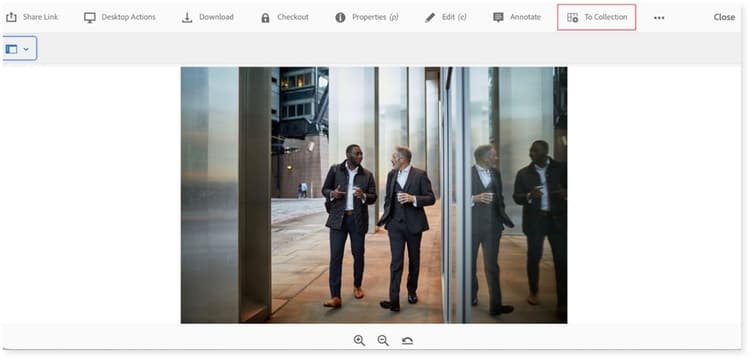
Once you have selected assets, the next panel appears with the following choices:
-
Add - add to an existing Collection or your Lightbox
-
Create - Create a new Static Collection
Who gets access and how
Sharing assets with the right people at the right time brings us to considerations around sharing and permissions for Collections. Here are a few examples of whom you might need to share assets with, and the benefits that Collections provide:
-
Publishing teams – to support easy communication about what they need to publish
-
Team members without access to AEM – to support asset discoverability and consumption
-
Outside agencies - to get approved assets delivered quickly
-
Marketing teams – to allow easy access to the right assets
Sharing Collections
Once a Collection is created, there are several ways to manage how Collections are accessed and shared, accessed using the “Create” option in the top menu of the Collections panel in AEM Assets.
Defining access permissions
Once you create a collection, you can define if it will be public or private and invite team members to the collection, giving them one of three permission levels. This is accessed in the Settings tab, also in the top menu as shown here
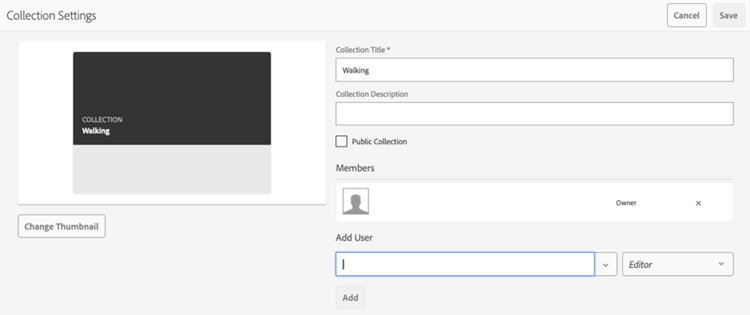
The available roles and permissions are:
-
Owner – full control, including managing permissions
-
Viewer – can browse, view and download assets
-
Editor – can add assets and make changes
Using Link Sharing
With Link Sharing, you can send an email with the link to the Collection, configuring when the share ends, and optionally allowing teams to download the original assets or renditions.
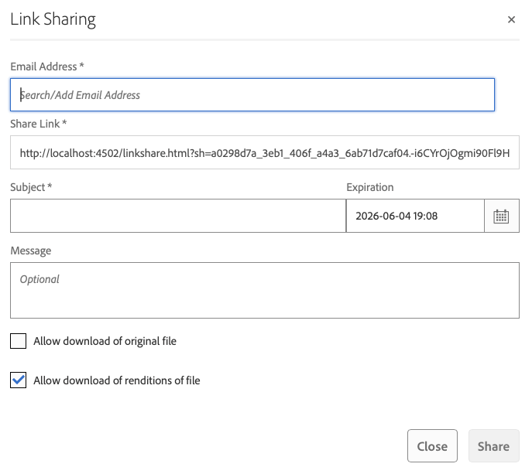
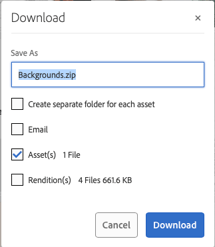
If you allow downloads and renditions, teams will be offered several choices when they choose to download assets, as shown below. The ability to download renditions is helpful if someone needs a smaller-size version of the original without having to size it down manually using added tools.
Creating Review Tasks
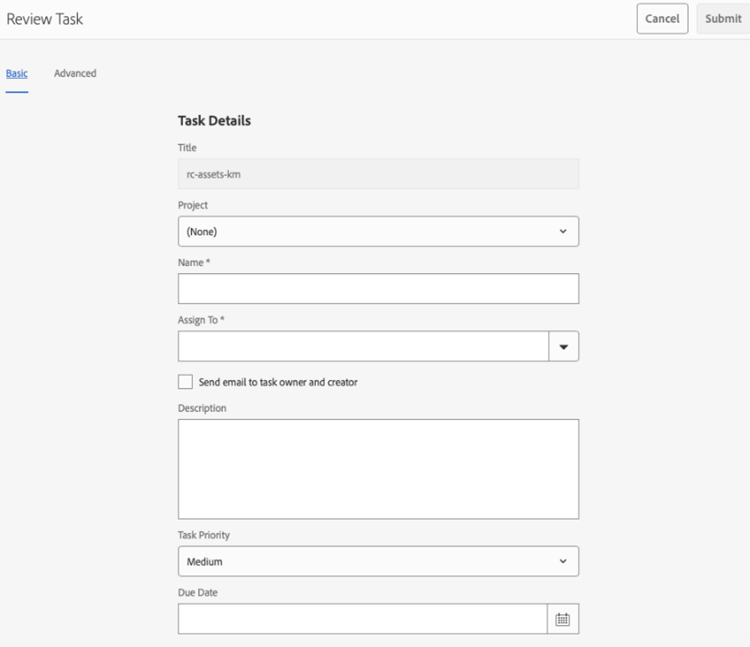
Creating a Review Task for a collection is a very easy way to facilitate getting approvals on assets. Simply create a review task, assign the task, give it a description, a priority and a due date. The assignee will be notified, and the collection will open when they view the task. The assignee can leave comments and return the task to the owner for final sign-off.
At the end of the day, Collections are one of those features that just make asset management easier.
Once you start using Collections, you’ll wonder how you ever managed without them. Whether you’re pulling together assets for a big campaign, keeping your team stocked with pre-approved images, or making sure the right people always have what they need, Collections have you covered.
The best part? You can tailor Collections to fit exactly how your team works - a Smart Collection that builds itself, a personal Lightbox for your own go-to files, or a shared collection that keeps an outside agency in sync. Configure simple permissions, easy share links, quick review tasks, and flexible download options, and you’ve got everything you need to move faster, collaborate better, and keep your brand looking its best.
Give Collections a try… and see how much smoother your team workflows become!
Key takeaways
Collections helps marketing teams:
· Decouple storage from usage - Use assets without duplicating them
· Automate organization - Smart Collections dynamically group assets based on criteria
· Enable secure sharing - Provide targeted access without exposing the full DAM structure
· Simplify cleanup - Remove collections without impacting source assets