Manage grouped approvals
A grouped approval bundles multiple documents under a single approval workflow, so all the documents move through the same stages together instead of requiring a separate approval per document. You can add or remove participants and documents in an active grouped approval without recreating the workflow.
Grouped approvals support Basic and Advanced mode, multiple stages, and parallel paths the same way as single-asset approvals. For more information, see Create a document approval workflow.
Access requirements
| table 0-row-2 1-row-2 2-row-2 3-row-2 layout-auto html-authored no-header | |
|---|---|
| Adobe Workfront package | Any Workflow package to manage approvals using Adobe cloud storage |
| Adobe Workfront license |
Contributor or higher Review or higher If you are using the Frame.io integration, you must have a Standard license to create approval workflows. |
| Access level configurations | View or higher access to Projects, Tasks, Issues, Templates, Portfolios, Programs, Reports, Dashboards, Calendars, and Documents |
| Object permissions | Manage access to the object associated with the request or approval |
For information, see Access requirements in Workfront documentation.
Add participants to an active grouped approval
You can add approvers or reviewers to a grouped approval while a stage is active, without interrupting the approvals already in progress.
To add participants to an active grouped approval:
-
Go to the project, task, or issue that contains the grouped approval, then select Documents in the left panel.
-
Click any document in the group, then click the Approvals icon on the right side of the page.
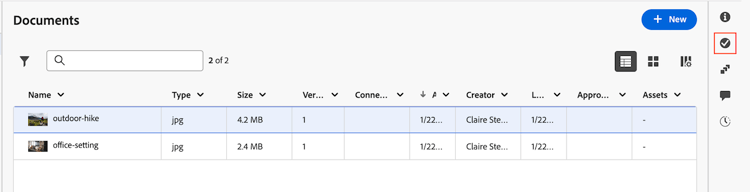
-
Click Edit workflow.
-
Type the user, team, or email in the active stage’s Add names or emails field.
-
For each person you add, choose whether they’re an approver or reviewer.
-
Click Save.
New participants see every open approval in the group in their queue. They don’t see decisions that were made before they were added, so they still need to complete all currently open approvals themselves.
Remove participants from an active grouped approval
You can remove approvers or reviewers from a grouped approval while a stage is active. Removed participants immediately stop seeing the group’s approvals in their queue, but decisions they already made are kept and aren’t reset.
To remove participants from an active grouped approval:
-
Go to the project, task, or issue that contains the grouped approval, then select Documents in the left panel.
-
Click any document in the group, then click the Approvals icon on the right side of the page.
-
Click Edit workflow.
-
Locate the participant you want to remove from the active stage, then click the Remove icon next to their name.
-
Click Save.
Add documents to a grouped approval
You can add documents to a grouped approval until its first stage is locked. Once the first stage locks, you can no longer add documents.
To add a document to a grouped approval:
-
Go to the project, task, or issue that contains the grouped approval, then select Documents in the left panel.
-
Click any document in the group, then click the Approvals icon on the right side of the page.
-
Click Edit workflow, then click the Documents tab.
-
Select the document or documents you want to add to the group.
-
Click Save.
All participants in the group are notified that an additional document was added for them to review.
Remove documents from a grouped approval
You can remove a document from a grouped approval at any point in the workflow. The removed document becomes its own standalone approval and keeps all of its existing decisions, comments, and history without restarting. Because the document already carries an approval decision, you can’t add it back to a grouped approval afterward.
To remove a document from a grouped approval:
-
Go to the project, task, or issue that contains the grouped approval, then select Documents in the left panel.
-
Click the document you want to remove, then click the Approvals icon on the right side of the page.
-
Click Edit workflow, then click the Documents tab. The document you selected is pinned at the top of the list and already checked.
-
Clear the selection for the document you want to remove from the group.
-
Click Save.
note NOTE The document’s approval status stays visible and unchanged from the moment it was removed. The grouped approval view updates to reflect the remaining documents in the group.
Resolve a “Needs work” decision on a single document in a multi-stage grouped approval
In a multi-stage grouped approval, all the documents in a stage must reach a decision before the group can advance to the next stage. If a document is marked Needs work, it can’t move forward with the rest of the group, so it must be manually removed from the group for the stage to progress.
When you remove the document from the group, it becomes its own standalone approval and keeps all of its existing decisions, comments, and history without restarting. You can add the revised document as a new version to the standalone approval or create a new grouped approval with it.
To resolve a “Needs work” decision:
-
Remove the document that was marked Needs work from the group. For more information, see Remove documents from a grouped approval. The removed document becomes its own standalone approval and keeps its existing decisions, comments, and history.
-
After the document is updated, upload it as a new version and request approval on it again or add it as part of a new group.
For more information, see
Known limitations
There is a temporary syncing issue with Frame.io when you add or remove documents in a grouped approval. The changes will not be reflected in Frame.io until the next time the document is synced.