Use Canvas Dashboards
- Bring Your Own Key for Amazon Web Services
- Azure
- Google Cloud Platform
Canvas Dashboards allow you to visualize your Adobe Workfront data by adding different report types onto a flexible canvas layout. This article provides an overview of how to use Canvas Dashboards effectively.
Accessing Canvas Dashboards
To access Canvas Dashboards, navigate to the Dashboards section in Adobe Workfront. From there, you can view existing dashboards or create a new one if you have the necessary permissions.
-
Click the Main Menu icon

-
In the left panel, click Canvas Dashboards.
-
Click the name of an existing dashboard to open it.
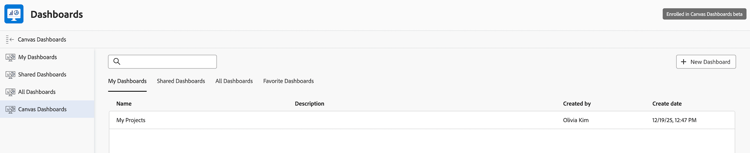
Sort the Canvas Dashboards list
You can sort the Canvas Dashboards list by any of the following columns:
- Name
- Description
- Created by
- Create date
To sort the list:
-
In the left panel, click Canvas Dashboards.
-
Click a column header to sort the list by that column. Click the same header again to reverse the sort direction.
By default, the list is sorted by the Name column from A to Z.

- Your sort order is preserved when you switch between tabs in the Canvas Dashboards list.
Interacting with Reports
You can interact with individual reports on the Dashboard.
Temporarily customize table reports
You can temporarily customize table reports on dashboards. These changes only apply to your current session and do not affect the original report configuration.
-
In the left panel, click Canvas Dashboards.
-
Click the name of an existing dashboard to open it.
-
Locate the table report that you want to customize.
-
Choose any of the following options to customize the report:
table 0-row-2 1-row-2 2-row-2 3-row-2 4-row-2 Option Description Add Column Click Add Column to add additional columns to the report. Configure columns Choose to show or hide specific columns in the report. Row height Adjust the row height for the report. Snap scroll Enable or disable snap scrolling for easier navigation through the report. note important IMPORTANT These changes only apply to your current session and do not affect the original report configuration. To make permanent these changes, you need to edit the report.
Drill down into pivot table data in Preview
You can click a value in a pivot table report to drill down and see the individual records that make up that aggregated value.
-
Click the Main Menu icon
-
In the left panel, click Canvas Dashboards.
-
Click the name of an existing dashboard to open it.
-
Locate the pivot table report that you want to look at.
-
Click a value in the pivot table to open the drilldown table.
The drilldown table displays the columns that the report creator configured in the Drilldown Column Settings. For more information, see Build a pivot table report in a Canvas Dashboard.
View reports with grouped data
Report creators can configure reports to display grouped data. When a report has a grouping, you can expand or collapse the grouped data to see more or less detail.
By default, the groupings themselves are sorted alphabetically or chronologically, depending on field type. Data within each grouping is sorted independently from the grouping sort order.
You can click a column header to sort the data within each group. When you sort by a field that is different from the grouping field, the order of the groups does not change.
However, when you sort by the same field that the report is grouped by, the group order can change. For example, a text-based grouping that normally runs A–Z may switch to Z–A.