Link assets and folders from Experience Manager Assets Essentials
You can link an asset or folder from Experience Manager Assets Essentials to any Adobe Workfront object that supports documents.
To link assets and folders from Experience Manager Assets using Content Advisor, see Link assets and folders with Content Advisor powered by Experience Manager Assets.
If you are on Adobe cloud storage, see Use Adobe Experience Manager with Workfront and Adobe cloud storage.
Access requirements
| table 0-row-2 1-row-2 2-row-2 3-row-2 4-row-2 5-row-2 layout-auto html-authored no-header | |
|---|---|
| Adobe Workfront package | Any |
| Adobe Workfront licenses |
Contributor or higher Request or higher |
| Additional products | You must have Experience Manager as a Cloud Service or Assets Essentials, and you must be added to the product as a user in the Admin Console. |
| Experience Manager Permissions | You must have write access to the folder. |
| Access level configurations | Edit access to Documents |
| Object permissions | View access or higher |
For more detail about the information in this table, see Access requirements in Workfront documentation.
Prerequisites
Before you begin:
- Your Workfront Administrator must configure an Experience Manager integration. For more information, see Configure the Experience Manager Assets Essentials integration.
Link an asset from Experience Manager Assets Essentials
-
Go to the Documents area in Workfront where you want to add the document.
-
Select Add New, then select the Experience Manager integration your administrator set up.
note NOTE The Workfront administrator can choose any name for this integration, so it may not specifically mention Experience Manager Assets Essentials. -
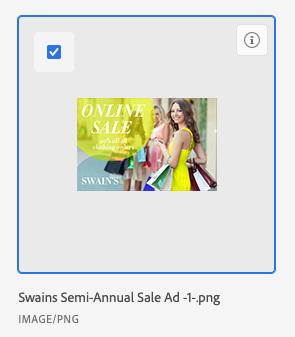
Select the assets you want.
-
Click Select.
Link a new version from Experience Manager Assets Essentials
You can pull a new asset over from Experience Manager Assets Essentials and add it to an existing asset as a new version. If the document is already linked and a new version is added in Experience Manager Assets Essentials, the new version appears automatically in Workfront.
To link a new version:
-
Go to the Documents area in Workfront where you want to add the document.
-
Select the asset you want to replace with a new version. You can’t create a new version of an asset in a linked folder.
-
Select Add New > Version, then select the Experience Manager integration your administrator set up.
note NOTE The Workfront administrator can choose any name for this integration, so it might not specifically mention Experience Manager Assets Essentials. -
Select the asset you want to link.
-
Click Select.
Link a folder from Experience Manager Assets Essentials
Permissions to view individual assets inside of a folder rely on Experience Manager Assets Essentials permissions.
-
Go to the Documents area in Workfront where you want the folder.
-
Select Add New, then select the Experience Manager integration your administrator set up.
note NOTE The Workfront administrator can choose any name for this integration, so it might not specifically mention Experience Manager Assets Essentials. -
Select the folders you want.
-
Click Select.
Considerations
-
Content Advisor functionality is not available for Assets Essentials. To link assets and folders using Content Advisor, see Link assets and folders with Content Advisor powered by Experience Manager Assets.
-
Assets sent from Assets Essentials don’t count towards your overall document storage in Workfront. Documents uploaded and sent from Workfront to Assets Essentials do count towards overall storage.
-
Metadata fields are first mapped when you send an asset from Workfront to Experience Manager Assets Essentials. If your Workfront administrator has enabled object metadata sync, fields remain up to date if they are changed in either application.