Explain a scenario error with AI
When a scenario run fails, AI can give you a short, plain-language description of what went wrong and how to fix it. The explanation appears next to the original error, so you can read both together.
You can explain errors in the following areas of Workfront Fusion:
- The module error details in the scenario designer
- The run details in a scenario’s execution history
- The Failed Executions Logs table on the Insights page
Access requirements
| table 0-row-2 1-row-2 2-row-2 layout-auto html-authored no-header | |
|---|---|
| Adobe Workfront package |
Any Adobe Workfront Workflow package and any Adobe Workfront Automation and Integration package Workfront Ultimate Workfront Prime and Select packages, with an additional purchase of Workfront Fusion. |
| Adobe Workfront licenses |
Standard Work or higher |
| Product | If your organization has a Select or Prime Workfront package that does not include Workfront Automation and Integration, your organization must purchase Adobe Workfront Fusion. |
For more detail about the information in this table, see Access requirements in documentation.
Explain an error in the module output details
-
Click the Scenarios tab in the left panel.
-
Select the scenario where you want to explain an error.
-
Click anywhere on the scenario to enter the Scenario editor.
-
Run the scenario, either as scheduled, or by clicking Run once.
-
When a module fails, open the module’s error details.
-
Click Explain.
The button is under the error.
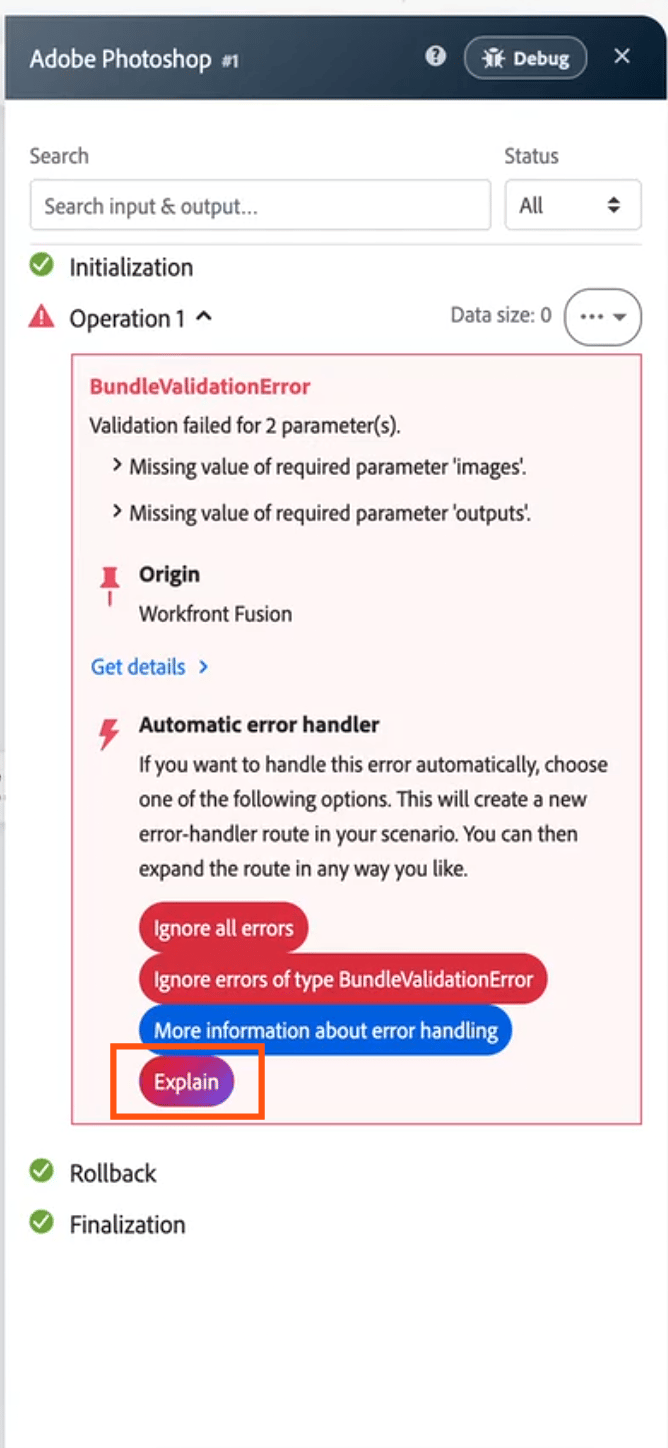
The explanation appears under the error.
- While AI generates the explanation, a loading state appears.
- If the explanation fails to generate, click Try again.
- If your organization reaches its AI usage limit, a usage-limit message appears instead of an explanation.
Explain an error in a scenario’s execution history
-
Click the Scenarios tab in the left panel, then click the scenario.
-
Click History near the name of the scenario.
-
Click the failed run that you want to view.
Each error in the run details has an Explain button under it.
-
Click Explain under the error that you want explained.
If several modules failed in the run, you can explain each error on its own.
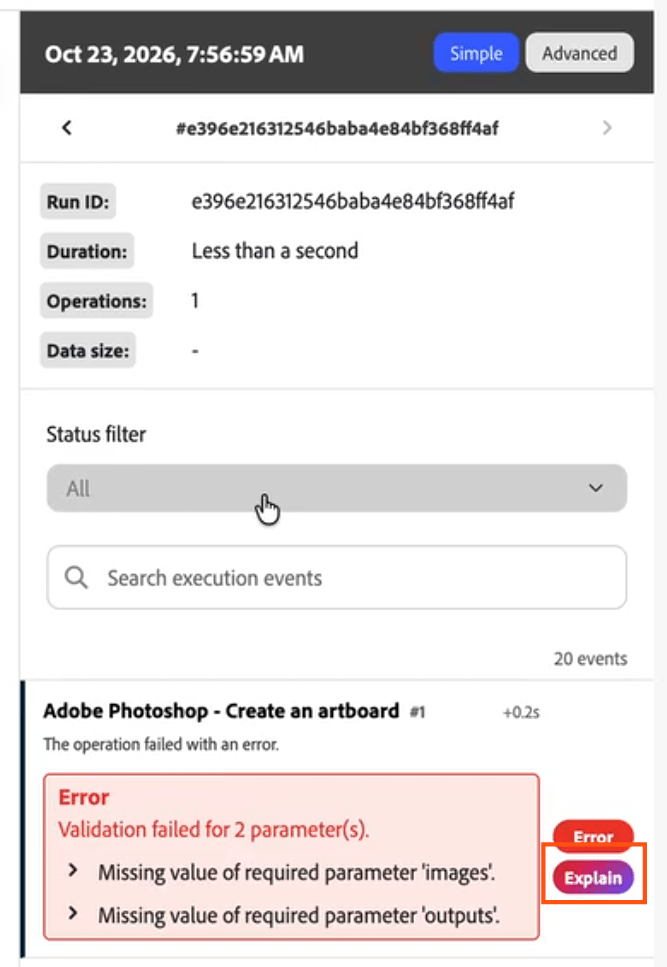
For more information about viewing a run, see View a scenario’s execution history and View a specific scenario execution.
- While AI generates the explanation, a loading state appears.
- If the explanation fails to generate, click Try again.
- If your organization reaches its AI usage limit, a usage-limit message appears instead of an explanation.
Explain an error on the Insights page
-
In Fusion, click Insights in the left navigation.
-
In the Failed executions table, hover over the failed row that you want to view.
An Explain button appears.
-
Click Explain.
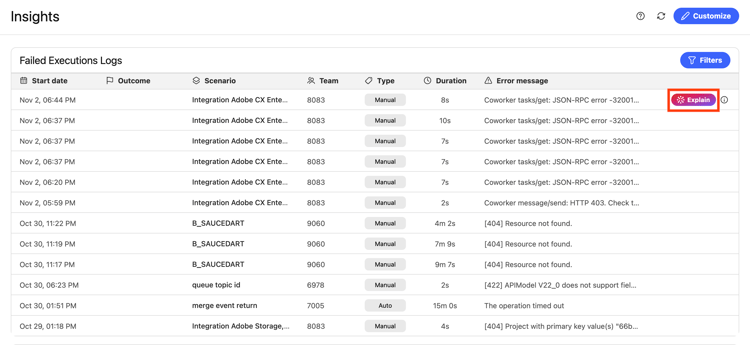
A popup opens that shows the error and the AI explanation.
For more information about the Insights page, see View the Insights dashboard for an organization.
- While AI generates the explanation, a loading state appears.
- If the explanation fails to generate, click Try again.
- If your organization reaches its AI usage limit, a usage-limit message appears instead of an explanation.