Select an organization in the Global Admin Console
Learn how to choose an organization for editing within the Global Admin Console.
The Global Admin Console groups Adobe Admin Consoles in a hierarchy. Each organization you select is one Adobe Admin Console. Global administrators can:
- Create child Admin Consoles (child organizations) under their organization
- Assign system administrators to manage each child console
- Allocate supported product resources/licenses to child Admin Consoles for system administrators to assign to users in those consoles
Select your organization
Organizations listed in the organization selector drop-down list are those you are explicitly a global admin of—that is, you were added to the administrators’ list for that organization with a global admin or global viewer role. You are implicitly a global admin (or global viewer) of all organizations below that point in the hierarchy, but those organizations are not listed in the org picker.
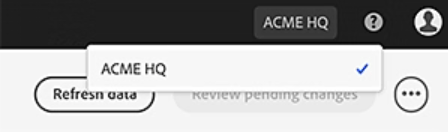
If you want them to be listed, add yourself as a global admin to the organizations you want to be listed. When you select an org in the organization selector, your administrative permissions are based on being a global administrator of the selected organization. You might also be listed as a global administrator of a parent organization higher in the tree, which could give you more permissions. You must select that higher-level organization to get the additional permissions.
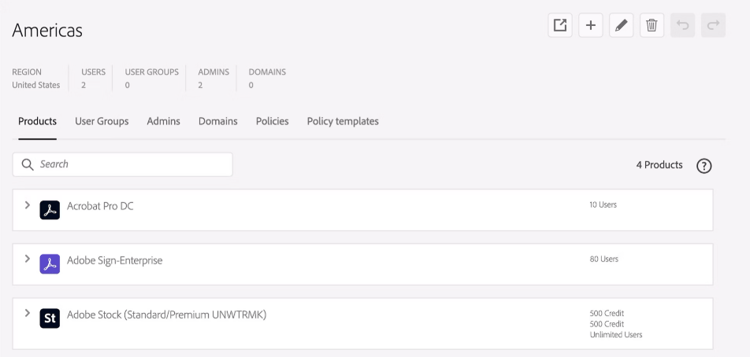
In the Global Admin Console, after you select an organization from the hierarchy tree, you can begin editing information for a particular organization.
Edits can affect:
- Organization name
- User groups
- Product profiles
- Administrators
- Organization policies
Edits cannot affect:
- Users (except for deletion of groups or product profiles)
- Adding users (except for administrators)
When an organization is selected from the hierarchy tree, the following information is displayed:
- Organization name
- Region
- Number of users
- List of products
- Product profiles
- User groups
- Administrators
- Claimed domains
- Organization’s policy values
To view or edit products, user groups, administrators, domains, policies, or policy templates, select the appropriate tab. You can use the search field in most cases to locate a specific item within the tab.
Any admins added to or removed from an org will receive an email notification. Certain policy changes to an org result in a notification in that organization’s Admin Console.
Learn about the constraints and necessary conditions
-
The maximum depth for nesting organizations is five. So, a/b/c/d/e is allowed but a/b/c/d/e/f is an error. For example, Acme Corp/ International Region/ Acme Europe/ Acme UK/ Acme London is allowed, but Acme Corp/ International Region/ Acme Europe/ Acme UK/ Acme London/ Acme Mayfair is an error.
-
Maximum pathname length (including all organizations) is 255 characters (including “/”). The maximum length for a single org name is between 4 and 100 characters.
-
The organization pathname is unique, but the simple name is only unique among its siblings. There may be organizations with the same simple name elsewhere in the org hierarchy.
-
You can only view the list of domains linked to the selected organization using the Global Admin console. If you are a system administrator of the selected organization, select the Open in Admin Console to manage domains. To understand the information displayed in the Domains tab, see export and import schemas.
-
IE 11 isn’t supported for global administration access. Use a different browser or a newer version of IE browser.