Adopt global administration
Applies to enterprise.
Learn about the benefits of using the Global Admin Console and find out how to get access. Learn more.
Create a support case in the Adobe Admin Console to request access to a Global Admin Console. Sign in to the Global Admin Console.
Introduction
The Global Admin Console groups multiple Adobe Admin Consoles into one hierarchy. Each organization in that hierarchy is an Adobe Admin Console. Administrators use the same core capabilities in each console—managing users, licenses, and settings for that organization. The Global Admin Console adds cross-console administration: organizing child Admin Consoles, allocating products and licenses down the hierarchy, and applying organization-level policies across the group.
The Global Admin Console is for customers with complex organizational structures that either have many Admin Consoles or want to break up their main Admin Console into multiple consoles. For example, multinational corporations, education consortiums, large school districts, and large government agencies. It nests existing Admin Consoles into a hierarchical structure, like an organization chart, to provide transparency across a distributed enterprise.
A child Admin Console (called a child organization in the Global Admin Console) is any Adobe Admin Console nested below another console in your hierarchy. Only Admin Consoles linked to your Global Admin Console are child consoles in this sense—not every Adobe Admin Console worldwide.
The Global Admin Console does not replace or change day-to-day functionality in existing Admin Consoles. It operates as a hierarchical structure, with a root organization at the top and all linked consoles nested beneath it. The root console is determined based on purchasing and organization setup.
To learn more about the functionality and benefits of the Global Admin Console, see the white paper on the Global Admin Console and watch the following video.
The content and voice-over for this video is currently available in English only.
Key advantages
The following are some key advantages of the Global Admin Console:
- Delegate administration of Adobe product usage and cloud storage to divisions, departments, or field offices, reducing the need for centralized administration.
- Create organizations for each entity and manage them in a hierarchical structure. Organizations can also be deleted.
- Distribute resources and product licenses across organizations.
- Restrict visibility between organizations so administrators can view only users and resources within their assigned scope.
- Manage the Admin Console organizational structure in a self‑service manner that aligns with your organization’s directory structure.
- Create centers of administration by assigning designated administrators to manage Adobe resources for specific organizations or projects.
- Define and apply policies at the organization level.
- Create, edit, and delete product profiles and user groups.
- Export organization information for reporting or use in other processes.
- Import updates to organizations and changes to the organizational hierarchy.
- Receive notifications about ETLA contract status in child organizations, including upcoming expiration, expired, or inactive contracts. For more information, see the contract expiry documentation.
Eligibility criteria
Adobe recommends global administration if your organization meets one or more of the following criteria:
- You manage multiple Admin Consoles and want centralized visibility and control.
- You want to separate Admin Consoles and manage them independently.
- You manage multiple contracts.
- You need to distribute or centralize identity configuration across child organizations.
- You want to allocate purchased resources to different parts of the enterprise and assign separate administrators.
- You have administrators for specific Adobe products, regions, or organizations and want to prevent overlap or interference.
Request access to the Global Admin Console
To request access to the Global Admin Console, follow the steps below after consulting your Adobe representative.
-
In the Admin Console, navigate to Support > Support Summary.
note NOTE Submit the support case through the main organization, which serves as the root organization in the Global Admin hierarchy. -
Select Create Case to open the Create Case window.
-
In the form, specify the following details:
- Priority of the issue: P4 – Minor
- Impact of the issue: Medium
- Issue summary: <Your organization’s name> is requesting access to the Global Admin Console
-
In Describe the nature of the issue you’re facing, state that your organization is requesting access to the Global Admin Console, and include the following details:
- Name and Console ID (found in the URL as the series of numbers and letters preceding “@AdobeOrg”) of the Admin Console to designate as the root (top) organization, or request a new console and specify the desired name.
- In some cases, a new console is the preferred option. Your Adobe representative can guide you. Select the root organization carefully, because it is difficult to change later.
- Assign at least one current System Admin to the Global Admin role. You can add additional administrators later.
- Name and email address of your Adobe representative or Customer Success Manager.
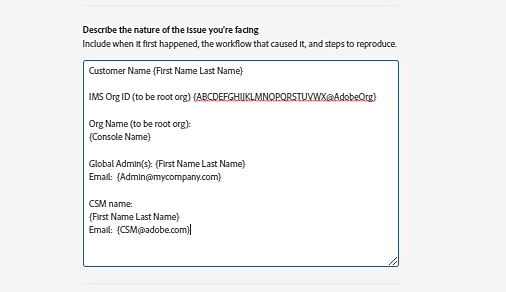
- Name and Console ID (found in the URL as the series of numbers and letters preceding “@AdobeOrg”) of the Admin Console to designate as the root (top) organization, or request a new console and specify the desired name.
-
Select Next, and provide the following information:
table 0-row-2 1-row-2 2-row-2 3-row-2 4-row-2 Details to fill in Description List people you want to notify Add up to ten email addresses to receive case updates from Adobe Customer Care. Time zone Adobe Customer Care uses your time zone if a call is required. This field is populated automatically based on your system settings. Working hours Adobe Customer Care considers your working hours and their normal business hours if a call is required. Use the time slider to specify the best time to reach you. Phone number Provide a contact number so an Adobe Customer Care agent can contact you for troubleshooting or clarification. -
Select Submit.