Export or import organization structure and product allocations

Applies to: Enterprise

Learn how global administrators can streamline organization and product management with export and import features in the Global Admin Console.

Access the Organizations tab in the Global Admin Console to export or import the organization structure. Go to the Product Allocation tab to view allocation data. Select the More Options (⋮) icon, and then choose Export or Import. Go here to sign in to the Global Admin Console.

Export the organization structure

As a global administrator, you can export the organization hierarchy. You can download a JSON, CSV, or XLSX representation of the entire organization hierarchy or a subset of it. You can then use this data for analysis or modification.

The export format chosen impacts the structure of the exported data:

  • CSV format — Allows exporting only one kind of data at a time. When exporting product profiles in CSV format, the profiles and resources are combined into one table. There are multiple entries for the product profile, one for each resource.
  • XLSX format — Results in each organization detail displaying in a separate sheet. Records are connected between the different object types by a reference id. In some cases, there may be multiple rows for a particular object (e.g., Resource objects when there are a set of values associated with a given resource).
  • JSON format — The most flexible. It can take advantage of structural relationships between exported objects (e.g., products in an organization appear directly in the organization element). The same fields are exported in all three formats but some values are redundant in the JSON format.

Steps to export

  1. Sign in to the Global Admin Console. In the Organizations tab, use the organization picker to select the organization hierarchy where you want to export. Data for all organizations in the hierarchy is exported.

  2. Select the More Options ⋮ icon and choose Export.
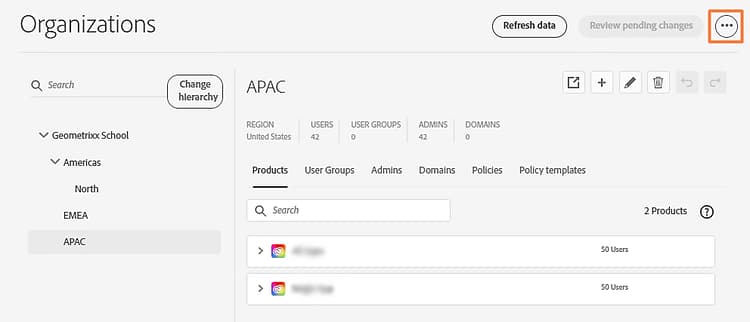
    Export organization structure

  3. In the Export dialog box, select what to export and a format to export the data in.
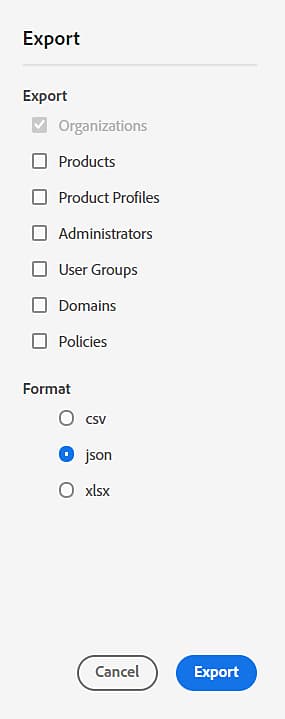
    Admin Console export dialog box

  4. Select Export. The export file can take several minutes to generate. Once complete, to download the report, navigate to Global Admin Console > Insights > Export Reports.

NOTE
JSON files are exported in a zip format. You can open them using a zip utility or the operating system’s zip features.

After downloading the file, you can manipulate the data and then import it back. The updates imported appear in the Global Admin Console as though you have manually edited the data.

Import the organization structure

As a global administrator, you can import potentially modified data. When uploaded, the new data is compared with the current data and any changes are applied to the organization hierarchy. All import operations are performed on the updated copy of the organization hierarchy. If you have any pending changes, imported changes are added on top of the existing pending changes in the hierarchy.

Steps to import

  1. Sign in to the Global Admin Console. In the Organizations tab, use the organization picker to select the organization hierarchy where you want to perform the import.
  2. Select the More Options icon and select Import. Depending on the size and complexity of the import file, processing can take from a few seconds to several minutes.
  3. Select Select a file, and choose a JSON, CSV, or XLSX file to be uploaded. For CSV, only one organization detail can be imported at a time and it does not support importing Products. The imported changes appear as though you have manually edited the data.
  4. Select Close.
  5. Select Review Pending Changes. Then, select Submit Changes to execute them. Before executing the changes, the pending actions are displayed in the same manner as when edits are made manually in the Global Admin Console.

Export and import schemas

While importing data using a CSV file, the fields can appear in any order but must always match their header row.

While importing data, you must specify an operation for each element. The operation can be any one of the following:

  • Update: indicates an edit.
  • Create: indicates creating a new object (for example, organization, user group, or administrator).
  • Delete: indicates deletion of an object (for example, organization, user group, or administrator).

Input records with no or blank operation field are ignored.

Organizations

Field Name
Description
Notes
id
Organization Id.

When adding a new organization, this can be empty or set to a placeholder identifier, for example, new_org_1. The placeholder identifier is used in cases where other imported entries need to refer to this organization. After creation, an actual organization id will be assigned and will replace all uses of the placeholder organization id.
Can be set to a temporary value when operation=create
name
Organization simple name. Min length 4, max 100. Names can contain UTF-8 characters up to 3 bytes, 4-byte characters are not supported.
Can be set or updated when operation=create or operation=update, respectively
countryCode
Country or region code
Must be set when operation=create, can be updated when operation=update
type
Type of organization
Read only
parentOrgId
Parent organization id. Blank for root organization. When updating, significant restrictions apply including that the new parent is in the same hierarchy and have the products that are present in the organization.
Can be set or updated when operation=create or operation=update, respectively
adminCount
Number of administrators
Read only
domainCount
Number of domains
Read only
userCount
Number of users
Read only
userGroupCount
Number of user groups
Read only
admins
Set of admin objects representing administrators for this organization
May be missing if not selected for export. It displays in a separate tab in XLSX files.
domains
Set of domain objects representing domains in this organization
products
Set of product objects representing products in this organization
productProfiles
Set of product profile objects representing product profiles in this organization
userGroups
Set of user group objects representing user groups in this organization
orgPolicies
Structure representing policies and their values
operation
One of blank, Create, Update or Delete. Action to take when data is imported.
Always blank on export.

Import requirements:

  • For update or delete, orgId must refer to an existing organization in your hierarchy.
  • If you are creating a new organization, you can leave the orgId field blank or set it to a unique id that you can make up (such as new-1 or new-2). This provides an id that can be used to refer to the to-be-created organization.
  • Country code should be valid.
  • orgId for Update and Delete operation should already be present in the organization hierarchy.
  • orgId marked as Delete should not be selected as a parentOrgId for organizations with Update or Create operation.
  • Child organizations at the same level and of the same parent should not have the same orgNames.
  • For creating an organization or updating an organization name, the organization’s name must not match the name of an existing child of the same parent.

Admins

Field Name
Description
Use
orgId
Reference to organization in which the admin resides.
Used as a reference to find containing or associated objects.
firstName
Admin user first name. First and Last name for Adobe ID users can be replaced with a user-supplied value when the user accepts the invitation.
Can be set or updated when operation=create or operation=update, respectively
lastName
Admin user last name
email
Admin user email address. This is a primary key for the user and must be unique.
countryCode
Country or region code where user operates. Only applies to Federated and Enterprise Id types.
userType
One of Adobe ID, Enterprise ID, or Federated ID.
Read only
adminType
One of GLOBAL ADMIN, GLOBAL VIEWER, SYSTEM ADMIN, USER GROUP ADMIN, PRODUCT ADMIN, PRODUCT PROFILE ADMIN, DEPLOYMENT ADMIN, and STORAGE_ADMIN.
Can be set when operation=Create
groupId
Group id of group this user is an admin of. Relevant for user group and product profile admins only.
licenseId
Product license id of the product this user is admin of. Relevant for product admins only.
domain
Domain name of user if not using email domain
userName
User name of user if not using email address
operation
One of blank, Create, Update or Delete. Action to take when data is imported.

Import requirements:

  • orgId, email, adminType and userType must contain valid values.
  • countryCode must be valid.
  • If the user already exists and is being updated, the userType must match the user.
  • Check for duplicate email addresses in the organization.

Product profiles

Exports and imports of product profiles consist of two parts: the product profile details, and a set of resources associated with the product profile. These resources identify services which can be configured, usually just to enable or disable them.

  • The resource objects are nested within the product profile in JSON format.
  • When using CSV or XLSX with product profiles, the profiles and resources are combined into one table. There will be multiple entries for the product profile, one for each resource.
  • The selected field in the resource controls whether the service is enabled.
  • When importing product profiles, there must be a Create or Update operation on the product profile itself and on any resource objects that are to be updated or created.
Field Name
Description
Use
productProfileId
Identifier of the product profile Placeholder value can be used on create so that other objects can reference the new profile.
Can be set to temporary value when operation=create
productProfileName
Name of product profile. It cannot be a duplicate of other product profiles or user groups in the same organization.
Can be set or updated when operation=create or operation=update, respectively
productProfileDescription
Text description of the product profile
licenseId
License Id reference to the product
Used as a reference to find containing or associated object
orgId
Organization that contains the user group
notifications
True or false to indicate if email notification should be sent to users when they are added or removed from this product profile
Can be set or updated when operation=create or operation=update, respectively
resources
Array of resources associated with this product profile. The resources field is only present for JSON format. For CSV and XLSX format, resources are represented with the following additional fields: resourceName, resourceId, resourceDescription, icon, selected, quota, resourceType. For details on these fields, see the section titled Products and resources. If the product profile has more than one resource, there will be multiple rows present, one for each resource. The other fields will have the same values for each resource.
operation
One of blank, Create, Update or Delete. Action to take when data is imported.

Import requirements:

  • productProfileId, licenseId and orgId must have valid values.

  • When creating a product profile, the productProfileName must be a valid name and must not duplicate another product profile name or user group name in the same organization.

  • The quota field must have a valid value for the unit type. This is numeric or unlimited when resourceType=QUOTA or blank otherwise.

  • The notification field must be true or false.

  • For CSV and XLSX imports, validate productProfileId; all its entries must have the same orgId, licenseId, and productProfileName.

  • Validate duplicate productProfileName in the input file and the organization.

  • Profiles to be updated and deleted must be present in the organization.

  • Resources to be updated and deleted (deactivated) must be present in the profile.

  • For profiles to be created, ensure the following:

    • The orgId should be a new organization or an existing organization.
    • The licenseId should be a new product or an existing product.
    • Validate the resources for the profile.

Resources in product profiles

Field Name
Description
Use
resourceName
Name of the resource
Read only
resourceId
Identifier of the resource
Read only
resourceDescription
Text description of the resource
Read only
icon
URL to image for resource
Read only
selected
For a configuration entry, whether the feature is enabled. This field is present in JSON only.
Can be set or updated when operation=create or operation=update, respectively.
quota
Quantity of primary resource that can be given out to users via this product profile. This field is present in JSON only.
resourceType
If present, value is SERVICE. It indicates this resource represents a service that can be enabled or disabled based on the value of the selected field. This field is present in JSON only.
Read only
operation
One of blank, Create, Update or Delete. Action to take when data is imported.

Import requirements:

  • Operation field on resources is ignored when the product profile to which they belong has operations set as Delete or Create.
  • No resource should be marked for deletion; it is an invalid operation.
  • For product profiles to be created, the number of resources should match the source product profile’s number of resources.
  • For resources with Update operation, the resource must be present in the product profile.

User groups

Field Name
Description
Use
userGroupId
Identifier of user group. Placeholder value can be used on create so that other objects can reference the new user group.
Can be set to temporary value when operation=create
userGroupName
Name of user group
Can be set or updated when operation=create or operation=update, respectively.
userGroupDescription
Text description of user group
userCount
Number of users in user group
Read only
profiles
Array of product profile ids that the user group is associated with. XLSX has one row per value with same values for other fields.
Can be set or updated when operation=create or operation=update, respectively.
orgId
Organization that contains the user group
Used as a reference to find containing or associated object
operation
One of blank, Create, Update or Delete. Action to take when data is imported.

Import requirements:

  • orgId must refer to an existing organization or an organization being created in the same import.

  • userGroupId must refer to an existing group for update or delete, and can be an id you define for new user groups.

  • For update or create, userGroupName must not be blank and must not duplicate another user group or product profile name in the same organization.

  • Ensure userGroupName is not duplicate in the input file and the organization.

  • userGroups to be updated and deleted must be present in the organization.

  • Profile to be removed from user group must be present in the user group. Update operations cannot be performed on the profile of a user group.

  • For user groups to be created, ensure the following:

    • The orgId should be a new organization or an existing organization.
    • The licenseId, if applicable, should be a new product or an existing product.
    • The productProfileId should be a new product profile or an existing product profile.

Domains

The domain information provides read-only information about domains available in each organization. This data is not editable.

Field Name
Description
Use
orgId
Reference to organization in which this domain is listed
Used as a reference to find containing or associated objects.
domainName
Name of the domain (for example, adobe.com).
Read only
directoryName
Name of the directory in which the domain is listed
Read only
directoryType
One of Federated ID or Enterprise ID.
Read only
domainStatus
One of ACTIVE, RESERVED, UNCLAIMED, CLAIMED, VALIDATED, WITHDRAWN, EXPIRED.
Read only

Products and resources products-and-resources

In XLSX files, there are two sheets—one for products and one for the resources. In JSON, resource objects are nested in the product object.

Products

Field Name
Description
Use
licenseId
Id which identifies the product. Each product has a unique license id in the organization in which it is listed. When adding a new product this can be empty or use a placeholder identifier (for example, new_product_1). After creation, an actual license id is assigned that replaces all uses of the placeholder license id.
Can be set to temporary value when operation=create
productName
Name of the product
Read only
productDescription
Text description of the product
Read only
allowOverallocation
Boolean indicating whether overallocation of this product instance is allowed. Overallocation refers to the ability to grant more quantity to a child organization than you have been granted.
Can be set or updated when operation=create or operation=update, respectively
icon
URL of product icon
Read only
sourceLicenseId
License id of product instance in organization from which this product was allocated. Value is null if this instance is not an allocated product, instead is a purchased product.
Can be set when operation=Create
productId
Identifier of product.
Read only
orgId
Identifier of organization containing this product instance
Used as a reference to find containing or associated object
redistributable
Boolean indicating whether this product has resources that can be granted to child organizations.
Read only
resources
Object containing a set of resource objects representing the resources and settings in this product
operation
One of blank, Create, Update or Delete. Action to take when data is imported.

Import requirements:

  • For create, licenseId must be a unique id that you create.
  • For update, licenseId must be the id of an existing product in the organization specified.
  • orgId must refer to an existing organization or one that is being created in the same import operation.
  • For create, sourceLicenseId must refer to an existing product or the id you defined for a product being created in the same import operation.
  • licenseId and sourceLicenseId should not be same for products with Create operation.
  • Validate organizations of products; the organization should be a new one or should already be present in the organization hierarchy.
  • For Update and Delete operation, product should already be present in the organization hierarchy.
  • licenseId marked as Delete should not be used as a sourceLicenseId of products with Create and Update operation.
  • For products with Create operation, validate that the sourceLicenseId should be present in the parent organization.

Resources for products

Resource objects can appear in products and in product profiles.

Field Name
Description
Use
resourceName
Name of the resource
Read only
resourceId
Identifier of the resource
Read only
resourceDescription
Text description of the resource
Read only
icon
URL to image for resource
Read only
productName
Name of product this resource is part of.
Read only
licenseId
License id (product instance) of the product this resource is part of.
Used as a reference to find containing or associated object
grantedQuantity
Granted quantity of this resource: amount of resources this organization has available to use locally or allocate to child organizations.
Can be set or updated when operation=create or operation=update, respectively
unit
Name of the unit of grant quantity.
Read only
currentQuantity
Current usable quantity in this organization. This is the grantedQuantity less resources allocated to child organizations. This is the value that is displayed in the Admin Console for this product/resource.
Read only
provisionedQuantity
Quantity actually provisioned: can be less than grant or current, can be less than currentQuantity if some limitation is in place.
Read only
operation
One of blank, Create, Update or Delete. Action to take when data is imported.

Import requirements:

Operation field on resources is ignored when the product to which they belong has operations set as Delete or Create.

  • No resource should be marked for deletion; it is an invalid operation.
  • For products to be created, the number of resources should match the source product’s number of resources.
  • For resources with Update operation, the resource must be present in the product.

Import and export product allocation data

As a Global Administrator, you can export the product allocation data as a JSON or CSV file. You can then modify this data and upload it to import the changes. When the potentially modified data is uploaded, the new data is compared with current data and any changes are applied to the product allocation data. You can then review and submit the pending changes for them to take effect.

Export the product allocation model

To export the product allocation model, do the following:

  1. Sign in to the Global Admin Console and navigate to the Product Allocation tab.
  2. Select the More Options ⋮ icon, and then select Export CSV or Export JSON. Your file is downloaded. Learn more about the export formats.

Import the product allocation model

You can export data, modify it, and then import the modified file. To import the product allocation model, do the following:

  1. Sign in to the Global Admin Console and navigate to the Product Allocation tab.
  2. Select the More Options ⋮ icon and select Import.
  3. Select a JSON or CSV file to upload.
  4. Select Review Pending Changes. After reviewing the changes, select Submit Changes to execute them.

Export and import formats for product allocation

The export and import formats are the same. While importing in CSV format, the fields can appear in any order, but they must match the header row. While importing in JSON format, the fields can appear in any order.

You must specify the operation while importing product allocation data. The operation can be one of the following:

  • Update: indicates an edit (change to grantedQuantity, allowOverAllocation values).
  • Create: indicates to add a product resource to the specified organization.
  • Delete: indicates deletion of product.

If no operation is given, then no changes occur when data is imported for that row in CSV or object in JSON.

In the exported file, there is one row or record for each product resource. Some products have more than one resource.

If a product has more than one resource, Update operations can apply to independent resources, a Delete operation deletes the product including all resources from an organization, and a Create operation needs a record for each of the resources in the import file so that the proper quantity of each of them can be specified. The allowOverAllocation field is product-wide and it does not matter which resource an update to this field is in.

Description of headers

Field Name
Description
Use
productName
Name of the product.
Read only
licenseId
Id of a product (unique to a product in an organization). When adding a new product this can be empty or set to a placeholder identifier (for example, new_product_1). The placeholder identifier is used in cases where other imported entries need to refer to this product. After creation, an actual license id will be assigned and replace all uses of the placeholder license id.
Can be set when operation=Create
sourceLicenseId
Id of parent product. It is empty or null if this represents a purchase instead of an allocation.
Can be set when operation=Create
productId
Id that identifies this product class. This id is shared amongst products of the same type and differs from the licenseId which identifies an instance of this product.
Read only
resourceName
Name of this product resource. For example, User Licenses.
Read only
resourceId
Id that identifies this product resource.
Can be set when operation=Create
orgPathName
Pathname of the organization this product resource is in. Segments separated by “/”.
Read only
orgName
Simple name of the organization containing this product resource. This is the final segment of the orgPathName.
Read only
orgId
Organization Id of the organization containing this product resource.
Can be set when operation=Create
grantedQuantity
Number of units of resource quantity granted to this organization by its parent or the amount purchased if this product resource entry represents a purchase. This field is updatable except for purchased products or root allocations that global administrator does not have permission to change.
Can be updated when operation=Update or operation=Create
unit
Name of the resource unit. For example, Users.
Read only
totalAllocations
Sum of the grants to child organizations from this organization for this product resource. This value includes the direct grants to immediate children plus overallocations from those organizations. For example, if this organization granted a child 10 and the child then allocated its child 25, the totalAllocations would be 25: the 10 granted to the child plus an overage of 15 in that child.
Read only
grantOverage
Amount by which totalAllocations exceeds the grantedQuantity. If totalAllocations doesn’t exceed grantedQuantity, this value is null or zero.
Read only
localLicensedQuantity
Amount of this resource granted to this organization left over for its use after the quantity allocated to children is deducted. This is the amount shown as available in the Admin Console. This value can be zero but is never negative even if this organization has overallocated resources to its children.
Read only
localUsage
Number of units of the resource used in this organization. For example, delegating a User License to a user would count as 1 unit of usage.
Read only
totalUsage
Number of units of the resource used by this organization and all children. This shows usage of this resource in the part of the organization hierarchy rooted by this organization.
Read only
useOverage
Amount of the total usage over the grant of the organization (organization and children have used more of the resource than available). This shows a nonzero value when totalUsage exceeds localLicensedQuantity.
Read only
allowOverAllocation
Indicates whether user is allowed to grant more resources to children even though there is no more to grant (allowed to grant despite grant overage). This value applies to all resources of this product. If an attempt is made to update allowOverallocation for more than one resource of the same product to different values, the result is random.
Can be updated when operation=Update
isPurchasedProduct
true if the product is a purchase product (not allocated by parent). This is equivalent to sourceLicenseId having an empty value.
Read only
redistributable
true if the product can be allocated to children, false means that the product is only available in the organization in which it is shown and resources cannot be allocated to another organization.
Read only
operation
One of blank, Create, Update or Delete. Action to take when data is imported.

Import requirements

Data validation

  • The operation field must have a valid operation.

  • The product import data must have properties and values for required fields.

  • The product import data properties must be of the correct type.

  • The product policy field (overAllocation) must not be provided for different resources.

  • The grantedQuantity field:

    • Can’t be changed to unlimited if it is not already unlimited.
    • Must be a non-negative integer or the string value unlimited.

Permission/accessible validation

  • The organization associated with the import data must exist. If you are updating, ensure that the product and resource associated with the import data actually exist.

Add product validation

  • SourceLicenseId must exist.
  • Organization associated with the new product must exist.
  • The product being created must not exist (product with same licenseId).
  • The resources associated with a product being created must have a corresponding productId that matches that product.
recommendation-more-help
support-resources-help-adobe-support-tools-guide