Download audit logs and export reports
Applies to enterprise.
Learn how global administrators view, filter, and export audit logs and reports using the Global Admin Console.
To get started, sign in to the Global Admin Console. Then go to the Insights tab and select Audit Logs to track all changes made across organizations.
View and download audit logs
As a global administrator, you have full visibility into changes made in the Global Admin Console. You can search audit logs across all organizations for actions taken in the last 90 days, including when they occurred and who performed them.
- Audit logs help ensure continued compliance by safeguarding against inappropriate system access and by auditing suspicious behavior within your organization.
- The logs available in the Global Admin Console include only events that a global administrator can access. They do not include user assignments or user events. Learn more about the different capabilities each console offers.
- The logs cover events for all organizations in the hierarchy, allowing you to search audit logs across all organizations at once.
To view or download audit logs for your organization:
- As a global administrator, sign in to the Global Admin Console.
- Select Insights > Audit Logs.
The audit logs display the following information for filtered events:
-
You can filter audit logs using the following options:
- Search by affected user or admin.
- Select one or more organizations.
- Define a date range.
- Filter by event name.
- Combine filters to narrow results, such as viewing events from the last seven days for a specific organization.
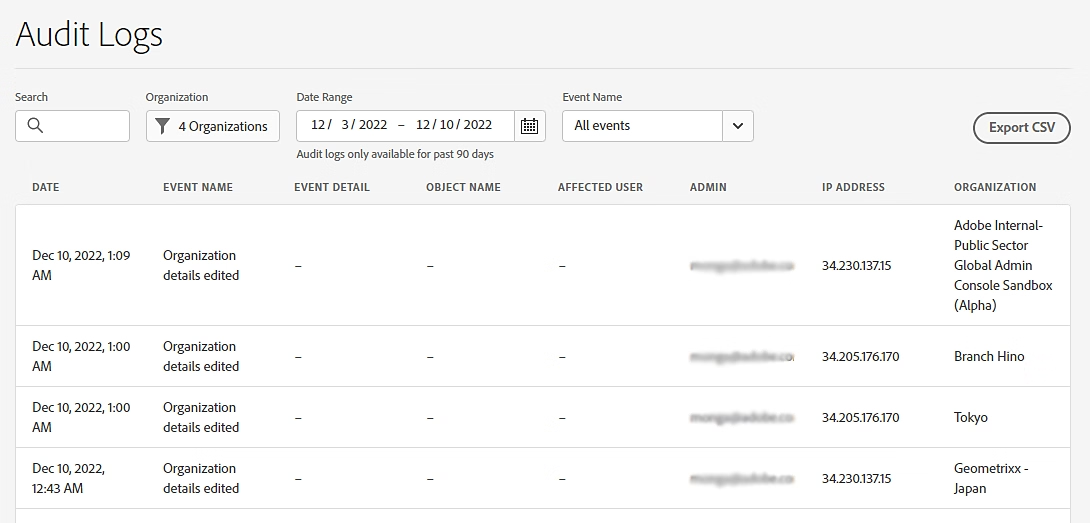
Filter the audit logs based on the event name, affected organization, or date range.
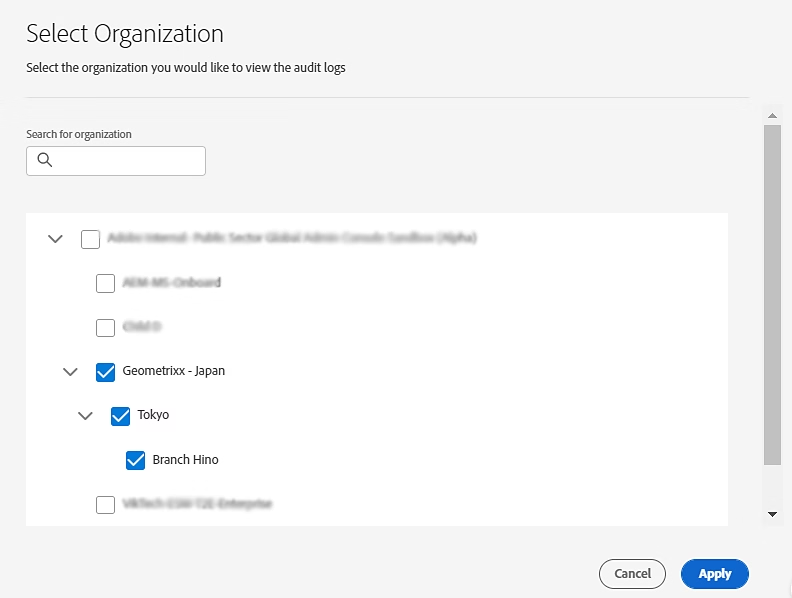
Select organizations to filter the audit logs.
-
To export audit logs, select Export CSV to export filtered results. The results are downloaded in CSV format.
For details about the fields included in the export, see Log Schema.
Understand your audit log report log-schema
The exported audit log report includes the following fields for each organization:
Download export reports
When any global administrator exports organization data from the Global Admin Console, the report is processed and made available under the Insights tab in Export Reports.
All reports generated by any global admin are available in one place. The export reports capability is helpful in the following scenarios:
- If you have a large hierarchy with many organizations, you no longer have to wait for the export file to be processed. You can use the reports generated by your fellow admins.
- You no longer need to keep or save these reports to compare later. The reports are retained for 90 days, and you can download them at any time to compare reports.
To download an export report:
-
Sign in to the Global Admin Console and navigate to Insights > Export Reports.
Reports generated within the last 90 days are displayed. After 90 days, you can generate the report again. Learn how you can generate reports for Organization structure.
table 0-row-2 1-row-2 2-row-2 3-row-2 4-row-2 5-row-2 Field Description Report Date and time the report was generated (local time zone) Format File format (CSV, JSON, XLSX) Size File size Created By Email address of the admin who generated the report Action Link to download the report -
To download a report, select Download.
If the report you just generated isn’t appearing on the list, select Refresh.
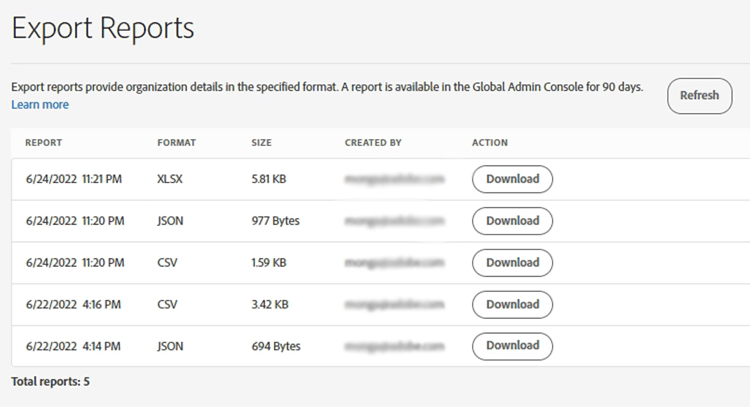
Download any report generated in the last 90 days.