Adobe Admin Console overview
Applies to Enterprise & Teams.
The Adobe Admin Console is a central location for managing the Adobe entitlements across your organization. You can use it to manage your licenses, users, and payments. Go here to sign in to the Admin Console. To learn more, see the following video.
Each tab on the Admin Console enables you to perform various tasks. Select the linked tab name (the first word of each item) to jump to that section.
- Overview: View a summary of the licenses purchased and quick actions to set up your organization.
- Products: Assign licenses to users and groups. As an Enterprise customer, you can manage product profiles.
- Users: Create, update, and remove user accounts, which entitle the end users to Adobe products & services.
- Packages: Download pre-configured packages or create them for desktop apps that you plan to deploy.
- Account: Manage your organization’s contracts and agreements with Adobe.
- Storage: Manage individual user folders and shared folders, and view storage quota consumed by users.
- Insights: View, create, and download license assignment reports and track changes made in the Admin Console.
- Settings: Claim domains, limit access to sharing features, add notes for end users, set password protection levels.
If you are unable to sign in to the Admin Console, see Solve Adobe account sign-in issues.
Overview overview
The Overview tab efficiently displays a wealth of information about product licenses. It shows the status of licenses in your plan—the number of licenses assigned out of the total available ones. There are also some quick links available to add users and admins.
Select your organization
An administrator can belong to multiple organizations. If a company has multiple subsidiaries that exist as separate organizations, or each subsidiary has a separate license agreement, the same administrator can be assigned to all.
If you’re an administrator for multiple organizations, you can switch between organizations using the organization selector. The selected organization shows a green check mark next to the organization’s name.
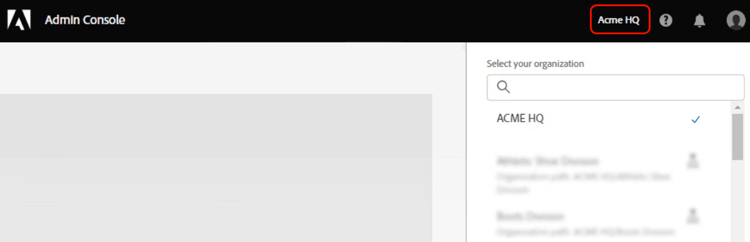
If the organization is part of a Global Admin Console, a hierarchy icon appears next to the organization’s name. You also see the organization’s path and can determine the organization’s placement within the hierarchy. For example, in the screenshot, the administrator is a member of a top-level organization, and child organizations have a Global Admin Console path such as Parent Organization > Child Organization, where the child organization is nested under the parent. In this context, each organization in the path is an Adobe Admin Console; a child organization is a child Admin Console in your hierarchy.
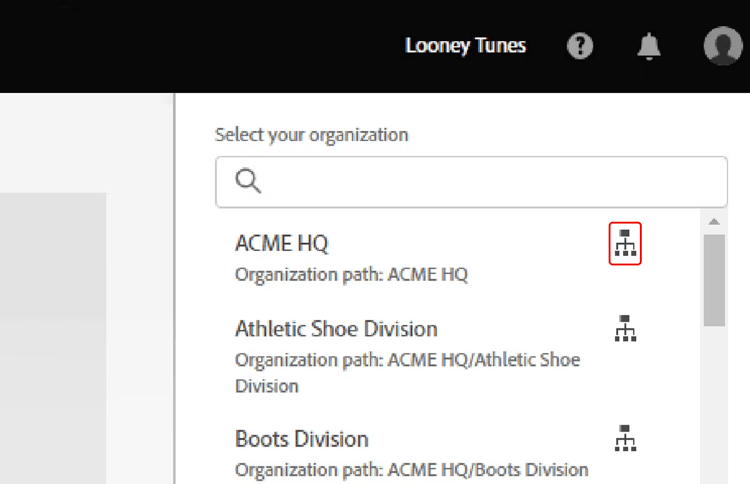
If you have a complex organizational structure that has many Admin Consoles or if you want to break up your main Admin Console into multiple consoles, you can adopt the Global Admin Console. The Global Admin Console groups those Adobe Admin Consoles into a hierarchical structure, like an organization chart, so global administrators can administer child consoles and allocate products to them while system administrators continue day-to-day management in each console. For example, multinational corporations, education consortiums, large school districts, and large government agencies.
Products products
Who can view this tab: System Administrators, Product Administrators, and Product Profile Administrators.
Enterprise
The Products page in the Admin Console provides options to manage your products and product profiles. Product profiles let you enable all or a subset of Adobe applications and services available in the plan and customize settings associated with a given product or plan. You can then assign administrators, called Product Administrators, to the product profiles. These administrators add end users to the product profiles they manage.
For more information, see:
Teams
The Products page in the Admin Console lets you assign product licenses to users. To assign a product license to a user or group, select the desired product on the Products page and click Add User.
Enter the name or email address of the user. You can search for existing users or add a user by specifying a valid email address and filling in the information on screen. Click Save. An email is sent to the user or group confirming access to the application.
For more information, see:
Users users
The Users page in the Admin Console lets you create, search, update, and remove user accounts. These user accounts entitle the end users in your organization to Adobe products and services. You can also use bulk edit workflows to add users or modify user details and license assignments.
For more information, see:
Account account
Who can view this tab: System Administrators and Contract Administrators.
System and contract admins can manage their organization’s Adobe contracts from the Account tab in the Admin Console.
Depending on your plan—Enterprise, VIP, VIP Marketplace, or Teams—you can:
- View key contract details, such as contract ID, status, anniversary/end date, and apps and licenses.
- Change the display name of your contracts for easier identification.
- Add or remove contract admins.
- Manage payment details, invoices, and renewals.
- View your Adobe account manager’s contact details.
Learn more: Managing your account.
Insights insights
Who can view this tab: System Administrators.
Audit Log
Audit Log helps ensure continued compliance, safeguarding against any inappropriate system access, and auditing suspicious behavior within your organization.
As a System Administrator, you have full visibility of the changes made in the Admin Console. You can search the audit log based on the type of actions, when they occurred, and who made them.
Then, view and download these reports for further analysis. Learn more: Use audit log to track user assignments and events.
Assignment Reports
Using the License assignment reports, you can track your organization’s license assignment data and plan your users’ license deployments. License assignment data only supports named user licenses for Creative Cloud and Document Cloud products purchased under the Enterprise Term License Agreement.
Learn more: License assignment reports for Enterprise products.
Storage storage
Who can view this tab: System Administrators and Storage Administrators (only for customers migrated to the pooled storage model).
The Storage page in the Admin Console gives you visibility of storage across your Creative Cloud applications. The storage quotas are flexible for end users up to the amount of storage purchased by the organization.
You can also view how much quota is used by individual users and the overall quota consumed by all the users.
Learn more: Manage Adobe storage.
Packages packages
Who can view this tab: System Administrators and Deployment Administrators.
The Packages page in the Admin Console provides the following functionality. Use them when you plan to deploy desktop applications to end users in your organization.
- Download pre-configured packages by using Adobe Templates.
- Create customized Named User Licensing or Shared Device Licensing (for educational institutions) packagers with the configuration and applications you want your end users to have.
- Enable email notifications, so you get notified when new product versions become available.
- View previous packages you or other administrators in your organization have created. Also, view details of a specific package and track available updates for the apps in the package.
- Download the IT tools like Remote Update Manager and Adobe Update Server Setup Tool.
- Download the Adobe Extension Manager command-line tool to install extensions and plug-ins from the ZXP file container format.
For more information, see Packaging apps via the Admin Console.
Settings settings
Who can view this tab: System Administrators and Storage Administrators.
Storage administrators can access only the asset settings and content logs. System Administrators can view or modify settings depending on their plan.
Privacy and security contacts
In the event of a security incident involving our software solutions, notifications are sent to the appropriate compliance officers. To help ensure prompt notification, as a System admin, you must specify who your security, data protection, and compliance officers are. For details, see Privacy and security contacts.
Console settings
Using Console settings you can add custom notes for your end users to communicate with them about how to get assistance if they encounter issues or require support.
Choose a default email language for your organization, to receive emails about the account statuses, such as subscription changes or credit card expiration. If you have a teams membership purchased directly from Adobe, you can change your team name from the Console settings.
Content logs
As an administrator, you can download detailed reports on how end users are working with corporate assets, such as folders, files, and libraries. These reports are called content logs.
Domain enforcement
System administrators can restrict organization-owned domains to prevent users from creating and using personal Adobe ID accounts. This limits the use of personal data, enhances security, and allows asset sharing only between organization users.
Learn more: Domain Enforcement for restricted authentication.
Identity
Identity types allow organizations to have different levels of control over users’ accounts and data. It impacts how your organization stores and shares assets.
Asset settings
Asset settings give an organization control over how its employees share its assets outside the organization. Asset settings are used along with other organizational policy enforcement systems (not provided by Adobe) to ensure that assets are only shared with appropriate external individuals and organizations.
Authentication settings
Authentication settings support several password protection levels and policies to ensure safety and security. You can specify a password protection level to apply to all users across your organization.
Encryption settings
Encryption settings generate dedicated encryption keys for extra layers of control and security.
Project policies
As a System Administrator, you can control who has permission to create and manage projects in your organization. By default, all users added to the Admin Console can create and manage projects.
Learn more: Project policies.
Support
To contact Adobe Customer Care, navigate to the Support page in the Admin Console which allows you to do the following:
- Manage your support cases (Enterprise only)
- Create cases (Enterprise only)
- Connect with Adobe Customer Care representatives
- Schedule Expert Sessions
- Browse popular Help Topics and forums
To learn more about Support options, see Support and Expert Sessions.