Quantize Color
In: Filters > Adjustments
Description
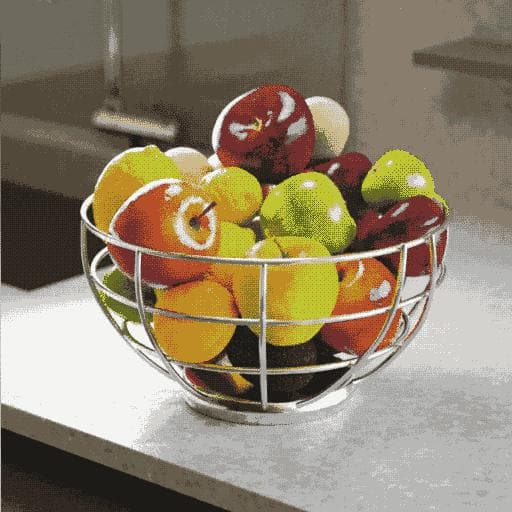
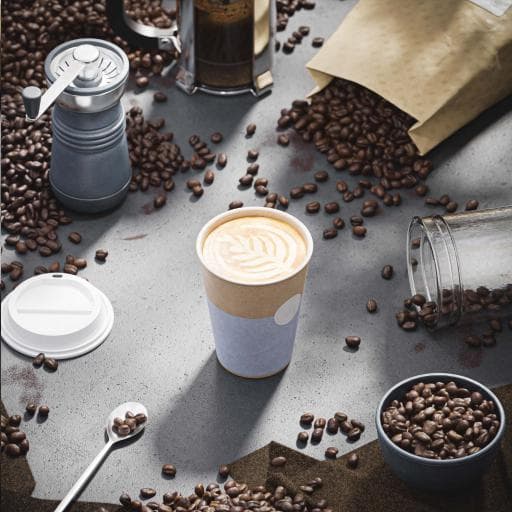
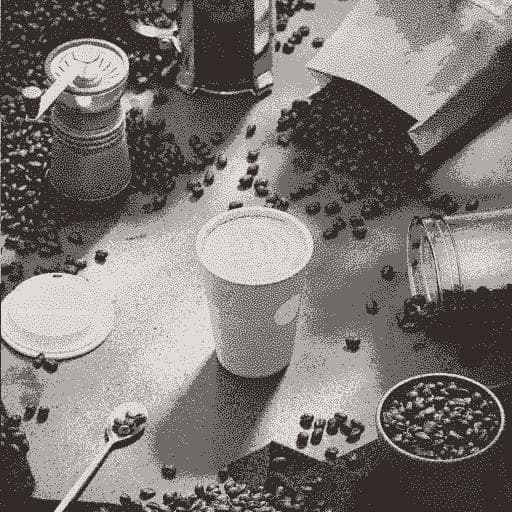
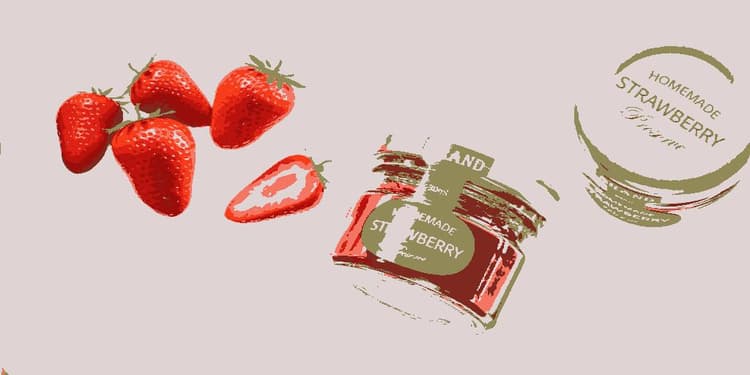
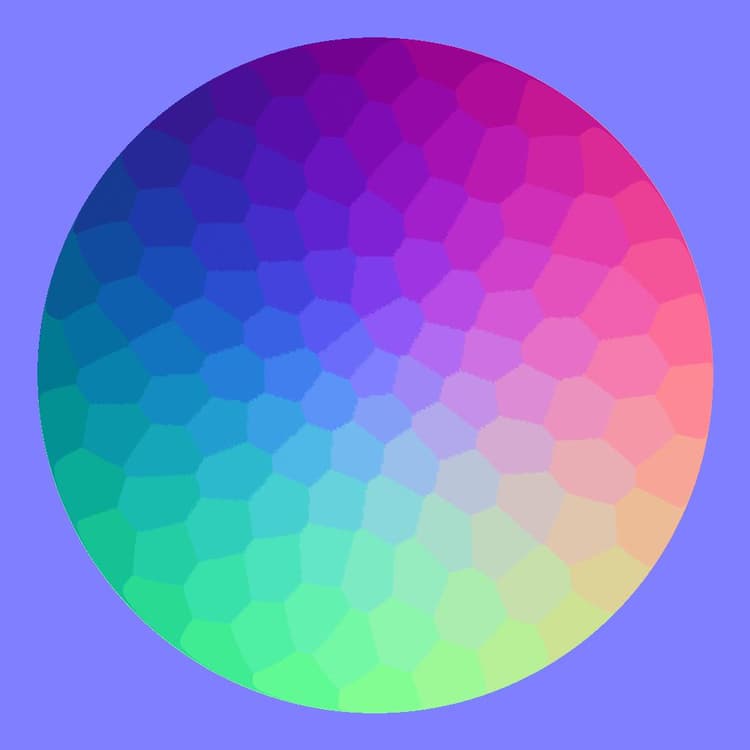
Reduces the amount of colors in a color image, effectively flattening gradients.
In addition to the processed image, the node also extracts the following:
- A palette of the remaining colors, which may be used to colorize other images
- An ID map of the quantized areas, which may be used to recolorize the processed image using a different palette
- The amount of remaining colors as a raw integer value
If the ‘Ignore alpha’ parameter is set to ‘False’, the alpha channel of the original image is used to select the areas of the image from which the colors should be extracted for the quantization process, while colors in transparent areas are ignored.
This effectively provides some control over the extracted colors.
This node may be used in combination with the following nodes: Create Color Palette, Apply Color Palette, Modify Color Palette, View Color Palette.
Input connectors
Output connectors
A map where each quantized color is assigned a unique integer identifier. This may be used to:
- Extract a mask out of some quantized areas with the ID to Mask node
- Recolorize the quantized image with the Apply Color Palette or Modify Color Palette nodes
Parameters
The dithering pattern used to recreate the gradients and color blends in the original image:
- Blue noise
- Bayer
Colors are arranged in a cube which width, height and depth are a gradient where each component of a color increases from 0 to 1 (E.g. red, green and blue in RGB). The quantization process involves selecting the defining colors in an image, then finding the colors closest to them in the cube and replacing them with that defining color. This parameter lets you select the color space used to distribute colors in the cube, which changes the result of the quantization by changing the criteria for detecting a defining color and rearranging neighbouring colors. You may select the color space which fits your use case:
- Lab (Color): A standardized perceptual color space, which distributes colors in such a way that colors that ‘feel’ close are actually close in the cube. This is appropriate for image which may be visualised on displays
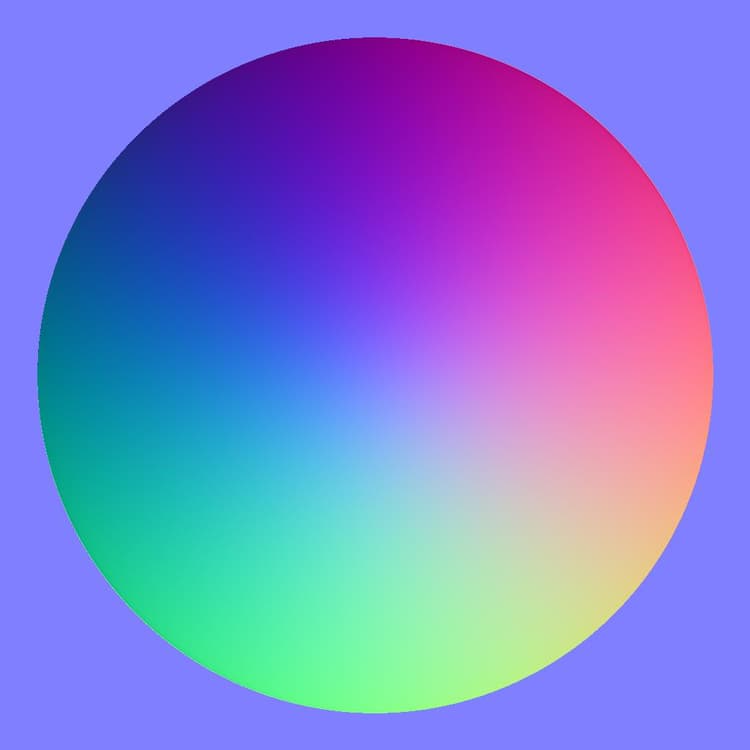
- RGB (Data): Color is split into Red, Green and Blue and distributed straight along those axis, disregarding human perception. This is appropriate for images holding raw data, such as normal maps
Colors are arranged in a cube where width, height and depth are a gradient where each component of a color increases from 0 to 1 (E.g. red, green and blue in RGB). This parameter selects the method used to order the list of colors in the extracted palette, and the indexes in the areas of the extracted ID map:
- Z-curve: colors are sorted by next found in the color cube using a Z-curve, from white to black
- Hue: colors are sorted by closest hue
- Representativity: colors are sorted from most to least used in the quantized image
The color quantization process involves computing a histogram of an image at a reduced size (I.e. downscaled), in order to sort its colors by importance. This parameter controls the method of filtering the downscaled image before computing its histogram:
- Bilinear: applies bilinear filtering to the image, resulting in a histogram with interpolated colors which may not be part of the original image, diluting some of the original colors. This helps with images using lots of colors.
- Nearest: samples the color of the nearest pixel with no filtering, resulting in a histogram using colors from the original image exclusively. This is appropriate for images using few colors.
Examples
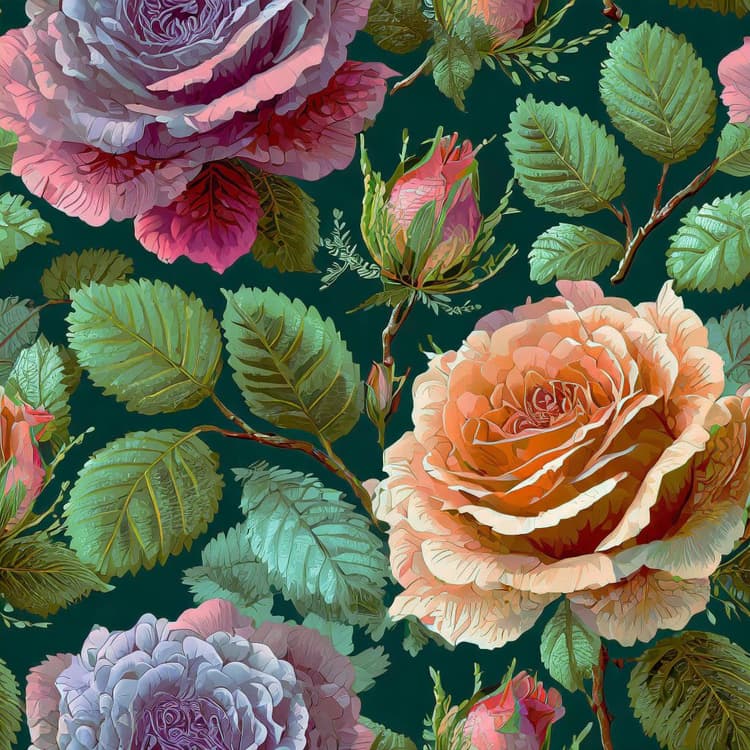
Before
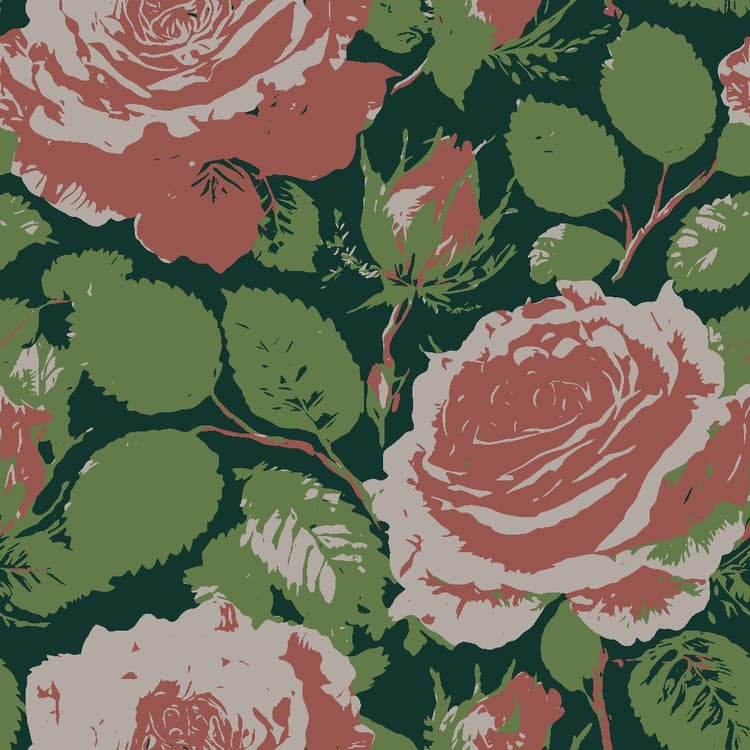
After
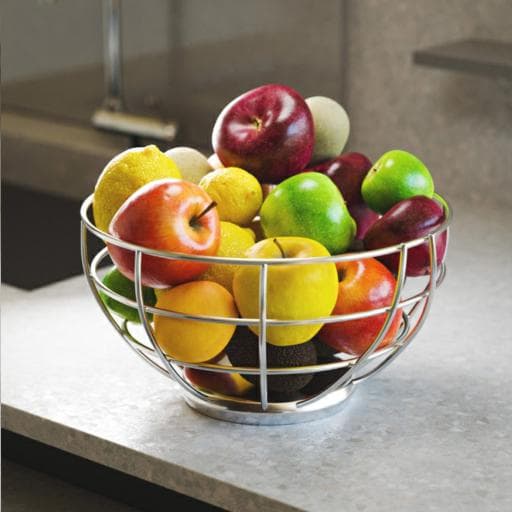
Before
After
Before
After
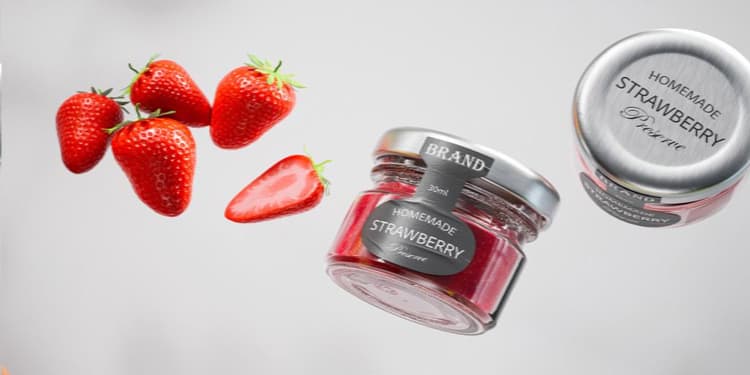
Before
After
Before
After