Accounts
The account view combines AI-generated research, recent news, open opportunities, pipeline value, and engaged contacts. Use this information to understand and prioritize an account before you reach out.
Open an account
Open an account from the profile of a prospect associated with it.
- Select Prospects in the left navigation and open a prospect. See Prospects.
- On the prospect detail page, select the Account tab.
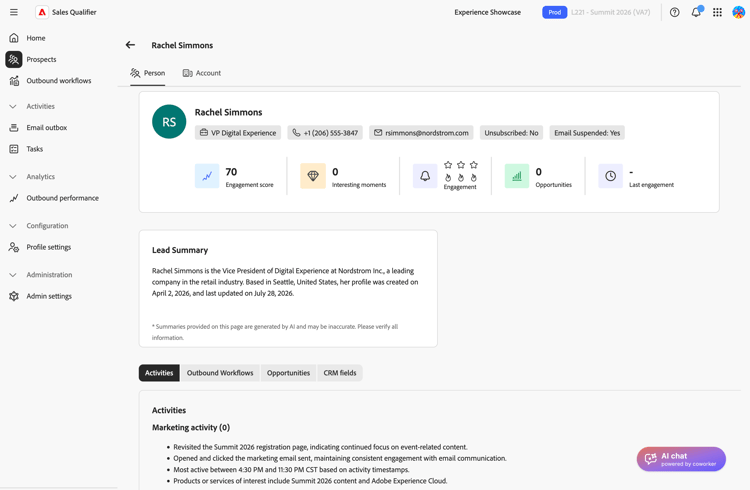
Adobe Marketo Qualifier identifies the account from the prospect’s CRM record. The same account view is available from every prospect associated with that account. If Marketo Qualifier cannot match an account, the tab shows No account found.
The account view has two tabs: Details and Account Research.
Review the account details
The Details tab gives you a snapshot of the account and its pipeline.
Account overview
The overview card at the top of the tab identifies the account and summarizes its value:
- The account name and region
- Annual recurring revenue (ARR)—The annual recurring revenue across all active subscriptions. Select View All to review ARR by product in the Annual Recurring Revenue dialog.
- Account statistics, including open opportunity and contact counts and the pipeline value
Account overview summary
The Account Overview panel summarizes the account based on CRM data and Account Qualification Agent research. If research is in progress, the panel shows a loading state. If research is unavailable, the panel shows a message.
Account insights
Use the buttons below the overview to switch between account views. The available views depend on your CRM and configuration:
From the Top Members view, take either of these actions for a contact:
- Add to Outbound Workflow—Enroll the contact in an Outbound Workflow.
- Add to Marketo campaign—Trigger a Marketo campaign for the contact.
Research the account
The Account Research tab contains three areas:
- Research categories—Research topics. Select a category to view its research in the center pane.
- Research content—AI-generated research cards grouped by category. A card can include the source domain and the dates when the signal was first and last detected.
- Recent news—Current news about the account, including dates, tags, and source links.
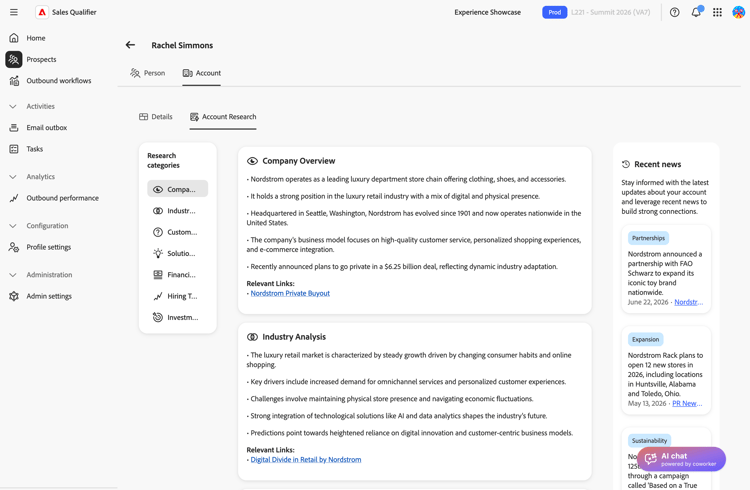
If research or news cannot load, each area offers a Reload action to try again.
Use account intelligence in outreach
Account intelligence is most valuable when it shapes what you send:
- Reference a recent news item or research signal to make your opening relevant instead of using a generic pitch.
- Check open opportunities and pipeline value to decide whether to prioritize the account.
- Use Top Members to identify who to contact, then enroll them in an Outbound Workflow.
- Ask AI Chat to develop positioning for the account before a call.