[Limited Availability]{class="badge informative"}
Manage measurement data connections
Overview
Use measurement data connections in Real-Time CDP Collaboration to source your conversion data from various platforms. Learn how to manage details and match keys for your existing data connections.
View measurement data connections view-measurement-data-connections
You can view details for any existing measurement data connection, including how your conversion data is sourced, which match keys are in use, and all conversion events linked to the connection.
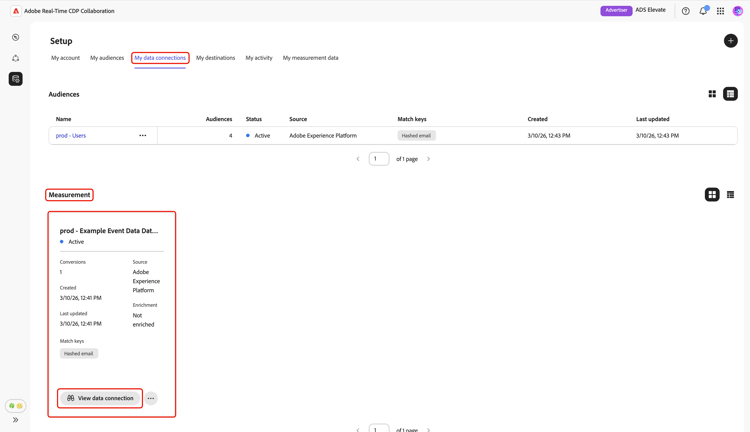
From the Setup workspace, navigate to the My data connections tab. All your current measurement data connections are displayed under the Measurement section in tabular or grid view. Select View data connection on the relevant connection card, or select the data connection name when in table view to open its workspace and view all details.
Measurement data connection details measurement-data-connection-details
In this section, you can see the following details of the data connection:
Match keys match-keys
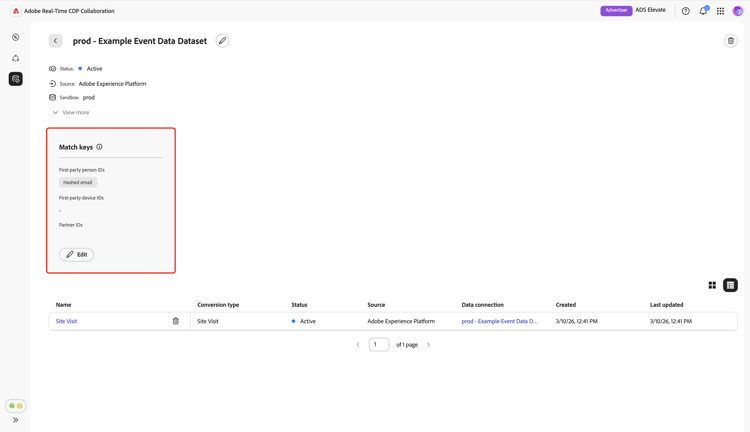
Match keys are the target fields you mapped your source fields to when you source your measurement data. To learn more about how match keys work, see the match keys guide.
Conversion events conversion-events
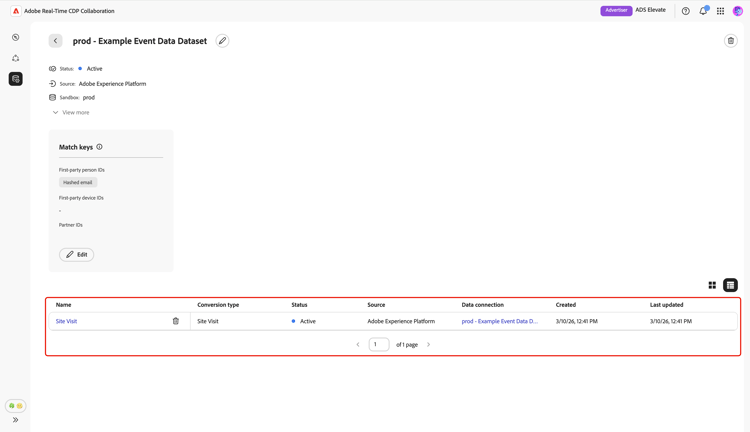
A list of conversion events attached to the data connection are displayed at the bottom of the workspace. The list displays a brief overview of each event, including its status, conversion type, and source. You can select the event name to view and edit its configurations, or remove the conversion event with the delete option (

Edit measurement data connection edit-measurement-data-connection
You can update the details and match keys of an existing measurement data connection at any time to ensure your reporting and analysis remain accurate. To begin, navigate to the My data connections tab and select the measurement data connection you want to edit. This opens the data connection workspace, where you can follow the steps below to make necessary changes.
Edit name and description edit-name-and-description
To update the data connection’s name and description, select the edit icon (

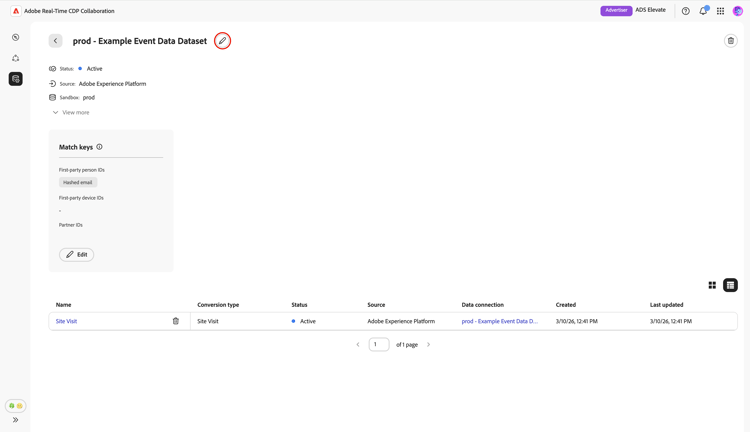
In the Edit data connection dialog, update the fields with the desired values, then select Save to apply your changes.
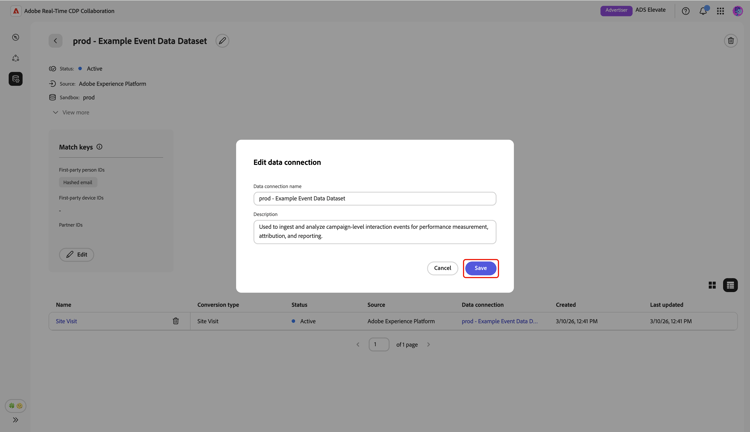
A confirmation dialog appears to confirm that the details were successfully updated.
Edit match keys edit-match-keys
- Only match keys that are configured for your account can be used for data connections.
- At this time, you can add additional match keys to a data connection, but once a match key is enabled, it cannot be removed.
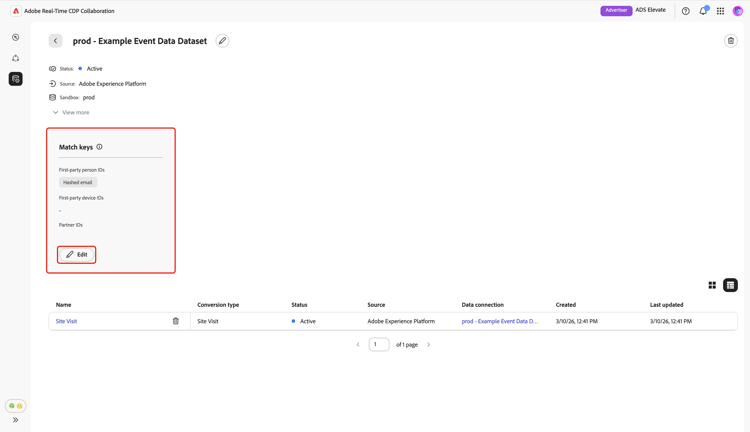
In the data connection workspace, select Edit within the Match keys panel.
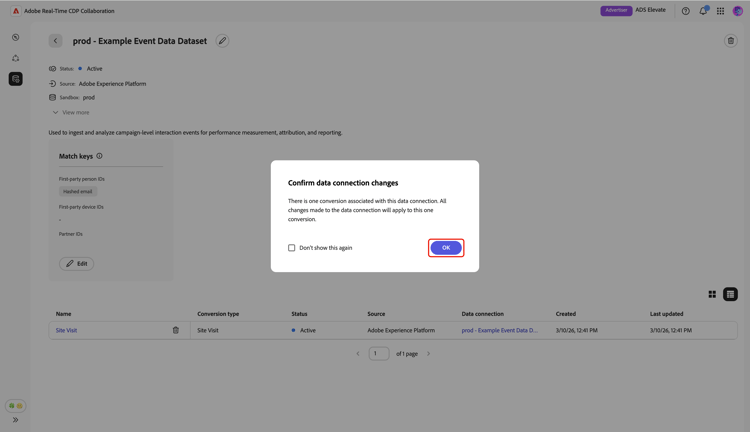
A confirmation dialog appears, explaining that any changes to the data connection will apply to all associated conversions. Select OK to confirm. You can choose to skip this confirmation in the future.
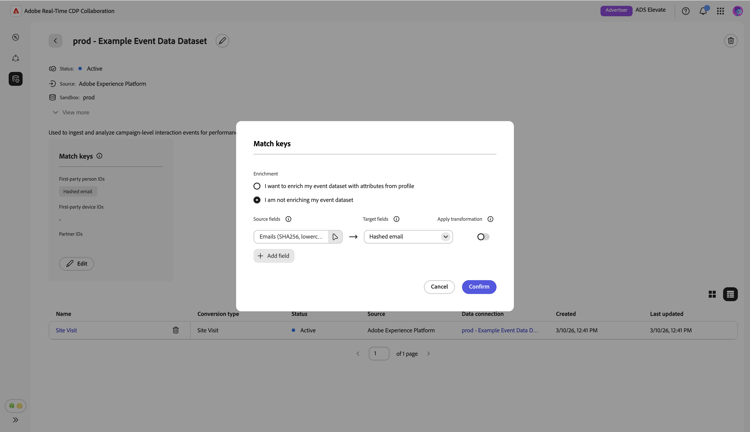
In the Match keys dialog, you can review enrichment settings and see the current mappings between your source fields and the target fields (match keys).
Enrichment enrichment
If enrichment was not enabled when you sourced your measurement data, you have the option to enrich your event dataset with attributes from Real‑Time Customer Profile. Note that once enrichment is turned on for measurement data, it cannot be disabled. You can still update the enrichment join keys as needed.
When you enable enrichment in the Match keys dialog, the UI expands to display more configuration options under the Enrich your event data with IDs from profiles section.
Select the Source field join key option.
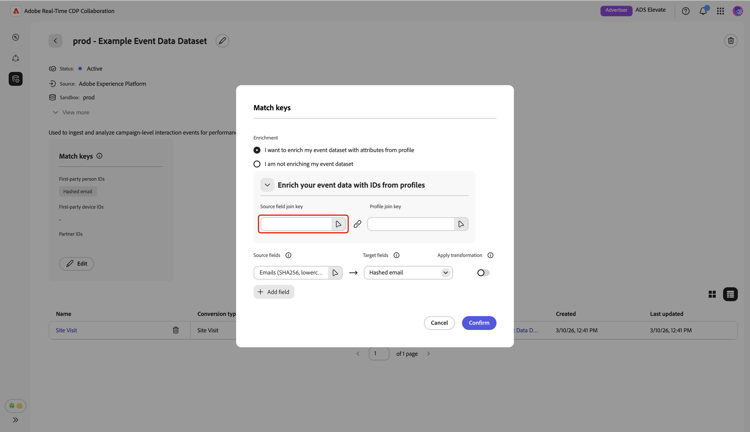
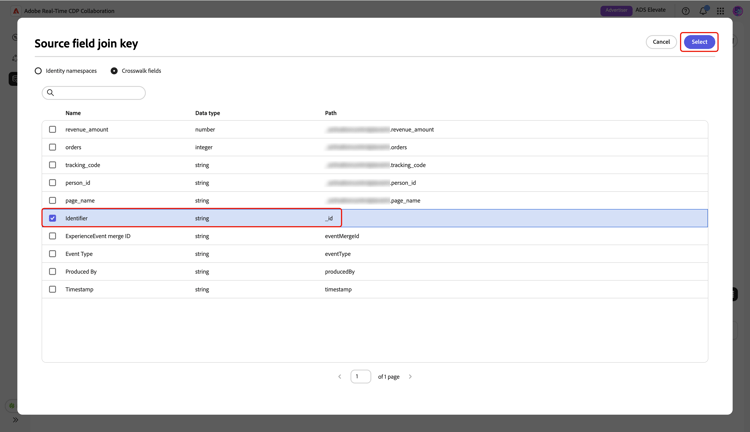
In the Source field join key dialog, choose the source field, followed by Select.
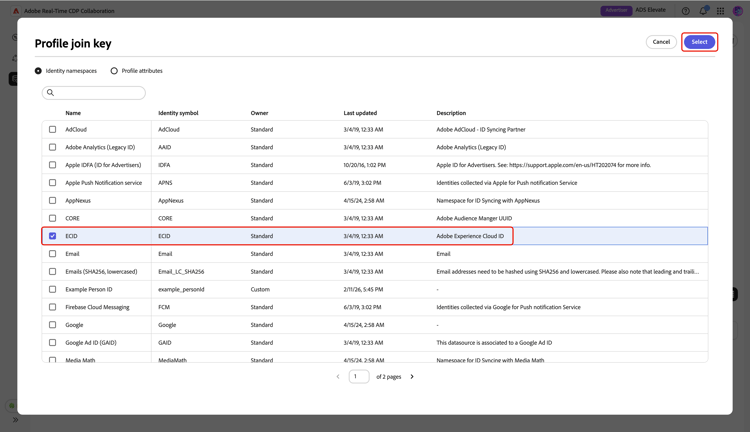
Next, select the Profile join key option. In the Profile join key dialog, select the profile field from the list. You can use the Search option to find the desired field. Then, choose Select to confirm.
Edit mapping edit-mapping
To edit an existing match key, update its associated source field and target field within the Match keys dialog. If you want to include a new match key, select Add field. This creates an empty row where you can define additional mapping between source and target fields.
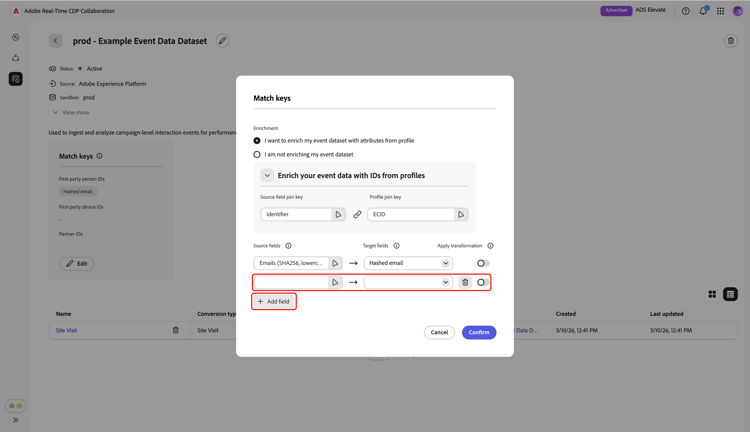
Next, select the empty source field. The Select source field dialog appears with a list of available source fields grouped under options such as Identity namespaces and Profile attributes. You can filter the list and find the desired source field with the search option.
Choose the source field that you want, followed by Select.
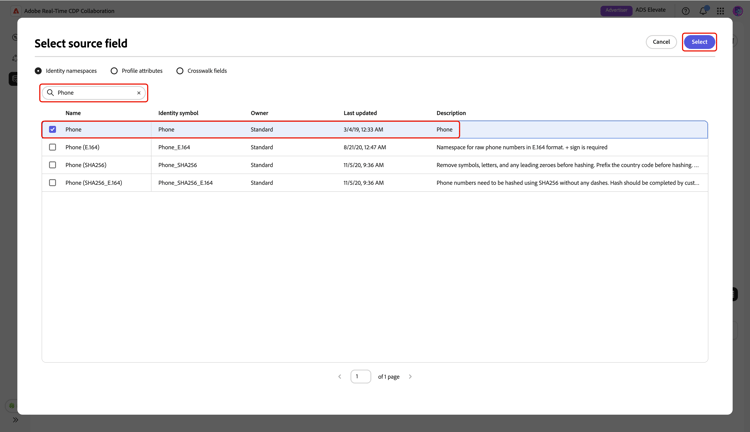
In the Match keys dialog, use the dropdown menu to map the new source field to a target field. All available target fields are the match keys configured for your Collaborator account. If you don’t see the target field you need, edit your account’s match keys to add it.
Use the Apply transformation option if you want to source a non-hashed field to a hashed target field, for example, when mapping a plain text phone source field to the Hashed phone target field.
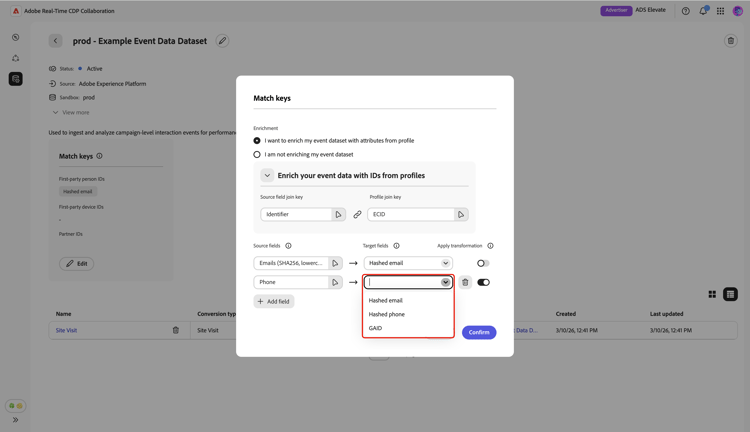
After you finish mapping fields, review your updates and select Confirm to apply the changes.
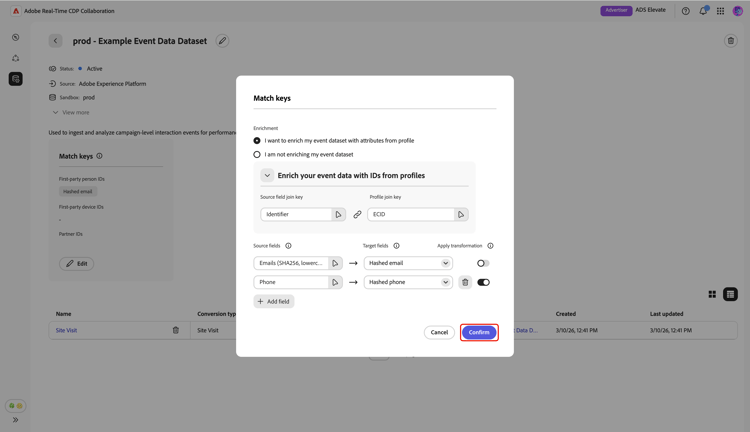
A confirmation dialog confirms that the match keys were updated successfully.
Delete data connection
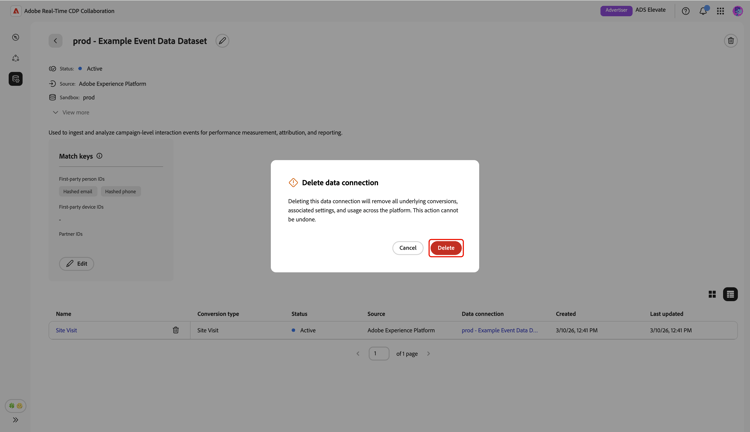
Deleting a data connection will remove all underlying conversions, associated settings, and usage across Collaboration. This action cannot be undone.
To delete an existing data connection, select the delete icon (
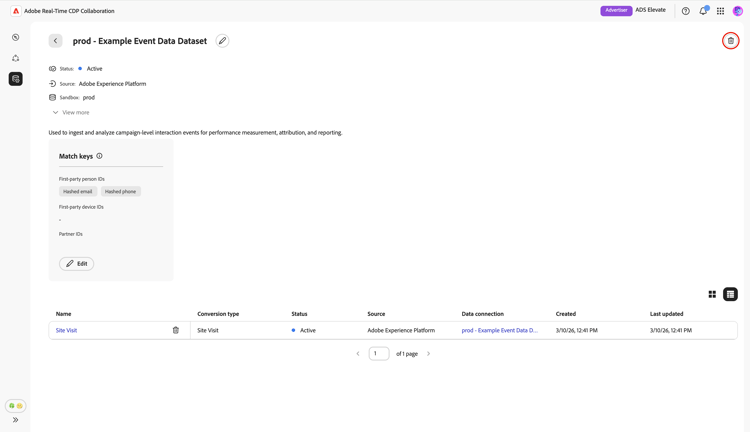
A confirmation dialog appears. Select Delete to finish deleting the data connection.
A confirmation dialog confirms that the data connection was deleted successfully.
Next steps next-steps
After managing your measurement data connections, you can:
- Add more conversion events linked to your data connection as needed. For detailed steps, read the add and manage measurement data documentation.
- Generate measurement reports to gain insights into your campaign’s performance and impact. For more information on available report types and how to create them, see the measure performance guide.