1.7.2 Execute your custom workflow programmatically
1.7.2.1 Execute your custom workflow with Postman
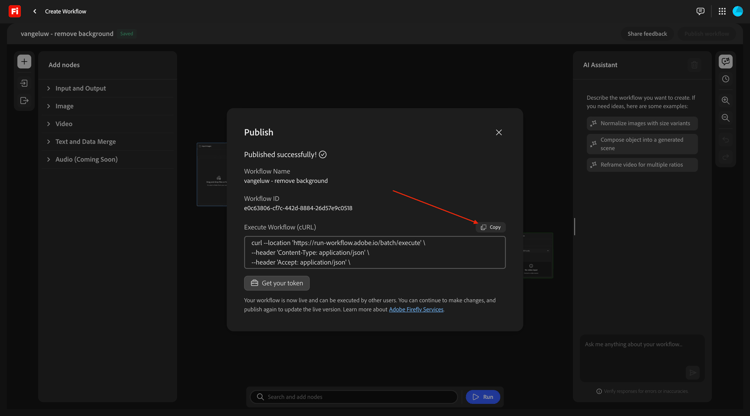
After publishing your workflow in the previous exercise, you should see something like this. Click the Copy button to copy the sample payload.
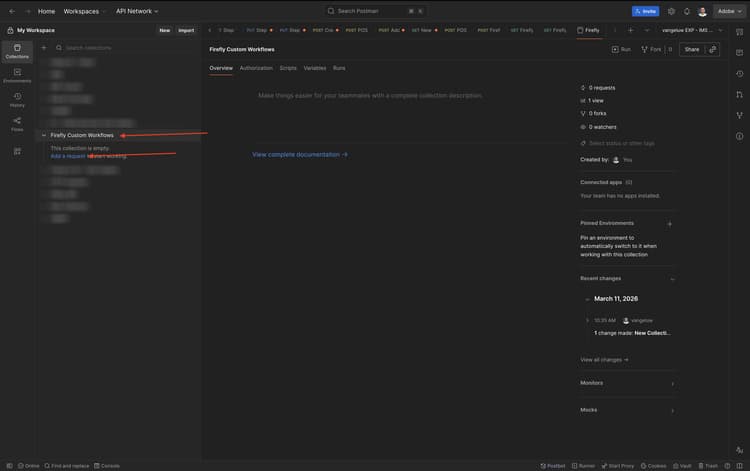
Open Postman and create a new Collection using the name Firefly Custom Workflows. Then, click add request.
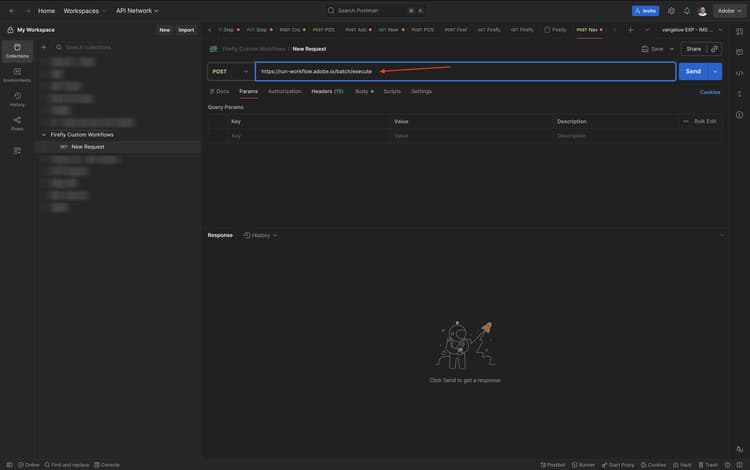
You should then see an new empty request. In the address bar, paste the payload you copied from your published workflow.
Postman will recognize the cURL command that you pasted and will take all the information from the payload and add it in the request in the correct way for you.
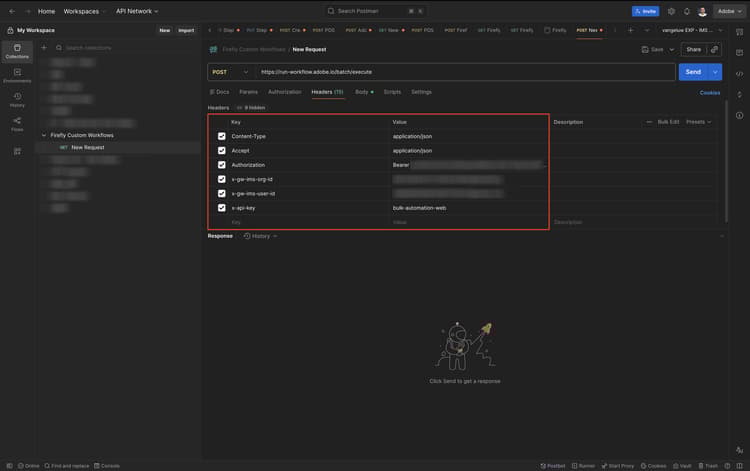
You should now see these Header variables.
Go to Body, where you should see something similar to this.
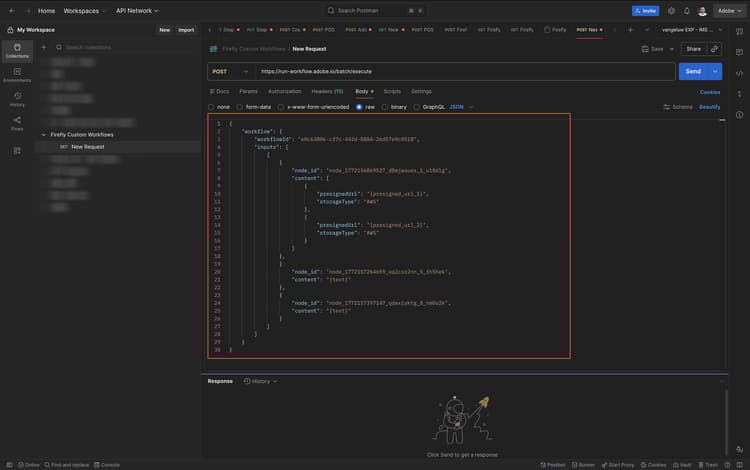
You now need to provide the required instructions in the body of this request. When working with files in a programmatic way, the usage of presigned URLs is required. For this exercise, you can find presigned URLs below for the 3 images that are part of this exercise. These presigned URLs were created using Microsoft Azure Storage capabilities. If you would like to learn more about how to create presigned URLs, have a look here: Optimize your Firefly process using Microsoft Azure and presigned URLs.
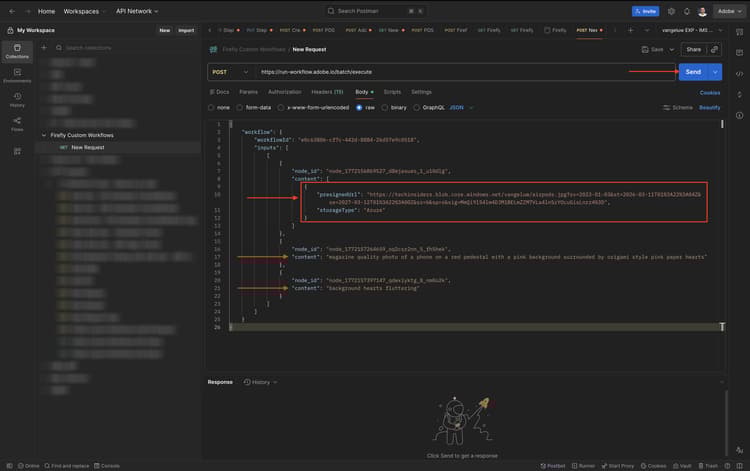
For this exercise, you can use the below URLs so you don’t need to create new presigned URLs yourself.
- airpods.jpg
https://techinsiders.blob.core.windows.net/vangeluw/airpods.jpg?sv=2023-01-03&st=2026-03-11T01%3A22%3A04Z&se=2027-03-12T01%3A22%3A00Z&sr=b&sp=r&sig=MmQi9lS4lm4DJM1BELmZZM7VLa4ln5zYOcuGisLnrz4%3D
- watch.jpg
https://techinsiders.blob.core.windows.net/vangeluw/watch.jpg?sv=2023-01-03&st=2026-03-11T01%3A26%3A54Z&se=2027-03-12T01%3A26%3A00Z&sr=b&sp=r&sig=xCwQ09E%2F%2FT%2B7RLcb31Fum4uUBfsX0xHITKZTz4Ds9Zs%3D
- phone.jpg
https://techinsiders.blob.core.windows.net/vangeluw/phone.png?sv=2023-01-03&st=2026-03-11T01%3A27%3A20Z&se=2027-03-12T01%3A27%3A00Z&sr=b&sp=r&sig=VVbX88P2sFSHHo9lmgoRhXRIXb42c0nDQhM9Z8nUG%2Bc%3D
You also need to provide prompts as part of the Postman request. Below are the prompts you can use.
- Prompt 1:
magazine quality photo of a phone on a red pedestal with a pink background surrounded by origami style pink paper hearts
- Prompt 2:
background hearts fluttering
Here’s a sample payload, but you can’t copy and reuse this as the node_id fields are unique to your workflow, so this is just to give you an idea of how the payload should look like:
{
    "workflow": {
        "workflowId": "e0c63806-cf7c-442d-8884-26d57e9c0518",
        "inputs": [
            [
                {
                    "node_id": "node_1772156869527_d8mjasues_1_u10dlg",
                    "content": [
                        {
                            "presignedUrl": "https://techinsiders.blob.core.windows.net/vangeluw/airpods.jpg?sv=2023-01-03&st=2026-03-11T01%3A22%3A04Z&se=2027-03-12T01%3A22%3A00Z&sr=b&sp=r&sig=MmQi9lS4lm4DJM1BELmZZM7VLa4ln5zYOcuGisLnrz4%3D",
                            "storageType": "Azure"
                        }
                    ]
                },
                {
                    "node_id": "node_1772157264659_oq2csr2nn_5_fh5hek",
                    "content": "magazine quality photo of a phone on a red pedestal with a pink background surrounded by origami style pink paper hearts"
                },
                {
                    "node_id": "node_1772157397147_qdwxiyktg_8_nm0o2k",
                    "content": "background hearts fluttering"
                }
            ]
        ]
    }
}
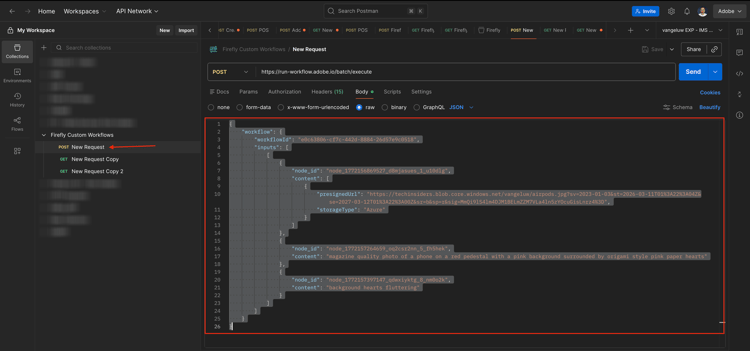
After making the changes to your payload, it should look like this. Once done, click Send. Then, use CMD + S or CTRL + S to save your request.
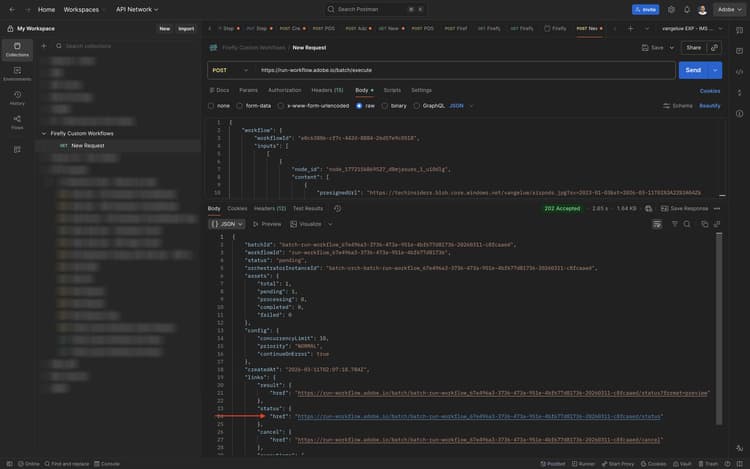
In the response payload you can now find a couple of links. These links make it possible to query the status of the workflow, and once the status is completed, you can use the results URL to retrieve the image and video that were generated.
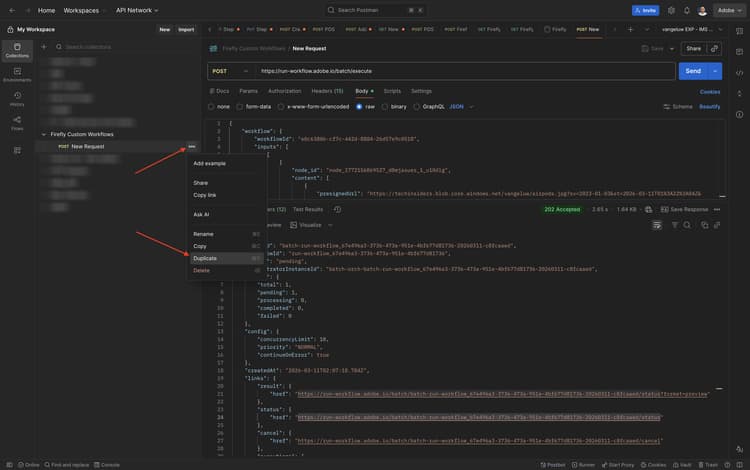
Select the status URL and copy it.
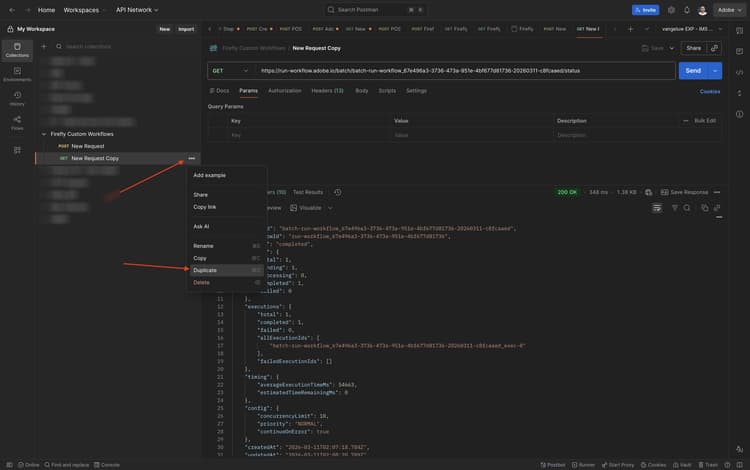
Click the 3 dots on the request you’re currently using and then select Duplicate.
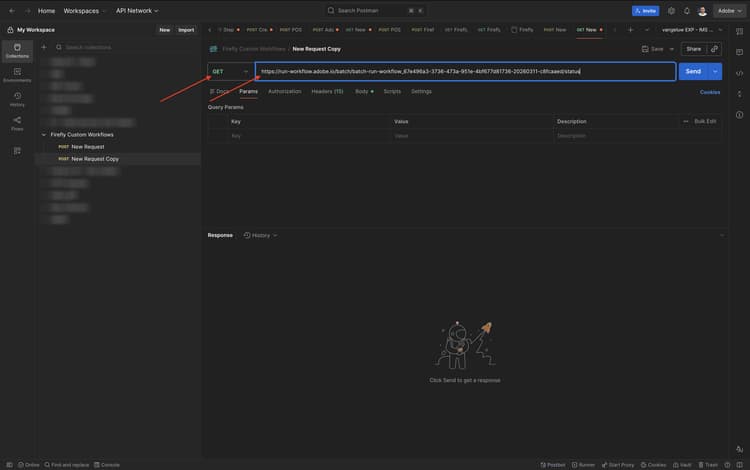
In the new request, change the request type to GET and replace the URL by the status-URL that you just copied.
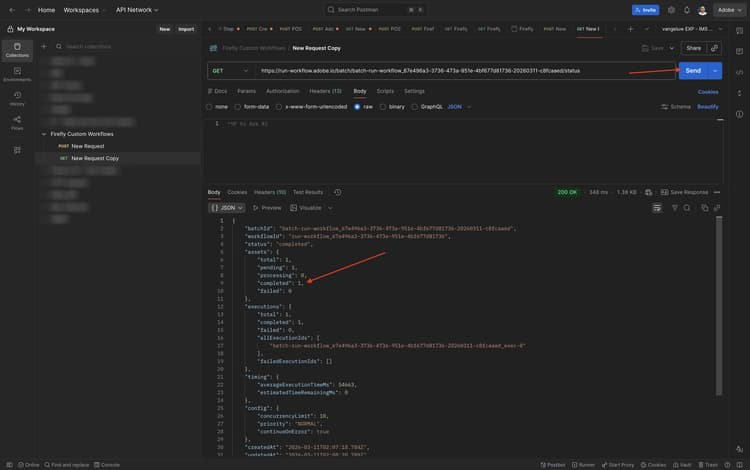
Under Body, make sure everything is deleted. Then, click Send. You should then receive a similar response payload, which will show a status. You can re-send this request until the status has changed to completed. Don’t forget to use CMD + S or CTRL + S to save your request.
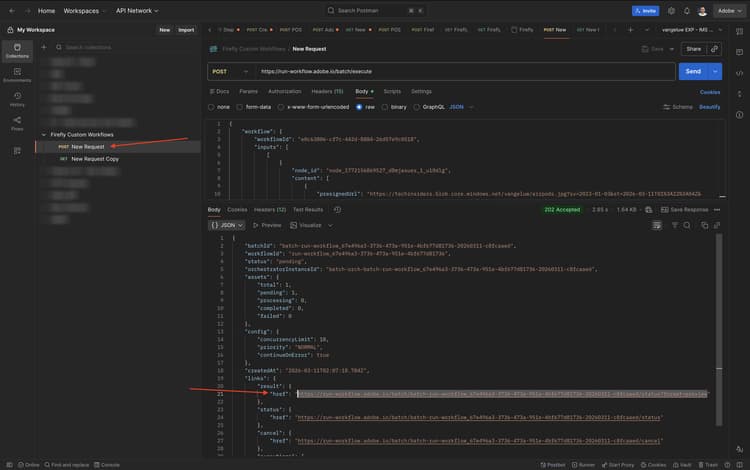
Go back to the first POST request. Now copy the results URL.
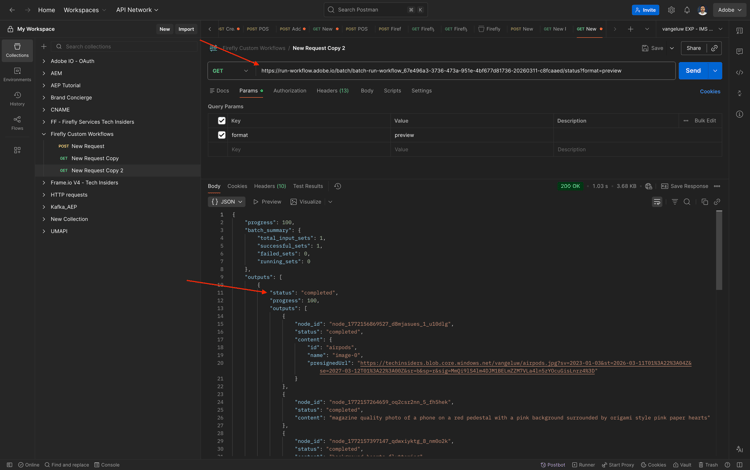
Click the 3 dots … on the second request you created, and then select Duplicate.
In the new request, paste the results URL you copied and then click Send. Don’t forget to use CMD + S or CTRL + S to save your request.
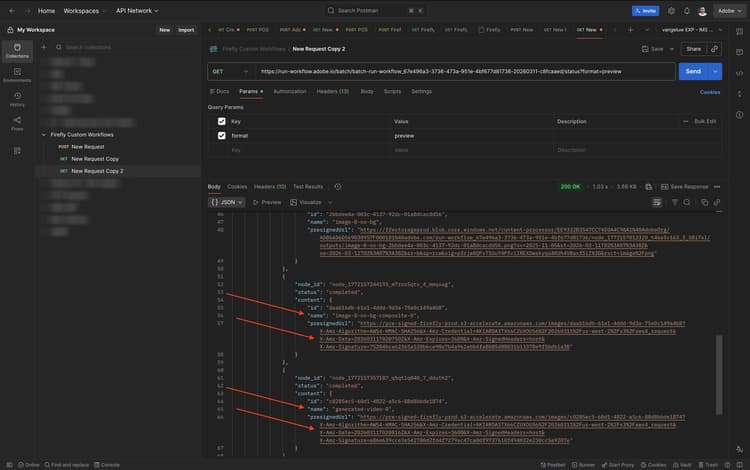
Scroll down in the response payload, where you’ll find references to the image and video that were created. Click the links to open these files.
Here’s the image that was generated.

1.7.2.2 Execute your custom workflow with Workfront Fusion
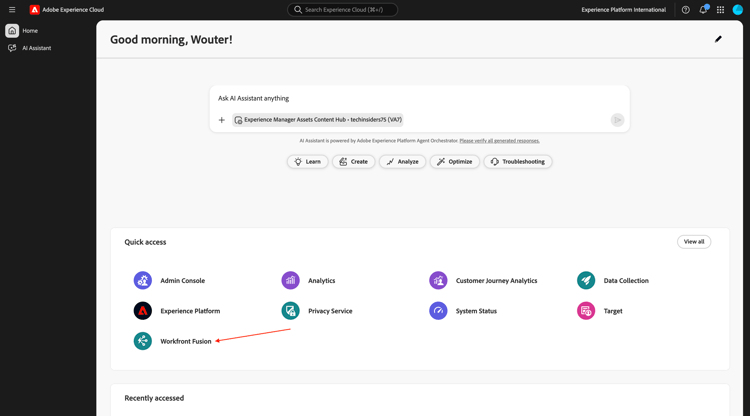
Go to https://experience.adobe.com/{target=“_blank”}. Open Workfront Fusion.
Go to Scenarios. If you don’t have a folder yet, create a folder and for the folder name, use: --aepUserLdap--. Select your folder, and then select Create new scenario.
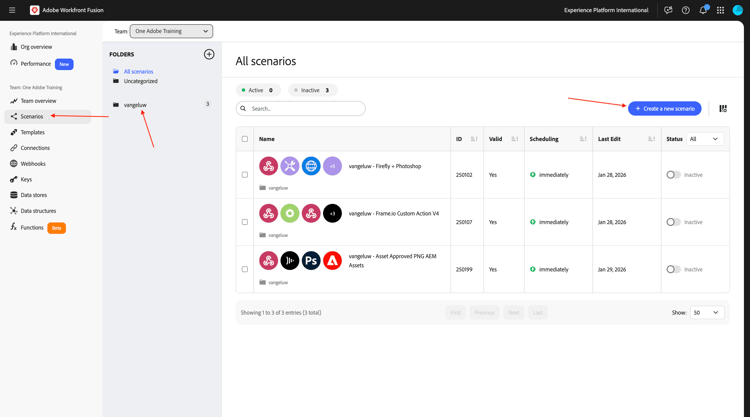
You should then see this.
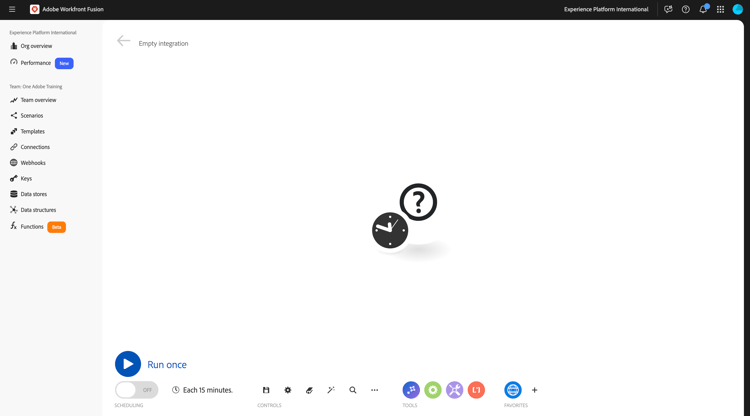
After publishing your workflow in the previous exercise, you should see something like this. Click the Copy button to copy the sample payload.
Go back to your Workfront Fusion scenario. Use CMD + V or CTRL + V to paste the payload that you copied into the scenario. Workfront Fusion will automatically detect the cURL request and will create a new HTTP - Make a request module automatically.
Drag the clock icon onto the HTTP - Make a request module.
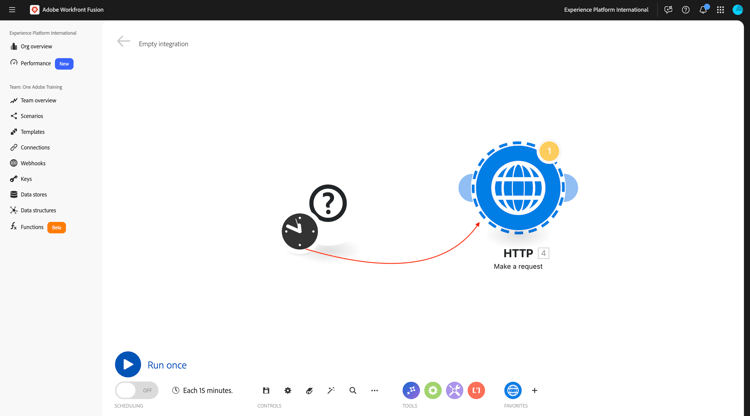
You should then see this. Click the HTTP - Make a request module to open it.
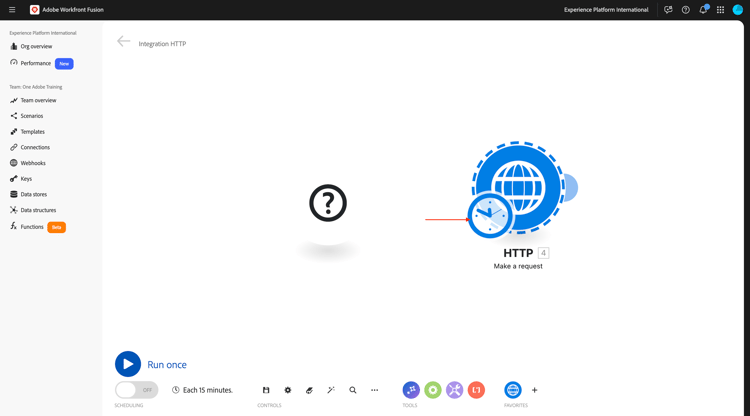
You should then see that the Header variables are available already.
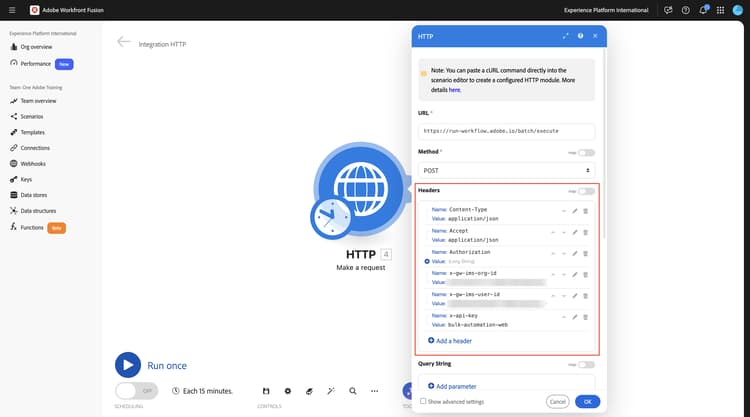
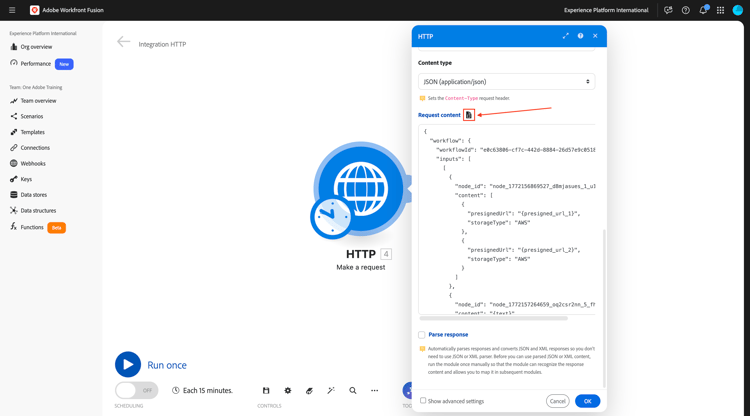
Scroll down to see the default payload. Click the icon as indicated to beautify the JSON payload.
Go back to Postman, to the first POST request. Copy the payload.
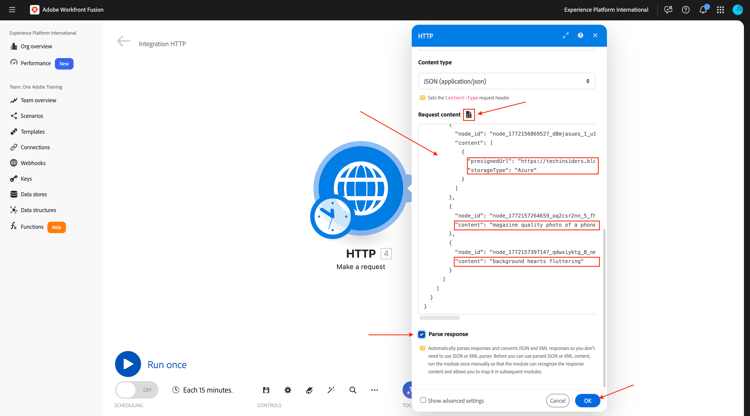
Go back to your Workfront Fusion scenario. Replace the existing default payload by the payload you copied from Postman. Click the icon as indicated to beautify the JSON payload.
Check the checkbox for Parse response.
Click OK.
Save your changes and then click Run once.
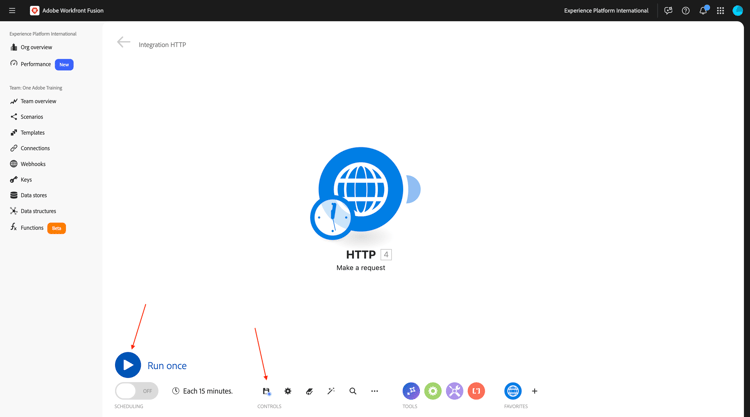
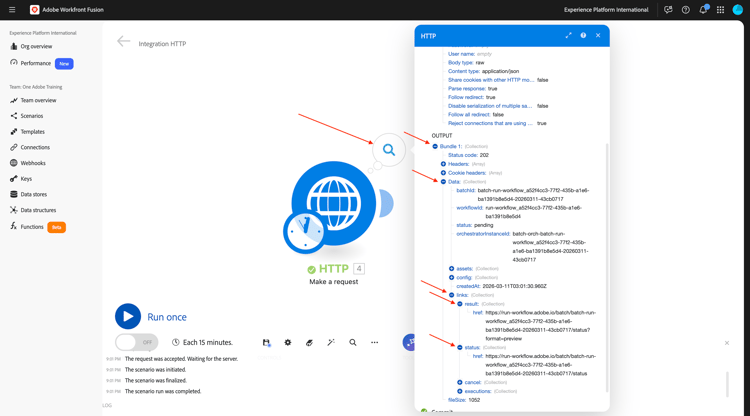
Once your scenario has run, you can see a similar response as what you got in Postman. With this information available in Workfront Fusion, you can now build on that to poll the status URL until the status is completed, and once that has happened you can use the results URL to collect the image and video that were generated.