1.7.1 Getting started with Firefly Creative Production for Enterprise
Instructions for in-person workshops
For this exercise, you need to use:
- Instance: Adobe Tech Insiders
- Username: adobetechinsiders-XXX@adobeeventlab.com
- Password: use the password that was shared with you
1.7.1.1 Remove background
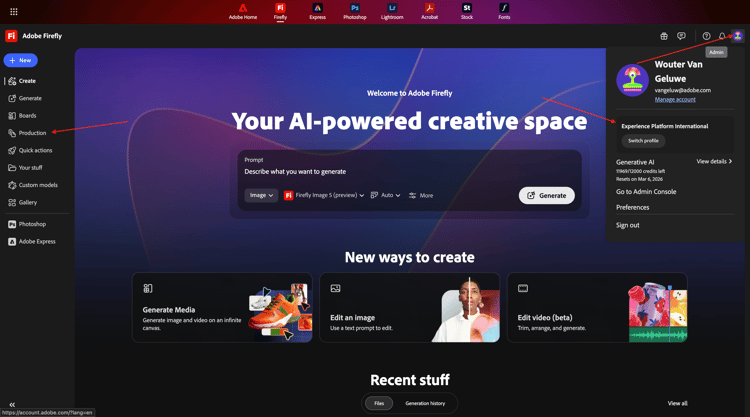
Go to https://firefly.adobe.com. Click the profile icon in the top right corner and verify you’ve select the correct instance, which should be --aepImsOrgName--.
Go to Production.
You should then see this. Click Create workflow (beta).
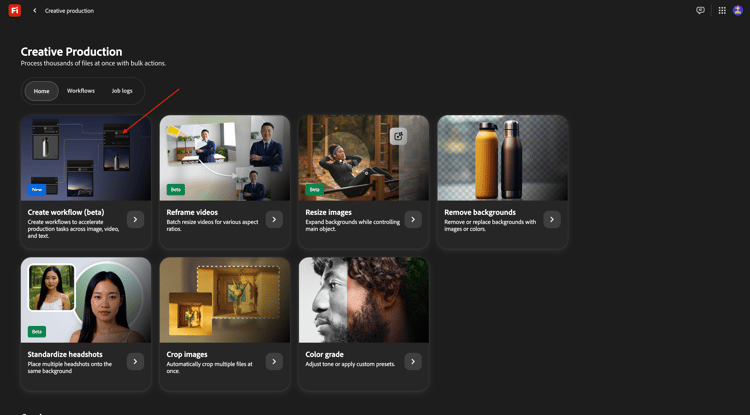
To get to know Firefly Creative Production for Enterprise, you’ll now implement a basic use case which is focused on removing the background of a specific image.
Change the name of your workflow to vangeluw - remove background.
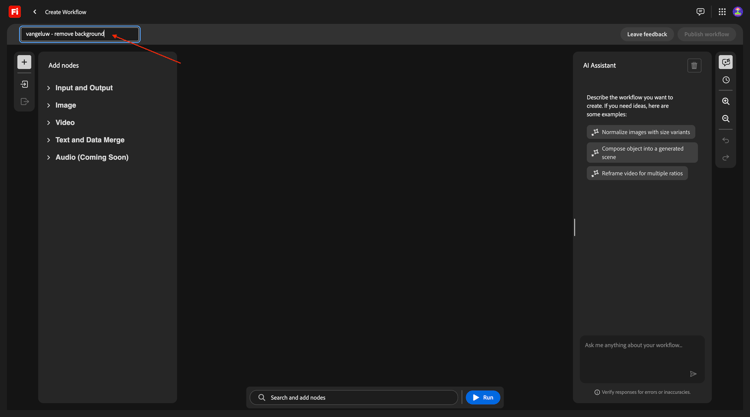
Open the Image
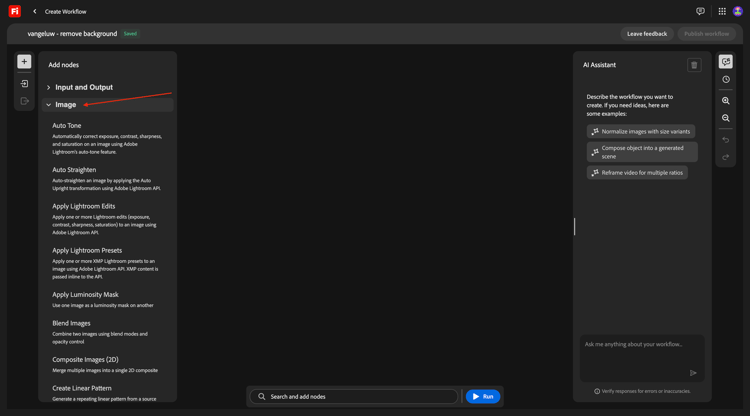
Select Remove Background, then drag and drop this node onto the canvas.
You now need to connect an input image node and an output image node to the Remove Background.
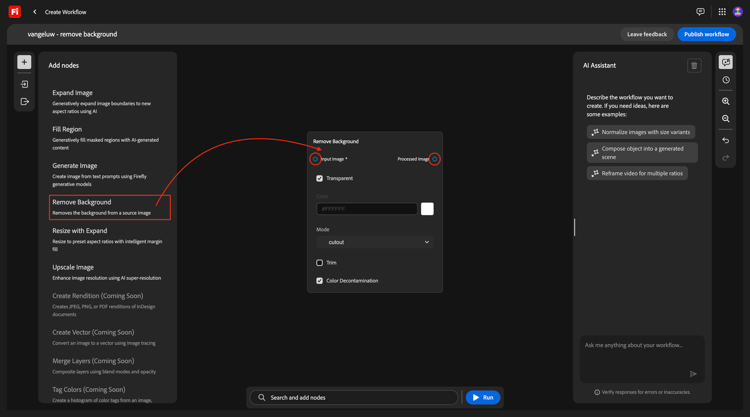
Scroll up and go to Input and Output. Click the Input Images node and drag it onto the canvas.
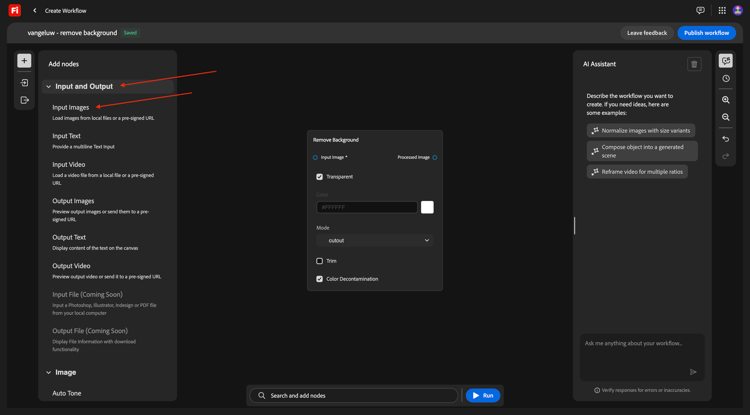
You should then have this. Connect the Input Images node to the Remove Background node by hovering over the blue dot next to Image on the Input Images node, and drawing a line to the blue dot next to Input Image on the Remove Background node.
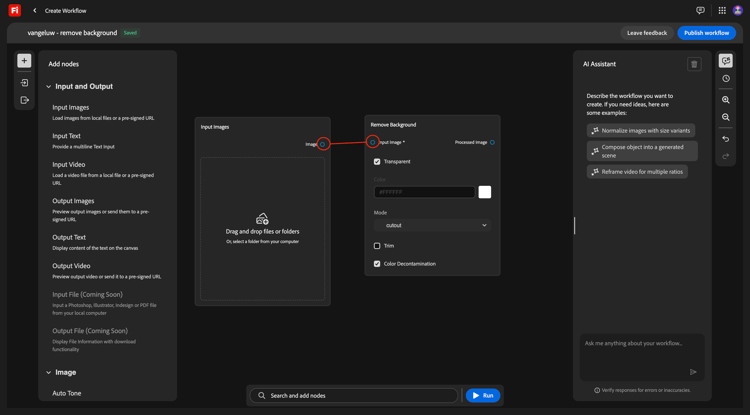
You should then have this. Next, click the Output Images node and drag it onto the canvas.
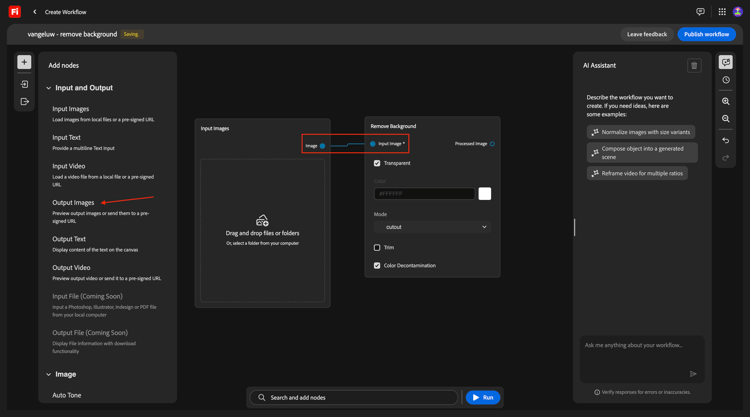
You should then have this. Connect the Remove Background node to the Output Images node by hovering over the blue dot next to Output Image on the Remove Background node, and drawing a line to the blue dot next to Image on the Output Images node.
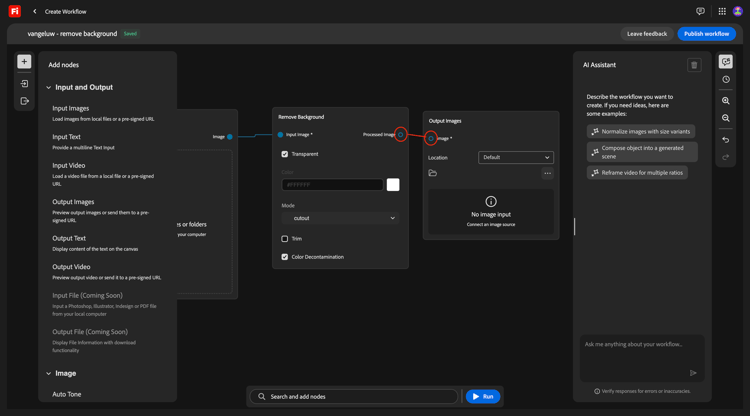
You should then have this.
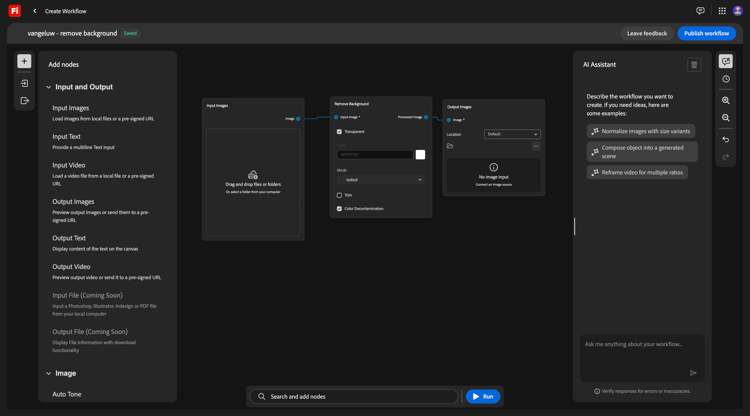
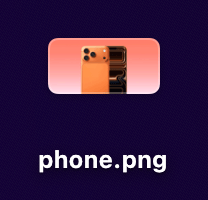
Your basic workflow is now ready to test. Download the image phone.png to your desktop.

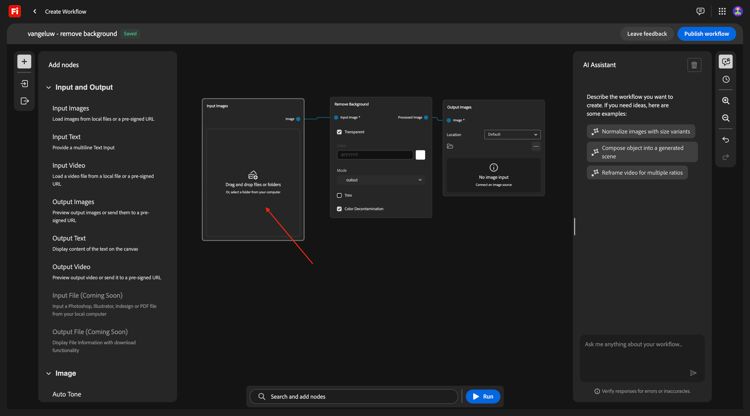
Go back to your workflow. Click the Drag and drop area of the Input Images node.
Select the file phone.png. Click Open.
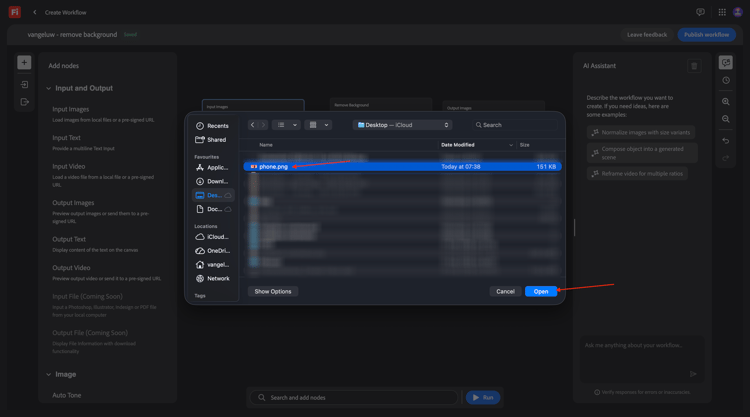
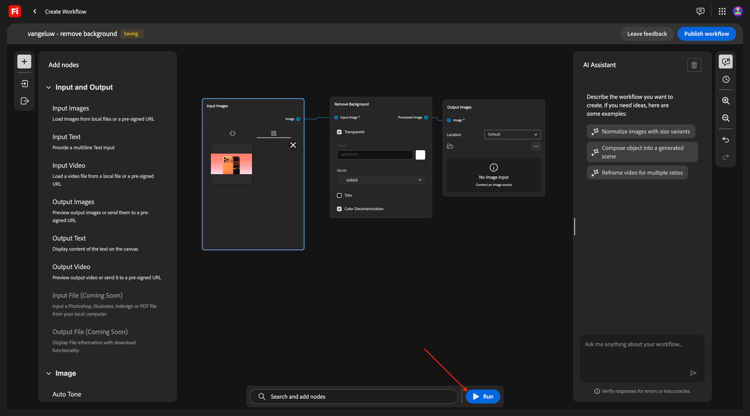
You should then see this. Click Run.
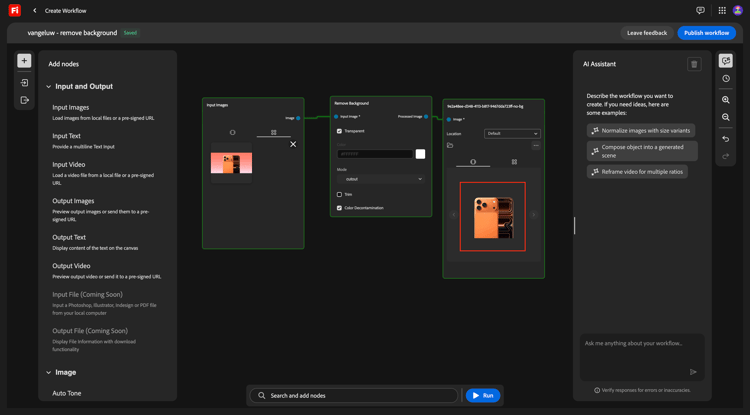
After 1-2 minuntes, you should see this result.
1.7.1.2 Remove background + Crop
You should now add a Crop node to the canvas. In the menu, go to Image and scroll down to find Crop. Drag it onto the canvas.
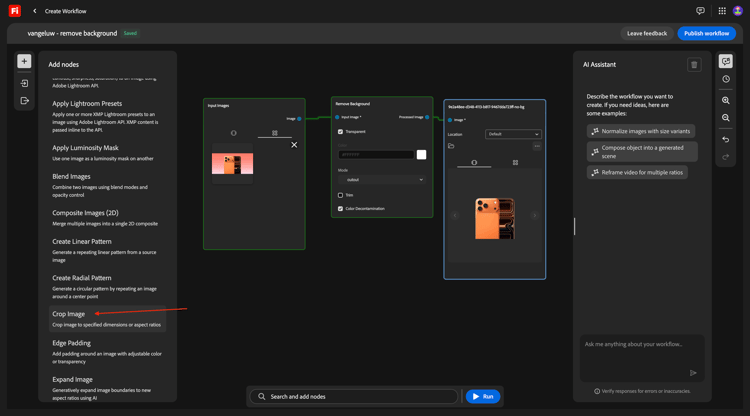
Position the Crop node between the Remove Background node and the Output Image node.
You now need to remove the connection between the Remove Background node and the Output Image node. You can do that by double-clicking the line between both nodes.
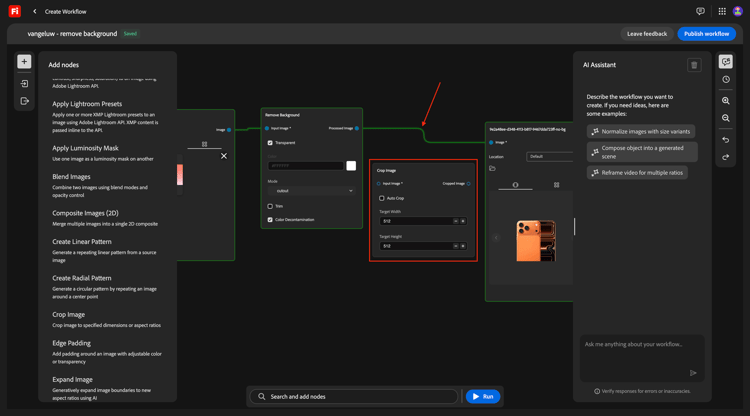
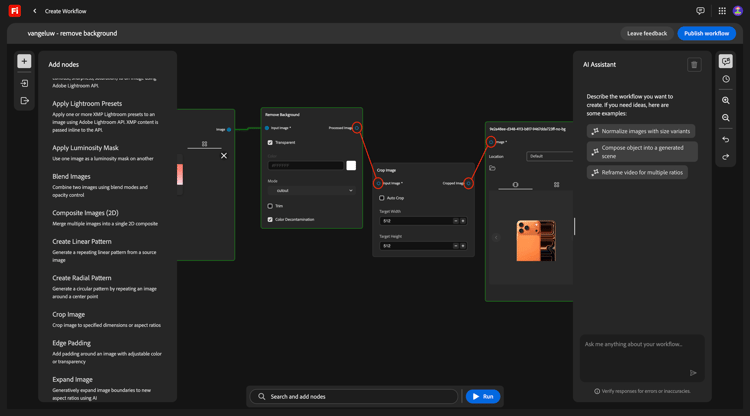
You should then have this. Connect the Remove Background node to the Crop node, and then connect the Crop node to the Output Image node.
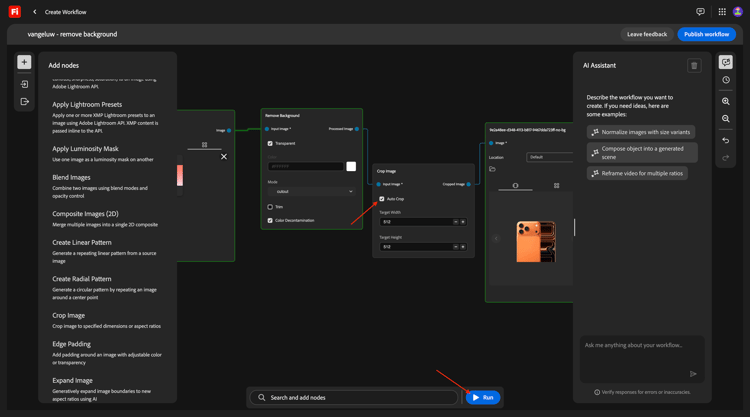
Check the checkbox to Auto Crop, and then you can test your workflow by clicking Run.
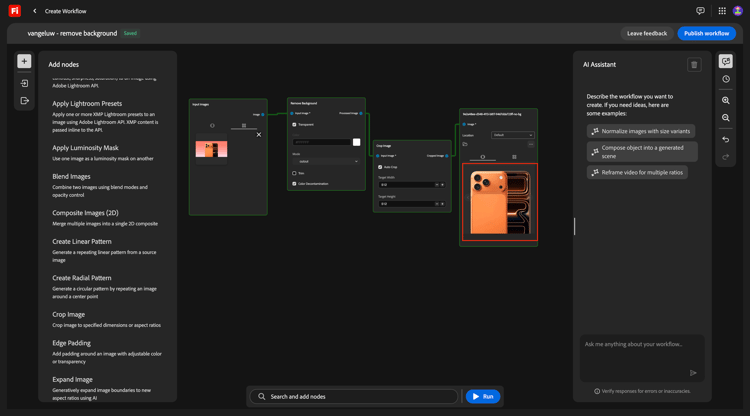
After 1-2 minutes, you should see this, which shows an image with a different resolution now.
1.7.1.3 Remove background + Crop + Composite Image
In the menu, under Image select a Composite Images (2D) node and drag it onto the canvas.
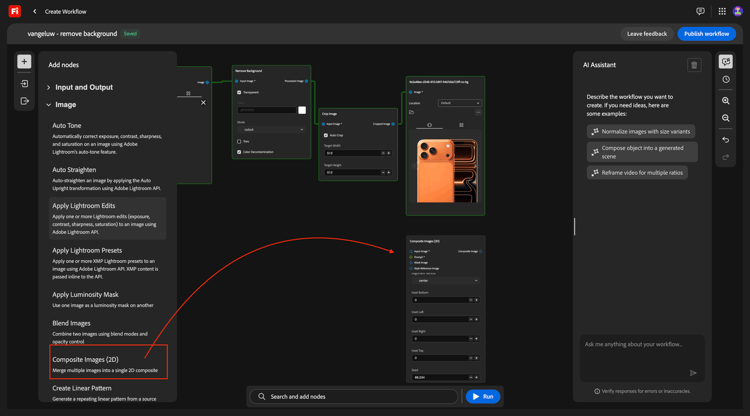
Add a second connection to the Crop node, by connecting the blue dot next to Cropped image to the blue dot next to Input image on the Composite Images (2D) node.
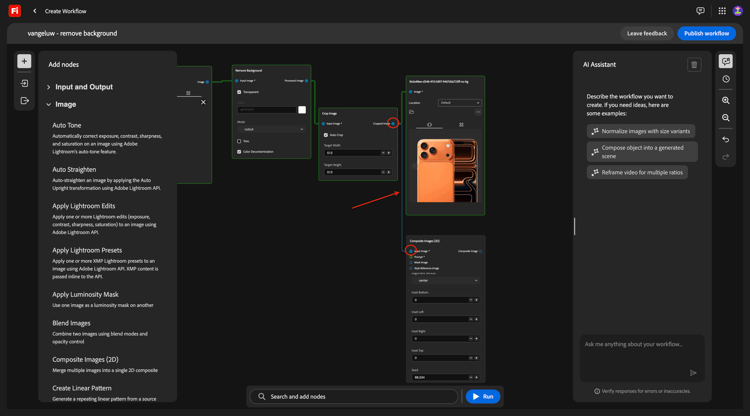
In the menu, under Input and Output, select an Input Text node and drag it onto the canvas.
Connect the green dot next to Text on the Input Text node to the green dot next to Prompt on the Composite Images (2D) node.
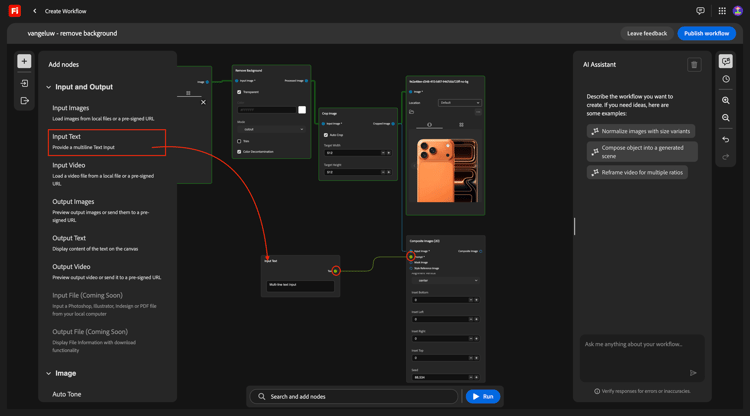
You should then have this. Enter the below prompt in the Input Text node.
magazine quality photo of a phone on a red pedestal with a pink background surrounded by origami style pink paper hearts
In the menu, under Input and Output, select an Output Images node and drag it onto the canvas.
Connect the blue dot next to Composite image on the Composite Images (2D) node to the blue dot next to Input image on the Output Image node.
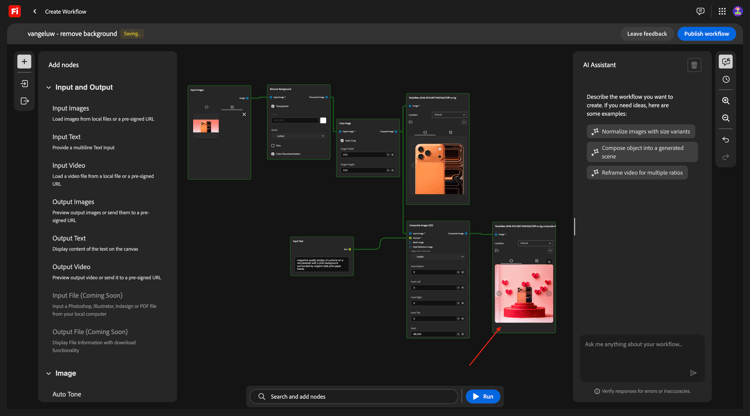
Click Run.
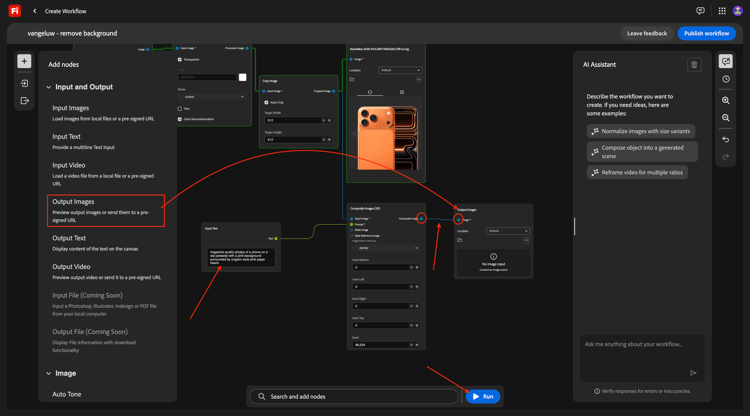
After a couple of minutes, you should see something like this, which shows your original image in a composition based on the prompt that was provided, in a specific resolution.
1.7.1.4 Remove background + Crop + Composite Image + Generate Video
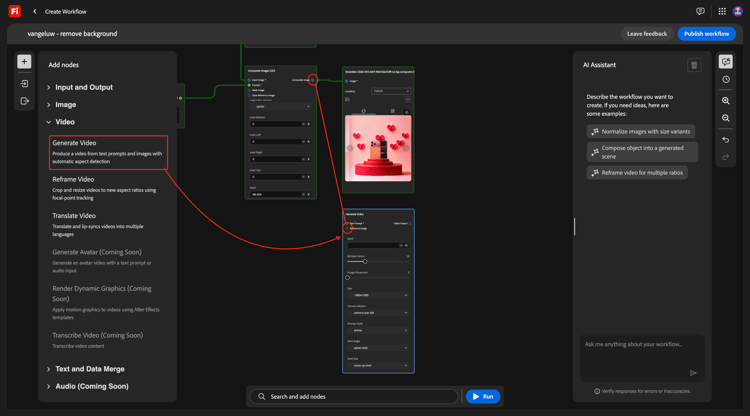
In the menu, go to Video. Select the Generate Video node and drag it onto the canvas.
Connect the blue dot next to Composite image of the Composite Images (2D) node to the blue dot next to Input image of the Generate Video node.
In the menu, go to Input and Output. Select the Input Text node and drag it onto the canvas.
Connect the green dot next to Text on the Input Text node to the green dot next to Prompt of the Generate Video node.
Enter the prompt background hearts fluttering in the Input text node.
In the menu, go to Input and Output. Select the Output Video node and drag it onto the canvas.
Connect the purple dot next to Video Output of the Generate Video node to the purple dot next to Video on the Output Video node.
Click Run.
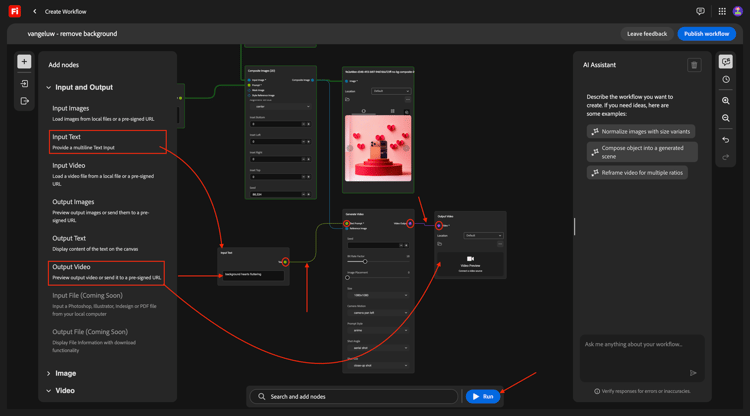
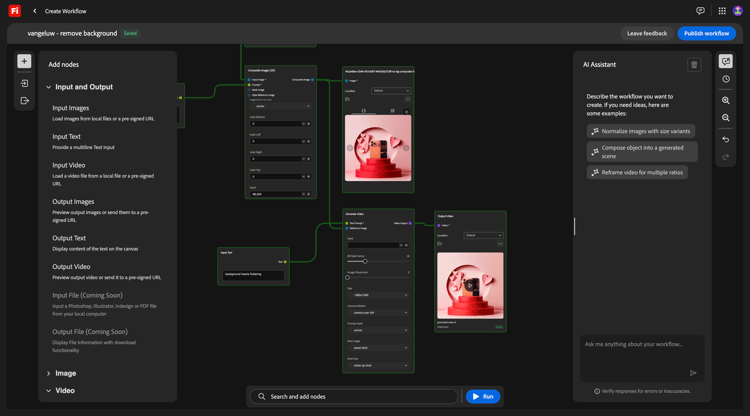
After a couple of videos, you should see this which shows a video based on the combination of the provided image and prompt.
1.7.1.5 Scale
You’ve now done this for 1 image. Let’s now use this workflow, but for multiple images.
Download these images to your desktop:


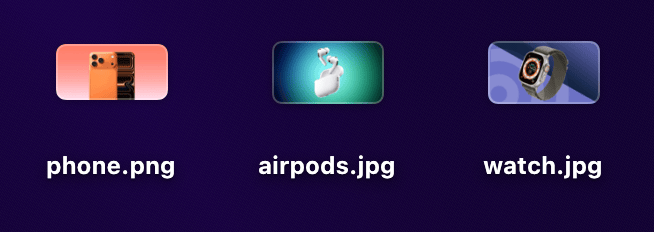
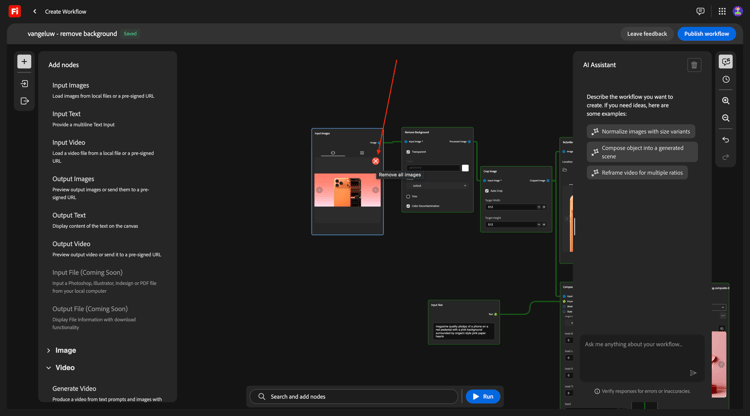
In your workflow, go back to the first node, Input Images. Remove the currently selected image.
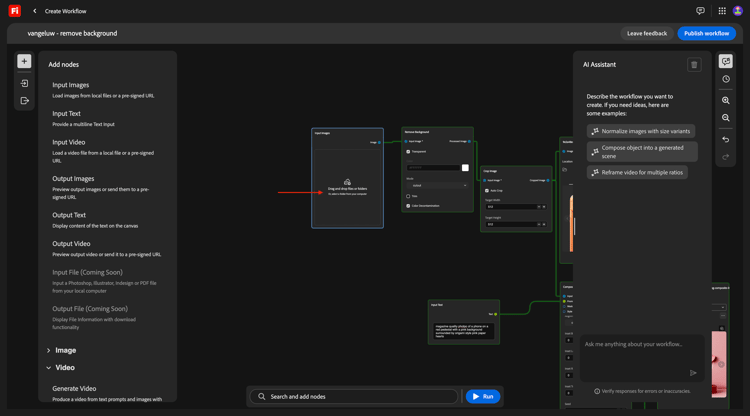
Click the Drag and drop area.
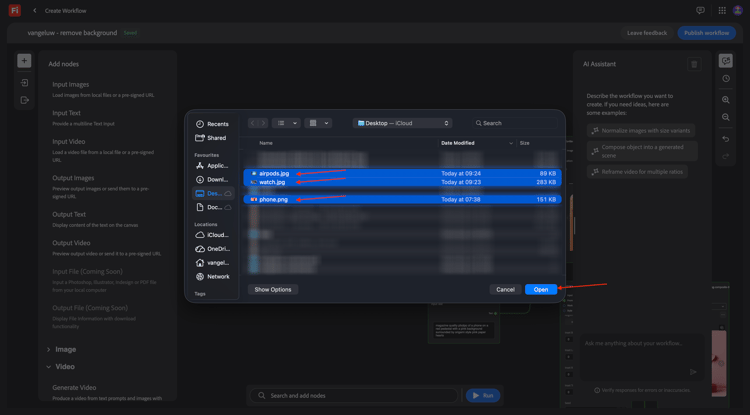
Select the 3 images that you’ve downloaded. Click Open.
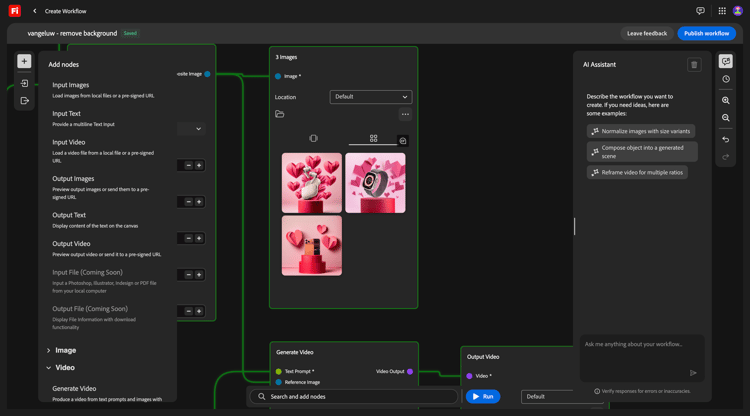
You should then see this. click Run.
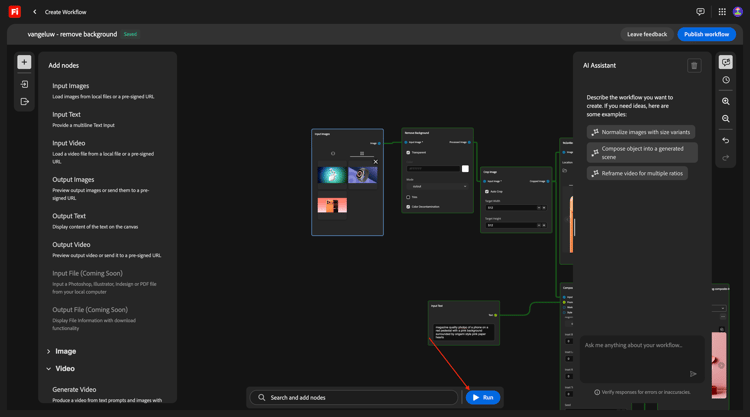
After several minutes, you should see a similar output, with 3 images being generated, and 3 videos.
1.7.1.5 Store in AEM Assets CS
In this exercise, you’ll store the assets that are created as part of your custom workflow in AEM Assets CS.
You should first create a new folder in your AEM Assets CS environment.
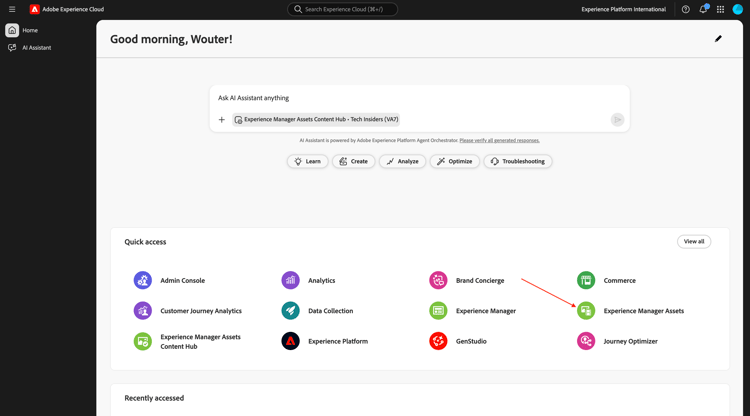
To do that, go to https://experience.adobe.com. Click to open Experience Manager Assets.
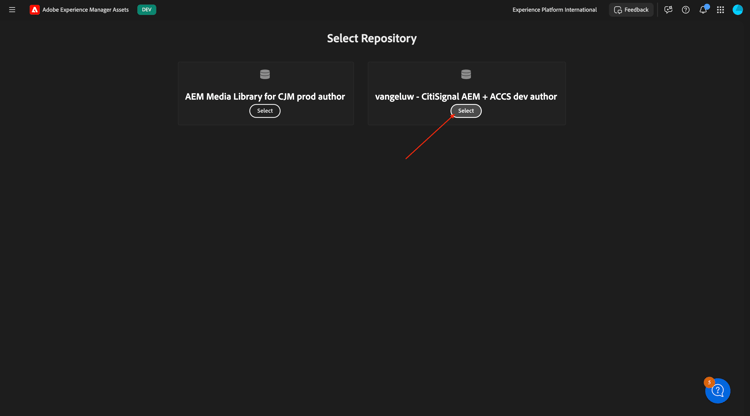
Select your AEM Assets CS environment, which should be named --aepUserLdap-- - CitiSignal AEM + ACCS.
Go to Assets and click Create Folder.
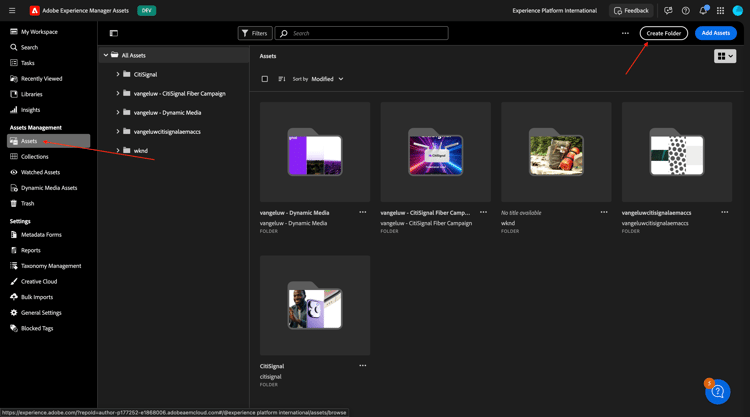
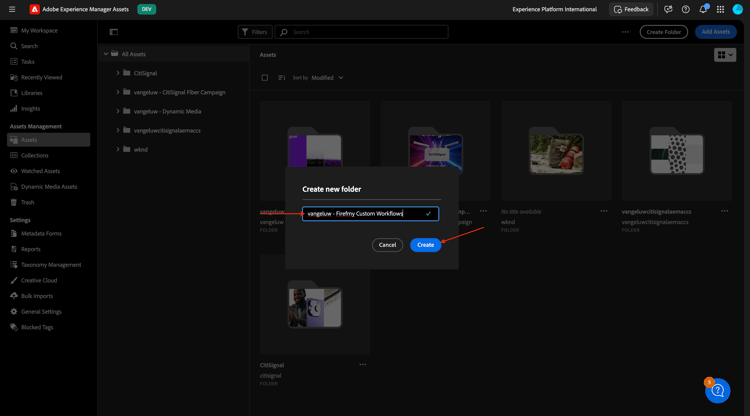
Enter the name: --aepUserLdap-- - Firefly Creative Production for Enterprise. Click Create.
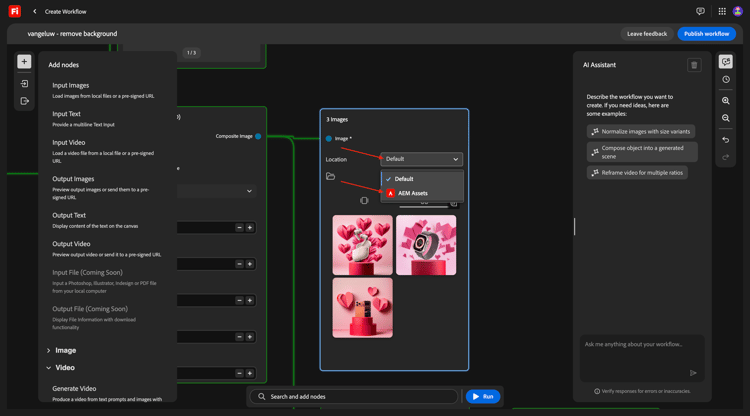
Go back to your custom workflow and go to the Output Images node. Click Default and then select AEM Assets.
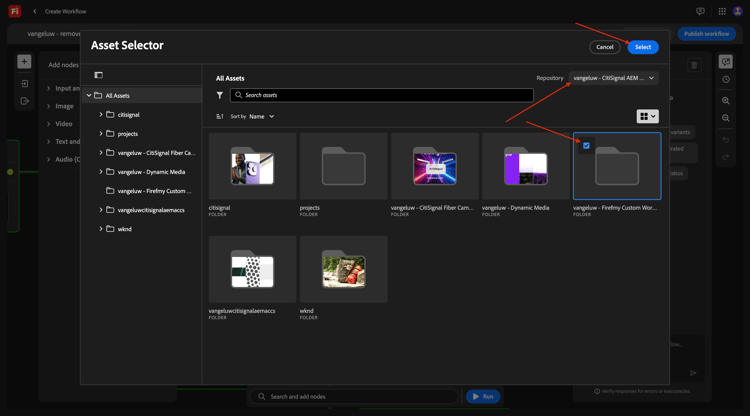
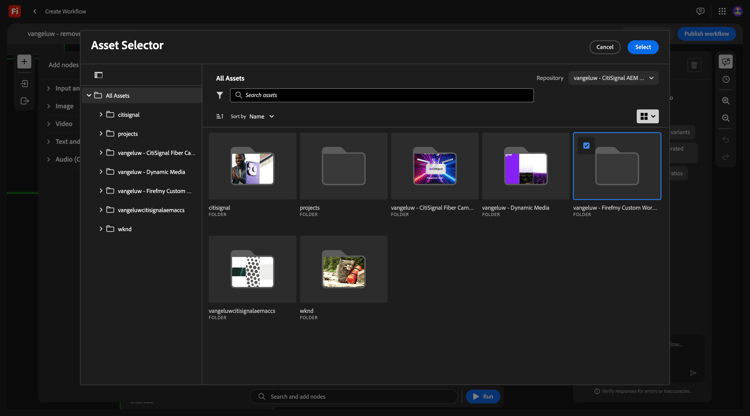
You should then see this popup. Select your AEM Assets CS repository, and then select the folder that you just created, which should be named: --aepUserLdap-- - Firefly Creative Production for Enterprise. Click Select.
Go to the Output Video node. Click Default and then select AEM Assets.
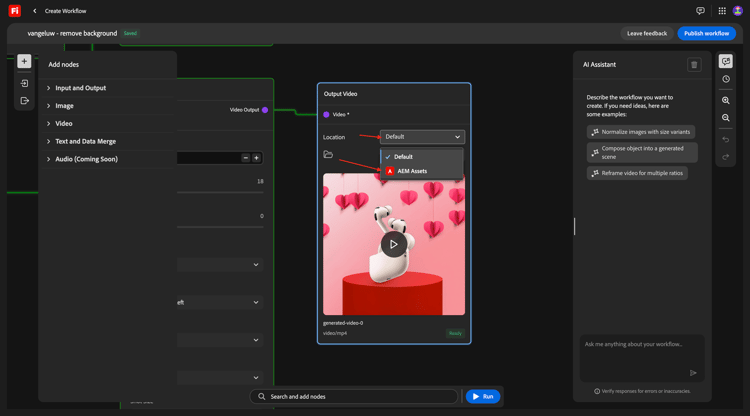
You should then see this popup. Select your AEM Assets CS repository, and then select the folder that you just created, which should be named: --aepUserLdap-- - Firefly Creative Production for Enterprise. Click Select.
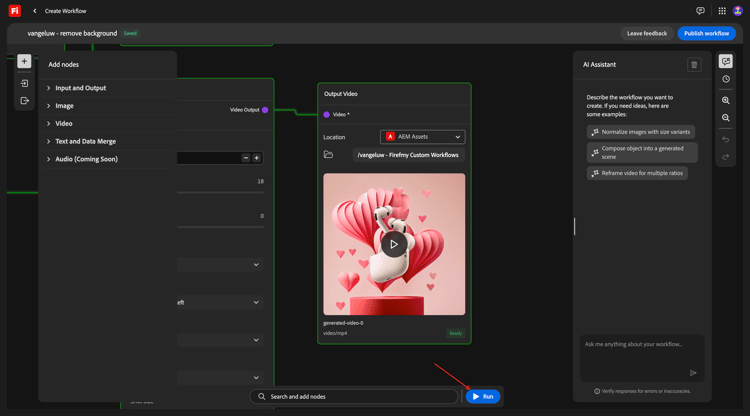
You should then have this. Click Run.
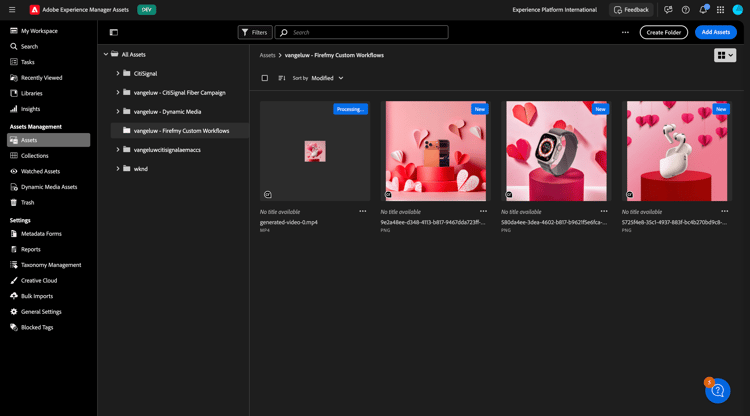
After a couple of minutes, you should see the assets that are created become available in the folder in AEM Assets CS.
Go back to your workflow. Click Publish.
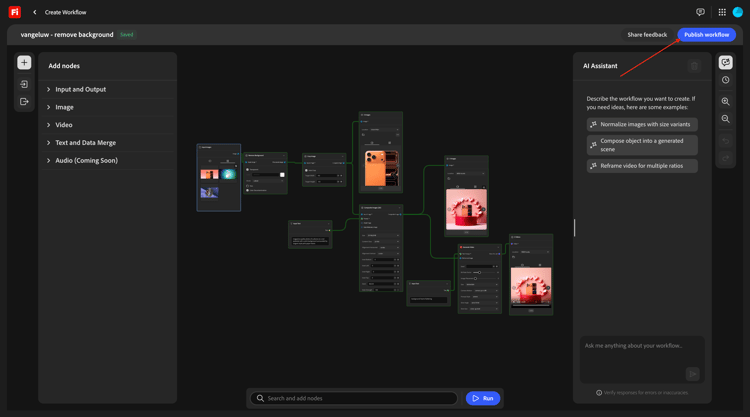
You should then see this.
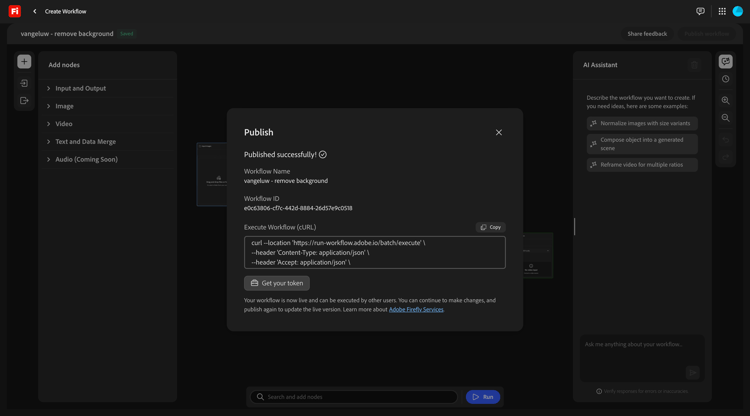
Your workflow is now published, and can now be executed programmatically as part of the next exercise.
Next Steps
Go to 1.7.2 Execute your custom workflow programmatically
Go back to Firefly Creative Production for Enterprise
Go back to All Modules