Use the website
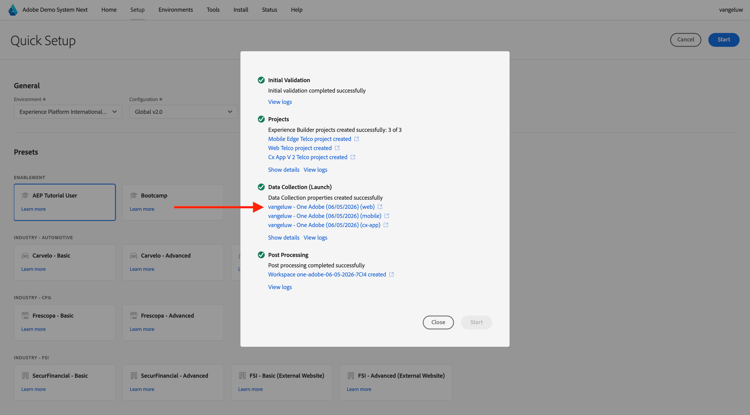
After the previous exercise, you had this result. Click to open the Web Telco project that was created for you.
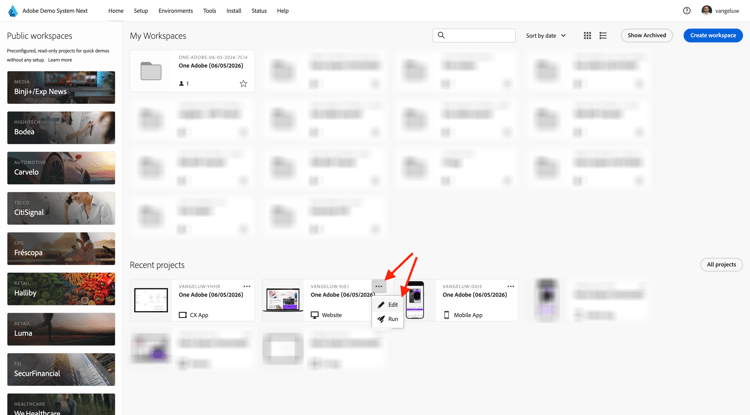
In case you had accidentally closed your browser window, or for future sessions, you can also access your website project by going to https://dsn.adobe.com/. After logging in with your Adobe ID, you’ll see this. Click the 3 dots … on your website project and then click Edit.
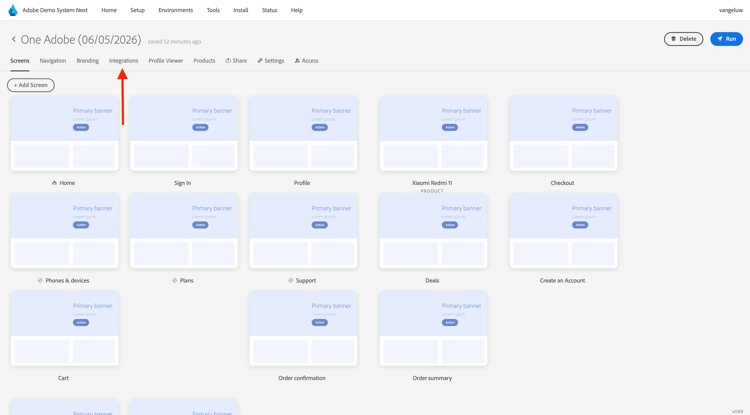
You’ll then see this. Click Integrations.
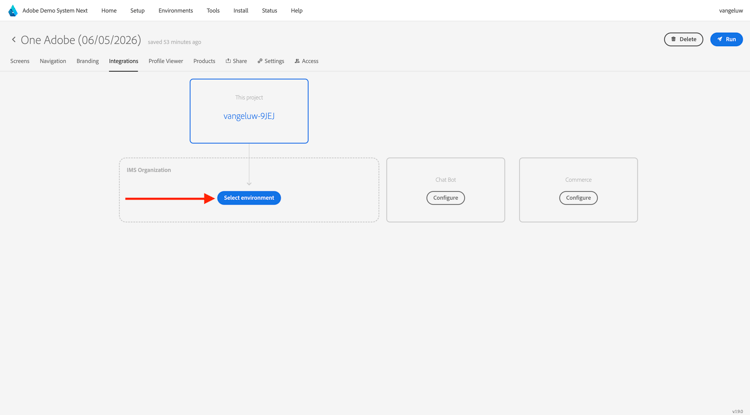
On the Integrations page, you need to select the Data Collection property that was created in the previous exercise. To do that, click Select environment.
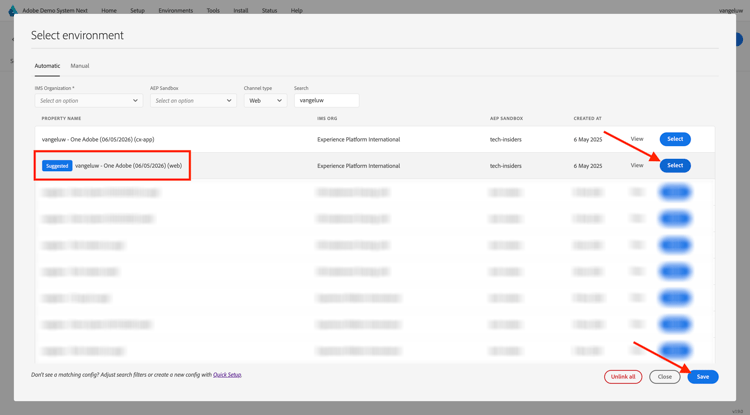
Click Select on the Data Collection property that was created in the previous step, which is named --aepUserLdap-- - One Adobe (DD/MM/YYYY) (web). Click Save.
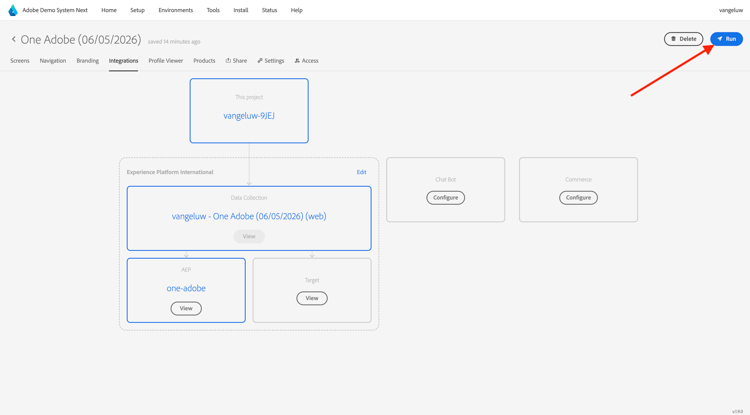
You’ll then see this. Click Run to open the demo website.
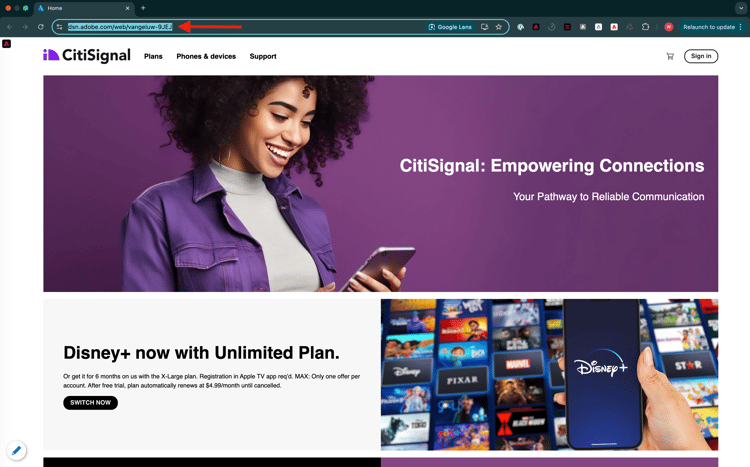
You’ll then see your demo website open up. Select the URL and copy it to your clipboard.
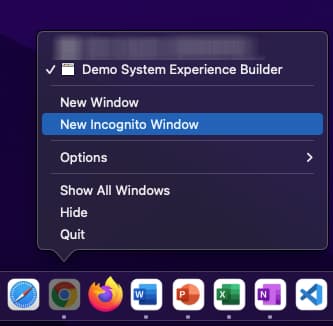
Open a new incognito browser window.
Paste the URL of your demo website, which you copied in the previous step. You’ll then be asked to login using your Adobe ID.
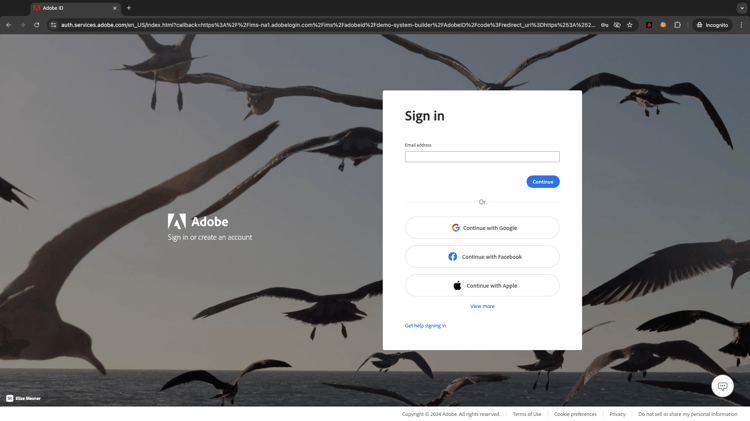
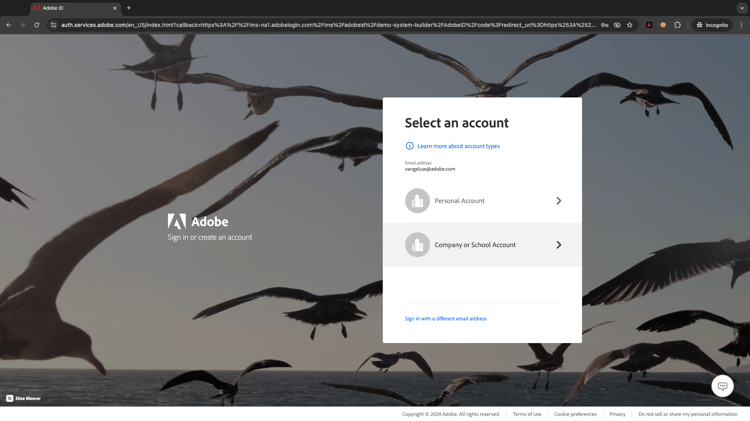
Select your account type and complete the login process.
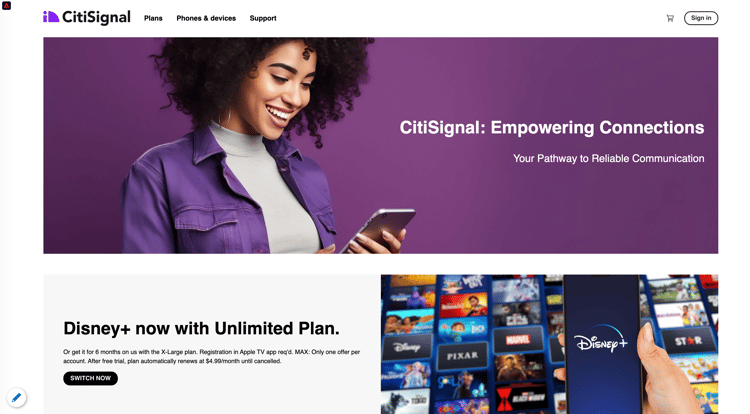
You’ll then see your website loaded in an incognito browser window. For every demonstration, you’ll need to use a fresh, incognito browser window to load your demo website URL.
Next Steps
Go to Use the mobile app
Go back to Getting Started
Go back to All modules