Use the mobile app
Download the app
Go to https://dsn.adobe.com/install on your computer and go to Beta Version. Log in using your Adobe ID, you’ll then see this.
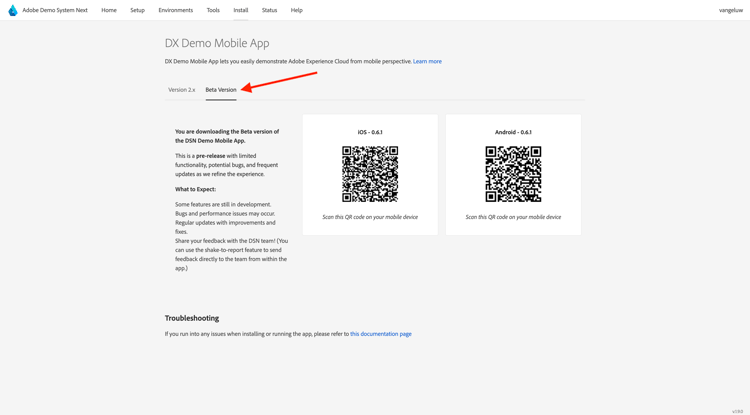
Use the Camera app on your smartphone to install the mobile app for your device’s OS. For this enablement, you need to install the version 0.6.1 (or later) which uses the Adobe Experience Platform Mobile SDK’s.
After scanning the QR code, select Install.
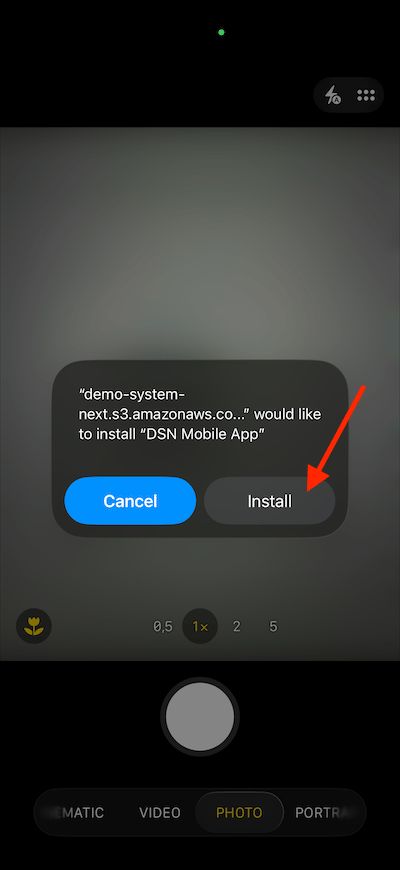
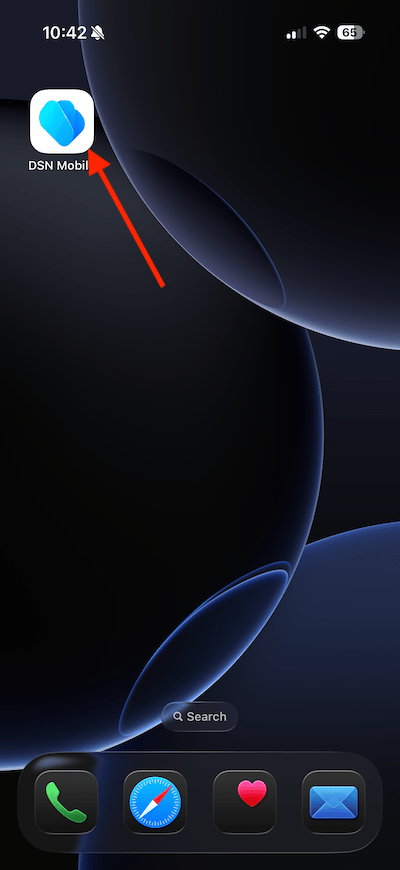
Once the app is installed, you’ll find it on your device’s home screen. Click the icon to open the app.
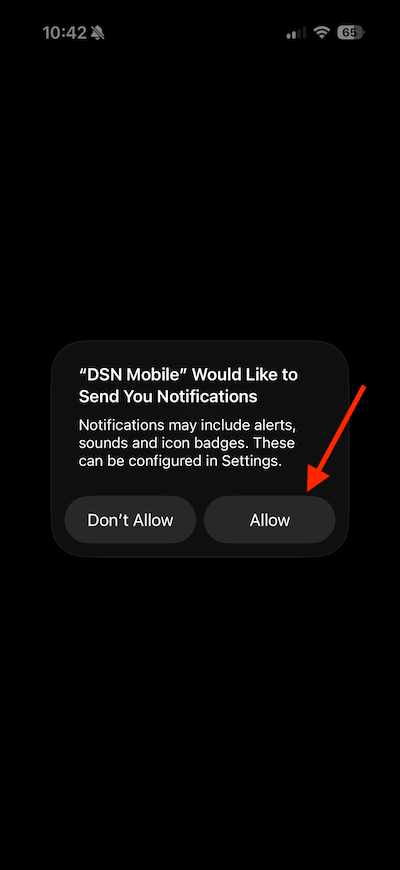
After logging in, you’ll see a notification requesting your permission to send notifications. We’ll send notifications as part of the tutorial, so click Allow.
You’ll then see the app’s homepage. Go to Settings.
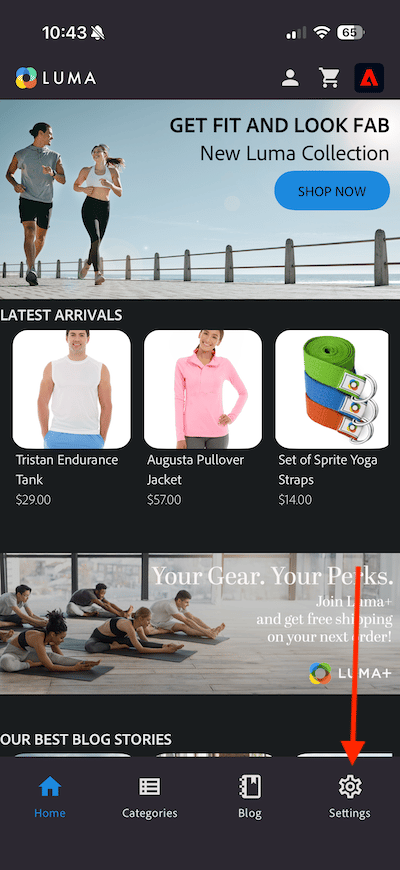
In settings, you’ll see that currently a Public Project is loaded in the app. Click Custom Project.
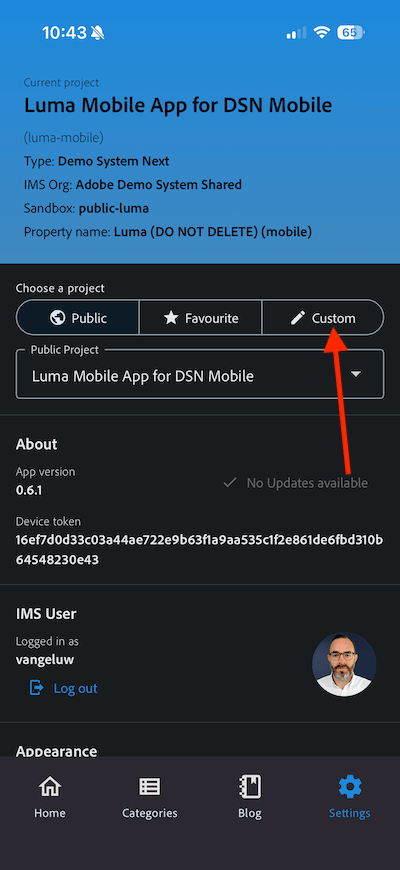
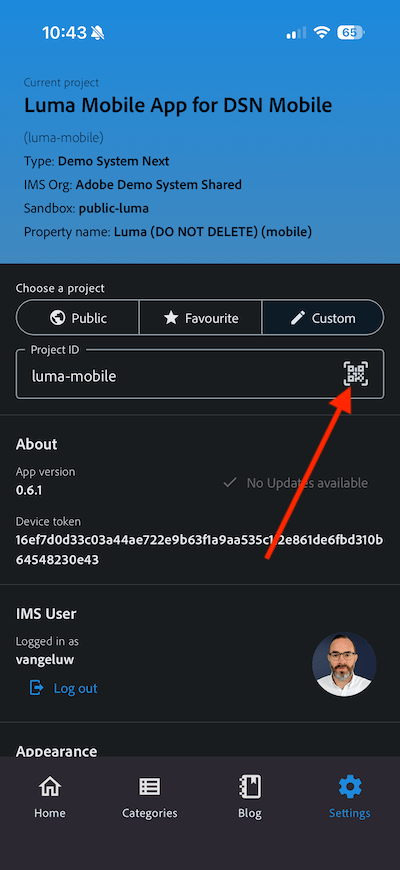
You can now load a custom project. Click the QR code to easily load your project.
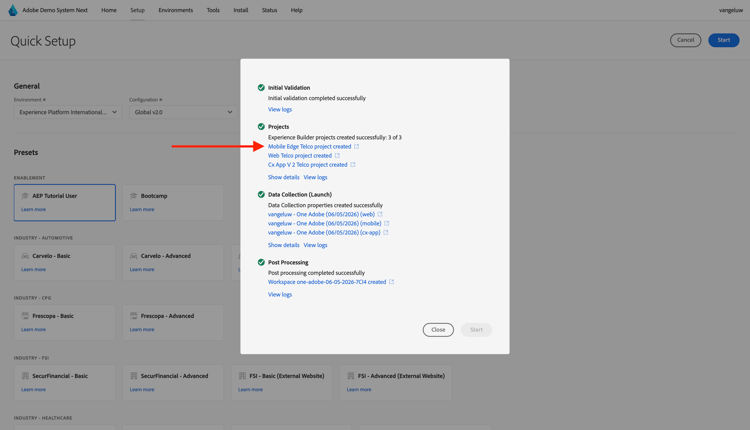
After the previous exercise, you had this result. Click to open the Mobile Edge Telco project that was created for you.
In case you had accidentally closed your browser window, or for future demo or enablement sessions, you can also access your website project by going to https://dsn.adobe.com. After logging in with your Adobe ID, you’ll see this. Click the three dots … on your mobile app project and then click Edit.
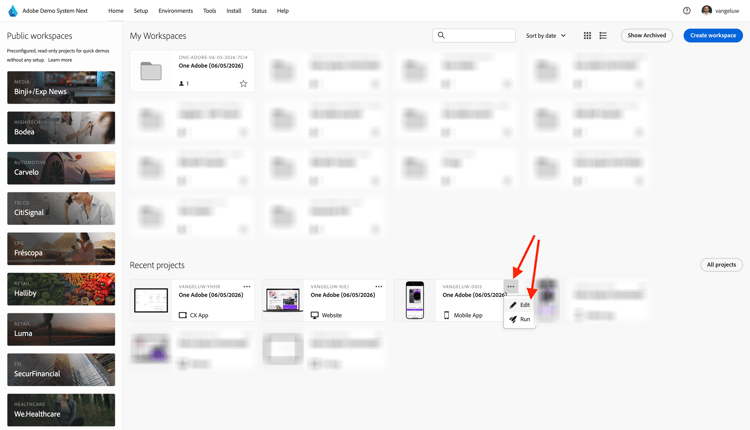
On the Integrations page, you need to select the Data Collection property that was created in the previous exercise. To do that, click Select environment.
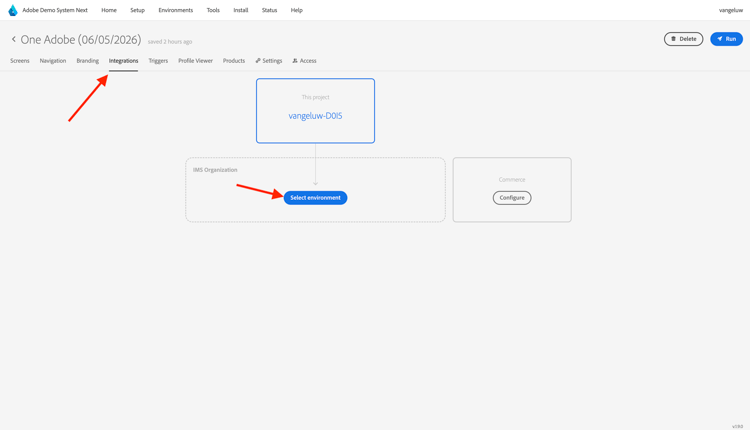
Click Select on the Data Collection property that was created in the previous step, which is named --aepUserLdap - One Adobe (DD/MM/YYYY) (mobile). Then, click Save.
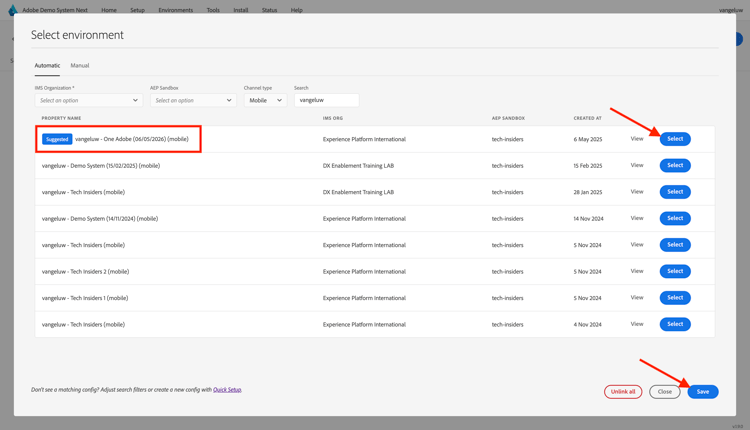
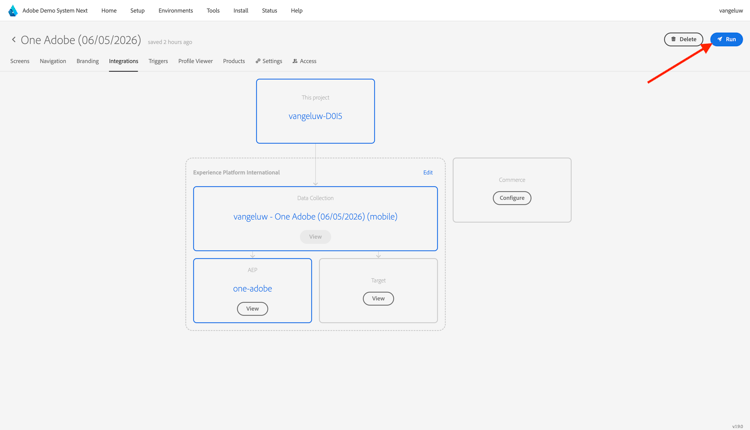
You’ll then see this. Next, click Run.
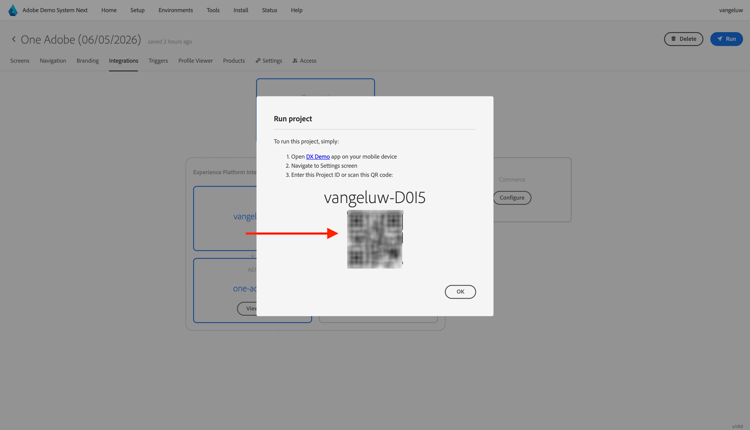
You’ll then see this popup, which contains a QR code. Scan this QR-code from within the mobile app.
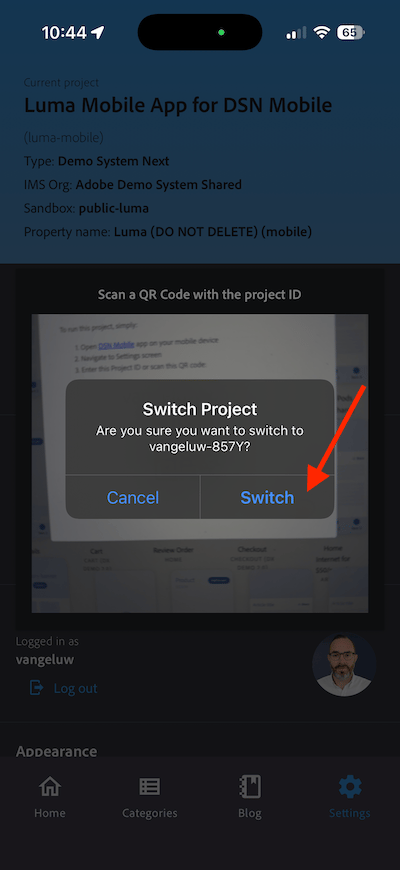
You’ll then see your project ID being loaded in the app, after which you can click Switch.
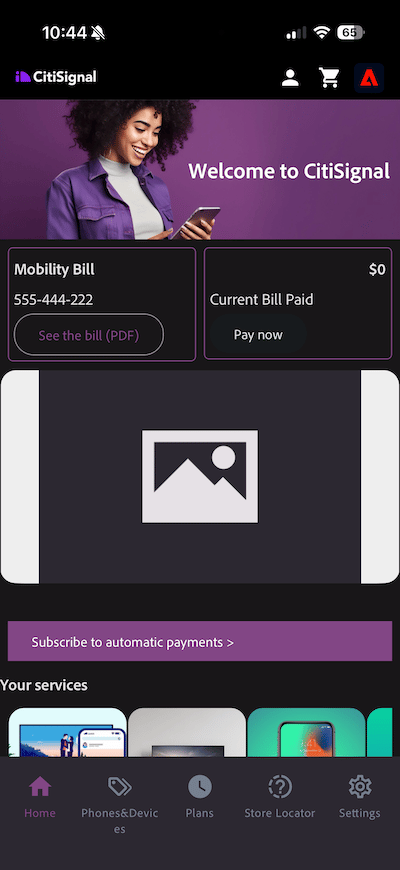
You should then see the CitiSignal demo brand being loaded. Your app is now ready to be used.
Next Steps
Go to Configure your Adobe I/O project
Go back to Getting Started
Go back to All modules