Create your Datastream
Go to https://experience.adobe.com/#/data-collection/.
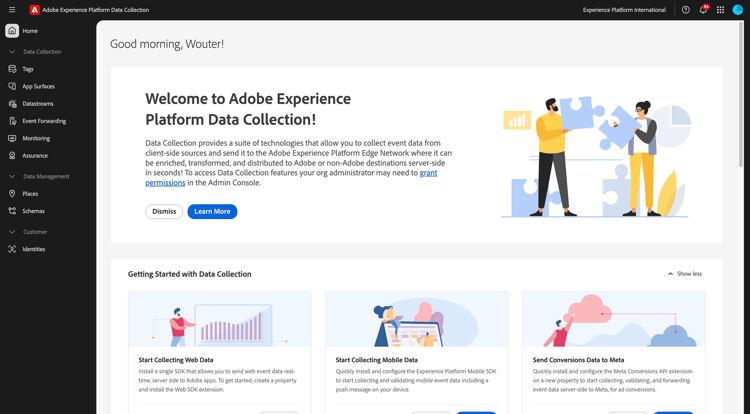
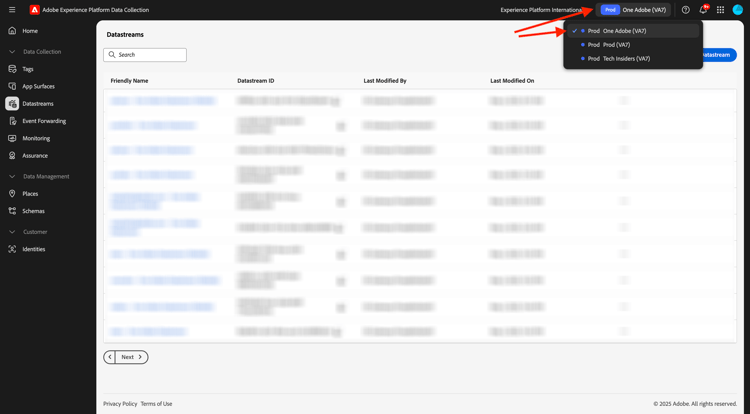
Before you continue, make sure that you have selected the correct environment by using the environment switcher in the top right corner of your screen. The right environment to use is called --aepImsOrgName--.
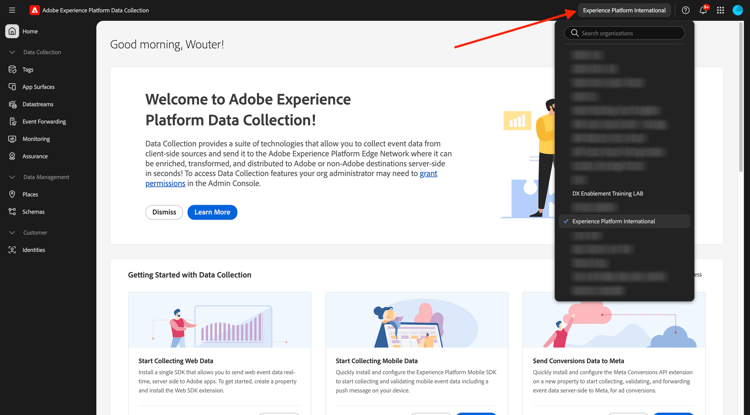
In the left menu, click Tags. After the previous exercise, you now have 3 Data Collection properties: one for web, one for mobile and one for the CX app.
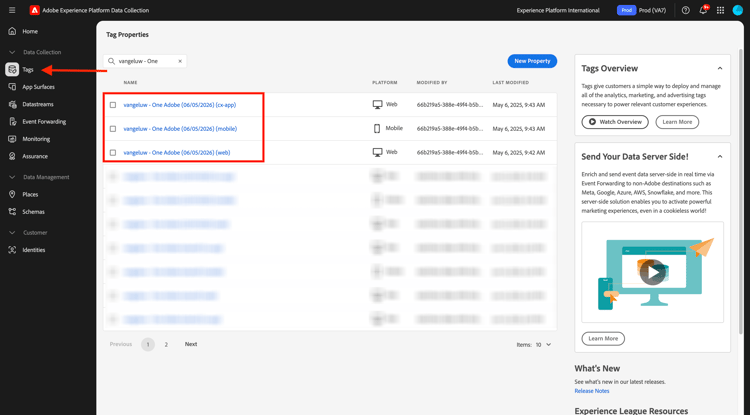
These properties are almost ready to be used, but before you can start collecting data using these properties you need to set up a datastream. You’ll get more information around the concept of what a datastream is and what it means in a later exercise in the Data Collection module.
For now, please follow these steps.
Create your Datastream for Web
Click Datastreams.
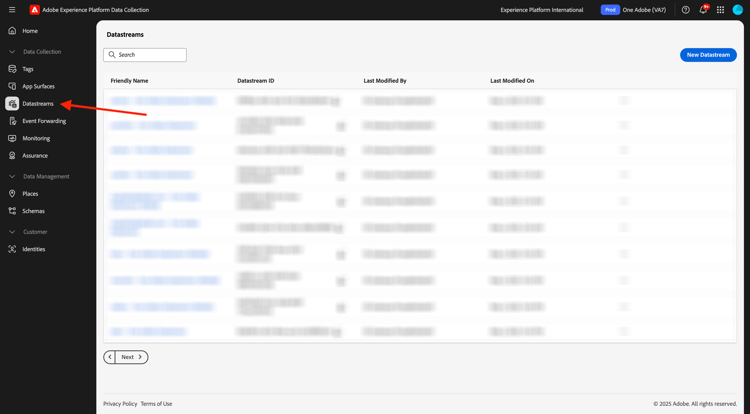
In the top right corner of your screen, select your sandbox name, which should be --aepSandboxName--.
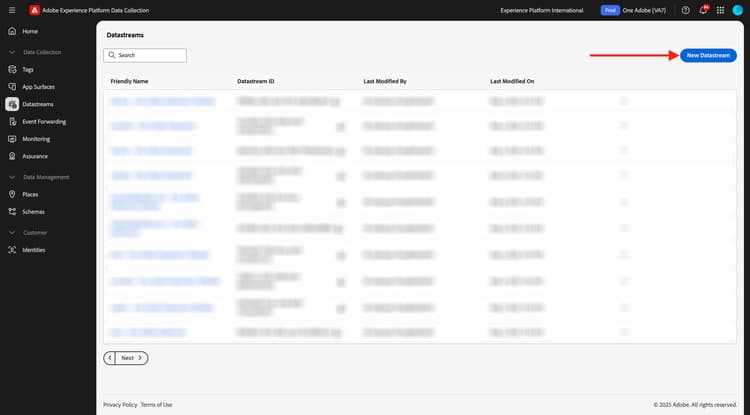
Click New Datastream.
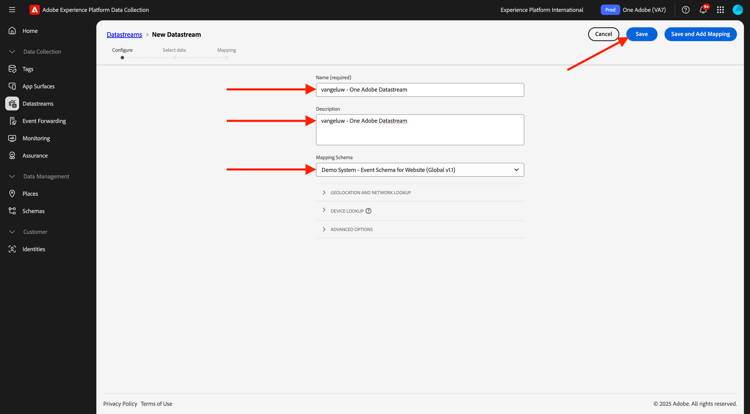
For the Name, and for the optional description, enter --aepUserLdap-- - One Adobe Datastream. For Mapping Schema, select Demo System - Event Schema for Website (Global v1.1). Click Save.
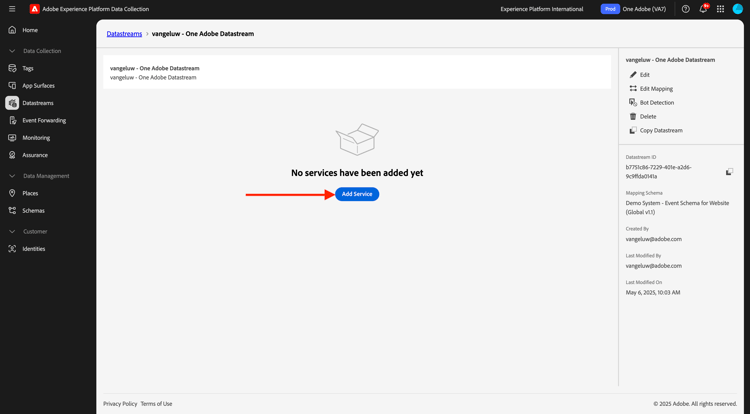
You’ll then see this. Click Add Service.
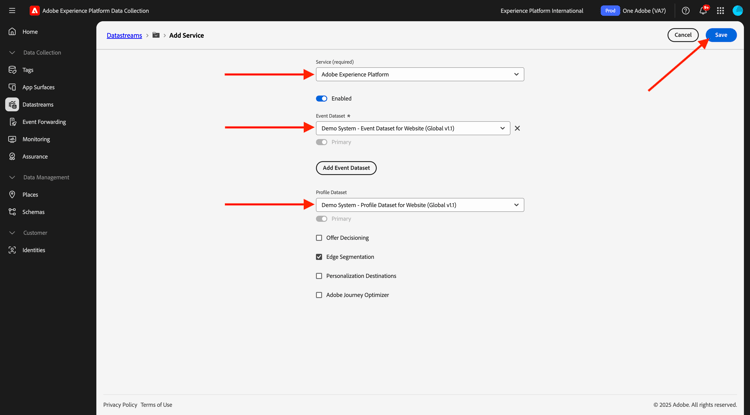
Select the service Adobe Experience Platform, which will expose additional fields. You’ll then see this.
For Event Dataset, select Demo System - Event Dataset for Website (Global v1.1) and for Profile Dataset, select Demo System - Profile Dataset for Website (Global v1.1). Click Save.
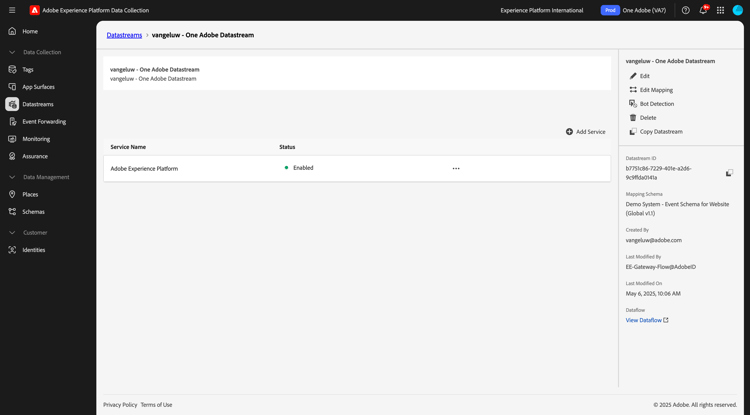
You’ll now see this.
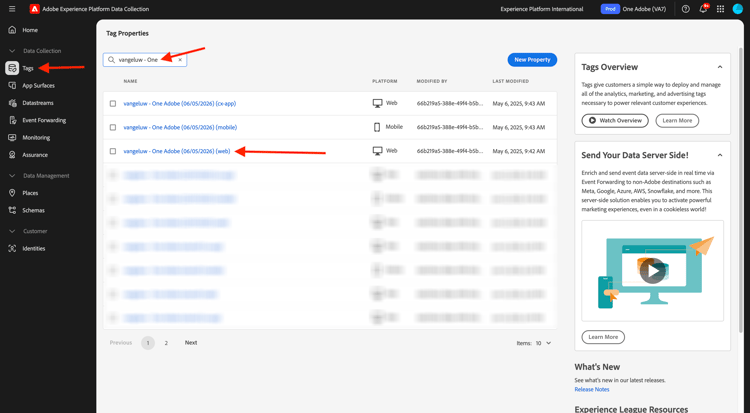
In the left menu, clik Tags.
Filter the search results to see your Data Collection properties. Open the property for Web by clicking it.
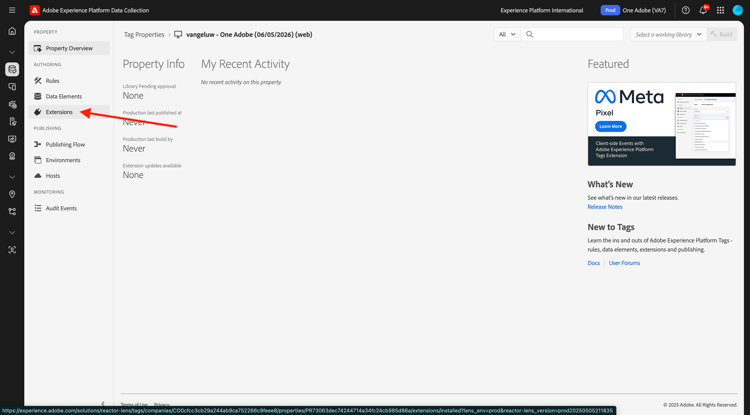
You’ll then see this. Click Extensions.
First, click the Adobe Experience Platform Web SDK extension and then click Configure.
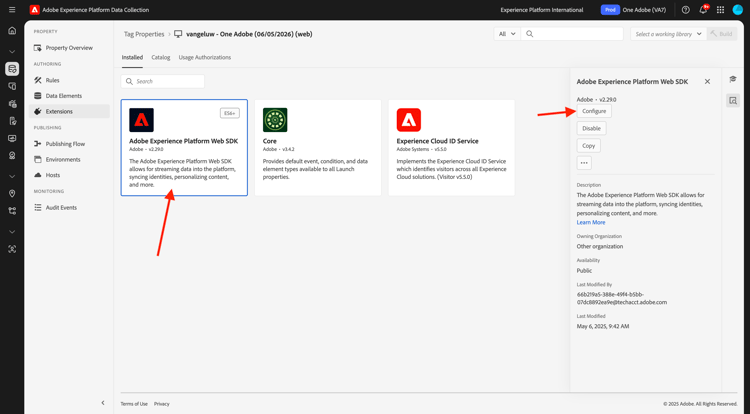
You’ll then see this. Have a look at the Datastreams menu and make sure the right sandbox is selected, which in you case should be --aepSandboxName--.
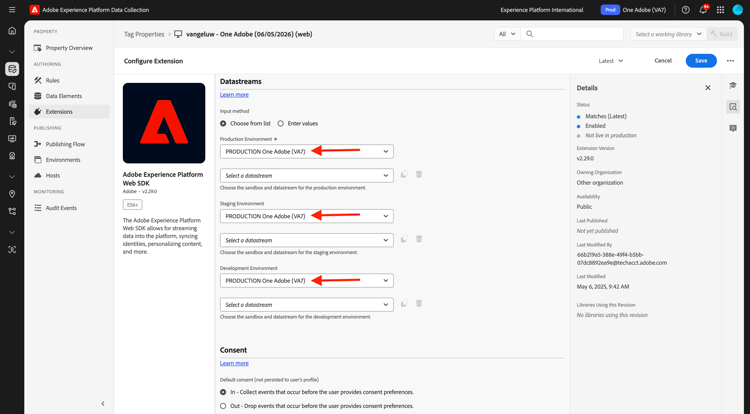
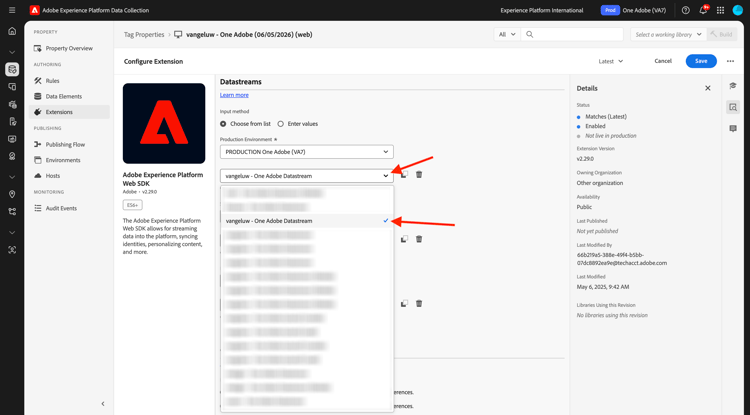
Open the Datastreams dropdown, and select the Datastream you created earlier.
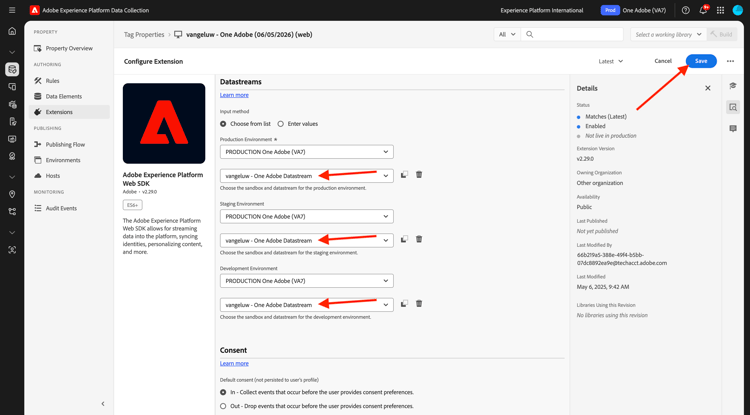
Make sure to have selected your Datastream in all three different environments. Then, click Save.
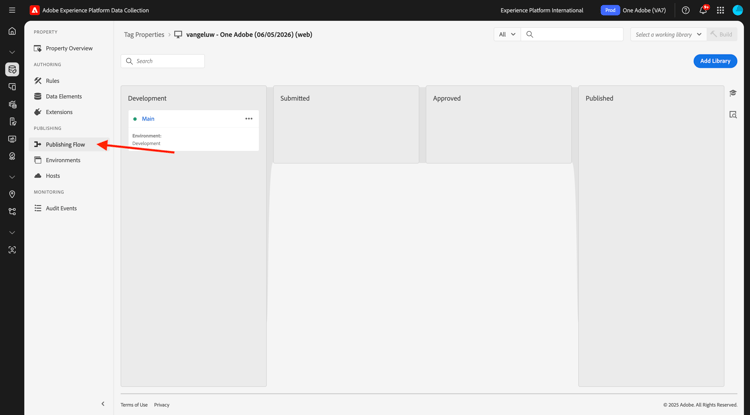
Go to Publishing Flow.
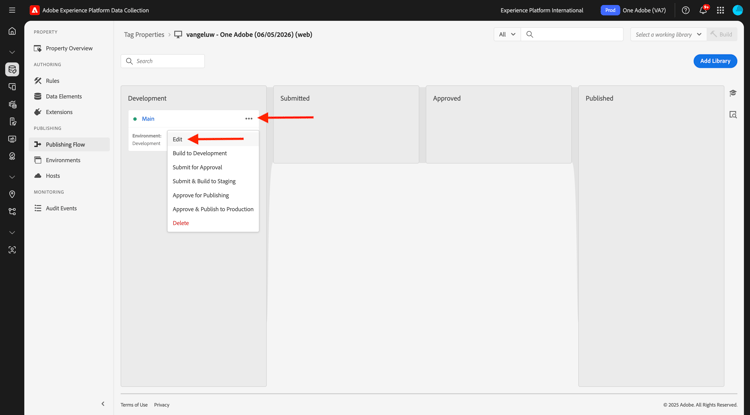
Click the … for Main, then click Edit.
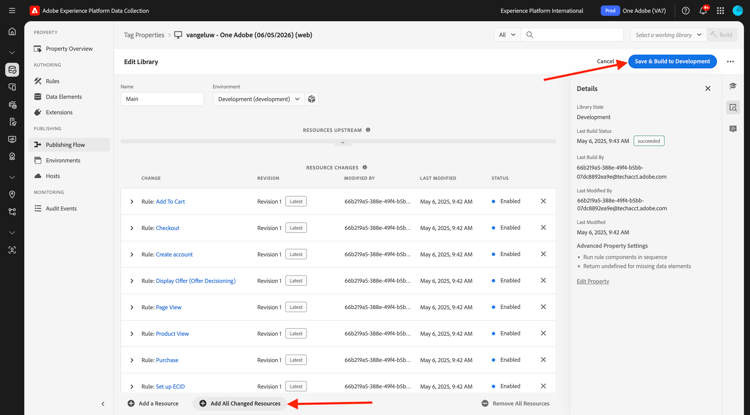
Click Add All Changed Resources and then click Save & Build for Development.
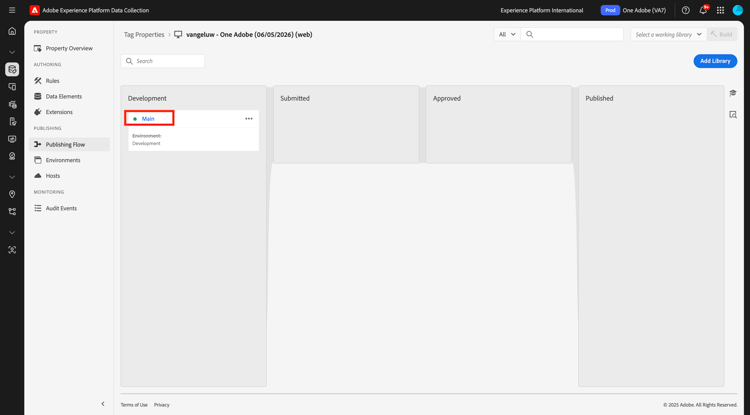
Your changes are now being published and will be ready in a couple of minutes, after which you’ll see the green dot next to Main.
Create your Datastream for Mobile
Go to https://experience.adobe.com/#/data-collection/.
Click Datastreams.
In the top right corner of your screen, select your sandbox name, which should be --aepSandboxName--.
Click New Datastream.
For the Friendly Name, and for the optional description, enter --aepUserLdap-- - One Adobe Datastream (Mobile). For Mapping Schema, select Demo System - Event Schema for Mobile App (Global v1.1). Click Save.
Click Save.
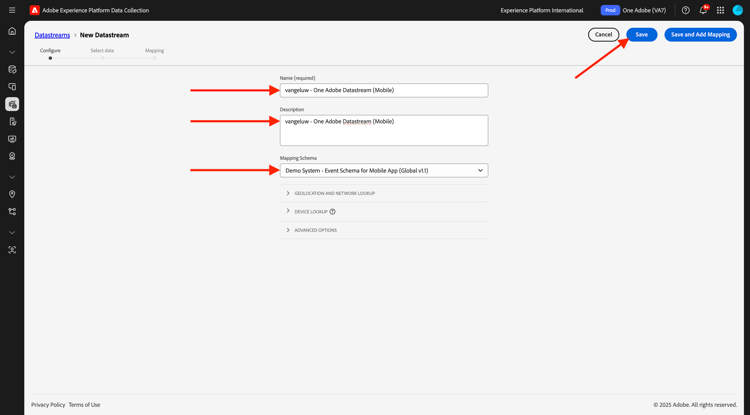
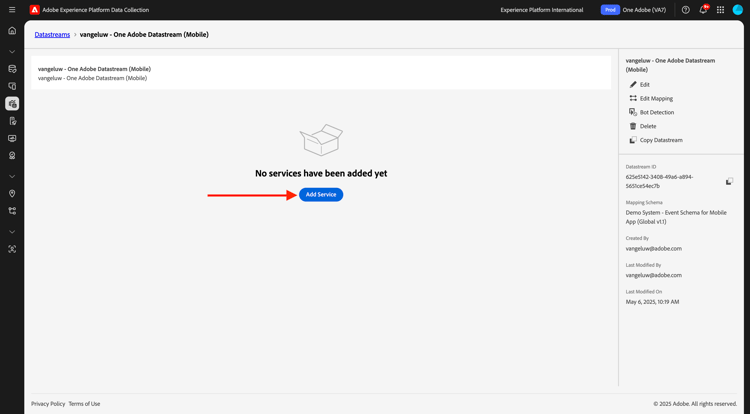
You’ll then see this. Click Add Service.
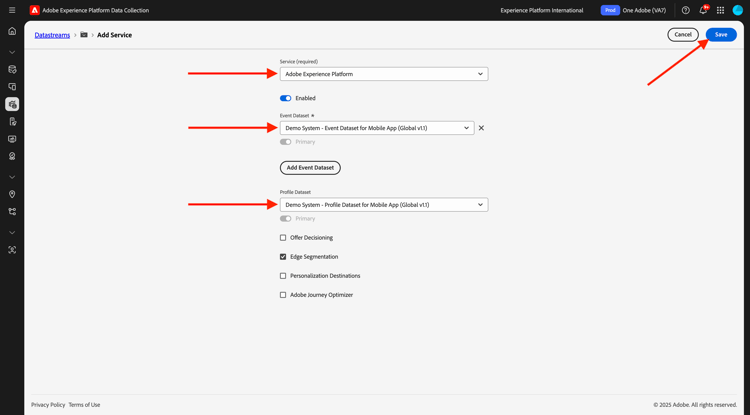
Select the service Adobe Experience Platform, which will expose additional fields. You’ll then see this.
For Event Dataset, select Demo System - Event Dataset for Mobile App (Global v1.1) and for Profile Dataset, select Demo System - Profile Dataset for Mobile App (Global v1.1). Click Save.
You’ll then see this.
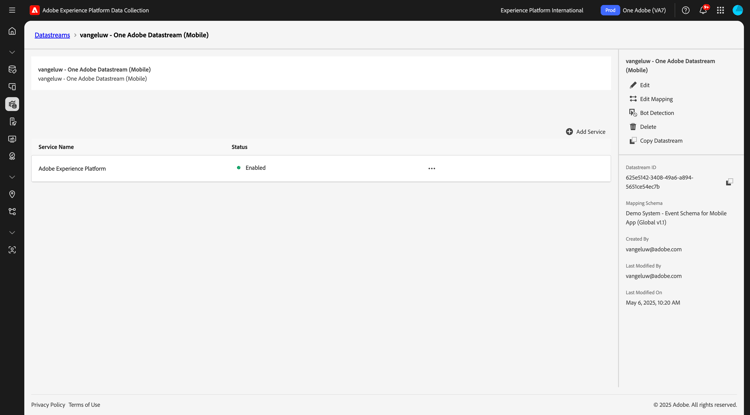
Your datastream is now ready to be used in your Adobe Experience Platform Data Collection Client property for Mobile.
Go to Tags and filter the search results to see your two Data Collection properties. Open the property for Mobile by clicking it.
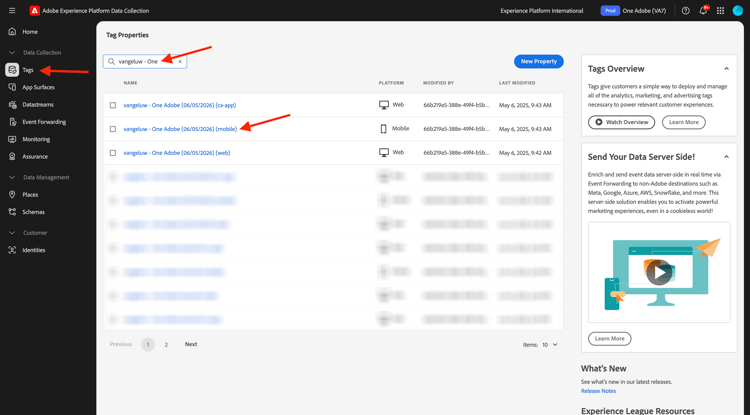
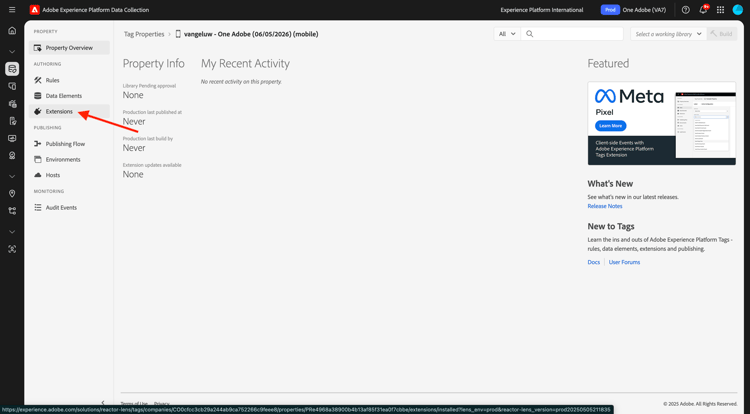
You’ll then see this. Click Extensions.
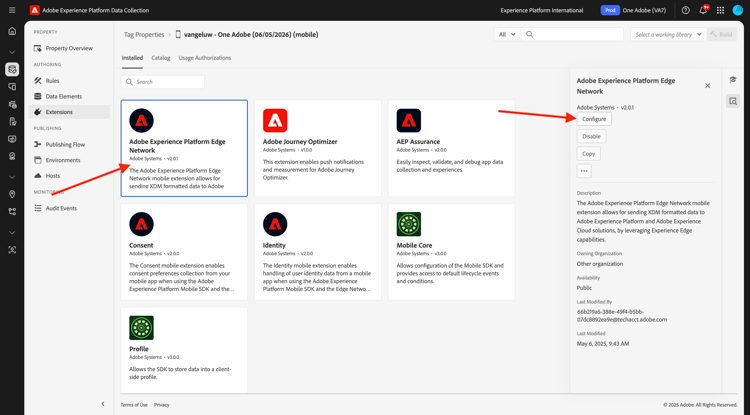
Click the Adobe Experience Platform Edge Network extension and then click Configure.
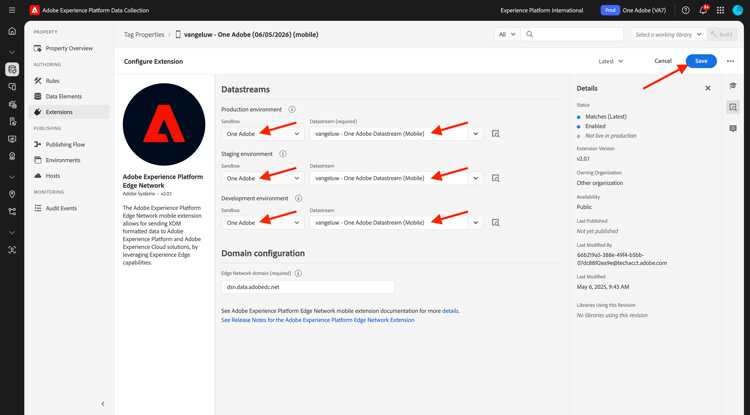
You’ll then see this. You now need to select the correct sandbox and datastream that you just configured. The sandbox to use is --aepSandboxName-- and the datastream is called --aepUserLdap-- - One Adobe Datastream (Mobile).
For the Edge Network domain, please use the default domain.
Click Save to save your changes.
Go to Publishing Flow.
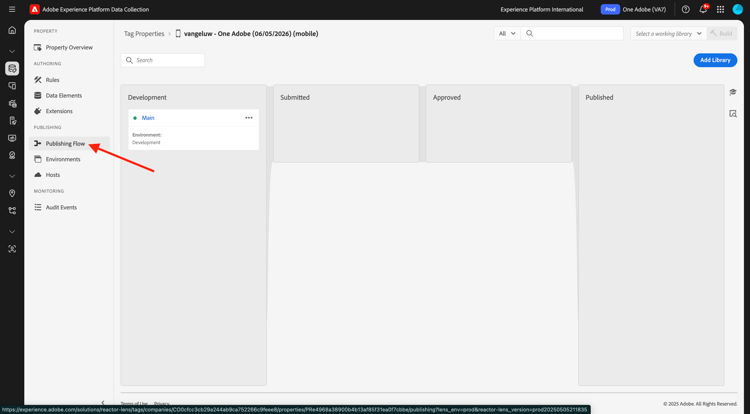
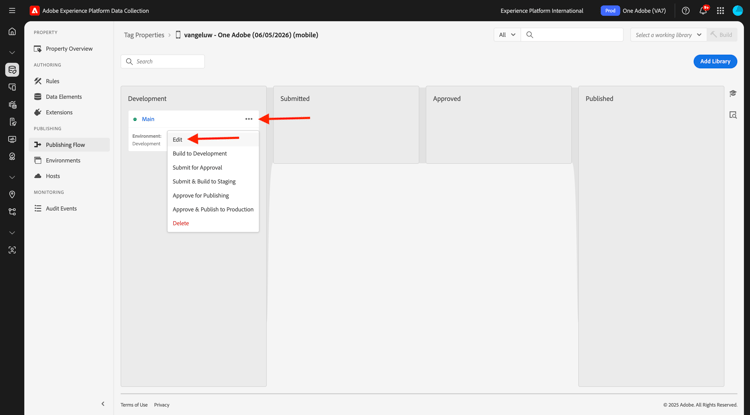
Click the … next to Main, then click Edit.
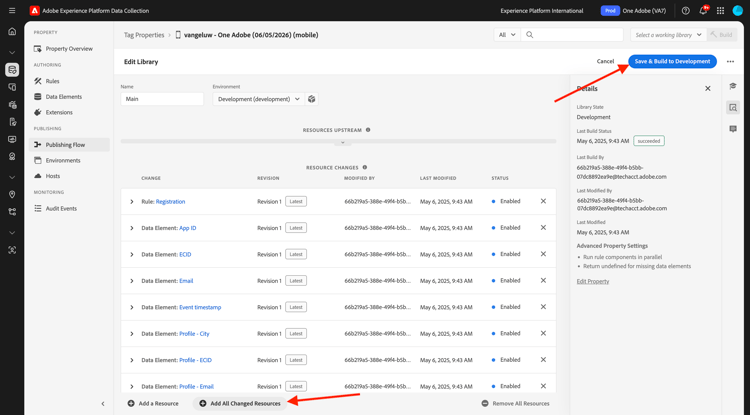
Click Add All Changed Resources, then click Save & Build for Development.
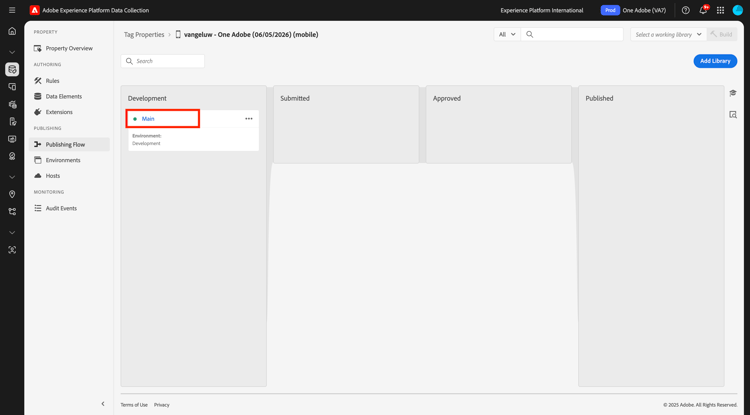
Your changes are now being published and will be ready in a couple of minutes, after which you’ll see the green dot next to Main.
Next Steps
Go to Use the website
Go back to Getting Started
Go back to All modules