1.7.1 Setting up your development environment
1.7.1.1 Create your Adobe I/O project
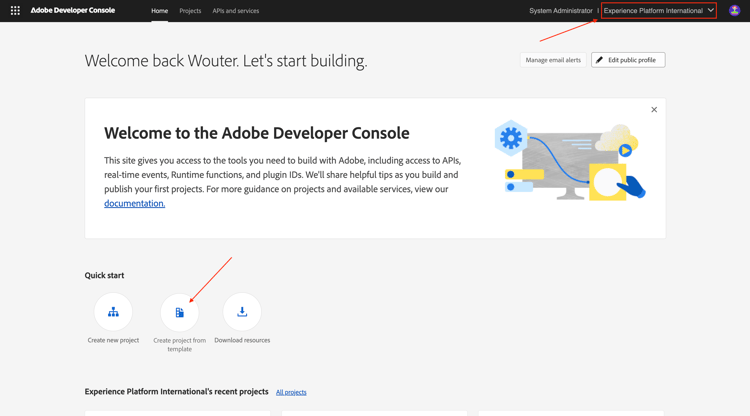
Go to https://developer.adobe.com/console/home{target=“_blank”}.
Make sure to select the correct instance in the top right corner of your screen. Your instance is --aepImsOrgName--.
Next, select Create project from template.
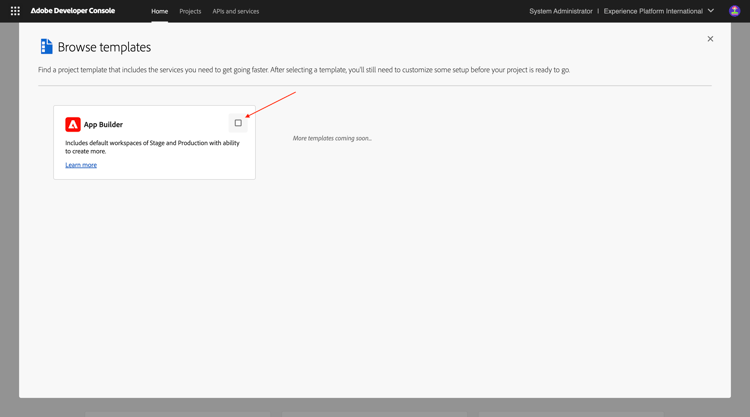
Select App Builder.
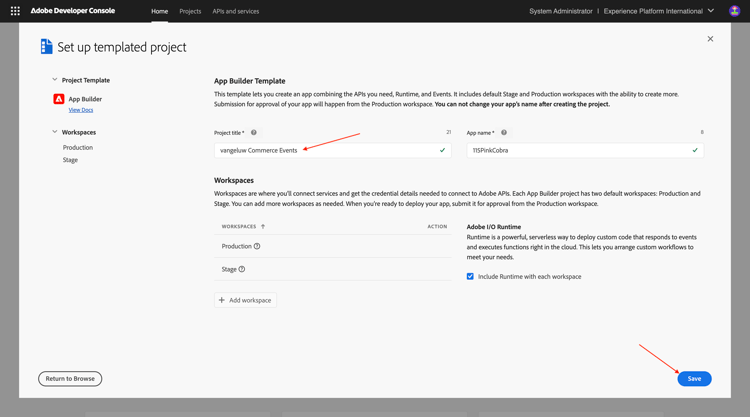
Enter the name --aepUserLdap-- Commerce Events. Click Save.
You should then see something like this.
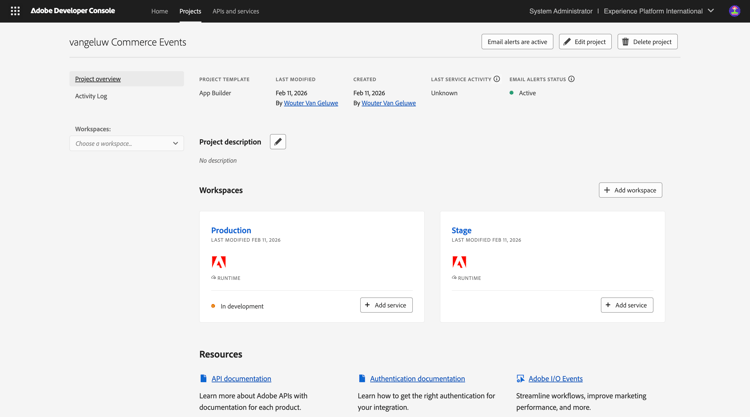
Click + Add service and then select API.
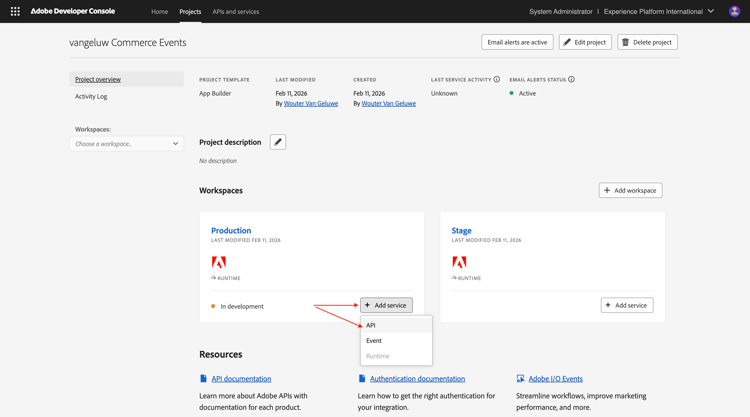
Search and select the API I/O Events. Click Next.
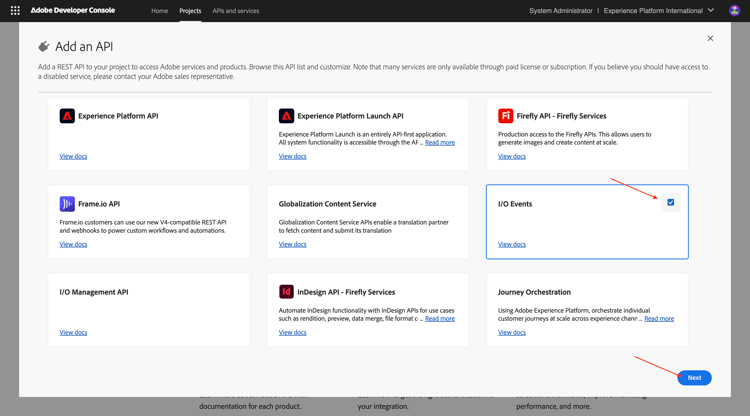
Change the name of the credential to vangeluw Commerce Events - Production. Click Save configured API.
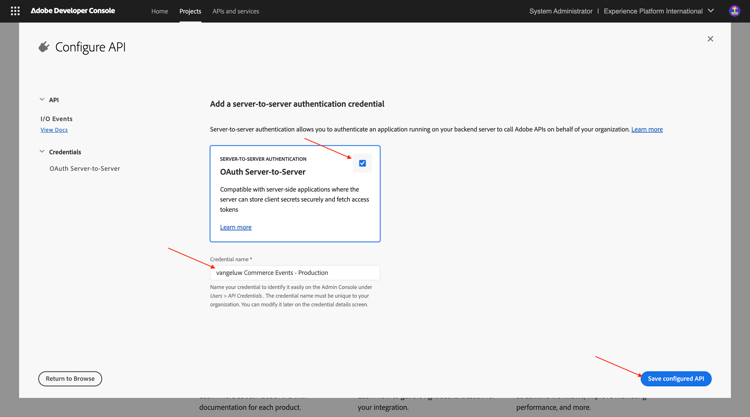
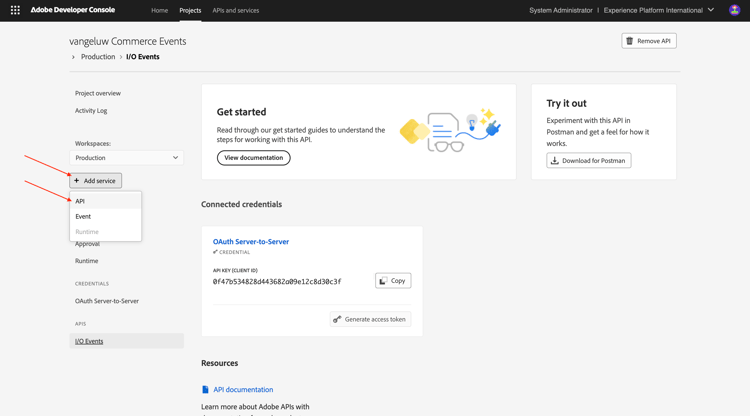
You should then see this. Click + Add service and then select API.
Search and select the API I/O Management API. Click Next.
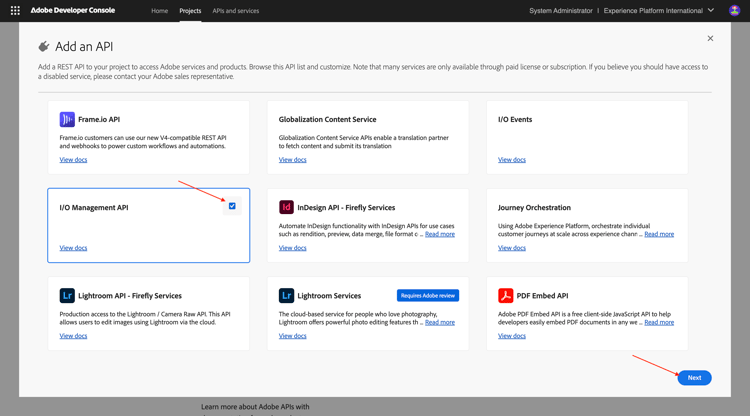
Click Save configured API.
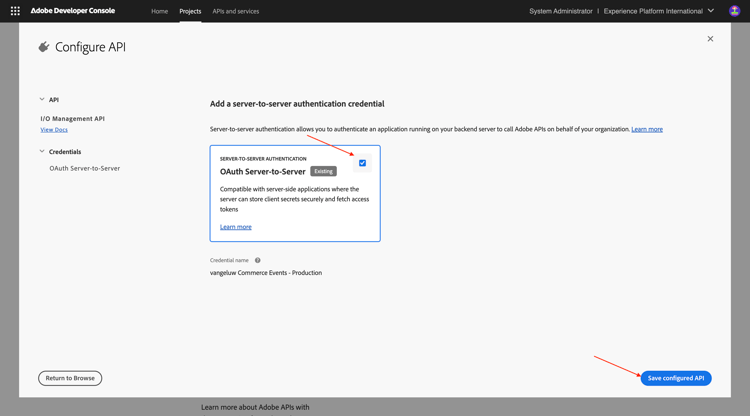
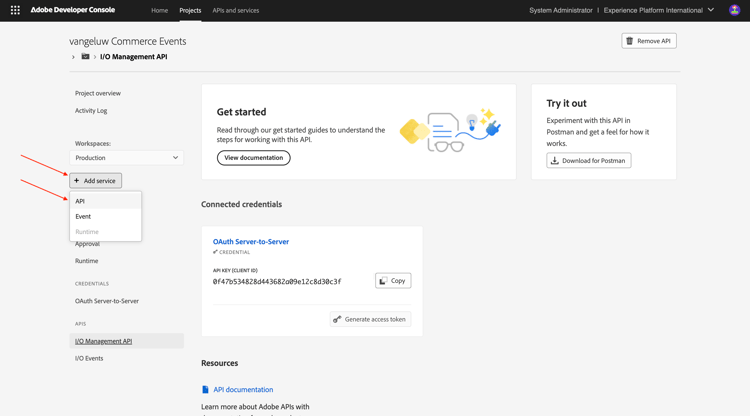
You should then see this. Click + Add service and then select API.
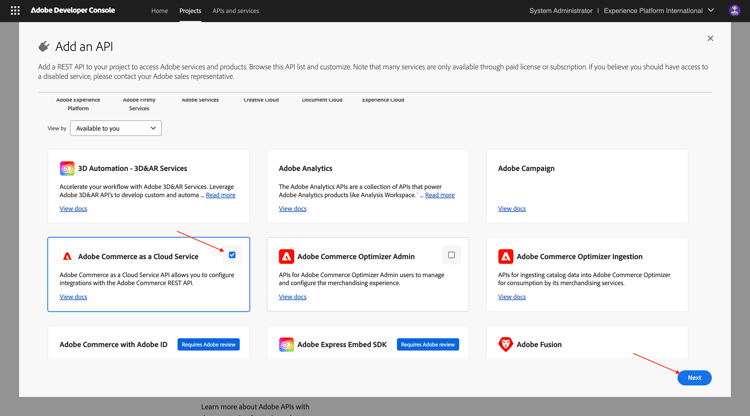
Search and select the API Adobe Commerce as a Cloud Service. Click Next.
Select Server-to-Server Authentication. Click Next.
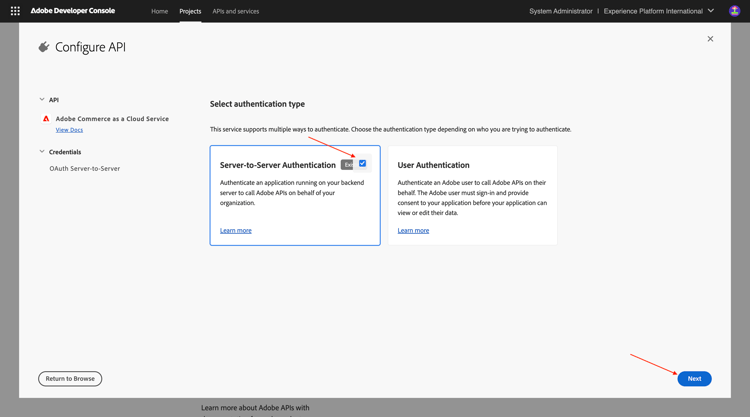
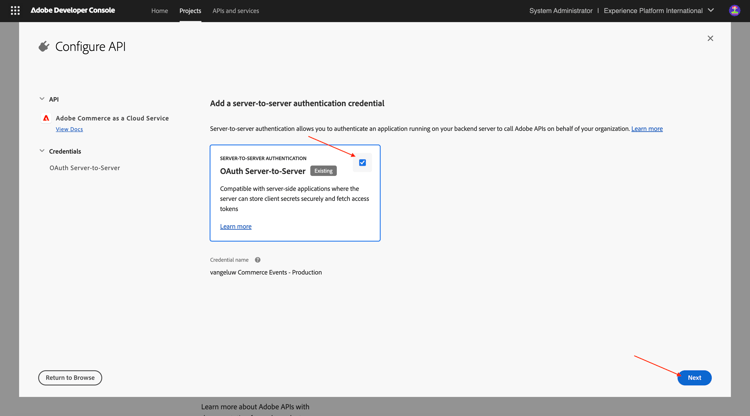
Click Next.
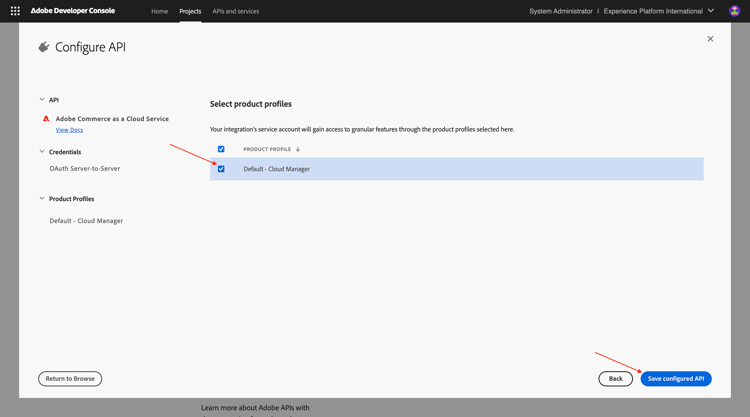
Select Default - Cloud Manager. Click Save configured API.
You should then see this. Click + Add service and then select API.
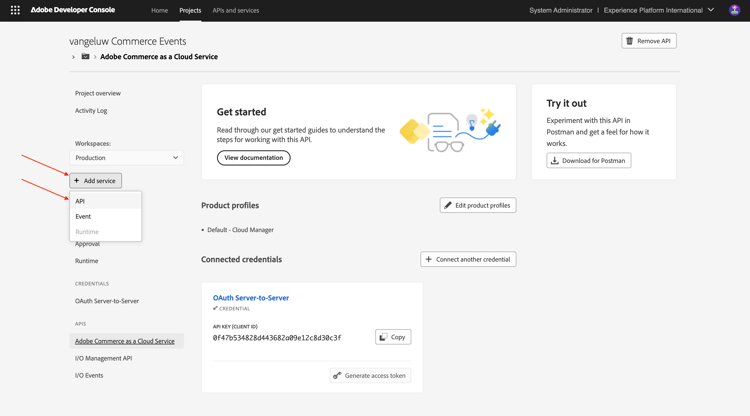
Search and select the API Adobe I/O Events for Adobe Commerce. Click Next.
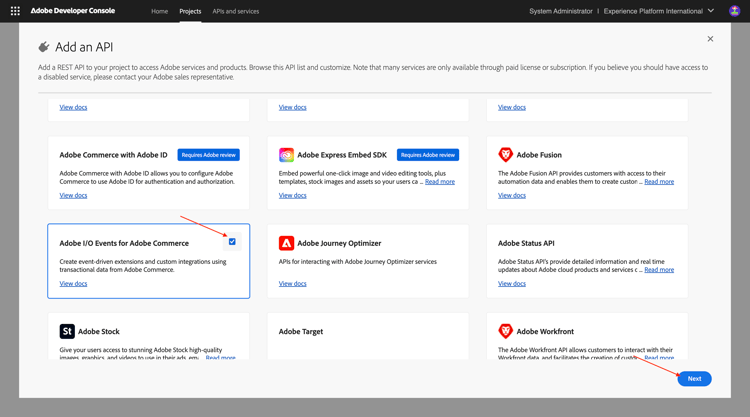
Click Save configured API.
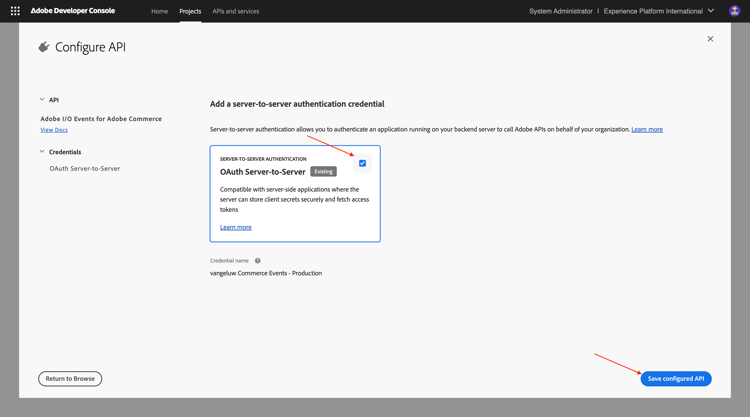
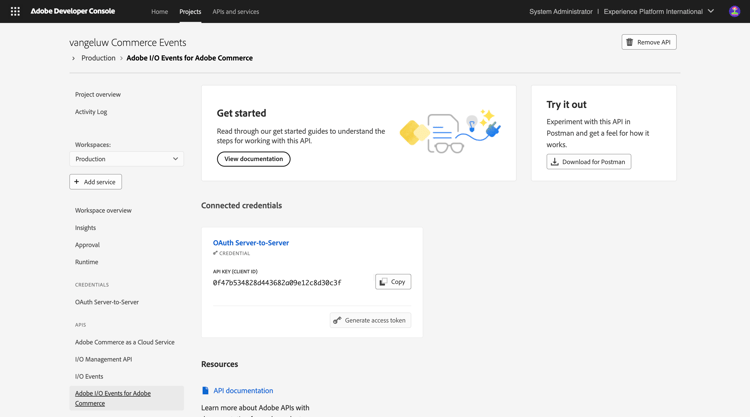
Your project is now set up and can be used.
1.7.1.2 Configure your development environment
In order to create, submit and deploy your extensible app, your local development environment on your computer should have the following applications and packages installed:
- Node.js (version 20.x or higher)
- npm (packaged with Node.js)
- Adobe Developer command-line interface (CLI)
In case these applications or packages aren’t installed yet on your computer, follow these steps.
Node.js & npm
Go to https://nodejs.org/en/download. You should then see this, with a number of terminal commands that need to be executed in order to have Node.js and npm installed. The commands that are shown here are applicable to MacBook.
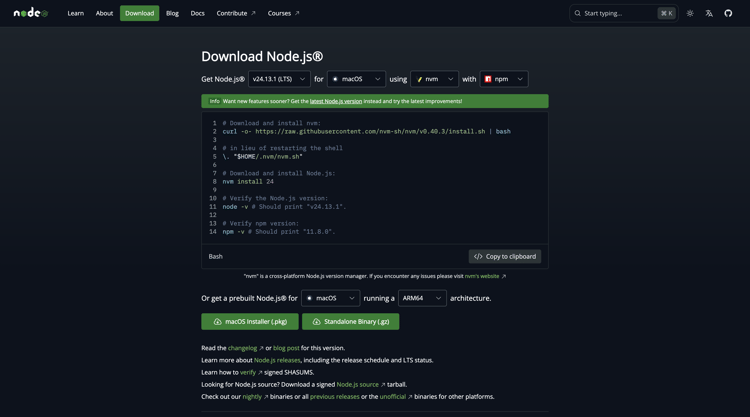
First, open a new terminal window. Paste and execute the command mentioned on line 2 in the screenshot:
curl -o- https://raw.githubusercontent.com/nvm-sh/nvm/v0.40.3/install.sh | bash
Next, execute the command on line 5 in the screenshot:
\. "$HOME/.nvm/nvm.sh"
After having executed both commands successfully, run this command:
node -v
You should see a version number being returned.
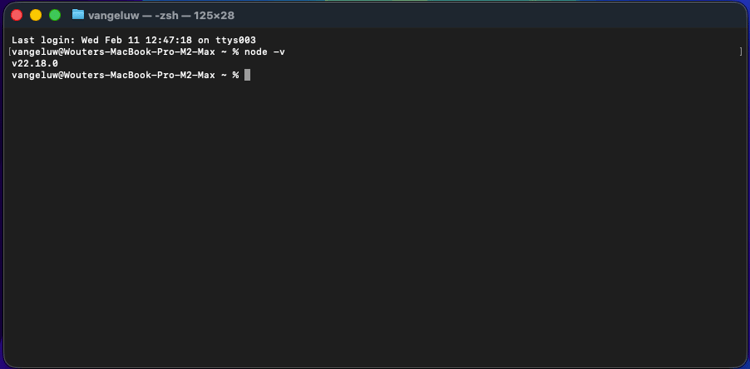
Next, run this command:
npm -v
In case NPM isn’t installed yet, you can install it using this command: npm install -g npm@11.9.0.
You should see a version number being returned.
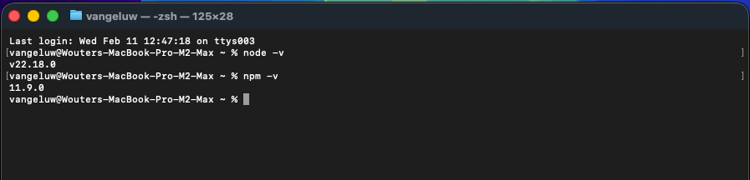
If the last 2 commands successfully returned a version number, then your configuration of these 2 capabilities is successful.
Adobe Developer command-line interface (CLI)
To install the Adobe Developer command-line interface (CLI), run the following command in a terminal window:
npm install -g @adobe/aio-cli
Running this command may take a couple of minutes, the end result should be similar to this:
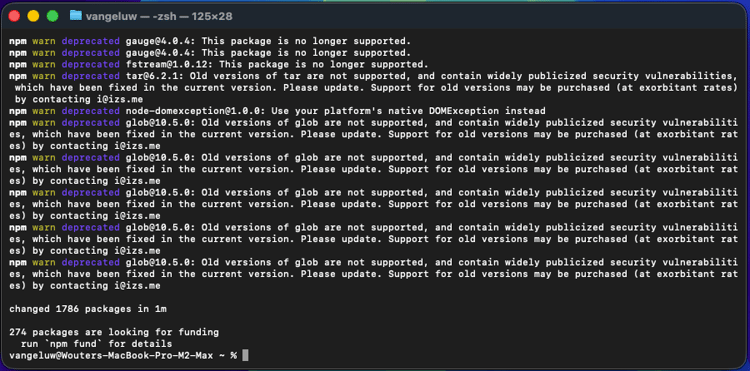
The Adobe Developer command-line interface (CLI) is now also successfully installed.
Adobe Developer command-line interface (CLI) SDK extension for Commerce
To install the Adobe I/O SDK extension for Commerce, run the following command in a terminal window:
npm install @adobe/aio-commerce-sdk
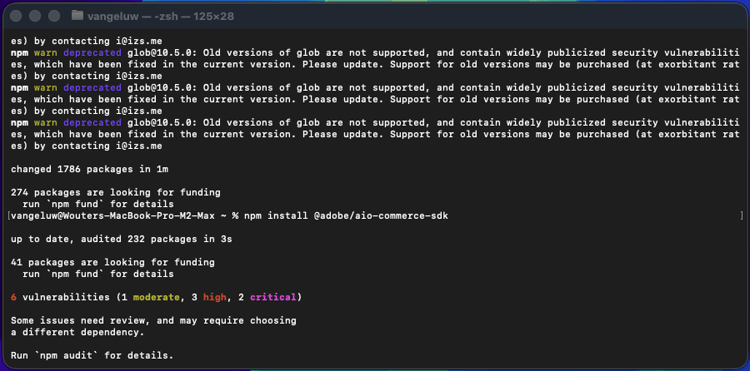
Adobe Commerce plugins for Adobe I/O CLI
To install the Adobe Commerce plugins for Adobe I/O CLI, run the following command in a terminal window:
aio plugins:install https://github.com/adobe-commerce/aio-cli-plugin-commerce @adobe/aio-cli-plugin-app-dev @adobe/aio-cli-plugin-runtime
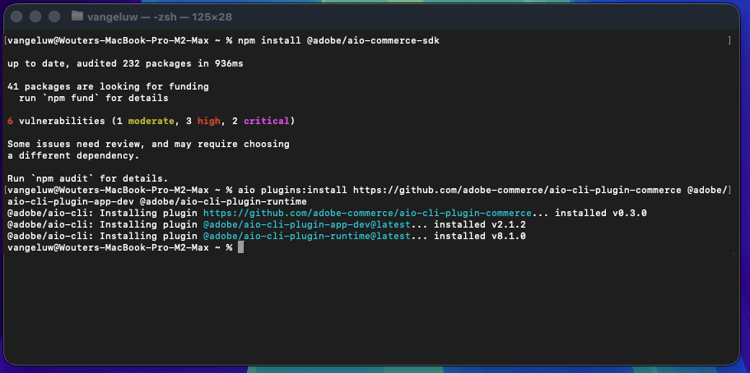
You’ve now set up the basic elements to be able to run an App Builder project, in combination with Adobe Commerce, Adobe I/O Events and Adobe I/O Runtime.
Next Steps
Go to Use Cursor to develop your project
Go Back to Intelligent Developer Tools for Adobe Commerce