1.7.2 Use Cursor to develop your project
1.7.2.1 Set up your directory & tools
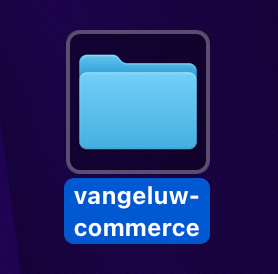
On your desktop, create a new directory with the name --aepUserLdap---commerce
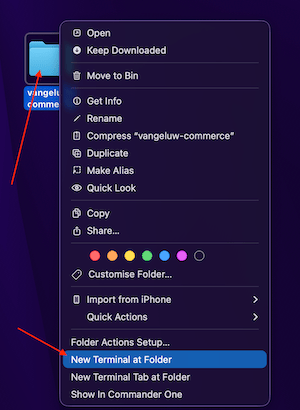
Right-click your folder and select New Terminal at Folder.
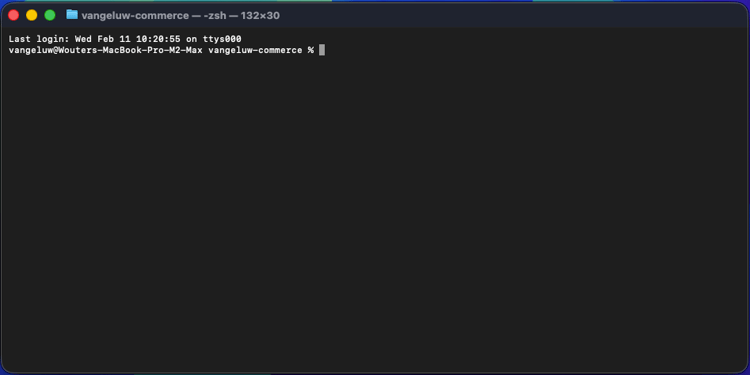
You should then see this.
You now need to clone an existing Github repository, which you can view https://github.com/adobe/commerce-integration-starter-kit.
This repository is Adobe’s integration starter kit that uses Adobe Developer App Builder to improve real-time connection reliability and reduce the time-to-market for integrations between Adobe Commerce and other back-office systems, such as ERPs, CRMs, and PIMs.
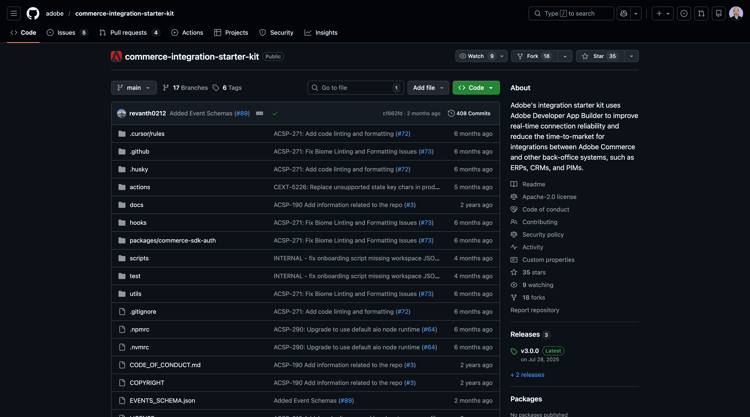
There are several ways to clone this repository, in this example Terminal is used.
Enter the following command in your Terminal window and execute it.
git clone https://github.com/adobe/commerce-integration-starter-kit
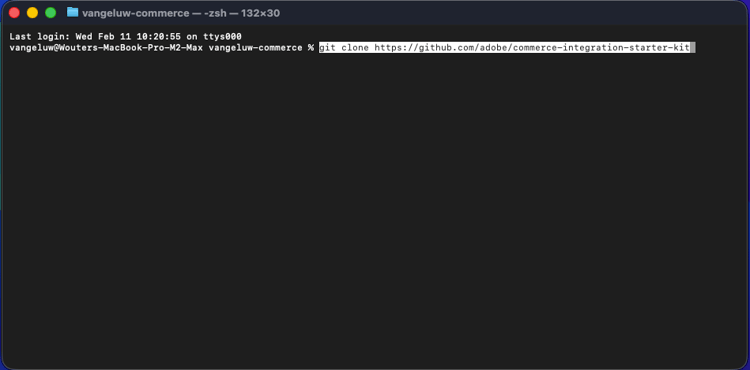
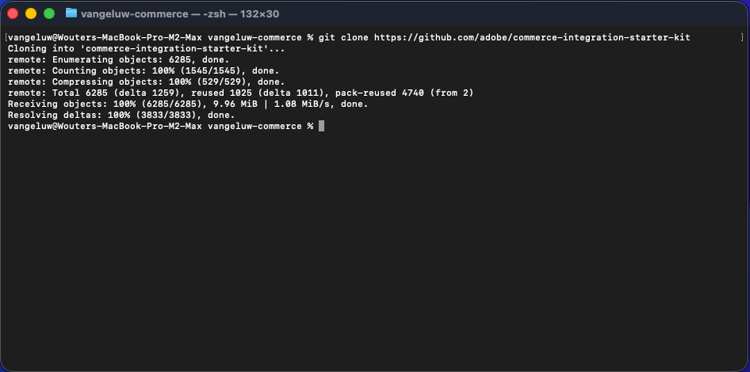
After a couple of seconds, you should see this result.
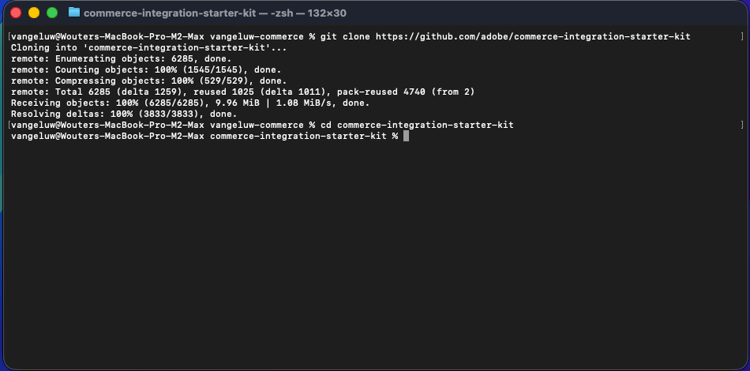
Next, you should navigate to the folder that was just created. Enter the following command and then execute it.
cd commerce-integration-starter-kit
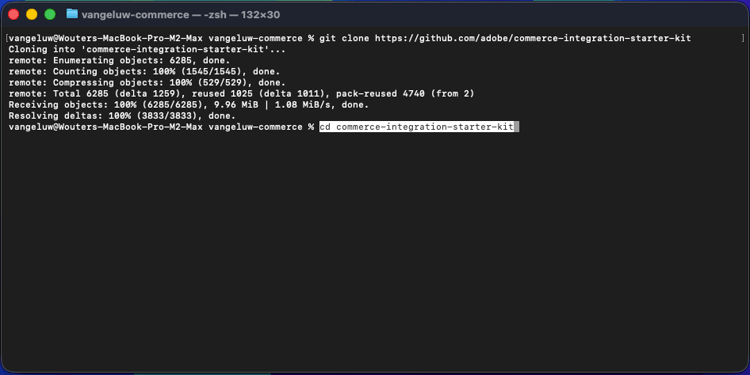
You should then see this.
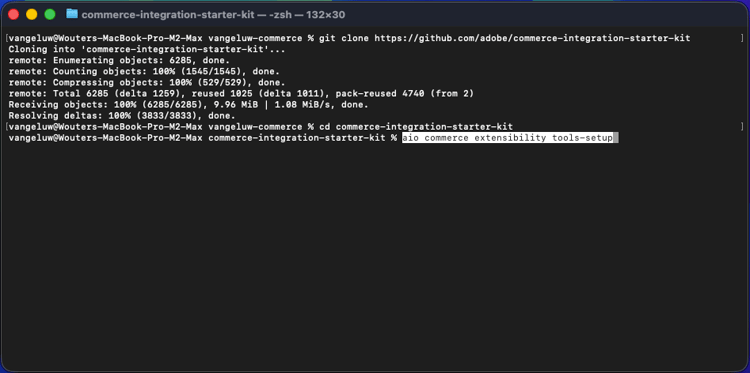
Next, you need to set up the Commerce extensibility tools for Cursor. Enter the following command and then execute it.
aio commerce extensibility tools-setup
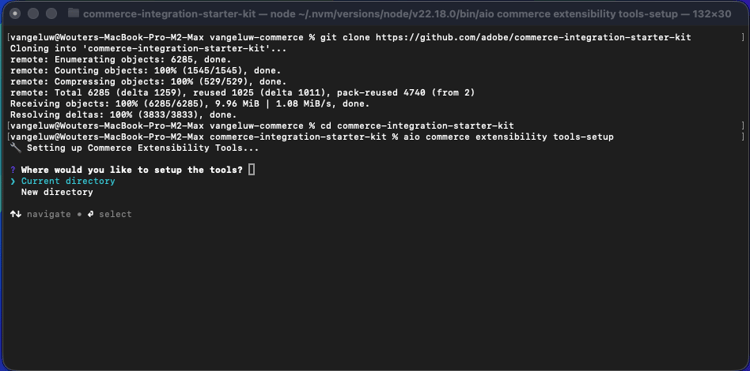
Select Current directory.
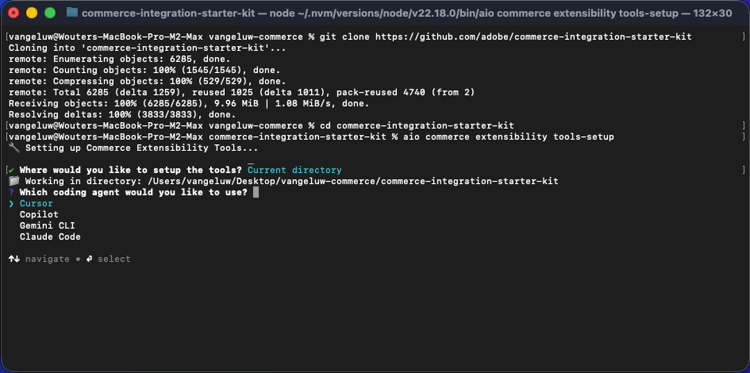
Select Cursor.
Select npm.
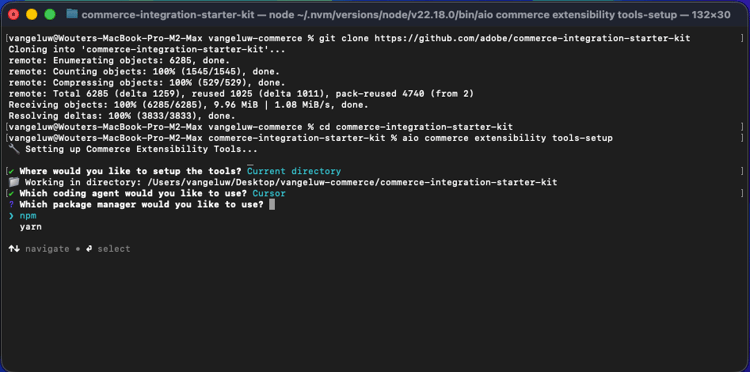
After a couple of minutes, you should see this.
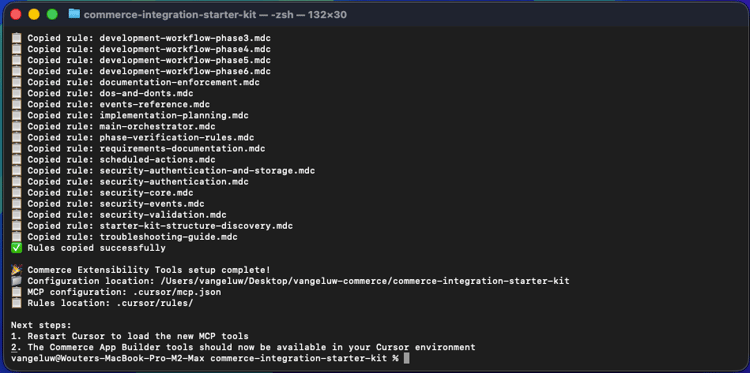
By installing Commerce extensibility tools for Cursor, there is now an MCP server available as part of your Cursor environment. In the next exercises, you’ll use that MCP server to help you develop and deploy the app builder project.
1.7.2.2 Set up your webhook
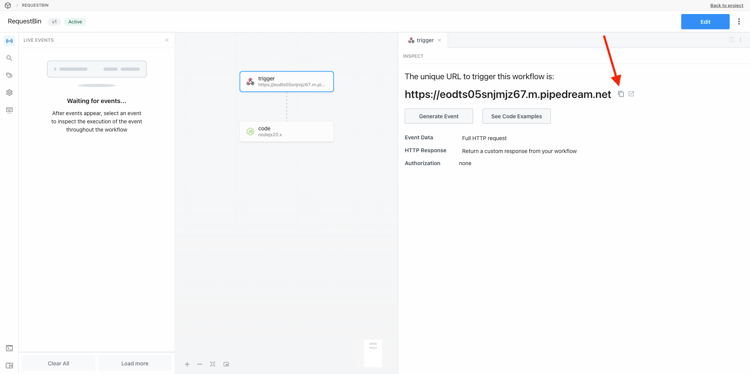
For this exercise, you’ll need a webhook that needs to be configued so that when an order is created, the order event can be streamed to that webhook. In this exercise, you’ll use a sample endpoint using https://pipedream.com/requestbin.
Go to https://pipedream.com/requestbin, create an account and then create a workspace. Once the workspace is created, you’ll see something similar to this.
Click copy to copy the url. You’ll need to specify this url in the next exercise. The URL in this example is https://eodts05snjmjz67.m.pipedream.net.
1.7.2.3 Create app with Cursor
Open Cursor. Click Open project.
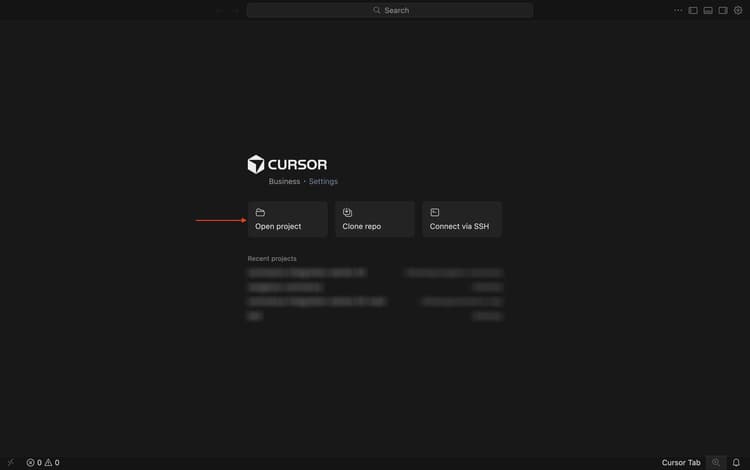
Navigate to the folder that you created, which should be named --aepUserLdap---commerce. In that folder, select the folder which is named commerce-integration-starter-kit. Click Open.
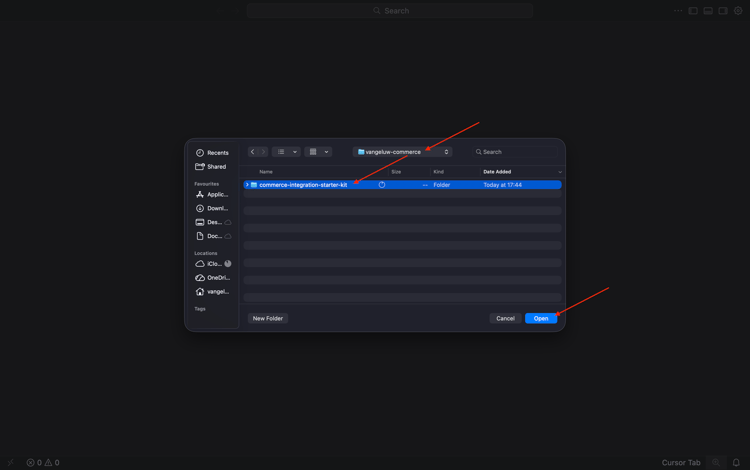
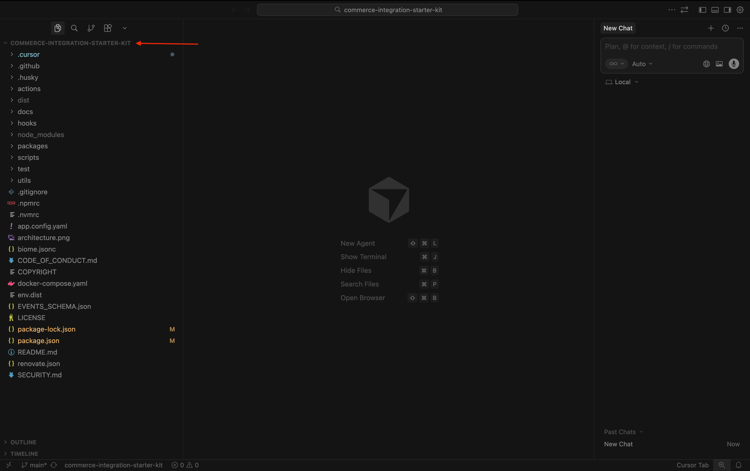
You should then see this. Before continuing, sure that the top-level folder that is opened in Cursor is commerce-integration-starter-kit.
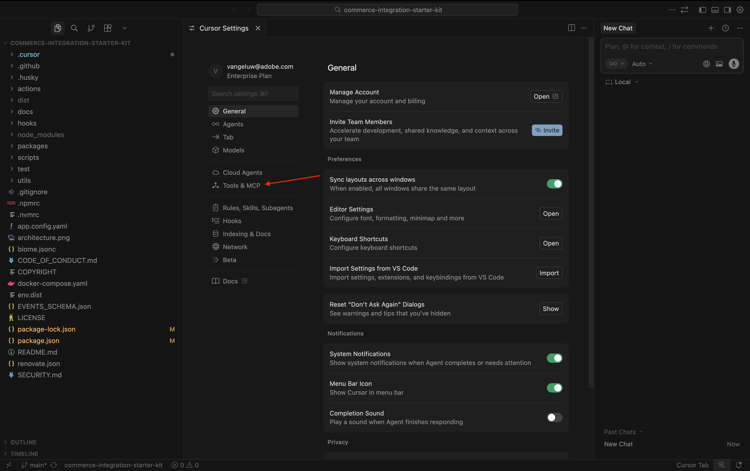
Use the keyboard shortcut Cmd + Shift + J to open Cursor settings. You should then see this. Go to Tools& MCP.
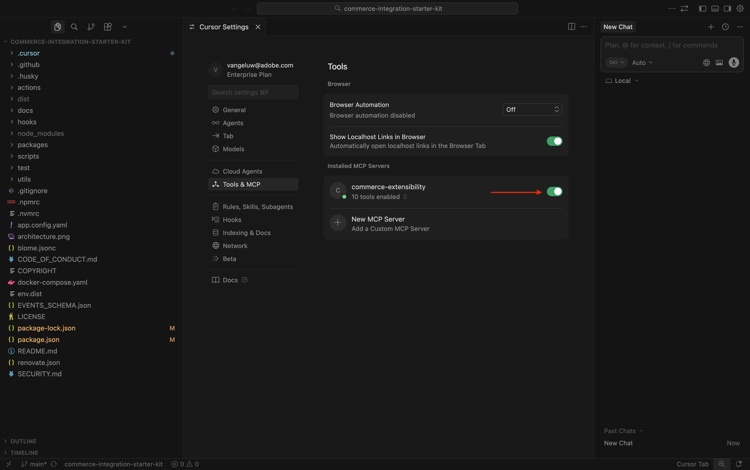
Enable the MCP server commerce-extensibility. Once that’s done, click the X to close the window.
Copy the following prompt and paste it in Cursor. Then, click the send button.
I would like to build an app that subscribes to order created events and sends them to a configurable URL with basic authentication
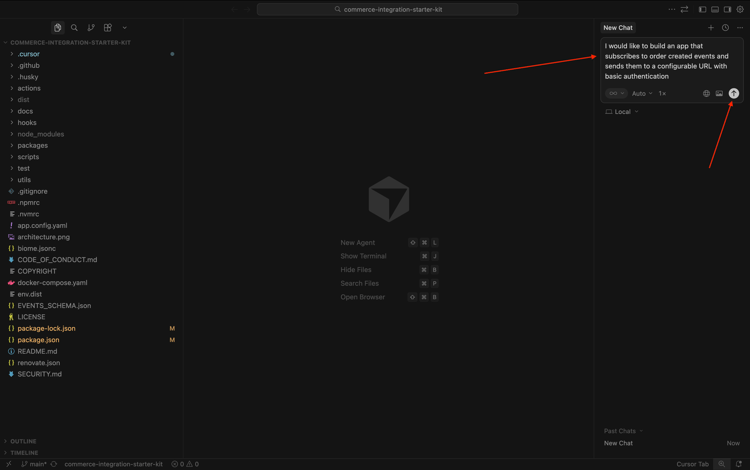
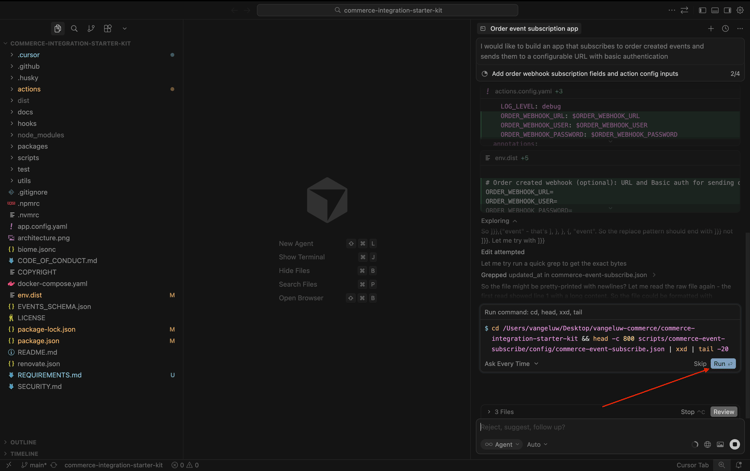
Cursor will start reasoning and executing. Cursor will ask you for confirmation a couple of times. When that happens, click Run. This may happen 5-10 times, depending on the reasoning and your settings.
After a couple of minutes, you should see something like this.
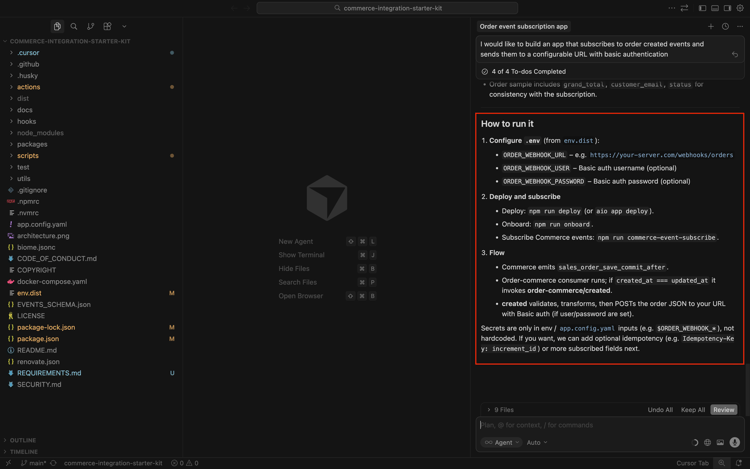
The next step, as indicated by Cursor, is to create a file with the name .env and provide the required variables there.
1.7.2.4 Create your.env file
Select the file env.dist. Enter the command Cmd + C and then enter the command Cmd + V.
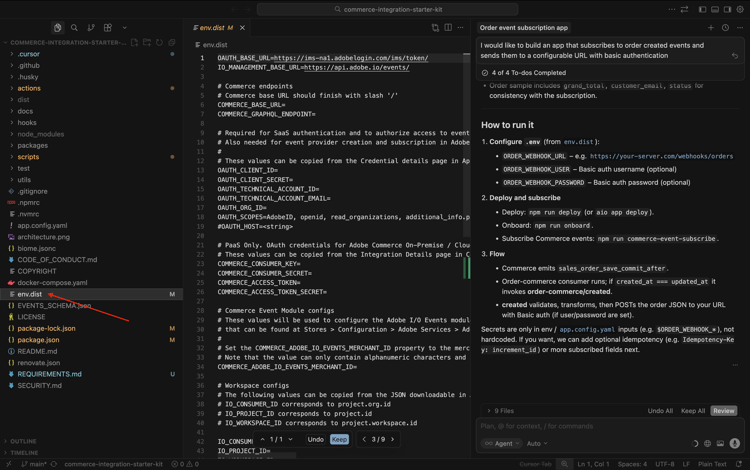
Rename the newly created file to .env.
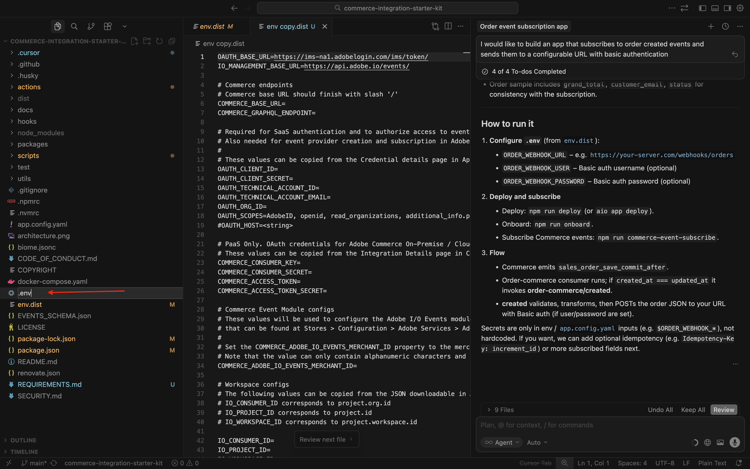
Next, you need to provide the values for all the variables in the file .env.
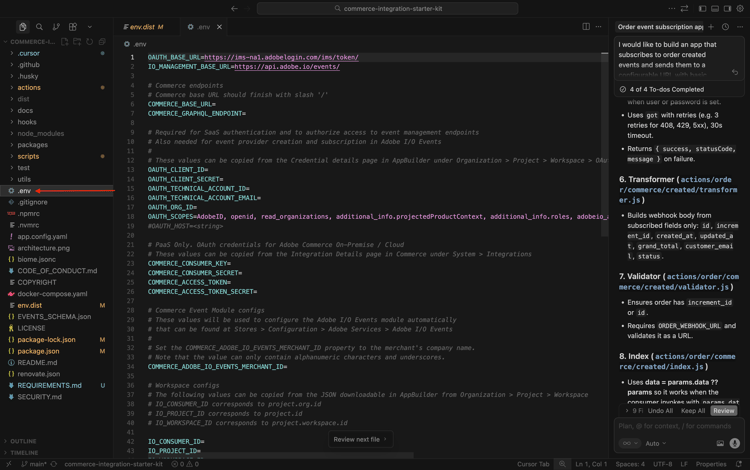
Here’s where you can find all the required information.
Commerce endpoints
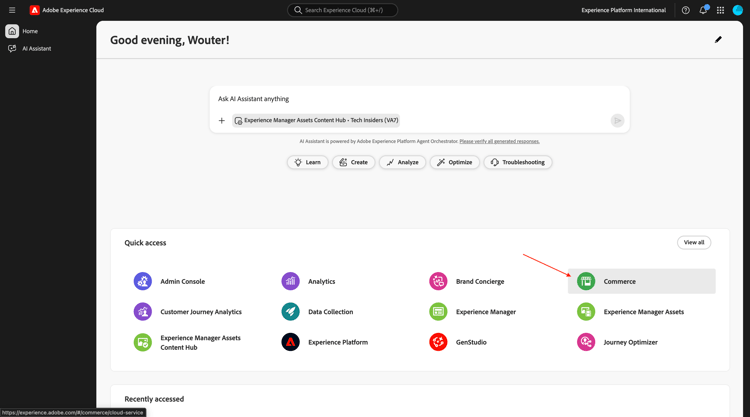
You can find these variables by going to https://experience.adobe.com. Click Commerce.
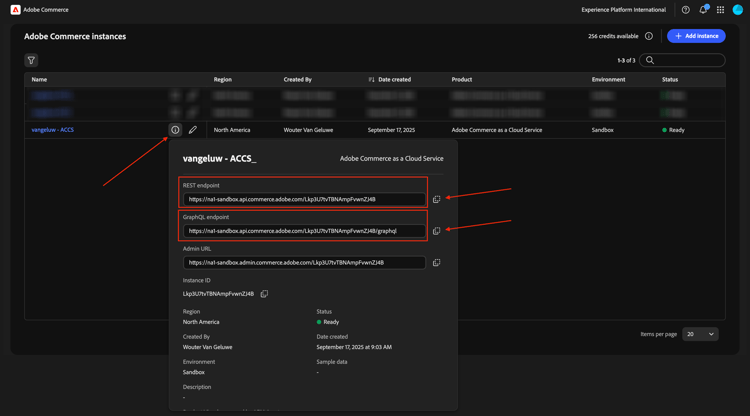
You should then see this. Click the information icon next to your ACCS environment, which should be named --aepUserLdap-- - ACCS. Copy the values of the REST endpoint and the GraphQL endpoint.
In this example, these are the values to copy. Paste them next to the below variables in the file .env on lines 6 & 7.
- COMMERCE_BASE_URL = https://na1-sandbox.api.commerce.adobe.com/Lkp3U7tvTBNAmpFvwnZJ4B/
- COMMERCE_GRAPHQL_ENDPOINT = https://na1-sandbox.api.commerce.adobe.com/Lkp3U7tvTBNAmpFvwnZJ4B/graphql
You should then have this in the file .env.

Adobe I/O project variables
You can find these variables by going to https://developer.adobe.com/console. Go to Projects and click to open the Adobe I/O project you created in the previous exercise, which should be named --aepUserLdap-- Commerce Events.
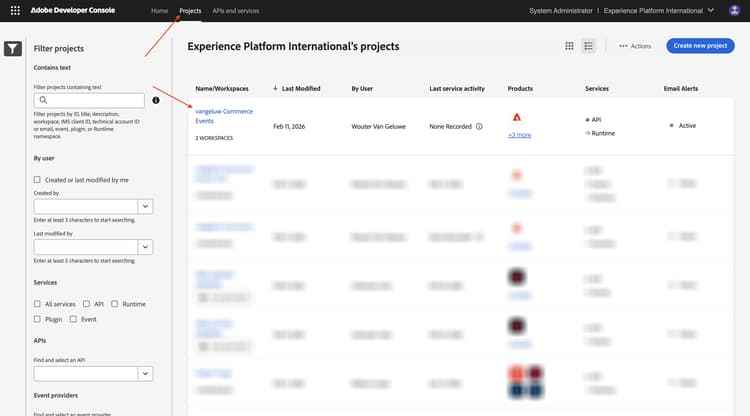
Go to Production.
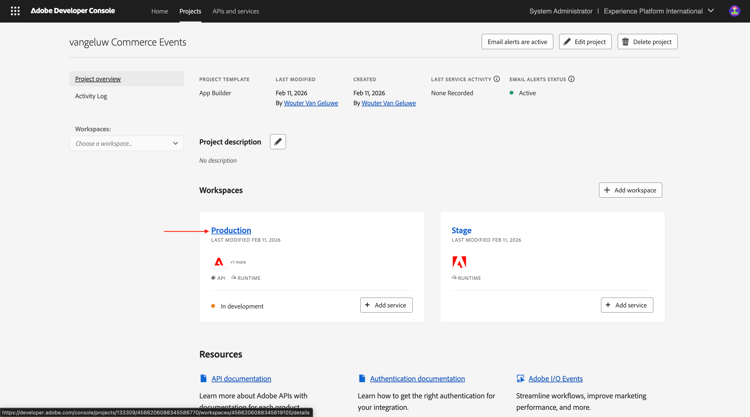
Go to OAuth Server-to-Server. You should then see this.
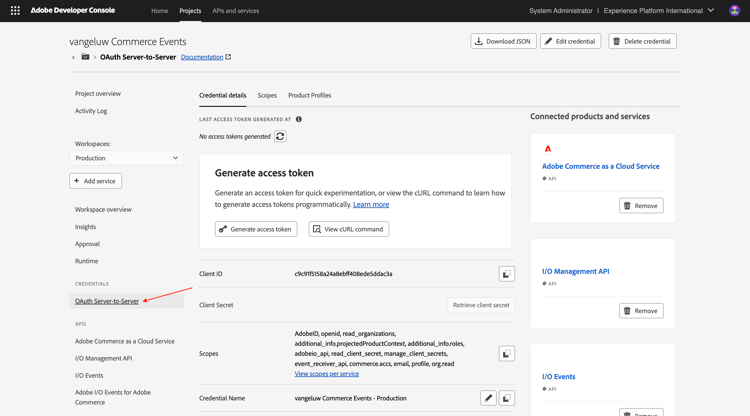
Copy the values of the fields Client ID, Client Secret, Technical Account ID, Technical Account Email and Organization ID and paste them next to the below variables in the file .env on lines 13-17.
- OAUTH_CLIENT_ID= Client ID
- OAUTH_CLIENT_SECRET= Client Secret
- OAUTH_TECHNICAL_ACCOUNT_ID= Technical Account ID
- OAUTH_TECHNICAL_ACCOUNT_EMAIL= Technical Account Email
- OAUTH_ORG_ID= Organization ID
You should then have this in the file .env.

COMMERCE_ADOBE_IO_EVENTS_MERCHANT_ID
For the field COMMERCE_ADOBE_IO_EVENTS_MERCHANT_ID=, enter the value --aepUserLdap--_commerce_events on line 34 in the file .env.
You should then have this in the file .env.

Workspace configs
To retrieve these variables, go back to your Adobe I/O project and click Workspace overview.
After going to Workspace overview, have a look at the URL, which should look like this: https://developer.adobe.com/console/projects/133309/4566206088345586770/workspaces/4566206088345619105/details.
The first number in this example, 133309, is the value to use for the field IO_CONSUMER_ID.
The second numnber in this example, 4566206088345586770, is the value to use for the field IO_PROJECT_ID.
The third number in this example, 4566206088345619105, is the value to use for the field IO_WORKSPACE_ID.
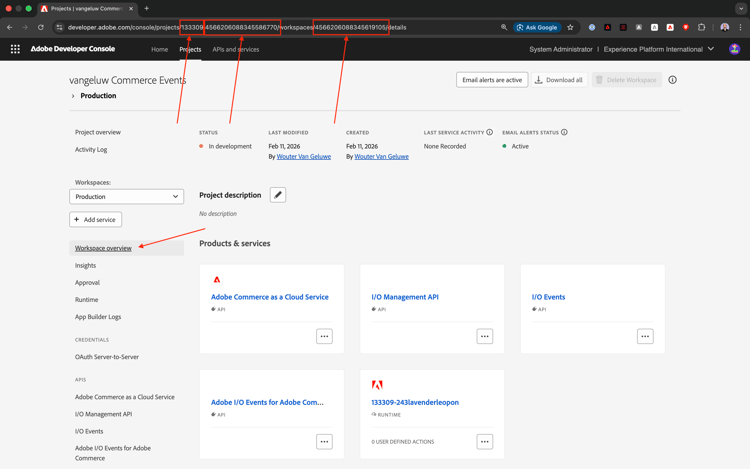
- IO_CONSUMER_ID= 133309
- IO_PROJECT_ID= 4566206088345586770
- IO_WORKSPACE_ID= 4566206088345619105
Copy these values and paste them next to the below variables in the file .env on lines 42-44.

EVENT_PREFIX
For the field EVENT_PREFIX =, enter the value --aepUserLdap--_ on line 47 in the file .env.
You should then have this in the file .env.

Webhook
For the field ORDER_WEBHOOK_URL, you should paste the URL of the webhook you created earlier in this exercise, which should look like this: https://eodts05snjmjz67.m.pipedream.net.
You should then have this in the file .env.

App Builder credentials
You should update the following variables in the file .env on lines 54-55:
- AIO_RUNTIME_NAMESPACE=
- AIO_RUNTIME_AUTH=
You can retrieve the values for these variables by going back to your Adobe I/O project. Go to Workspace overview and click Download all.
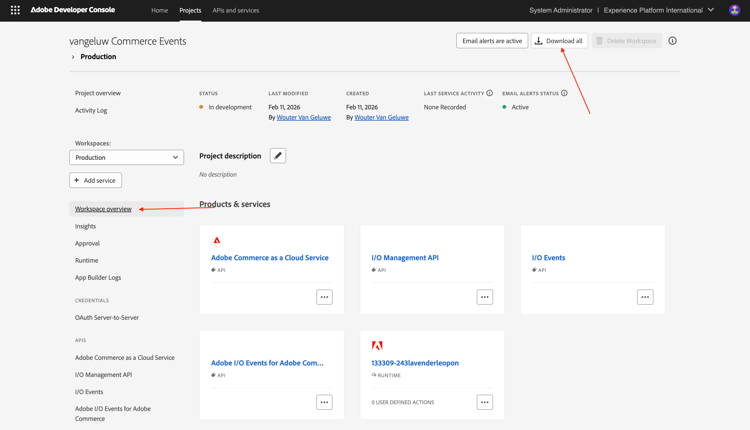
A file like this will then be downloaded. Open that file using a text editor.
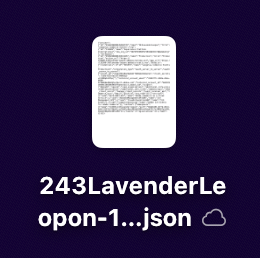
Scroll to the right until you see runtime. You should then see the field name, which contains the value for AIO_RUNTIME_NAMESPACE.

Scroll further to the right until you see auth, which contains the value for AIO_RUNTIME_AUTH.

Paste both values in the file .env on lines 54-55, you should then have this.

Your .env file is now completely configured.
1.7.2.5 workspace.json
In the previous step you downloaded a file like this from your Adobe I/O project.
Rename that file and use the name workspace.json.
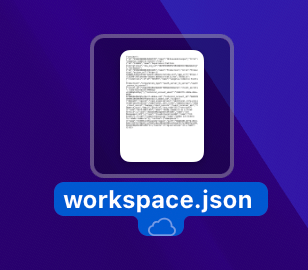
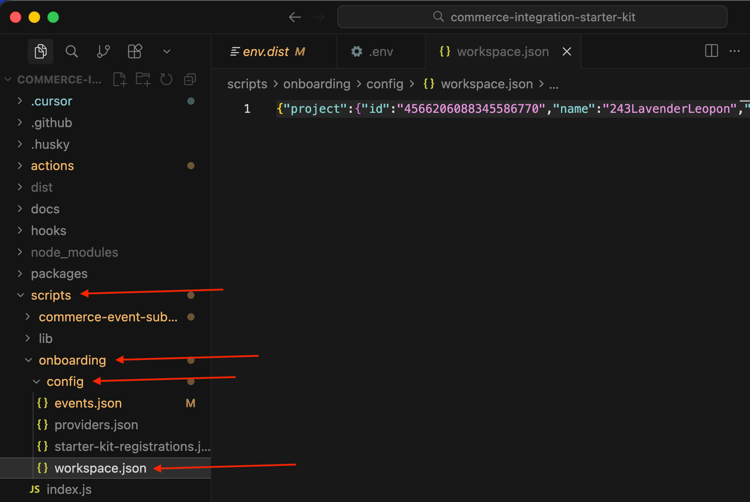
Copy the file into the directory scripts>onboarding>config.
1.7.2.6 Adobe I/O login
Go back to the terminal window that you had used before. Enter the command aio login.
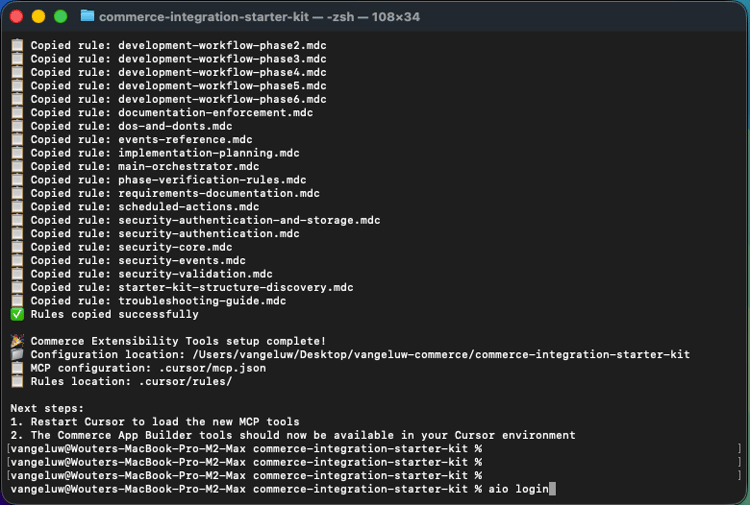
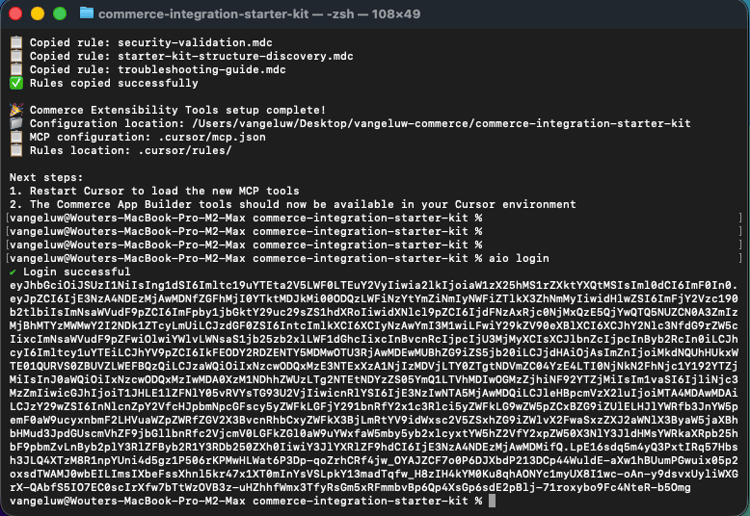
You should then see this after logging in through your browser.
1.7.2.7 Ready to deploy
Copy the following prompt and paste it in Cursor. Then, click the send button.
Please deploy this code to Adobe I/O
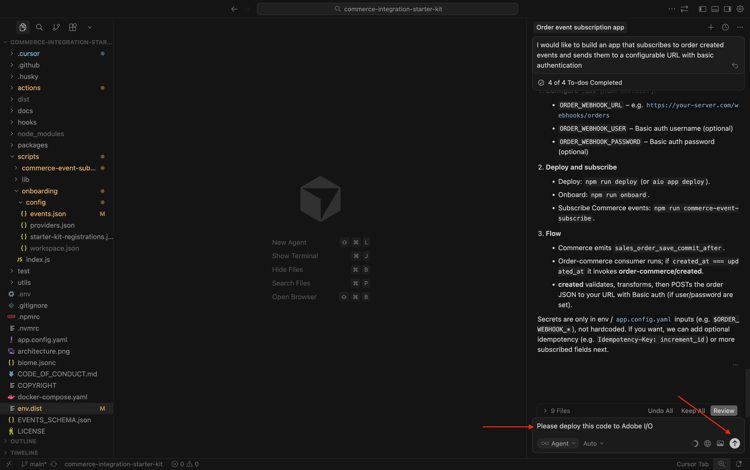
Click Run to allow the action, Cursor may ask you several times to confirm an action.
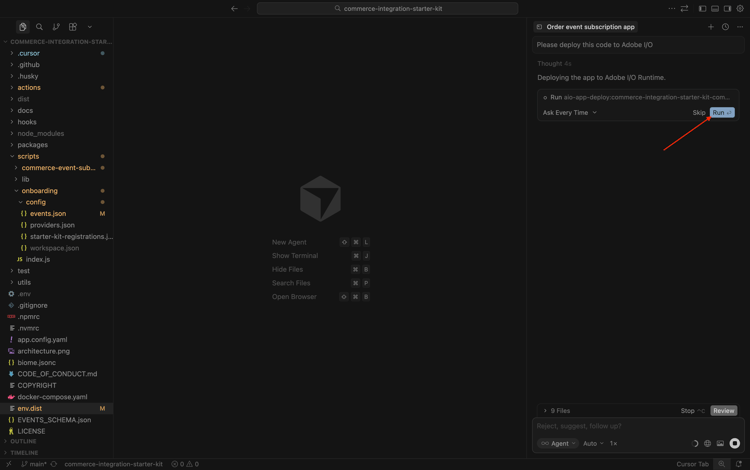
Deployment will then finish after a couple of minutes.
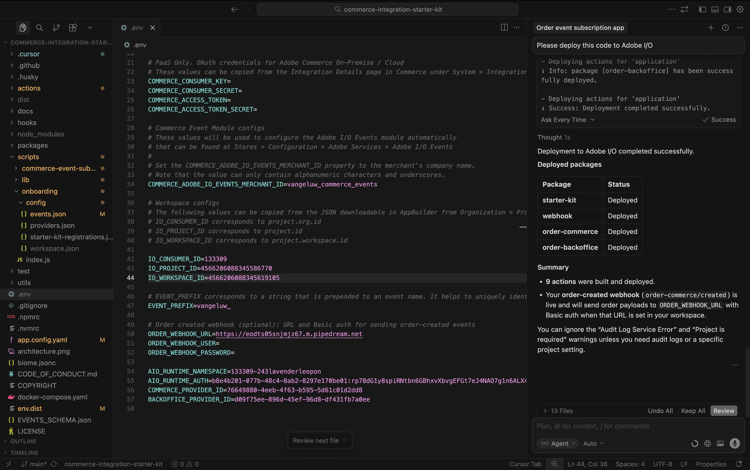
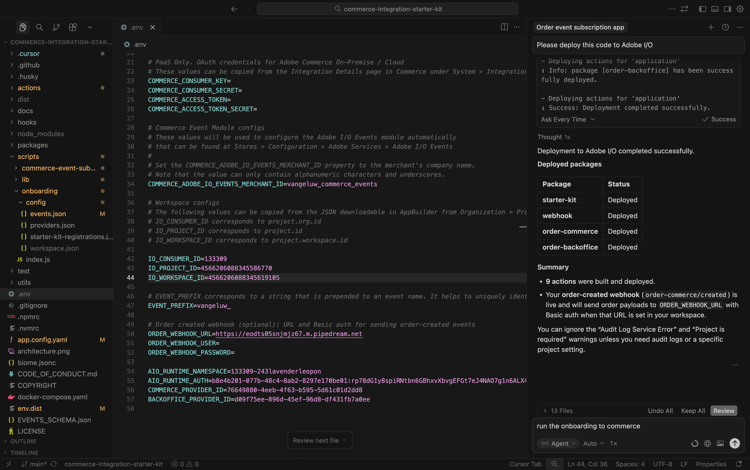
Copy the following prompt and paste it in Cursor. Then, click the send button.
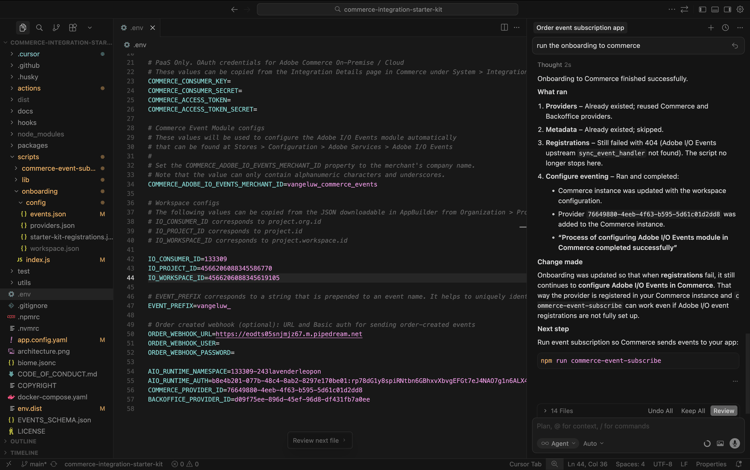
run the onboarding to commerce
After a couple of minutes, you should see this.
Copy the following prompt and paste it in Cursor. Then, click the send button.
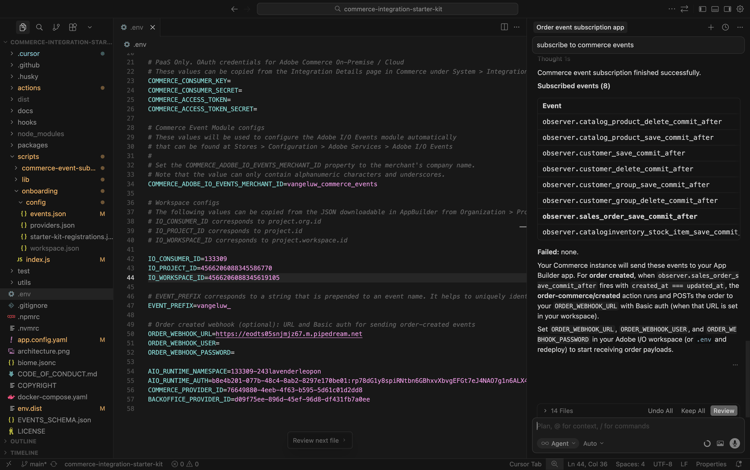
subscribe to commerce events
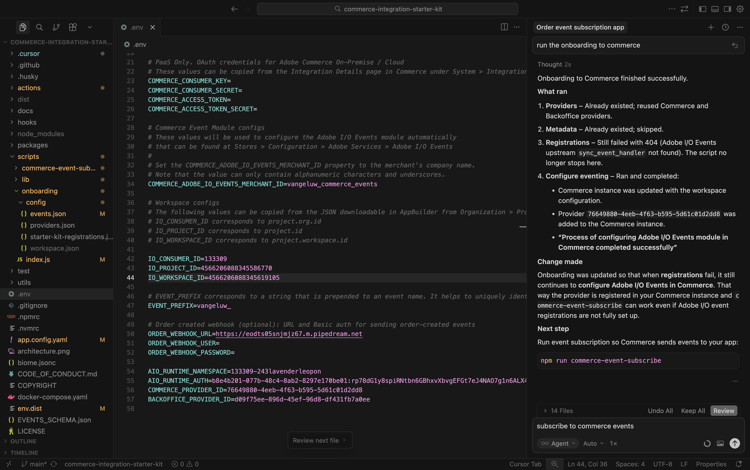
After a couple of minutes, you should see this.
1.7.2.8 Verify configuration in Adobe Commerce as a Cloud Service
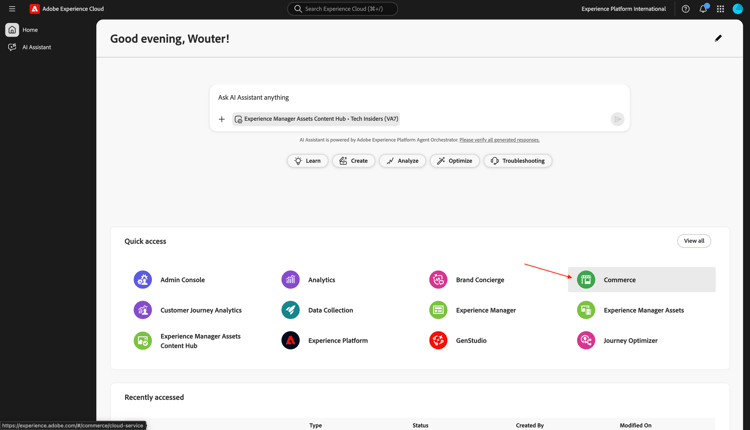
Go to https://experience.adobe.com. Click Commerce.
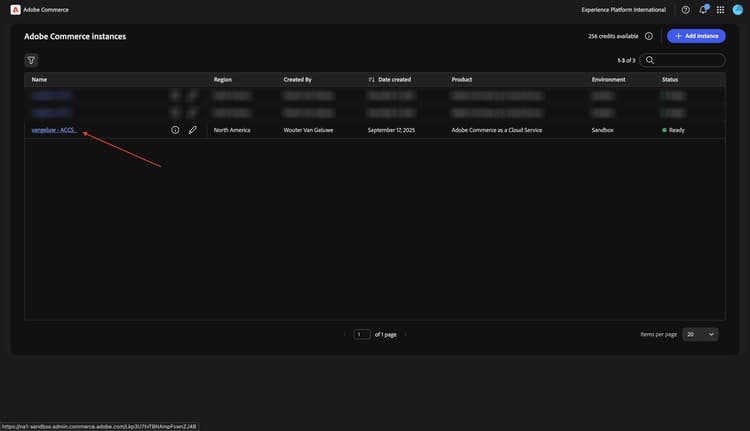
Click your Adobe Commerce as a Cloud Service environment to open it and then log in.
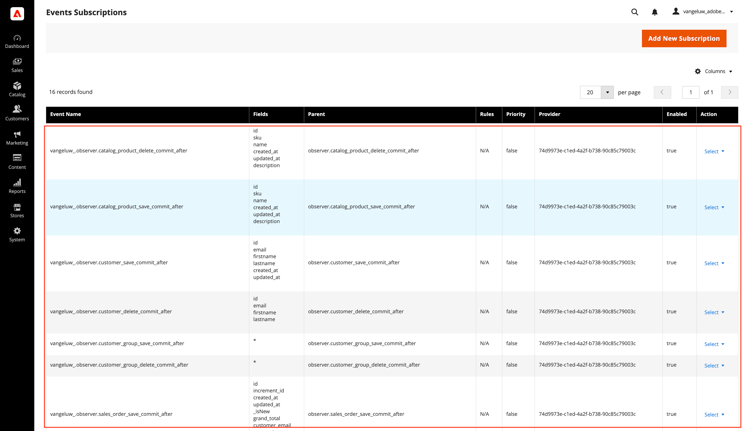
Go to System and then to Event Subscriptions.
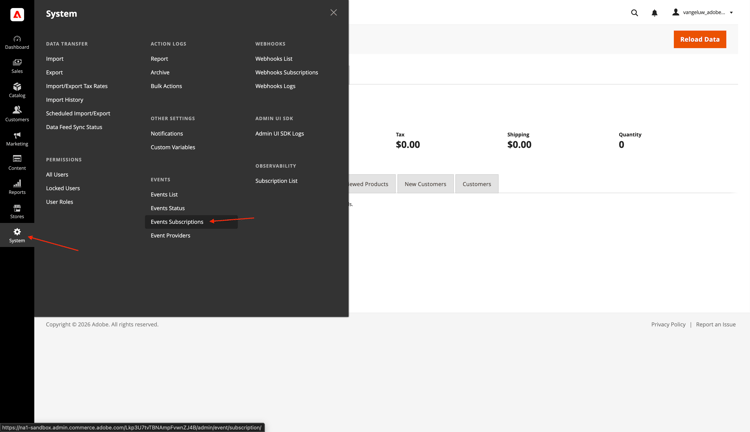
You should then see this list of event subscriptions.
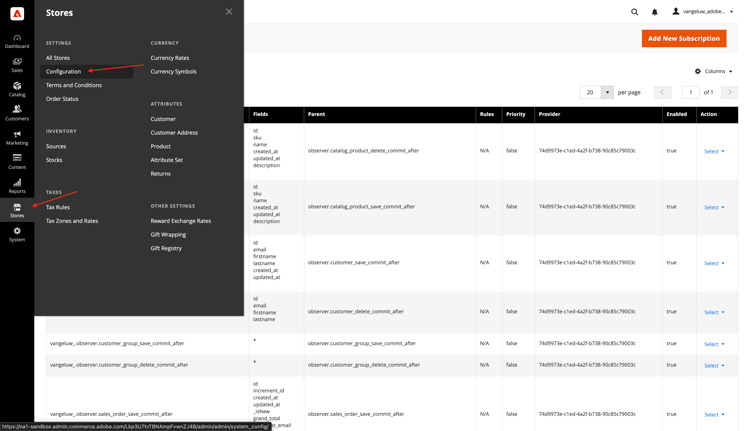
Go to Stores and then to Configuration.
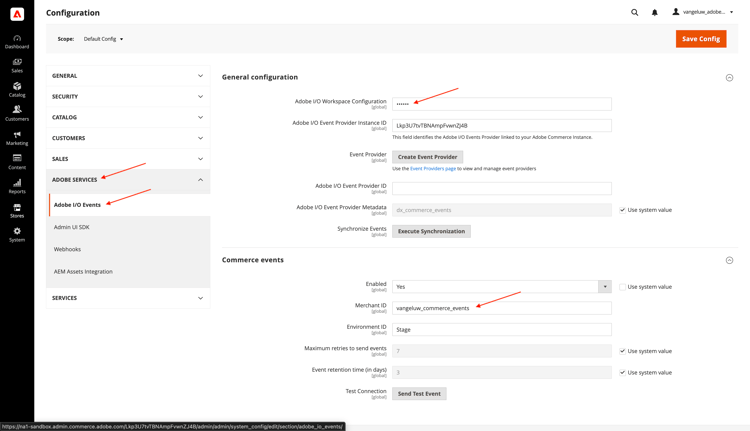
Go to Adobe Services and select Adobe I/O Events. You should then see that the field Adobe I/O Workspace Configuration has a value of a couple of asterixes and the field Merchant ID should also have a value like --aepUserLdap--_commerce_events.
With this configuration in place, you can now test your configuration.
1.7.2.9 Test your scenario
Open your website.
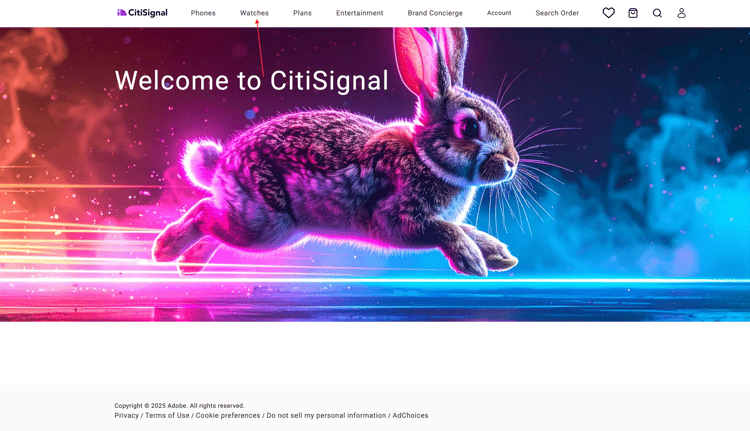
Go to Watches and click any product.
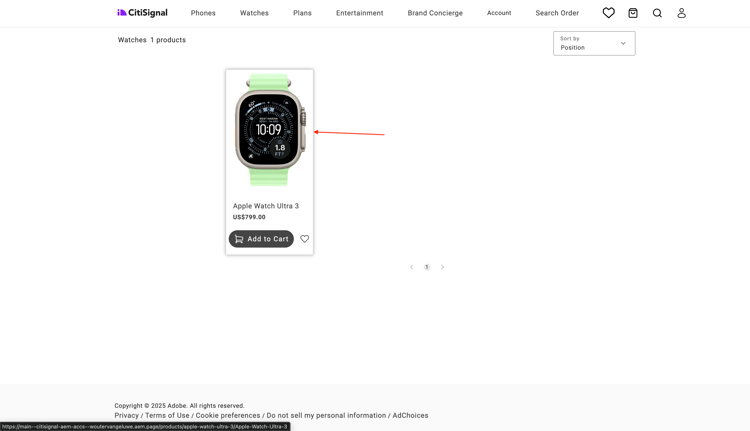
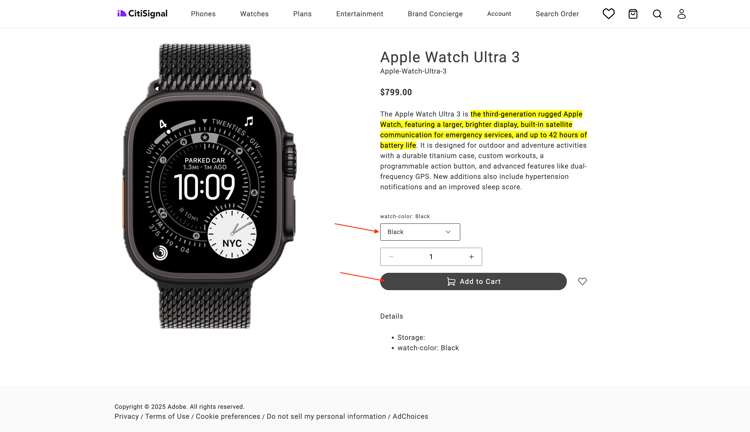
Configure the product and click Add to cart.
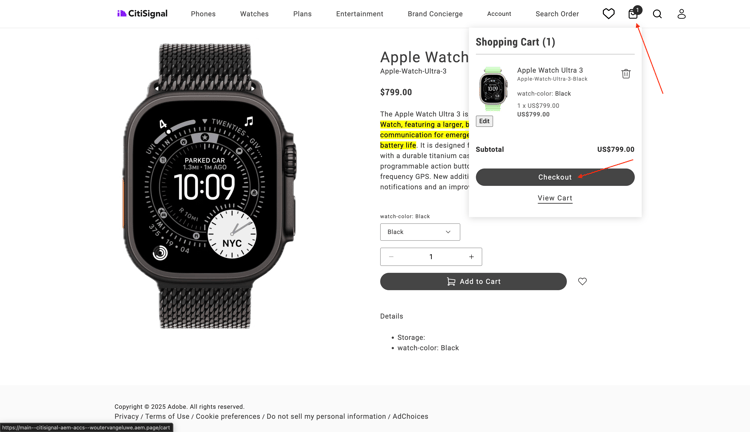
Click the Cart icon and select Checkout.
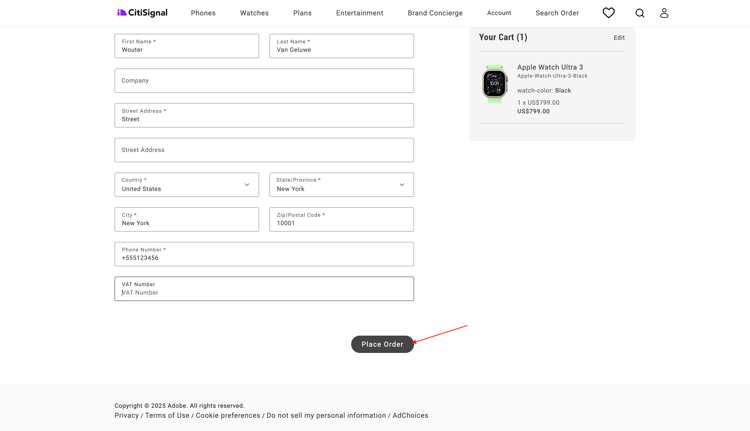
Fill out your details and click Place order.
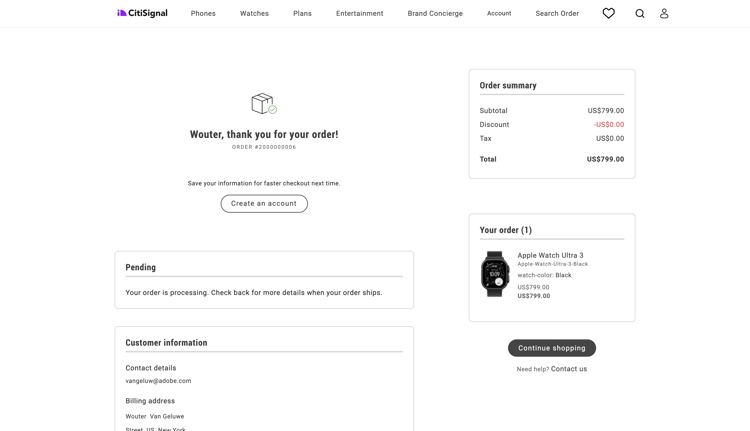
You should then see an order confirmation.
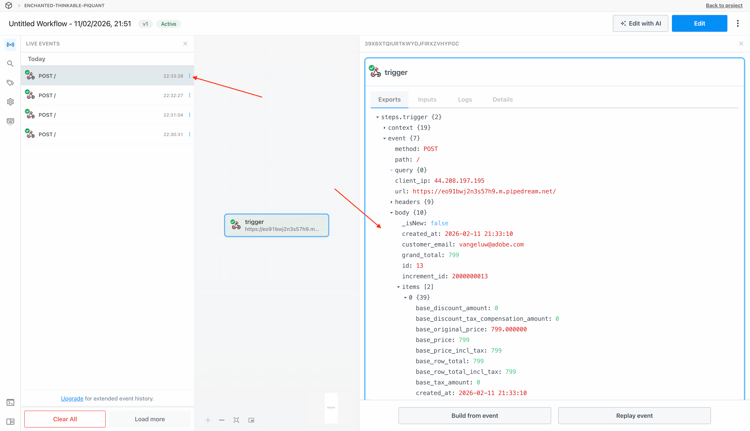
Switch to your webhook application. You should now see an incoming event for the order that was just confirmed.
1.7.2.10 Adobe I/O debugging
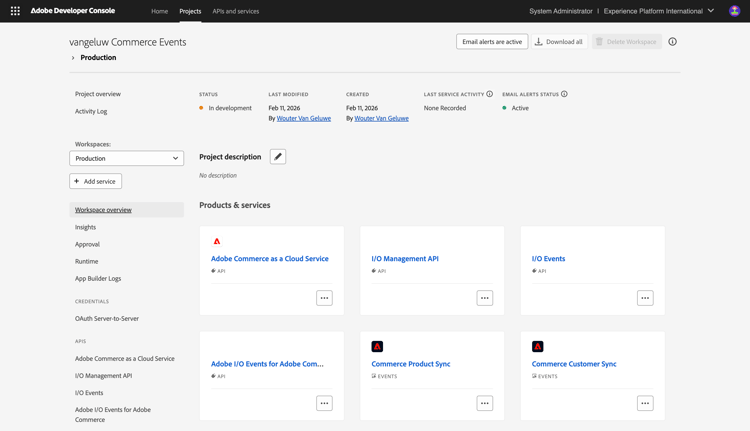
Go back to your Adobe I/O project. Go to Workspace overview. You should see something similar to this. Scroll down a little bit.
Click to open Commerce Order Sync.
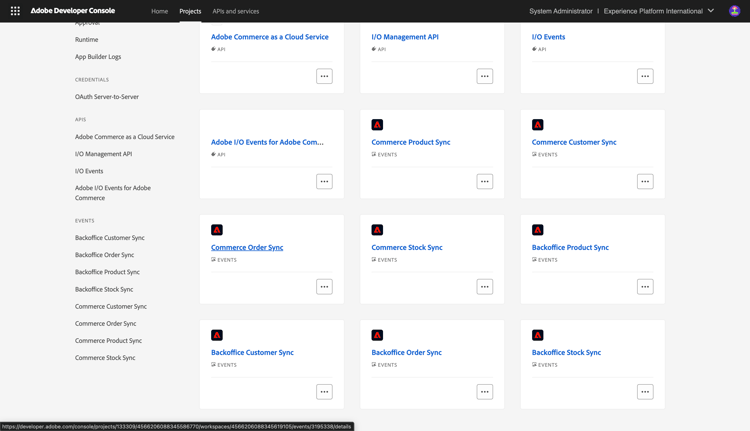
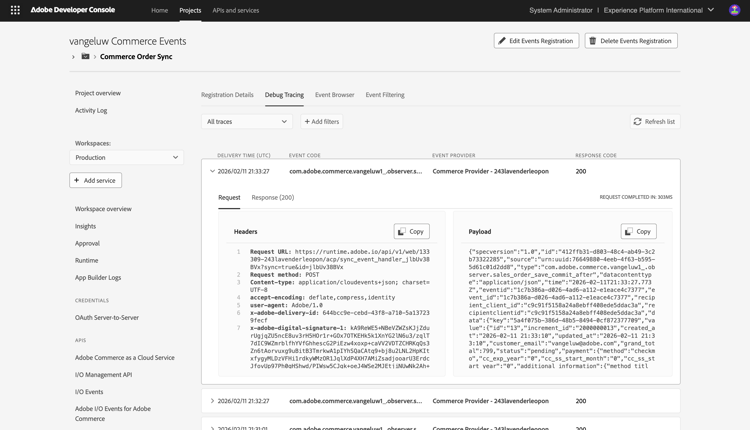
Go to Debug Tracing. You can find the latest incoming events there, along with their payload. This is helpful to understand what events have been processed and if they were processed successfully.