1.6.2 AEM MCP Servers & Cursor
Instructions for in-person workshops
For this exercise, you need to use:
- Instance: Adobe Tech Insiders
- Username: adobetechinsiders-XXX@adobeeventlab.com
- Password: use the password that was shared with you
- AEM Program: Tech Insiders - AEM + ACCS XXX which you can access through https://my.cloudmanager.adobe.com
- GitHub repository: https://github.com/woutervangeluwe/techinsidersXXX-citisignal-aem-accs
AEM MCP Servers
Here are all the available AEM MCP servers:
- https://mcp.adobeaemcloud.com/adobe/mcp/content
- https://mcp.adobeaemcloud.com/adobe/mcp/content-readonly (Read-only Content Operations)
- https://mcp.adobeaemcloud.com/adobe/mcp/content-updater (Exposes the corresponding skill from Experience Production Agent)
- https://mcp.adobeaemcloud.com/adobe/mcp/experience-governance (Exposes skills to get and check brand policy for a page)
- https://mcp.adobeaemcloud.com/adobe/mcp/discovery (Exposes skills to discover content in an AEM environment)
In this exercise, you’ll find instructions on how to use these specific MCP severs:
- https://mcp.adobeaemcloud.com/adobe/mcp/content
- https://mcp.adobeaemcloud.com/adobe/mcp/discovery
You can use the below instructions to set up similar MCP servers for the other available AEM MCP servers as the process is very similar.
1.6.2.1 Experience Production Agent Cursor MCP Server setup
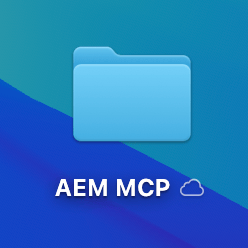
Create a new empty folder on your desktop.
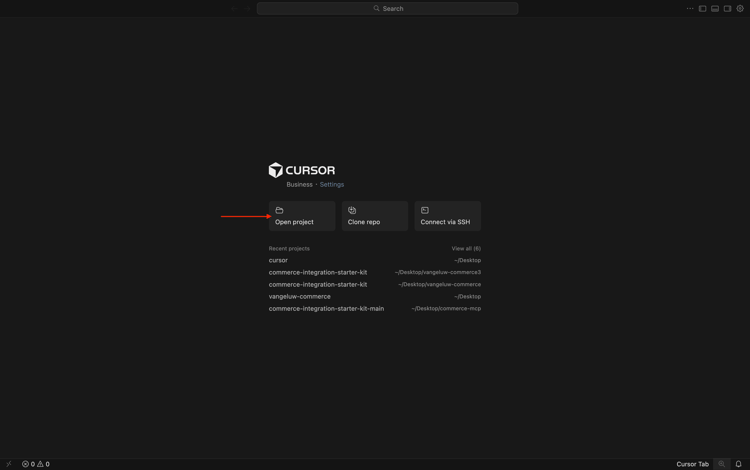
Open Cursor. Click Open project.
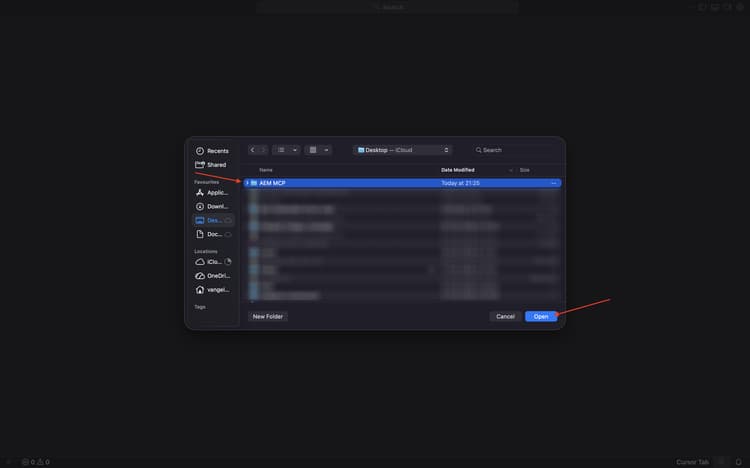
Select he folder you created before and click Open.
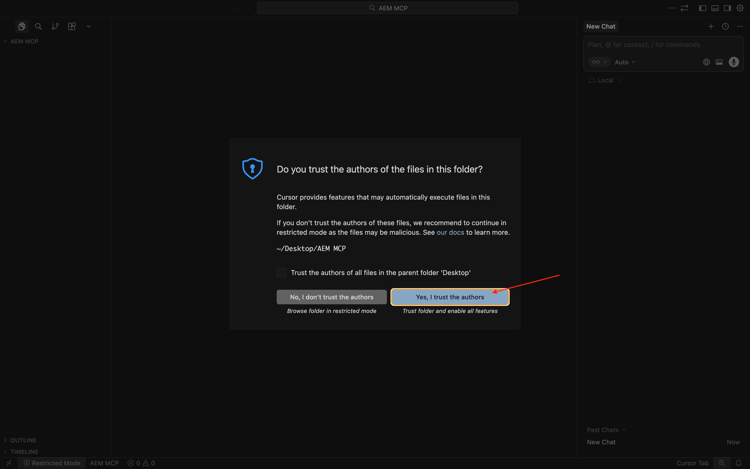
Click Yes, I trust the authors.
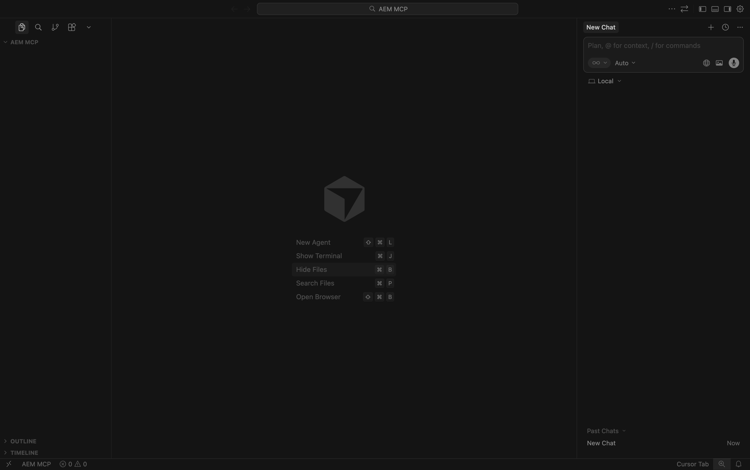
You should then see this. Use the keyboard shortcut Cmd + Shift + J to open Cursor settings. You should then see this. Go to Tools& MCP.
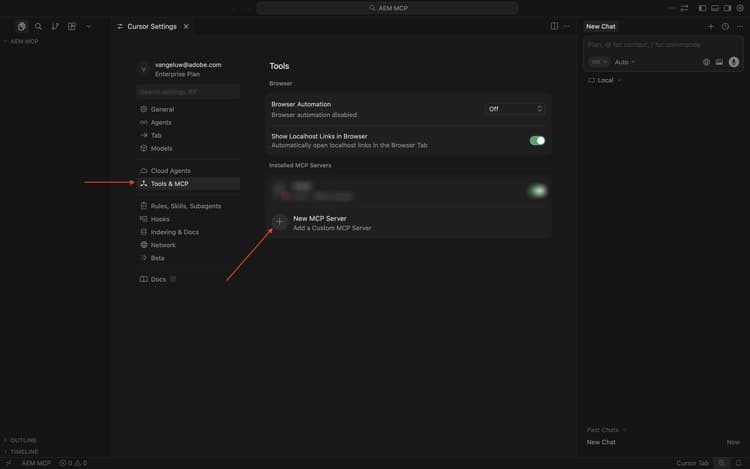
Click + New MCP Server.
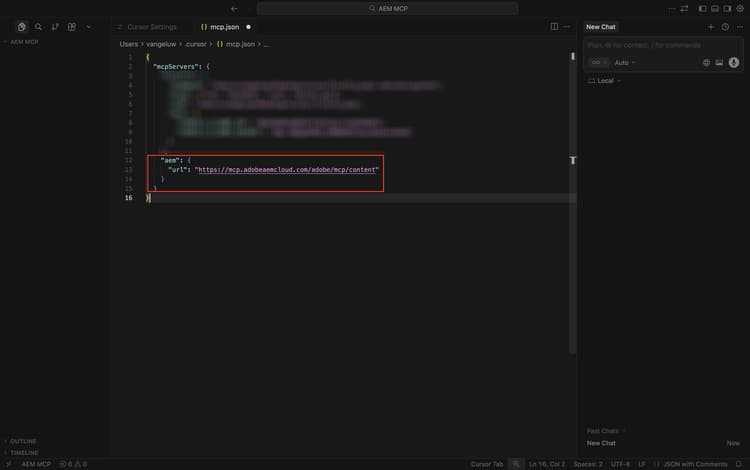
Add the following MCP server to the file mcp.json. There may be other MCP Servers already specified in this file - don’t remove those and just add the below new lines. Save your changes.
"aem": {
    "url": "https://mcp.adobeaemcloud.com/adobe/mcp/content"
    }
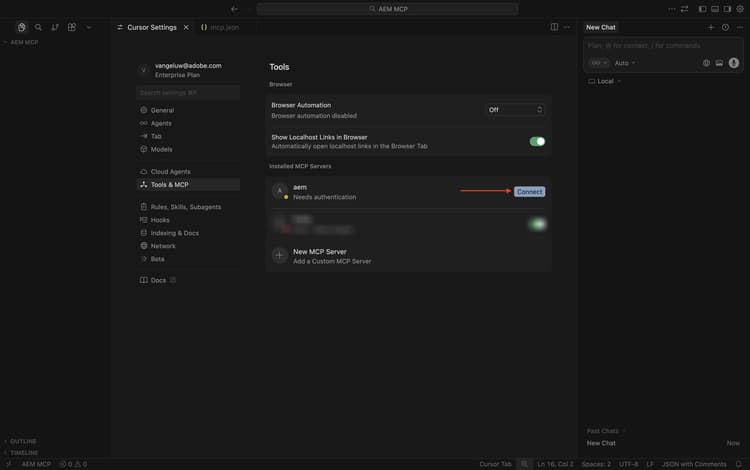
Switch back to the tab Cursor Settings. You should now see a tool called aem added in the list of MCP servers. Click connect to authenticate using your Adobe account.
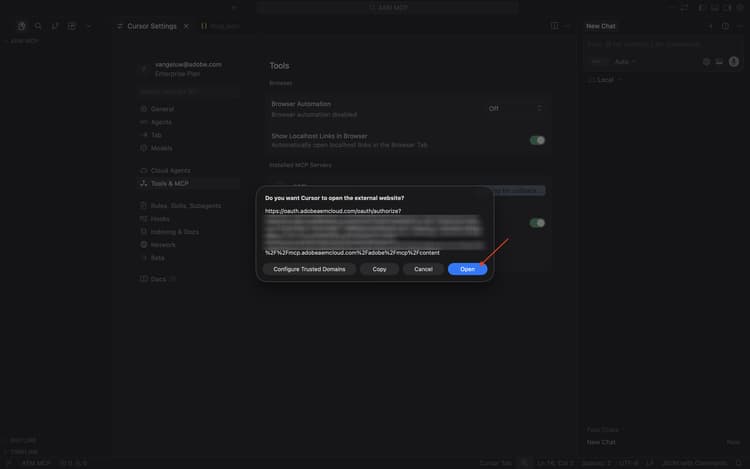
Click Open in case you see this message. You should then authenticate in your browser.
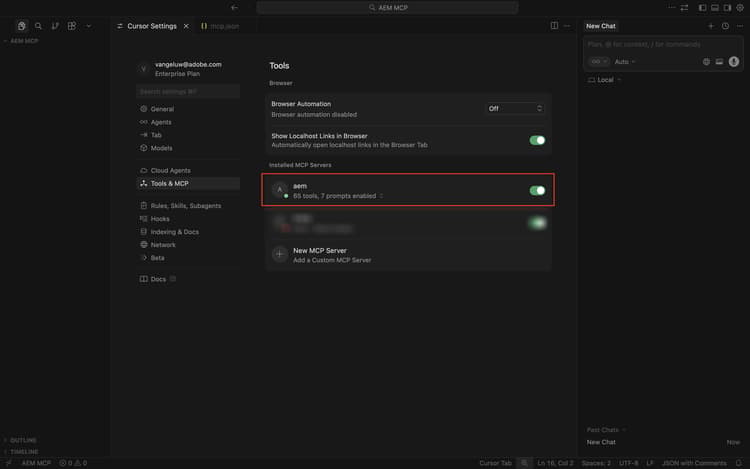
After successful authentication, you should see something like this.
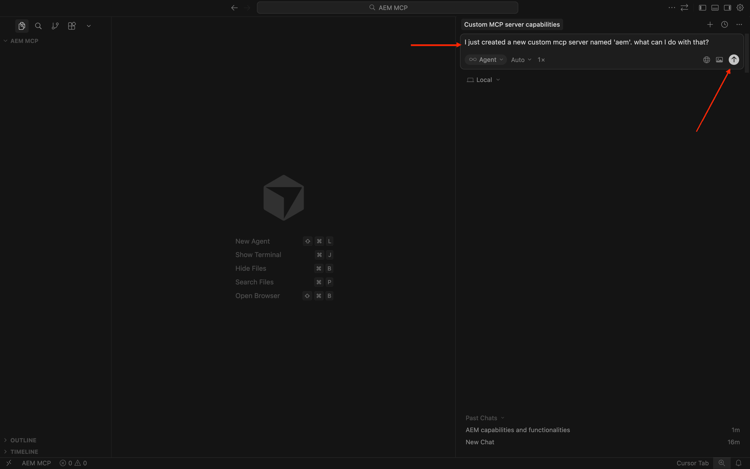
Close the Cursor Settings and mcp.json tabs. Paste the following prompt in the chat and click send.
I just created a new custom mcp server named 'aem'. what can I do with that?
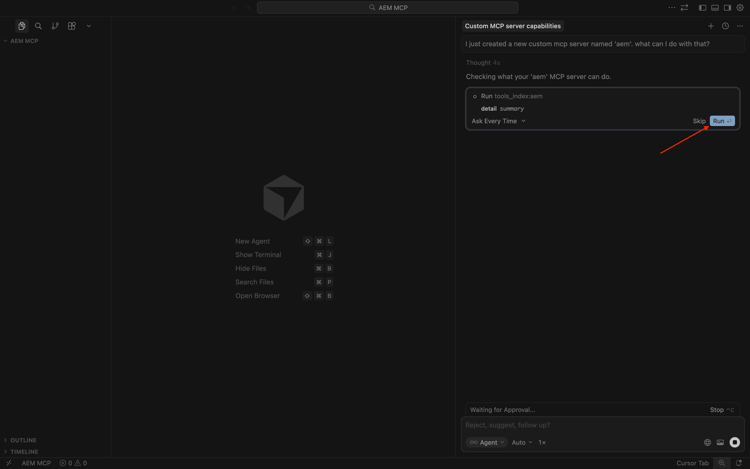
Click Run.
You should then see a similar response.
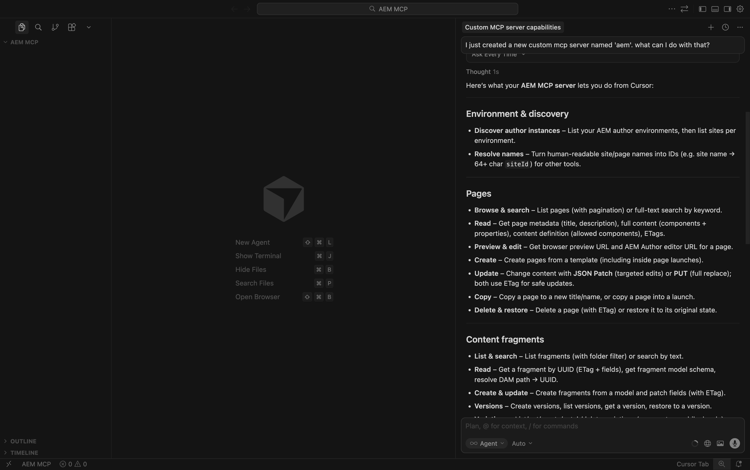
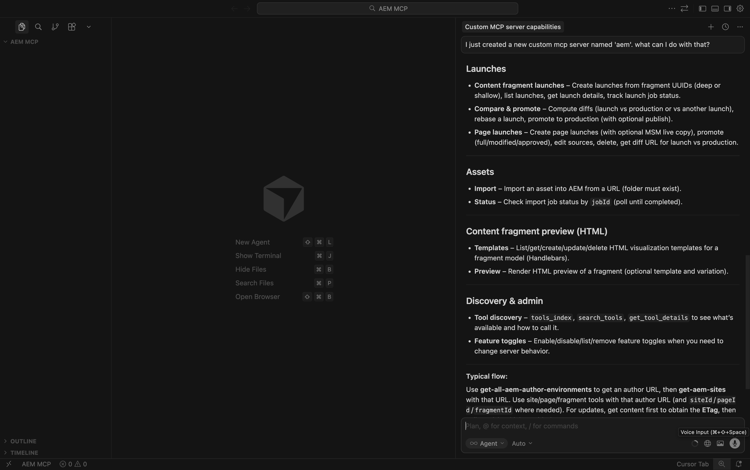
As you can see, similar capabilities are exposed through the MCP server in Cursor as compared to what was possible using AI Assistant in the previous exercise.
Enter the following prompt and click Send.
List AEM Author instances
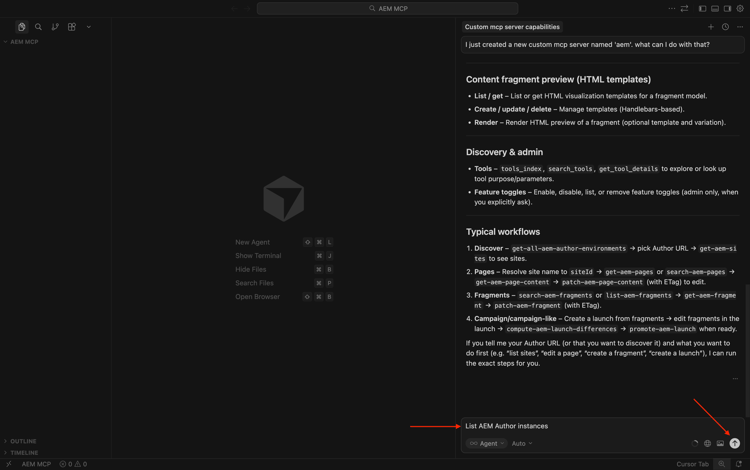
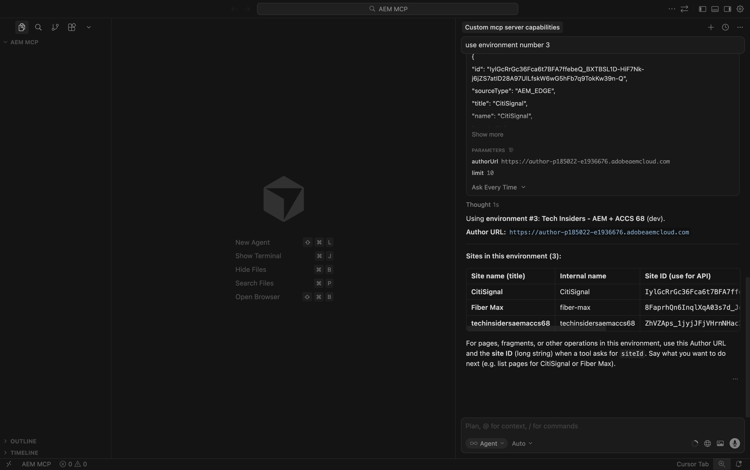
You should then see something like this. Search for the environment you want to use and then enter the following prompt and click Send.
use environment number X
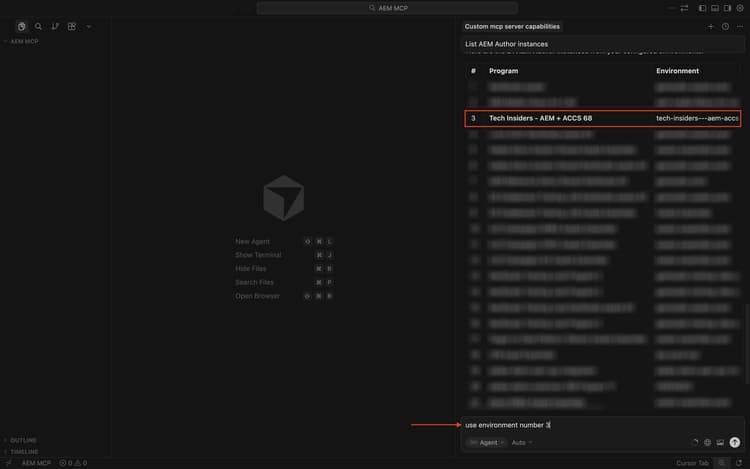
You should then see this.
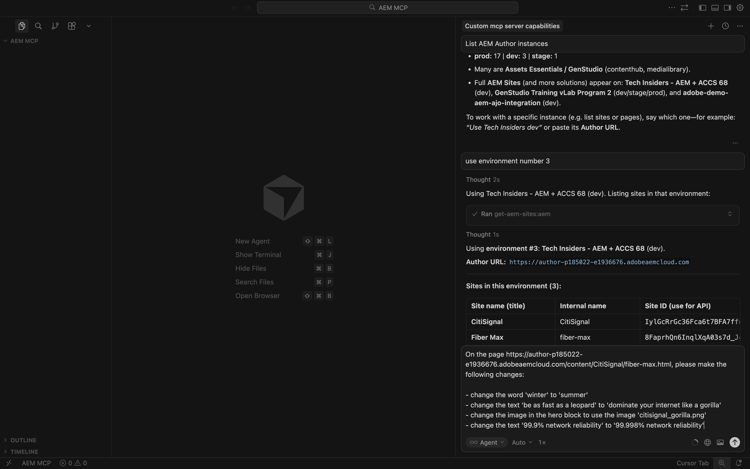
Paste the following prompt and click send. Replace XXX in this prompt by the URL of the fiber-max.html-page that you copied in the previous exercise.
On the page XXX, please make the following changes:

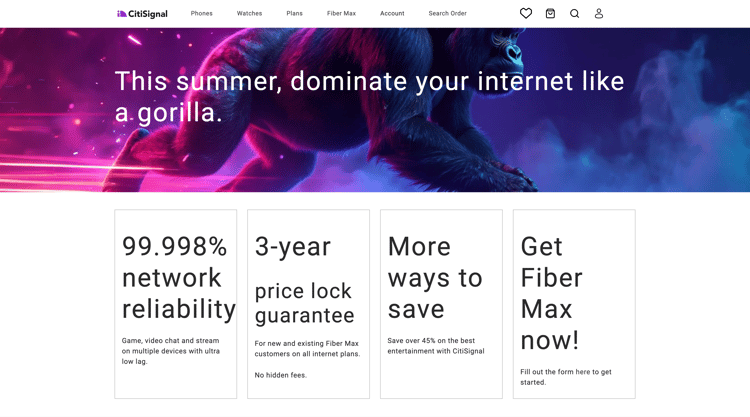
- change the word 'winter' to 'summer'
- change the text 'be as fast as a leopard' to 'dominate your internet like a gorilla'
- change the image in the hero block to use the image 'citisignal_gorilla.png'
- change the text '99.9% network reliability' to '99.998% network reliability'
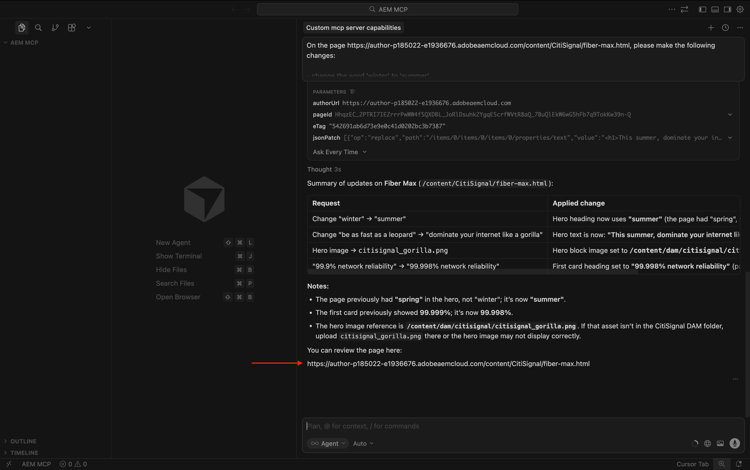
After 1-2 minutes, you should get a similar response. Copy the URL and open the page in your browser.
You should then see this.
Enter the following prompt and click Send.
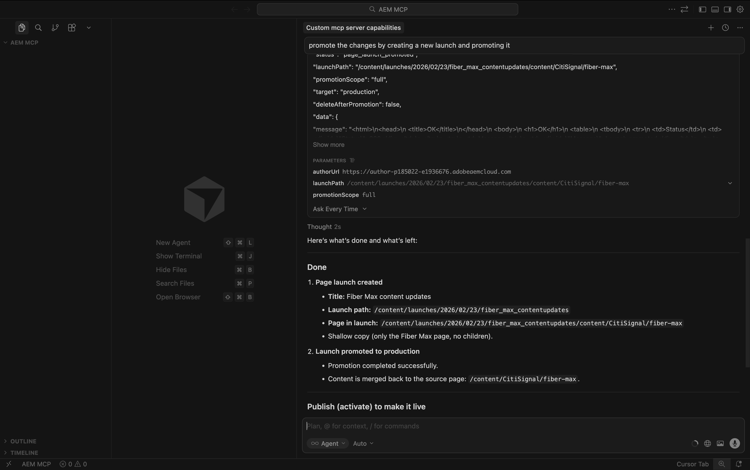
promote the changes by creating a new launch and promoting it
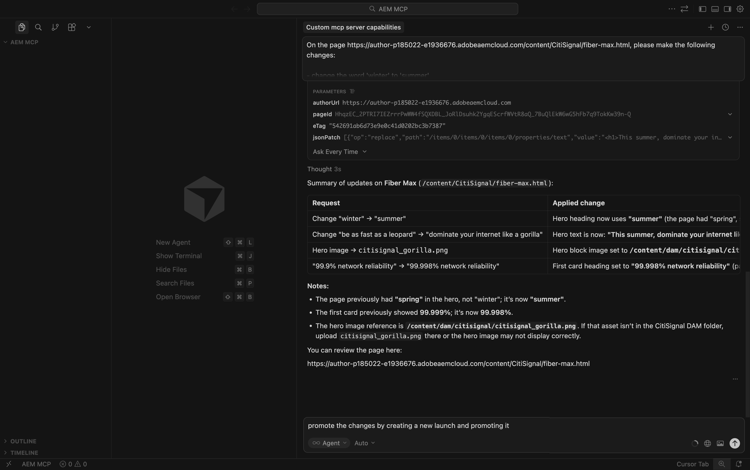
After 1-2 minutes, the changes have been promoted.
You can now see the changes live on your website.
Feel free to explore the other capabilities of the AEM MCP Server.
1.6.2.2 Discovery Agent Cursor MCP Server setup
Use the keyboard shortcut Cmd + Shift + J to open Cursor settings. You should then see this. Go to Tools& MCP. Click + New MCP Server.
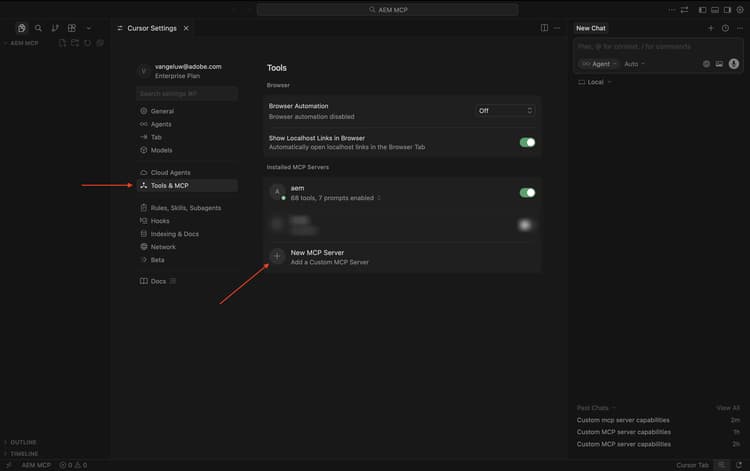
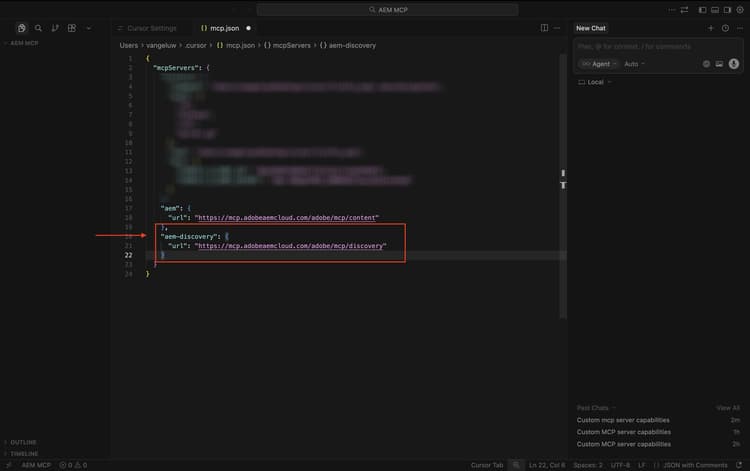
Add the following MCP server to the file mcp.json. There may be other MCP Servers already specified in this file - don’t remove those and just add the below new lines. Save your changes.
,
"aem-discovery": {
    "url": "https://mcp.adobeaemcloud.com/adobe/mcp/discovery"
}
Switch back to the tab Cursor Settings. You should now see a tool called aem added in the list of MCP servers. Click connect to authenticate using your Adobe account.
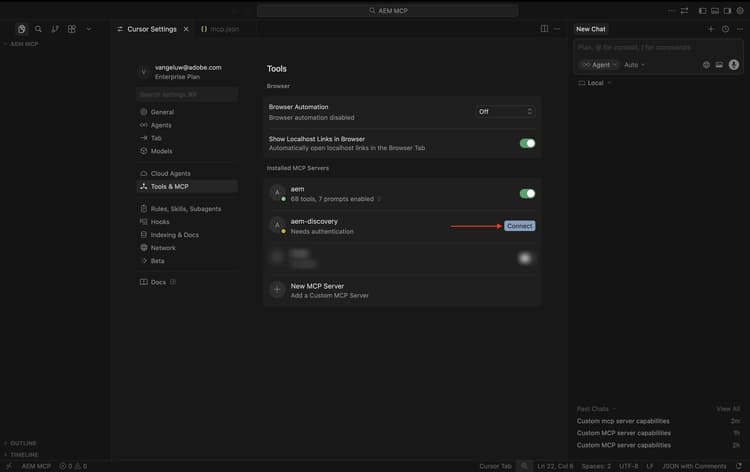
After authenticating, you should see this.
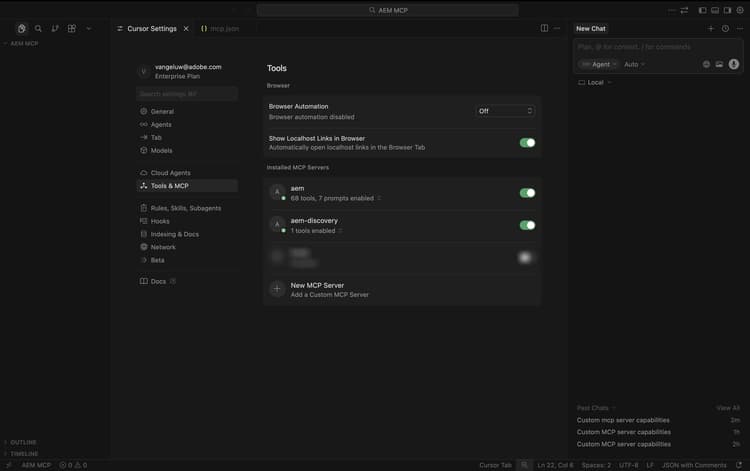
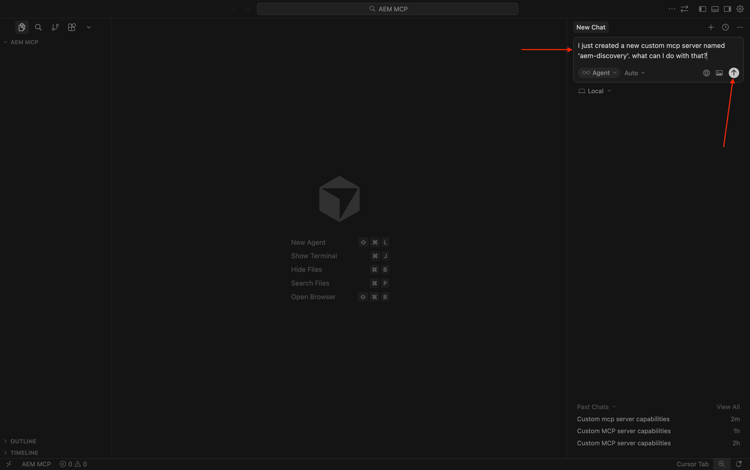
Close the Cursor Settings and mcp.json tabs. Paste the following prompt in the chat and click send.
I just created a new custom mcp server named 'aem-discovery'. what can I do with that?
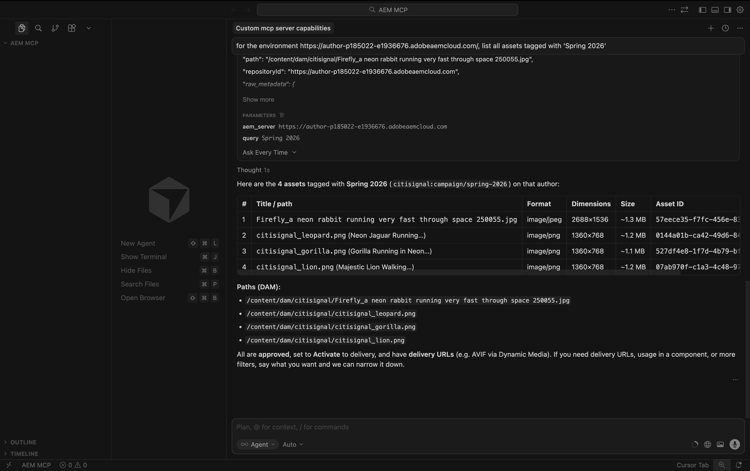
for the environment https://author-pXXXXXX-eXXXXXXX.adobeaemcloud.com/, list all assets tagged with 'Spring 2026'
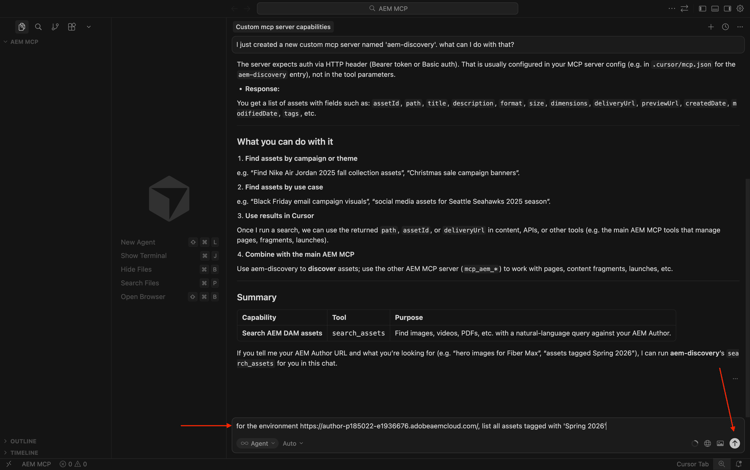
You should then see something like this.
Next Steps
Go to 1.6.3 Scale Content Fragments with ChatGPT & MCP Server
Go Back to AEM & Agents