1.6.3 Scale Content Fragments with ChatGPT & MCP Server
Instructions for in-person workshops
For this exercise, you need to use:
- Instance: Adobe Tech Insiders
- Username: adobetechinsiders-XXX@adobeeventlab.com
- Password: use the password that was shared with you
- AEM Program: Tech Insiders - AEM + ACCS XXX which you can access through https://my.cloudmanager.adobe.com
- GitHub repository: https://github.com/woutervangeluwe/techinsidersXXX-citisignal-aem-accs
1.6.3.1 Create Content Fragment Model
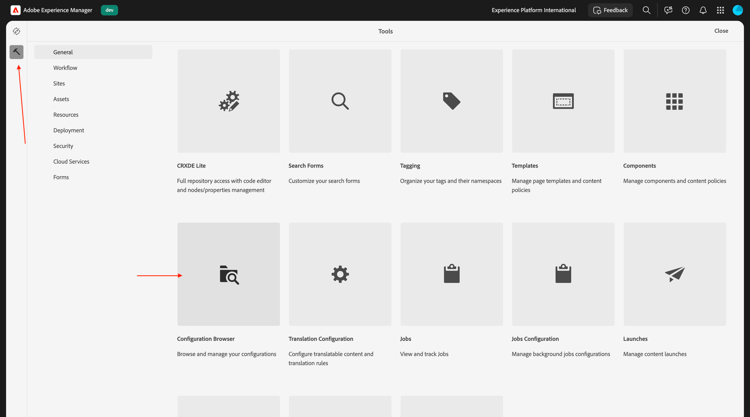
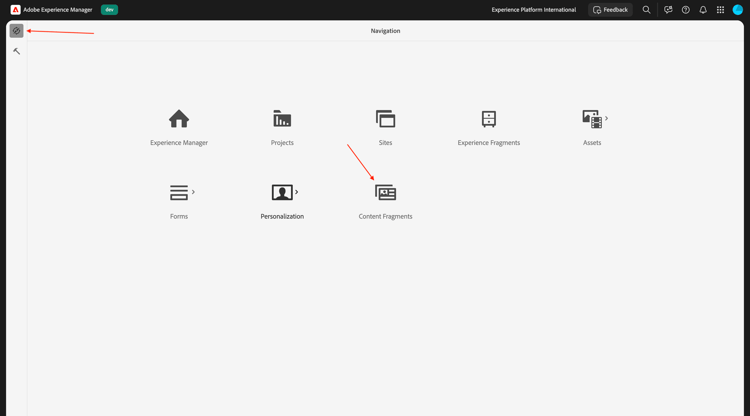
Go back to your Adobe Experience Manager Author environment, to Tools and then go to Configuration Browser.
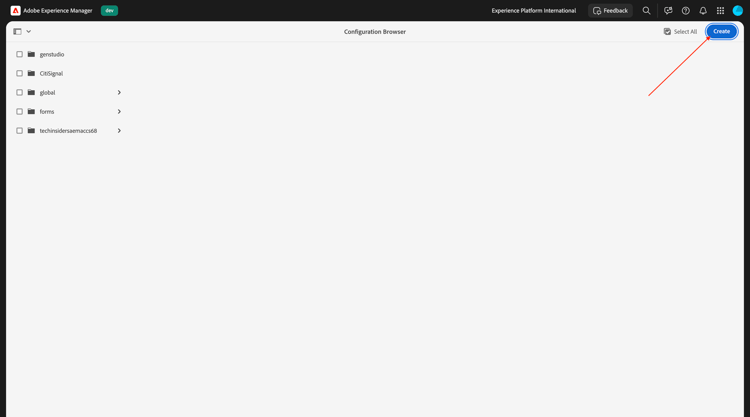
Click Create.
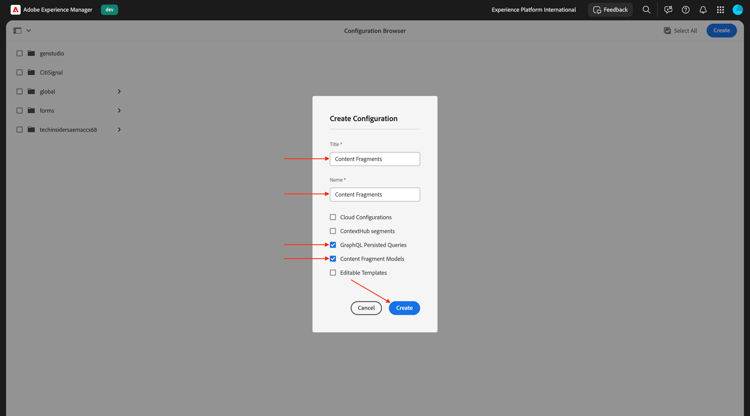
Use Content Fragments for the fields Title and Name.
Make sure the options Content Fragment Models and GraphQL Persisted Queries are both enabled.
Click Create.
Go back to your Adobe Experience Manager Author environment and then go to Content Fragments.
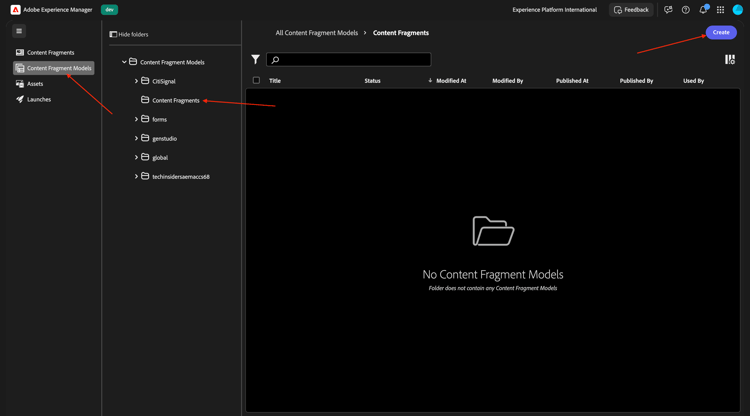
Go to Content Fragment Models, select your configuration Content Fragments and then click Create.
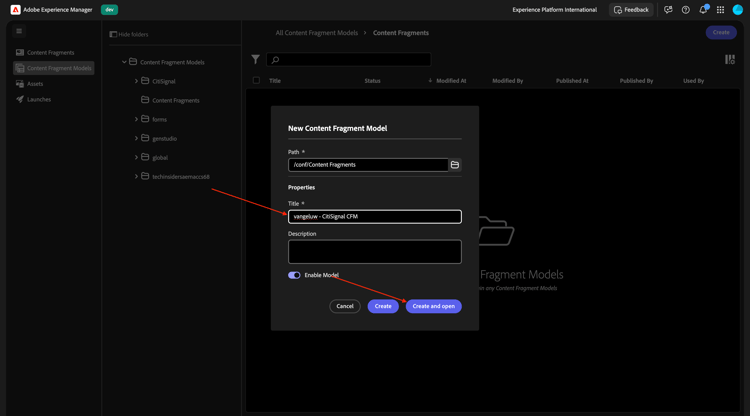
Use the name --aepUserLdap-- - CitiSignal CFM. Click Create and open.
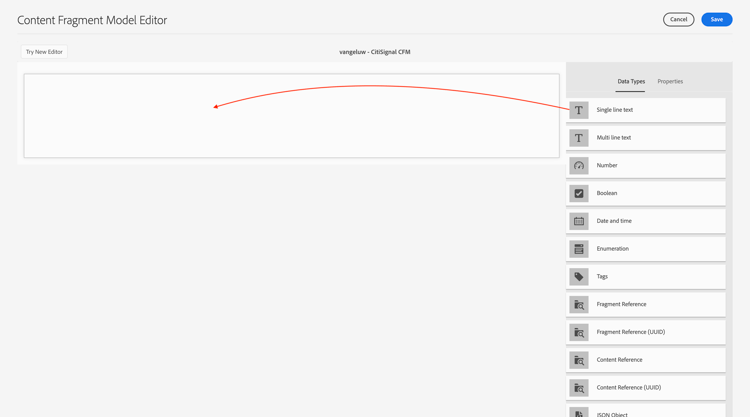
You should then see this. Drag and drop a Single line text field onto the canvas.
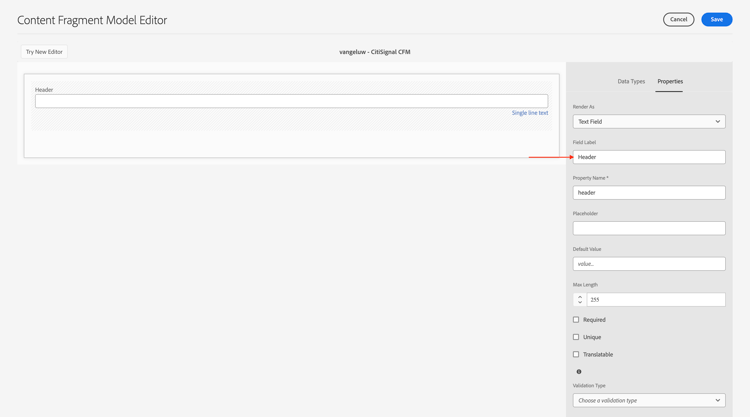
Change the field Field label to Header.
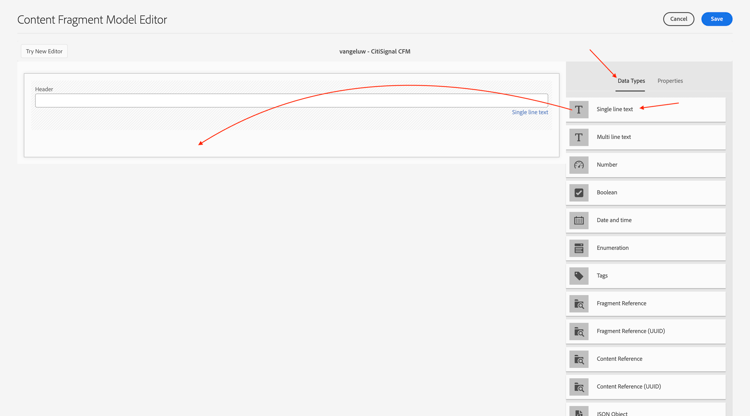
Go back to Data Types. Drag and drop a Single line text field onto the canvas.
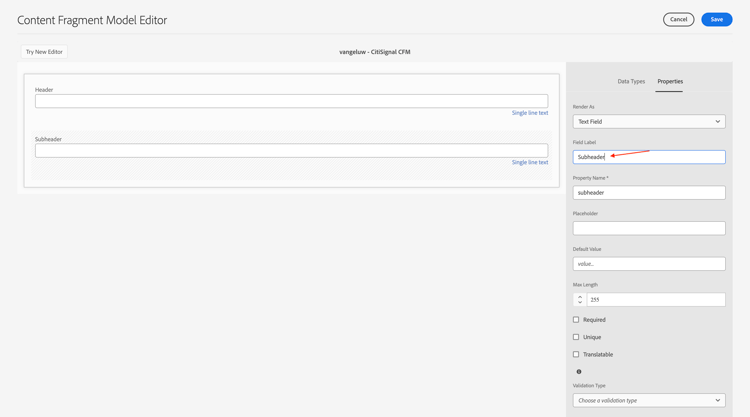
Change the field Field label to Subheader.
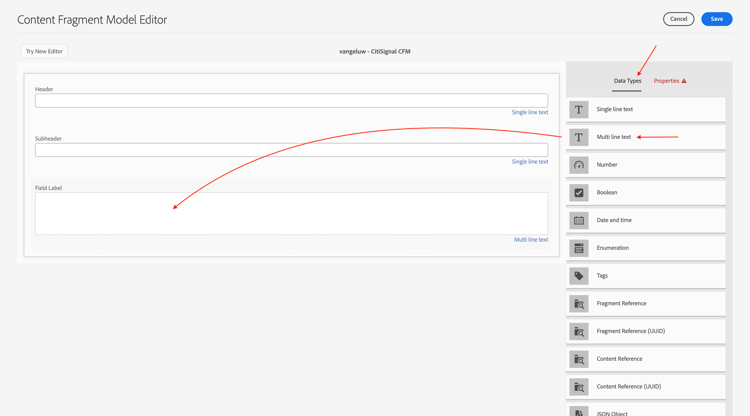
Go back to Data Types. Drag and drop a Multi line text field onto the canvas.
Change the field Field label to Detail Description.
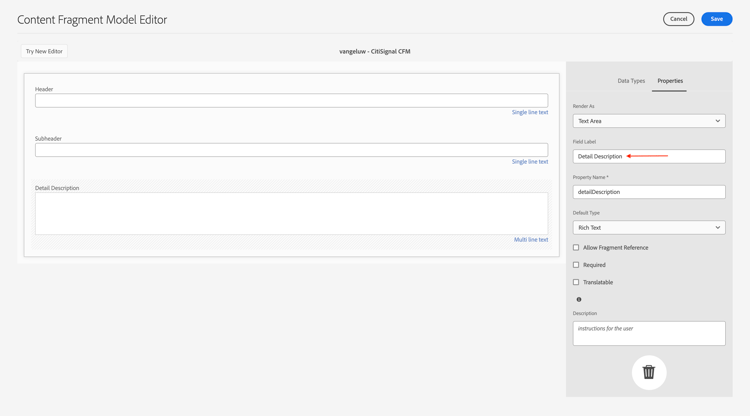
Go back to Data Types. Drag and drop a Single line text field onto the canvas.
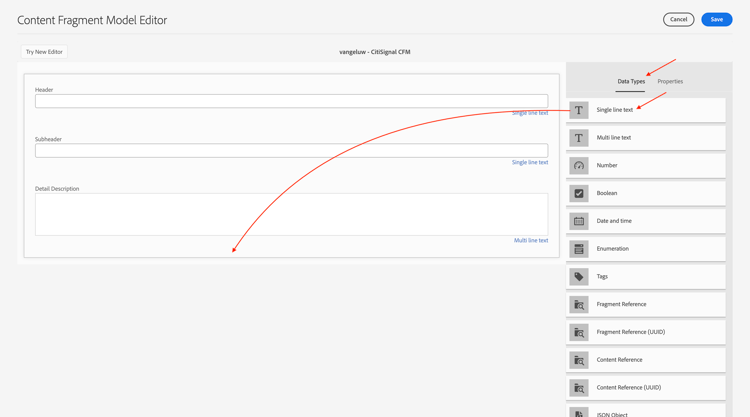
Change the field Field label to CTA Text.
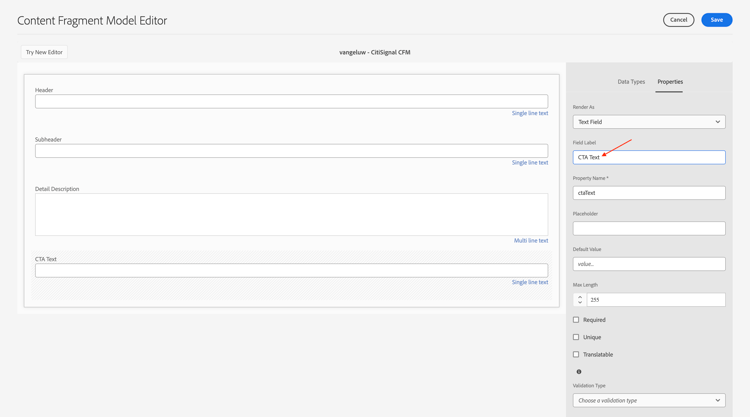
Go back to Data Types. Drag and drop a Single line text field onto the canvas.
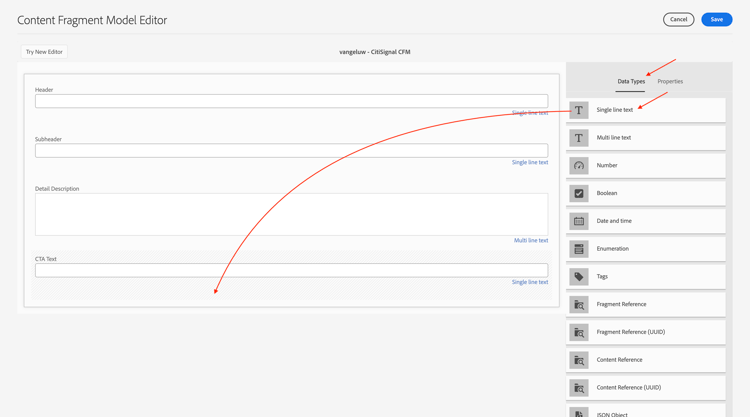
Change the field Field label to CTA Link. Click Save.
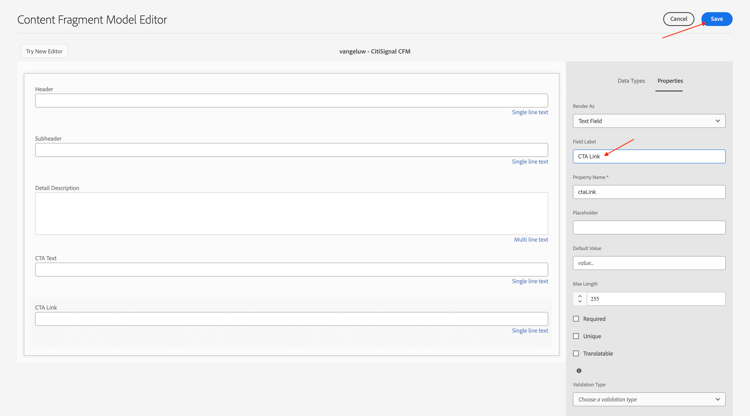
You should then see this.
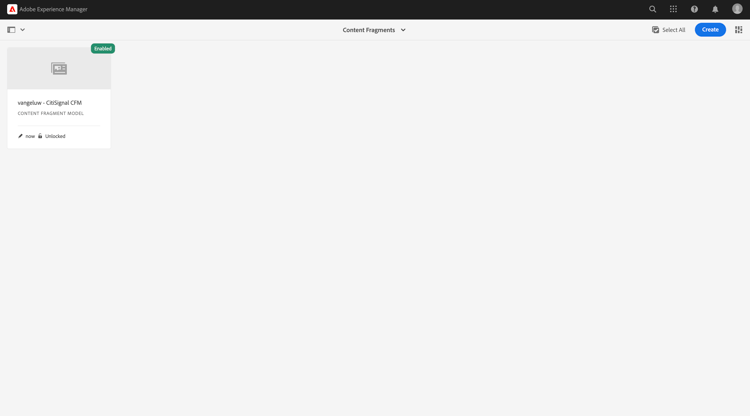
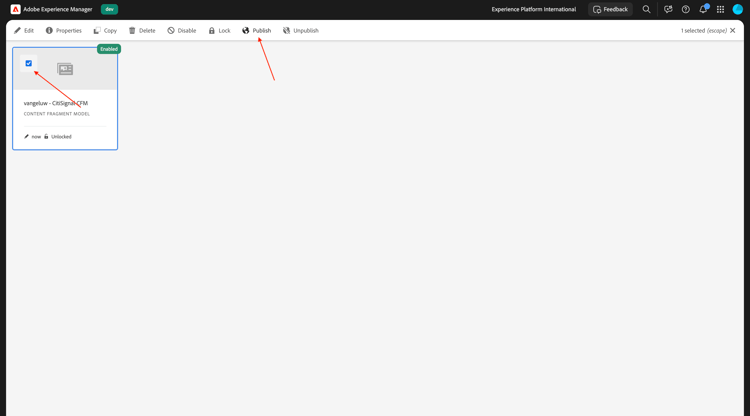
Select your content fragment model and click Publish.
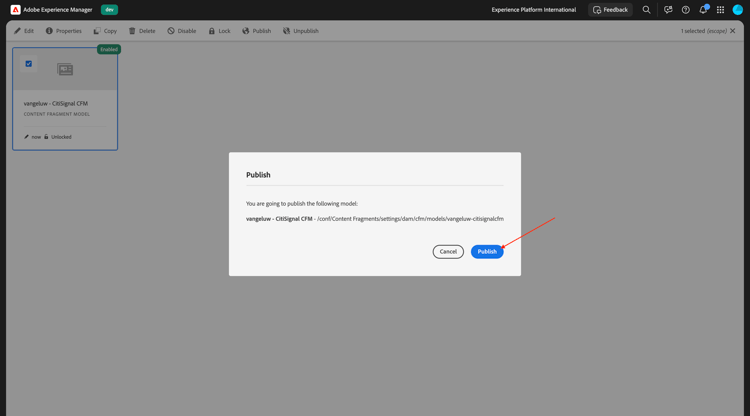
Click Publish.
1.6.3.2 Create Content Fragment
Go back to your Adobe Experience Manager Author environment and then go to Content Fragments.
You should then see this. Click Create and then select Folder.
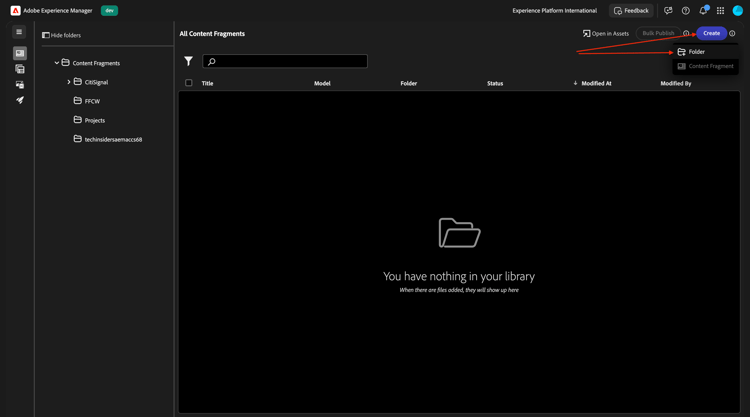
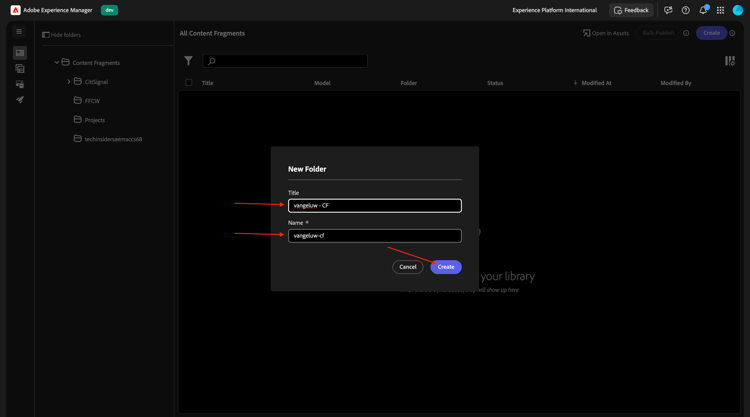
Enter the title: --aepUserLdap-- - CF. Click Create.
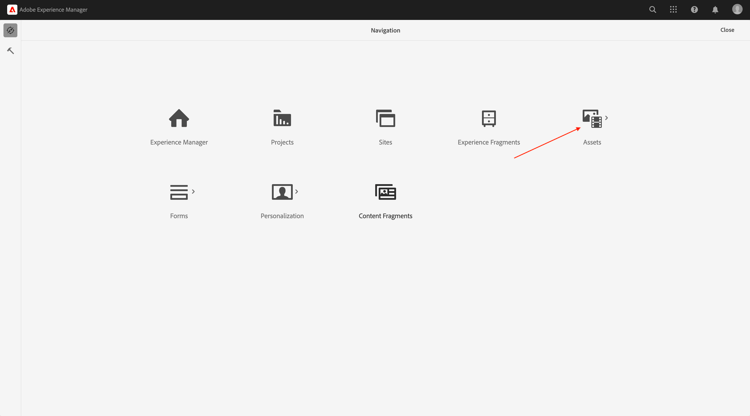
Go back to your Adobe Experience Manager Author environment and then go to Assets.
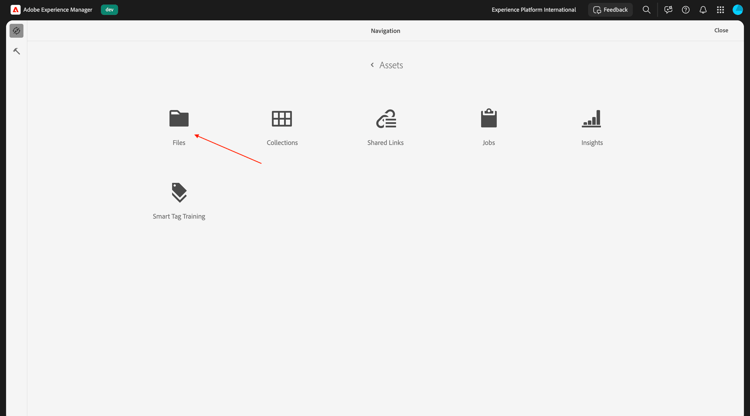
Go to Files.
Select the folder you just created, which should be named --aepUserLdap-- - CF and click Properties.
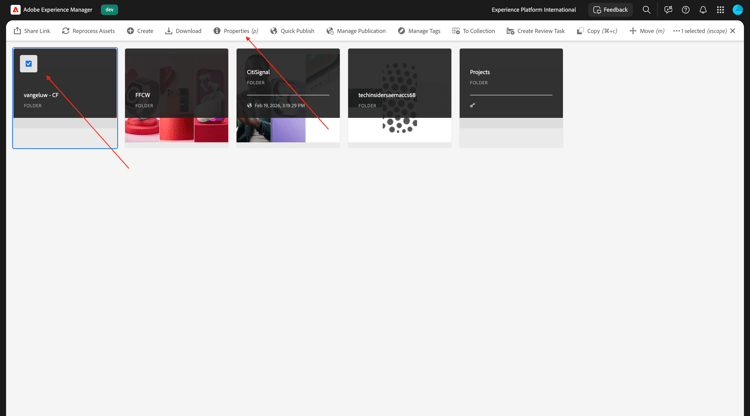
Go to Cloud Services and then click the folder icon.
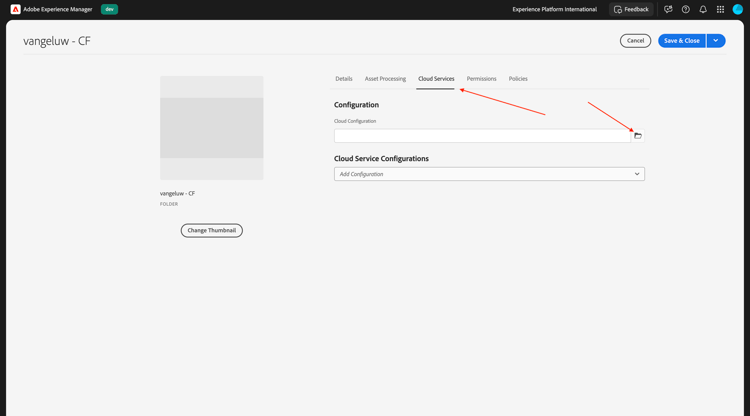
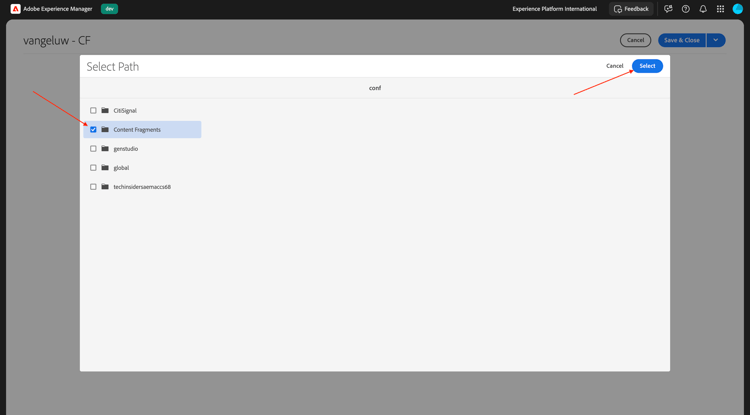
Select the cloud configuration you created before, which should be named Content Fragments. Click Select.
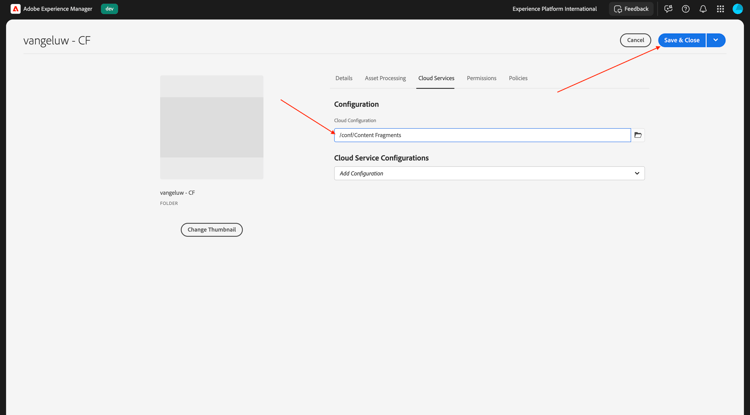
You shoudl then see this. Click Save & Close.
Go back to your Adobe Experience Manager Author environment and then go to Content Fragments.
You should then see this. Click Create and then select Content Fragment.
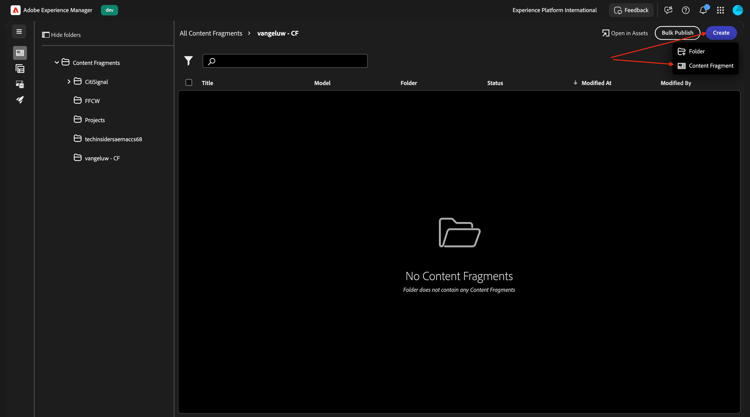
Select the Content Fragment Model you created before, which should be named --aepUserLdap-- - CitiSignal CFM. Use the name --aepUserLdap-- CitiSignal Fiber Max.
Click Create and open.
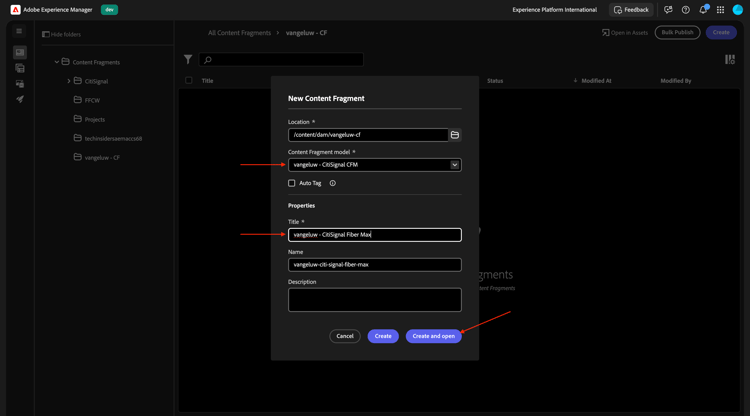
You should then see this.
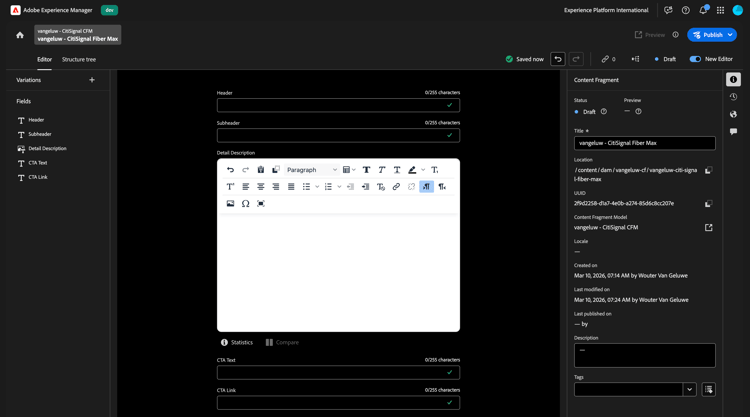
Fill out the fields like this:
- Header:
CitiSignal Fiber Max - Subheader:
Experience high speed internet now - Detail Description:
Experience the future of connectivity with CitiSignal Fiber Max, the ultimate solution for high-speed internet. Designed for homes and businesses that demand performance, Fiber Max delivers blazing-fast fiber speeds, ensuring seamless streaming, ultra-responsive gaming, and crystal-clear video calls.

Key Features:

Unmatched Speed: Enjoy lightning-fast downloads and uploads powered by cutting-edge fiber technology.
Reliable Performance: Consistent connectivity for work, entertainment, and everything in between.
Future-Ready: Built to handle the growing demands of smart homes and digital lifestyles.
Unlimited Potential: No data caps, no throttling—just pure speed.
Why Choose CitiSignal Fiber Max? Stay ahead with internet that works as hard as you do. Whether you're powering a remote office or streaming in 4K, Fiber Max ensures you never miss a beat.
CTA Text: Upgrade now by signing your new contract!
CTA Link: https://techinsiders68.adobedemosystem.com/
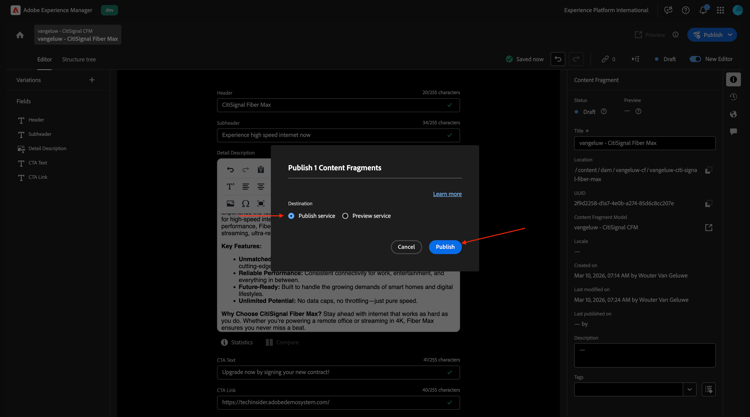
Click Publish and then select Now.
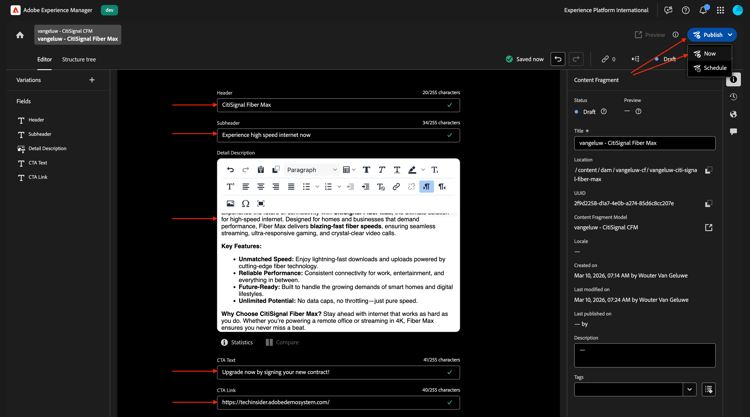
Click Publish.
1.6.3.3 Configure MCP server in ChatGPT
- a paid version of OpenAI’s ChatGPT Enterprise
- using the ChatGPT Enterprise web client
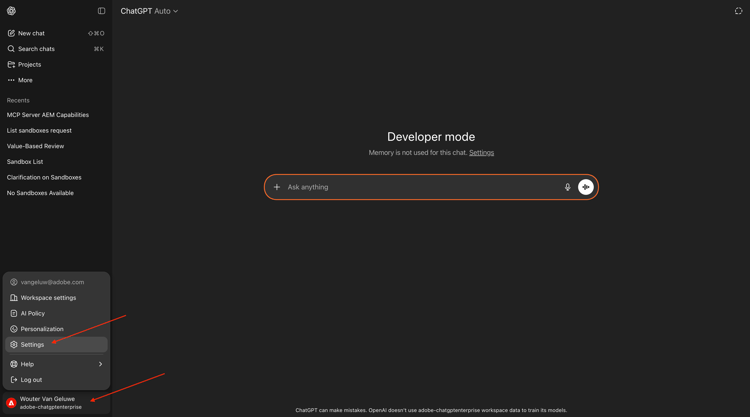
Go to https://chatgpt.com/{target=“_blank”} and log in using your account details. Once you’re logged in, you should see this. Click your username and then select Settings.
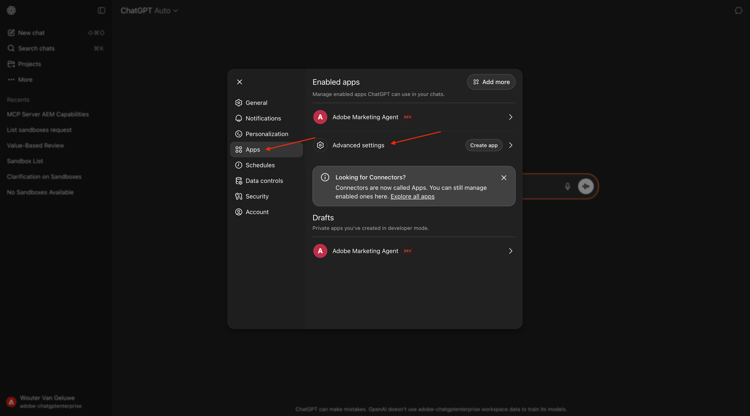
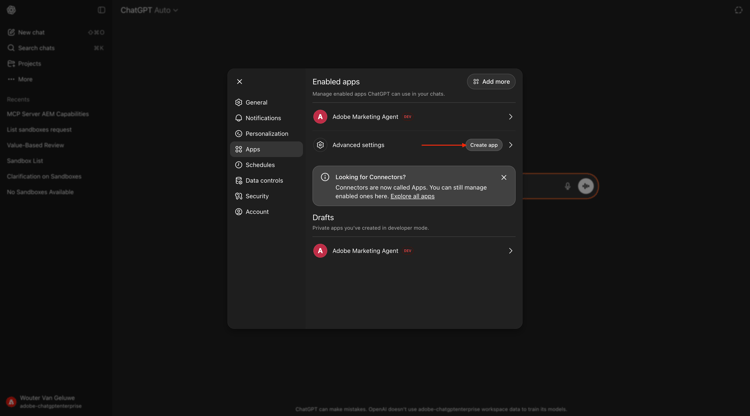
Go to Apps and then select Advanced settings.
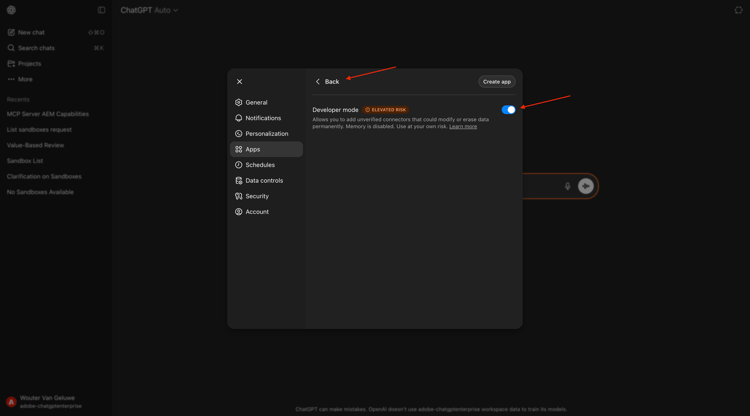
Turn on Developer mode and then click Back.
Click Create app.
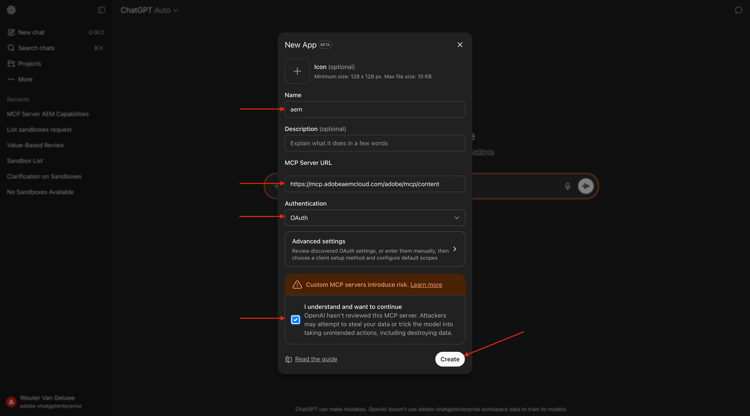
Fill out the fields like this:
- Name:
aem - MCP Server URL:
https://mcp.adobeaemcloud.com/adobe/mcp/content - Authentication:
OAuth
Check the checkbox for I understand and want to continue.
Click Create.
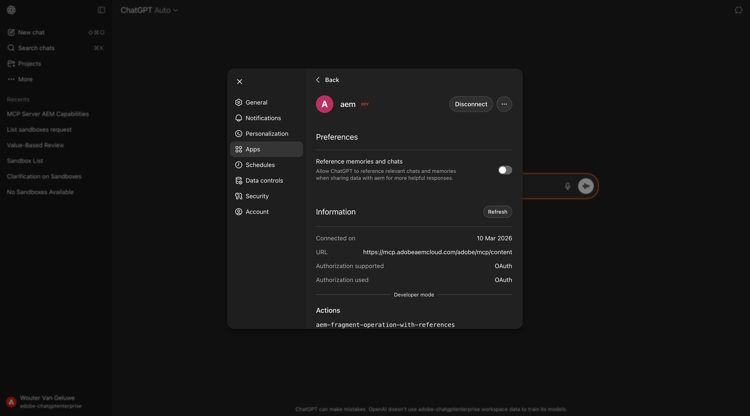
ChatGPT will now attempt to connect to your Adobe account. Select Allow Access and then you’ll have to log in with your Adobe account.
Once you’ve logged in successfully, you should see that your Adobe Marketing Agent is now connected successfully.
1.6.3.4 Use AEM MCP server in ChatGPT
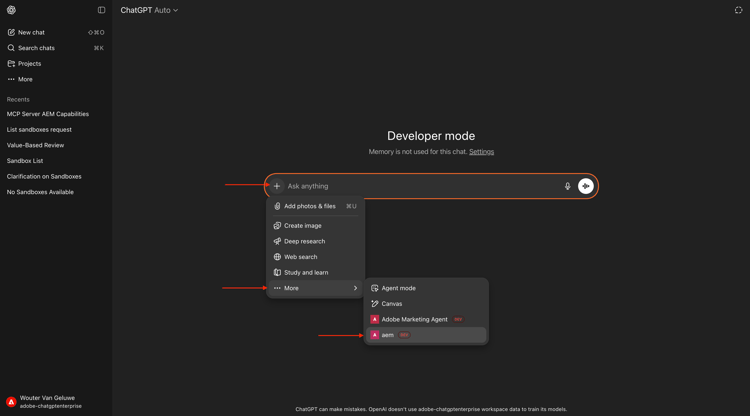
Close this window.
You should then see this. Click the + icon, go to More and then select aem.
Enter the following prompt and click Send.
I just created a new custom mcp server named 'aem'. what can I do with that?
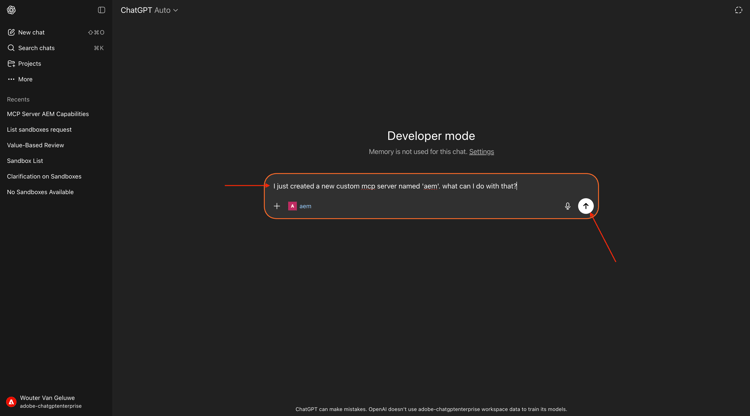
You should then see something like this. Enter the following prompt and click Send.
use the author url https://author-pXXXXXX-eXXXXXXX.adobeaemcloud.com/ from now on
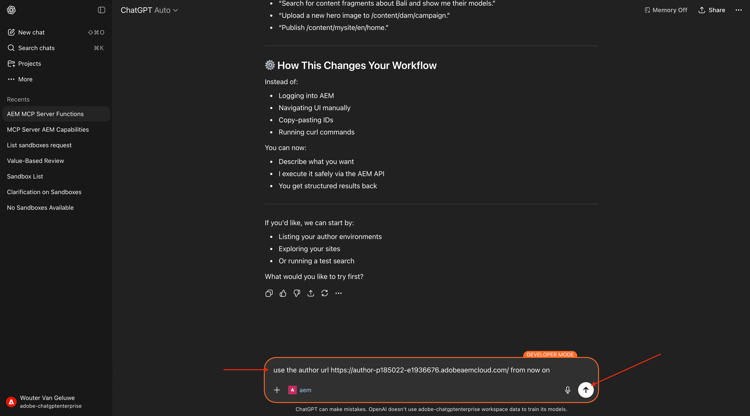
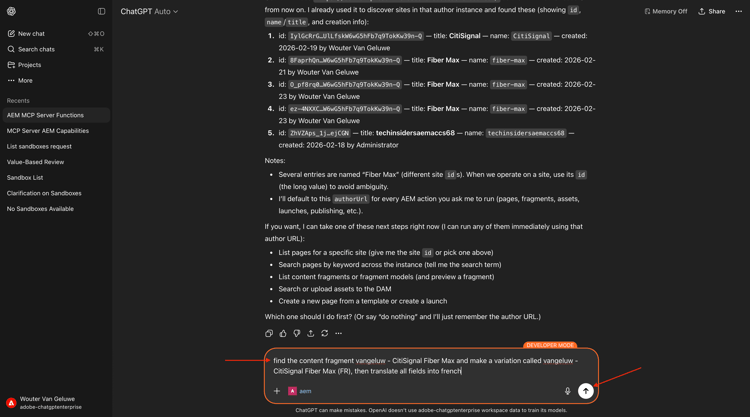
You should then see something like this. Enter the following prompt and click Send.
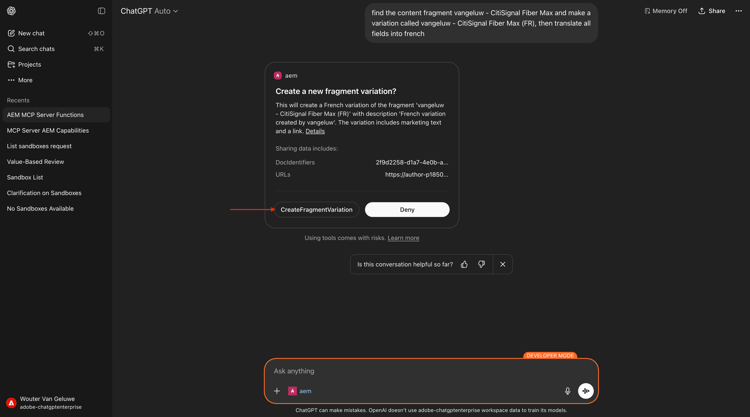
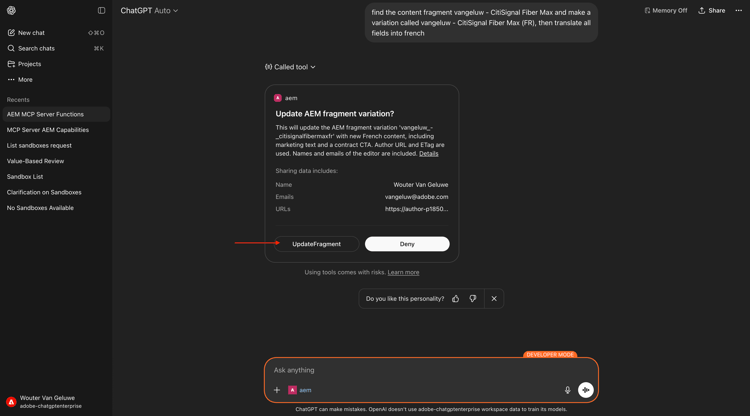
find the content fragment --aepUserLdap-- - CitiSignal Fiber Max and make a variation called --aepUserLdap-- - CitiSignal Fiber Max (FR), then translate all fields into french
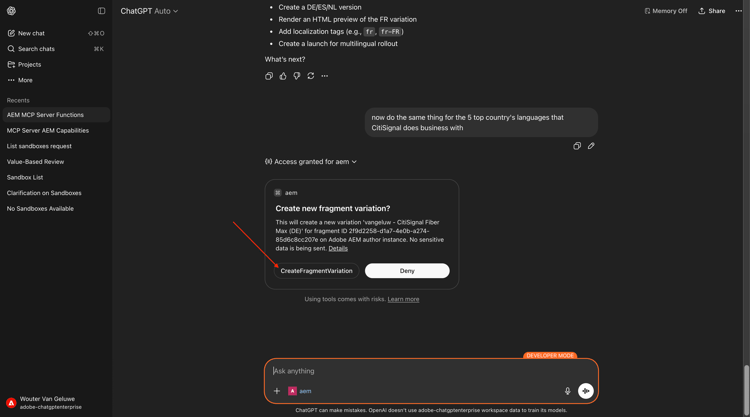
Click CreateFragmentVariation.
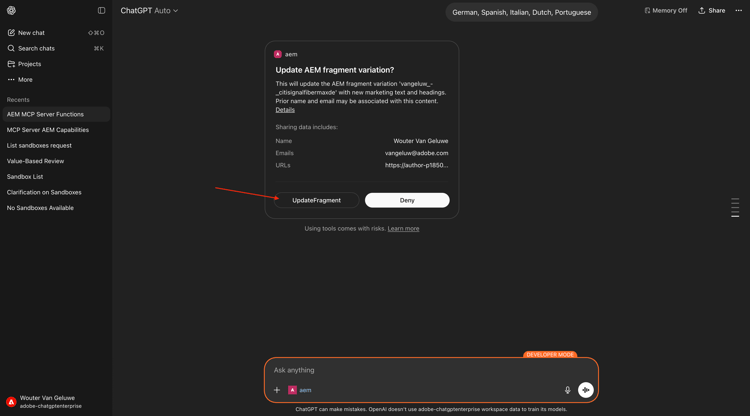
Click UpdateFragment.
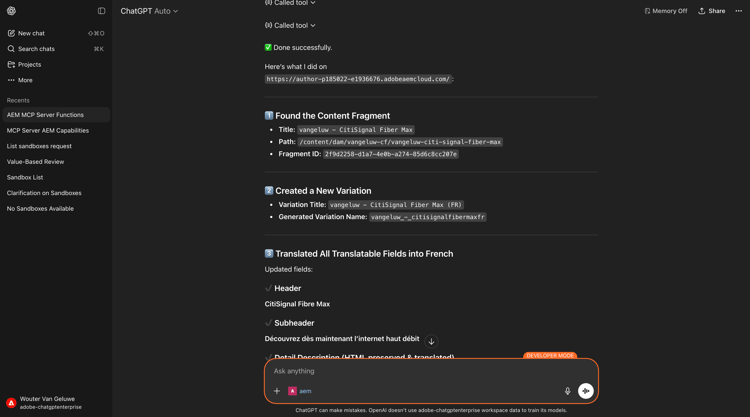
You should then see this. Your fragment variation has been created successfully.
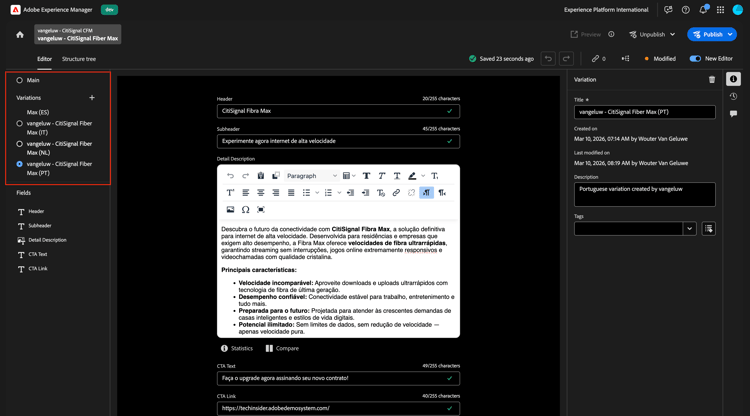
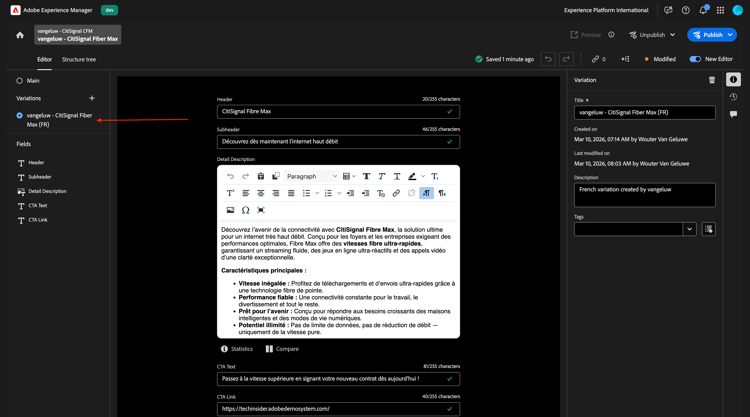
You can now see your new variation in the AEM UI as well.
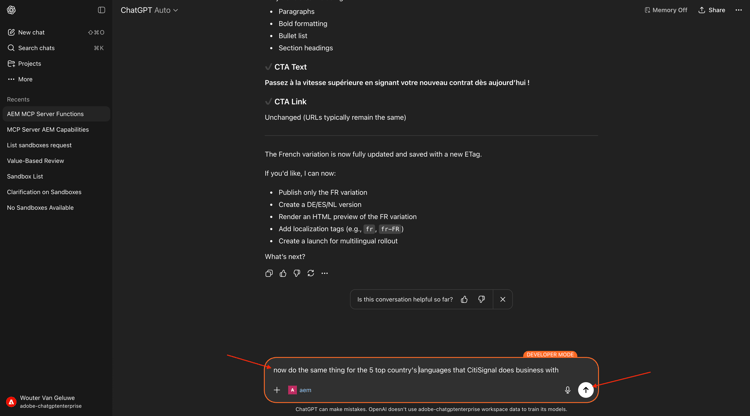
Next, use ChatGPT to translate your content fragment into more variations. Enter the following prompt and click Send.
now do the same thing for the 5 top country's languages that CitiSignal does business with
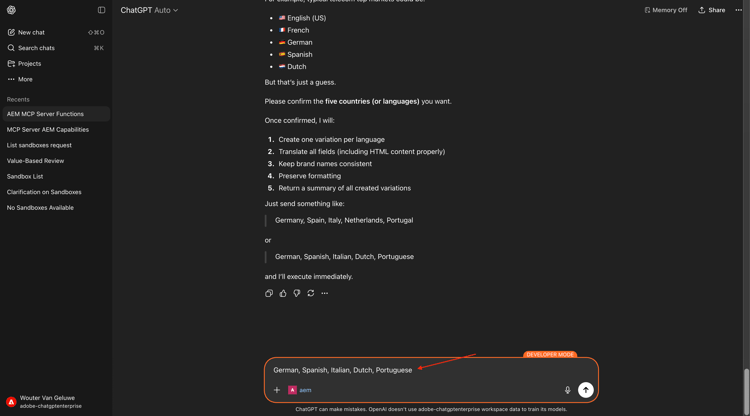
Confirm your language choice.
Click CreateFragmentVariation.
Click UpdateFragment.
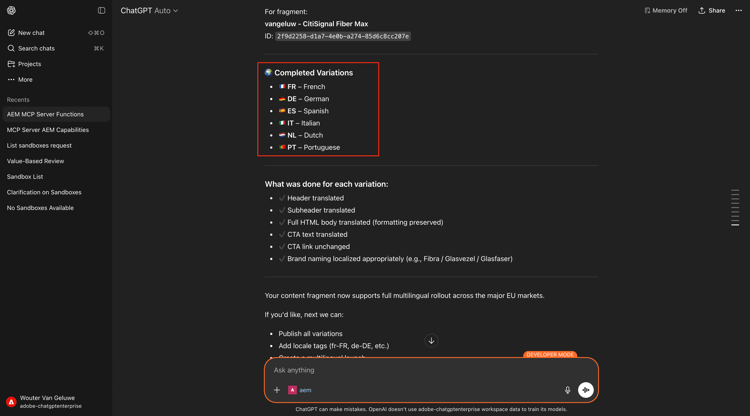
Repeat this process for each of the languages you selected. Once done, you should see something like this.
Go back to your AEM UI and refresh your screen. You can now see your new variations in your content fragment.