1.6.1 Getting started with AEM Agents
Instructions for in-person workshops
For this exercise, you need to use:
- Instance: Adobe Tech Insiders
- Username: adobetechinsiders-XXX@adobeeventlab.com
- Password: use the password that was shared with you
- AEM Program: Tech Insiders - AEM + ACCS XXX which you can access through https://my.cloudmanager.adobe.com
- GitHub repository: https://github.com/woutervangeluwe/techinsidersXXX-citisignal-aem-accs
1.6.1.1 Discovery Agent
The Adobe Experience Manager (AEM) Discovery Agent is an AI-powered tool within AEM as a Cloud Service that enables users to find, retrieve, and utilize content—including Assets, Content Fragments, and Adaptive Forms—using natural language prompts. It eliminates the need for manual, click-heavy, or complex filtering by understanding intent and searching across the repository.
In order to use Discovery Agent, you will first create some Tags in Adobe Experience Manager, and you will then tag some assets using those tags. Once that’s done, you’ll be able to use CX Enterprise Coworker to discover assets in an easy and business-friendly way.
Go to https://my.cloudmanager.adobe.com. The org you should select is --aepImsOrgName--.
Create and use Tags with Assets
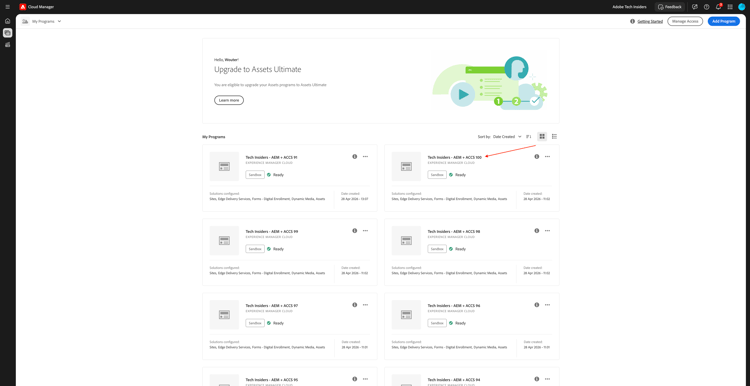
Click to open your Cloud Manager Program, which should use of the below naming options:
Tech Insiders - AEM + ACCS Xwhereby X stands for the number that was assigned to you.Tech Insiders On Demand - AEM + ACCS Xwhereby X stands for the number that was assigned to you.--aepUserLdap-- - CitiSignal AEM+ACCS, in this case you don’t have a number as you’re using your own AEM program that you created yourself.
In this example, the program Tech Insiders - AEM + ACCS 100 will be used. You should use your own program.
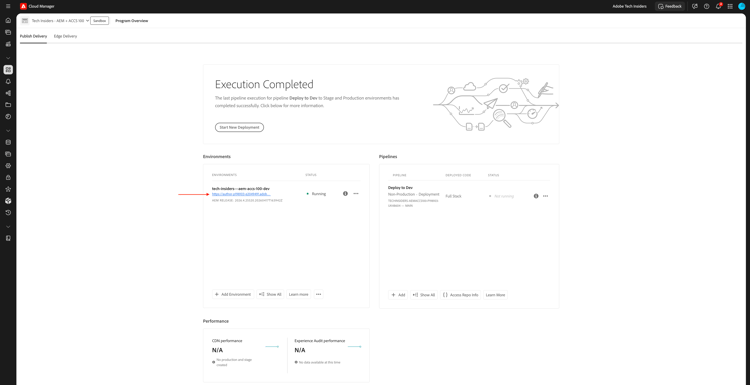
Click the URL of your environment to open it.
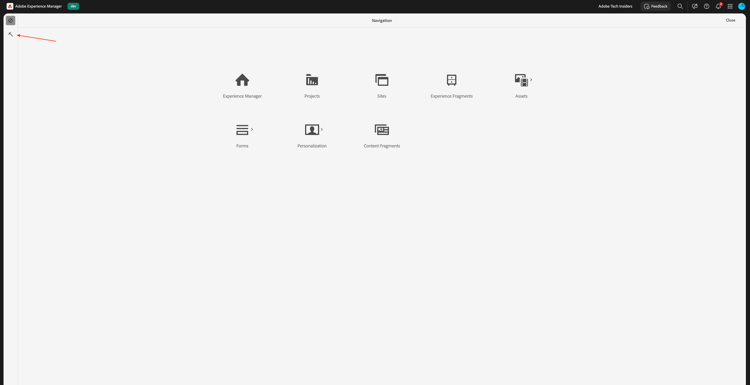
Click the tools icon.
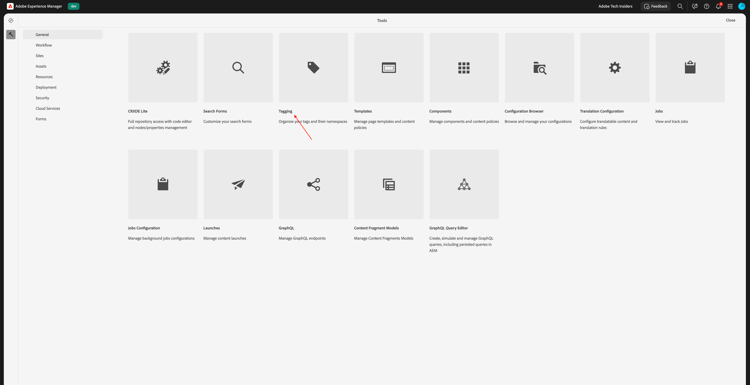
Under General, click Tagging.
You should then see this. Click Create and then select Create Namespace.
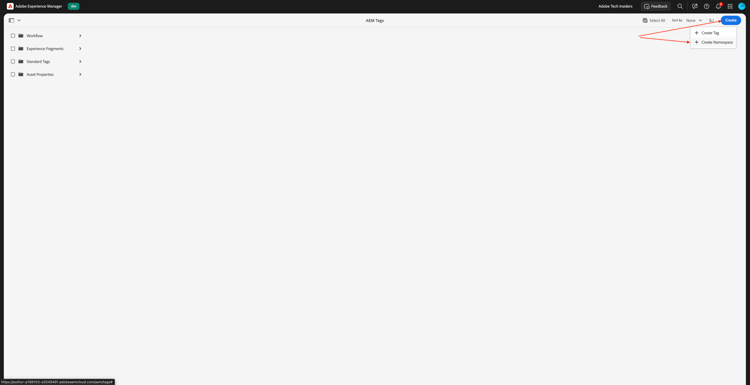
In the field Title, enter: --aepUserLdap-- - CitiSignal. Click Create.
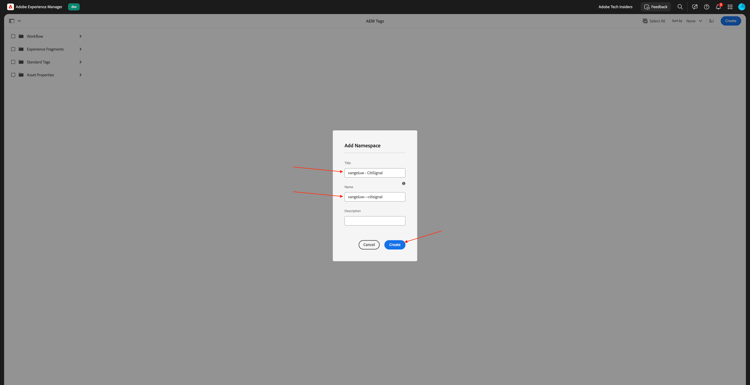
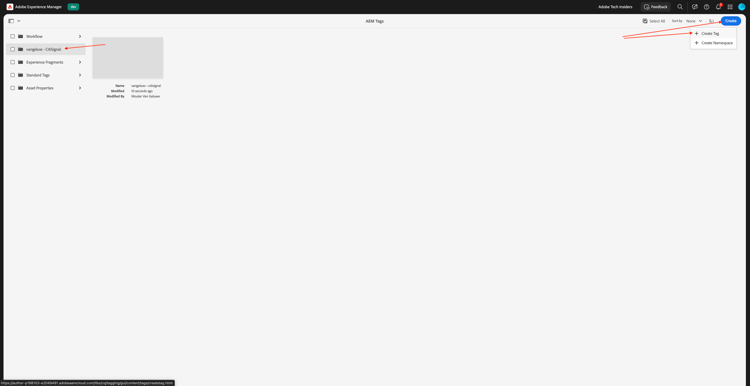
Drill down into the namespace --aepUserLdap-- - CitiSignal by clicking it. Click Create and then select Create Tag.
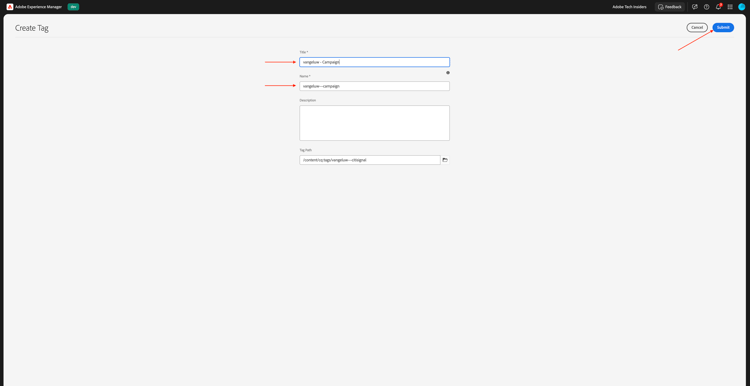
In the field Title, enter: --aepUserLdap-- - Campaign. Click Submit.
Select the tag --aepUserLdap-- - Campaign by clicking it. Click Create and then select Create Tag.
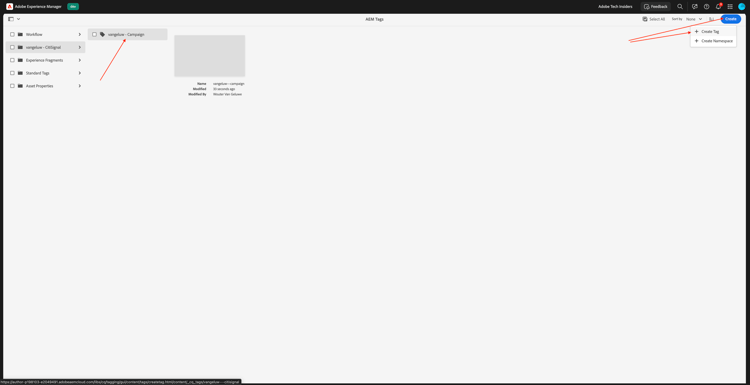
In the field Title, enter: --aepUserLdap-- - Winter 2026. Click Submit.
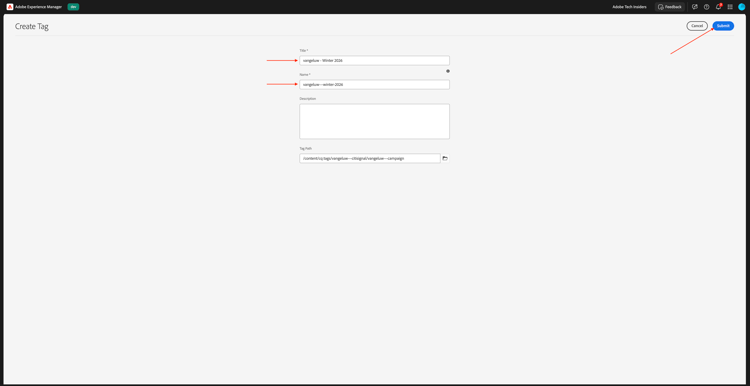
Select the tag Campaign by clicking it. Click Create and then select Create Tag.
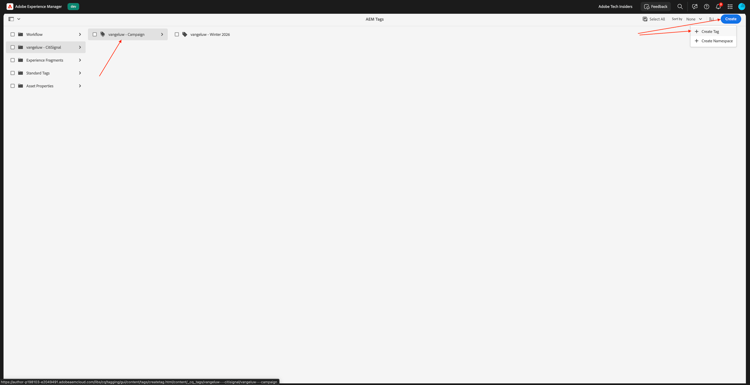
In the field Title, enter: --aepUserLdap-- - Spring 2026. Click Submit.
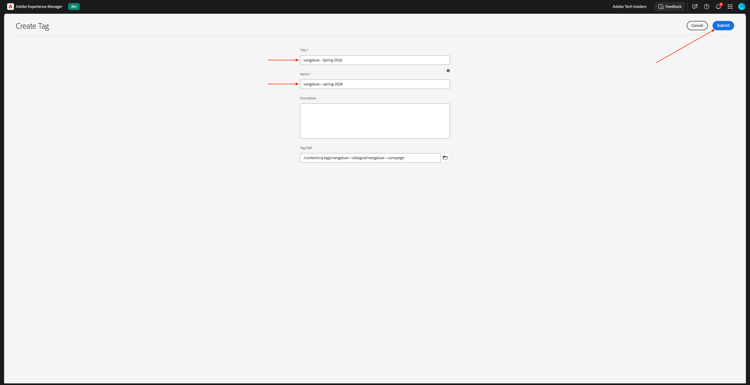
You should now have this.
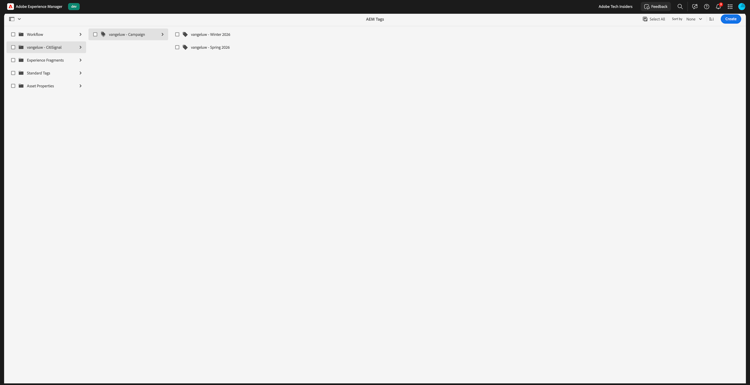
Click Adobe Experience Manager and then click Assets.
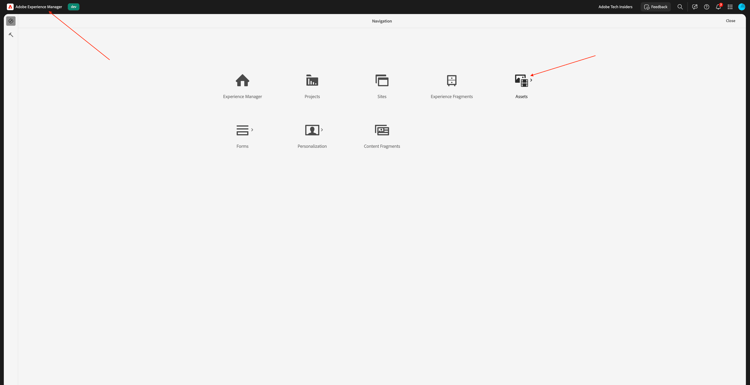
Click Files.
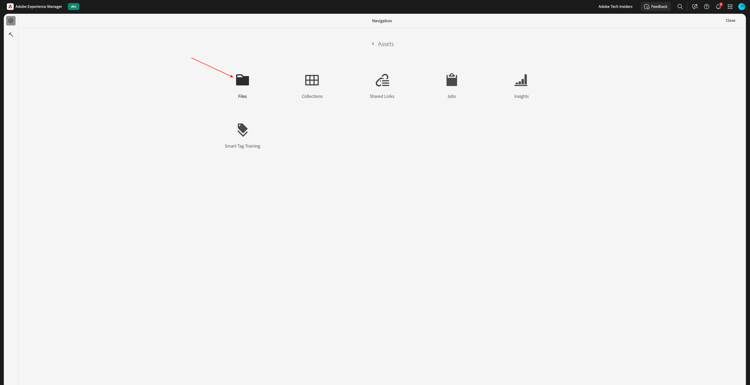
Click the folder CitiSignal to open it.
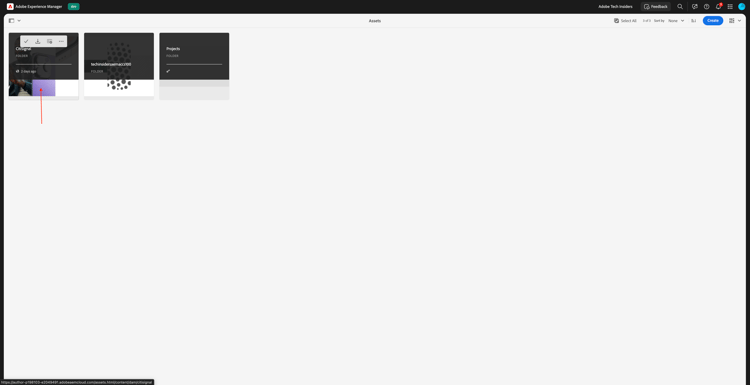
Click Create and then select Files.
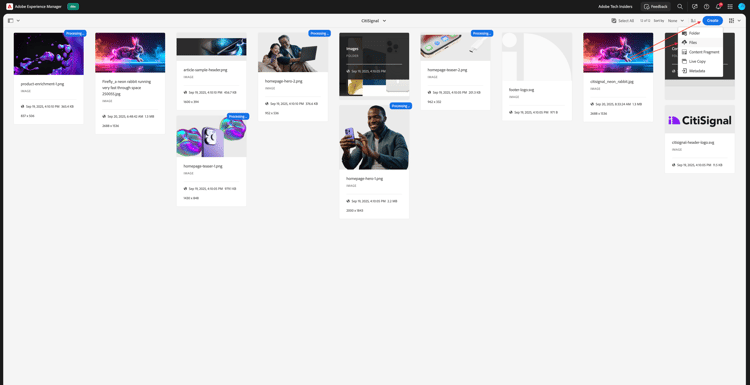
Download the file citisignal-images-campaign.zip and unzip it onto your desktop.
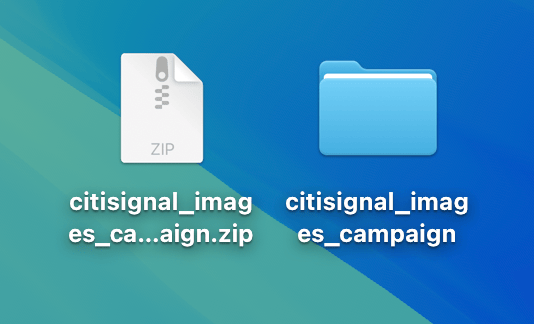
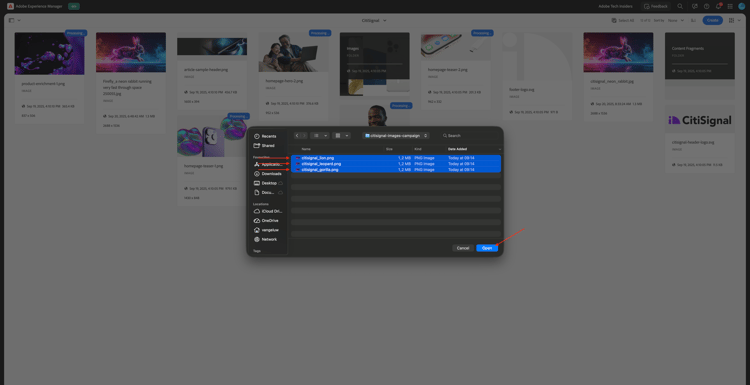
Select the 3 files that you just downloaded and click open.
Click Upload.
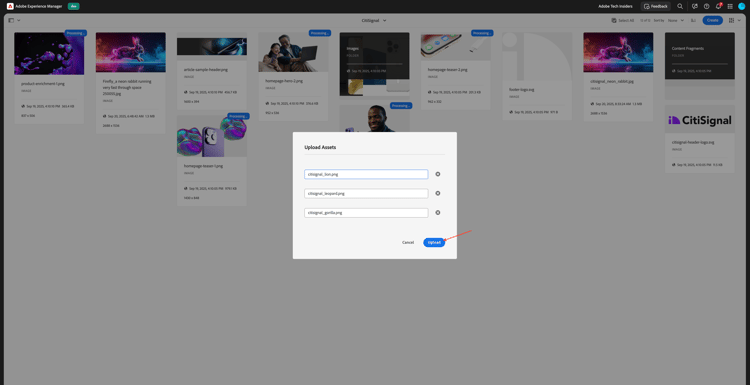
You should then see this.
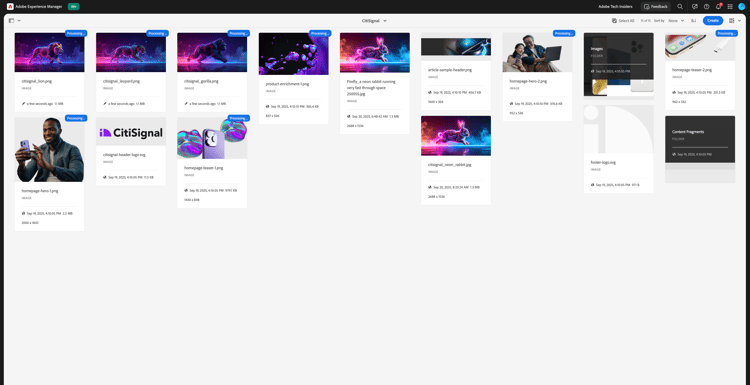
Select the first image (citisignal_lion.png) and then click Properties.
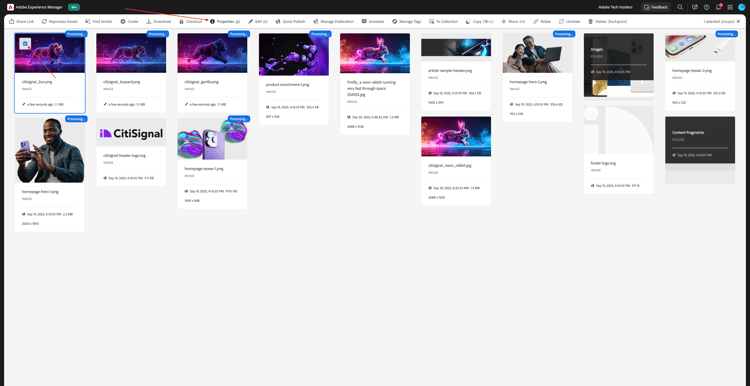
Click the folder-icon under Tags.
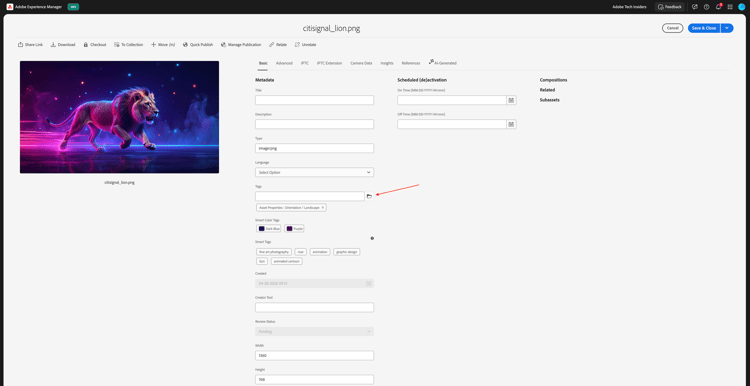
Select the tag --aepUserLdap-- - Spring 2026 and click Select.
Click Save & Close.
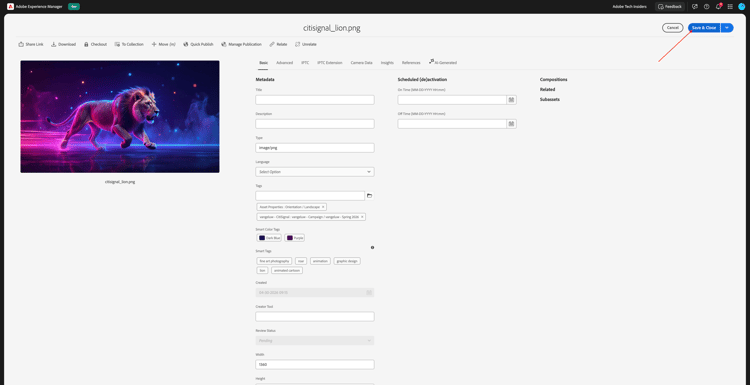
Repeat these for these images:
citisignal_leopard.pngcitisignal_gorilla.pngcitisignal_neon_rabbit.png
Once you’ve selected that tag for all images, go to Experience Manager Assets.
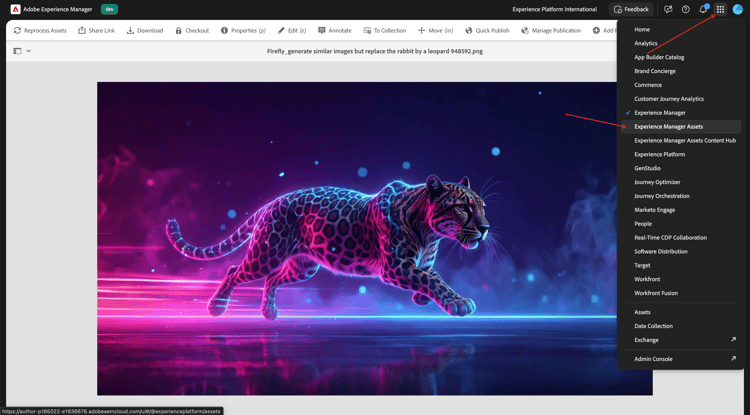
Click the profile icon at the top right of your screen. Click Switch view.
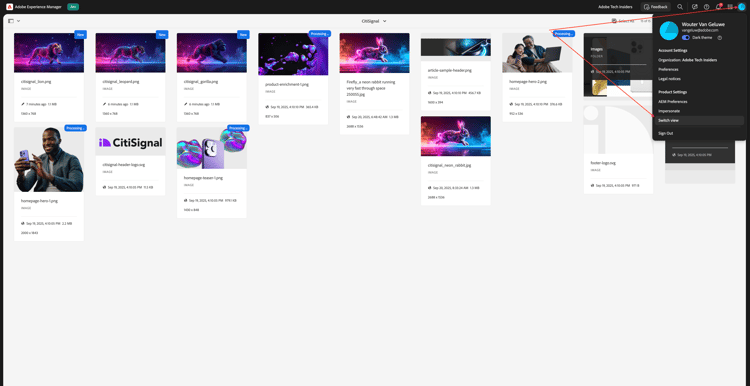
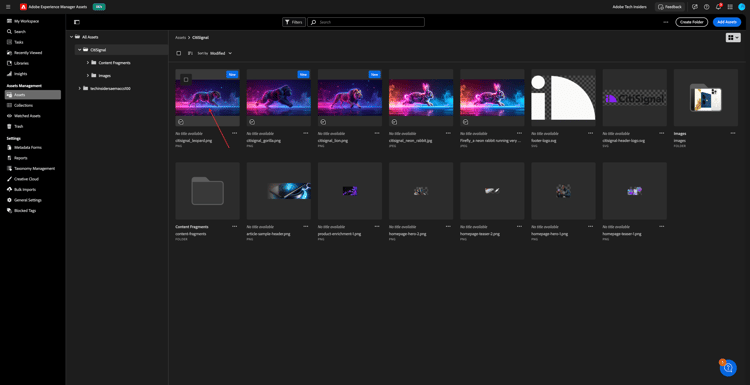
You should then see this.
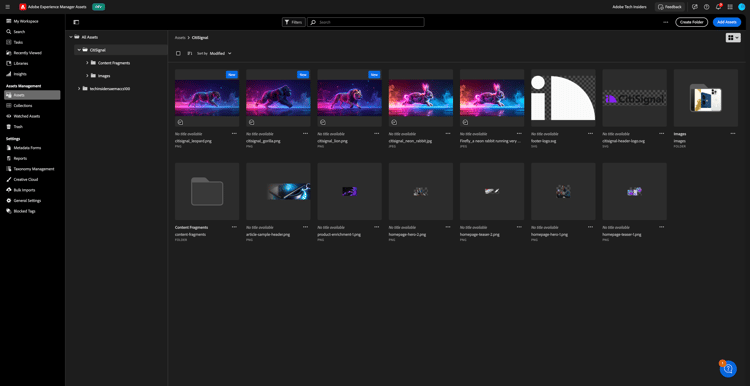
Doubmle-click to open the first image.
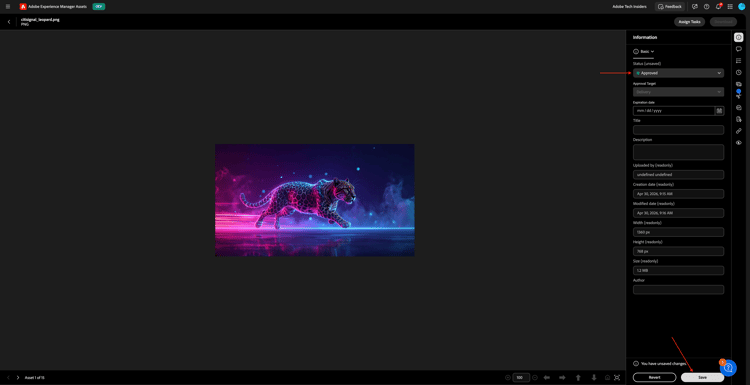
Select Approved and then click Save.
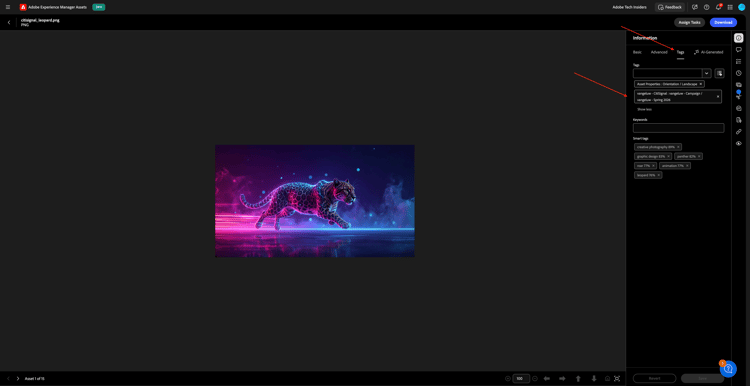
Under Tags, you can see the tag that you selected previously.
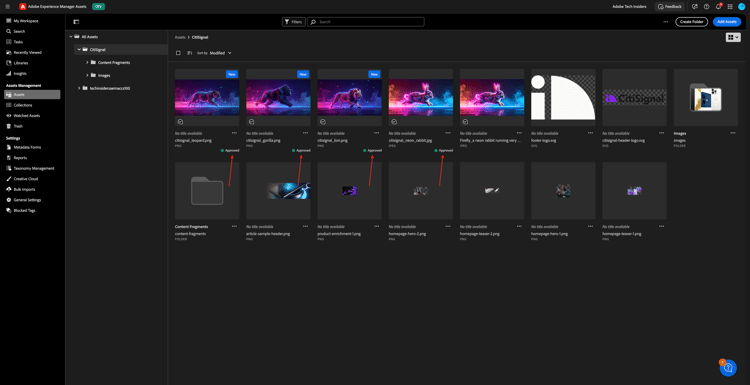
Repeat that process so that all 4 images are approved.
Go to https://experience.adobe.com/#/coworker/chat. Sign in using your Adobe account. After logging in, click your user initials in the bottom left part of the screen and make sure you’ve selected the correct instance and sandbox by changing selecting them as indicated below.
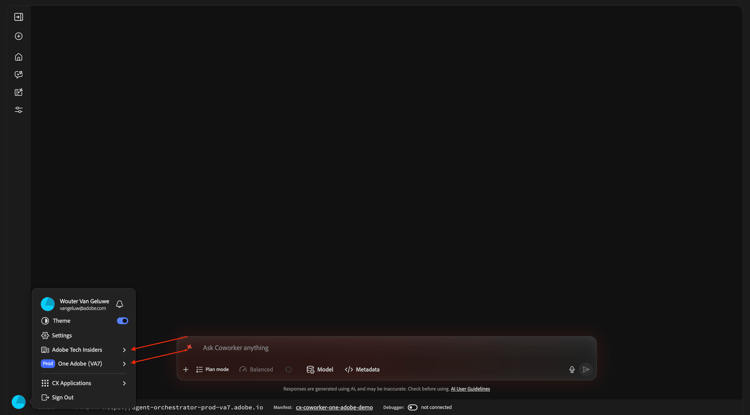
Enter the following prompt and click Send.
find all assets tagged with '--aepUserLdap-- - Spring 2026'

In case you have access to multiple AEM Assets CS environments you will see something like this. Either you can enter the number of your environment, or you can speicfy the full path of your AEM Assets environemtn and then click Send.

You should then see a similar answer.

Click the link on any of the assets.

You will then see an enlarged view of the asset you selected, with some metadata.
1.6.1.2 Experience Production Agent
Content Update - Assets
The Content Update skill updates existing content — including content fragments, pages, forms and assets — with ease. The agent can perform actions such as updating, removing, replacing, or adding content elements to keep experiences accurate and current. Inputs can be natural language description, and when used with Jira PDFs and screenshots can provide input too.
Go back to the CX Enterprise Coworker screen. Enter the following prompt and click Send.
For the first image, generate renditions for Instagram and LinkedIn posts

After a couple of minutes, you should see a similar response.
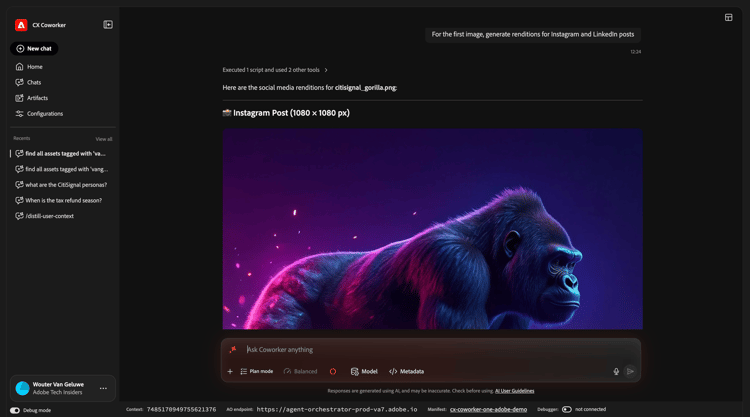
Review the images that were generated.

Feel free to experiment with other prompts. Scroll up and select one of the other proposed prompts, or enter your own, and click Send.
For the first image, generate a mirrored image

Review the image that was generated.

Content Update - Pages
Go back to your Adobe Experience Manager Author environment and then go to Sites.
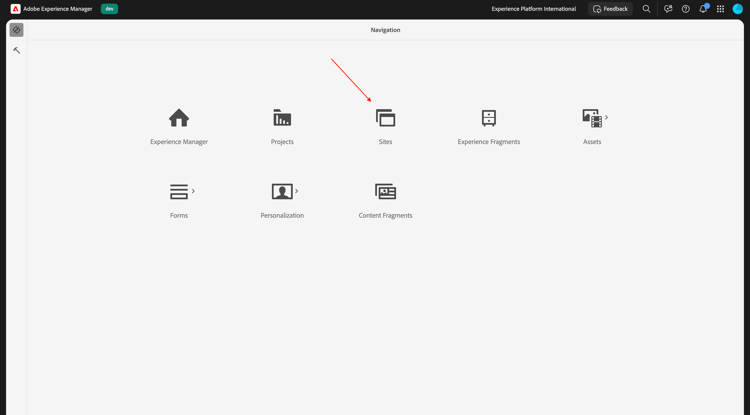
Go to CitiSignal. Click Create and select Page.
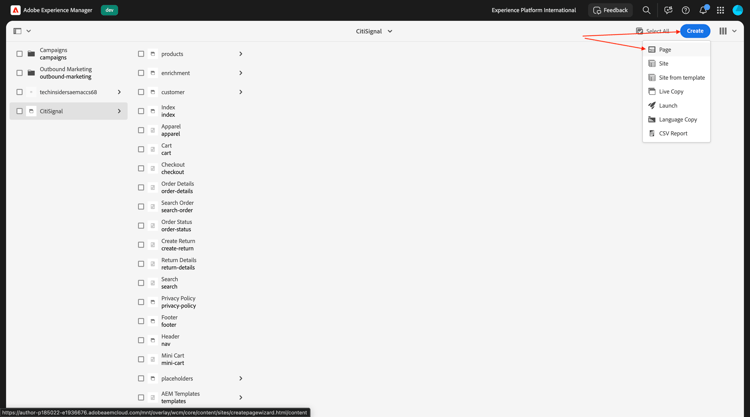
Select Page and click Next.
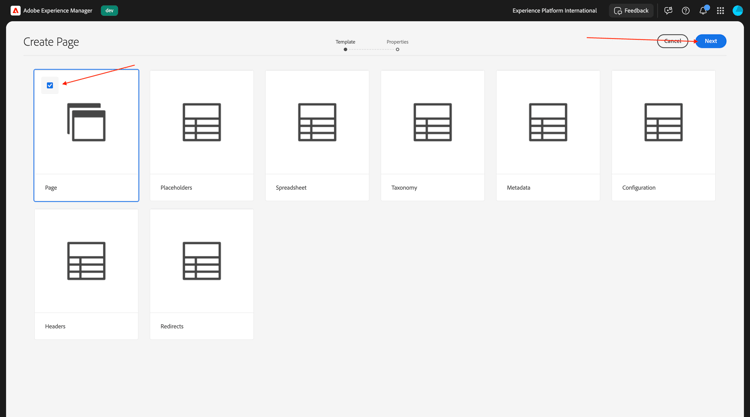
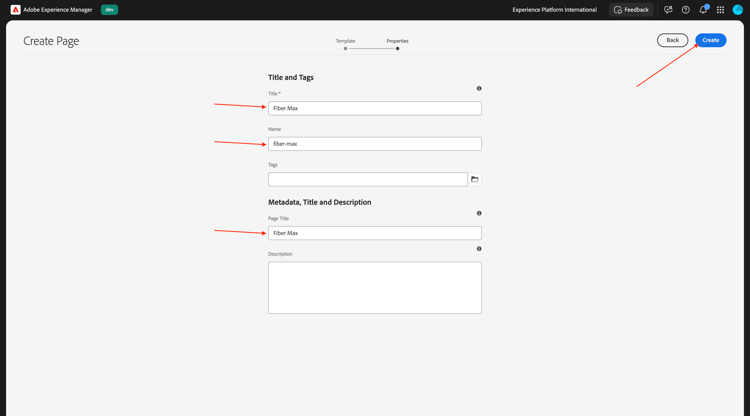
Enter the following values:
- Title: Fiber Max
- Name: fiber-max
- Page Title: Fiber Max
Click Create.
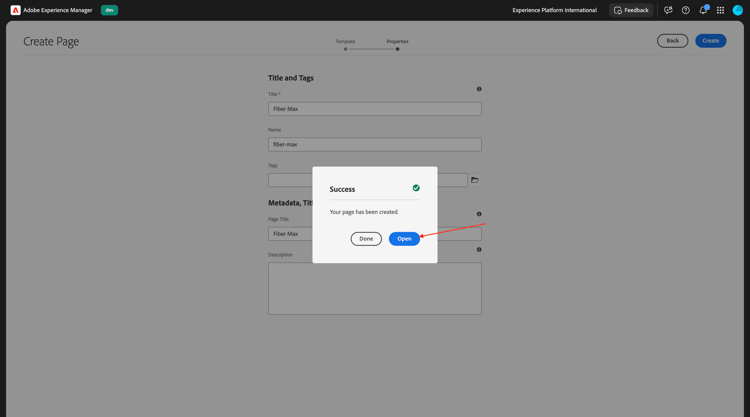
Select Open.
You should then see this.
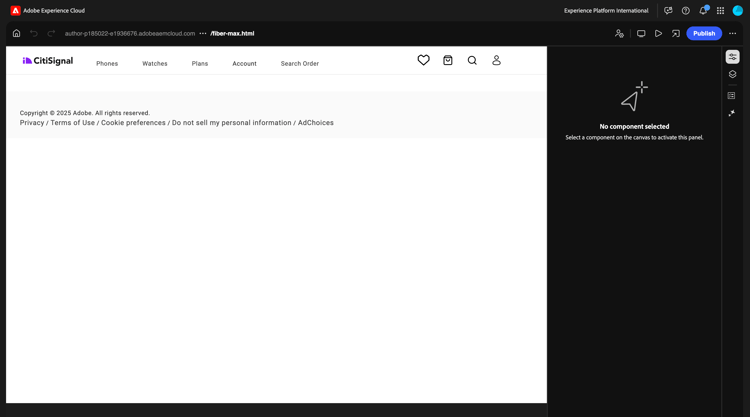
Click in the blank area to select the section component. Then, click the plus + icon in the right menu and select Hero.
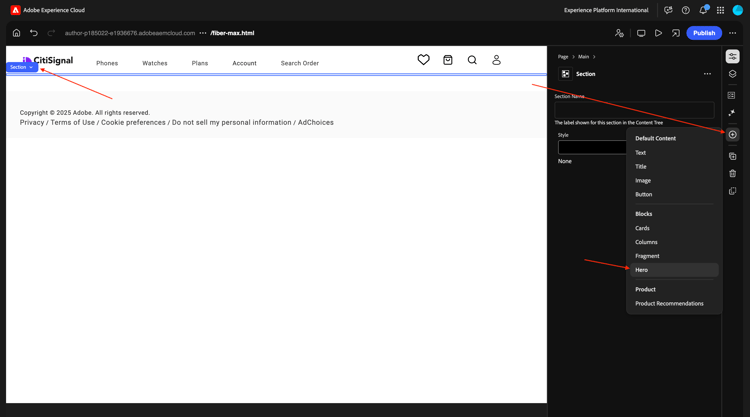
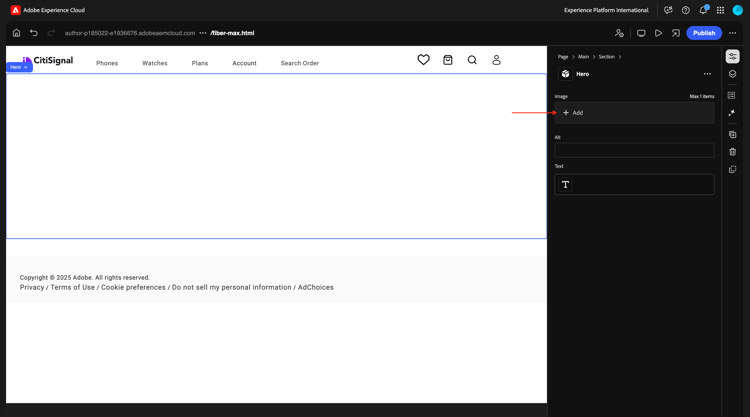
You should then see this. Click + Add to add an image.
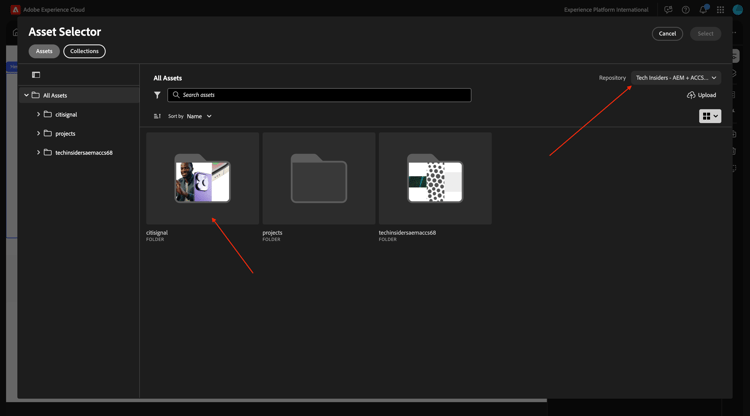
Select your assets repository. Then, open the folder CitiSignal.
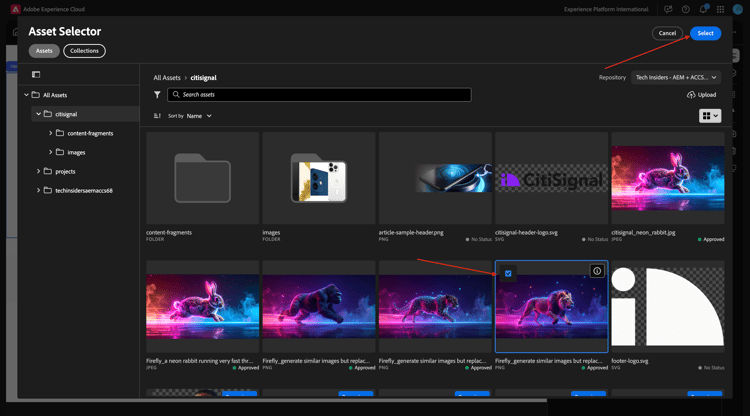
Choose the image of the lion that you uploaded earlier. Click Select.
You should then see this. Click the text area to change the text.
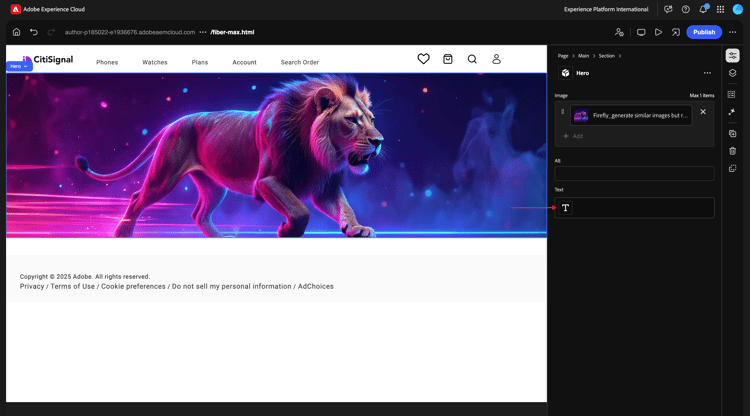
Paste this text in the are:
This winter, be as fast as a lion.
Select Heading 1 and then click Done.
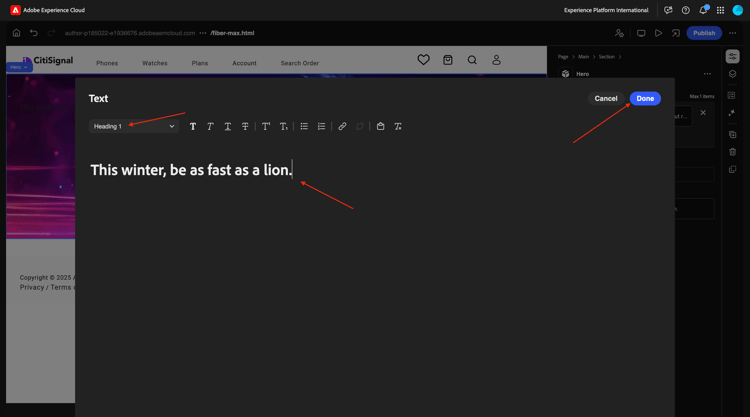
You should then see this. Go to Content tree and select the area Section.
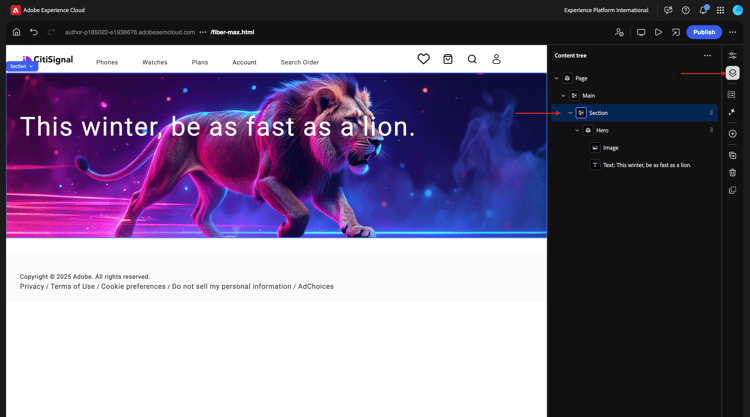
Click the + icon and then select Cards.
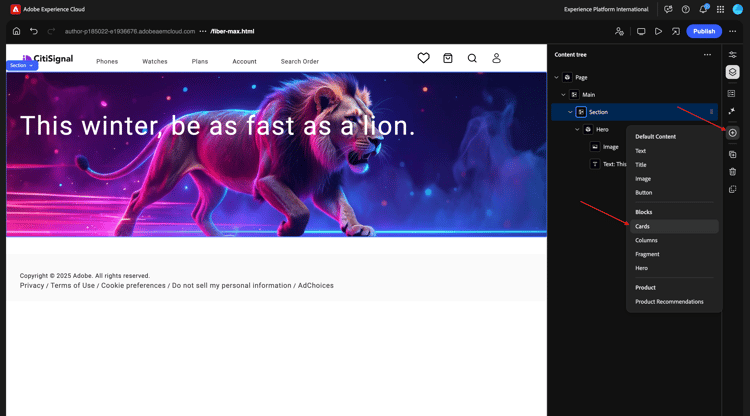
You should then see this. Make sure that in the Content tree, Cards is selected.
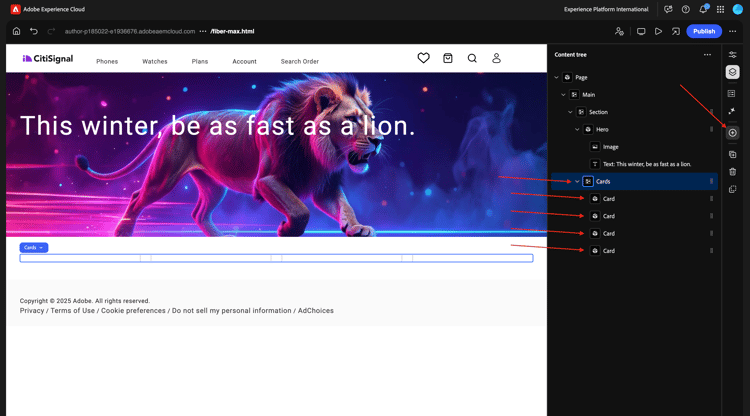
Then, click the button + 4 times.
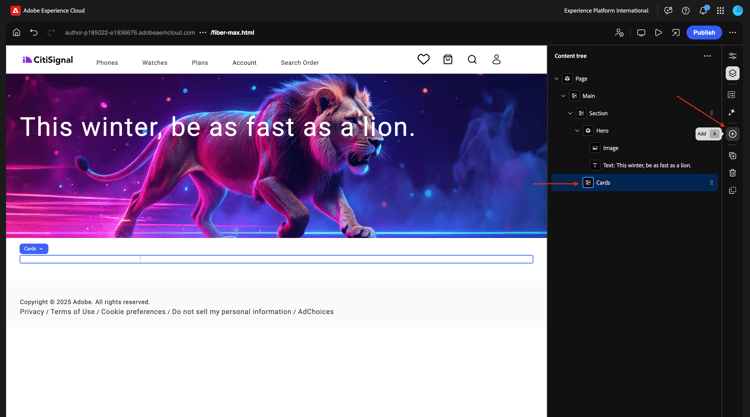
You should now see this, where there are 4 Card objects in the Cards object.
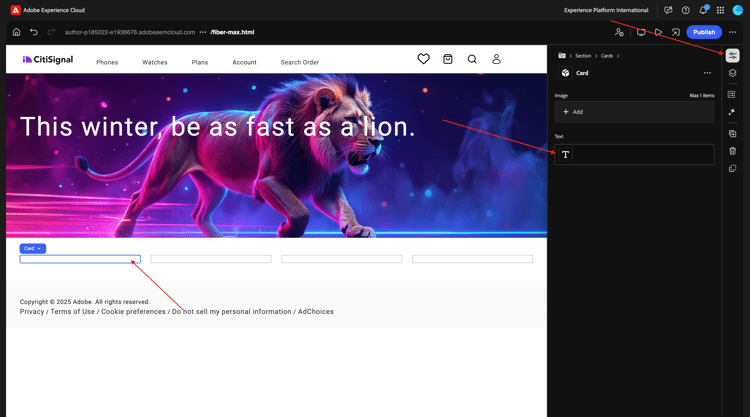
Select the first Card. Click the text area to change the text.
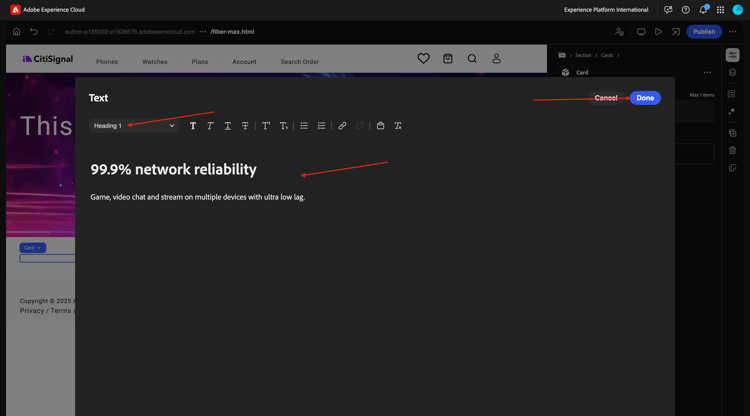
Paste the following text. Make sure the first line of text is using Heading 1. Click Done.
99.9% network reliability

Game, video chat and stream on multiple devices with ultra low lag.
Select the second Card. Click the text area to change the text.
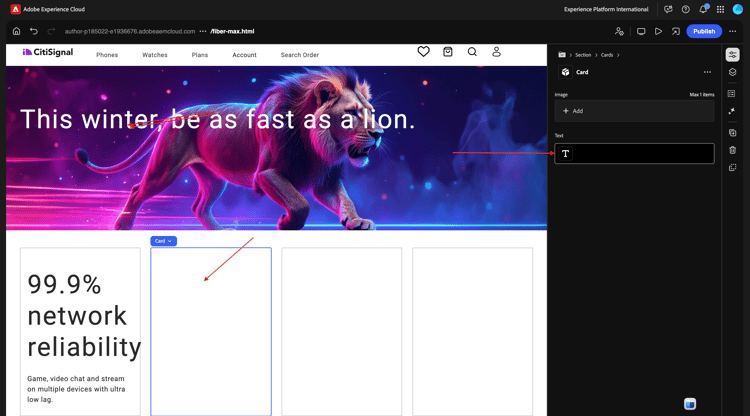
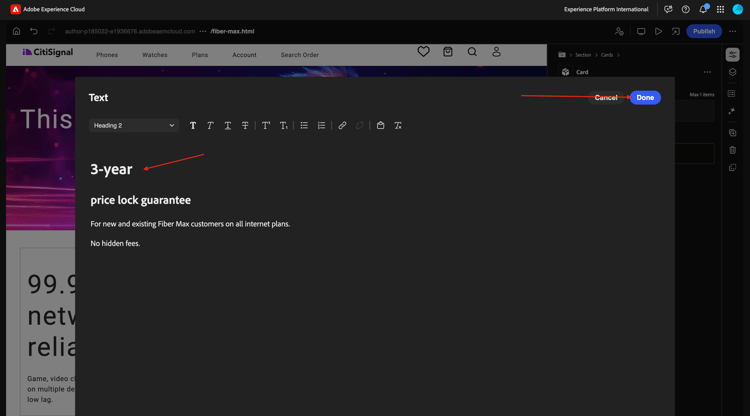
Paste the following text. Make sure the first line of text is using Heading 1. Click Done.
3-year

price lock guarantee

For new and existing Fiber Max customers on all internet plans.

No hidden fees.
Select the third Card. Click the text area to change the text.
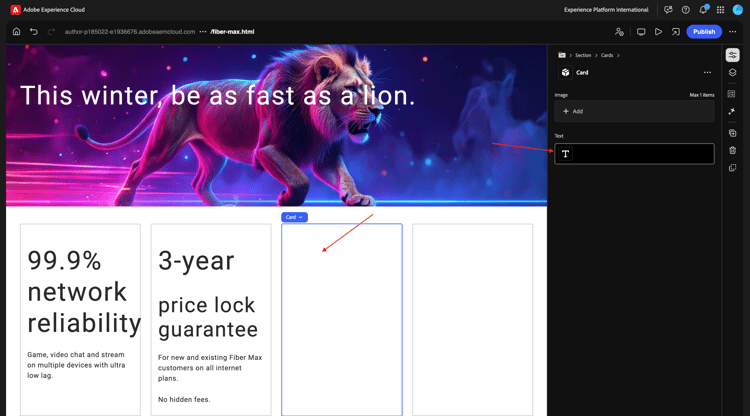
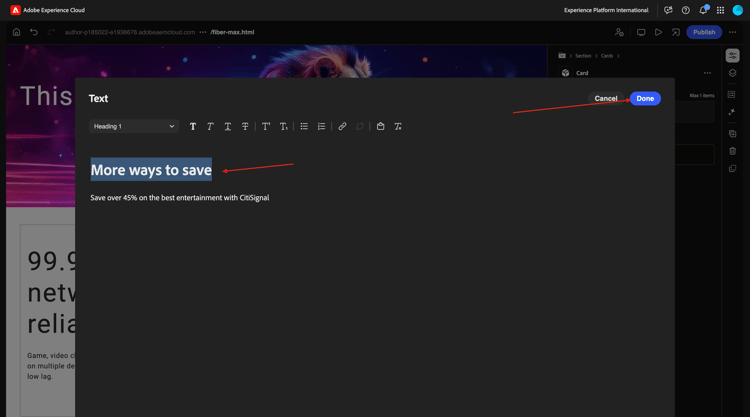
Paste the following text. Make sure the first line of text is using Heading 1. Click Done.
More ways to save

Save over 45% on the best entertainment with CitiSignal
Select the fourth Card. Click the text area to change the text.
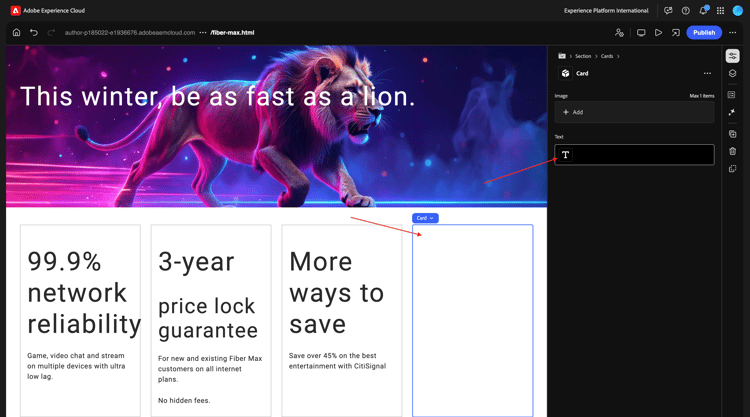
Paste the following text. Make sure the first line of text is using Heading 1. Click Done.
Get Fiber Max now!

Fill out the form here to get started.
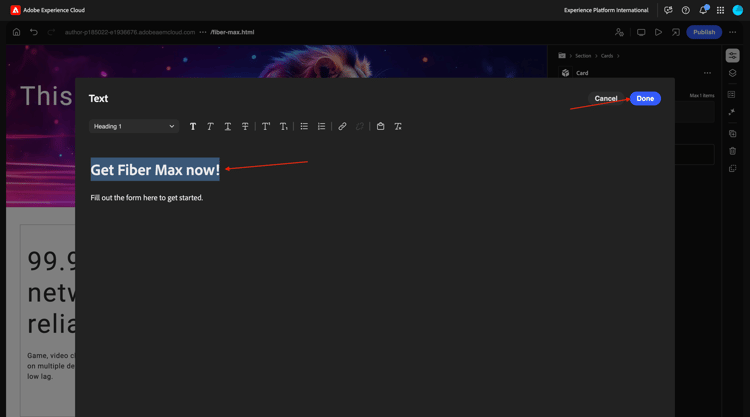
You should now have this. Click Publish.
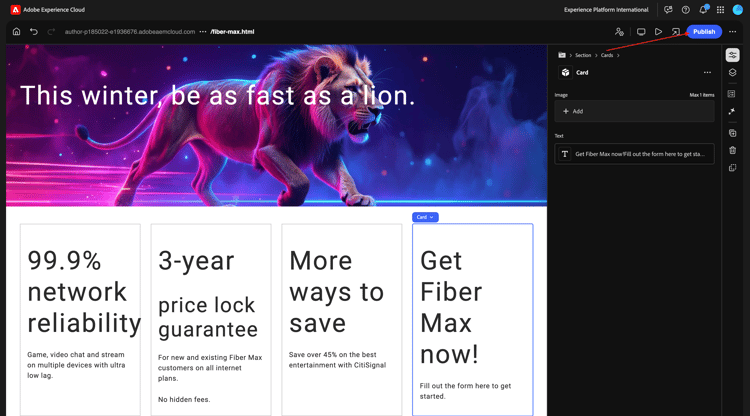
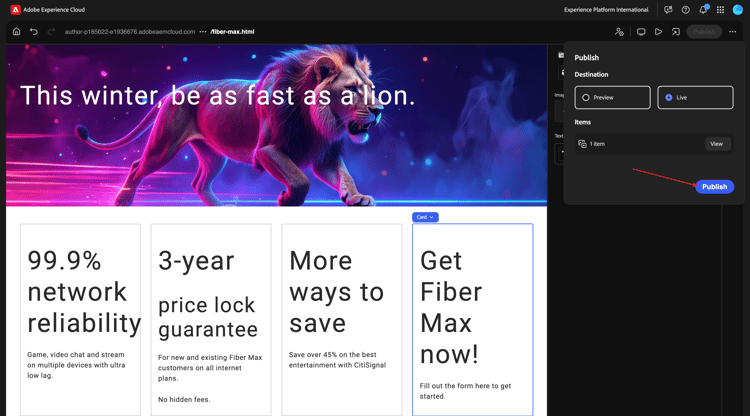
Click Publish again.
Click Open Page.
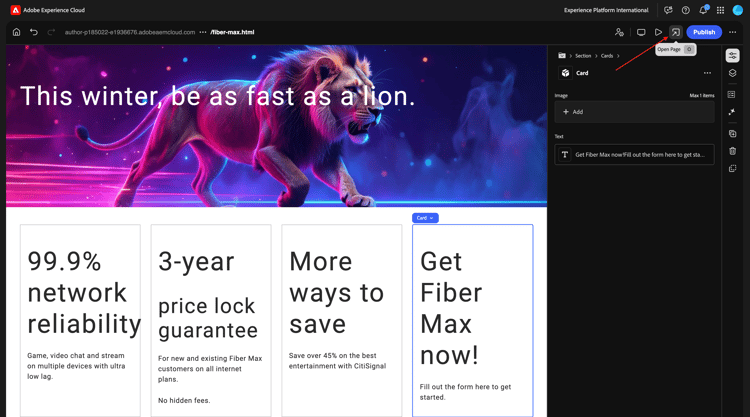
Copy the URL of the page as you’ll need it next.
The URL should be similar to this: https://author-pXXXXXX-eXXXXXXX.adobeaemcloud.com/content/CitiSignal/fiber-max.html.
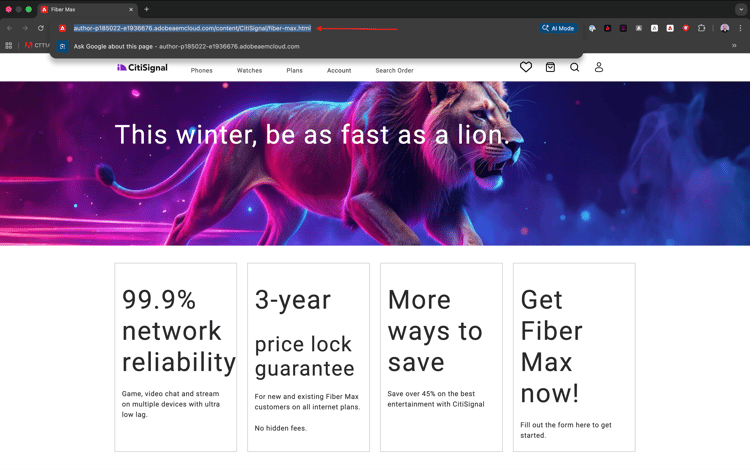
Go back to your CX Enterprise Coworker chat on https://experience.adobe.com/#/coworker/chat.

Paste the following prompt and click send. Replace XXX in this prompt by the URL that you copied in the previous step.
On the page XXX, please make the following changes:

- change the word 'winter' to 'spring'
- change the word 'lion' to 'leopard'
- change the image in the hero block to use the image 'citisignal_leopard.png'
- change the text '99.9% network reliability' to '99.999% network reliability'

After 1-2 minutes, you should see this. Select the prompt Proceed and click Submit.

A couple of minutes later, you should see a confirmation like this that the changes have been performed. Click the Preview link.
You now get a visual confirmation of the changes that have been done. This preview page is purely for informational purpose, you can’t take action from this page.

To take action, click Edit.

In the Universal Editor, you now see all the changes in detail, with the ability the change anything.
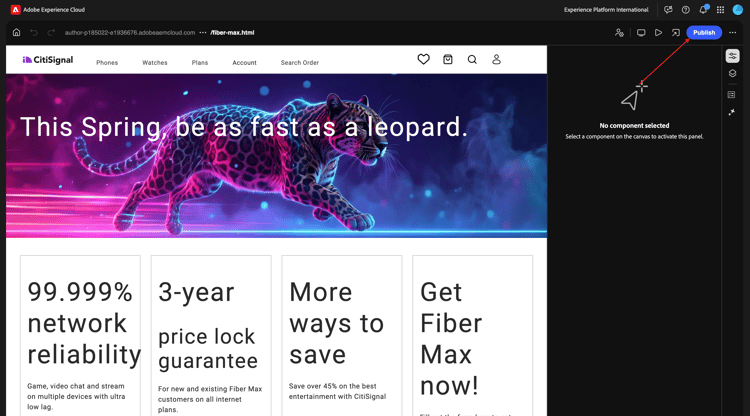
Go back to your Coworker chat. Select Promote and then click Submit.

Refresh your page, you should now see all your changes on the published page.

Content Update - Form Creation
The Form Creation skill now enables users to build adaptive forms through natural language prompts without dependency on development or IT teams. This capability accelerates form development while maintaining brand consistency and allowing business users to create forms without deep technical product knowledge.
Go back to your CX Enterprise Coworker chat on https://experience.adobe.com/#/coworker/chat.
Enter the following prompt and click send.
Create a new adaptive form using Edge Delivery Services and the existing CitiSignal site, with the following details:
- Form name: "citisignal-fiber-max-interest-2"
- Form fields: 4 text input fields are needed, for "first-name", "last-name", "email" and "city"
You should then get an answer like this one.
Enter the following prompt and click send.
can you create the adaptive form for me?

Next Steps
Go to 1.6.2 AEM MCP Servers & Cursor
Go Back to AEM & Agents