1.5.3 Adobe Analytics & Claude.ai with MCP server
[Alpha]{class="badge informative"}
Video
In this video, you’ll get an explanation and demonstration of all the steps involved in this exercise.
1.5.3.1 Create custom app in Claude.ai for Adobe Analytics
- a paid version of Claude.ai
- using the Claude.ai web client
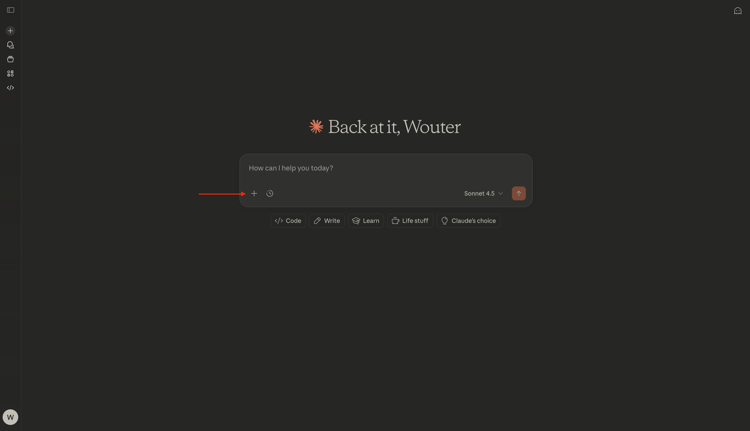
Go to https://claude.ai/{target=“_blank”} and log in using your account details. Once you’re logged in, you should see this. Click the + icon.
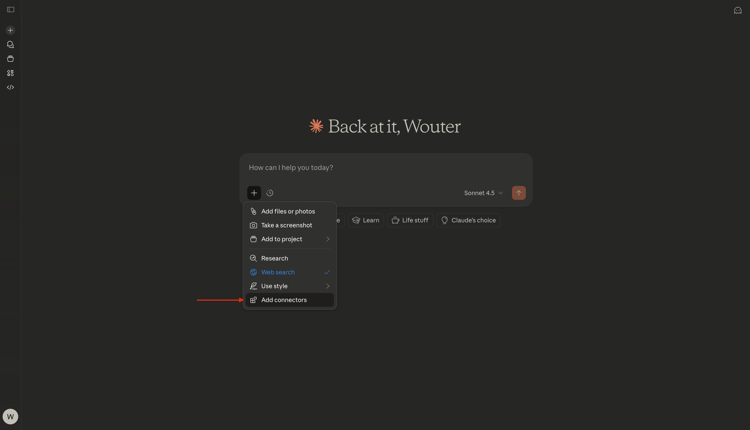
Select Add connectors.
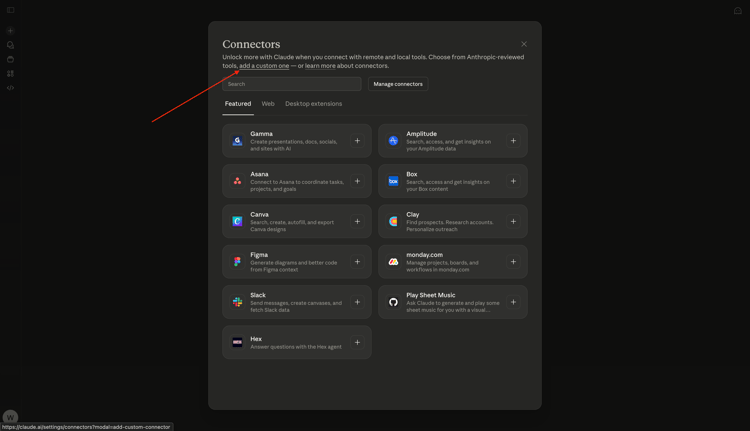
Click add a custom one.
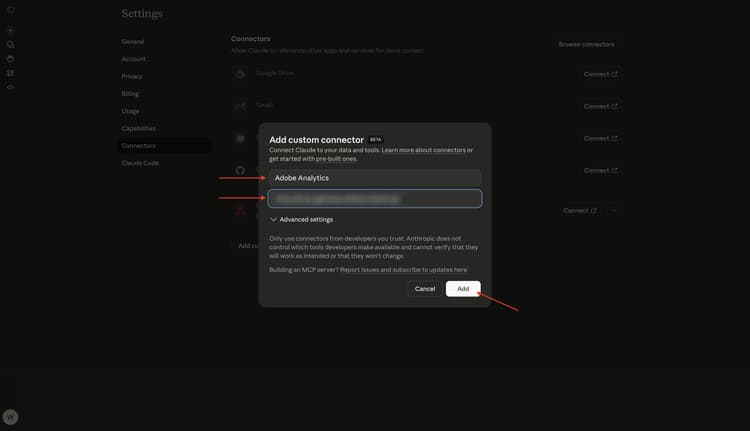
Fill out the fields like this:
- Name:
CJA - MCP Server URL: check with your Adobe representative
Click Add.
You should then see this. Click Connect.
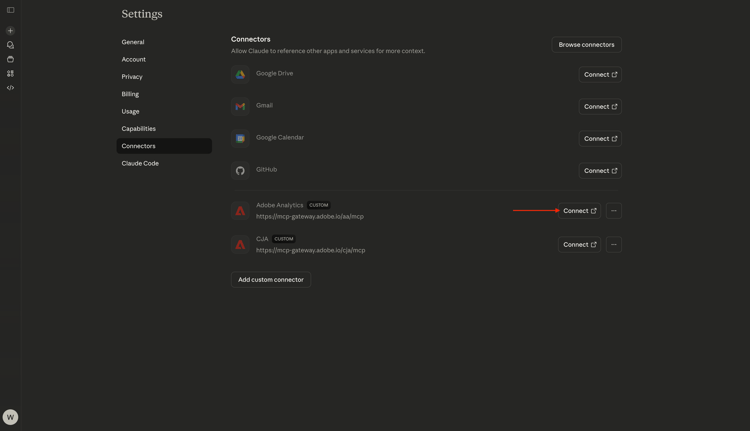
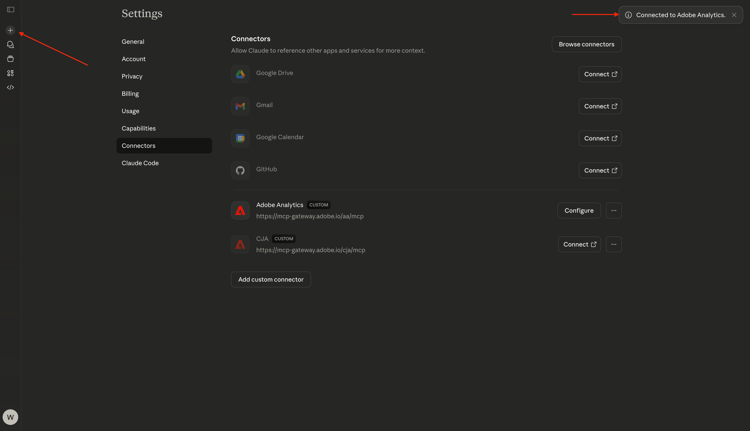
Once you’re successfully authenticated, you should see this. Click the + icon to start a new chat.
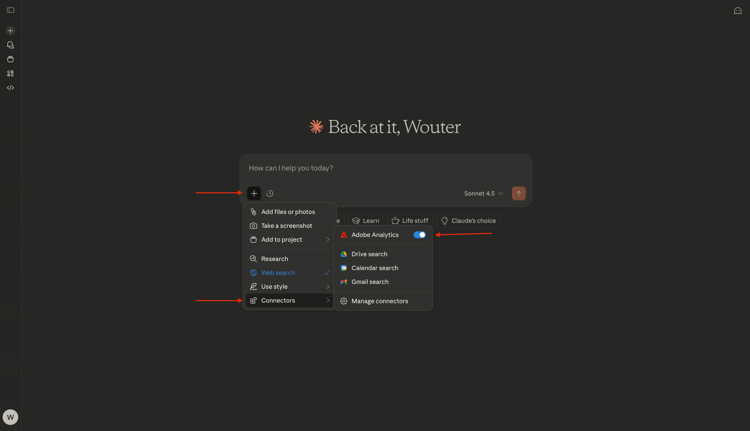
Go to +, to Connectors and you should see that the Adobe Analytics connector is now enabled.
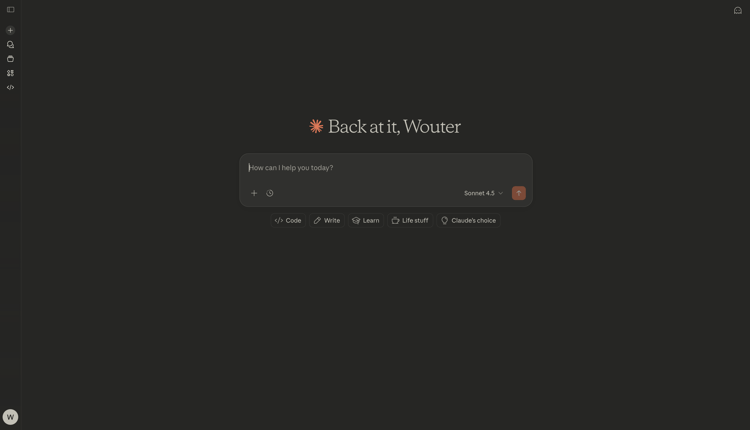
You’re now ready to start your data analysis.
1.5.3.2 Set context in Adobe Analytics
Before interacting further with CJA through Claude.ai, the context needs to be set.
For this exercise, the context needs to be set to use:
- Report Suite: CID - Demo Data
The Report Suite setting helps to identify which data Claude.ai should look at when asking questions.
Enter the following Prompt and click the send button.
list report suites
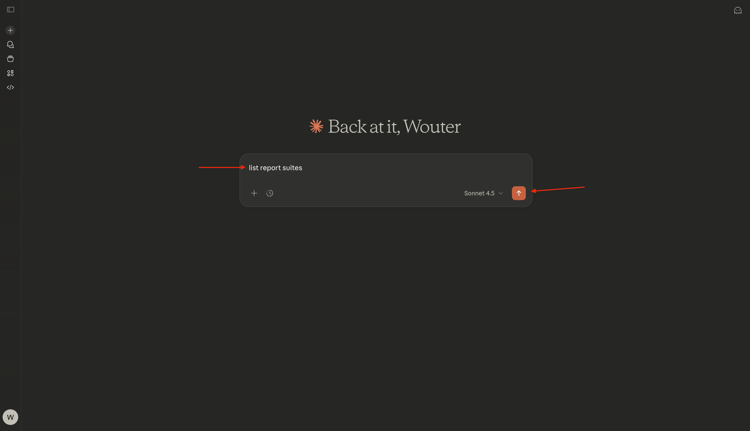
Select Always allow.
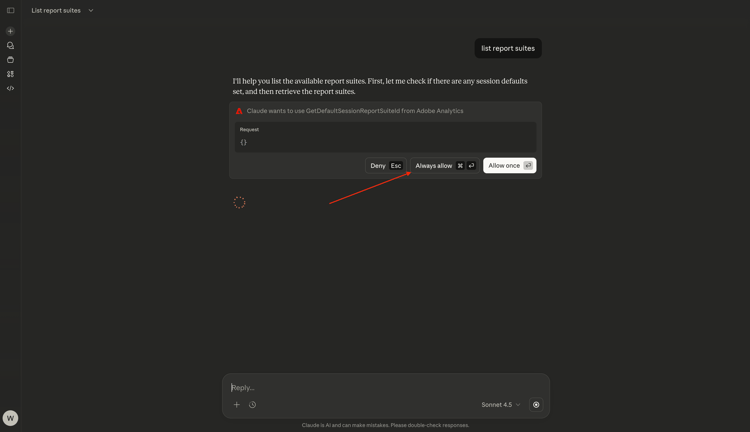
Select Always allow.
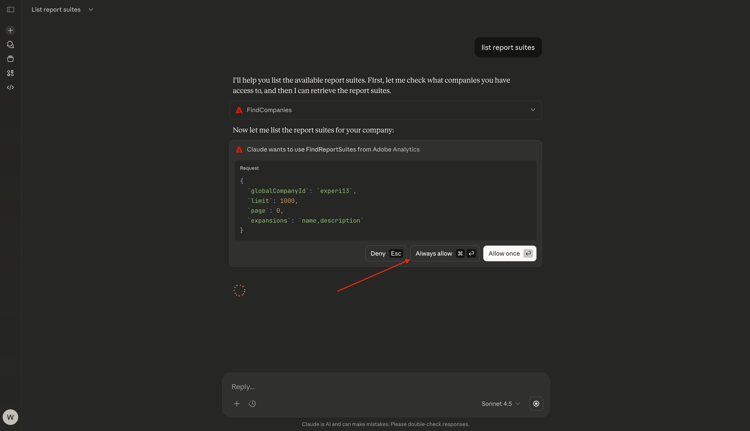
You should then see something like this.
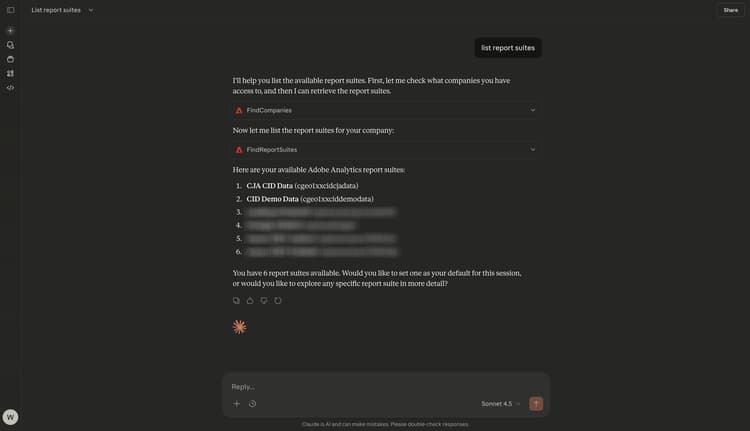
Enter the following Prompt and click the send button.
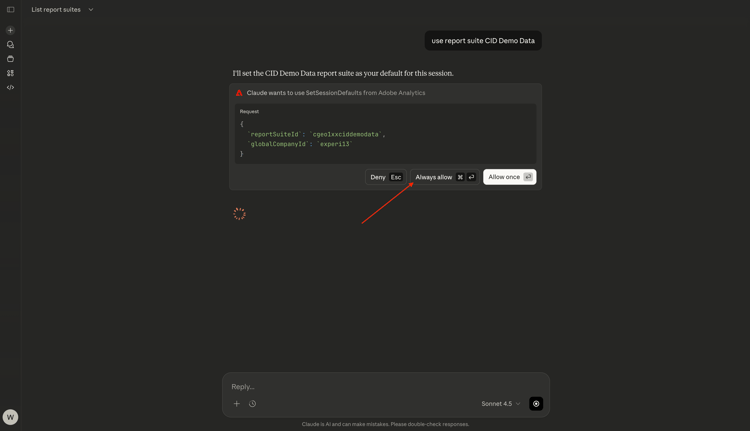
use report suite CID Demo Data
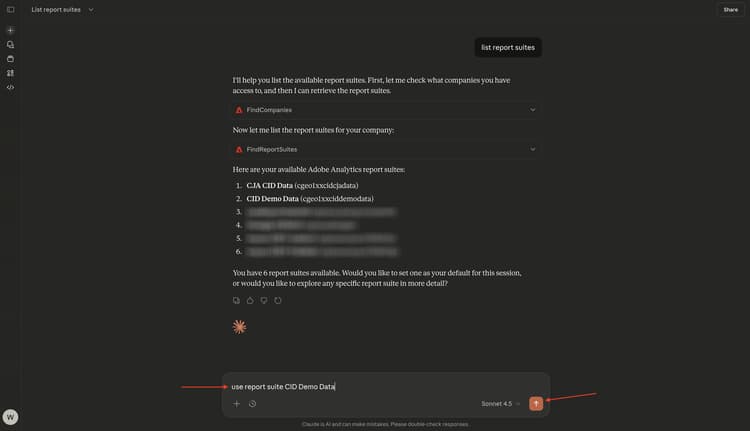
Select Always allow.
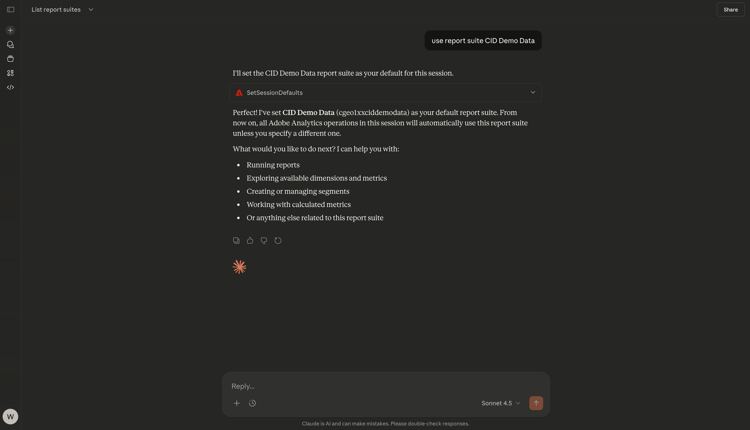
Your report suite has now been selected.
1.5.2.3 Explore the report suite
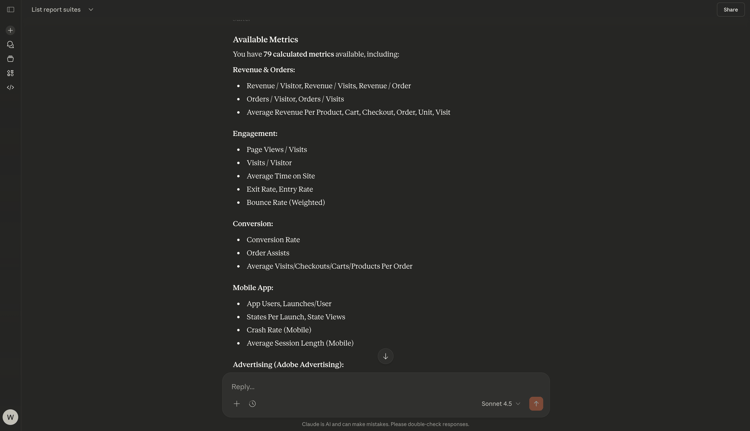
Enter the following Prompt and click the send button to explore which metrics and dimensions are available to you.
list the available metrics and dimensions
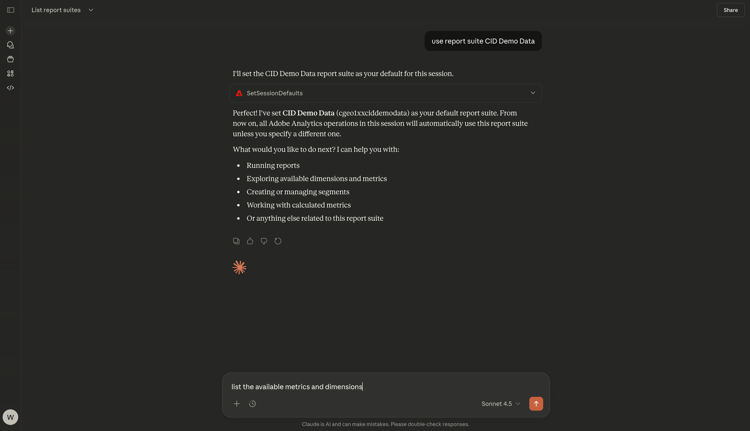
Select Always allow.
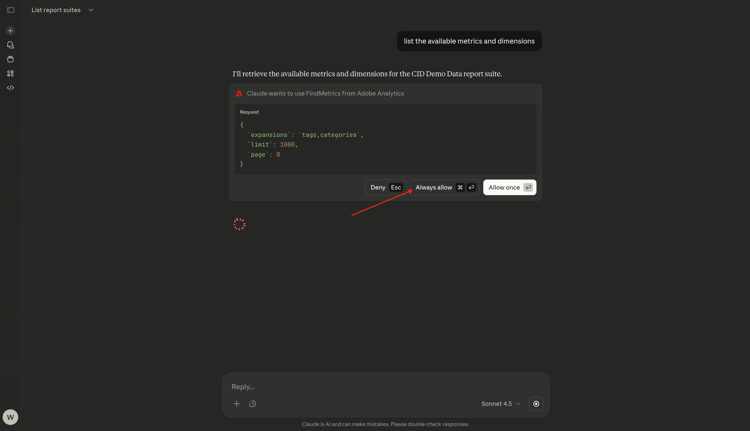
Select Always allow again.
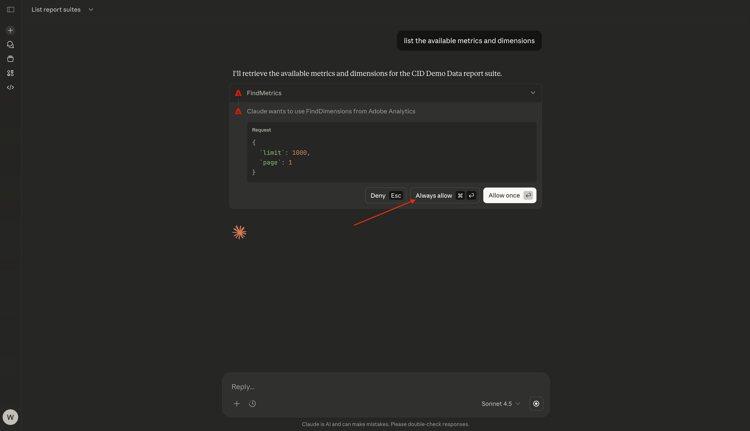
You should then see this response, which includes the metrics and dimensions that were set up ain this report suite.
1.5.2.4 Reports
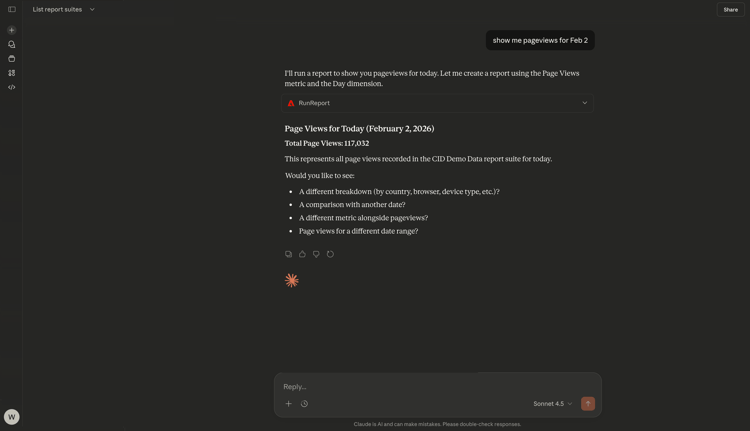
You can now start exploring the data. Start by entering the below prompt and click send to submit your report request.
show me pageviews for Feb 2?
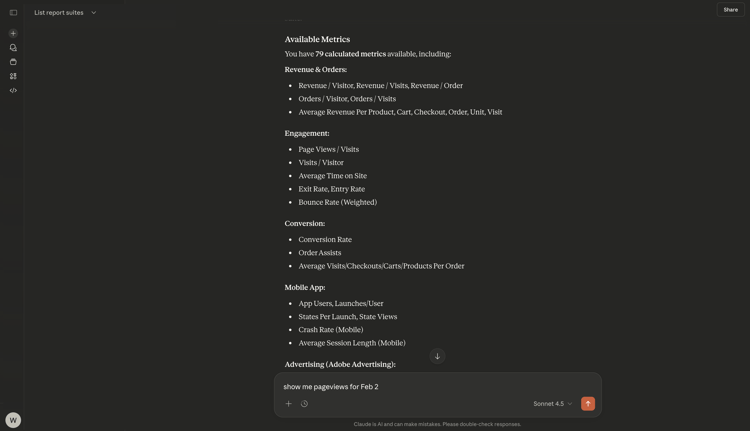
You should then see something like this.
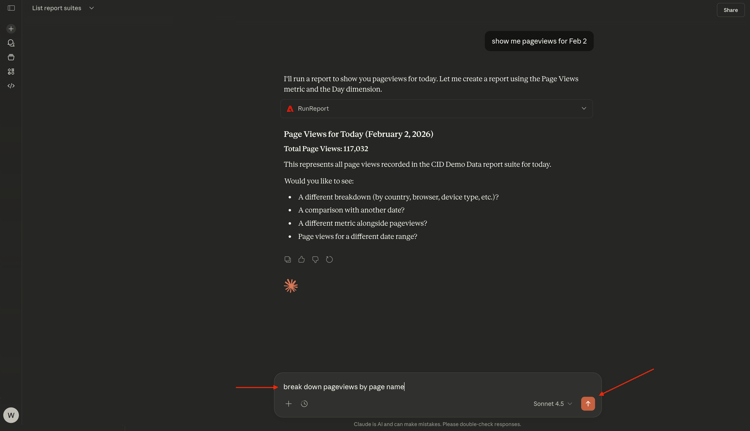
Enter the following Prompt and click the send button.
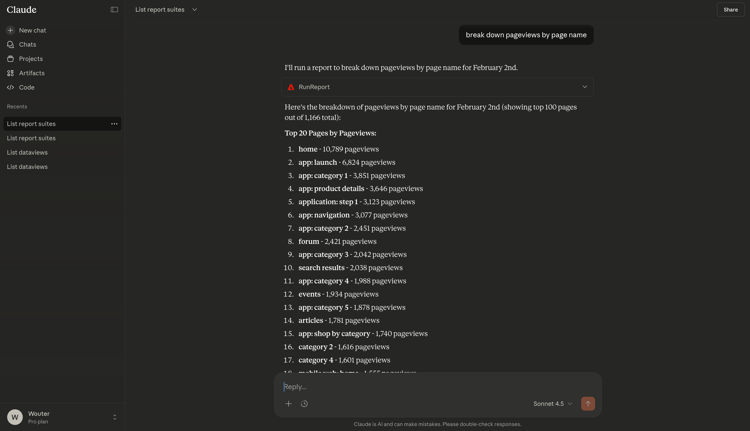
break down pageviews by page name
You should then see this.
Enter the following Prompt and click the send button.
give me an overview of page names, page views by marketing channel
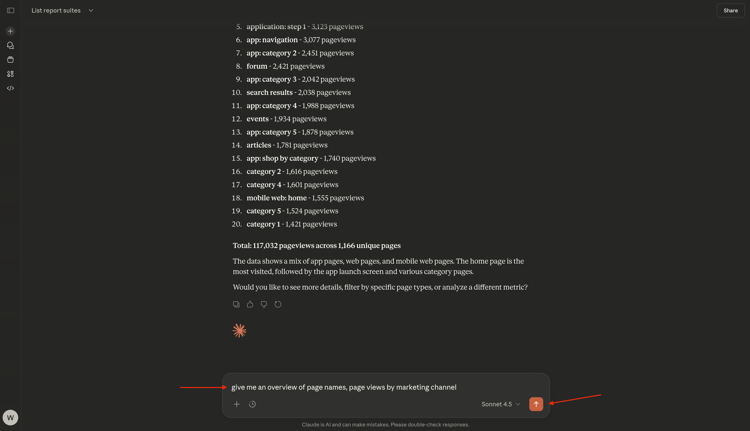
You should then see something like this.
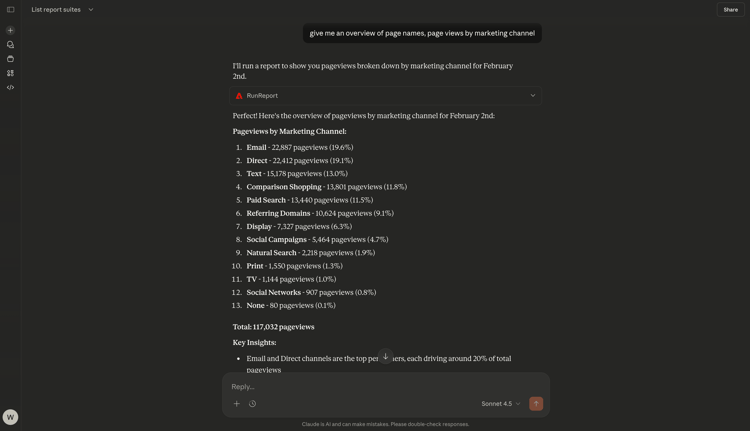
Scroll down a little bit to see the analysis.
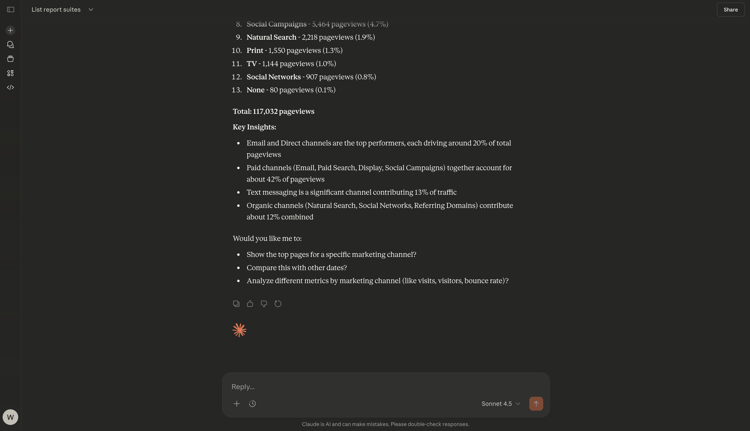
Enter the following Prompt and click the send button.
Analyze different metrics by marketing channel
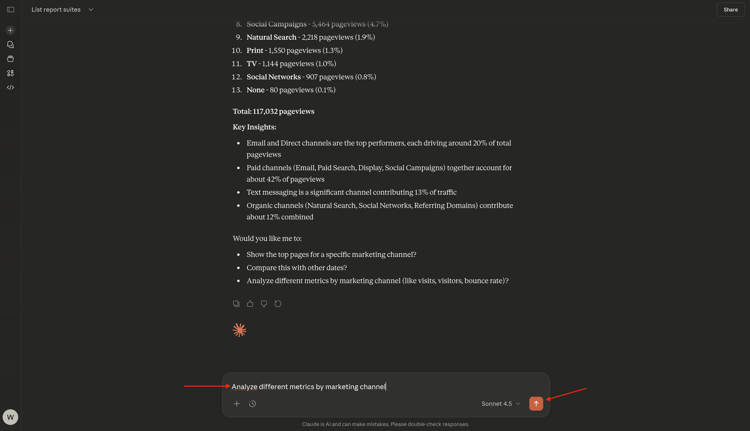
You should then see something like this.
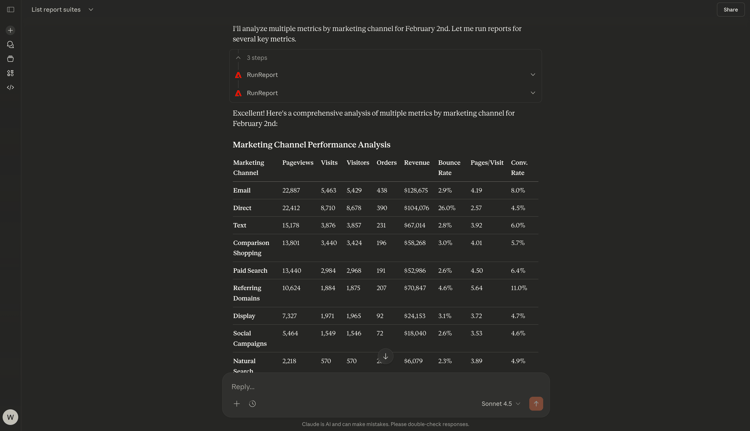
Enter the following Prompt and click the send button.
which tracking codes drove the most visits and purchases?
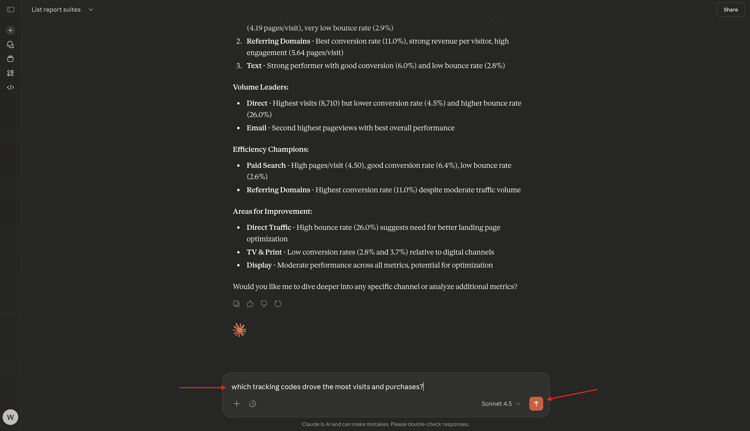
You should then see something like this, first showing Top Tracking Codes by Visits.
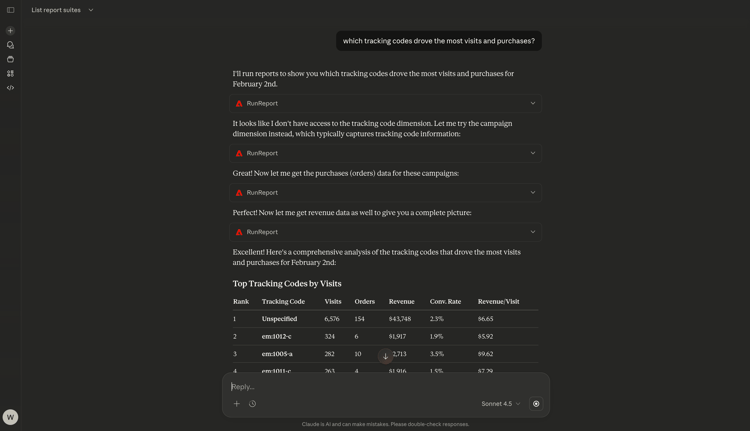
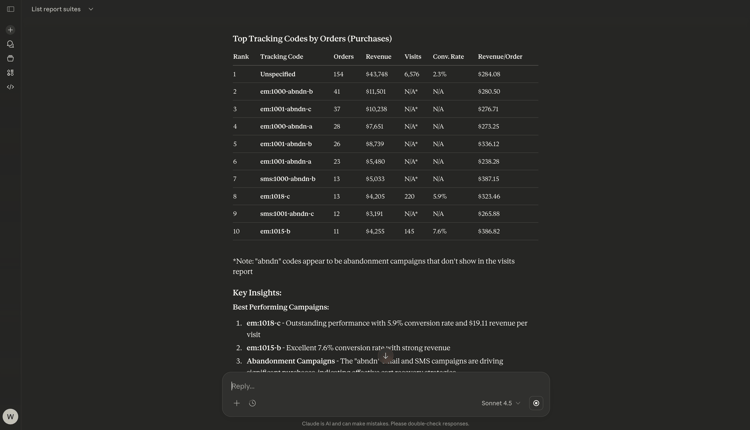
You can then see the tracking codes that drove the most purchases in the Top Tracking Codes by Orders (Purchases) report.
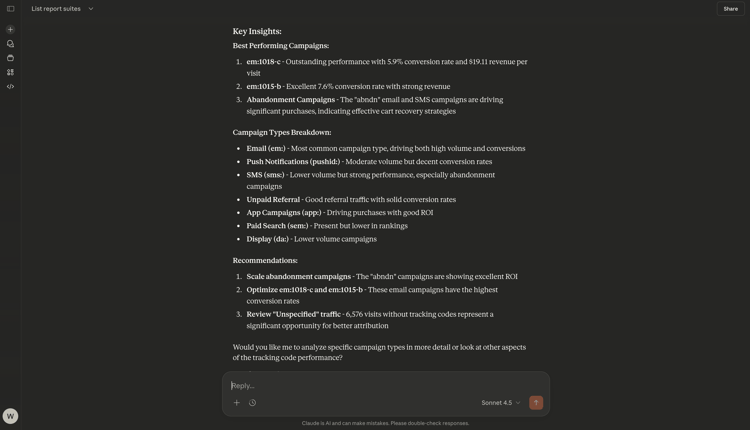
And then you find additional insights provided by Claude.ai based on the data coming from Adobe Analytics.
You’ve now finished this exercise.
Go Back to Analytics & Agents