1.4.2 Implement Brand Concierge on your website
Instructor-Led Training (ILT) Instructions
For this exercise, you need to use:
-
Instance: Adobe Tech Insiders
-
Sandbox: One Adobe
-
Username: adobetechinsiders-XXX@adobeeventlab.com
-
Password: use the password that was shared with you
-
AEM Program: Tech Insiders - AEM + ACCS XXX which you can access through https://my.cloudmanager.adobe.com
-
GitHub repository: https://github.com/woutervangeluwe/techinsidersXXX-citisignal-aem-accs
-
Access your website here:
https://main--techinsidersX-citisignal-aem-accs--woutervangeluwe.aem.page/(replace X by your number)https://main--techinsidersX-citisignal-aem-accs--woutervangeluwe.aem.live/(replace X by your number)https://techinsidersX.adobedemosystem.com/(replace X by your number)
1.4.2.1 Configure your website to show Brand Concierge - AEM Author
In order for Brand Concierge to appear on your website, you need to create a new custom block that needs to be added to a new page, and you’ll need to ensure that your new page is added to the navigation of your website.
You now need to configure the following things in this order:
- Create a new custom block that will be used to load Brand Concierge on your website.
- Create a new page on your website for Brand Concierge.
- Link the newly created custom block on the newly created Brand Concierge page.
- Add a reference to navigate to the newly created Brand Concierge page in your website’s navigation header file.
Create new custom block
To create the new custom block, navigate to the GitHub repository that is linked to your website.

component-definition.json
Scroll down until you see the file component-definition.json and open it

Click the pencil icon to start editing the file.

Scroll down until you see the Blocks. Set your cursor under the closing bracket of the component Cards

Paste this code block.
{
  "title": "BrandConcierge",
  "id": "brandconcierge",
  "plugins": {
    "xwalk": {
      "page": {
        "resourceType": "core/franklin/components/block/v1/block",
        "template": {
          "name": "BrandConcierge",
          "model": "brandconcierge"
        }
      }
    }
  }
},
Click Commit changes….

Click Commit changes.

component-models.json
Scroll down until you see the file component-models.json and click the pencil icon to start editing the file.

Scroll down until you see the last item. Set your cursor next to the closing bracket of the last component.

Paste this code:
,
{
  "id": "brandconcierge",
  "fields": []
}
Click Commit changes….
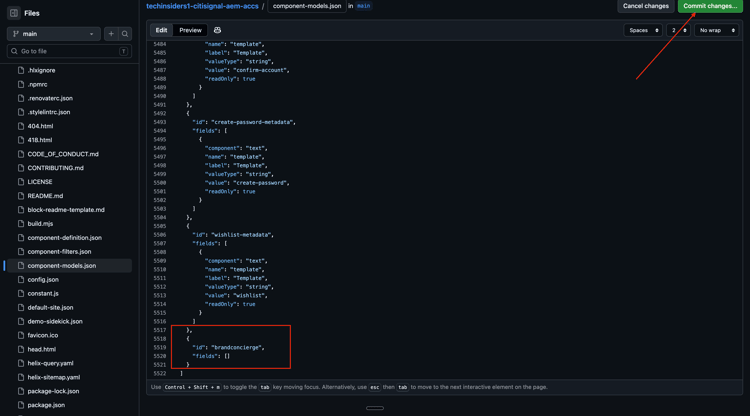
Click Commit changes.

component-filters.json
Scroll down until you see the file component-filters.json and click the pencil icon to start editing the file.

Under section, paste the below code after the last element in the list of components.
,
"brandconcierge"

You should then see this. Click Commit changes….

Click Commit changes.

brandconcierge.css
When creating a block, it’s best practice to create a file for the styling of your block, and it should have the same name as your block. you should now create that file, which we will leave empty for now.
Go to the blocks folder. Then, click Add file and select Create new file.

In the text box, enter brandconcierge/brandconcierge.css. The file can remain empty for now. Click Commit changes….

Click Commit changes.

brandconcierge.js
When creating a block, it’s best practice to create a file for the javascript related to your block, and it should have the same name as your block.
Click Add file and select Create new file.

In the text box, enter brandconcierge.js. Copy the below text and then paste it in the file brandconcierge.js. Click Commit changes….
export default function decorate(block) {
  block.setAttribute('id', 'brand-concierge-mount');

  window.adobe.concierge.bootstrap({
      instanceName: "alloy",
      stylingConfigurations: window.styleConfiguration,
      selector: "#brand-concierge-mount",
      stickySession: false
    });
}

Click Commit changes.

Create new page & link new custom block
Go to https://my.cloudmanager.adobe.com. Click your Program to open it.

Next, click the 3 dots … on the Environments tab and click View Details.

You’ll then see your environment details. Click the URL of your Author environment.

You should then see your AEM Author environment. Go to Sites.
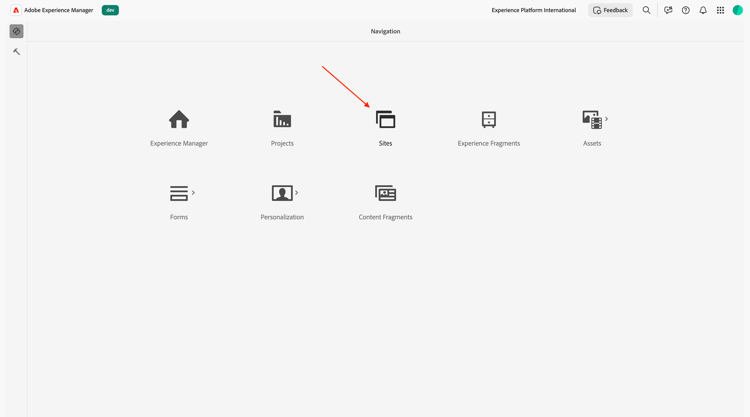
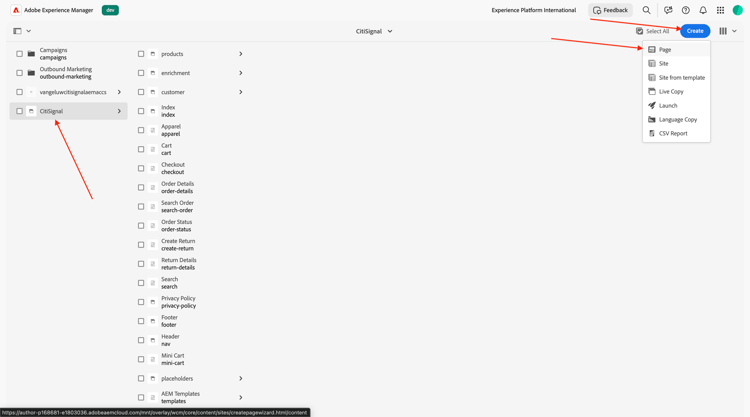
Go to CitiSignal. Click Create and select Page.
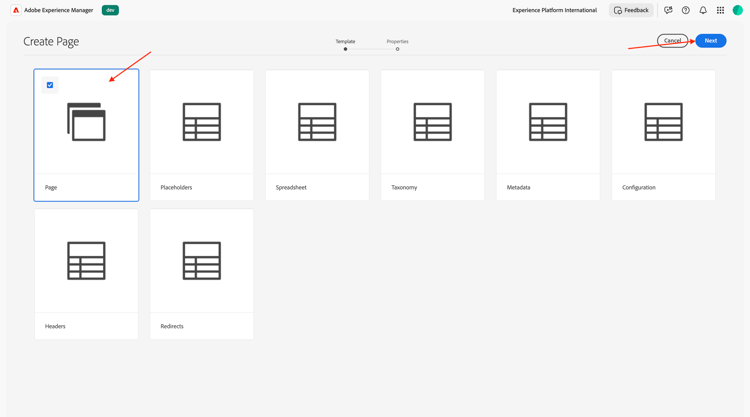
Select Page and click Next.
Enter the following values:
- Title: Brand Concierge
- Name: brandconcierge
- Page Title: Brand Concierge
Click Create.
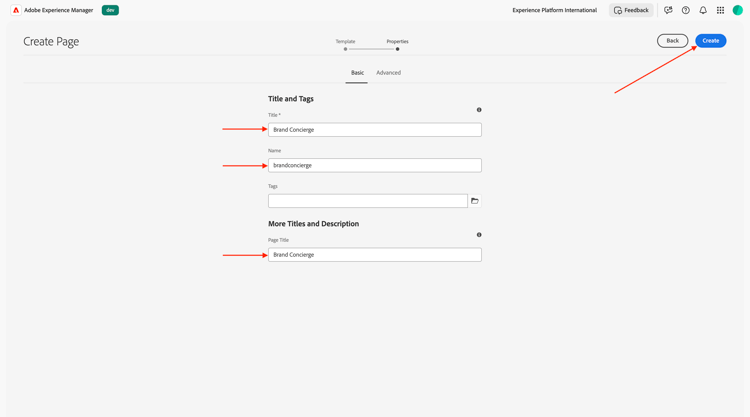
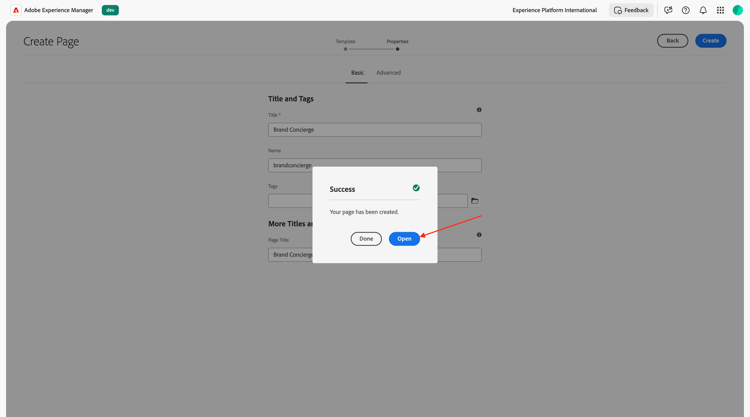
Select Open.
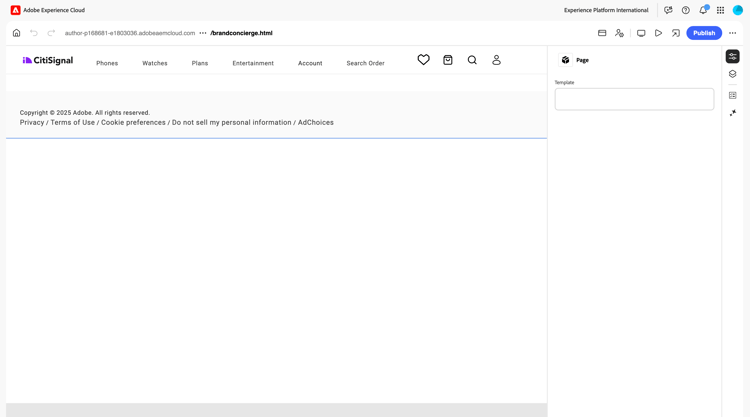
You should then see this.
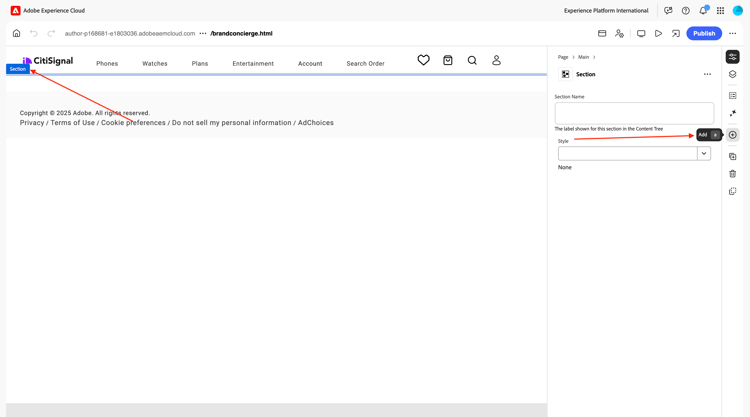
Click in the blank area to select the section component. Then, click the plus + icon in the right menu.
You should then see your custom block shown in the list of available blocks. Click to select it.
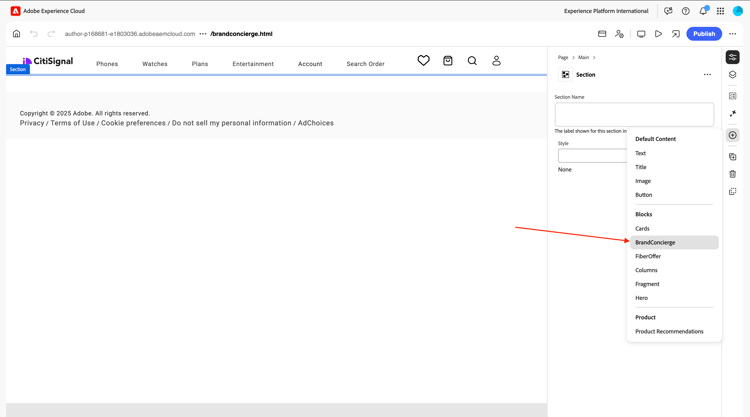
You should then see an empy block being added to this page. This block will be loaded dynamically using the javacript libraries you’ll be adding in the next step.
Click Publish.
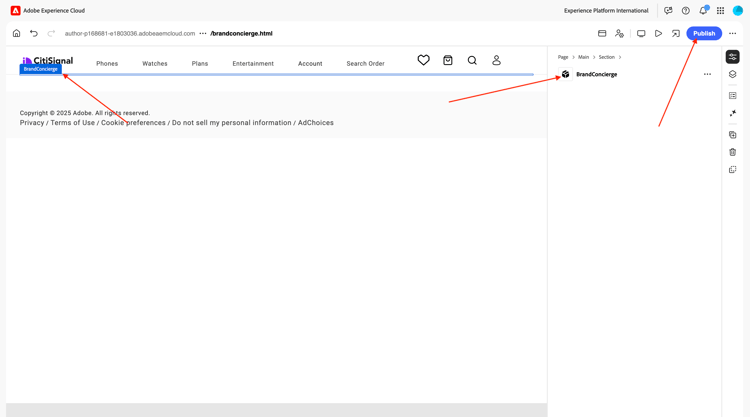
Click Publish again.
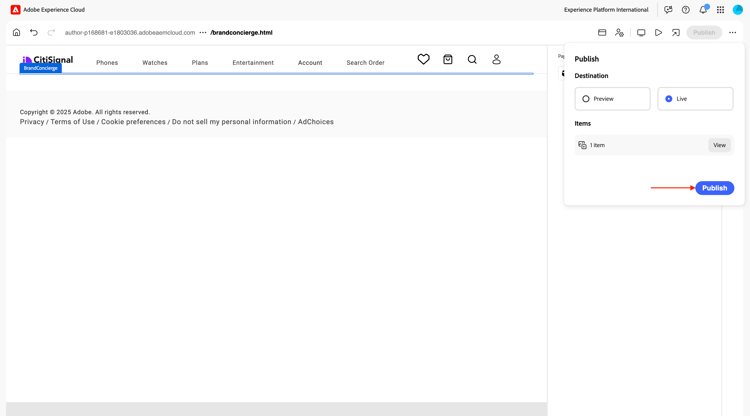
Your new page is now published, and can now be added to the navigation header in the next step.
Update navigation header file
In your AEM Sites overview, go to CitiSignal and check the checkbox for the file Header/nav. Click Edit.
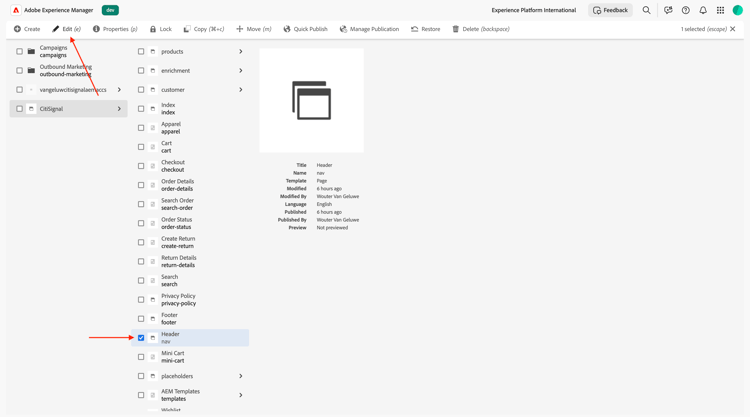
Select the Text field in the preview screen and then click the Text field on the right side of the screen to edit it.
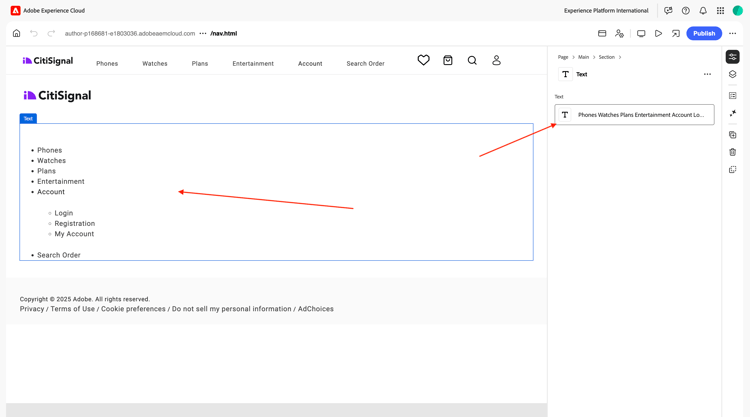
Create a new menu option in the nav menu with the text Brand Concierge. Then, select the text Brand Concierge and click the link icon.
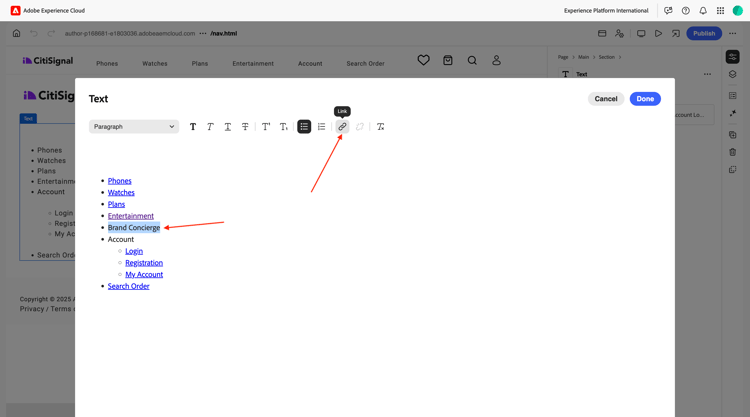
Enter this for the field Path or URL /content/CitiSignal/brandconcierge.html and enter Brand Concierge for the field Title. Click Save.
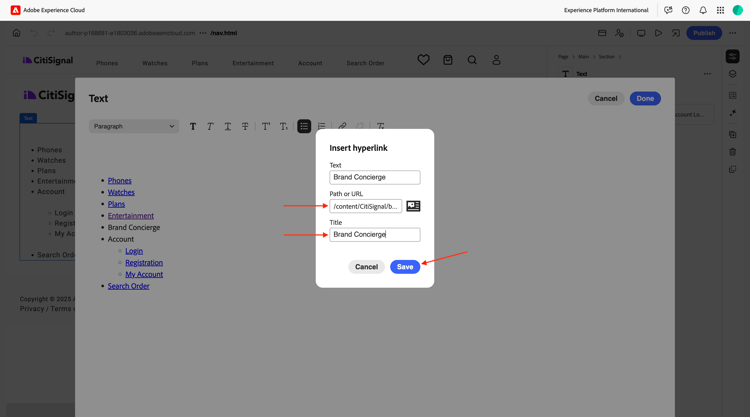
You should then have this. Click Done.
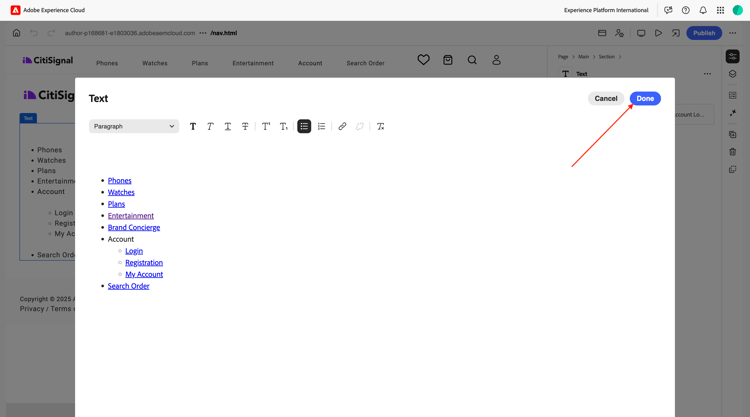
You should then have this. Click Publish.
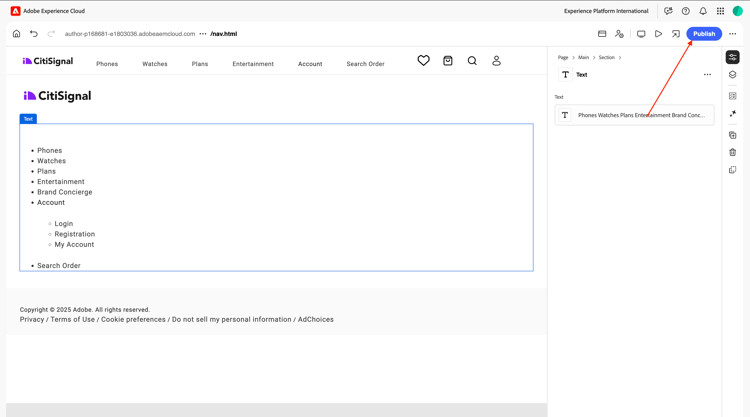
Click Publish again.
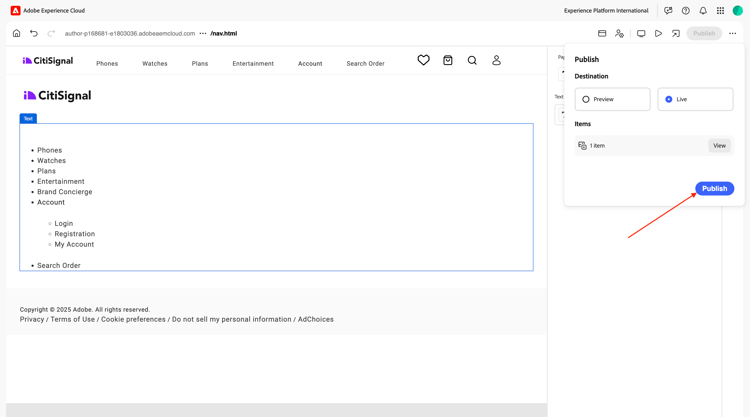
Your new page is now added to the menu.
1.4.2.2 Configure your website to show Brand Concierge - GitHub
After updating the content using your AEM Author environment, you now need to update some of the code in the GitHub repository that is used for your website.
Javascript Libraries
The following libraries are required to implement Brand Concierge on your website running on AEM CS/EDS:
- styleconfigurations.js
- alloy.js
- brandconciergemain.js
Download the file styleconfigurations.js to your desktop. The other files will be loaded from another location.

Go to the GitHub project of your AEM CS/EDS website. Go to scripts.
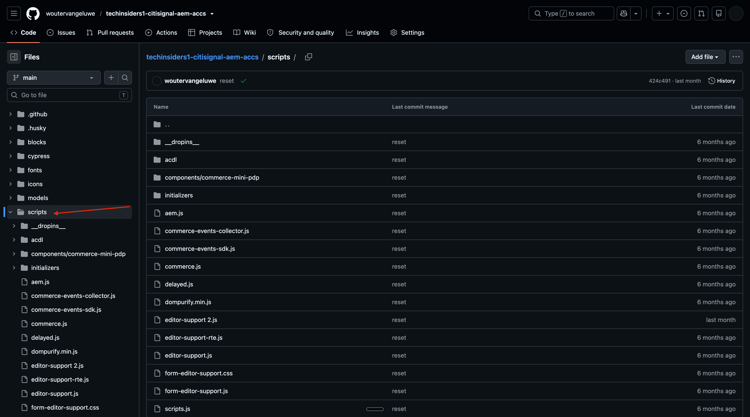
Click Add file and then select Upload files.
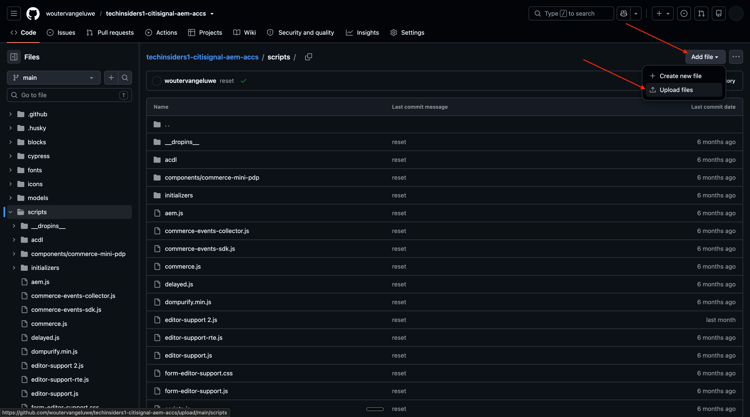
Click Choose your files.
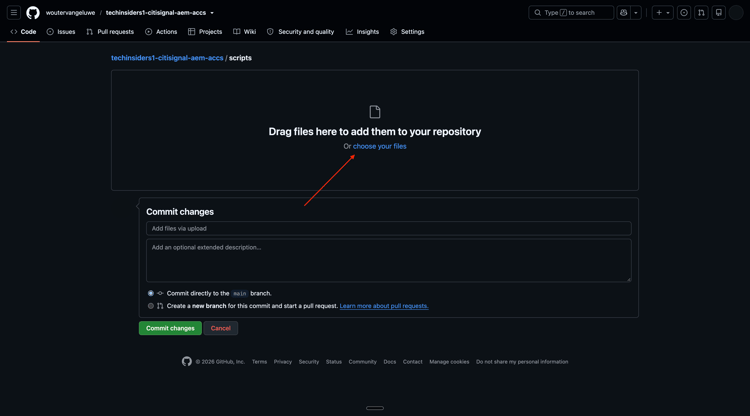
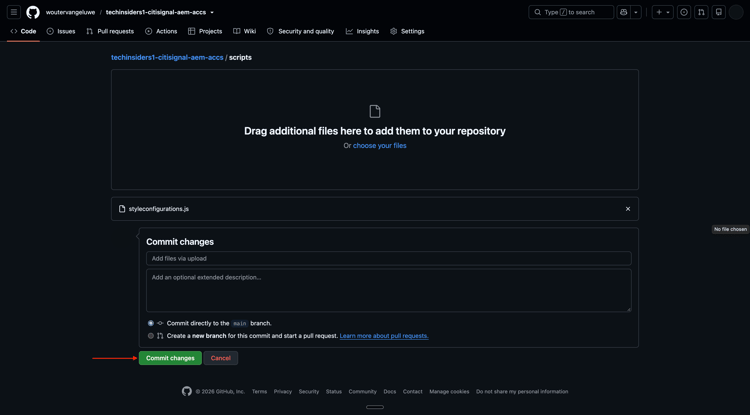
Select the file styleConfigurations.js from your desktop and click Open.

Click Commit changes.
Update head.html
In the previous step you uploaded a new file. This library, along with the 2 other mentioned libraries, now needs to be loaded when your website is loaded and the way to do that is to add references to these files in the file head.html.
Additionally, you also need to provide instructions in the head.html file to ensure that the libraries are loaded in the right order and in a correct way.
To do that, go to the GitHub project of your AEM CS/EDS website by clicking Code.

Scroll down a little bit. Open the file head.html.

Click the pencil icon to edit this file.

You should then see this.

Scroll down to line 43 and paste the following:
There are 2 fields in the below code that you need to update:
- datastreamId is currently set to “XXXXX” and need to be replaced by the ID of the datastream that you created in the previous step.
- orgId needs to be replaced by the IMS Org ID of your Adobe Experience Cloud instance.
<!-- Add this to your existing HTML page -->
<script nonce="aem" src="/scripts/styleconfigurations.js"></script>
<script nonce="aem">
  !function (n, o) {
    o.forEach(function (o) {
      n[o] || ((n.__alloyNS = n.__alloyNS ||
        []).push(o), n[o] = function () {
          var u = arguments; return new Promise(
            function (i, l) { n[o].q.push([i, l, u]) })
        }, n[o].q = [])
    })
  }
  (window, ["alloy"]);
</script>

<style>
  .bc-card__image {
    background-size: contain !important;
    background-repeat: no-repeat !important;
  }
</style>

<script nonce="aem" src="https://cdn1.adoberesources.net/alloy/2.32.0/alloy.min.js"></script>
<script nonce="aem" src="https://experience.adobe.net/solutions/experience-platform-brand-concierge-web-agent/static-assets/main.js"></script>

<script nonce="aem">
  alloy("configure", {
    defaultConsent: "in",
    edgeDomain: "edge.adobedc.net",
    edgeBasePath: "ee",
    datastreamId: "XXXXX",
    orgId: "--aepImsOrgId--",
    debugEnabled: true,
    idMigrationEnabled: false,
    thirdPartyCookiesEnabled: false,
    prehidingStyle: ".personalization-container { opacity: 0 !important }",
  });

  alloy("sendEvent", {});
</script>
Click Commit change….

Click Commit change.

You’ve now updated the required code to load the libraries on your website.
1.4.2.3 Test your configuration
You will now be able to test your changes on your website .
To access your website, you can use these default URLs:
https://main--techinsidersX-citisignal-aem-accs--woutervangeluwe.aem.page/https://main--techinsidersX-citisignal-aem-accs--woutervangeluwe.aem.live/
You need to replace the X in these URLs by the number that was assigned to you.
Additionally, a custom domain name has been created for each website, which you can access using this URL:
https://techinsidersX.adobedemosystem.com/
It may take some time before all the assets are shown correctly, as they need to be published first.
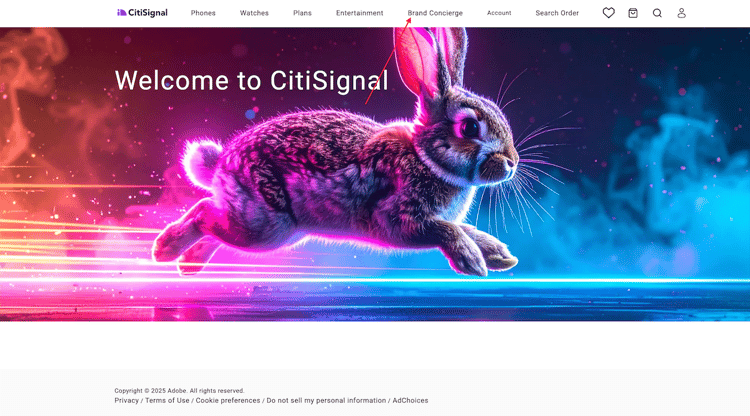
You should then see this. Click Brand Concierge.
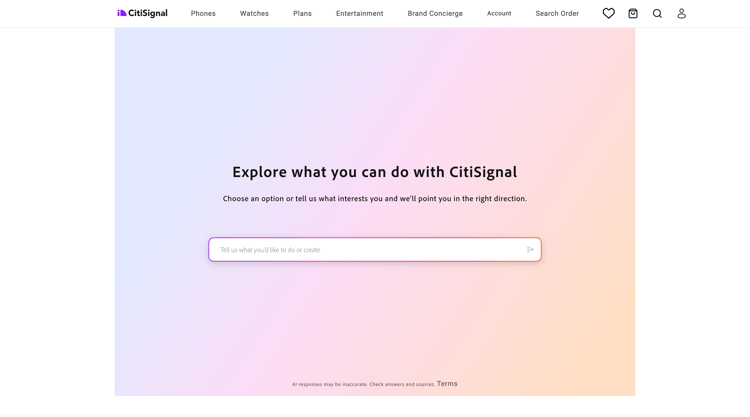
You should then see this Brand Concierge where you can enter your prompt.
Next Steps
Go back to Brand Concierge