1.2.7 CX Enterprise Coworker and Workfront
Instructions for in-person workshops
For this exercise, you need to use:
- Instance: Adobe Tech Insiders
- Sandbox: One Adobe
- Dataview: AdobeOne - Unified Customer Data View
- Username: adobetechinsiders-XXX@adobeeventlab.com and replace XXX by the number that was assigned to you
- Password: use the password that was shared with you
You’ve now completed this lab.
1.2.7.1 Accessing CX Enterprise Coworker
Go to https://experience.adobe.com. Click to open Coworker.

After logging in, click the 3 dots … in the bottom left part of the screen next to your username and make sure you’re in the org --aepImsOrgName-- and in the sandbox --aepSandboxName-- by selecting them as indicated below.

1.2.7.2 Create your project using a template
Enter the following Prompt and click the send button.
What can I do using Workfront?

you should then see this.

In Workfront, create a new portfolio with the name --aepUserLdap-- - CitiSignal and also create a new program in that portfolio with the name --aepUserLdap-- - CitiSignal Fiber Launch.

You should then see this. Click the link to open the newly created portfolio.

Go to Programs. You should now see the newly created program.

Go back to Coworker. Enter the following Prompt and click the send button.
Create a new project with the name --aepUserLdap-- - CitiSignal Fiber Launch Winter 2027 using the template 'Integrated Campaign Execution'
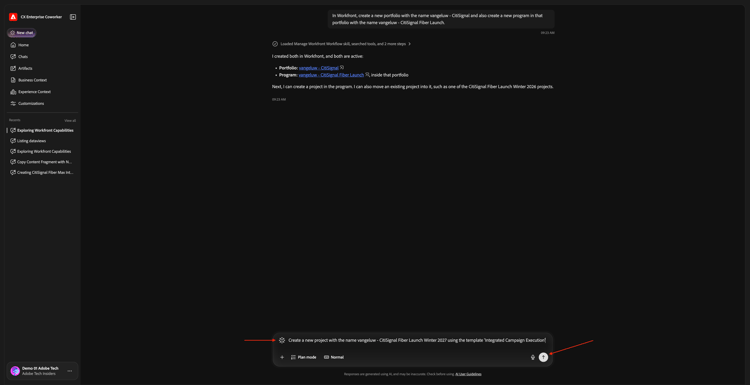
In case there are multiple templates with the same name, choose the use to use here.

Click Yes, add it there.

Click Submit.
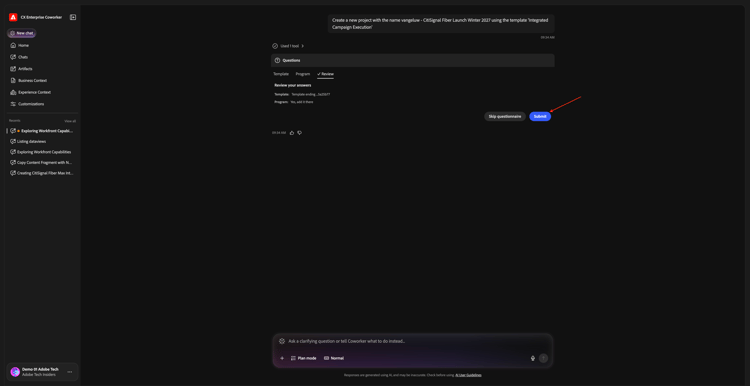
You should then see this. Enter the following Prompt and click the send button.
Change the start date to October 20 2026 and the end date to January 15 2027

Provide the required permissions.

You should then see this. Click the link to open the project.
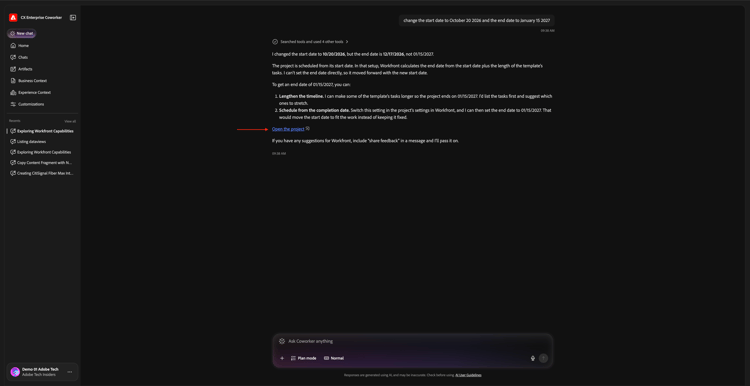
Here’s your project.

Go back to Coworker. Enter the following Prompt and click the send button.
Update the project's description to "The CitiSignal Fiber Launch project is used to plan the upcoming launch of CitiSignal Fiber."

Provide the required permissions.

You should then see this.

Enter the following Prompt and click the send button.
Change the project status to 'Planning' and assign the project to me.

Provide the required permissions.

You should then see this. Enter the following Prompt and click the send button.
Insert a new task below the existing task 'Begin to Create Design Templates'. Enter this name for your task: Create layout using approved assets and copy. Set the field Assignments to the role Designer. Set the field Duration to 5 days. Set the field predecessor to 9.

You should then see this. Click the link to open your task.

Navigate to your project.

You should then see the new task.

Go back to Coworker. Enter the following Prompt and click the send button.
Update the task description to 'This task is used to track the progress of the creation of the assets for the CitiSignal Fiber Launch Campaign.'
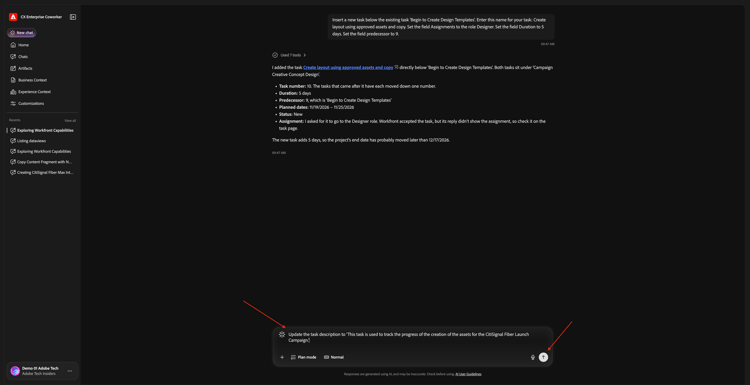
Provide the required permissions.

You should then see this. Enter the following Prompt and click the send button.
Assign the task to me and enable 'Work on it'

Provide the required permissions.

Click to open your task.

1.2.7.3 Approvals
Click to open the task that was created in the previous step.
Go to Documents, click + Add new and then select Document.

Download this file: timetravelnow.png to your desktop.
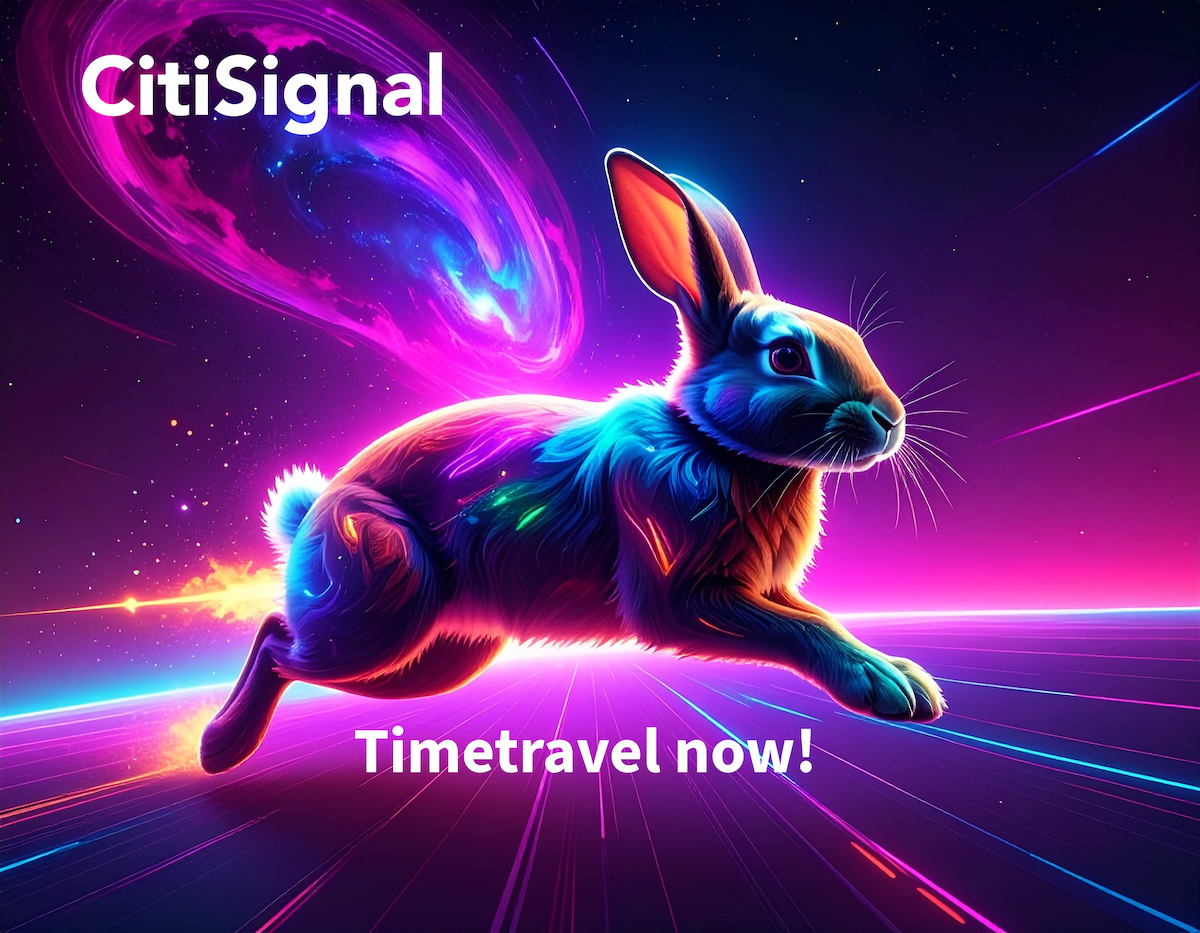

Select the file you just downloaded and click Open.

You should then see this.

Go back to Coworker. Enter the following Prompt and click the send button.
Create a new approval flow with the name 'vangeluw - Approval Flow' and add myself as the first approver, and then add vangeluw@adobe.com as the second approver

You should then see this. Enter the following Prompt and click the send button.
Start the approval flow for the document 'timetravelnow' that is in the task that was created before

Click the link to view the approval in Workfront.

Click Approve.

You should then see this.

You’ve now completed this lab.
Next Steps
Go to CX Enterprise Coworker and GenStudio for Performance Marketing
Go back to CX Enterprise Coworker
Go back to All Modules