1.1.6 Coworker Harness
Prerequisites
In order to follow the steps in this lab as documented below, the following access is required:
- Access to Real-Time CDP, Journey Optimizer and Customer Journey Analytics
- Access to AI Assistant in Adobe Experience Cloud
- Access to AEP Agent Orchestrator
Instructions for live workshops
For this exercise, you need to use:
- Instance: Adobe Tech Insiders
- Sandbox: One Adobe
- Dataview: AdobeOne - Unified Customer Data View
- Username: adobetechinsiders-XXX@adobeeventlab.com and replace XXX by the number that was assigned to you
- Password: use the password that was shared with you
1.1.6.1 Access Agent Orchestrator
Go to https://coworker.experience.adobe.io/chat. Sign in using your Adobe account. After logging in, make sure you’ve selected the correct instance and sandbox by changing selecting them as indicated below.

1.1.6.2 Set your context
Enter the following command and click Send.
list dataviews

You may get this request. Provide the required permissions.
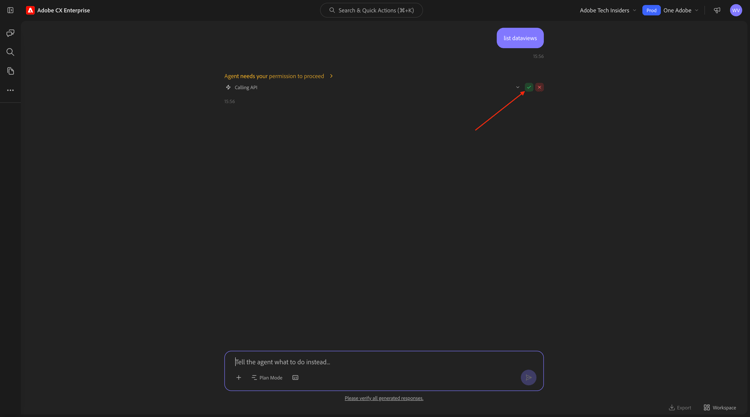
You may get this second request. Provide the required permissions.
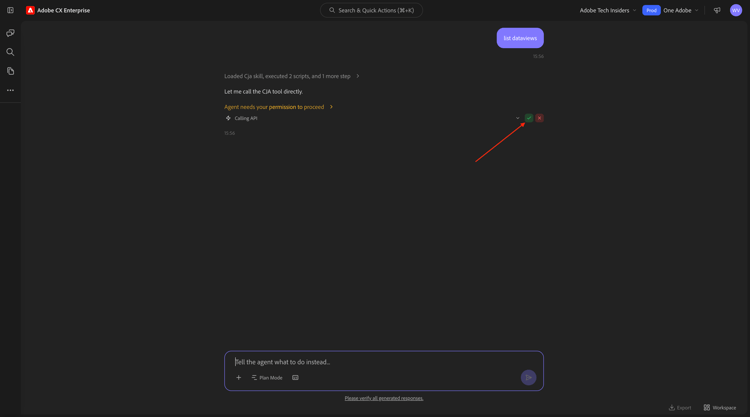
You should then see this. Enter the following command and click Send.
switch to dataview AdobeOne - Unified Customer Data View

You should then see this.

1.1.6.3 Start with overall purchase trends to anchor context and zoom into fiber
Intent
Get a toplevel pulse on category demand—Mobile, Landline, Internet, TV, Fiber—specifically for the most recent 60 days. This sets baselines for seasonality, promo effects, and regional variance after the New York rollout.
Enter the following Prompt and click the send button.
Show me purchases by mainCategory over the last 2 months.

You should then see this:

Enter the following Prompt and click the send button.
Show me purchases by mainCategory = Fiber over the last 2 months per week

You should then see this, which drills down into Fiber-specific trends.

1.1.6.4 Correlate Orders with Content Preferences
Intent
Test the hypothesis that a preference for a specific genre (e.g., SciFi, Sports, Drama) predicts broadband upgrade behavior—especially for high bandwidth needs.
First, you need to find out which field is used to store the genre preference.
Enter the following Prompt and click the send button.
Which field is used to store the favourite genre?

You should then see this, which shows that the field used for genre is --aepTenantId--.individualCharacteristics.telco.mediaPreferences.favouriteGenre.

With that information, you can start drilling down in the purchase data.
Enter the following Prompt and click the send button.
Show me purchases by favourite genre for the last 2 months

You should then see this.

1.1.6.5 Identify Existing Fiber Journeys
Intent
Discover which active or recently concluded journeys include “Fiber” in the title—e.g., “Fiber Upgrade NYC – Sept”, “Fiber Trial – Streaming Bundle”.
Enter the following Prompt and click the send button.
What journeys exist?

You should then see something like this.

Enter the following Prompt and click the send button.
Show me the journeys that have 'Fiber' in their name.

You should then see this. Click the link to open the deployed journey CitiSignal - Fiber Max Launch Promotion.

A new window will be opened, and you’ll be taken to the journey details overview immediately.

1.1.6.6 Check which audience is used
Intent:
Understand the seed definition of the “CitiSignal - Fiber Max Launch Promotion” journey—what traits drove targeting (e.g., “SciFi Genre Preference,” “4+ devices,” “stream ≥ 300GB/month”).
Enter the following Prompt and click the send button.
What was the initial audience in the journey named CitiSignal - Fiber Max Launch Promotion?

You should then see this.

1.1.6.7 Validate journey performance via fallout analysis
Intent
You want to understand journey performance fallout to know if there are any nodes or conditions within the journey that are experiencing a large percentage of profiles being dropped. This is helpful in understanding if additional adjustments are needed in the journey.
Enter the following Prompt and click the send button.
Create a fall-out report on the "CitiSignal - Fiber Max Launch Promotion" journey

You should then see this.

Let’s see if another data view has more data about this journey. Enter the following Prompt and click the send button.
can you try using the AJO Enabled Data View to see if there is more data about this journey there?

You should then see this.

1.1.6.8 Create a new audience
Intent
Based on the above findings and research, there’s a correlation between customers that consume a lot of data and that have a preferred genre of sci-fi or fantasy. You will now combine these attributes in an audience.
Enter the following Prompt and click the send button.
Create an audience that combines people with an average download usage per month of over 2000 GB and a preferred genre of sci-fi or fantasy.

If similar, already existing audiences are already available, you should see a similar message. Select Create a new one anyway and click Submit.

Select the name for your audience.

Select Batch.

Click Submit.

Review the plan, and then click Approve Plan.

If prompted, provide the permissions to perform this task.

Your audience has now been created.

1.1.6.9 Find existing audiences aligned to high usage and check if they are in use
Intent:
Locate any audience named with “heavy downloaders”, defined by monthly data usage thresholds.
Enter the following Prompt and click the send button.
Is there an audience that has "heavy downloaders" in the title?

You should then see this. You now want to see all your audiences and how much they have changed over the last few days.
Enter the following Prompt and click the send button.
List how much these audiences changed over the last few days.

You should then see this.

There are some existing audiences already for “heavy downloaders”. Let’s see if they are in use already.
Enter the following Prompt and click the send button.
Which of the above audiences are used in a journey?

You should then see something similar to this.

For the upcoming launch of Fiber Max, you should now create a new journey.
1.1.6.10 Create New Journey for Fiber Max Launch
Intent:
Build a new journey targeting the compound audience:
Heavy Downloaders ∩ SciFi Preference.
Enter the following Prompt and click the send button.
Create a journey using the audience I created before. The journey is for the rollout of fiber broadband. There will 2 versions of an email based on a split of the audience based on who is in the "Eligble for Fiber upgrade" audience. After 3 days, profiles from both email treatments who have not purchased fibre max will be sent a follow up email.

You should then see this. Review the plan, and then click Approve Plan.

You should then see this. Enter it looks fine, go ahead and click generate.

If prompted, provide the permissions to perform this task.

Your journey has now been created in draft mode.

1.1.6.11 Journey Conflict Management
Enter the following Prompt and click the send button.
How can I manage journey conflicts?

Review the information.

Scroll down and review the Sources to find that the information is sourced from Experience League.

Enter the following Prompt and click the send button.
List any conflicts for the journey "CitiSignal - Fiber Max Launch Promotion".

You should then see this. Review the journey conflict information.

1.1.6.12 Experiments
Enter the following Prompt and click the send button.
How are the experiments performing for the journey named 'CitiSignal - Fiber Max Launch Promotion'?

You should then see this:

You’ve now completed this lab.
Next Steps
Go back to Agent Orchestrator