3.8.1 Setting up your relational data foundation
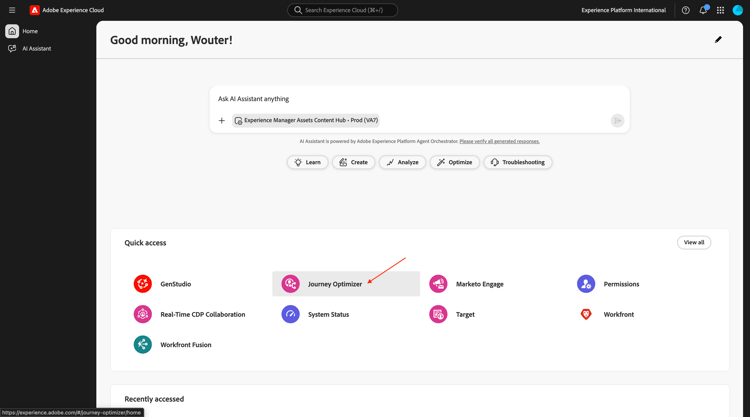
Login to Adobe Journey Optimizer by going to https://experience.adobe.com. Click Journey Optimizer.
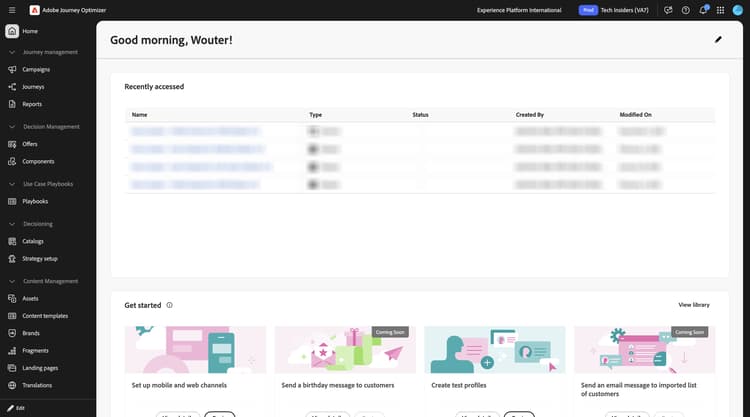
You’ll be redirected to the Home view in Journey Optimizer. First, make sure you’re using the correct sandbox. The sandbox to use is called --aepSandboxName--.
3.8.1.1 Relational-based schema setup
A relational-based schema is the formal definition of the model-based data model.
It specifies:
- The set of tables
- The columns in each table
- The constraints
- The relationships across tables
Organizing schemas or tables in a model-based data model is about structuring your data into multiple tables. Ensure each table stores one type of entity/schemas.
When ingesting data into for usage with Adobe Journey Optimizer Orchestrated Campaigns, the following sources are available:
- Amazon S3
- Google Cloud Storage
- SFTP
- Snowflake
- Google BigQuery
- Data Landing Zone
- Azure Databricks
- Local File Upload
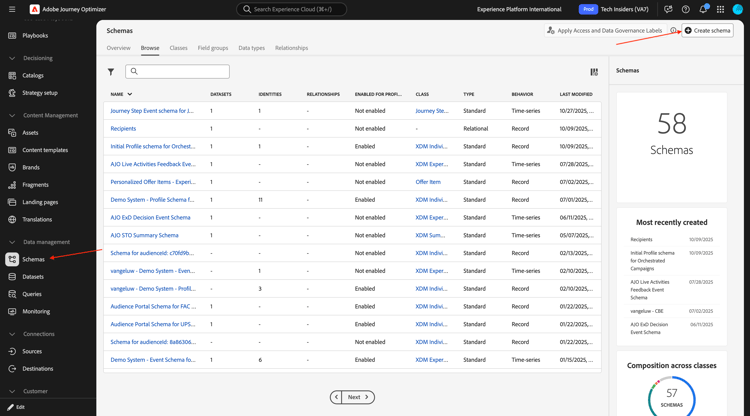
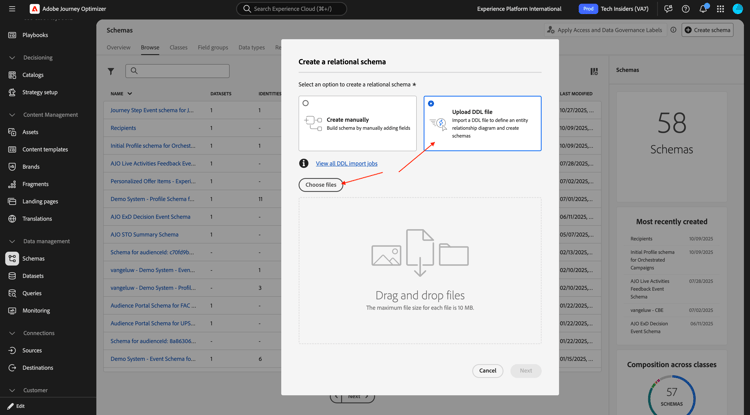
The first step in this exercise is the configuration of your relational-based XDM schemas. In the left menu, scroll down to Data Management and select Schemas. Click + Create schema.
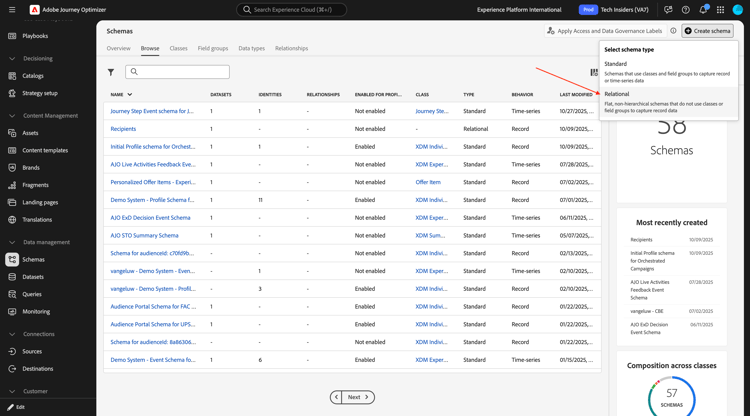
Select Relational.
Select Upload DDL file and then click Choose files.
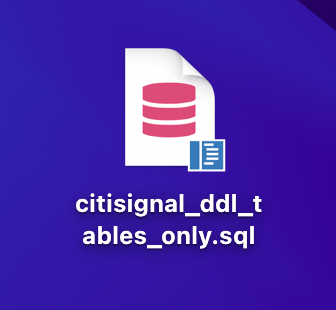
Download the file citisignal_ddl_tables_only.sql.zip and export it to your desktop.
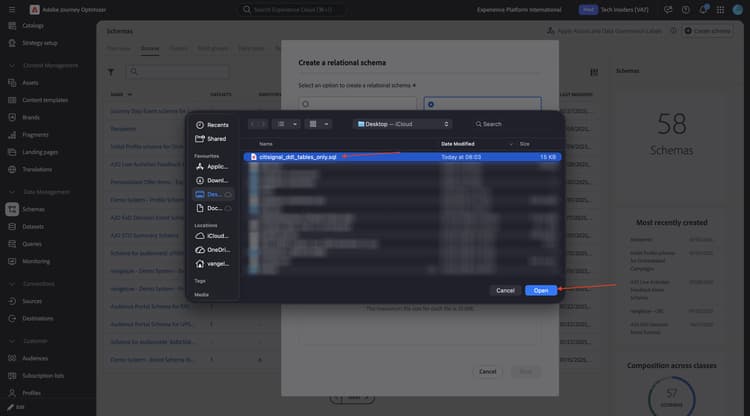
Select the file citisignal_ddl_tables_only.sql and click open.
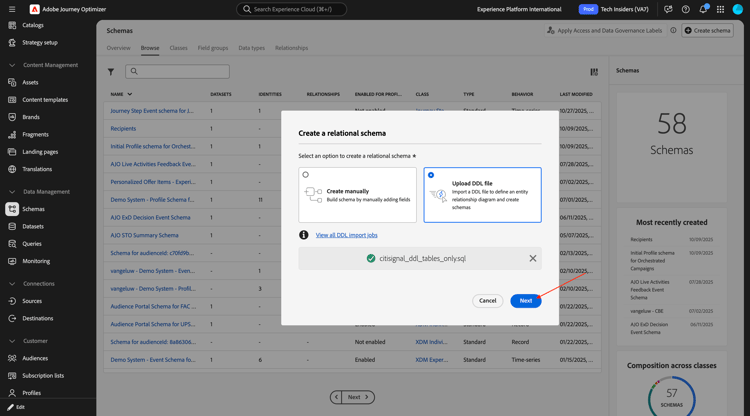
You should then see this. Click Next.
Identity
Some of your schemas contain personal identifiers and those fields shuold be marked as Identity, and you need to select the Namespace that is applicable to that specific type of identity.
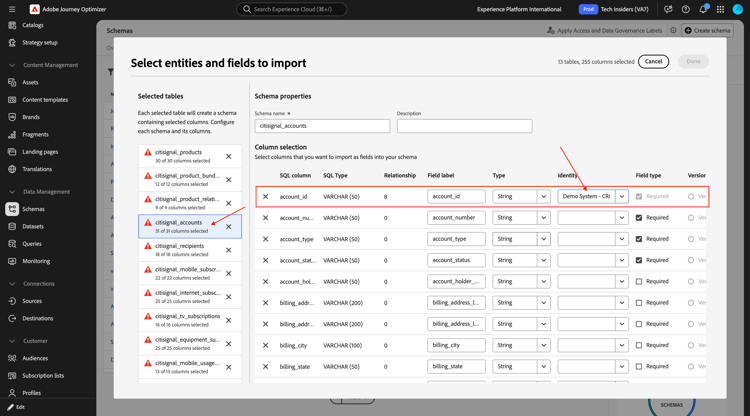
citisignal_accounts
For this schema, go to the field account_id and set the Identity type to Demo System - CRMID.
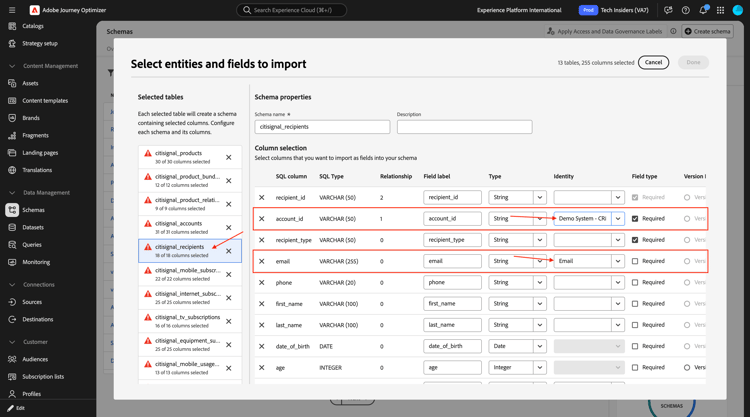
citisignal_recipients
For this schema, go to the field account_id and set the Identity type to Demo System - CRMID and go to the field email and set the Identity type to Email.
Versioning
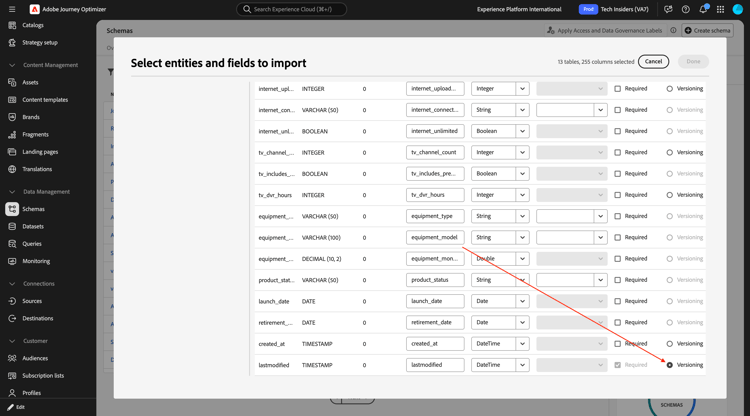
In order to keep track of updates to the data that will be ingested against these schemas, it is required to set a field that will be used to keep track of the version of the uploaded data. The field that is used for this in all these schemas is the field lastmodified, which contains a timestamp of the uploaded data.
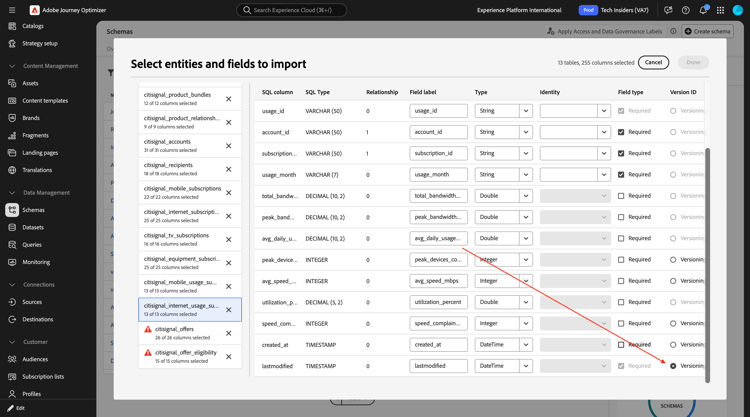
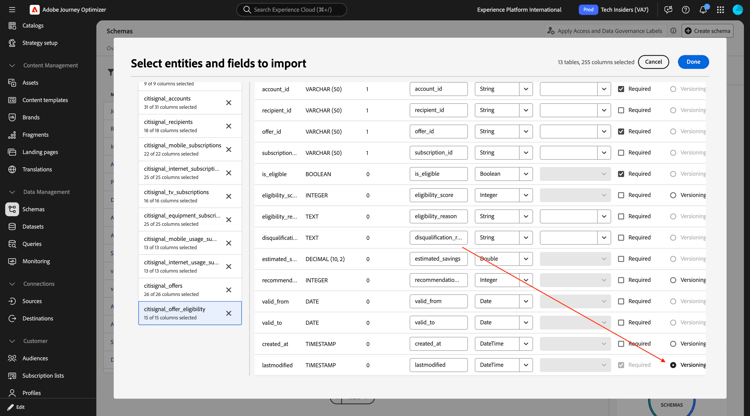
You now need to check the checkbox for Versioning for the field lastmodified in each of these schemas.
citisignal_products
Check the checkbox for Versioning for the field lastmodified.
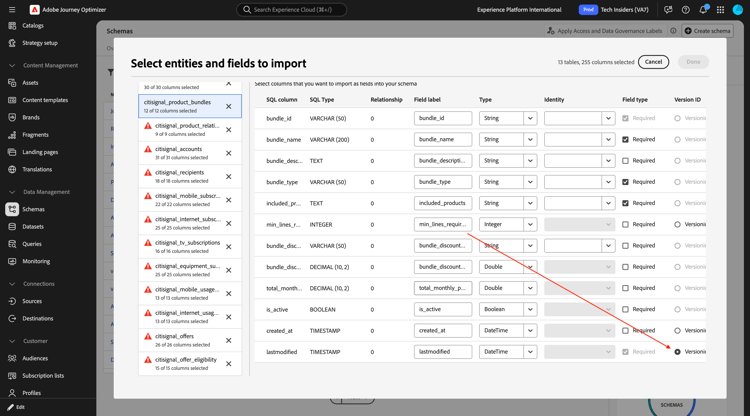
citisignal_product_bundles
Check the checkbox for Versioning for the field lastmodified.
citisignal_product_relationships
Check the checkbox for Versioning for the field lastmodified.
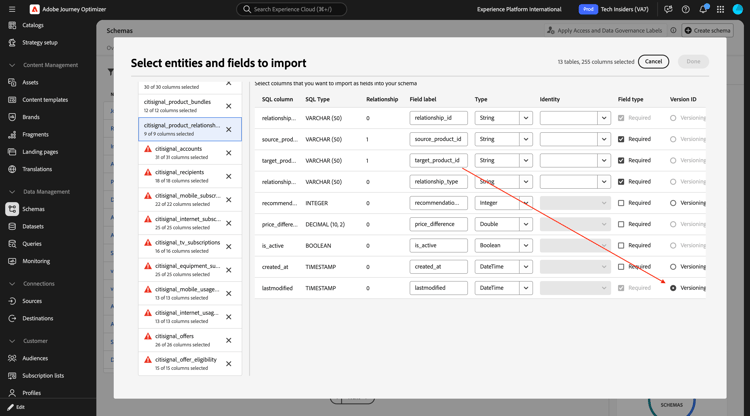
citisignal_accounts
Check the checkbox for Versioning for the field lastmodified.
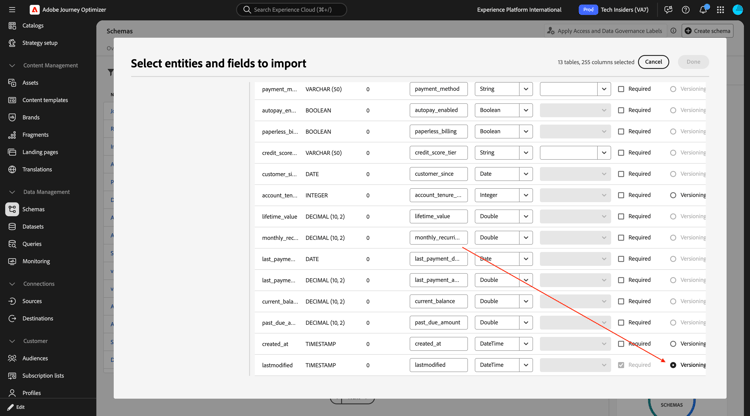
citisignal_recipients
Check the checkbox for Versioning for the field lastmodified.
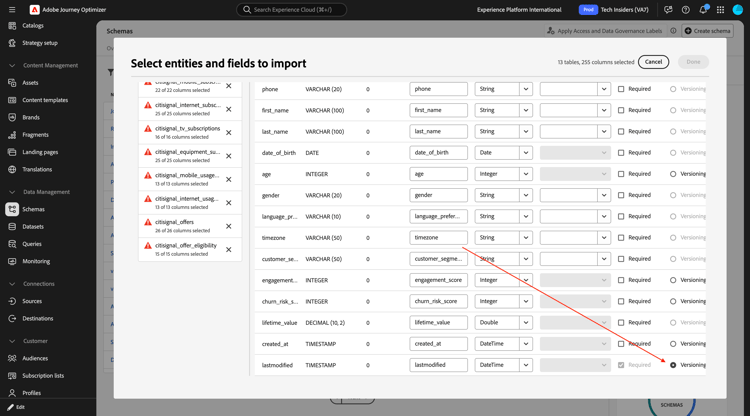
citisignal_mobile_subscriptions
Check the checkbox for Versioning for the field lastmodified.
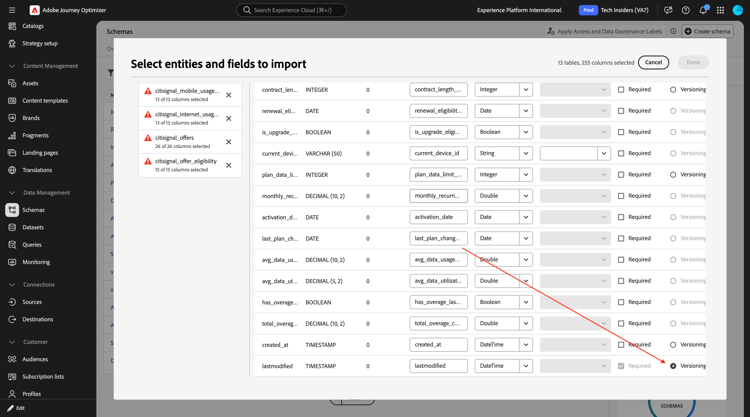
citisignal_internet_subscriptions
Check the checkbox for Versioning for the field lastmodified.
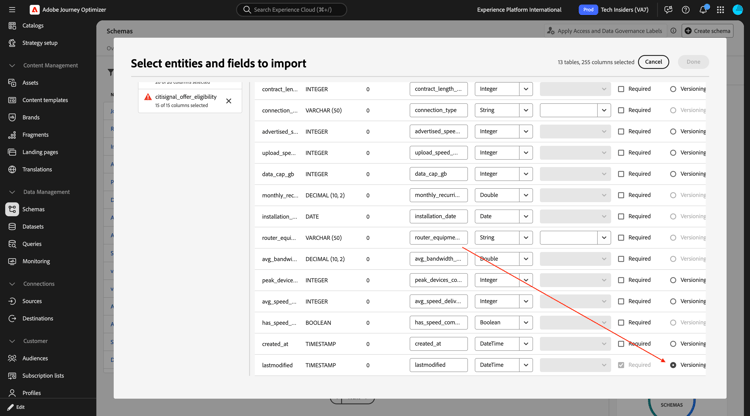
citisignal_tv_subscriptions
Check the checkbox for Versioning for the field lastmodified.
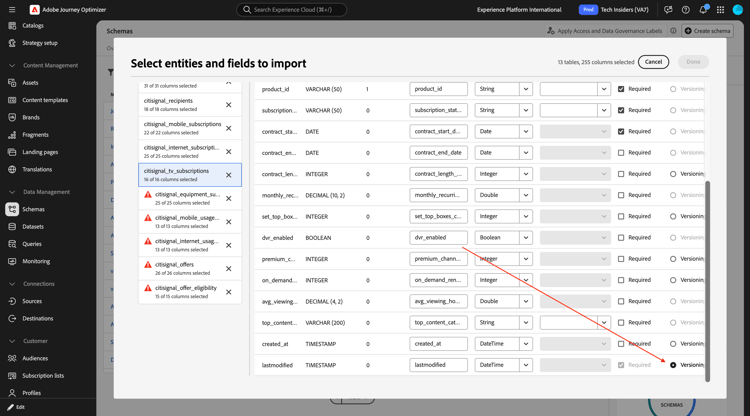
citisignal_equipment_subscriptions
Check the checkbox for Versioning for the field lastmodified.
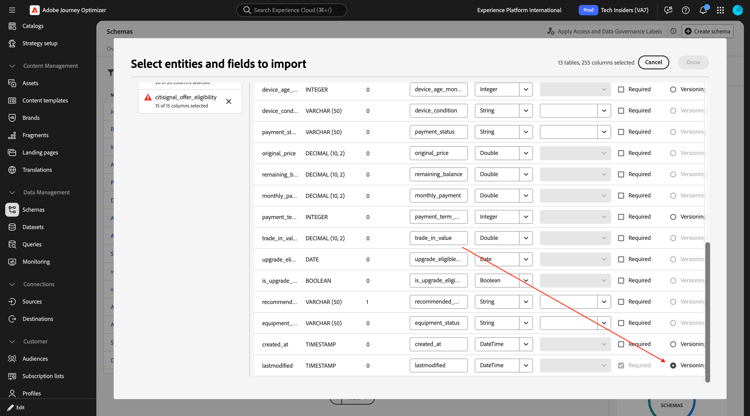
citisignal_mobile_usage_summary
Check the checkbox for Versioning for the field lastmodified.
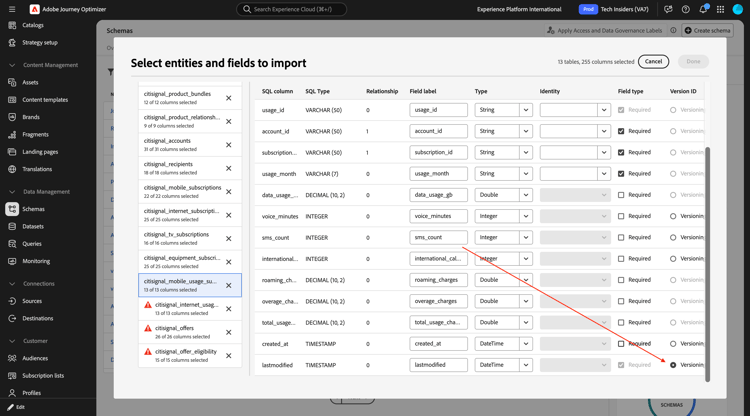
citisignal_internet_usage_summary
Check the checkbox for Versioning for the field lastmodified.
citisignal_offers
Check the checkbox for Versioning for the field lastmodified.
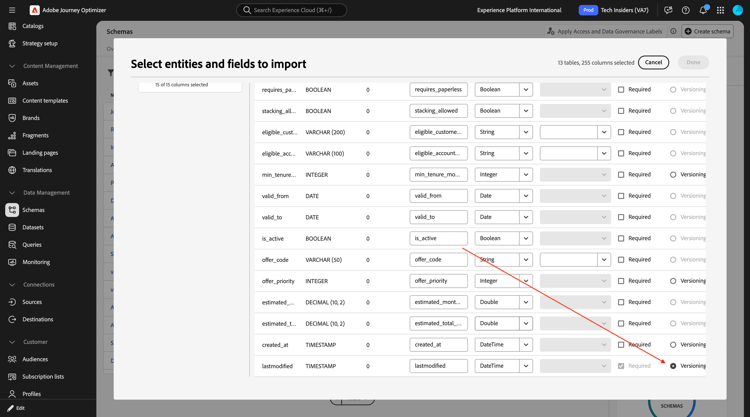
citisignal_offer_eligibility
Check the checkbox for Versioning for the field lastmodified.
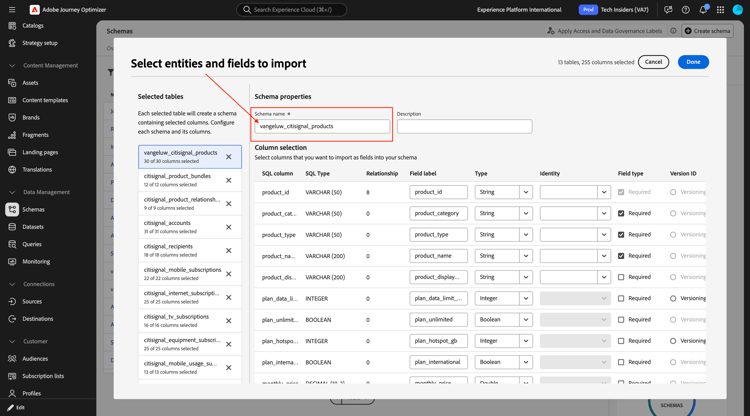
Schema name
WHen ingesting these schemas for enablement purposes in a shared sandbox, it is required to change the name of each schema so that it’s unique in that specific sandbox. The reason for making this change is to avoid schema naming conflicts.
For this lab, you should add your LDAP in front of each schema name, which means that every schema name should have this prefix: --aepUserLdap--_
citisignal_products
Change the name of your schema to--aepUserLdap--_ citisignal_products.
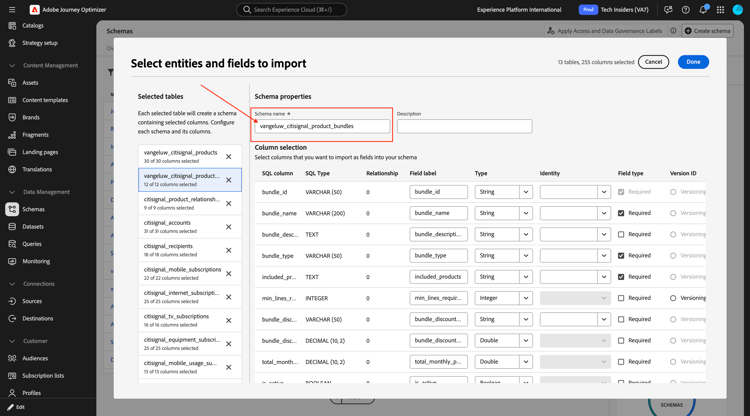
citisignal_product_bundles
Change the name of your schema to--aepUserLdap--_ citisignal_product_bundles.
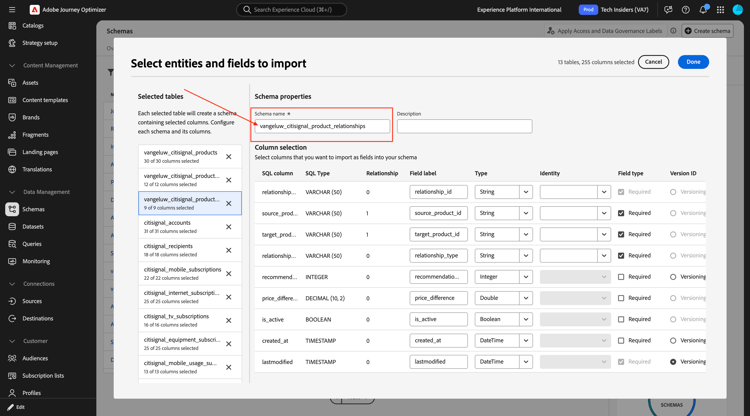
citisignal_product_relationships
Change the name of your schema to--aepUserLdap--_ citisignal_product_relationships.
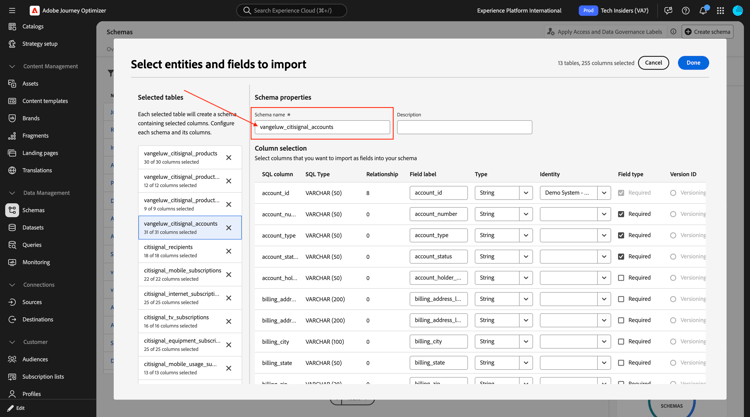
citisignal_accounts
Change the name of your schema to--aepUserLdap--_ citisignal_accounts.
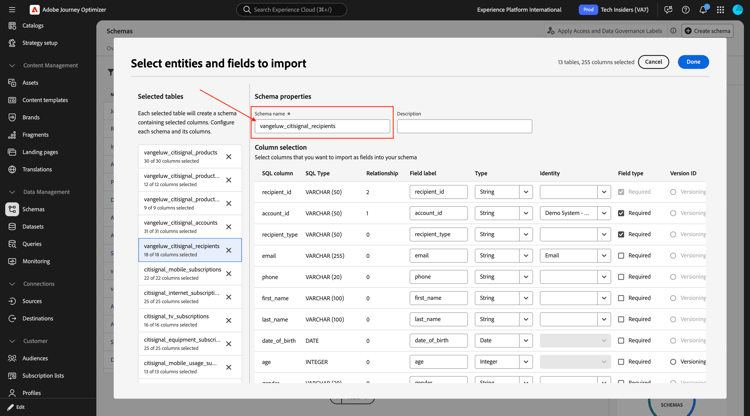
citisignal_recipients
Change the name of your schema to--aepUserLdap--_ citisignal_recipients.
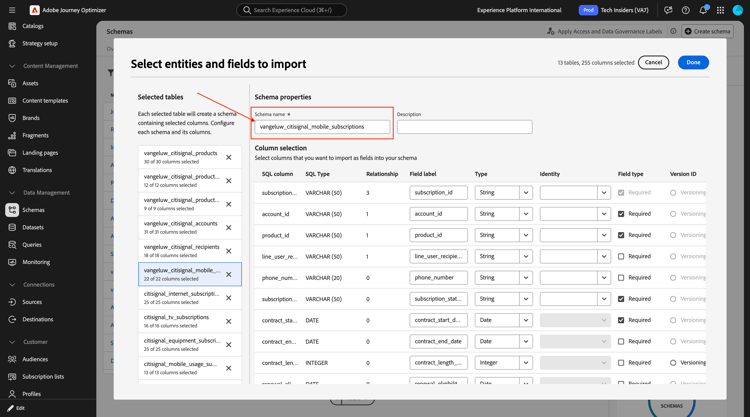
citisignal_mobile_subscriptions
Change the name of your schema to--aepUserLdap--_ citisignal_mobile_subscriptions.
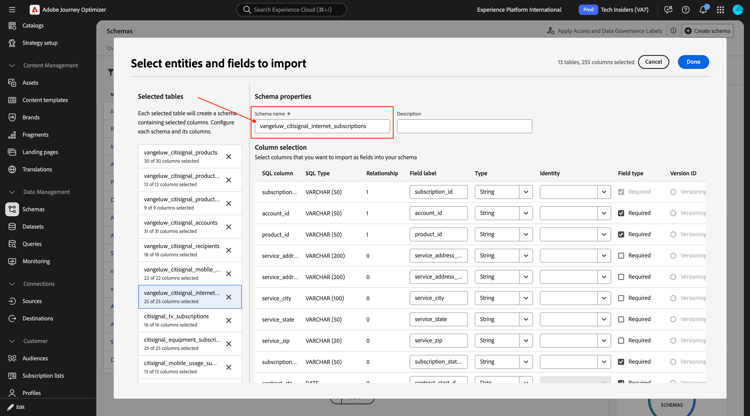
citisignal_internet_subscriptions
Change the name of your schema to--aepUserLdap--_ citisignal_internet_subscriptions.
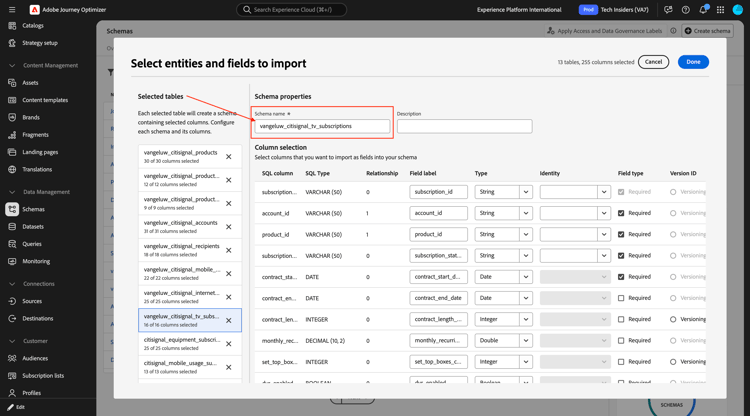
citisignal_tv_subscriptions
Change the name of your schema to--aepUserLdap--_ citisignal_internet_subscriptions.
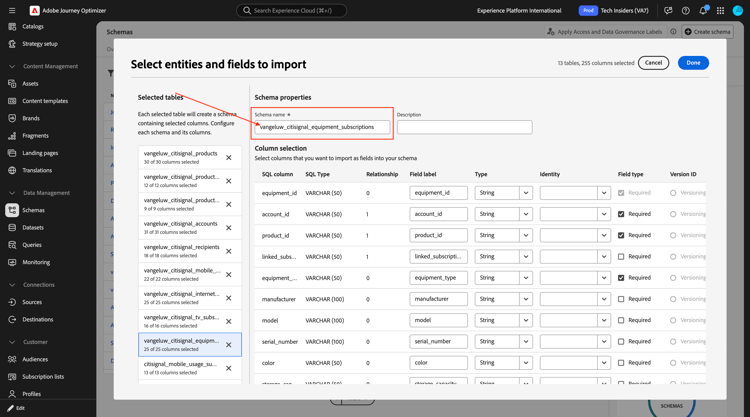
citisignal_equipment_subscriptions
Change the name of your schema to--aepUserLdap--_ citisignal_equipment_subscriptions.
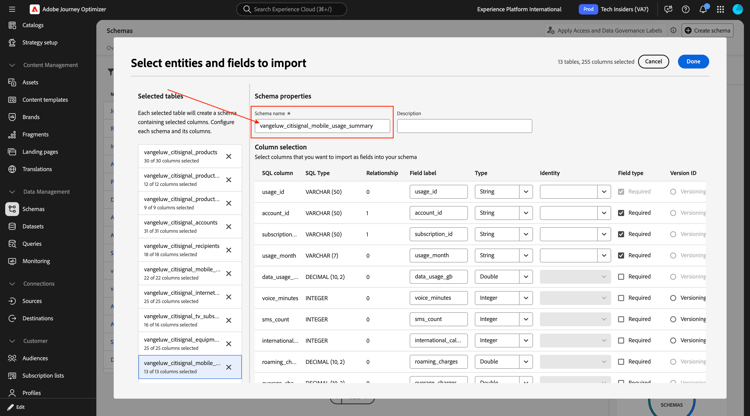
citisignal_mobile_usage_summary
Change the name of your schema to--aepUserLdap--_ citisignal_mobile_usage_summary.
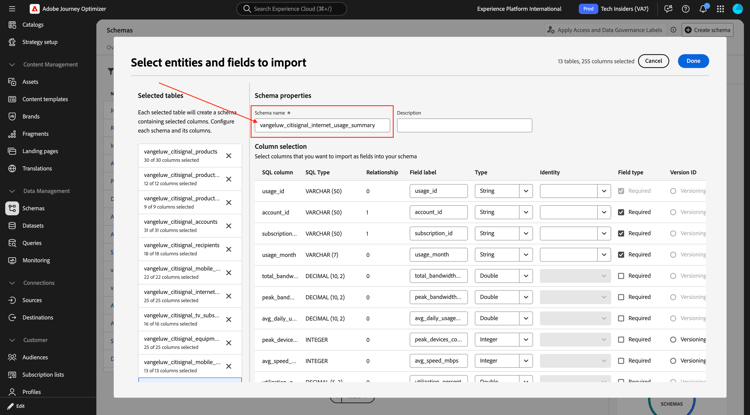
citisignal_internet_usage_summary
Change the name of your schema to--aepUserLdap--_ citisignal_internet_usage_summary.
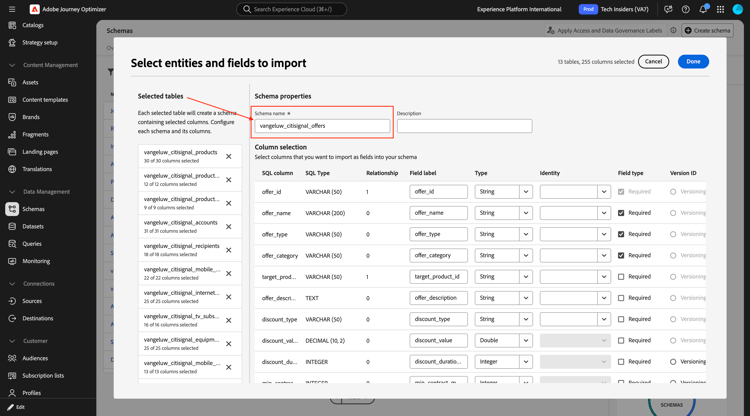
citisignal_offers
Change the name of your schema to--aepUserLdap--_ citisignal_offers.
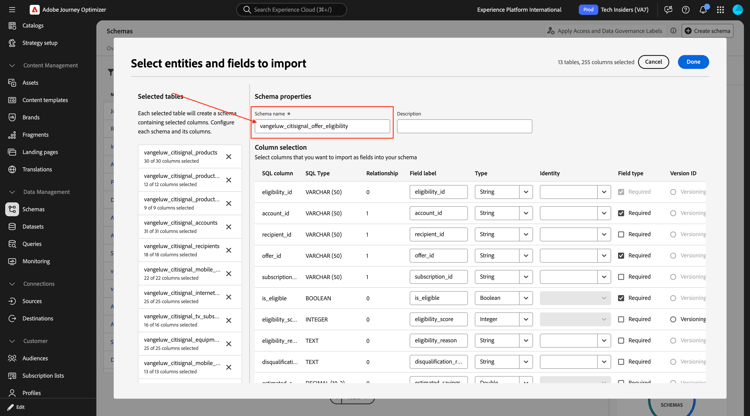
citisignal_offer_eligibility
Change the name of your schema to--aepUserLdap--_ citisignal_offer_eligibility.
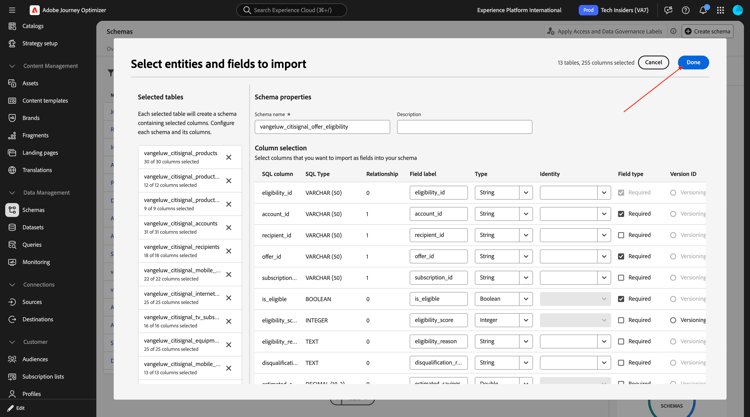
Your schemas are now ready to be saved. Click Done.
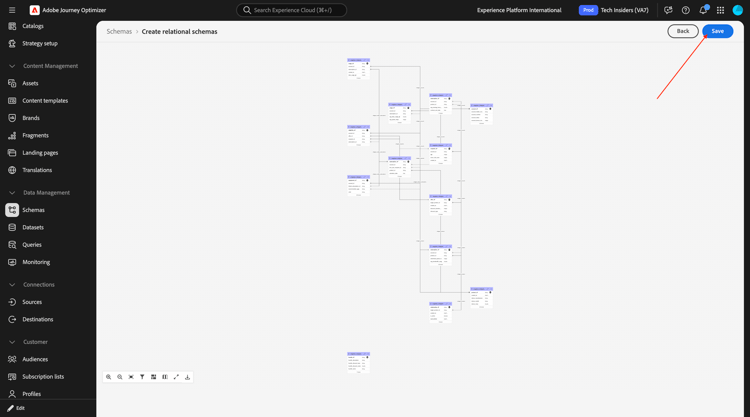
You should then see this. Click Save.
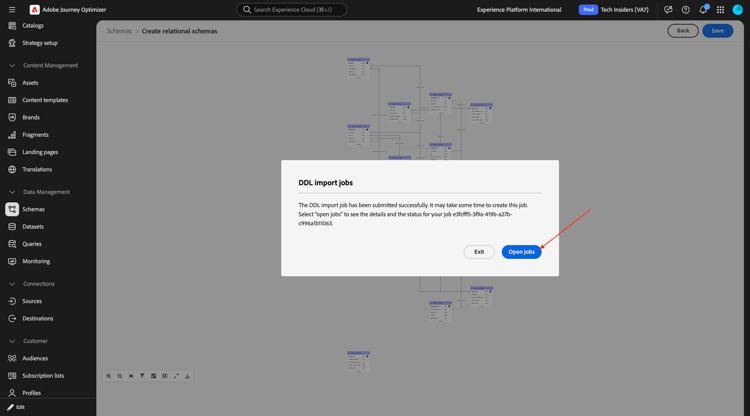
Click Open jobs.
You should then see this. You should wait until the job completes successfully before continuing to the next step.
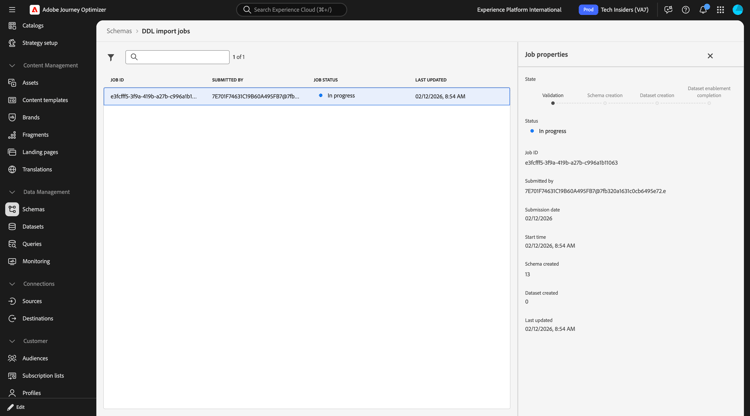
Once the job completes successfully, you can continue with the next step. This may take 5-10 minutes.
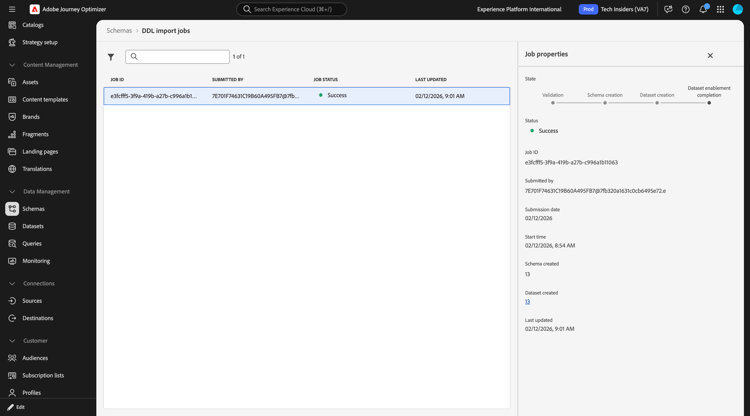
Now that your relational XDM schemas are configured and with data being ingested, you can start to use that data to create your orchestrated campaign in the next exercise.
3.8.1.2 Data ingestion
Go to Datasets. You should then see a dataset that was created for each schema that you created.
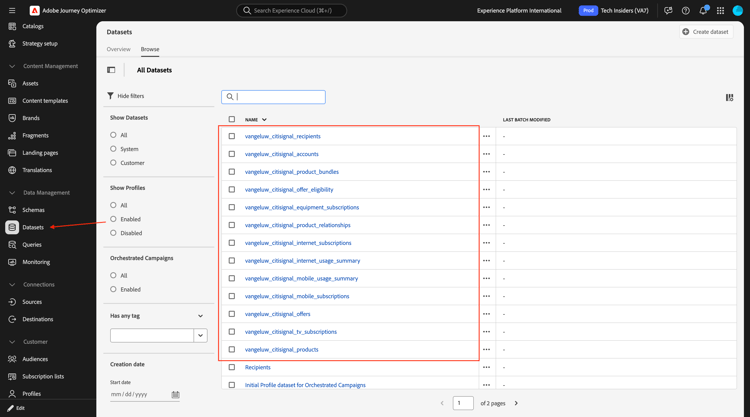
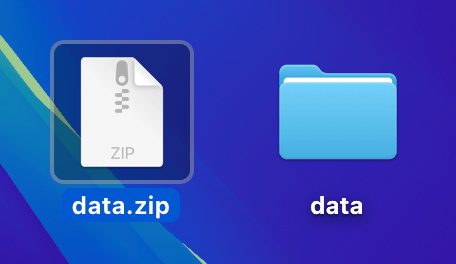
Download the file data.zip to your desktop and unzip it.
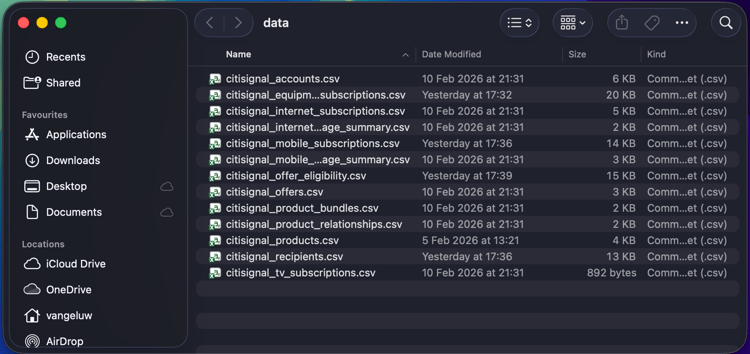
Open the folder data. You should see a CSV file for each of the schemas that were created. You now need to upload that data into each corresponding dataset. For this lab, you will be doing that by doing a loal file upload into each dataset.
vangeluw_citisignal_products
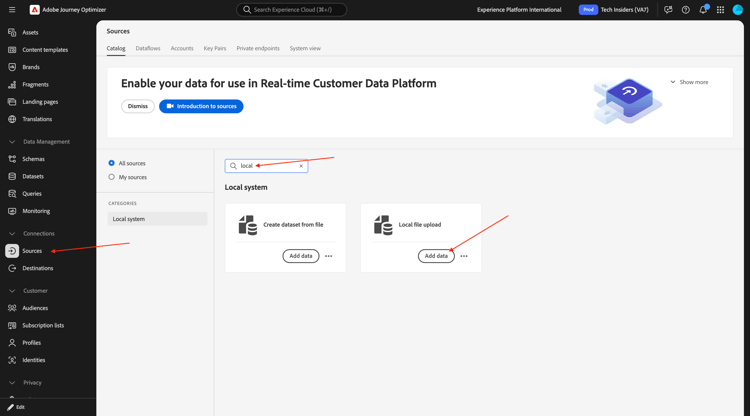
Go to Sources, search for local and then click Add data under Local File Upload.
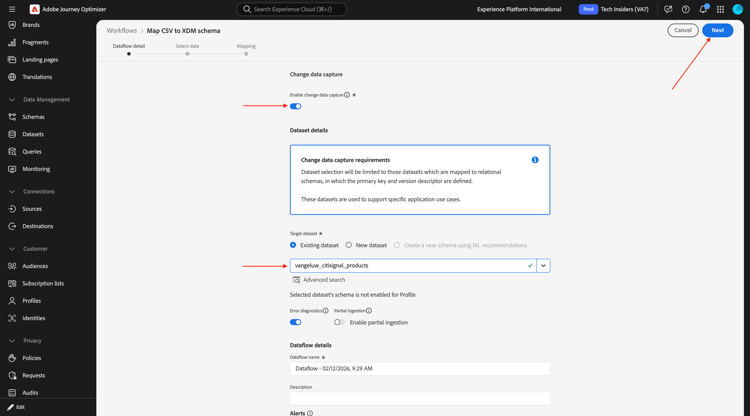
Enable the toggle for Enable change data capture.
Select the dataset vangeluw_citisignal_products.
Click Next.
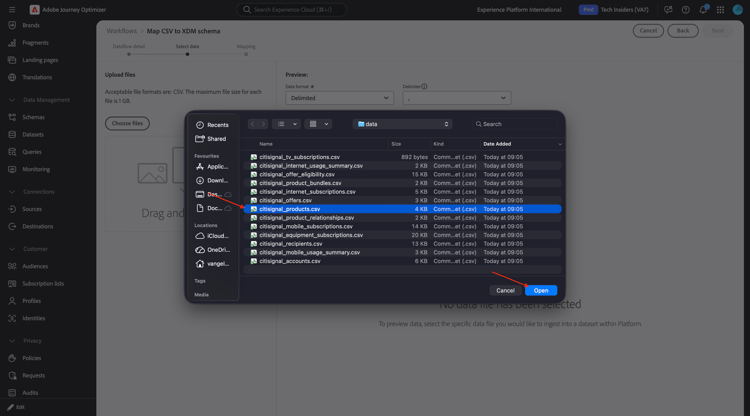
Click Choose files. Select the file citisignal_products.csv and click open.
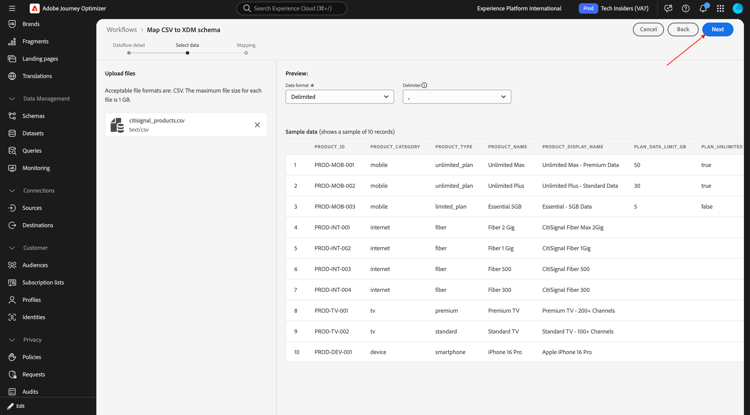
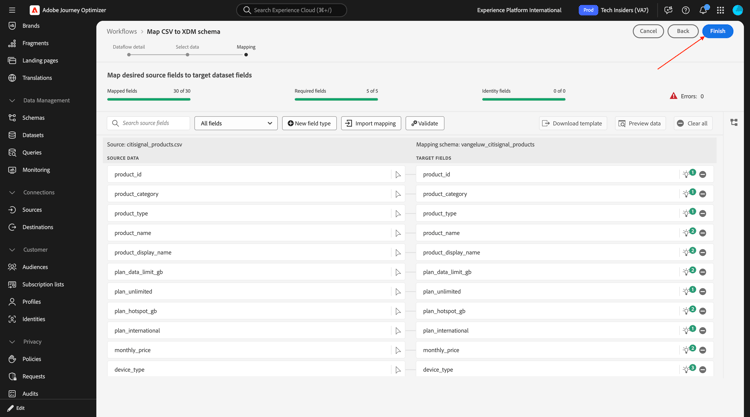
Click Next
Click Finish.
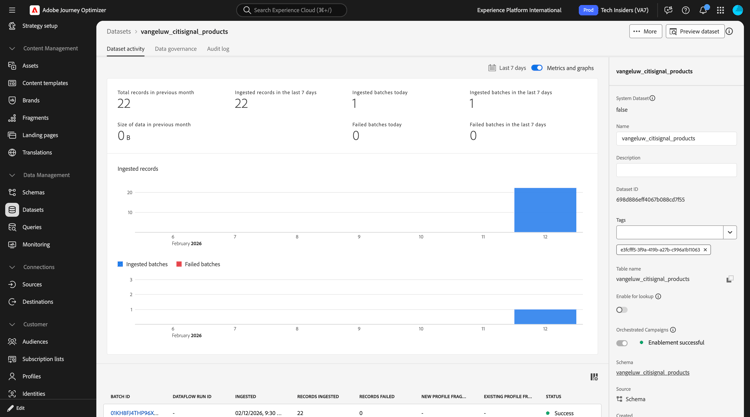
After a couple of minutes, you can see the data being ingested in your dataset.
vangeluw_citisignal_product_bundles
Go to Sources, search for local and then click Add data under Local File Upload.
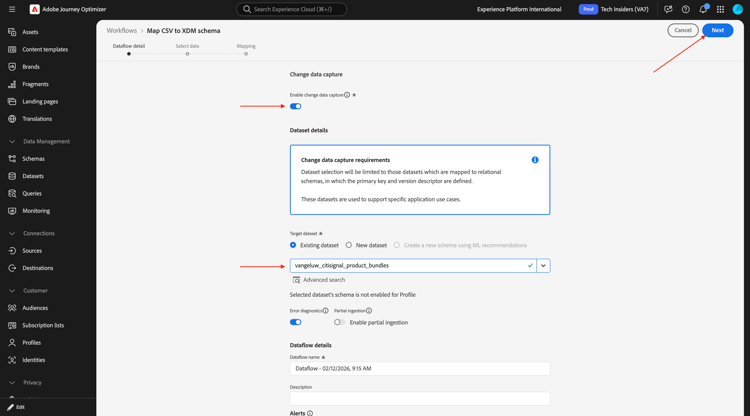
Enable the toggle for Enable change data capture.
Select the dataset vangeluw_citisignal_product_bundles.
Click Next.
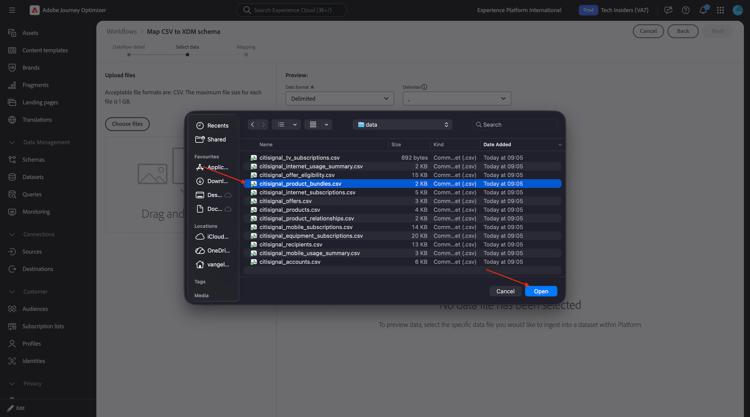
Click Choose files. Select the file citisignal_product_bundles.csv and click open.
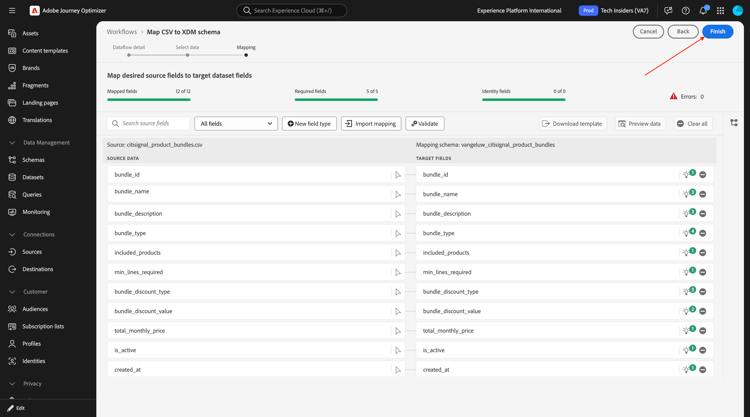
Click Next
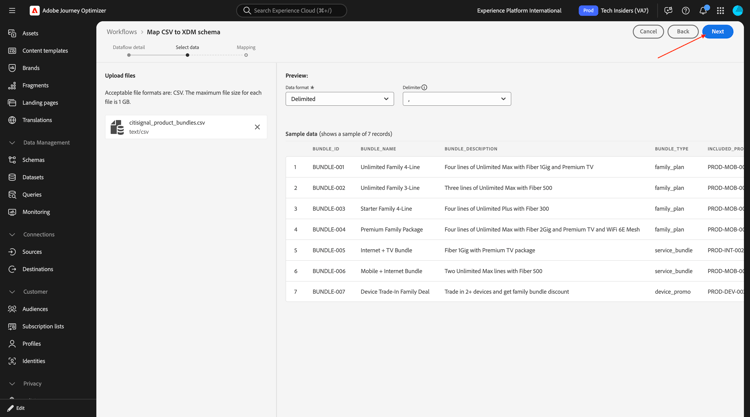
Click Finish.
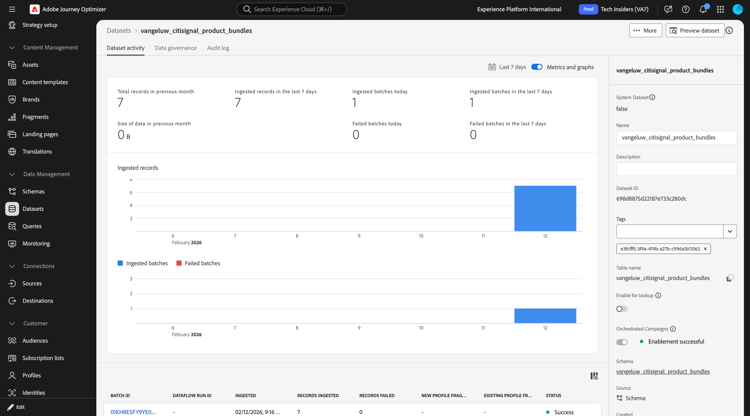
After a couple of minutes, you can see the data being ingested in your dataset.
vangeluw_citisignal_product_relationships
Go to Sources, search for local and then click Add data under Local File Upload.
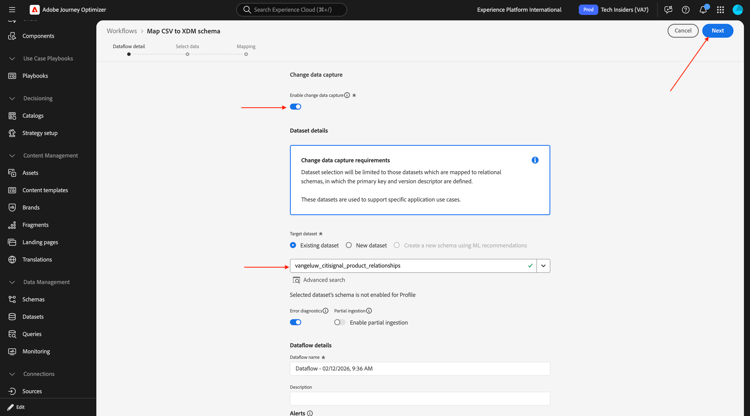
Enable the toggle for Enable change data capture.
Select the dataset vangeluw_citisignal_product_relationships.
Click Next.
Click Choose files. Select the file citisignal_product_relationships.csv and click open.
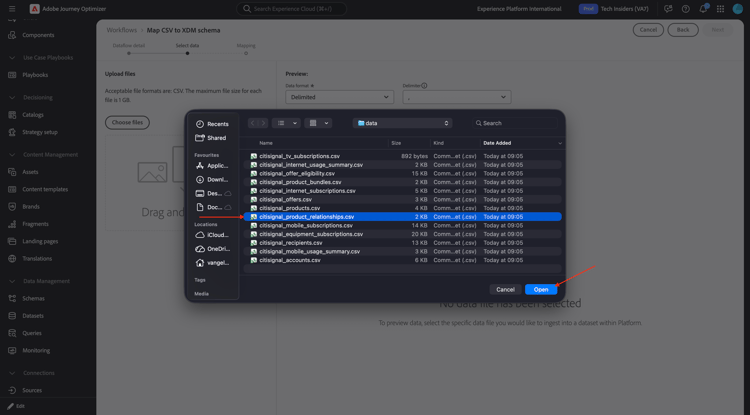
Click Next
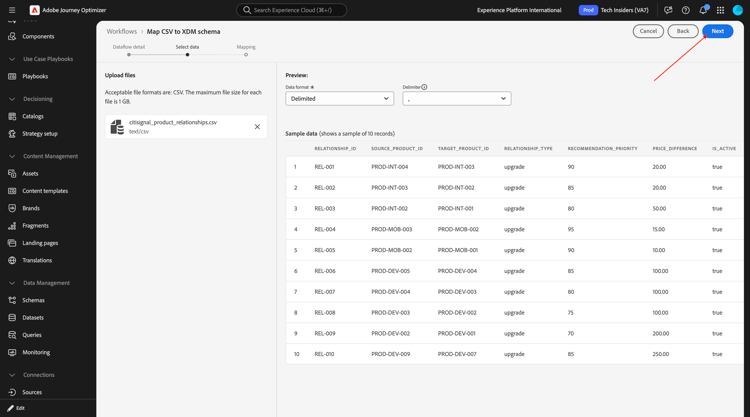
Click Finish.
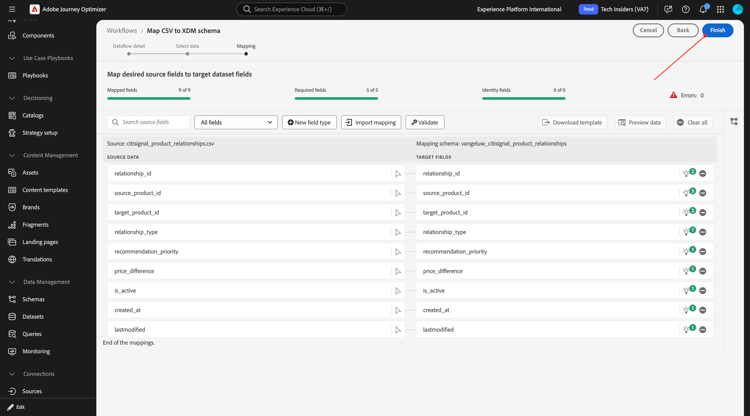
After a couple of minutes, you can see the data being ingested in your dataset.
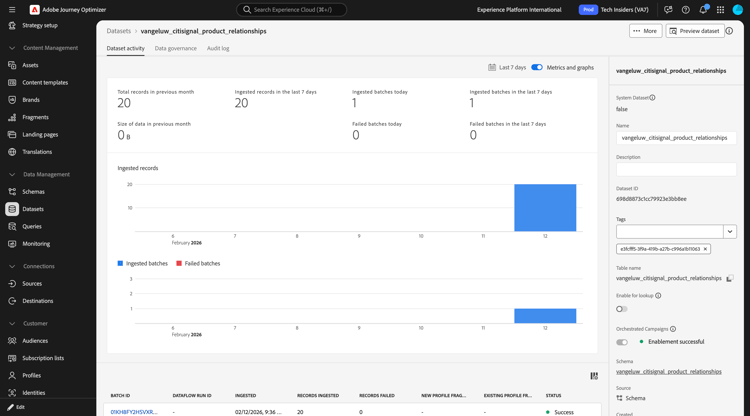
vangeluw_citisignal_accounts
Go to Sources, search for local and then click Add data under Local File Upload.
Enable the toggle for Enable change data capture.
Select the dataset vangeluw_citisignal_accounts.
Click Next.
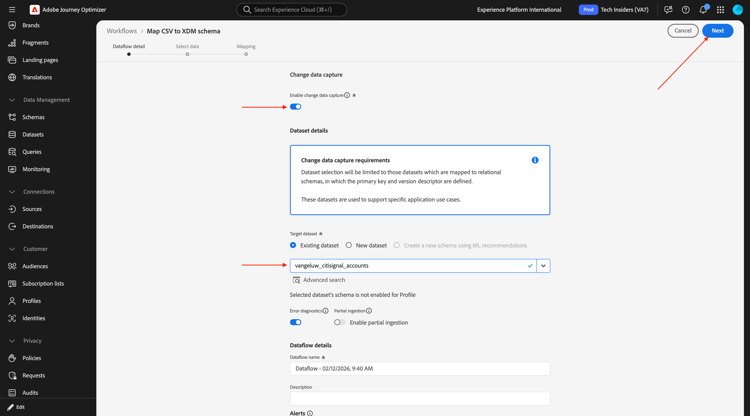
Click Choose files. Select the file citisignal_accounts.csv and click open.
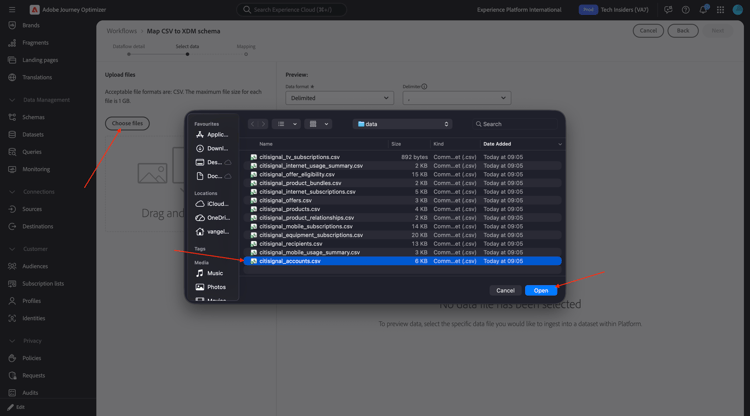
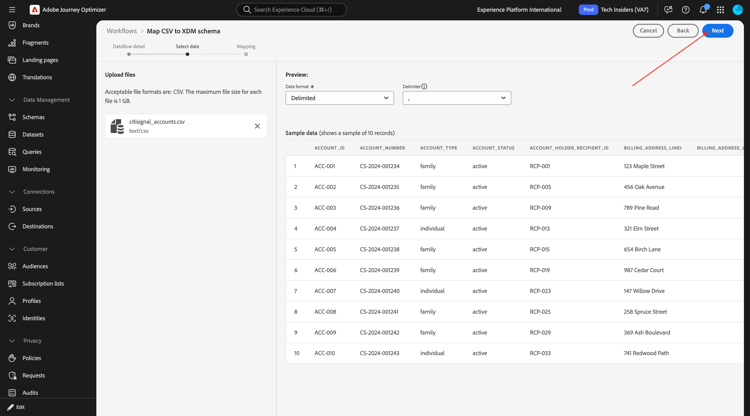
Click Next
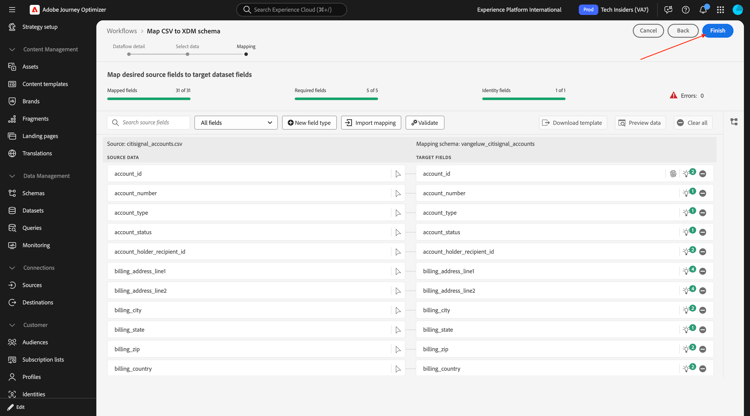
Click Finish.
After a couple of minutes, you can see the data being ingested in your dataset.
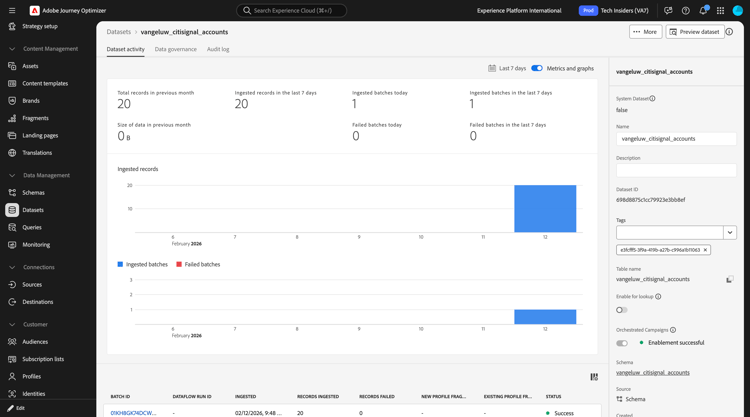
vangeluw_citisignal_recipients
Go to Sources, search for local and then click Add data under Local File Upload.
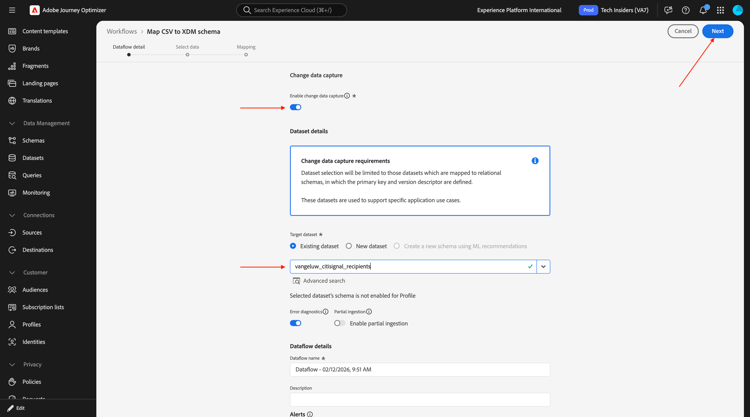
Enable the toggle for Enable change data capture.
Select the dataset vangeluw_citisignal_recipients.
Click Next.
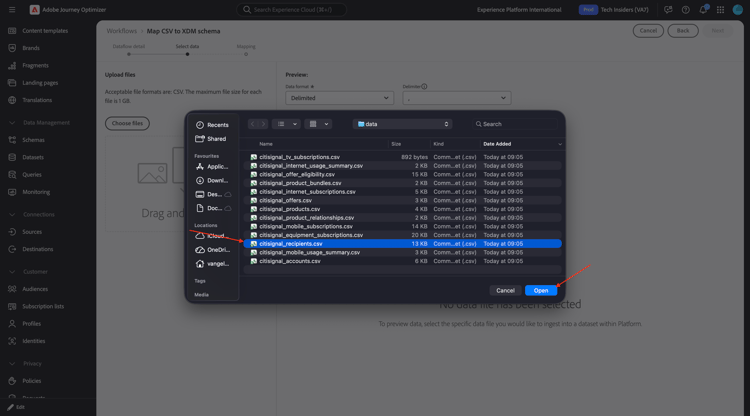
Click Choose files. Select the file citisignal_recipients.csv and click open.
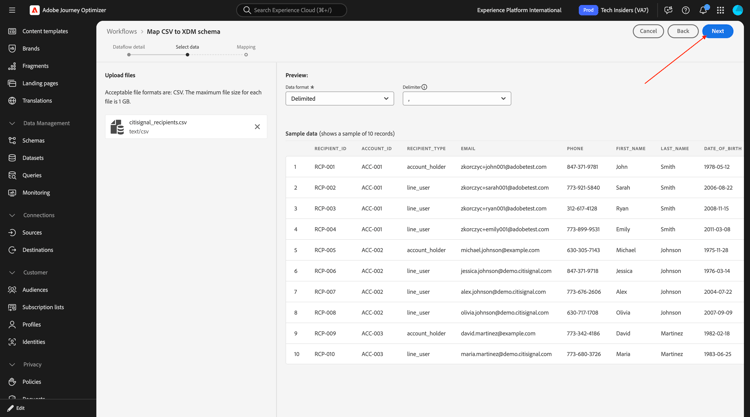
Click Next
Click Finish.
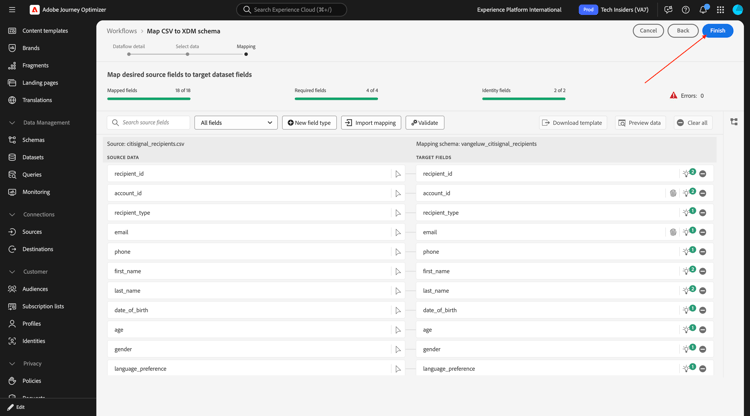
After a couple of minutes, you can see the data being ingested in your dataset.
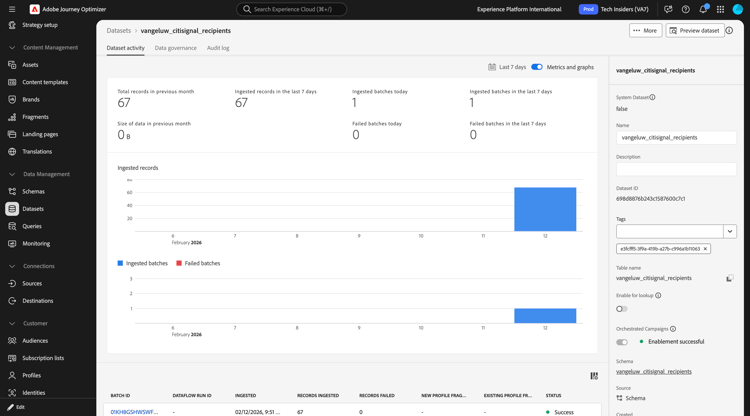
vangeluw_citisignal_mobile_subscriptions
Go to Sources, search for local and then click Add data under Local File Upload.
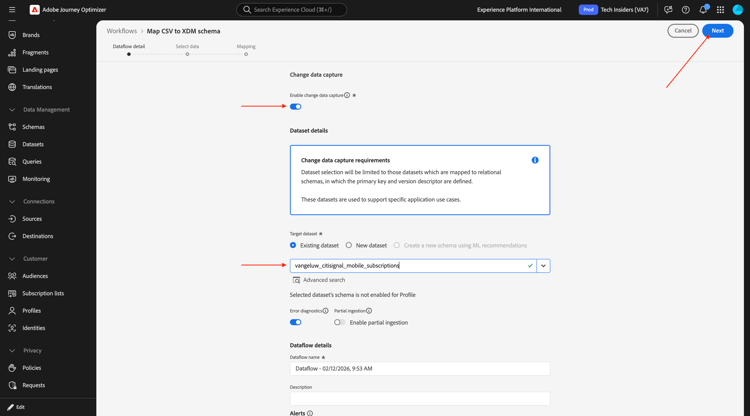
Enable the toggle for Enable change data capture.
Select the dataset vangeluw_citisignal_mobile_subscriptions.
Click Next.
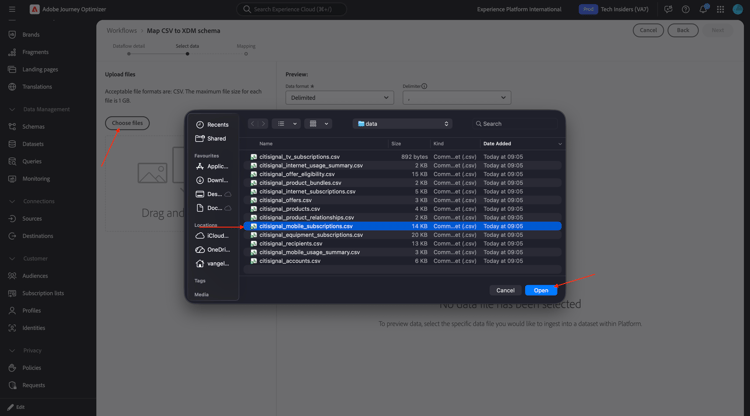
Click Choose files. Select the file citisignal_mobile_subscriptions.csv and click open.
Click Next
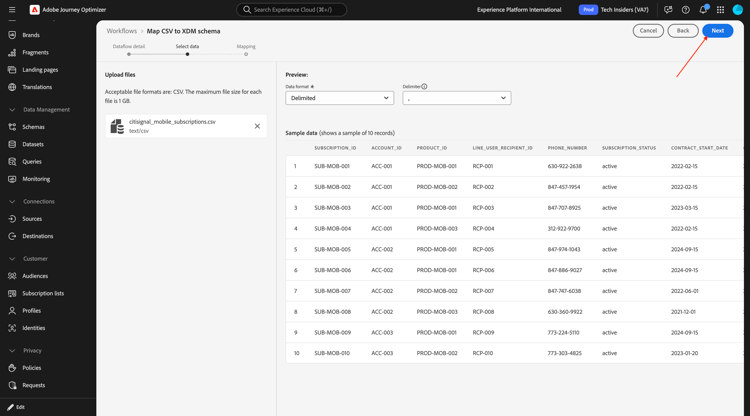
Click Finish.
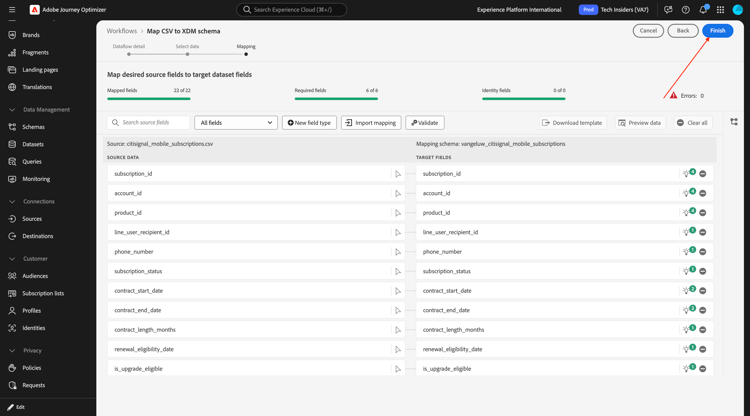
After a couple of minutes, you can see the data being ingested in your dataset.
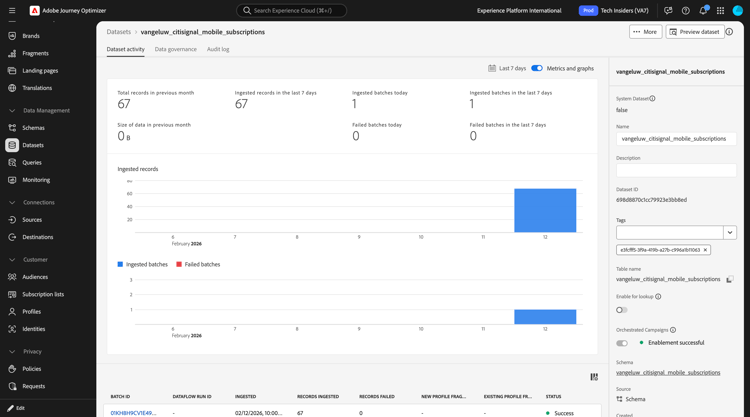
vangeluw_citisignal_internet_subscriptions
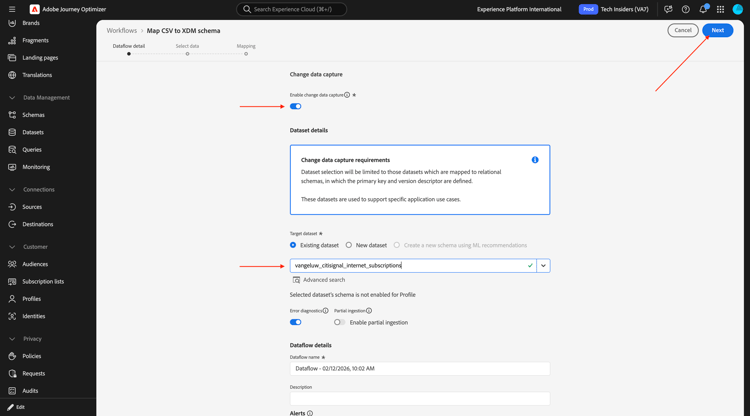
Go to Sources, search for local and then click Add data under Local File Upload.
Enable the toggle for Enable change data capture.
Select the dataset vangeluw_citisignal_internet_subscriptions.
Click Next.
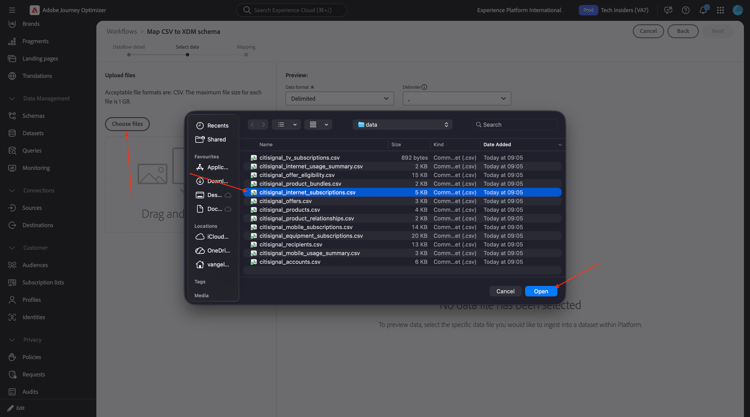
Click Choose files. Select the file citisignal_internet_subscriptions.csv and click open.
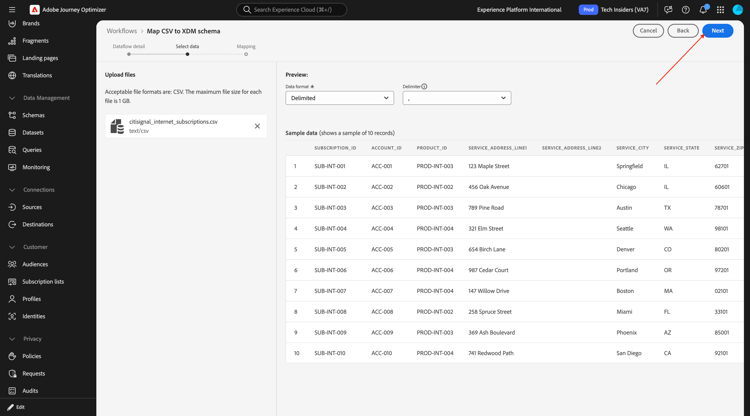
Click Next
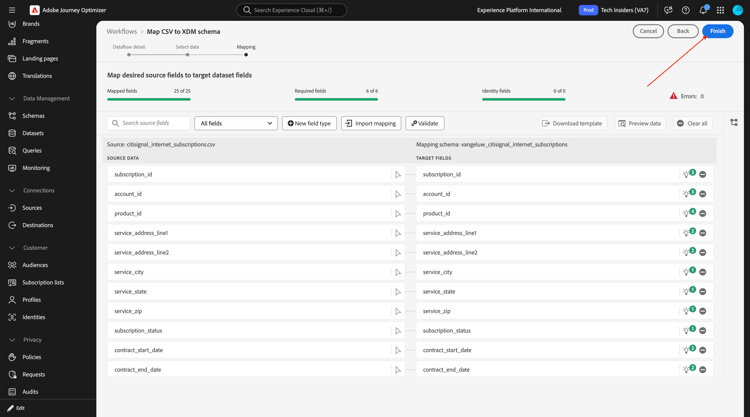
Click Finish.
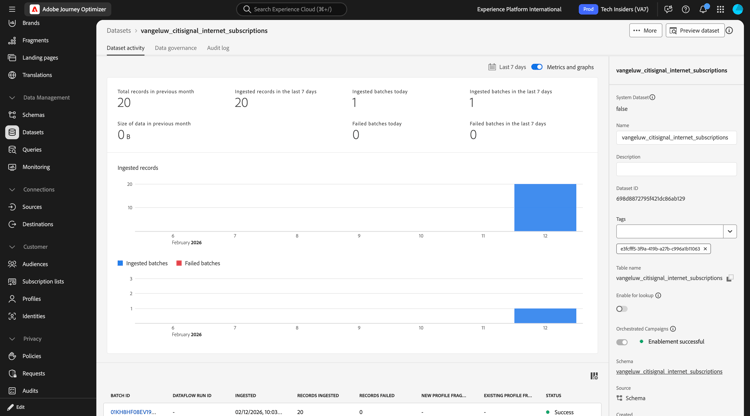
After a couple of minutes, you can see the data being ingested in your dataset.
vangeluw_citisignal_tv_subscriptions
Go to Sources, search for local and then click Add data under Local File Upload.
Enable the toggle for Enable change data capture.
Select the dataset vangeluw_citisignal_tv_subscriptions.
Click Next.
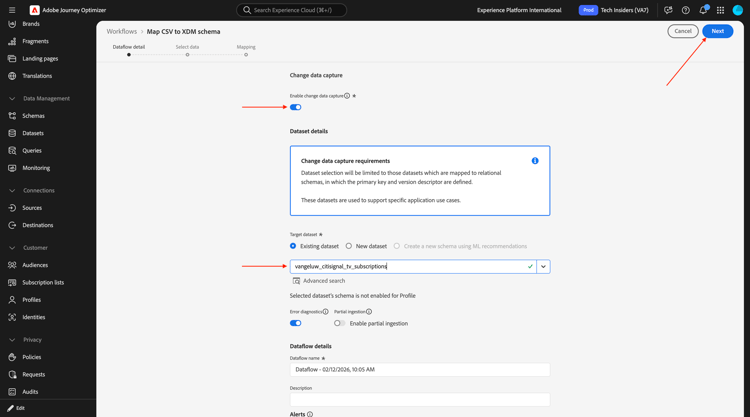
Click Choose files. Select the file citisignal_tv_subscriptions.csv and click open.
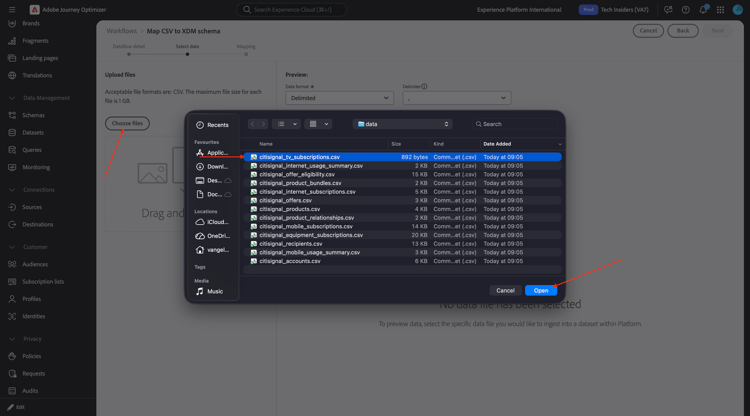
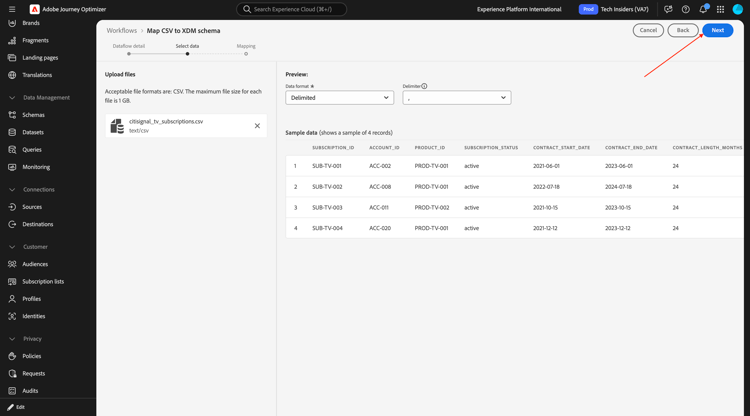
Click Next
Click Finish.
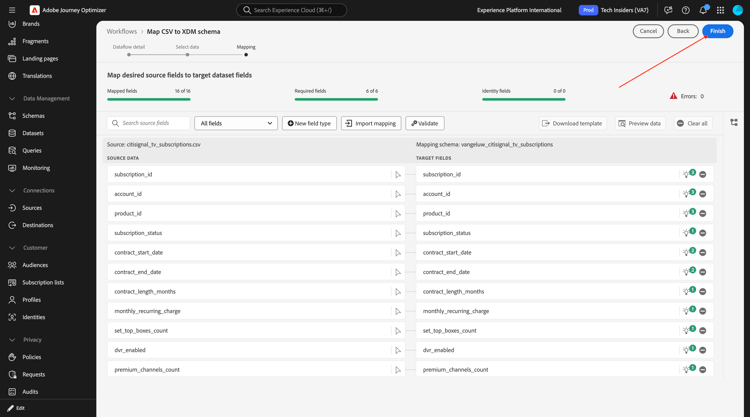
After a couple of minutes, you can see the data being ingested in your dataset.
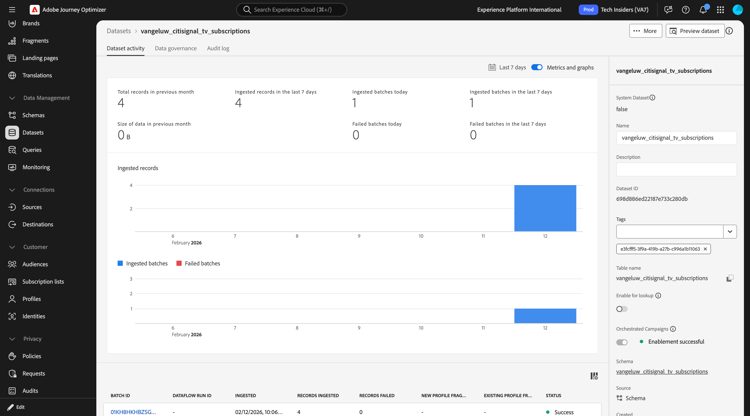
vangeluw_citisignal_equipment_subscriptions
Go to Sources, search for local and then click Add data under Local File Upload.
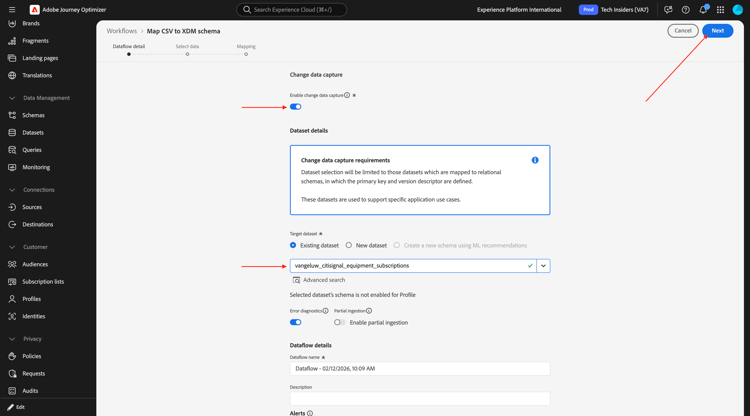
Enable the toggle for Enable change data capture.
Select the dataset vangeluw_citisignal_equipment_subscriptions.
Click Next.
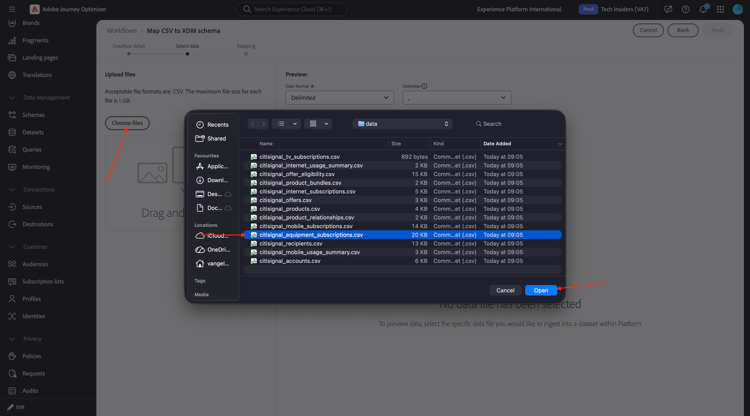
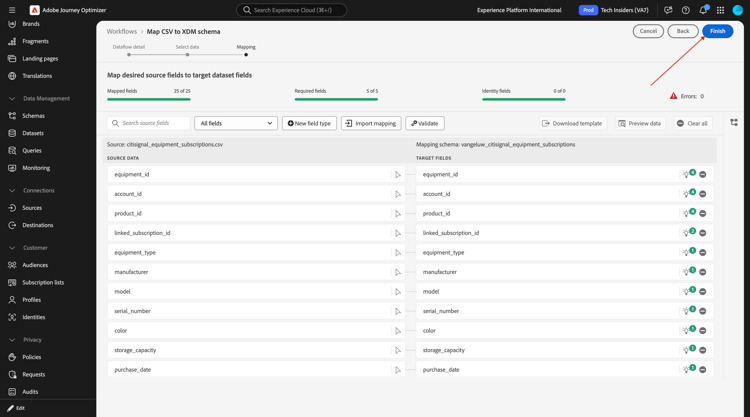
Click Choose files. Select the file citisignal_equipment_subscriptions.csv and click open.
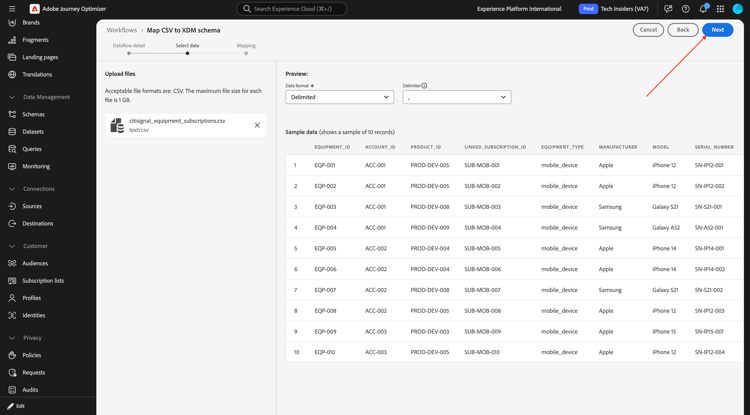
Click Next
Click Finish.
After a couple of minutes, you can see the data being ingested in your dataset.
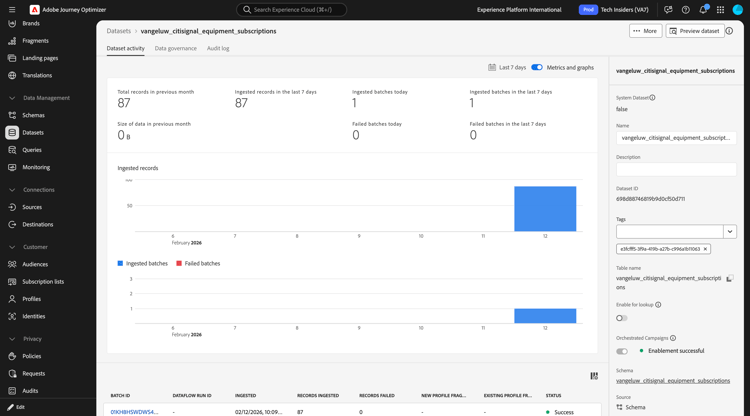
vangeluw_citisignal_mobile_usage_summary
Go to Sources, search for local and then click Add data under Local File Upload.
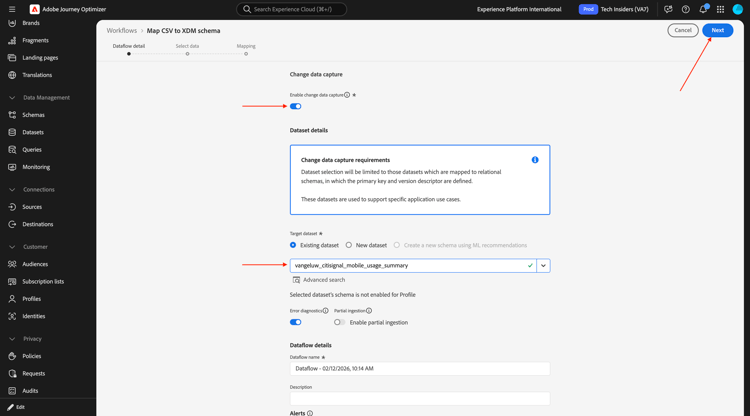
Enable the toggle for Enable change data capture.
Select the dataset vangeluw_citisignal_mobile_usage_summary.
Click Next.
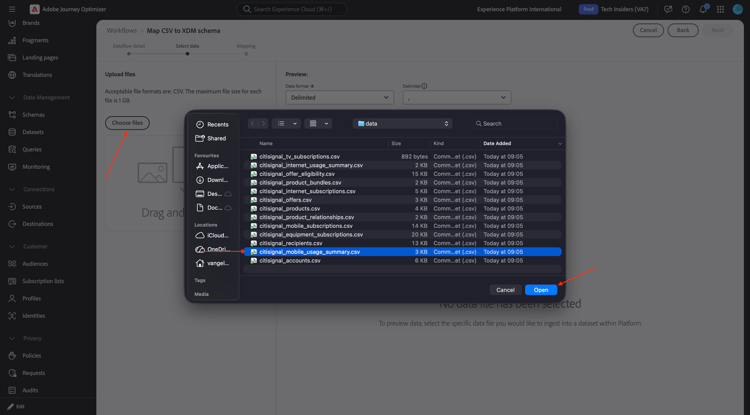
Click Choose files. Select the file citisignal_mobile_usage_summary.csv and click open.
Click Next
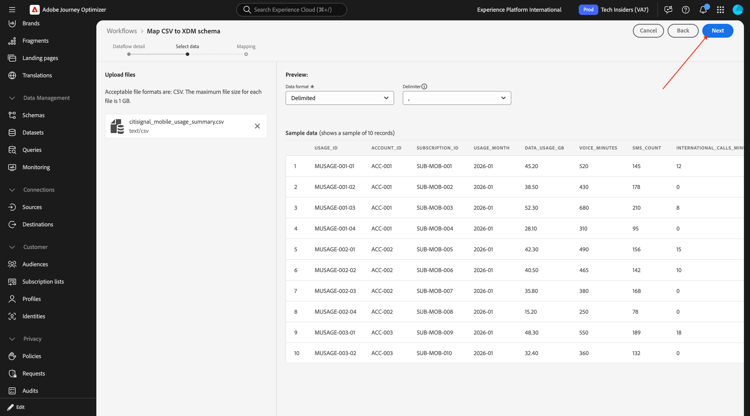
Click Finish.
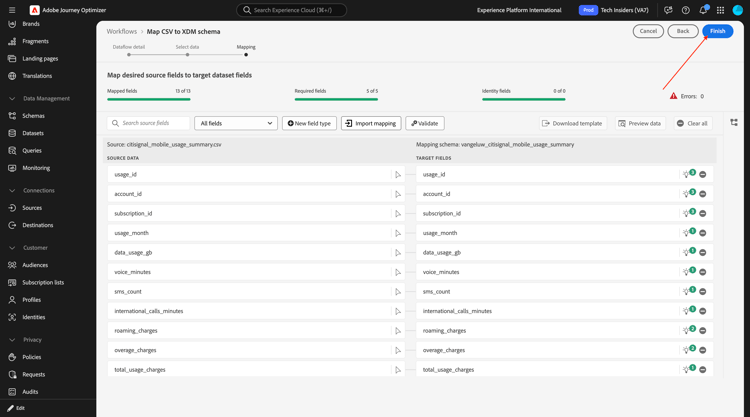
After a couple of minutes, you can see the data being ingested in your dataset.
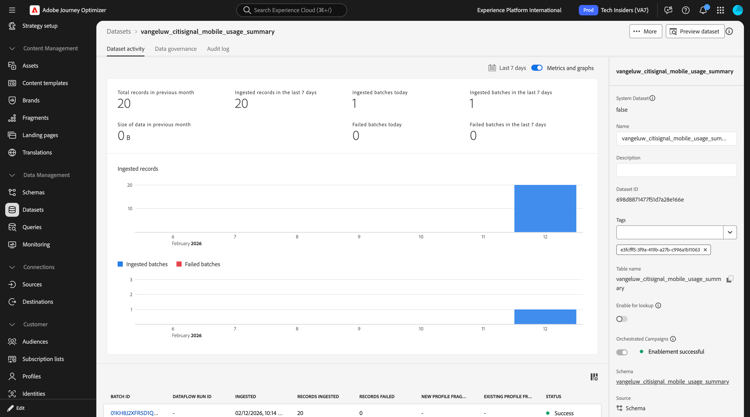
vangeluw_citisignal_internet_usage_summary
Go to Sources, search for local and then click Add data under Local File Upload.
Enable the toggle for Enable change data capture.
Select the dataset vangeluw_citisignal_internet_usage_summary.
Click Next.
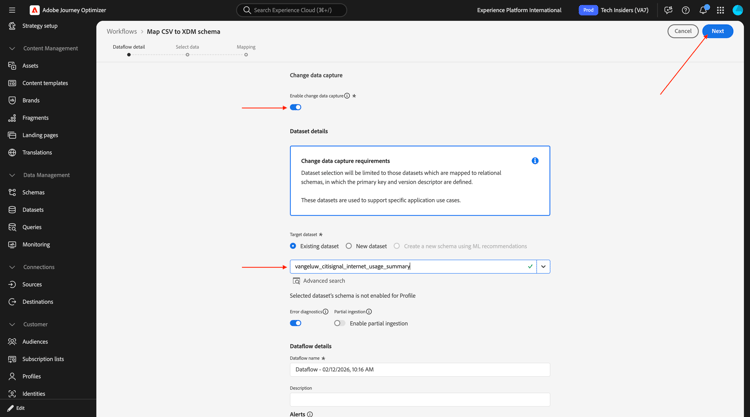
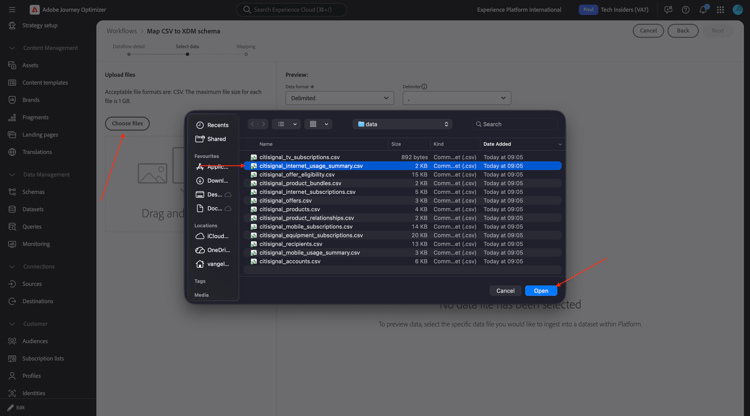
Click Choose files. Select the file citisignal_internet_usage_summary.csv and click open.
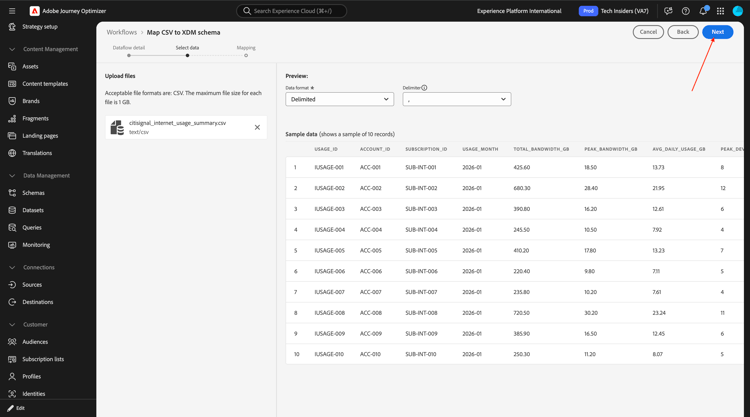
Click Next
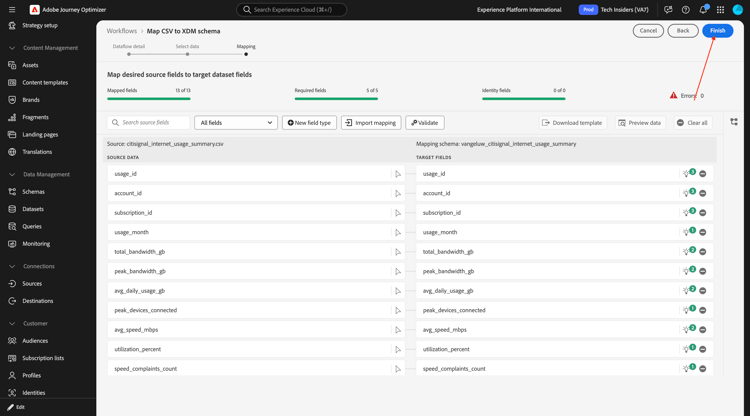
Click Finish.
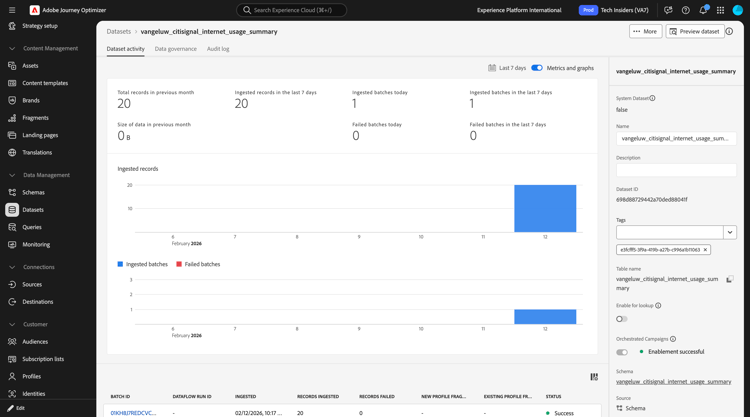
After a couple of minutes, you can see the data being ingested in your dataset.
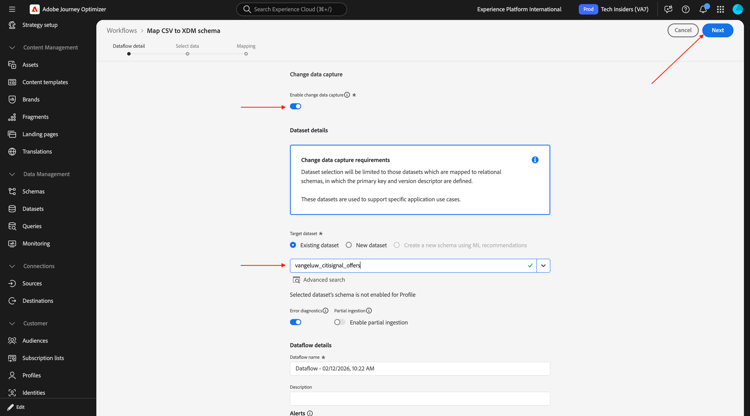
vangeluw_citisignal_offers
Go to Sources, search for local and then click Add data under Local File Upload.
Enable the toggle for Enable change data capture.
Select the dataset vangeluw_citisignal_offers.
Click Next.
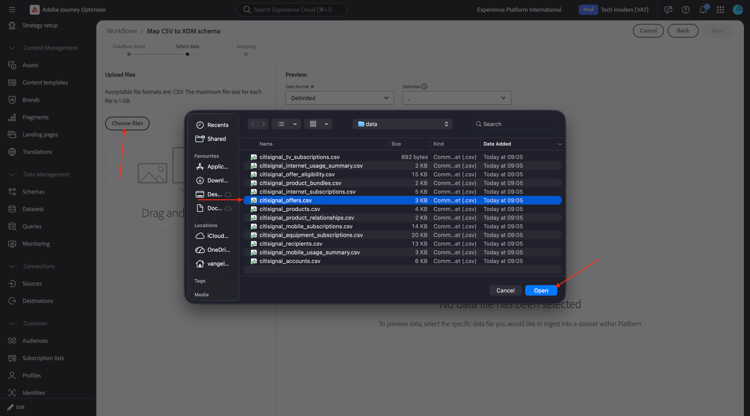
Click Choose files. Select the file citisignal_offers.csv and click open.
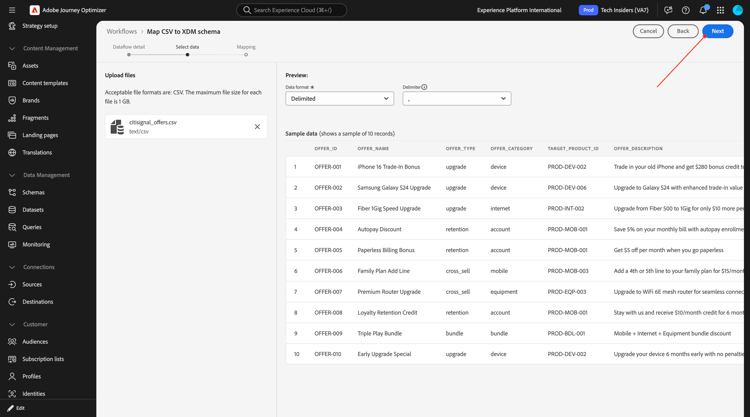
Click Next
Click Finish.
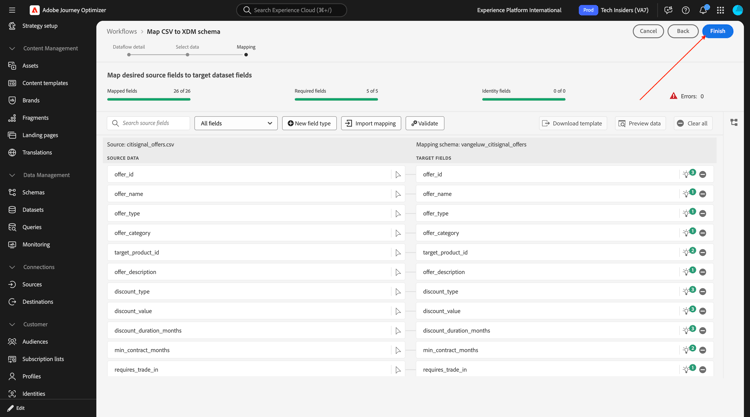
After a couple of minutes, you can see the data being ingested in your dataset.
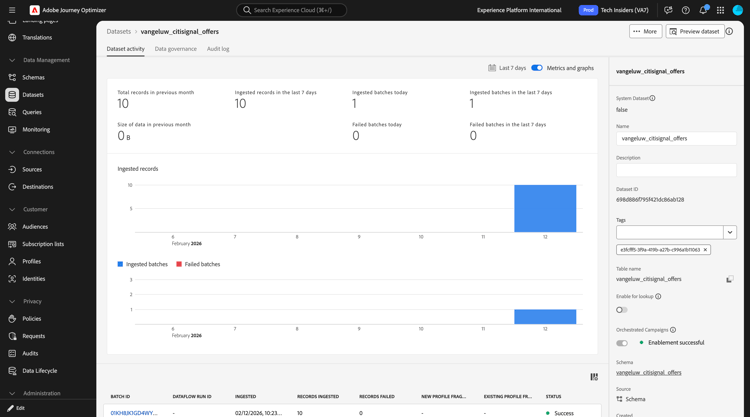
vangeluw_citisignal_offer_eligibility
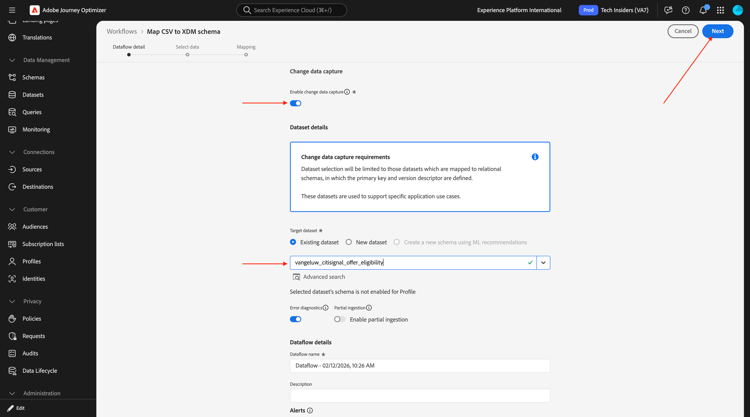
Go to Sources, search for local and then click Add data under Local File Upload.
Enable the toggle for Enable change data capture.
Select the dataset vangeluw_citisignal_offer_eligibility.
Click Next.
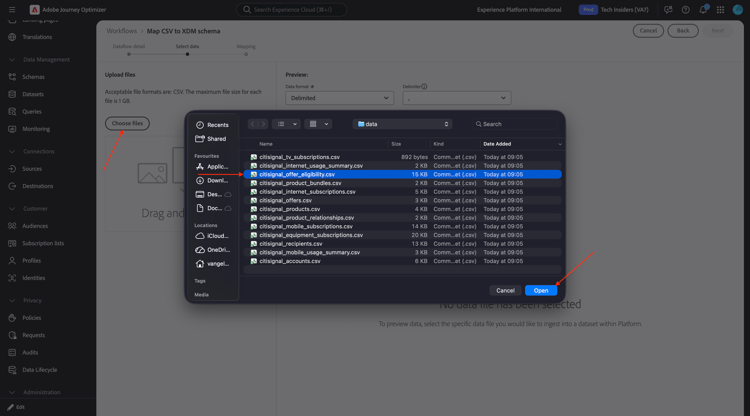
Click Choose files. Select the file citisignal_offer_eligibility.csv and click open.
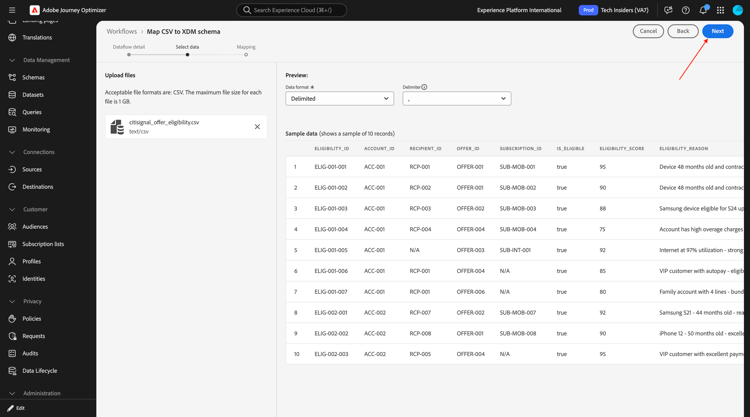
Click Next
Click Finish.
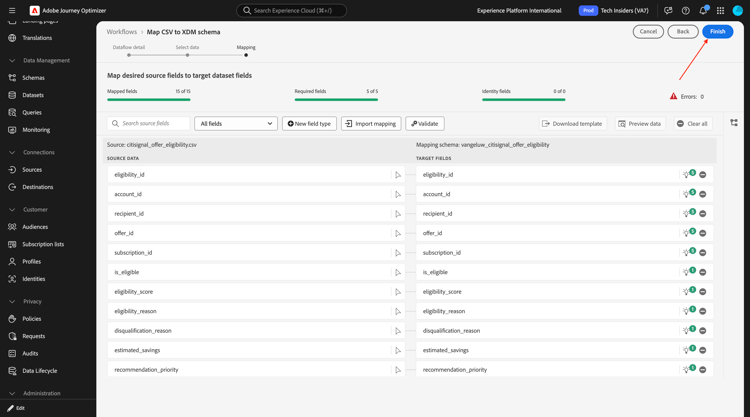
After a couple of minutes, you can see the data being ingested in your dataset.
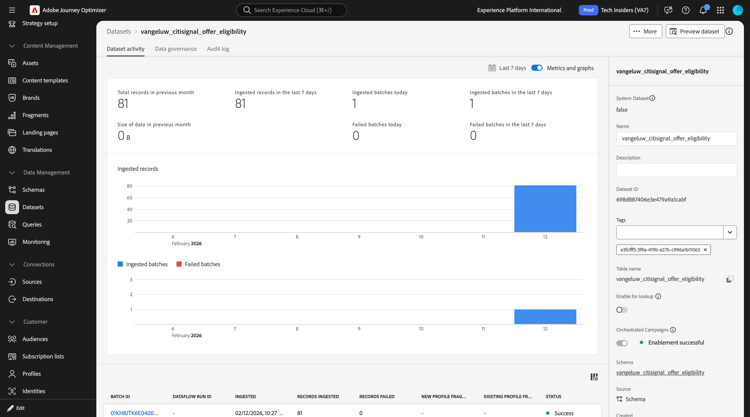
All data is now ingested.
3.8.1.3 Profile Target Dimension
With Orchestrated Campaigns, you can design and deliver targeted communications at the entity level, leveraging Adobe Experience Platform’s relational schema capabilities. Experience Platform uses schemas to describe the structure of data in a consistent and reusable way. When data is ingested into Experience Platform, it is structured according to an XDM schema.
Although segmentation for Orchestrated Campaigns operates primarily on relational schemas, the actual message delivery always occurs at the Profile level.
When configuring targeting, you define two key aspects:
-
Targetable Schemas: You specify which relational schemas are eligible for targeting. By default, the schema named Recipient is used, but you can configure alternatives such as Visitors, Customers, etc.
-
Profile Linkage: The system must understand how the target schema maps to the Profile schema. This is achieved through a shared identity field — one that exists both in the target schema and the Profile schema and is configured as an identity namespace.
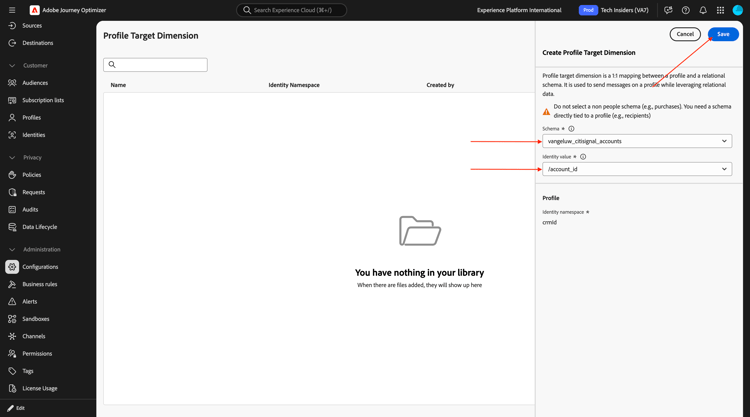
You now need to configure your Profile Target Dimensions. Go to Administration > Configuration and then click Manage under Profile Target Dimension.
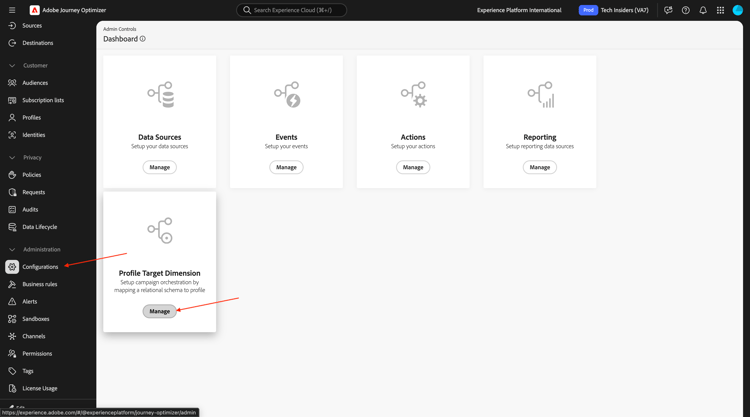
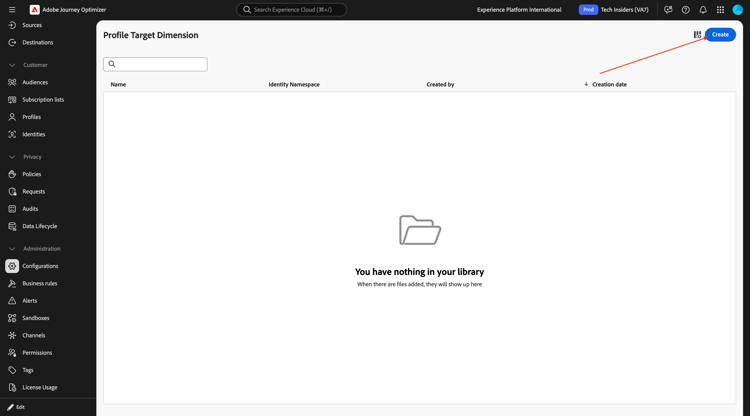
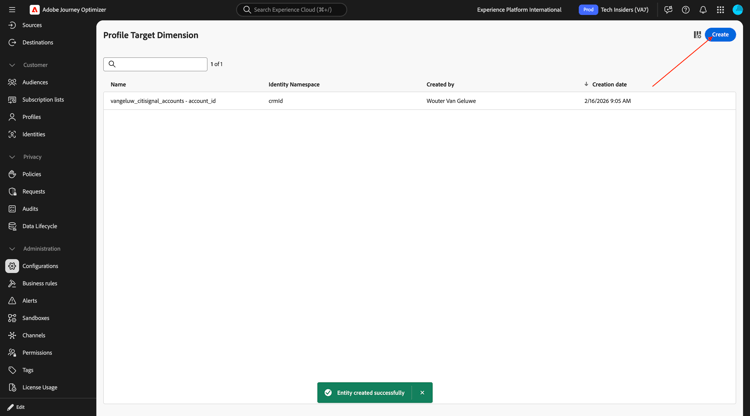
You should then see this. Click Create.
For the Schema, select --aepUserLdap--_citisignal_accounts. For the Identity value, select account_id.
Click Save.
Click Create again.
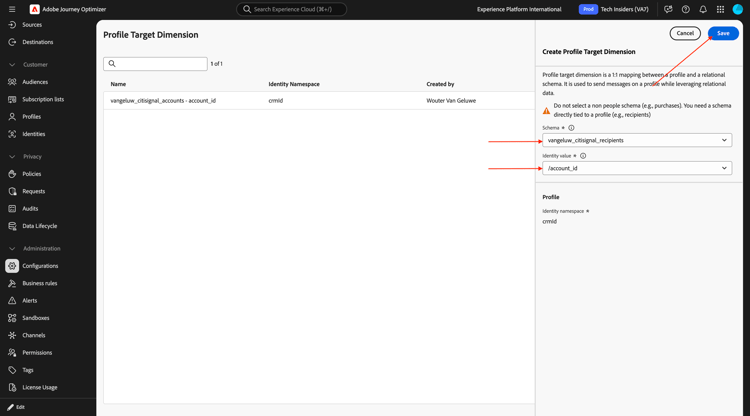
For the Schema, select --aepUserLdap--_citisignal_recipients. For the Identity value, select account_id.
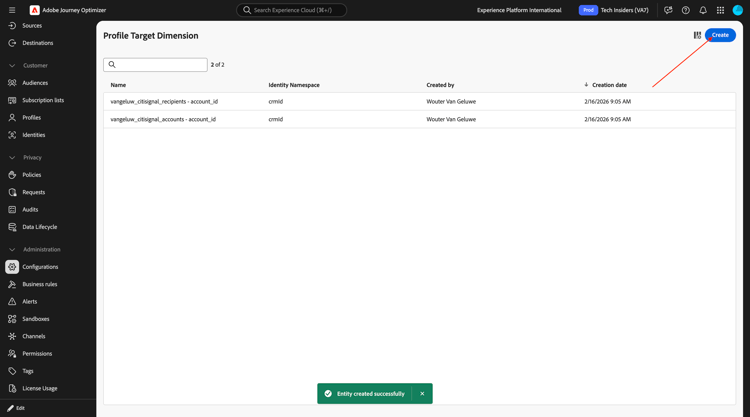
Click Save.
Click Create again.
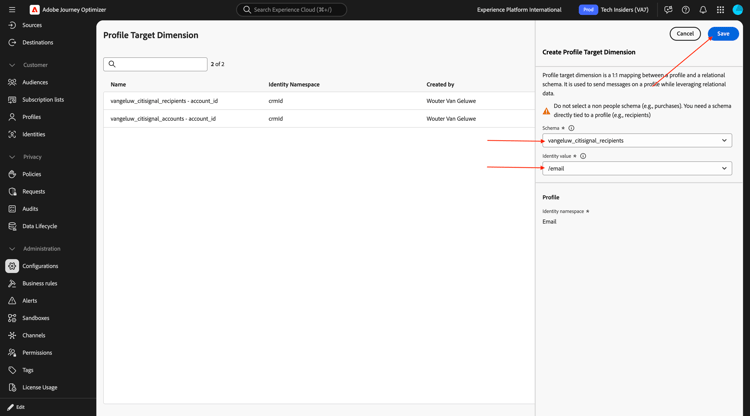
For the Schema, select --aepUserLdap--_citisignal_recipients. For the Identity value, select email.
Click Save.
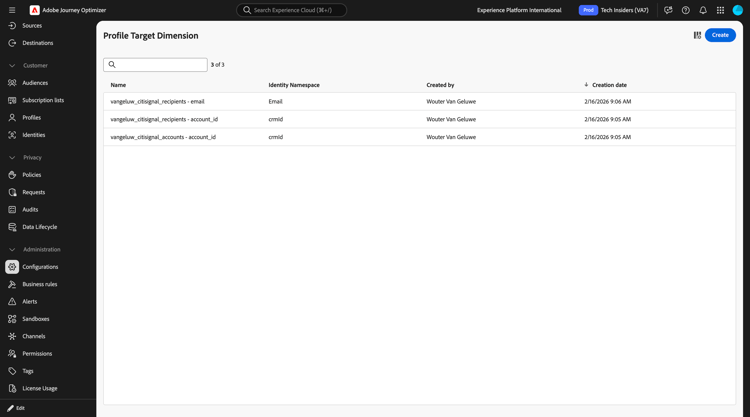
You should then have this.
3.8.1.4 Email channel
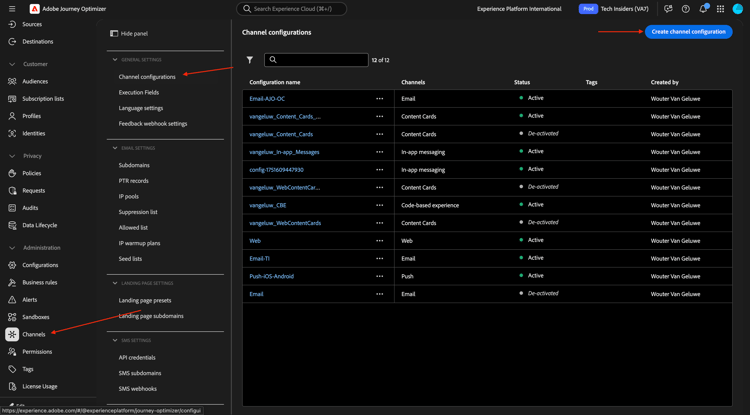
In the left menu, go to Channels. Click Create channel configuration.
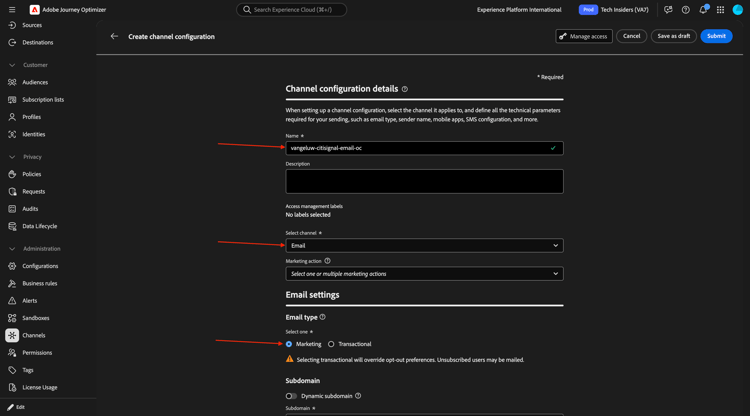
Use the name: --aepUserLdap---citisignal-email-oc. Select the channel Email
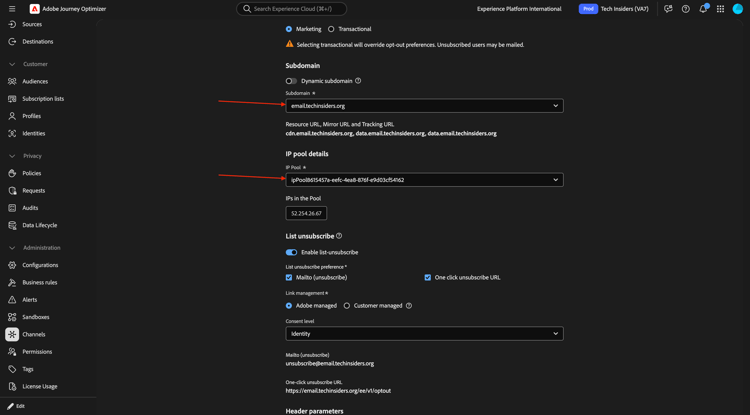
Select an available subdomain and IP pool.
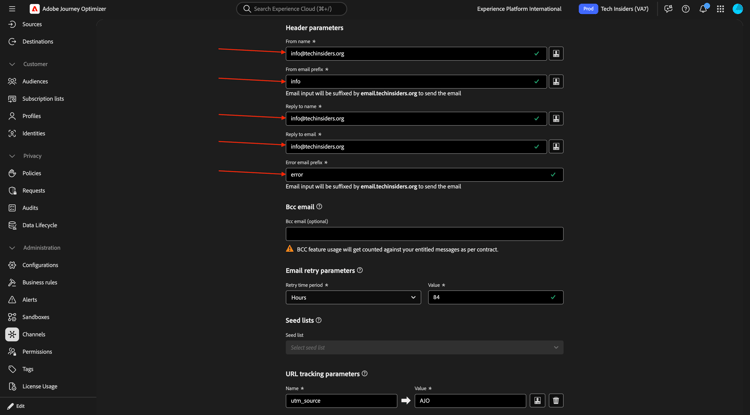
Scroll down and fill out the Header parameters.
- From name:
info@techinsiders.org - From email prefix:
info - Reply to name:
info@techinsiders.org - Reply to email:
info@techinsiders.org - Error email prefix:
error
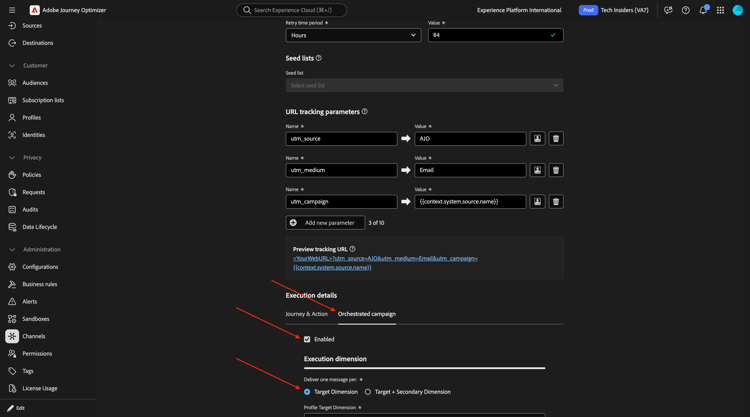
Scroll down. Go to Orchestrated campaign. Check the checkbox for Enabled. Select Targetng dimension.
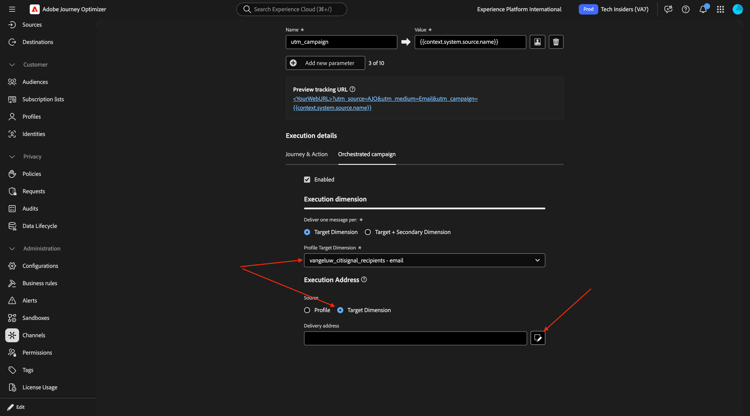
For Profile Target Dimension, select --aepUserLdap--_citisignal_recipients - email.
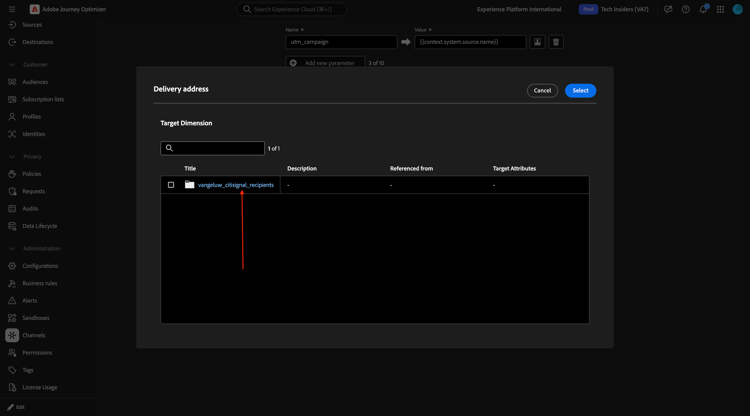
Select Target Dimension and click the open folder icon.
Click --aepUserLdap--_citisignal_recipients.
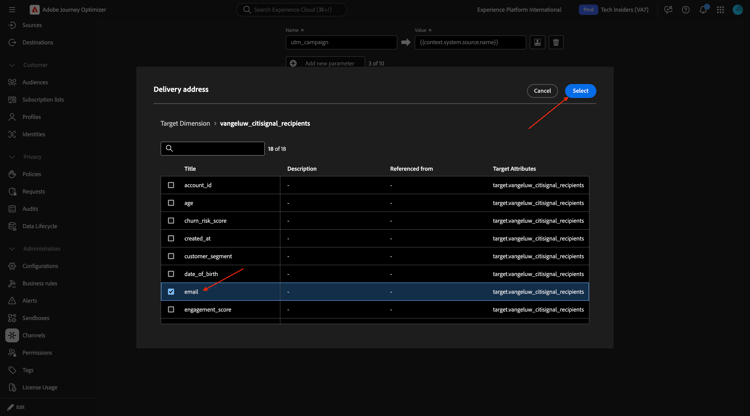
Select the field email and click Select.
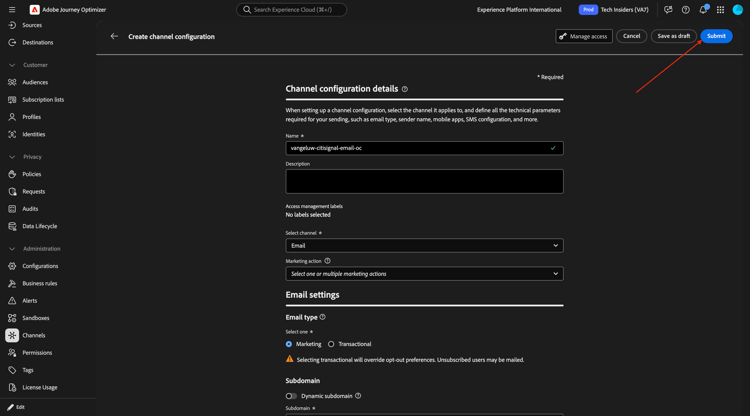
Scroll up and click Submit.
In the next exercise you’ll start to use that data as part of an orchestrated campaign.
Next Steps
Go to Create your orchestrated campaign
Go back to Adobe Journey Optimizer: Orchestrated Campaigns
Go back to All modules