Conditional email open tracking conditional-open-tracking
Learn how to configure Marketo Engage to honor end-user consent for email open (pixel) tracking, in alignment with various guidelines. The approach uses a custom boolean field to determine which email variant a person receives, one with open tracking enabled or one with it disabled.
Step 1: Create a custom boolean field custom-field
-
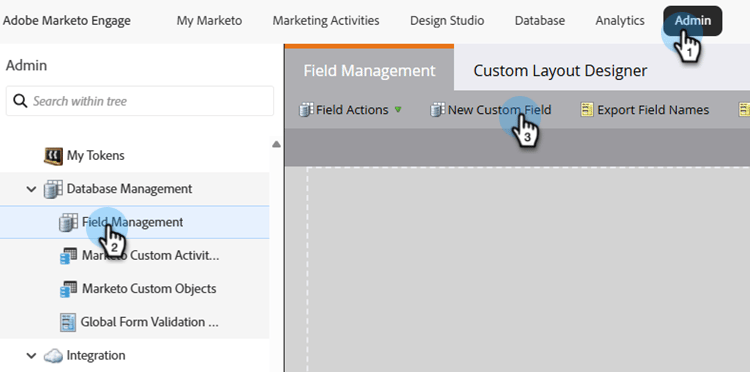
In the Admin area, click Field Management and select New Custom Field.
-
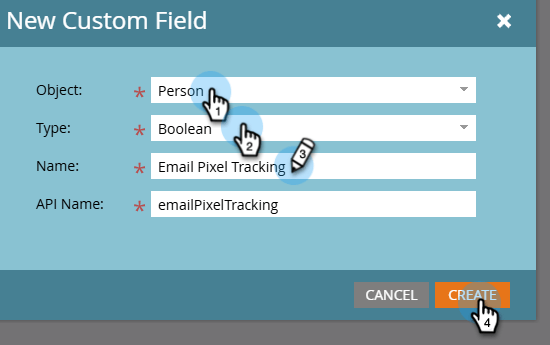
For Object, choose Person. For Type, choose Boolean. For Name, enter “Email Pixel Tracking” (the API Name autopopulates). Click Create.
Step 2: Populate the consent field populate
-
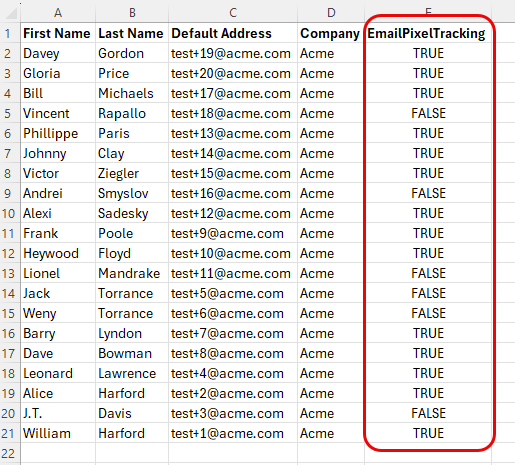
Set the Email Pixel Tracking field value for each person via data import (API sync or CSV upload).
-
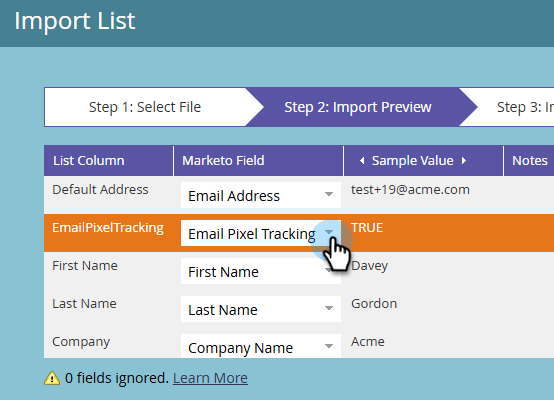
Ensure the custom field is mapped correctly.
Step 3: Create email variants variants
Create two emails. Note that email open tracking is enabled by default for both the Email Designer and the legacy email editor.
-
Email One (open tracking enabled): After creating the email, no further action is required. Keep open tracking enabled.
-
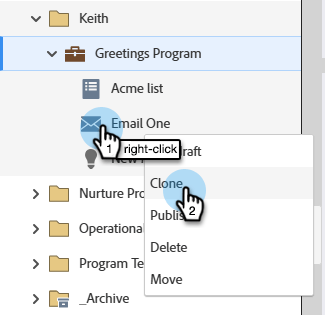
Email Two (open tracking disabled): Clone Email One and disable open tracking.
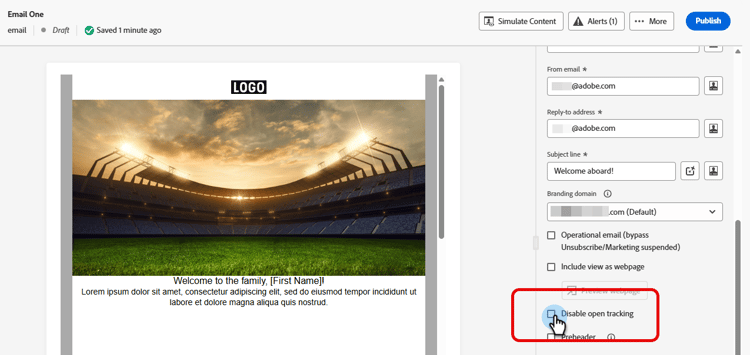
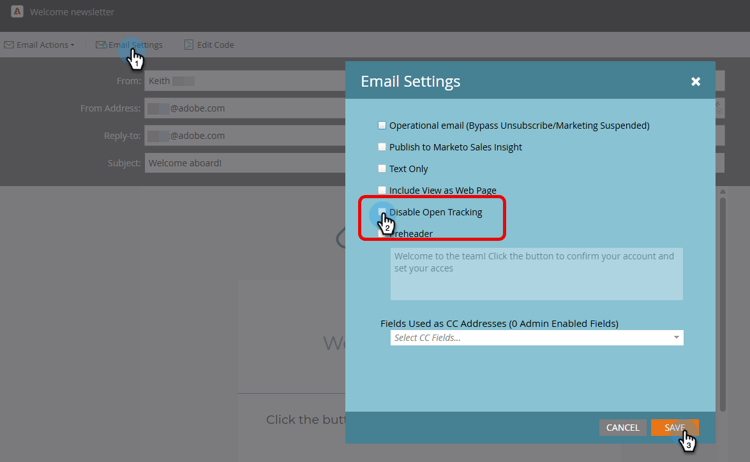
In the Email Designer, the Disable open tracking checkbox can be found in the Details tab of the Summary pane to the right of your email. In the legacy email editor, the Disable open tracking checkbox can be found in the Email Settings menu.
Email Designer
Legacy email editor
Step 4: Configure your Smart Campaign smart-campaign
Create a Smart Campaign to determine which email each person receives.
-
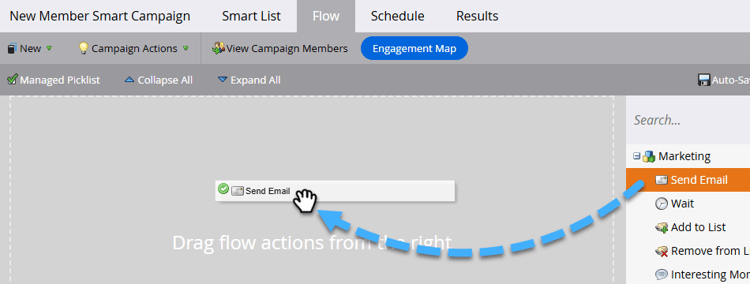
In the Flow tab of your Smart Campaign, insert the Send Email flow step.
-
In the flow step, click Add Choice. In Choice 1, set if to Email Pixel Tracking, set the operator to is, and set the value to false. For Email, select Email Two.
-
In Default Choice, set the Email to Email One.
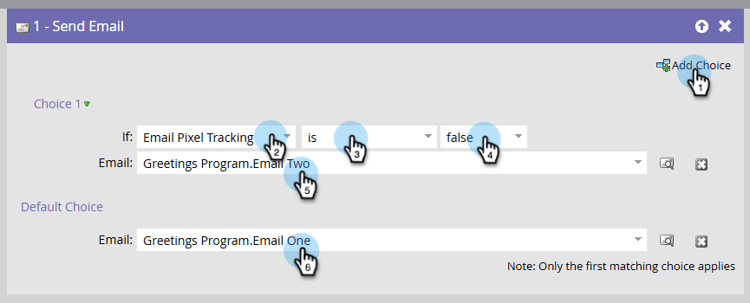
This ensures people who have not consented to open tracking receive the non-tracked email, while people who have consented receive the standard tracked email.