Step 3 of 4: Set up Client App on MS Dynamics step-3-of-4-set-up-client-app-ms-dynamics-ropc
-
Navigate to this Microsoft article.
-
Follow all the steps. For Step 3, enter a relevant application name (e.g., “Marketo Integration”). Under the Supported Account Types, select Account in this organizational directory only.
-
Write down the Application ID (ClientId). Enter it in Marketo later.
-
Grant Admin consent by following the steps in this article.
-
Generate a Client Secret in the Admin Center by clicking Certificates & secrets.

-
Click New client secret.

-
Add a Client Secret description and click Add.
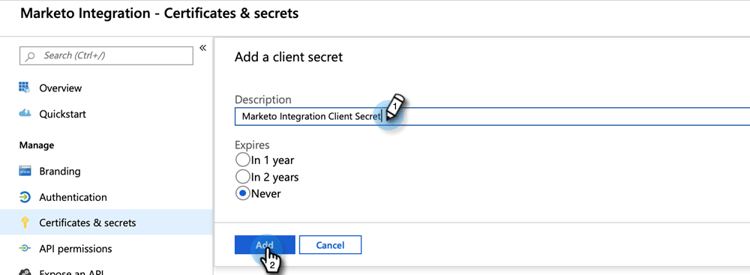
note caution CAUTION Note the Client Secret value (seen in the screenshot below), as it is only shown once and cannot be retrieved again. 
Azure AD Federated with AD FS On-prem azure-ad-federated-with-ad-fs-on-prem
Federated Azure AD to ADFS Onprem needs the creation of a Home Realm Discovery policy for the specific application. With this policy, Azure AD will redirect the authentication request to the federation service. Password hash synchronization has to be enabled in AD Connect for this. For more information, see OAuth with ROPC and Set an hrd policy for an application.
Additional references can be found here.
Before Proceeding to Step 4 before-proceeding-to-step-4
- If you want to restrict the number of records you sync, set up a custom sync filter now.
- Run the Validate Microsoft Dynamics Sync process. It verifies that your initial setups were done correctly.
- Log in to the Marketo Sync User in Microsoft Dynamics CRM.