Customize a Presentation customize-a-presentation
Set up your calendar presentation to reflect the goals and activities that matter most to your team.
Choosing the Views choosing-the-views
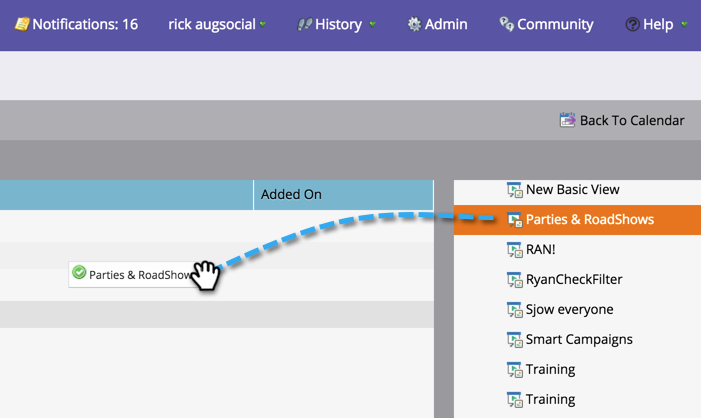
Presentations cycle through different filter definitions you choose. Pull in as many views as you like and customize the frequency.
-
From the right tree, drag in the different views you want rotated through in your presentation.
Add a Goal add-a-goal
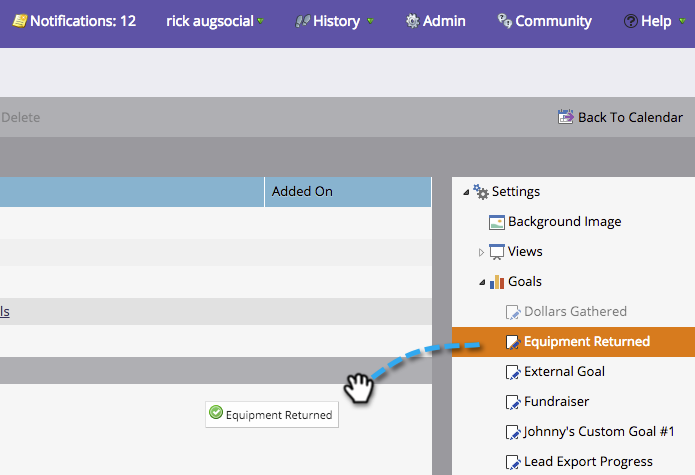
Presentations are most effective when they display team goals. Drag over different custom goals or smart list goals. You can use up to 10.
-
From the right tree, drag in different goals you want displayed in your presentation.
Set the Frequency of Rotation set-the-frequency-of-rotation
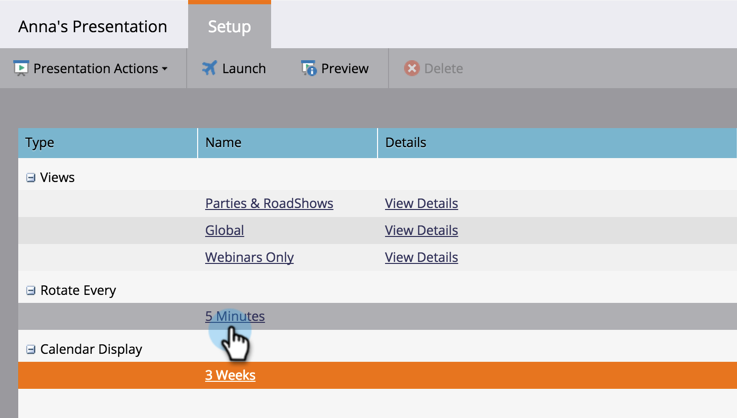
Once the views have been pulled in, set the frequency at which it rotates between the different views.
-
Click 5 minutes (this is the default cadence).
-
Enter a time using minutes. Click Save.
note NOTE Display one static view by checking Disable Rotation. 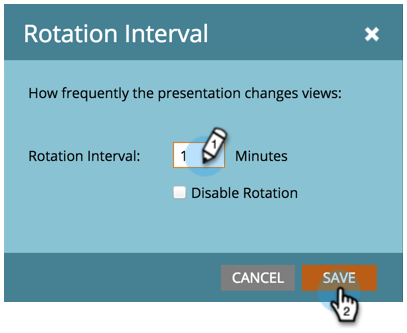
Set the Calendar Display set-the-calendar-display
The calendar display can be changed to a 3-week or monthly view.
-
Select the Calendar Display drop-down and choose between 3 weeks or one Month.

Preview a Presentation preview-a-presentation
Once the presentation has been configured, it is ready to be previewed and launched.
-
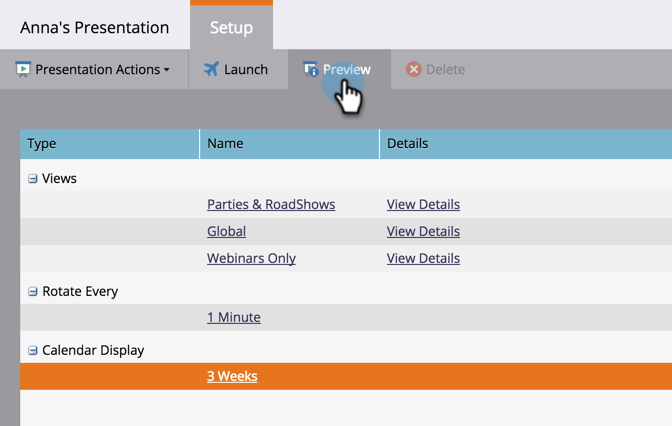
Select Preview.
This is what your presentation might look like.
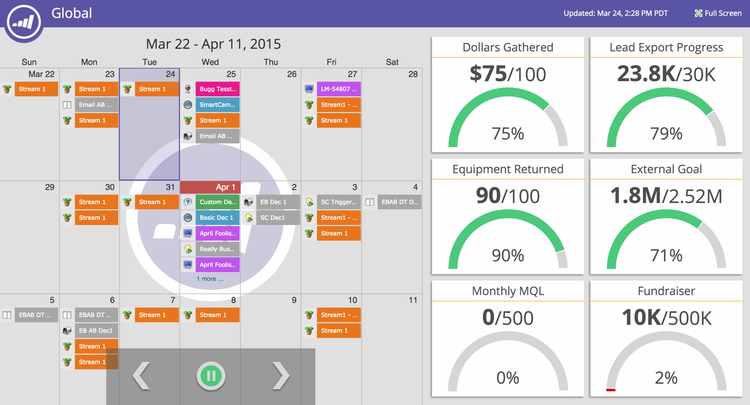
To adjust the view, use different filter definitions.