Create an Action
This guide walks you through defining an action in the LLM Apps UI. For background on what actions are and how they work, see Core Concepts.
Open the Actions page
Navigate to Actions in the left sidebar, or click Go to Actions on the App Detail page. If no actions exist yet, the page shows an empty state.
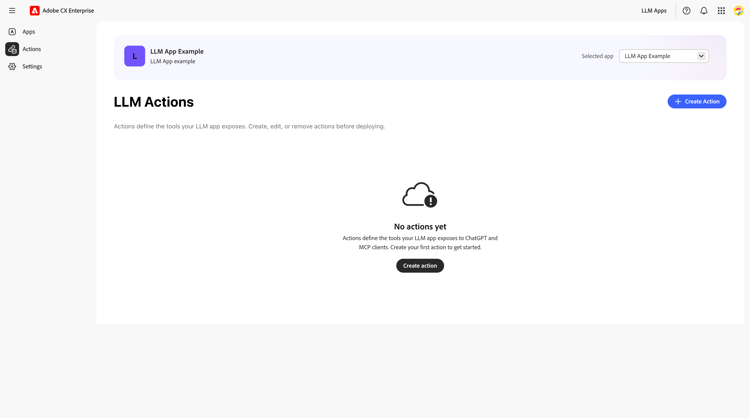
Click + Create Action to open the fullscreen dialog.
Action cards
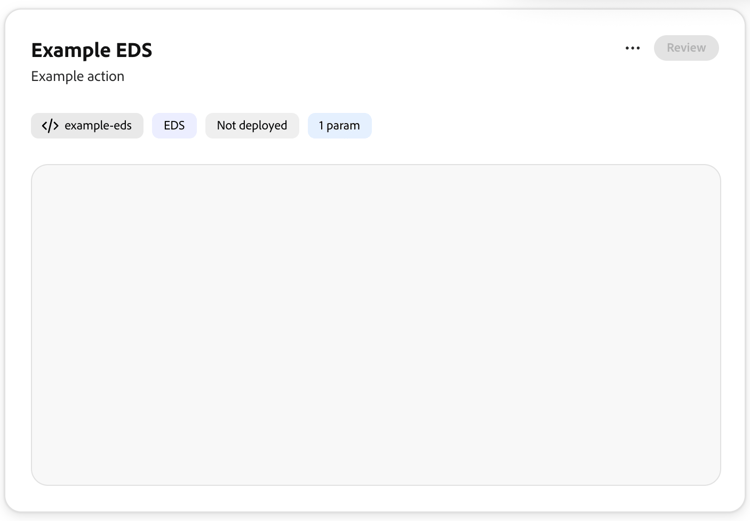
Each action appears as a card that shows:
- The action name and description
- A widget preview image — auto-generated from the widget, showing what the action output looks like inside the LLM platform
- Badges: widget type (EDS), deployment status (Not deployed, Deployed to staging, Deployed to production), Changes not deployed when the action has been modified since the last deploy, and parameter count
- A Visibility toggle — enables or disables the action on the live endpoint without redeploying
- A Review link in the top-right corner to open the action editor
When one or more actions have been modified since the last deployment, a Deployment needed banner appears at the top of the Actions page. Redeploy the app to apply the changes.
Action tab
The dialog has two tabs: Action and Widget Metadata.
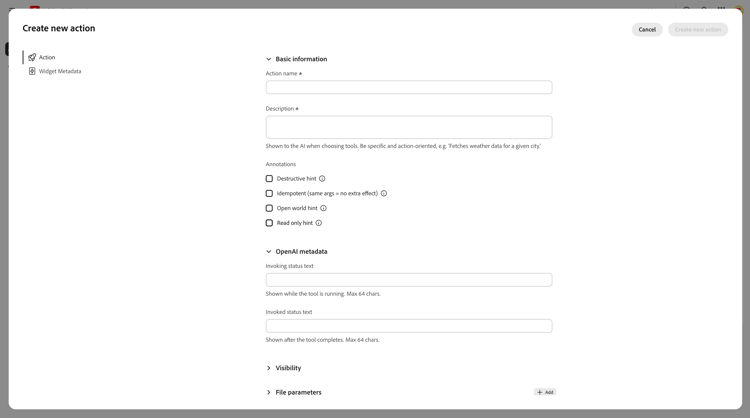
Basic information
-
Action name (required) — the identifier for your action (for example, Search Products).
-
Description (required) — a clear explanation of what the action does. The LLM platform uses this to decide when to invoke your action. For example: Search the product catalog by keyword. Returns matching products with name, category, image, and price.
-
Annotations — optional hints that describe the action’s behavior:
table 0-row-2 1-row-2 2-row-2 3-row-2 4-row-2 Annotation Description Destructive hint The action modifies or deletes data Idempotent Calling the action multiple times with the same arguments produces the same result Open world hint The action interacts with external systems Read only hint The action only reads data, never writes See Reference: Metadata Fields for details.
OpenAI metadata
- Invoking status text — the message shown in the LLM platform while the action runs (maximum 64 characters). Example: Loading products …
- Invoked status text — the message shown after the action completes (maximum 64 characters). Example: Products loaded.
Visibility and input parameters
Visibility controls where the action is available:
- Expose to AI model — the action can be invoked by the AI model.
- Show as widget in app surface — the action renders a visual widget.
Input parameters are the values the LLM platform sends to your handler. The model extracts them from the user’s message automatically. For Search Products we define:
- category (String, optional) — category filter for narrowing results (for example, a product type or department).
- query (String, optional) — free-text search term.
Each parameter has a Name, Type (String, Number, Integer, Boolean), Description, and a Required checkbox. Click + Add to add more parameters.
For more details, see Reference: Action Parameters.
Analytics
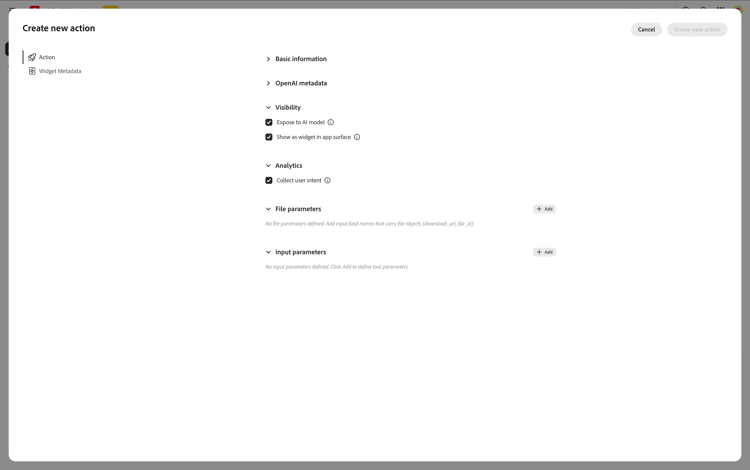
- User intent — when enabled, ChatGPT is asked to summarize the conversation that led to calling this action. That summary is collected and surfaced in analytics, giving you insight into what users were trying to accomplish when the action was triggered.
Widget Metadata tab
This tab configures how the action’s visual response is rendered in the LLM platform. For a full explanation of how widgets work, see Guide: Set Up the Widget (EDS).
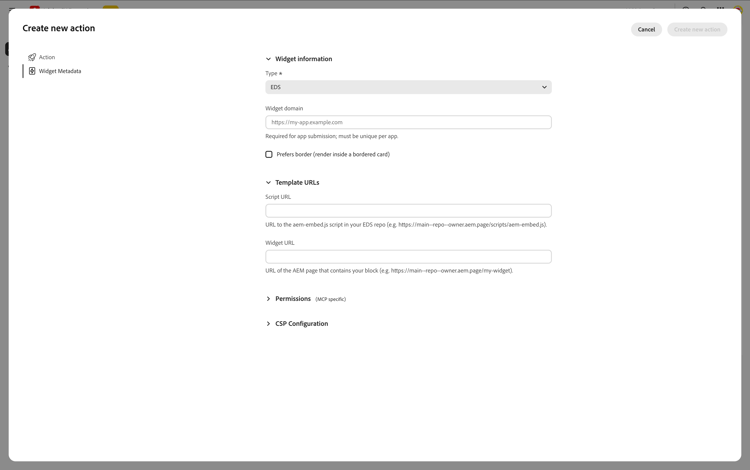
Widget information
- Type — the widget technology (currently EDS).
- Widget domain (sandbox origin) — the origin where your widget is hosted. Required for app submission to OpenAI; must be unique per app.
- Prefers border — renders the widget inside a bordered card.
Template URLs
- Script URL — the entry point that bootstraps the widget, shared across all actions:
https://main--<repo>--<owner>.aem.live/scripts/aem-embed.js - Widget embed URL — the EDS page for this specific action:
https://main--<repo>--<owner>.aem.live/eds-widgets/<action-name>
Permissions
Hardware and browser APIs the widget can access:
CSP Configuration
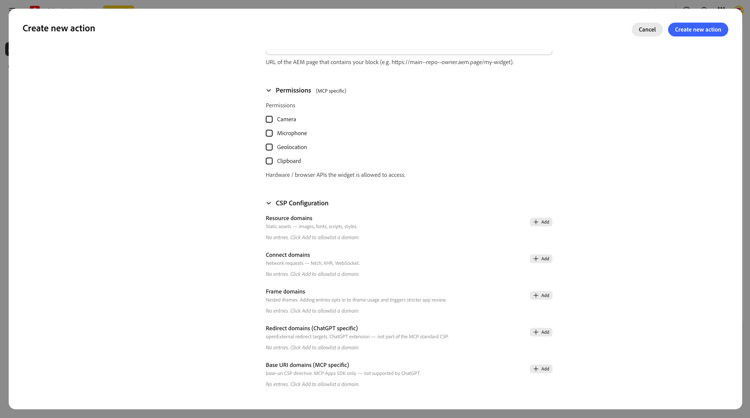
Controls which external domains the widget iframe may contact. Every external domain must be explicitly allowlisted.
fetch, XHR, or WebSocketopenExternal redirect links (ChatGPT-specific)base-uri CSP directive (MCP Apps SDK only, not supported by ChatGPT)Click Create new action to save.
After creating an action
Your action appears as a card on the Actions page:
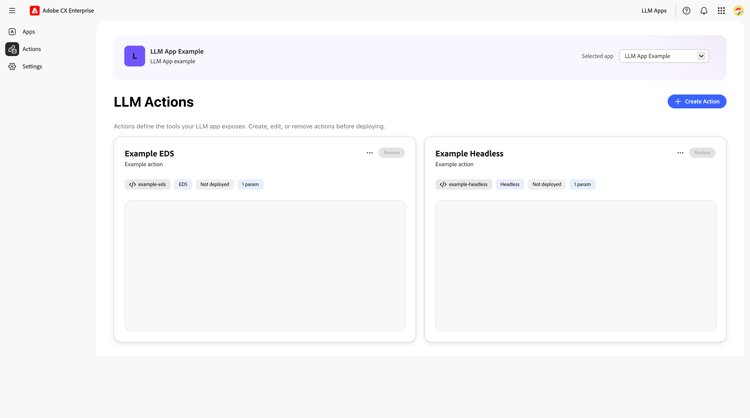
Each card shows the action name, description, type badge (EDS), deployment status (Not deployed), and parameter count. You can click … to edit or delete, or click Review to inspect the configuration.
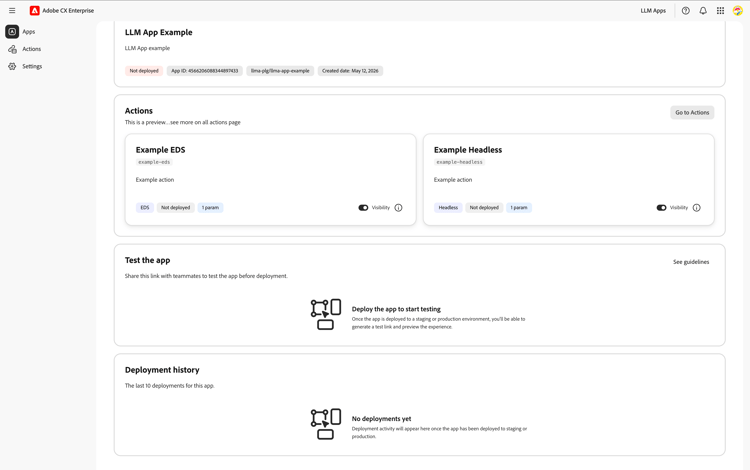
The action metadata is saved, but no code has been deployed yet. To make the action functional, you need to:
- Set up the EDS widget — see Guide: Set Up the Widget (EDS).
- Write the handler — see Guide: Write the Action Handler.
- Deploy — see Guide: Deploy Your App.