Deploy Your App
Once you have written your handler code and pushed it to your linked repository, you can deploy the app from the LLM Apps UI.
Start the deployment
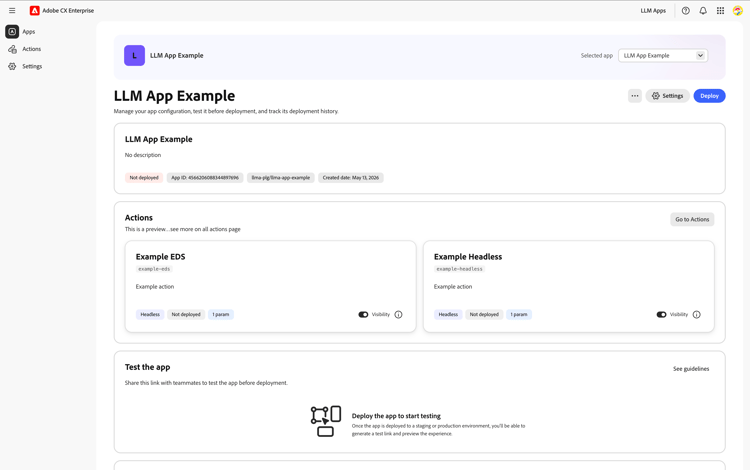
Navigate to the App Detail page. Click the Deploy button in the top-right corner:
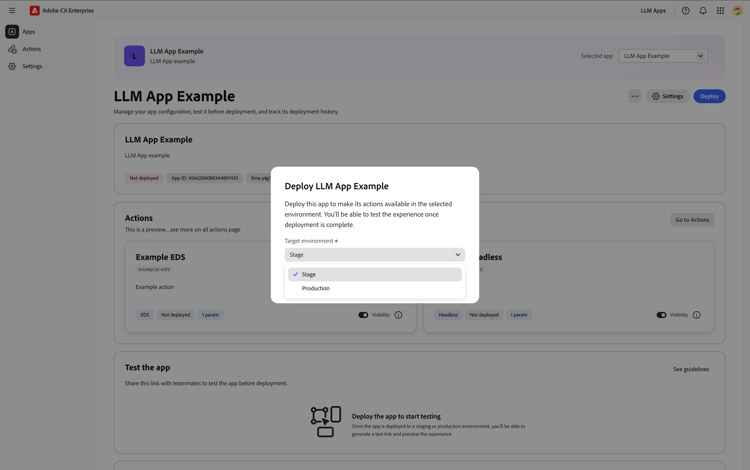
This opens the deployment dialog. Select the target environment from the dropdown:
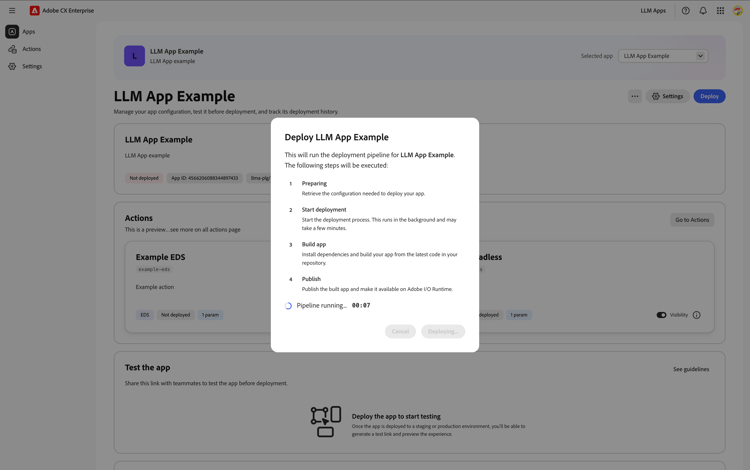
Click Deploy to start the pipeline. The four steps are:
- Gather credentials — reads app metadata, generates a GitHub token, and fetches Runtime credentials from Console API.
- Trigger build pipeline — sends all parameters to the build pipeline.
- Clone and build — the pipeline clones your repository, generates
actions.jsonfrom the UI metadata, runsnpm installand webpack to producedist/index.js. - Deploy to Runtime — deploys the bundle to your app’s Adobe I/O Runtime namespace.
Once started, the pipeline runs automatically and shows real-time progress:
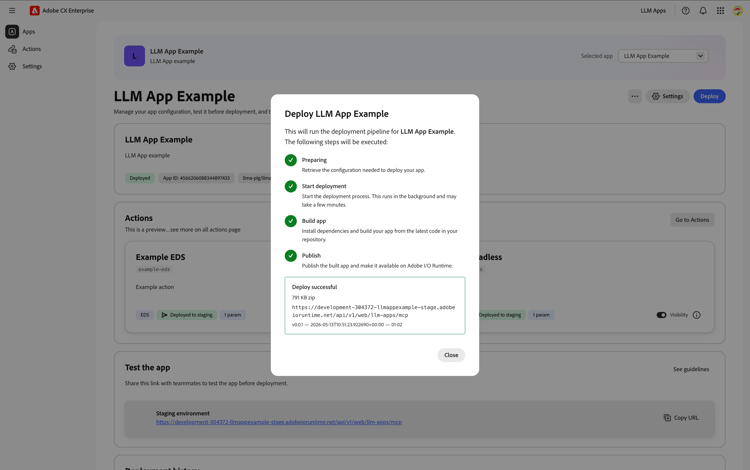
After a successful deployment
When all steps complete, the dialog shows a Deploy successful confirmation with the deployed URL and artifact details:
Click Close to dismiss the dialog. Scroll down to the Test the app section on the App Detail page:
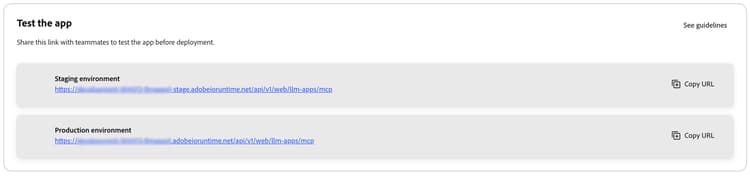
Each environment (Staging and Production) shows the MCP server URL on Adobe I/O Runtime. This is the URL you provide to the LLM platform when registering your app. Click Copy URL to copy it to your clipboard.
The Deployment history section below keeps a full log of every deployment across environments:
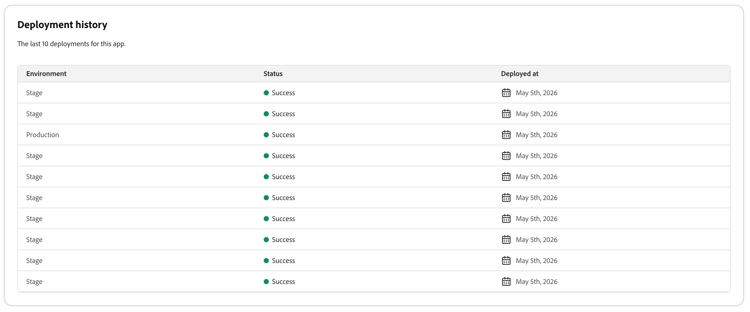
Each row shows the target Environment (Stage or Production), Status (Success or Failed), and the Deployed at date. You can use this table to track when deployments happened and verify that the
latest deployment succeeded.