Set Up the Widget (EDS)
This guide explains how to build an EDS widget end-to-end: from configuring your action in the LLM Apps UI, to setting up your EDS project, to writing the block code that renders your data inside the LLM platform. For a high-level overview, see Core Concepts.
The LLM Apps SDK
Everything starts with the @adobe/llmapps-sdk npm package. The SDK is the JavaScript library that powers the two-way communication channel between the widget and the LLM host.
The SDK also ships aem-embed.js — the EDS-specific entry point that plugs the SDK into the standard EDS block pipeline. When you npm install @adobe/llmapps-sdk, a post-install script automatically copies two files into your project:
scripts/
└── llm-apps/
    ├── aem-embed.js     ← EDS widget entry point, ships with the SDK
    └── llmapps-sdk.js   ← core SDK, loaded internally by aem-embed.js
In EDS projects, you never use the SDK directly in your block code. aem-embed.js creates and manages the SDK connection and passes a fully connected LLMApp instance to your block as the bridge argument in decorate(block, bridge). The full SDK API is available on bridge — no import needed.
If you are building a widget without EDS (a standard bundler or TypeScript project), you can use the SDK directly:
import { LLMApp } from '@adobe/llmapps-sdk';

const app = new LLMApp({ appInfo: { name: 'MyWidget', version: '1.0.0' } });
await app.connect();

const { structuredContent } = await app.toolResult;
How it all fits together
When the AI calls your action and the handler returns structuredContent, the LLM platform renders an interactive widget in the conversation. Three things make this work together:
The LLM Apps UI — when you create an action, you enter a Script URL and a Widget URL in the Widget Metadata tab. The Script URL points to aem-embed.js — the file that ships with the SDK and lives in your EDS repository at scripts/llm-apps/aem-embed.js. This tells the LLM platform which script to load when the action is invoked.
aem-embed.js — the LLM platform loads this script into a sandboxed widget surface. aem-embed.js is a custom HTML element (<aem-embed>) that acts as the EDS-aware entry point for your widget. It performs the handshake with the LLM host using the SDK, suppresses the normal EDS page pipeline (no header/footer), fetches your EDS page content from the Widget URL, runs the EDS block pipeline, and delivers a live bridge object to each block’s decorate() function.
Your block code — you write a standard EDS block that exports a decorate(block, bridge) function. The bridge is the connected SDK instance — it gives you the action’s structured result and lets you send messages back into the conversation.
Add to an existing EDS project
If you already have an EDS project, there are only two steps before you can start writing blocks.
-
Install
@adobe/llmapps-sdk. The post-install script copiesaem-embed.jsandllmapps-sdk.jsintoscripts/llm-apps/:code language-bash npm install @adobe/llmapps-sdk -
Configure CORS headers so the LLM platform can load your widget pages and scripts cross-origin — see Configure CORS headers below.
Then create your block following the decorate(block, bridge) contract, author the widget page, and enter the URLs in the Create Action dialog.
Set up a new EDS project
Create the repository
-
Create a new GitHub repository based on the AEM boilerplate template.
-
Add the AEM Code Sync GitHub App to the repository.
-
Install the AEM CLI for local development:
npm install -g @adobe/aem-cli. -
Install
@adobe/llmapps-sdk. The post-install script copiesaem-embed.jsandllmapps-sdk.jsintoscripts/llm-apps/:code language-bash npm install @adobe/llmapps-sdk
For a complete guide on EDS projects, see the AEM developer tutorial and project anatomy.
Once set up, your EDS site is available at:
- Preview:
https://main--<repo>--<owner>.aem.page/ - Live:
https://main--<repo>--<owner>.aem.live/
Repository structure
my-brand-eds/
├── scripts/
│   ├── llm-apps/
│   │   ├── aem-embed.js           # Widget entry point — copied by post-install
│   │   └── llmapps-sdk.js         # Core SDK — copied by post-install
│   ├── aem.js                     # AEM core library
│   └── scripts.js                 # Site-level decoration and loading
├── blocks/
│   └── search-products/           # One folder per widget block
│       ├── search-products.js
│       └── search-products.css
├── styles/
│   └── styles.css
├── head.html
└── package.json
Configure CORS headers
Your EDS widget pages are loaded inside a sandboxed widget surface by the LLM platform. The EDS site must return correct access-control-allow-origin headers so the host can fetch your widget content cross-origin.
Headers are configured via the AEM admin panel at admin.hlx.page using the Configuration Service. Add custom response headers for the paths where your widget pages and SDK scripts live:
{
  "/<your-widget-pages-path>/**": [
    { "key": "access-control-allow-origin", "value": "*" }
  ],
  "/scripts/**": [
    { "key": "access-control-allow-origin", "value": "*" }
  ]
}
* as the origin value is acceptable for public widget content on the .aem.live domain. If your site contains protected content, restrict the origin to specific domains.Create the widget page
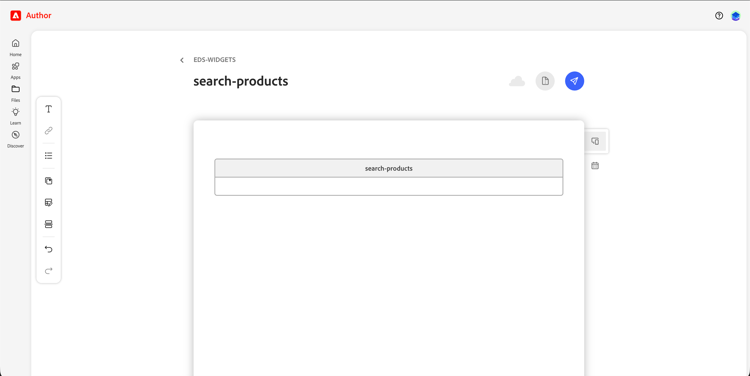
Create a page in your EDS authoring tool and add your block to it. The page URL becomes the Widget URL you configure in the action — that is the only connection between the action and the block. There is no naming requirement between your block and the action name.
Enter the URLs in the Create Action dialog
After setting up your EDS repository, go to Widget Metadata → Template URLs when creating your action:
Script URL — points to aem-embed.js in your EDS repo. This is the same value for every action in the same EDS project:
https://main--<repo>--<owner>.aem.live/scripts/llm-apps/aem-embed.js
Widget URL — the URL of the EDS page you created for this widget. Unique per action:
https://main--<repo>--<owner>.aem.live/<path-to-your-widget-page>
The LLM platform loads aem-embed.js from the Script URL. aem-embed.js then fetches the .plain.html from the Widget URL to get your block content.
Data flow
The complete path from your handler to a rendered widget:
- Action handler returns
structuredContent:
// actions/search-products/index.js
return {
  structuredContent: {
    products: [
      { id: 'COF-001', name: 'Single Origin Ethiopian Coffee', price: '$18', rating: 4.7 },
      { id: 'COF-002', name: 'Colombia Huila Natural', price: '$22', rating: 4.5 },
    ],
    total: 2,
    category: 'coffee'
  }
};
-
LLM platform opens a widget surface and loads
aem-embed.jsfrom the Script URL. -
aem-embed.jsconnects to the host via the SDK, fetches.plain.htmlfrom the Widget URL, runs the EDS block pipeline, and callsdecorate(block, bridge)on your block. -
Your block reads the data from
bridge.toolResultand renders the UI. -
User interaction triggers
bridge.sendMessage(...)orbridge.callTool(...), sending a follow-up into the conversation.
The decorate(block, bridge) contract
Every EDS widget block should export a default decorate function. This is the standard EDS block signature, extended with a second argument — the connected bridge, which is an LLMApp SDK instance with the full API available:
export default async function decorate(block, bridge) {
  // ...
}
bridge is only present when running inside the LLM platform widget surface. Always guard your bridge calls so your block also renders when previewed directly in a browser or your local dev server.
Rendering data from the action result
bridge.toolResult is a Promise that resolves with the full result your handler returned, including structuredContent.
const SAMPLE_PRODUCTS = [
  { id: 'COF-001', name: 'Single Origin Ethiopian Coffee', price: '$18', rating: 4.7 },
];

export default async function decorate(block, bridge) {
  let products = SAMPLE_PRODUCTS;

  if (bridge) {
    const result = await bridge.toolResult;
    products = result?.structuredContent?.products ?? [];
  }

  block.innerHTML = products.map(p => `
    <div class="product-card">
      <h3>${p.name}</h3>
      <p class="price">${p.price}</p>
      <button data-id="${p.id}">Tell me more</button>
    </div>
  `).join('');
}
Applying the host theme
Call bridge.applyHostStyles() early in decorate to inject the host’s CSS variables and fonts (light/dark theme, typography) into the widget. This keeps your widget visually consistent with the surrounding LLM platform UI.
export default async function decorate(block, bridge) {
  if (bridge) {
    bridge.applyHostStyles();
  }
  // ...
}
To react to theme changes at runtime (for example, when the user switches between light and dark mode):
if (bridge) {
  bridge.onContextChange(ctx => {
    block.dataset.theme = ctx.theme; // 'light' | 'dark'
  });
}
Sending a follow-up message
bridge.sendMessage(text) injects a user message into the conversation. This is the primary way a widget triggers further AI interaction — for example, when a user clicks a product card to ask for details.
block.querySelectorAll('button[data-id]').forEach(btn => {
  btn.addEventListener('click', () => {
    bridge.sendMessage(`Show me details for product ${btn.dataset.id}`);
  });
});
Calling another action directly
bridge.callTool(name, args) invokes another action from within the widget without going through a user message. Useful for loading related data on demand.
btn.addEventListener('click', async () => {
  const result = await bridge.callTool('get-product-details', { id: product.id });
  renderDetails(result.structuredContent);
});
Auto-resizing the widget
The LLM platform sizes the widget based on what you report. Use bridge.autoResize(element) to keep the widget height in sync as your content changes — it uses a ResizeObserver internally. Call it after your initial render:
export default async function decorate(block, bridge) {
  // ... render content ...

  if (bridge) {
    bridge.autoResize(block);
  }
}
Or report a fixed size manually:
bridge.reportSize(block.offsetWidth, block.offsetHeight);
Preview mode and local development
When previewing an EDS page directly in a browser or on the local dev server, bridge is undefined. Use the sample data fallback pattern shown above so your block renders immediately without a live handler.
To start a local dev server:
npm install -g @adobe/aem-cli
aem up
This opens http://localhost:3000 where you can navigate to your widget pages and see blocks render with sample data. Changes to block JS and CSS are reflected immediately.