AEM assets integration
Overview
Adobe Learning Manager now integrates with Adobe Experience Manager Assets as a Cloud Service. Teams can store learning content and images in Adobe Experience Manager Assets, import them into Adobe Learning Manager, and manage updates from one place. When an asset changes, linked content in the Content Library can update automatically, so Authors don’t need to re-upload files.
Because your organization manages assets in one place, Authors use current, brand-approved files instead of downloading and re-uploading copies. Adobe Experience Manager Assets also keeps the version history of each file, which gives you a record of which version was live and when.
Setup is a one-time task, and it’s the part that needs the most care. After setup, importing assets works like any other upload.
Who does what
Each role has a separate part in setting up and using the integration.
Supported deployments
Set up the integration
Connect Adobe Learning Manager to Adobe Experience Manager Assets, assign the technical account, and choose your update settings.
This workflow is for Integration Administrators. Complete every step so automatic updates work for your Authors. The setup has five parts: connect to your IMS organization, find the technical account, assign it in Adobe Admin Console, choose your settings, and give Authors access.
Prerequisites setup-prerequisites
You must meet all of these requirements. Missing any of them is the most common reason a connection fails.
- You have the Integration Administrator role in Adobe Learning Manager. The connection workflow is available only to this role.
- You’re an IMS Organization Administrator for the Adobe Identity Management System (IMS) organization you select.
- You have access to at least one organization where AEM Assets instances can be associated with Learning Manager.
If you aren’t an IMS Organization Administrator, ask your IT administrator to either grant you access or run the connection with you.
How Adobe Learning Manager maps to your IMS organization
Each Adobe Learning Manager account connects to one IMS organization (also called an IMS profile). Keep the following in mind when you plan your setup:
- An IMS organization can contain several programs and environments, and each program can have Adobe Experience Manager Assets instances. You can use any of those instances with the connected account.
- Instances in a different IMS organization can’t be used with that account.
- An IMS organization linked to one Adobe Learning Manager account can’t be linked to another account at the same time.
Connect to your IMS organization
-
Sign in to Adobe Learning Manager as an Integration Administrator.
-
Select Adobe Experience Manager Assets as the connector type.
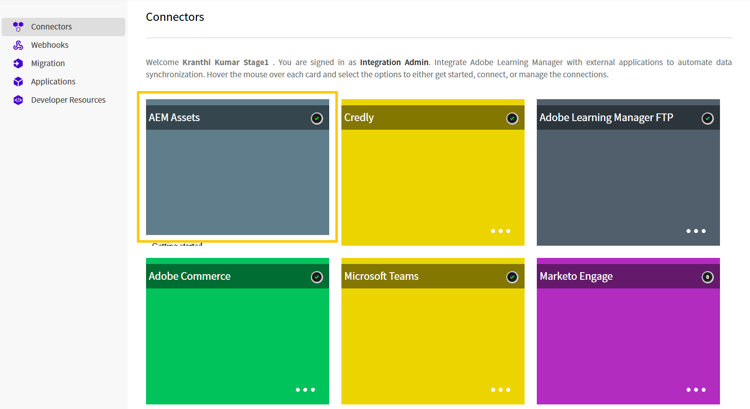
-
Select Connect.
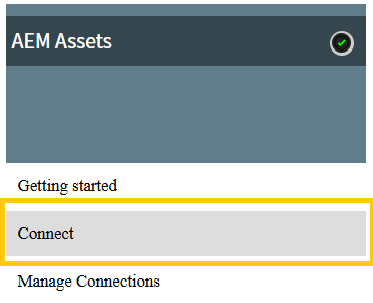
-
Sign in with your Adobe ID when prompted, and select the IMS organization that contains your Adobe Experience Manager Assets instances.

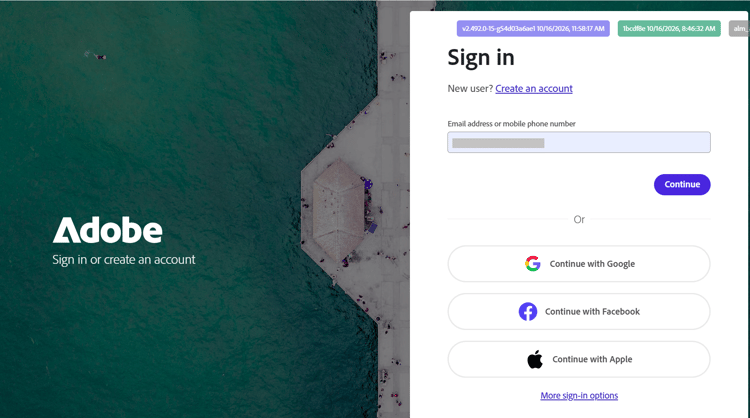
Adobe Learning Manager then verifies your IMS Organization Administrator role and your instance access. If both checks pass, it links your account to the already created IMS account with AEM Assets Author API scope to the selected IMS organization and creates a technical account for your organization. The connection overview page then opens and shows the technical account details.
Find the technical account
The technical account is created specifically for your organization. Adobe Learning Manager uses it to read or write using AEM Assets Open API in the background.
- Log in as Integration Administrator, open the Adobe Experience Manager Assets connection overview page.
- In the Credentials section, find the Technical account email.
- Copy the technical account email. You’ll use it to find the account in Adobe Admin Console.
Assign the technical account in Adobe Admin Console
Add the technical account to a product profile for each Adobe Experience Manager Assets instance that you want Adobe Learning Manager to use. For example, if you have 10 instances and want only 6 of them to work with Adobe Learning Manager, assign the account to the profiles of those 6 instances.
-
Sign in to Adobe Admin Console as an administrator of the same IMS organization.
-
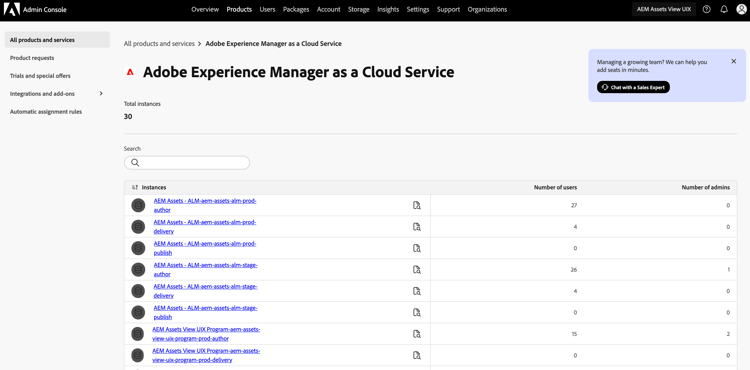
Select Products and services, and then select Adobe Experience Manager as a Cloud Service.
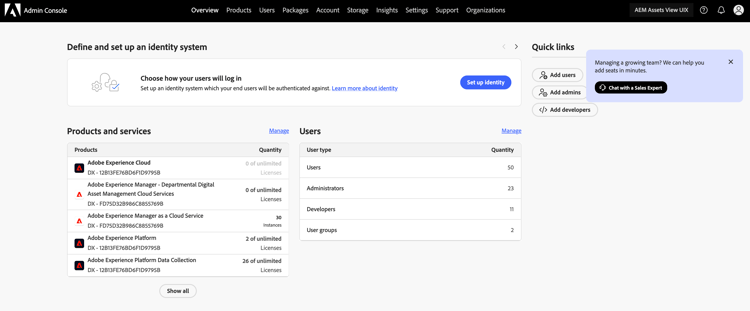
-
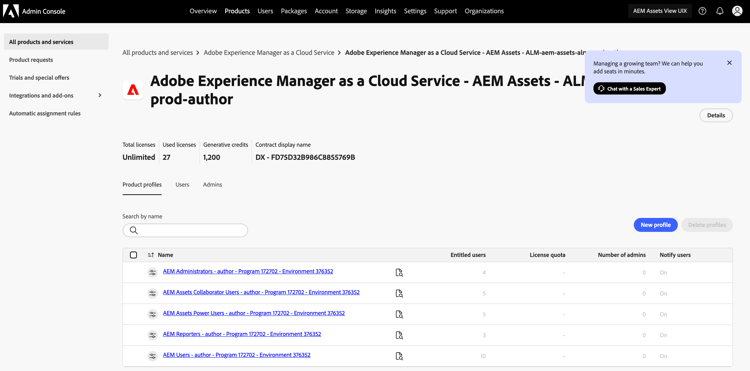
Select the instance that you want to use with Adobe Learning Manager.
-
Open the product profile that has the access that Adobe Learning Manager needs. For example, the AEM Administrators profile.
-
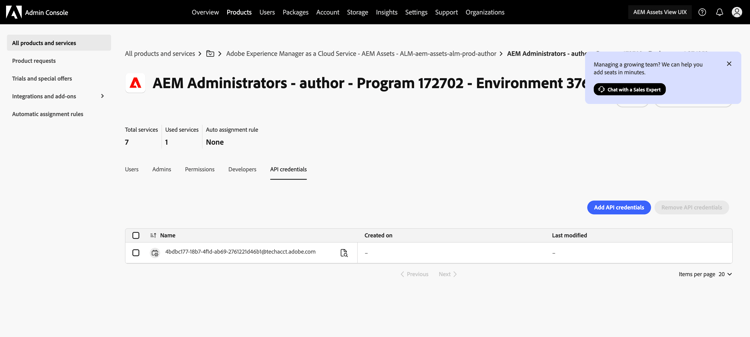
Select Add API credentials.
-
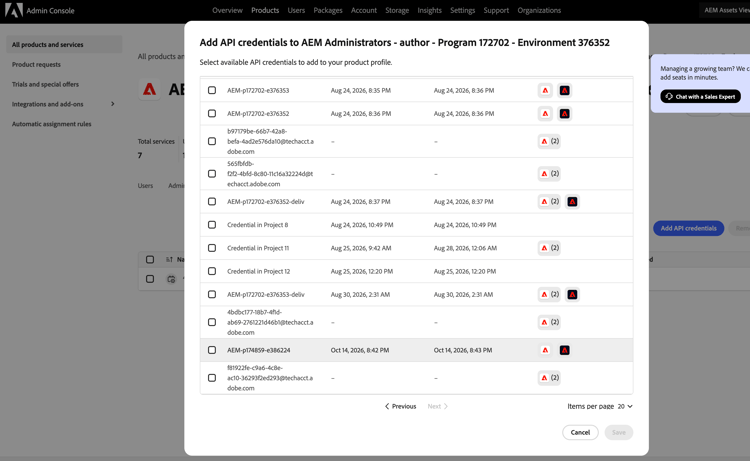
Search for the technical account. Match it with the technical account email that you copied from Integration Administrator. The account is usually at the bottom of the list.
-
Select the technical account, and then select Save.
-
Repeat steps 3 to 7 for each instance that you want to use.
If the profile’s API credentials list is empty, the technical account isn’t assigned yet. To learn more about product profiles and API credentials, see the Adobe Admin Console documentation.
Choose your integration settings
After you connect, enable the connection and choose how Adobe Learning Manager handles updates and previews.
Update to learning object is a child setting of automatic updates. It can only be enabled if automatic updates is enabled first. If you turn off automatic updates, Authors update content manually in the Content Library.
Give Authors access to Adobe Experience Manager Assets give-authors-access
Setting up the integration doesn’t give Authors access to your assets. Each Adobe Learning Manager Author or Administrator who imports assets must also have access to the corresponding Adobe Experience Manager Assets author instance.
- Add Authors as users of the Adobe Experience Manager Assets author instance, in the same IMS organization.
- Give them at least the access they need to browse and select assets. Your Adobe Experience Manager administrator decides which roles and product profiles to use.
Verify the setup
- Wait for the settings delay described above to pass.
- Sign in as an Author with access to the instance.
- In the Content Library, select Browse, and confirm that AEM Assets appears next to Device.
- Import an asset and confirm that it imports.
- If the asset gets replaced or is a new version or is reprocessed, it is updated within a few minutes in most cases or in rare cases it might take up to an hour. If it takes longer than an hour, you can reprocess the asset in AEM Assets.
Import content from Adobe Experience Manager Assets
Import learning content and images from Adobe Experience Manager Assets, and build courses on content that stays up to date.
This workflow is for Authors. Your Integration Administrator must set up the integration first.
Prerequisites import-prerequisites
- Your Integration Administrator has connected the account and enabled the connection.
- You have access to the Adobe Experience Manager Assets author instance that holds your assets, in the connected IMS organization. Your Adobe Experience Manager administrator grants this access. See Give Authors access to Adobe Experience Manager Assets.
After the integration is enabled, any upload option in Adobe Learning Manager that supports it shows two sources: Device and AEM Assets. This includes the Content Library and the upload options for course images. Device remains available, so you can still upload files from your computer.
Where you can import from
The AEM Assets option appears at the upload locations that support it. Upload from Device remains. You can import:
- Module content from the Content Library.
- Images, such as course cover images and banner images.
- Job aids
Only file types supported at that upload location appear. For example, the cover image option shows only images. Supported types include images (JPEG, PNG, SVG), video (MP4), and documents (PDF, SCORM packages, PowerPoint, and Word). File extensions and size limits are the same as for other uploads at that location.
Content and images are handled differently
Import content to the Content Library
- Open the Content Library, and add content.
- Select Browse.
- Select AEM Assets.
- If prompted, sign in with your Adobe ID.
- In the Adobe Experience Manager Assets window, browse to the asset. If you have access to more than one repository (AEM instance enabled with AEM Assets), switch between them as needed.
- Select the asset, and then complete the upload and save.
- Create your course using the content group.
Keep the following in mind:
- You select assets one at a time. Bulk import and folder import aren’t available, and you can’t migrate an existing Content Library to Adobe Experience Manager Assets.
- The asset picker lets you open an asset in Adobe Experience Manager Assets.
- Adobe Learning Manager doesn’t deliver content directly from Adobe Experience Manager Assets. It copies each imported asset and keeps a local copy.
- Imported content is processed like any other content in Adobe Learning Manager, including transcription for Learner Assistant.
Add job aids
Select job aid files, such as PDFs and reference documents, from AEM Assets the same way you import Content Library content.
Authors without access
If an Author doesn’t have access to Adobe Experience Manager Assets for the connected IMS organization, they see a message about their limited access when they select AEM Assets.
Keep content up to date
Keep linked Content Library items current as assets change in Adobe Experience Manager Assets.
How automatic updates work
When automatic updates are turned on from the Integration Administrator section and the technical account is assigned, Adobe Learning Manager keeps the Content Library in sync with Adobe Experience Manager Assets.
- In Adobe Experience Manager Assets, upload a new version of the asset, or restore a previous version.
- Adobe Experience Manager Assets finishes processing the asset. If the asset gets replaced, it is updated within a few minutes in most cases or in rare cases it might take up to an hour. If it takes longer than an hour, you can reprocess the asset in AEM Assets.
- Adobe Learning Manager updates the linked Content Library items and increments the version number.
- If Update to learning objects is on, learning objects that use those items are updated too. Both currently enrolled learners and future learners get the latest version.
- Learners get the latest version the next time they launch the content. A learner who already has the content open needs to close and relaunch it.
The update isn’t instant. Wait a short while, and refresh the Content Library to see the change.
Update content manually
If automatic updates are off, or the technical account isn’t assigned in Adobe Admin Console, update content manually:
- Open the item in the Content Library.
- Select the updated file from AEM Assets.
- Select Save.
How updates apply across locales
If several locales of a multilingual Content Library item use the same asset, updating that asset updates all of those locales. Locales that use a different asset aren’t affected.
How many content groups an asset can have
A single asset can be linked to up to 10 content groups.
Preview content from Adobe Experience Manager Assets
Use preview links to review SCORM and HTML content without launching it as a learner.
If the Public preview link setting is switched on, Adobe Learning Manager creates a preview link for supported content that you import to the Content Library, and saves it in the asset’s metadata in Adobe Experience Manager Assets.
The preview link is created for these content types:
- SCORM 1.2
- SCORM 2004
- HTML
To find and use the link:
-
In Adobe Experience Manager Assets, open the asset’s properties.
-
In the metadata, find the preview link.
-
Copy the link and paste it into a browser to preview the asset.
Anyone who opens the asset’s metadata can see and use this link.
When assets, access, or connections change
Understand how deleting an asset, losing access, or disconnecting affects your content.
What happens when you delete an asset delete-asset
Courses that already use the content keep working even if you delete the source asset. How the deletion affects the Content Library depends on the locales of the Content Group.
When a content group gets retired:
- Existing courses keep playing the copied content.
- You can’t use the content group to create new course associations.
- You can’t edit the content group.
What happens if an Author loses access
Content the Author imported earlier keeps working. But the Author can’t import new assets from that instance, create content groups, or edit existing content groups that use it.
What happens if you disconnect
Imported content and images stay in Adobe Learning Manager because they’re copies. The links to the source assets are broken, so linked content no longer updates. Learning objects and content groups continue to work.
Troubleshooting
I can’t connect or can’t see the connector
Make sure you have the Integration Administrator role in Adobe Learning Manager.
The connection fails even though I’m an IMS Organization Administrator
Make sure you also have access to at least one Adobe Experience Manager Assets instance in the selected IMS organization. This can happen when your IT support team administers the organization but isn’t assigned to Adobe Experience Manager Assets products. Ask your Adobe Experience Manager administrator to add you to an instance, and then connect again.
My Adobe Experience Manager Assets instance isn’t listed
Make sure the instance belongs to the IMS organization that’s linked to your Adobe Learning Manager account, and that it’s an author instance of Adobe Experience Manager Assets as a Cloud Service.
I don’t see AEM Assets as an upload option
Ask your Integration Administrator to confirm that the connection is enabled, and allow up to one hour after enabling it.
An Author can’t see assets or can’t import
Ask your Adobe Experience Manager administrator to give the Author access to the Adobe Experience Manager Assets author instance in the connected IMS organization.
Content didn’t update, or my course shows old content
- Confirm that automatic updates are on in Integration Administrator settings, and allow time for the change to take effect.
- Confirm that the technical account is assigned to the product profile of the instance in Adobe Admin Console.
- Relaunch the content. If it still shows old content, update it manually.
A content group is retired
The source asset was deleted in Adobe Experience Manager Assets. See What happens when you delete an asset.
The preview link doesn’t appear in the asset metadata
Confirm that Public preview link is on, that the content is SCORM 1.2, SCORM 2004, or HTML, and that you’ve waited up to one hour after turning on the setting.
AEM Assets Integration - FAQs
Q. Does ALM deliver learning content directly from AEM Assets?
A. No. We copy the content from AEM Assets to ALM and keep a local copy in ALM.
Q. What happens when an asset is updated in AEM Assets?
A. If the Auto-update option is enabled in ALM, the corresponding content associated with AEM Assets gets updated and so does the version.
Q. Can Administrators control whether AEM updates can automatically reach courses?
A. Yes. During the integration, the Integration Administrator should select Auto-update and decide whether the update applies automatically to the Learning Objects as well. Based on the account settings, the update to the learning objects will work.
Q. Can Authors still upload files from their computer?
A. Yes
Q. Can customers migrate their existing ALM Content Library to AEM Assets?
A. No. There is no such provision as of today.
Q. Can an entire AEM Assets folder be imported into Content Library?
A. No. There is no such provision as of today.
Q. Does the integration support bulk importing of assets?
A. No, there is no such provision as of today.
Q. What ALM content can be selected from AEM Assets?
A. We support the same file extensions that we support today at each upload location. The filters are applied when the AEM Content Advisor opens at that upload touchpoint.
Q. Do content assets and image assets behave the same way?
A. The Auto-update feature is only applicable to Content Assets, not to any other assets in ALM.
Q. Can an image originally sourced from AEM Assets later be replaced with a local file?
A. Yes
Q. What AEM Assets can an ALM Author see?
A. An ALM Author can see all the folders and files that they have access to, based on their user permissions in AEM Assets.
Q. What happens if an Author’s AEM access is removed?
A. The Author will not be able to edit or create Content Groups from AEM Assets, because they no longer have access to that IMS profile’s asset instances through the AEM Content Advisor.
Q. What happens if the AEM Assets integration is disabled or disconnected?
A. Learning Objects and Content Groups still work, but the Auto-update feature of those assets will stop and will not proceed further.
Q. Does the integration support AEM on-premises?
A. No. It supports only cloud instances.
Q. Can one ALM account connect to multiple AEM Assets accounts?
A. ALM account maps to IMS profile and all AEM Assets instance in that IMS profile can be connected and used. Once IMS profile links to an ALM Account then that IMS profile cannot be linked to another ALM account.
Q. Can content imported from AEM Assets be used by Learner Assistant?
A. If the content imported from AEM Assets is used to create a course, then the same can be referenced by the Learner Assistant in relevant conversations.
Q. Can Authors preview an AEM asset before selecting it?
A. No. The preview feature is not available before selecting the asset although AEM Assets supports preview for few file formats.
Q. Does ALM generate a public preview link?
A. Yes, only for SCORM 1.2, SCORM 2004 and HTML files. This is possible only when public preview feature is enabled by Integration Administrator.
Related links: