Create a course with Safe Exam Browser
Authors can add quizzes to courses that require Safe Exam Browser to provide a secure, restricted assessment environment. Safe Exam Browser applies only to individual native Adobe Learning Manager quizzes and does not restrict access to other modules in the course.
Before adding the quiz to a course, ensure that Safe Exam Browser is enabled for the quiz. If the course includes other delivery types, such as virtual classroom modules, those modules continue to function independently of the Safe Exam Browser requirement.
This article explains how to add a Safe Exam Browser-enabled quiz to a course and configure its settings for the course.
Create a quiz with Safe Exam Browser mode
Safe Exam Browser mode determines whether Learners should use Safe Exam Browser to take the quiz. The option appears only after an Administrator enables Safe Exam Browser integration for the account. View Enable Safe Exam browser for more information.
To create a quiz with Safe Exam Browser mode:
-
Login to the ALM as an Author.
-
Select Create Content.
The Content Library page appears.
-
Select Add > Quiz.
The Create Quiz page opens.
-
Enter a name for the quiz in the Name field.
-
(Optional) Enter a description for the quiz in the Description field.
-
Select Add quiz question and add the Passing Criteria.
-
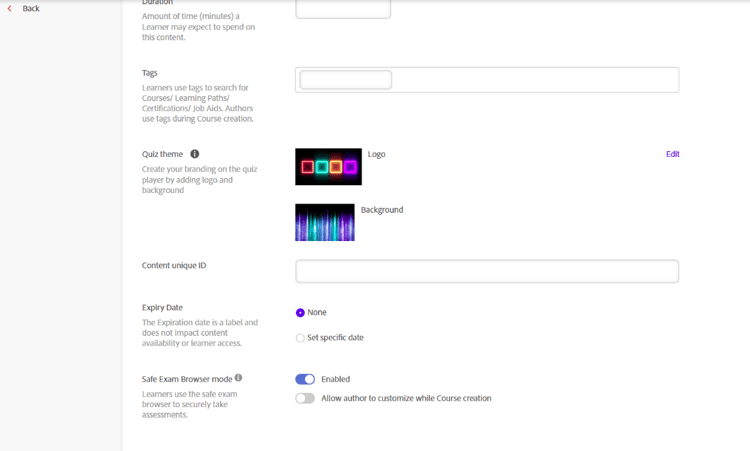
Enable Safe Exam Browser mode. The Allow author to customize while Course creation option appears.
-
(Optional) Enable Allow author to customize while Course creation.
The Safe Exam Browser option appears when you configure the course code.
note NOTE If the Administrator enables this option, you can enable or disable the Safe Exam Browser (SEB) requirement for a course quiz module. If the Administrator disables this option, SEB becomes mandatory for the quiz, and you cannot change this requirement. View Enable Safe Exam Browser integration for more information. -
Select Publish.
Add a Safe Exam Browser-enabled quiz to a course
Add the quiz as a self-paced module to require Safe Exam Browser for that assessment. Before you begin, ensure that the quiz is published with Safe Exam Browser enabled. View Enable afe Exam Browser for more information.
To add the quiz to a course:
-
Select Create course and enter the course name and description.
-
Select Add Modules from the Modules page.
The Modules pop up appears.
-
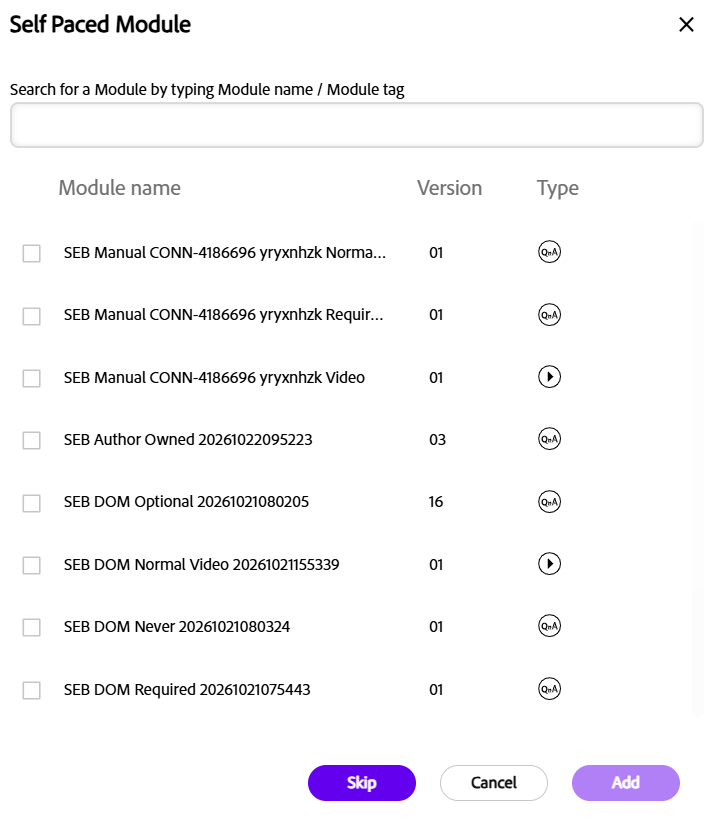
Select Self-paced learning. The Self Paced Module dialog box opens.
-
Select the checkbox next to the Safe Exam Browser quiz that you created.
-
Select Add. The quiz is added to the course as a self-paced module.
-
(Optional) To add another delivery type to the course, select Add More Delivery Types and configure the required module.
-
Select Save > Publish.
The course now includes an assessment that requires Learners to use Safe Exam Browser.
View Launch a quiz in Safe Exam Browser to learn how Learners can access and take quizzes using Safe Exam Browser.